How to Add New Management Fee Setting to a Property with Existing settings
44 views 0 September 17, 2025 mippsupportadmin
1. Log Into Property Portal
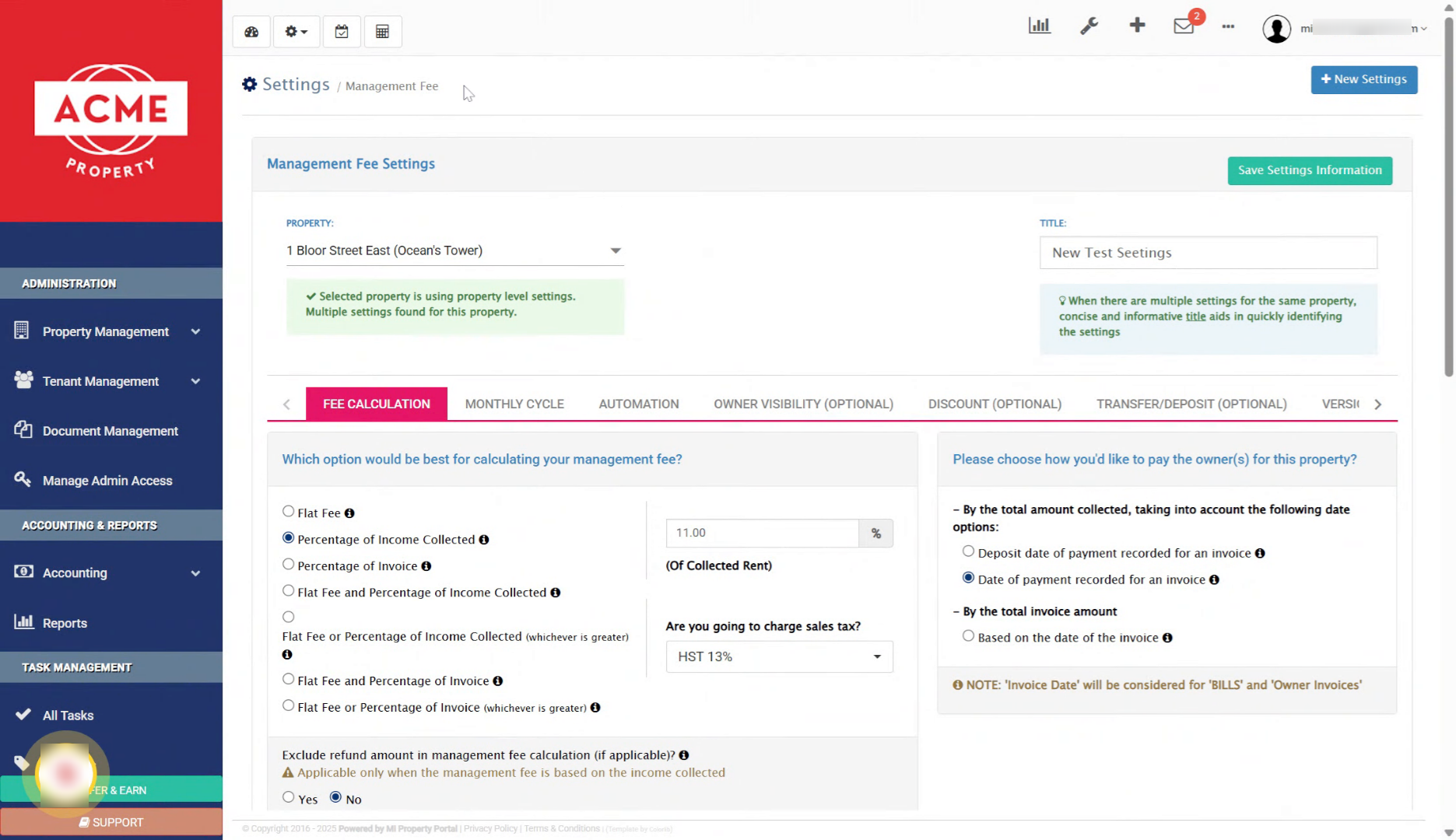
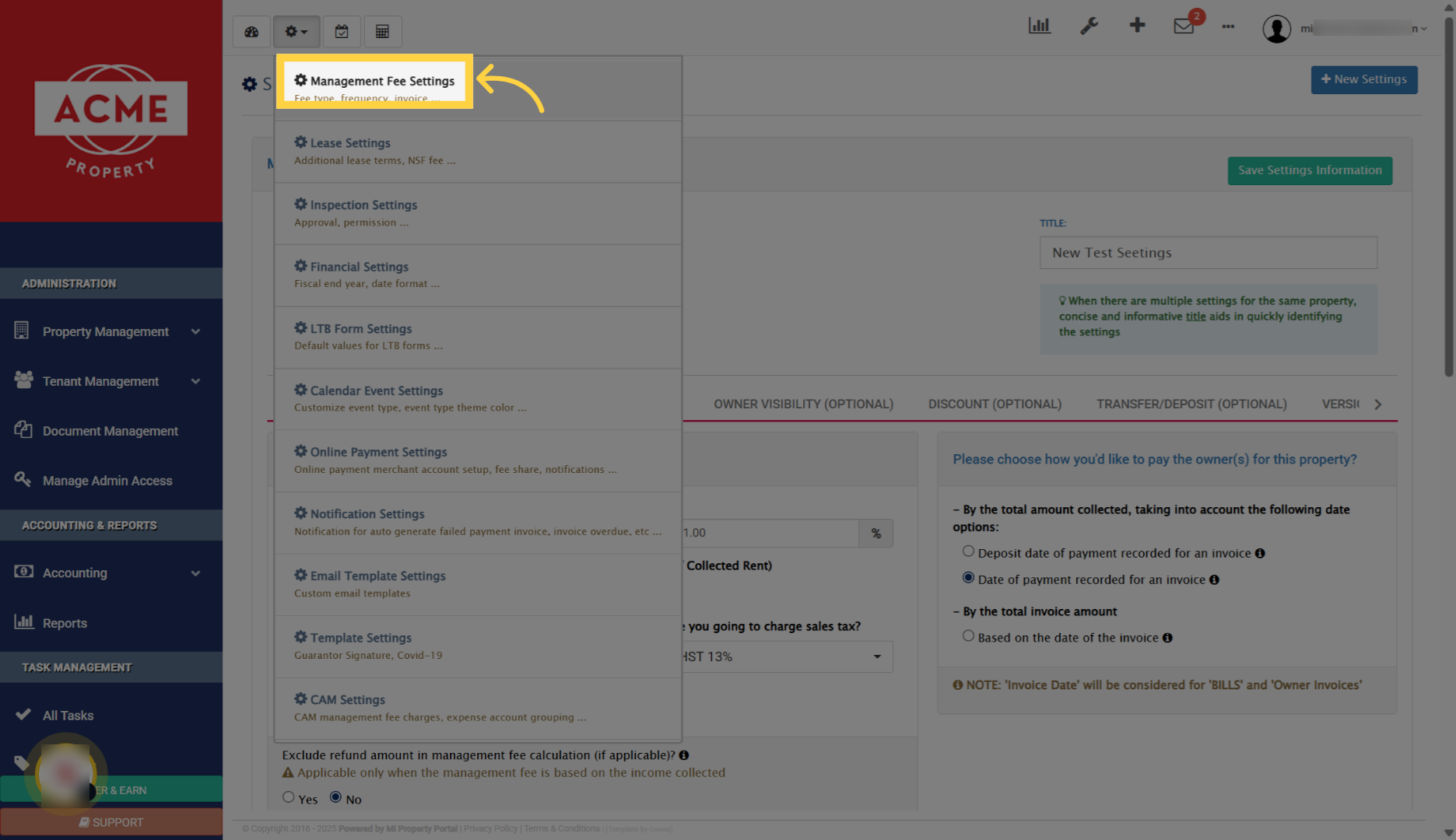
2. Access Management Fee Settings
3. Select Property for Settings
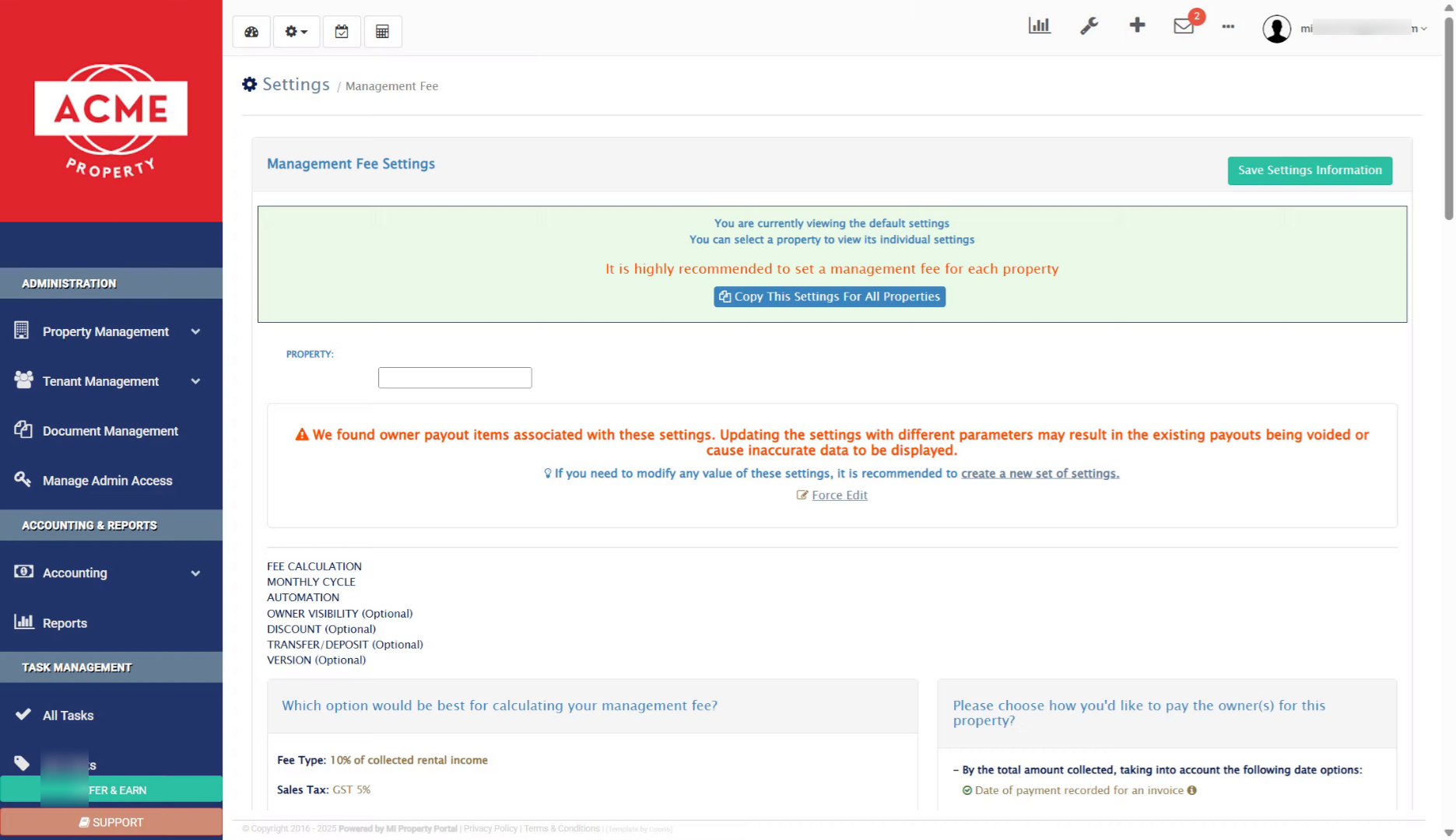
4. Choose Specific Property
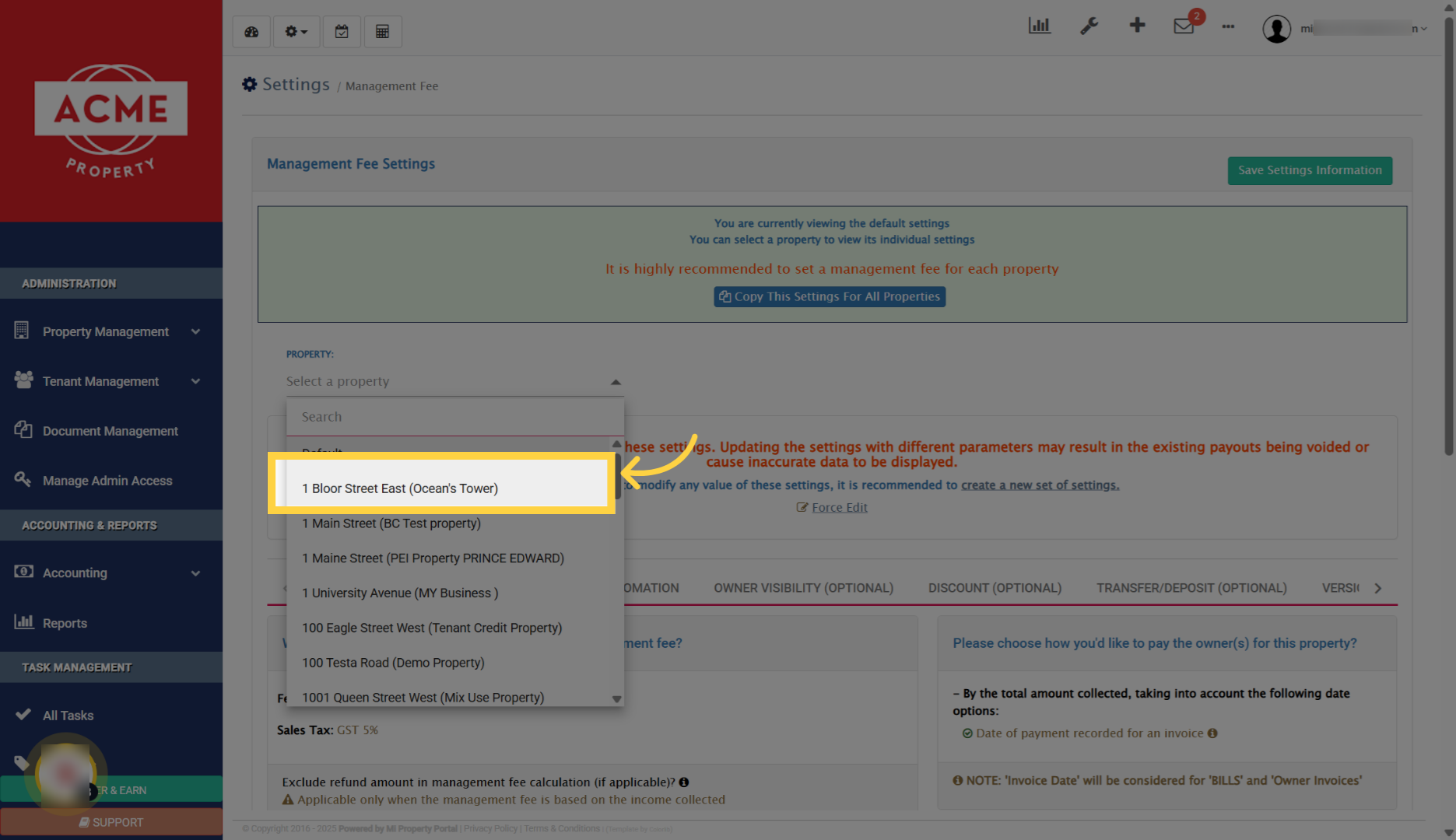
5. Initiate New Settings Creation
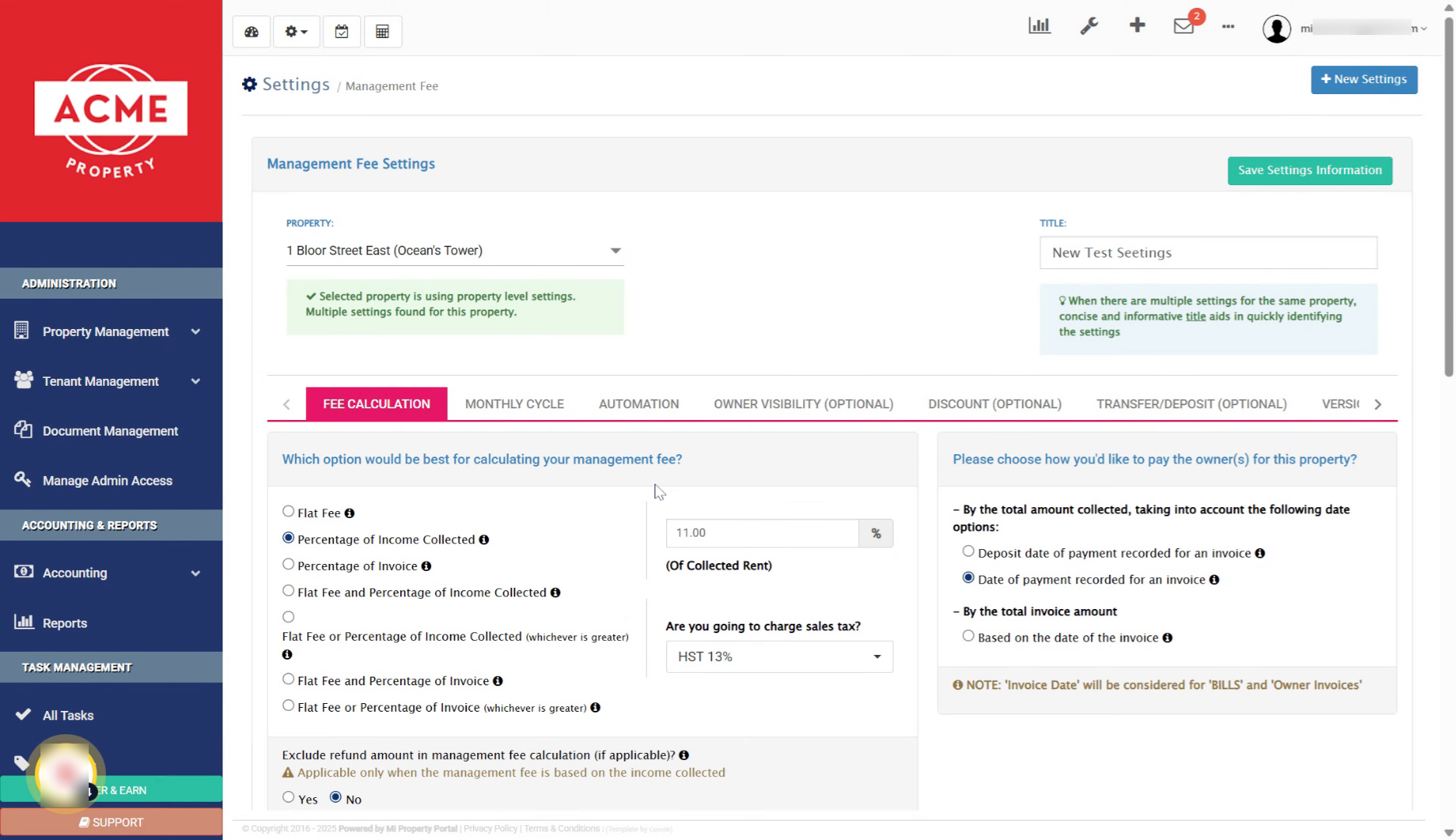
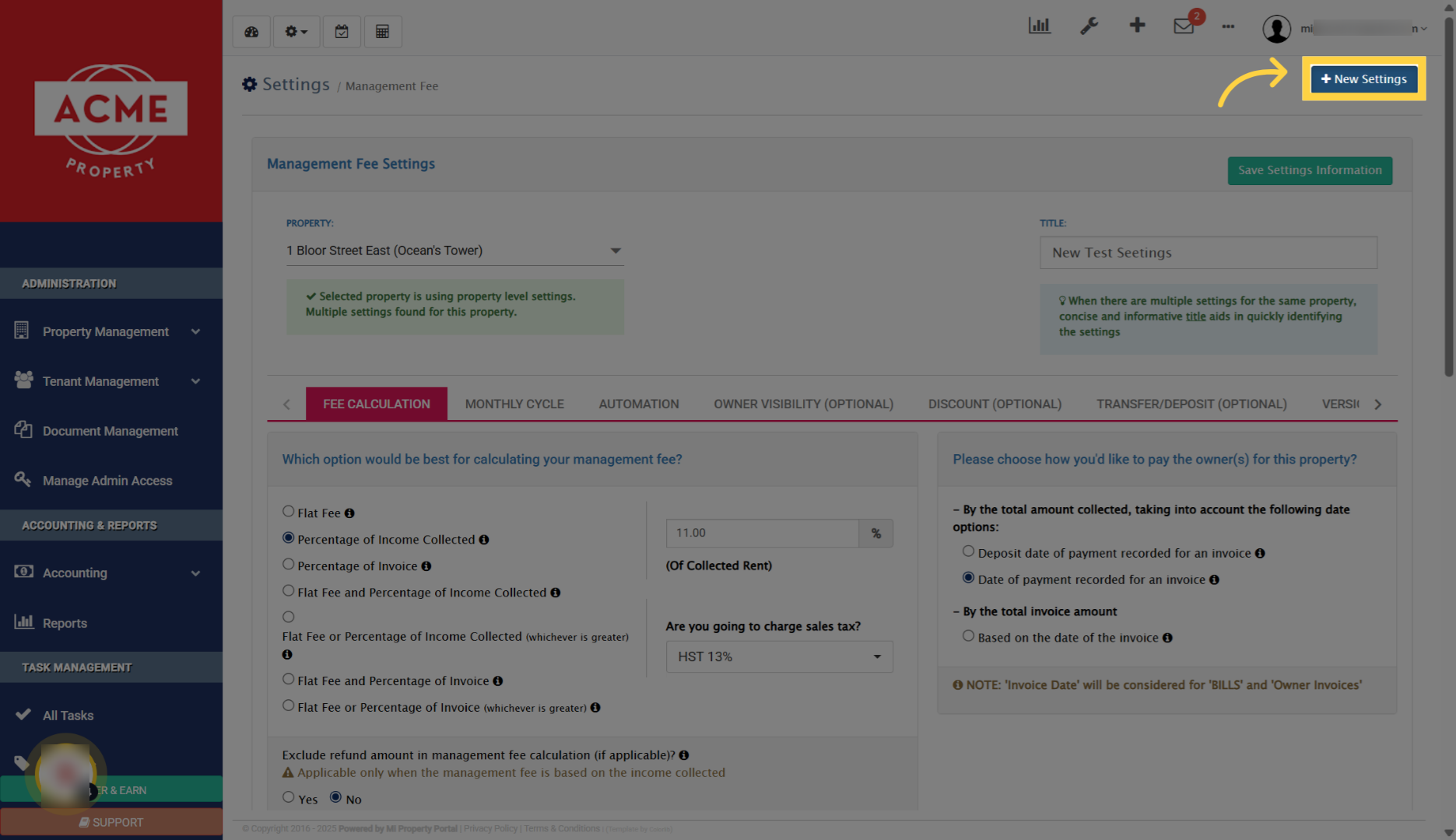
6. Click New Settings Button
7. Enter Title for New Settings
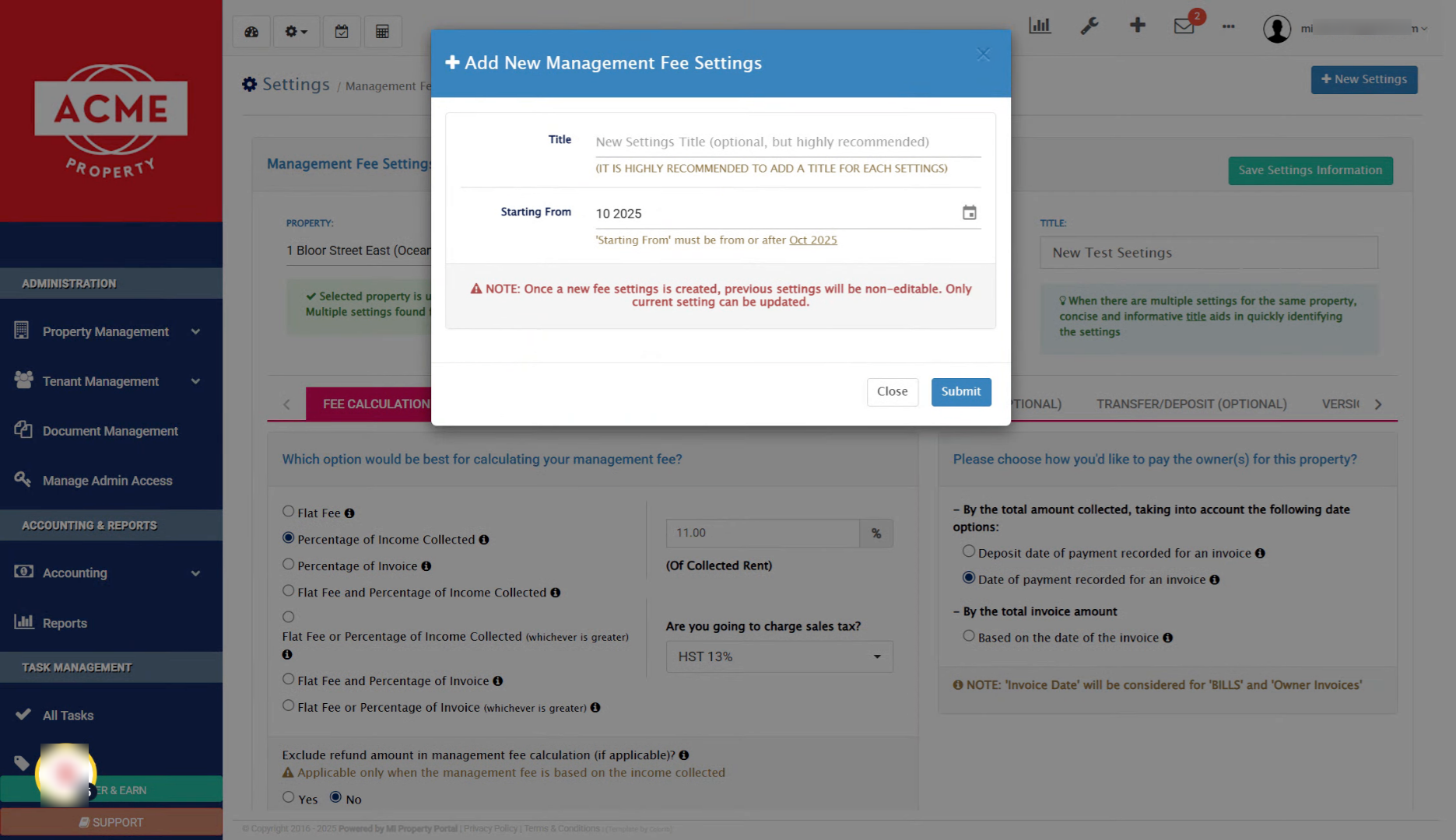
8. Specify Starting Cycle Month
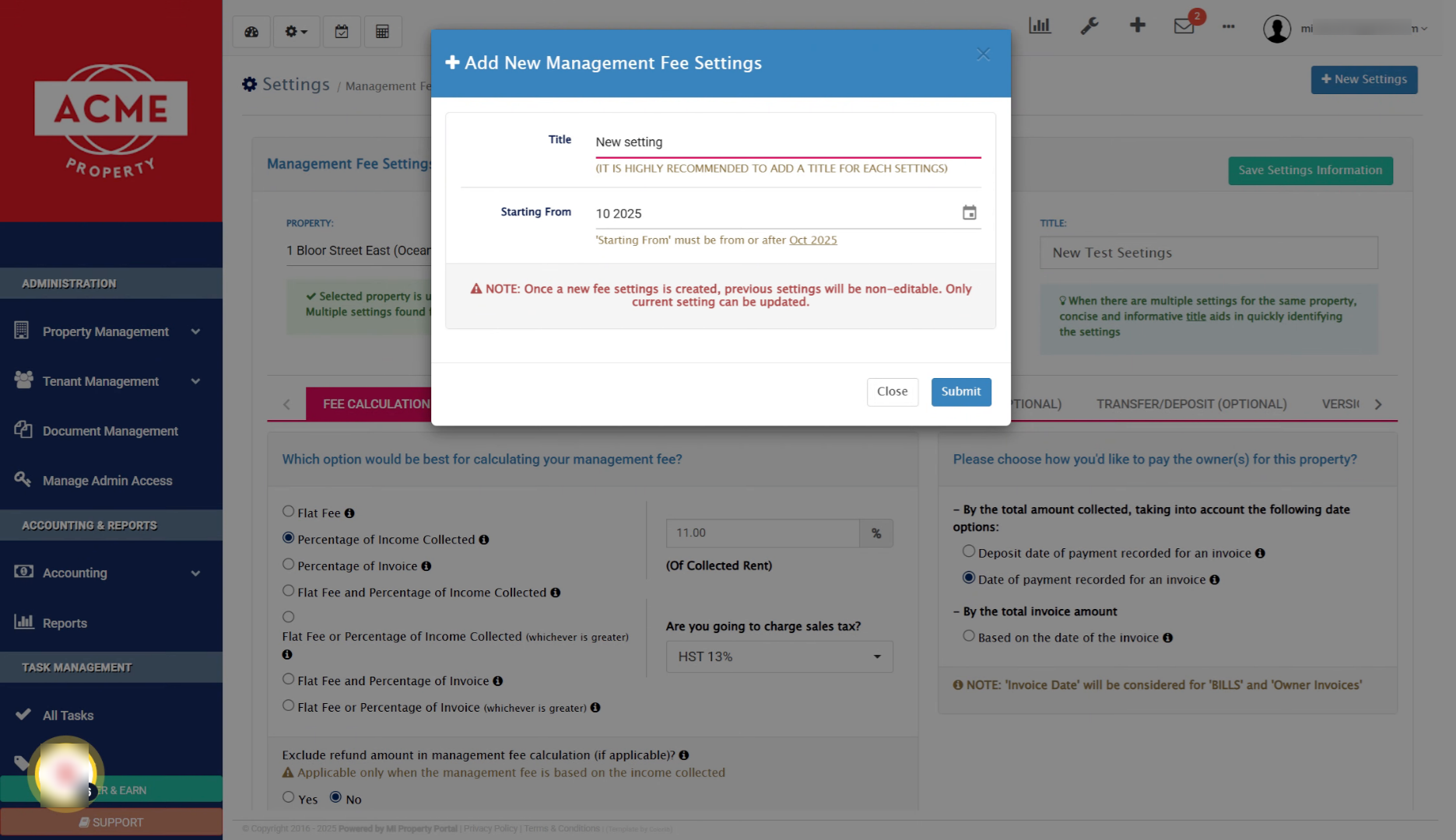
9. Choose Starting Month for Cycle
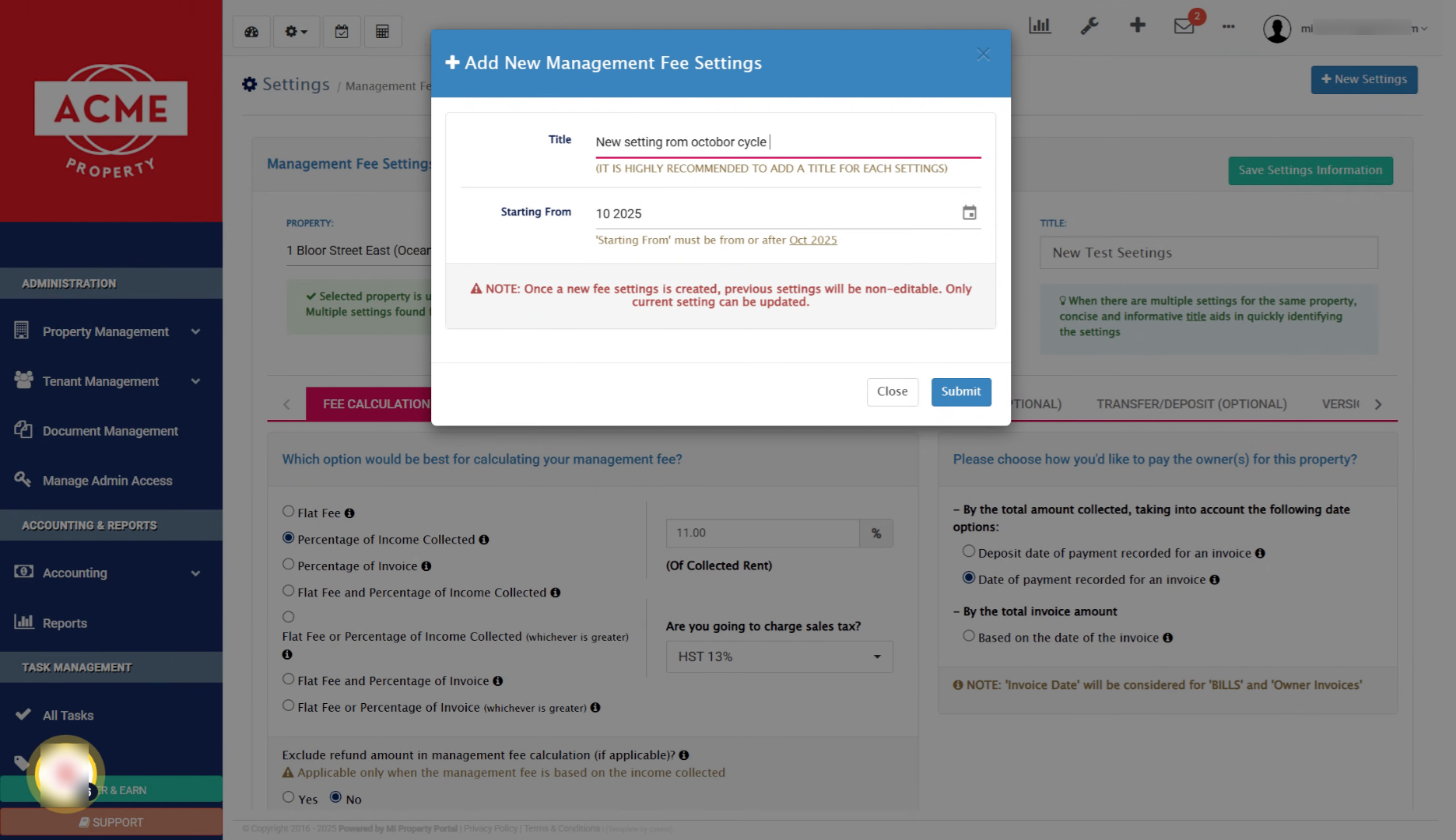
10. System Auto-Selects Next Month
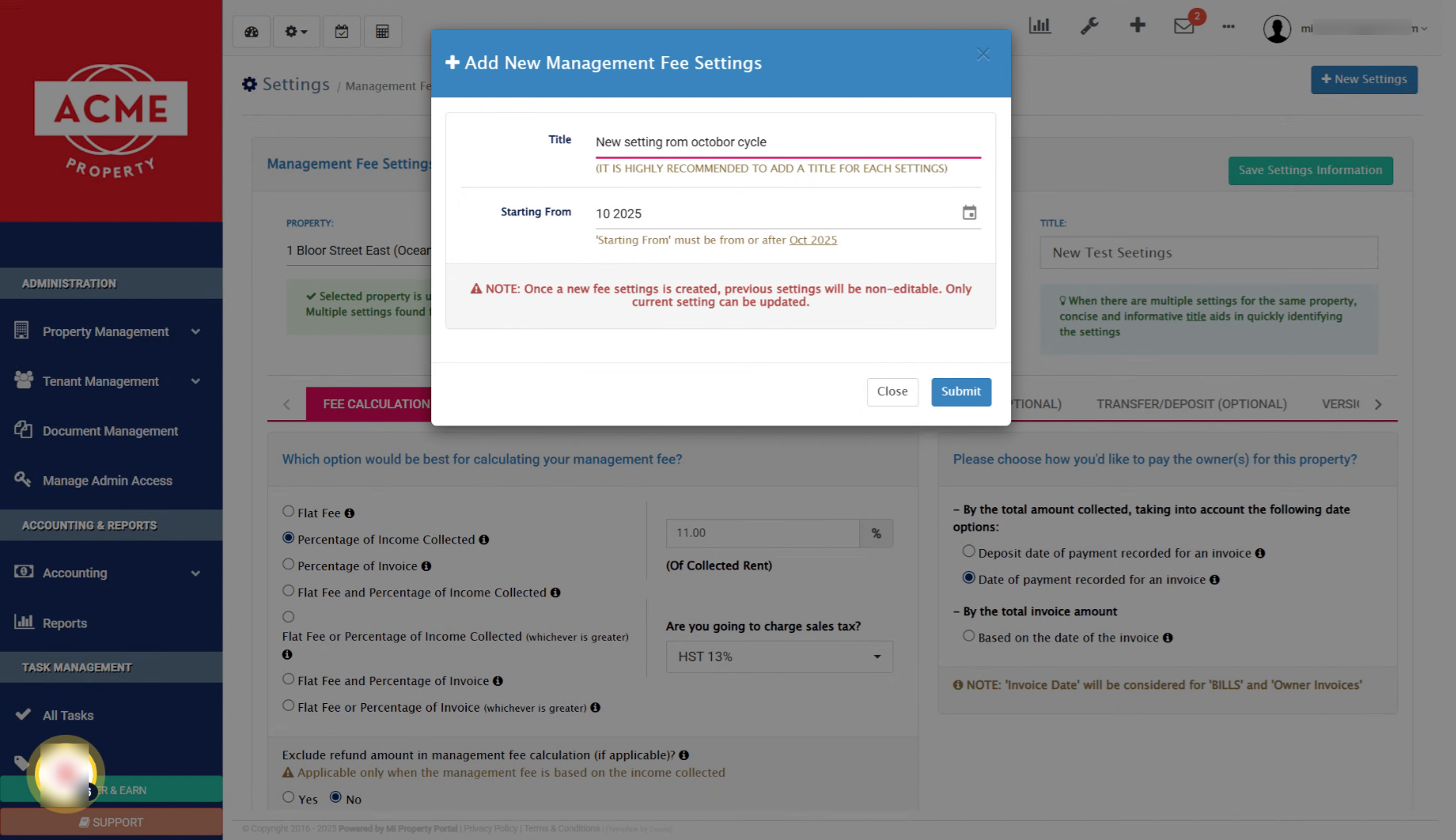
11. Confirm Starting Month Selection
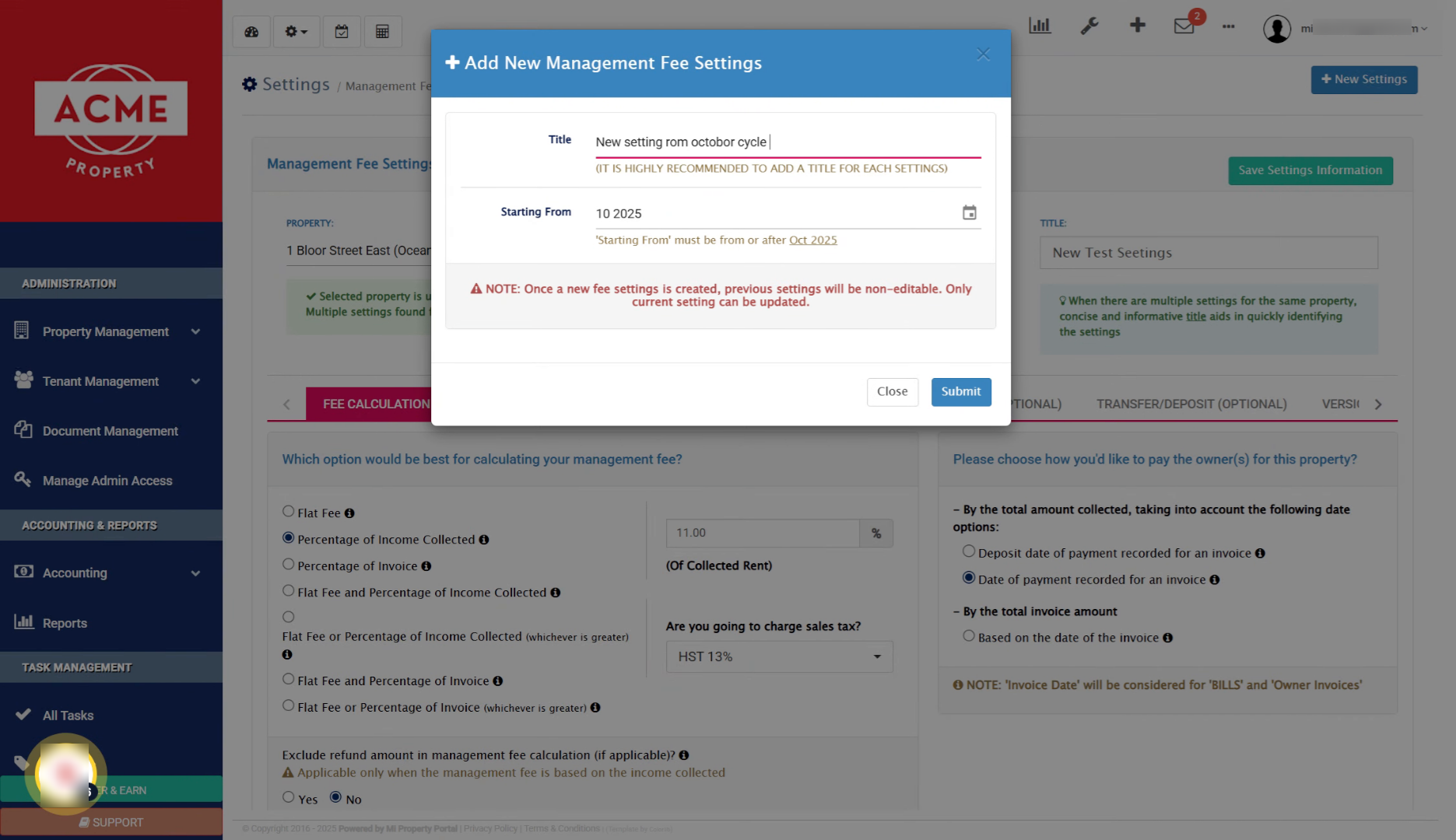
12. New Settings Created Confirmation
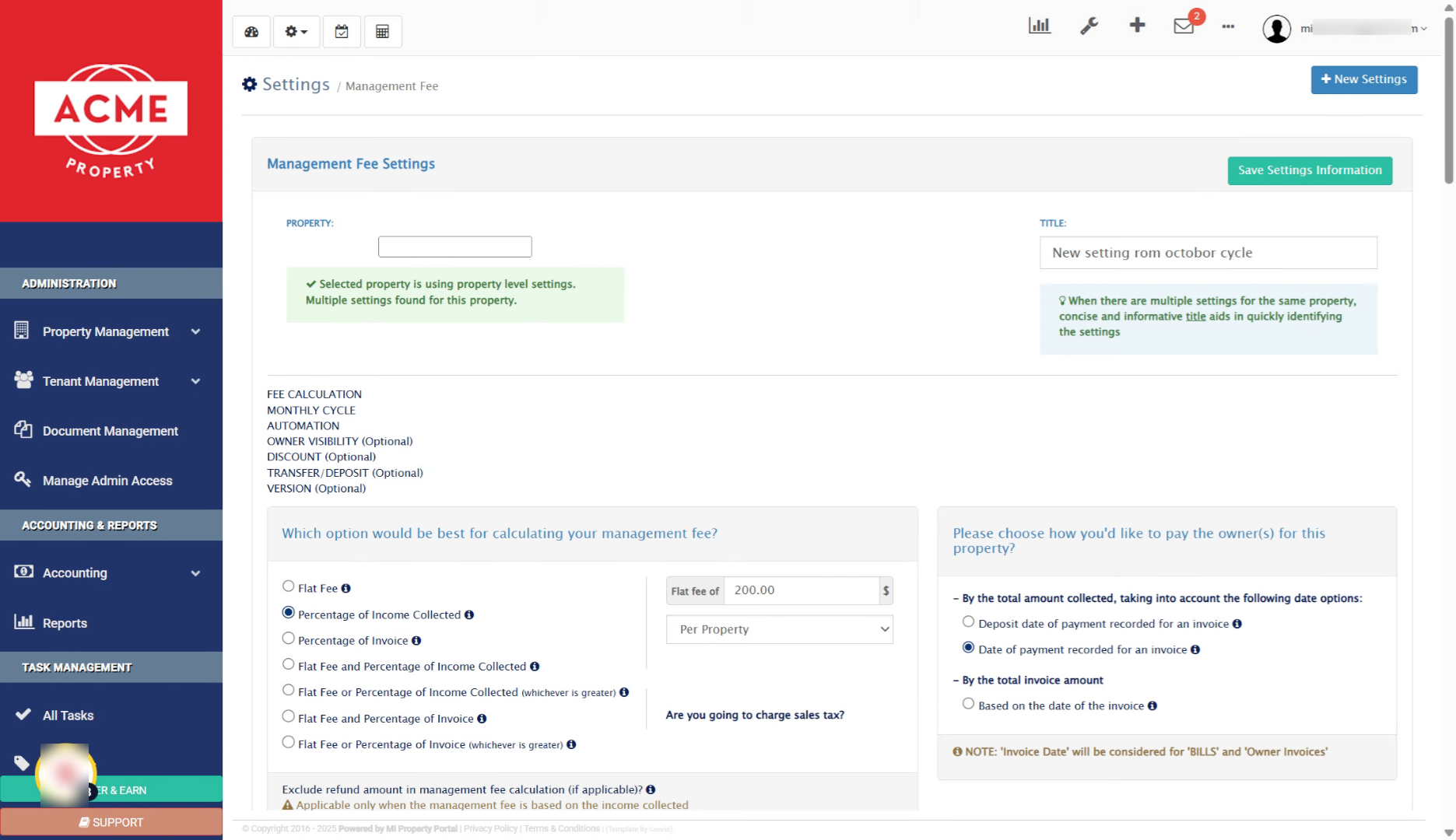
13. View All Management Fee Settings
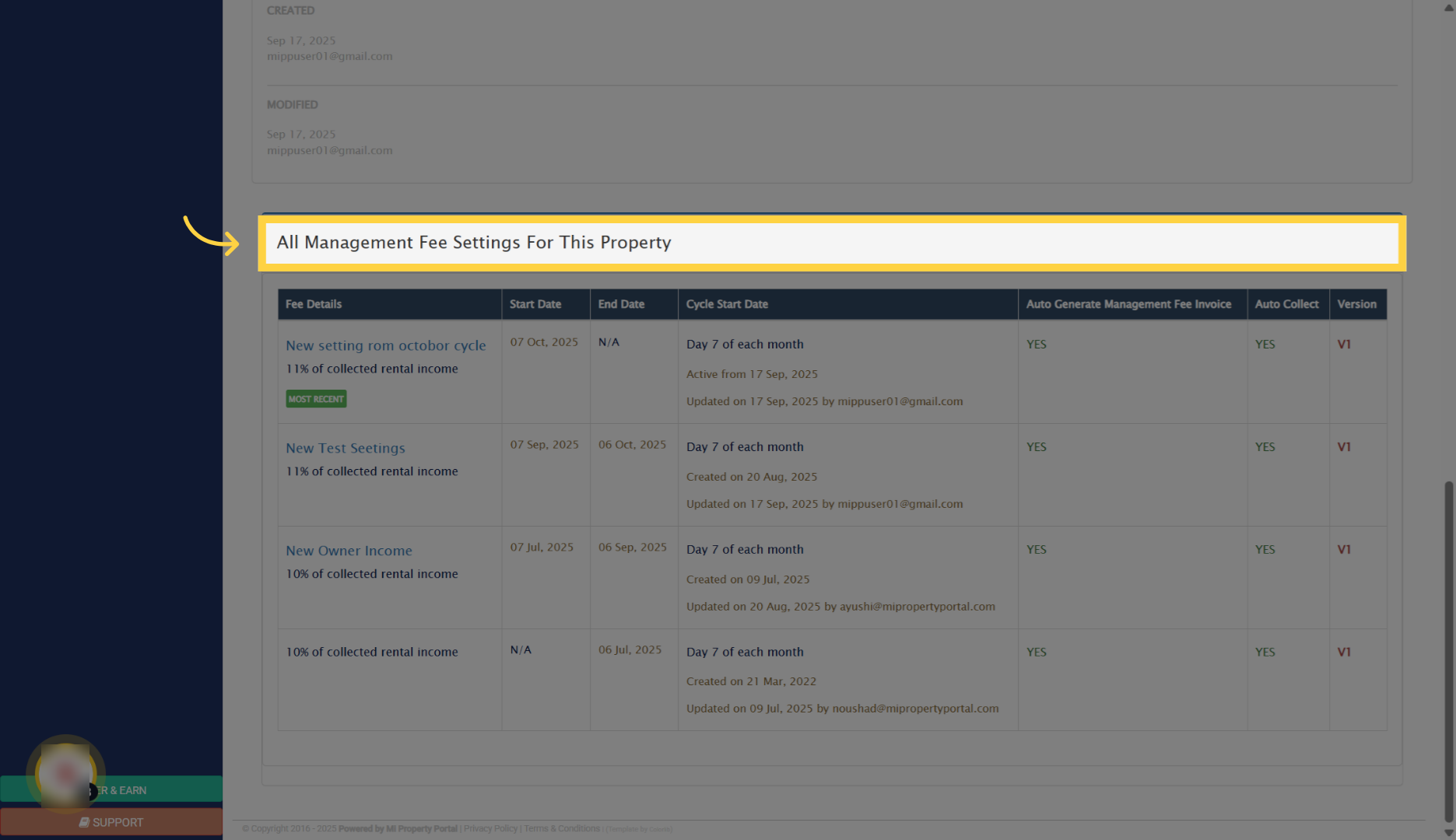
14. Review Old Settings
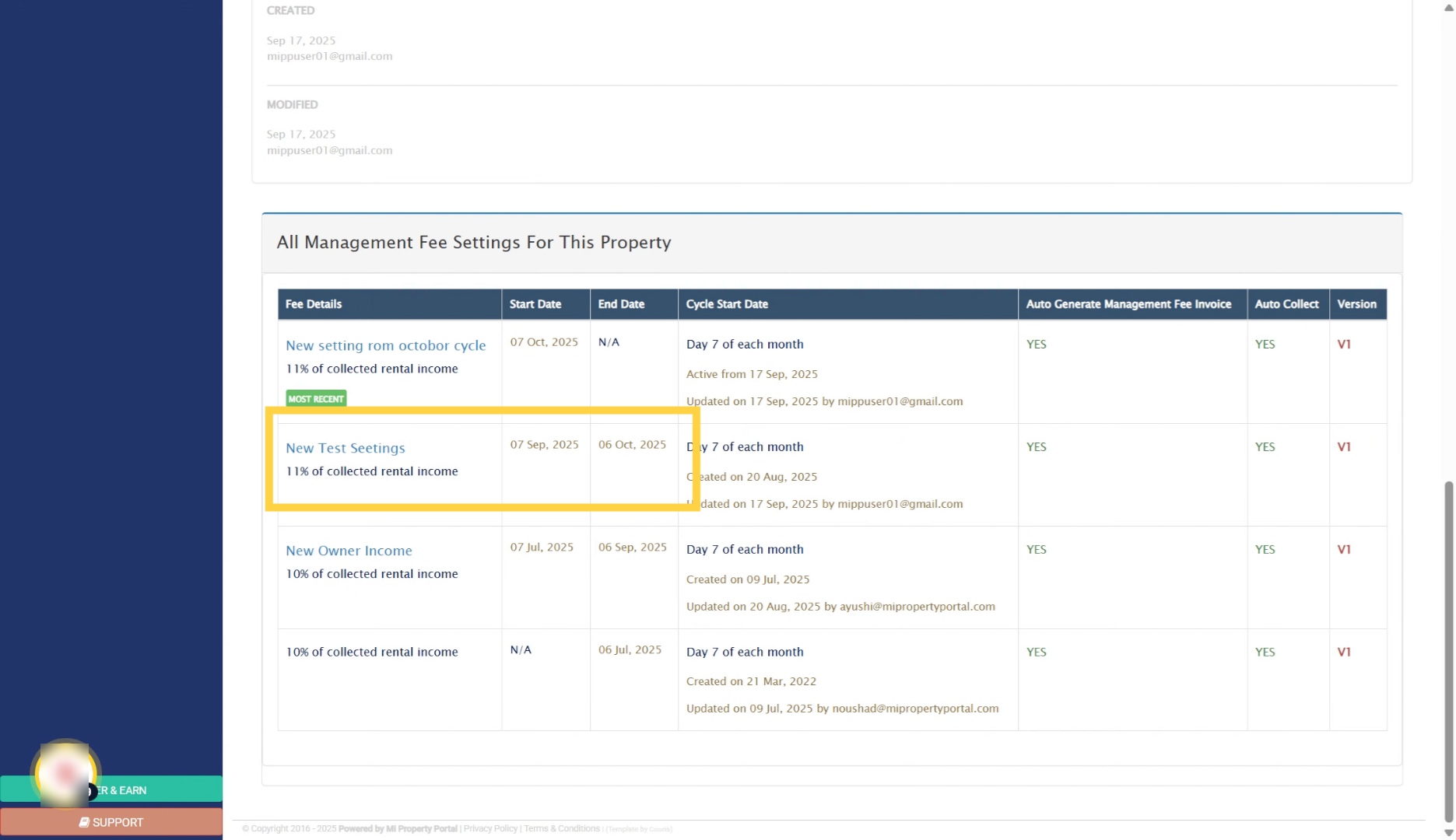
15. Understand Settings Effective Dates
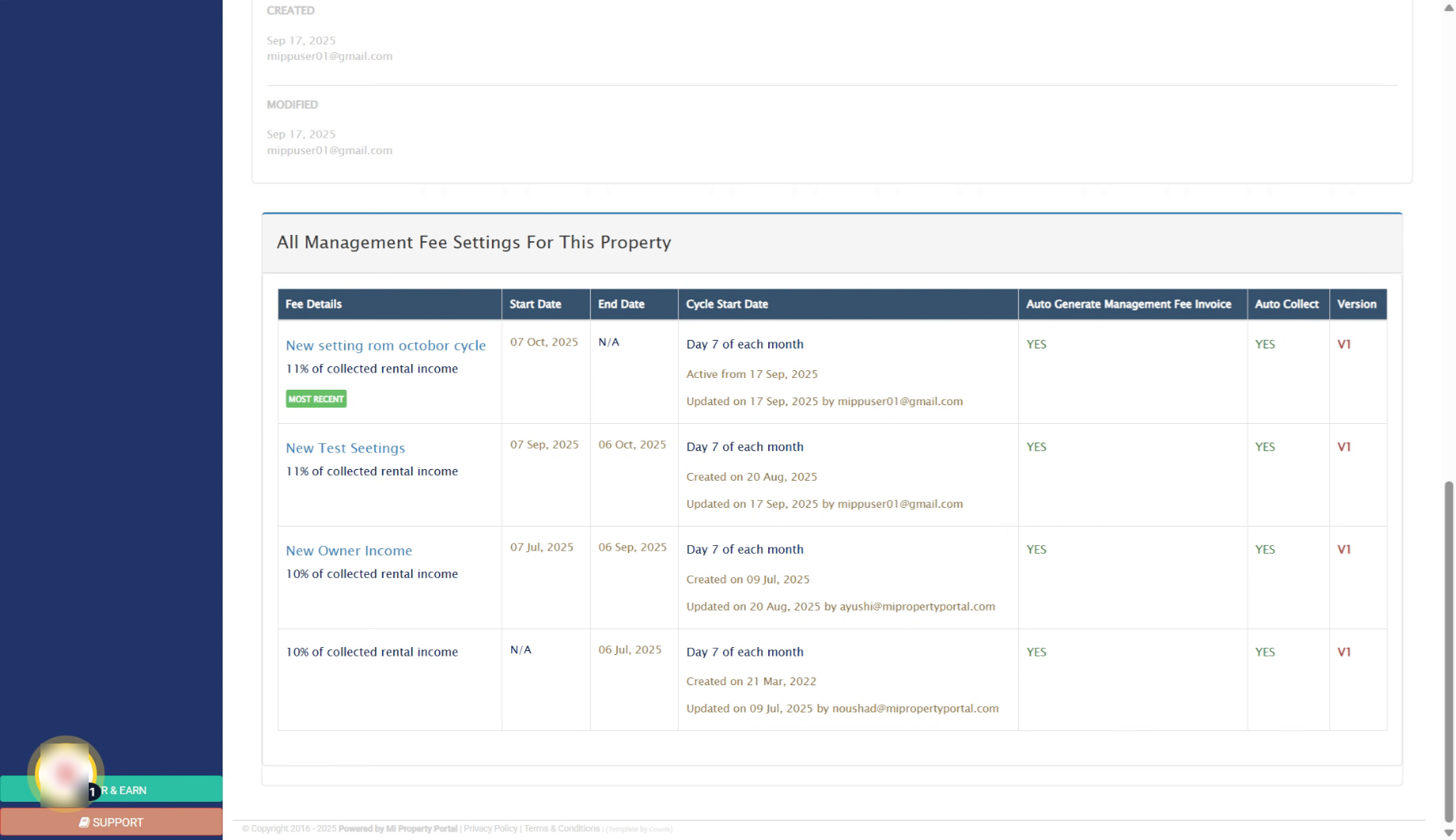
16. Confirm Effective Date
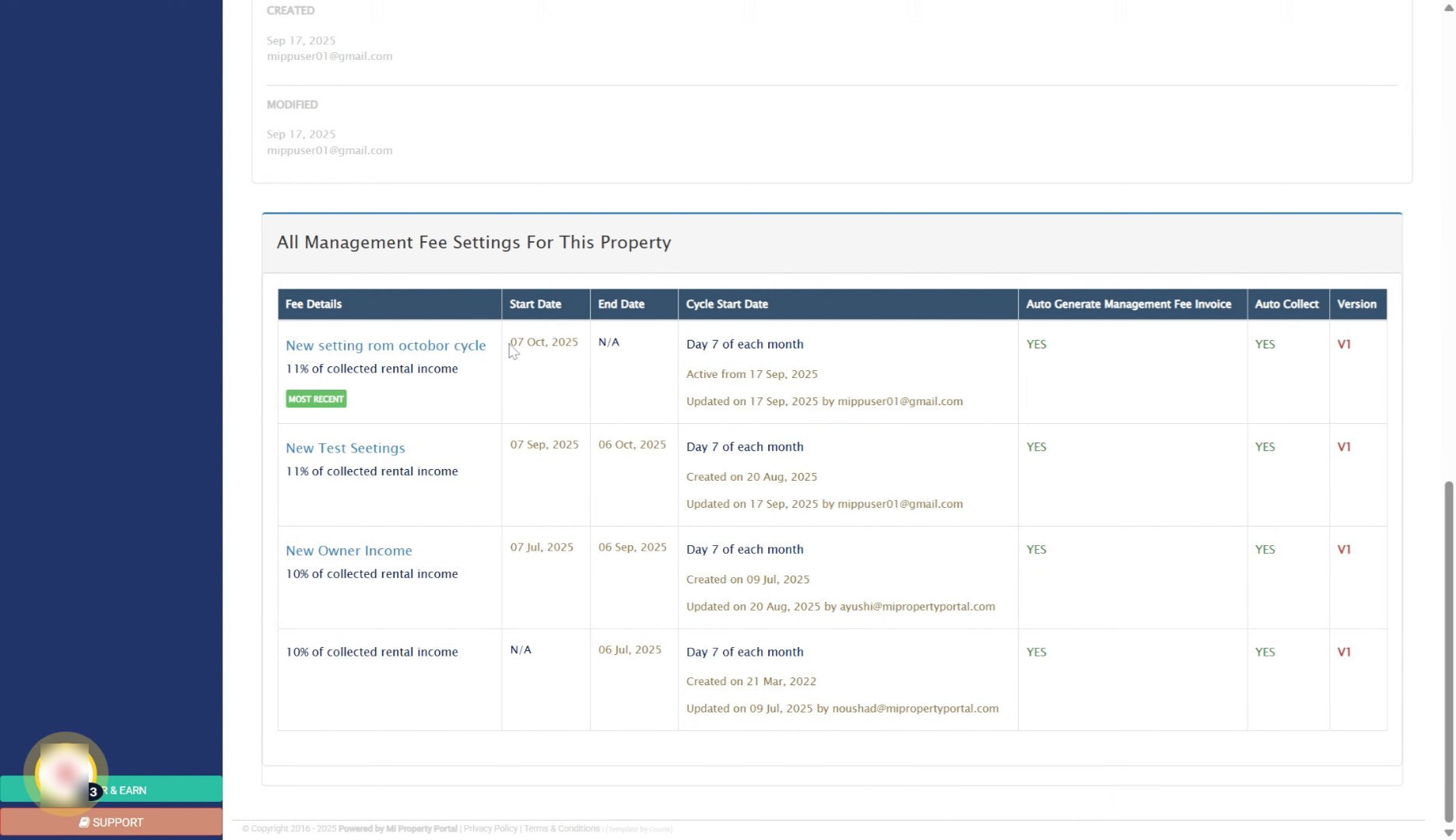
17. Editable Fields in New Settings
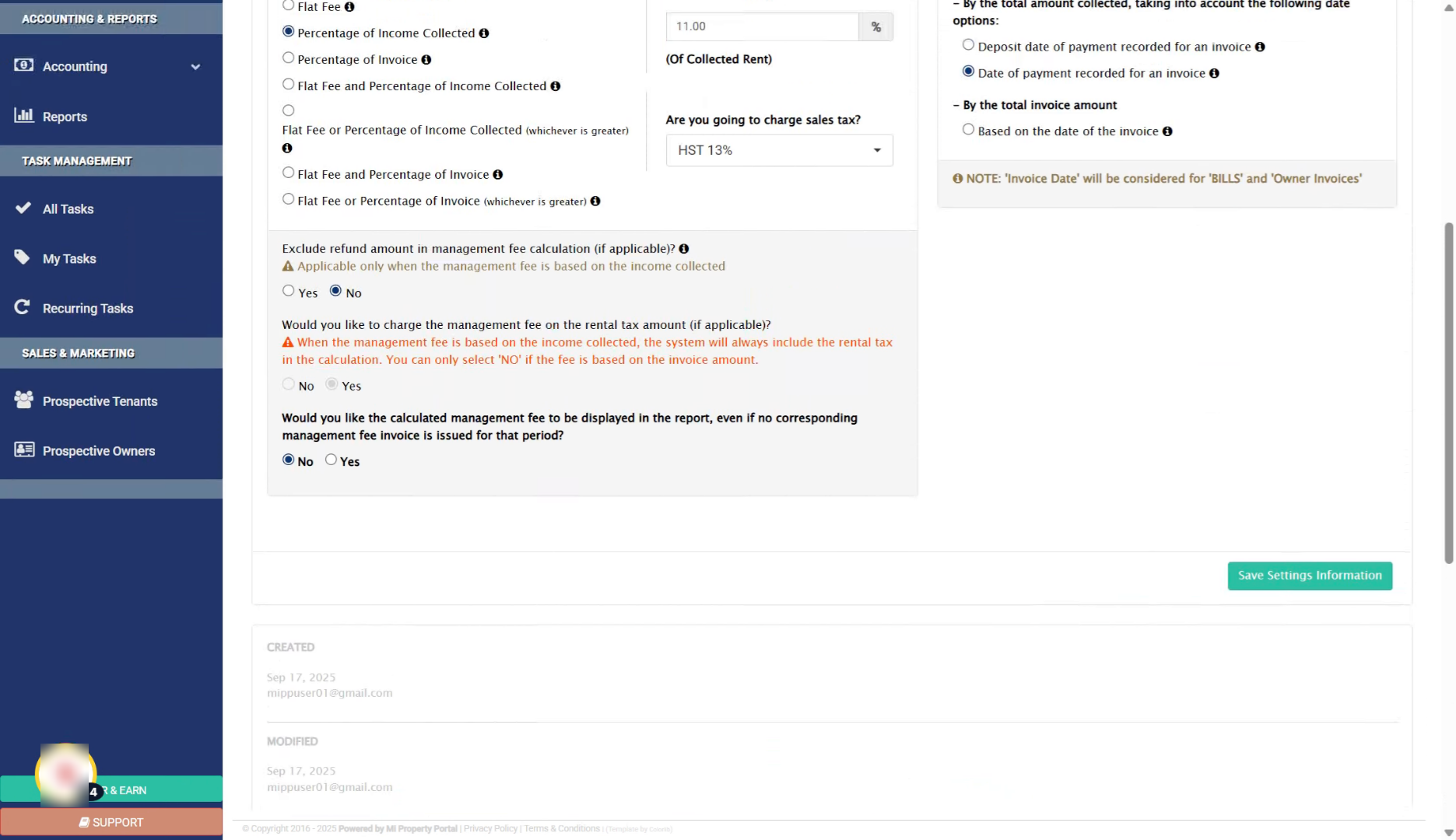
18. Change Date in New Settings
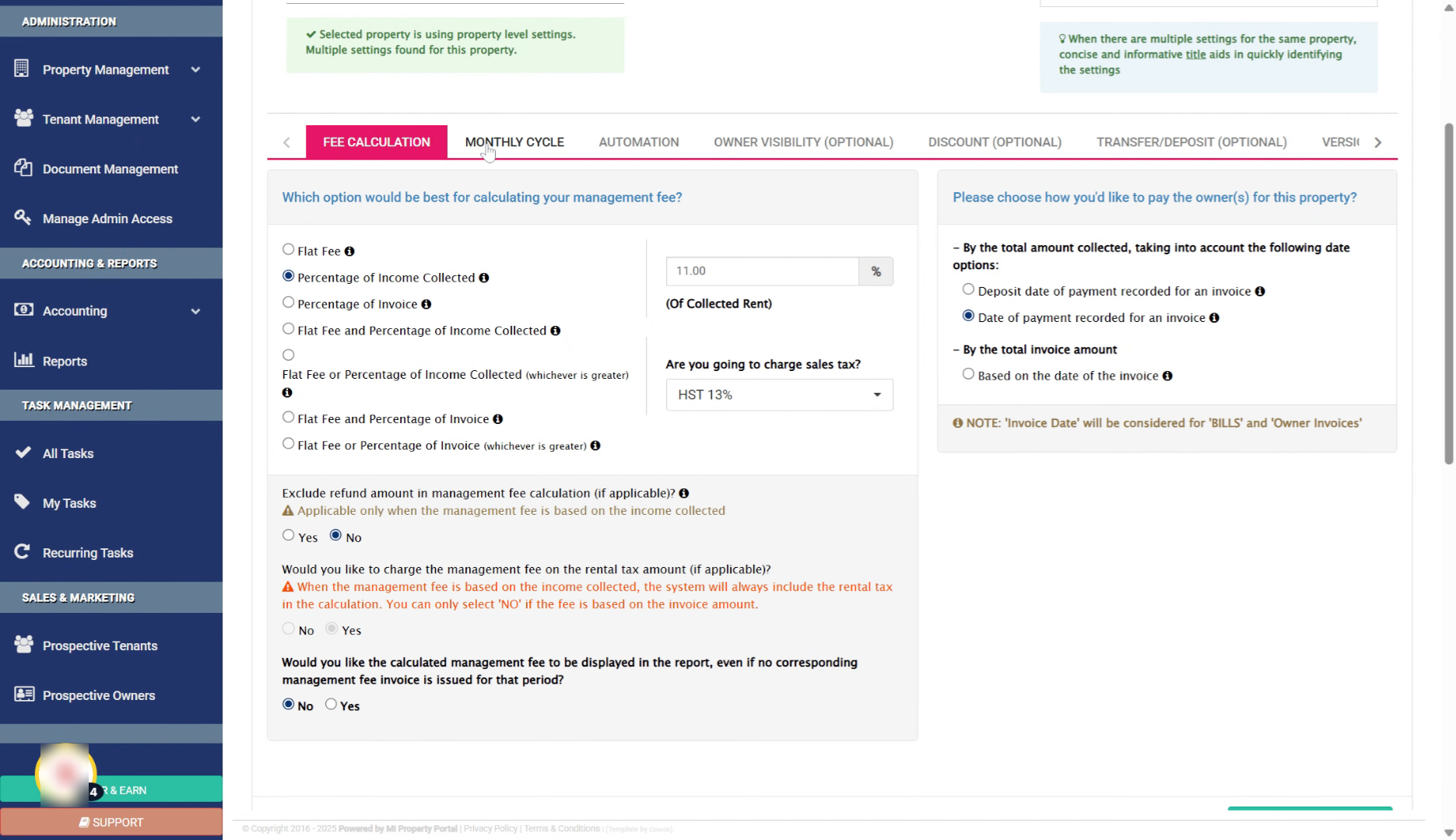
19. Save Updated Settings
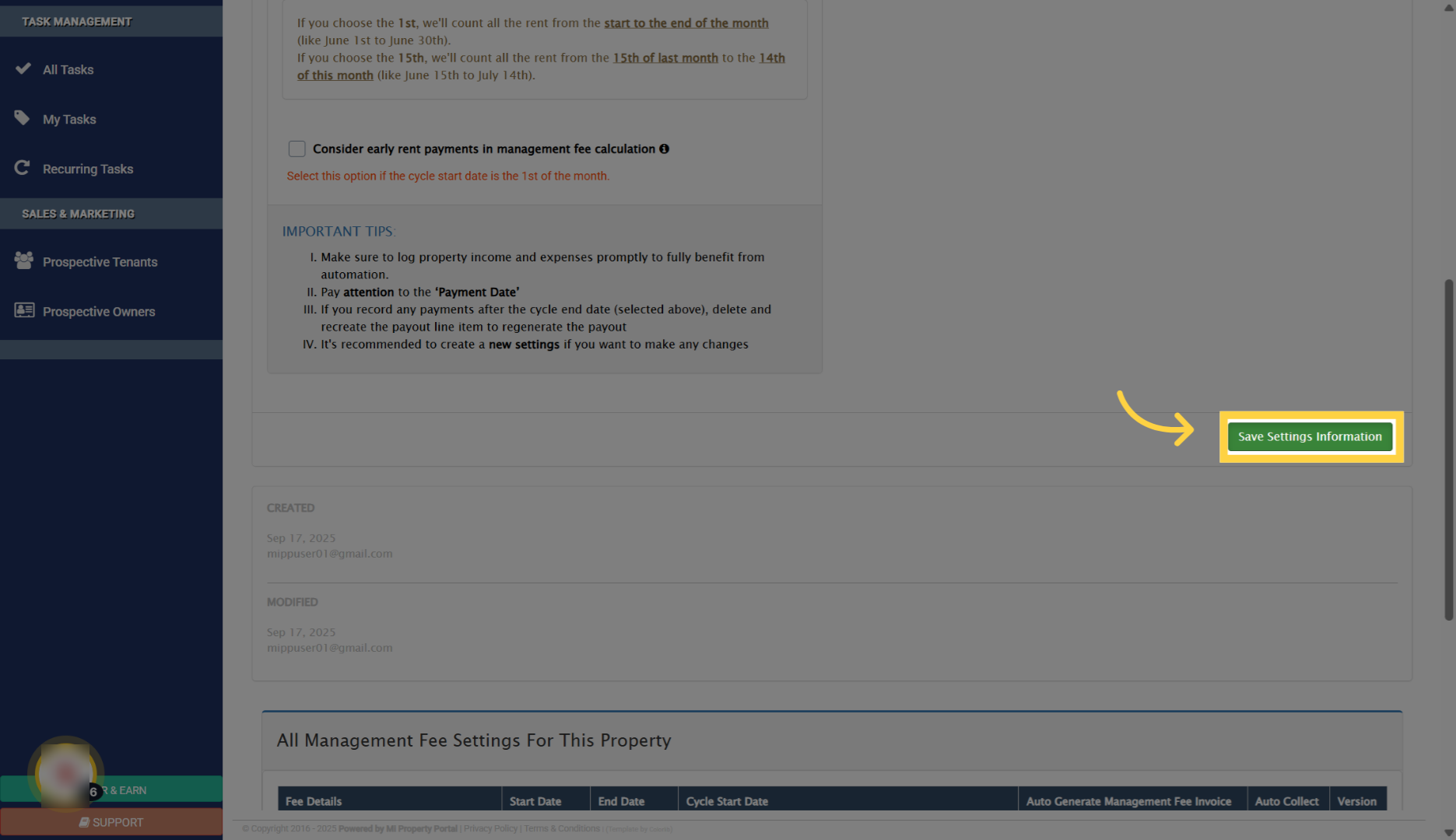
20. Monthly Cycle Date Changed
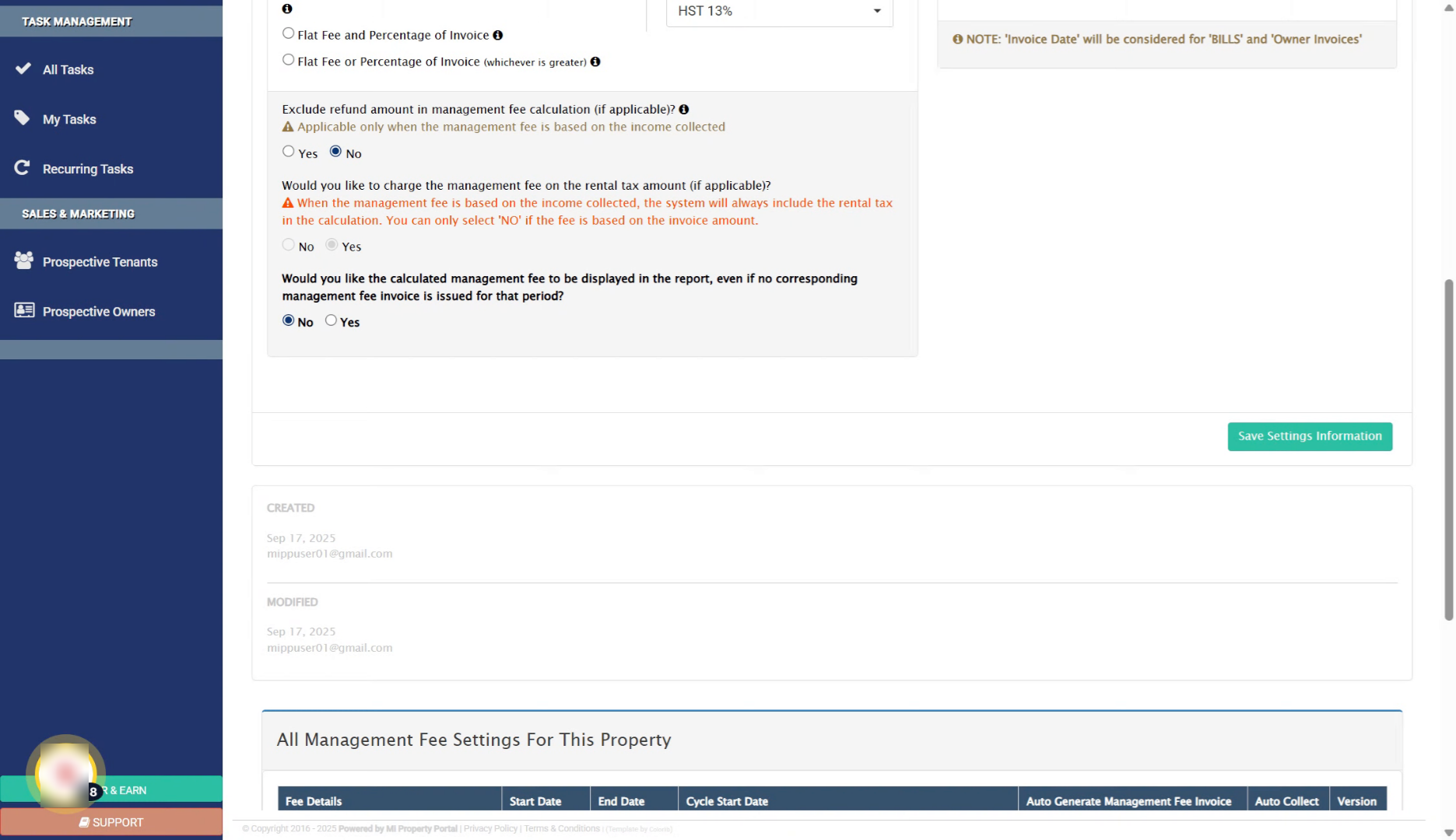
21. Review Previous Cycle Dates
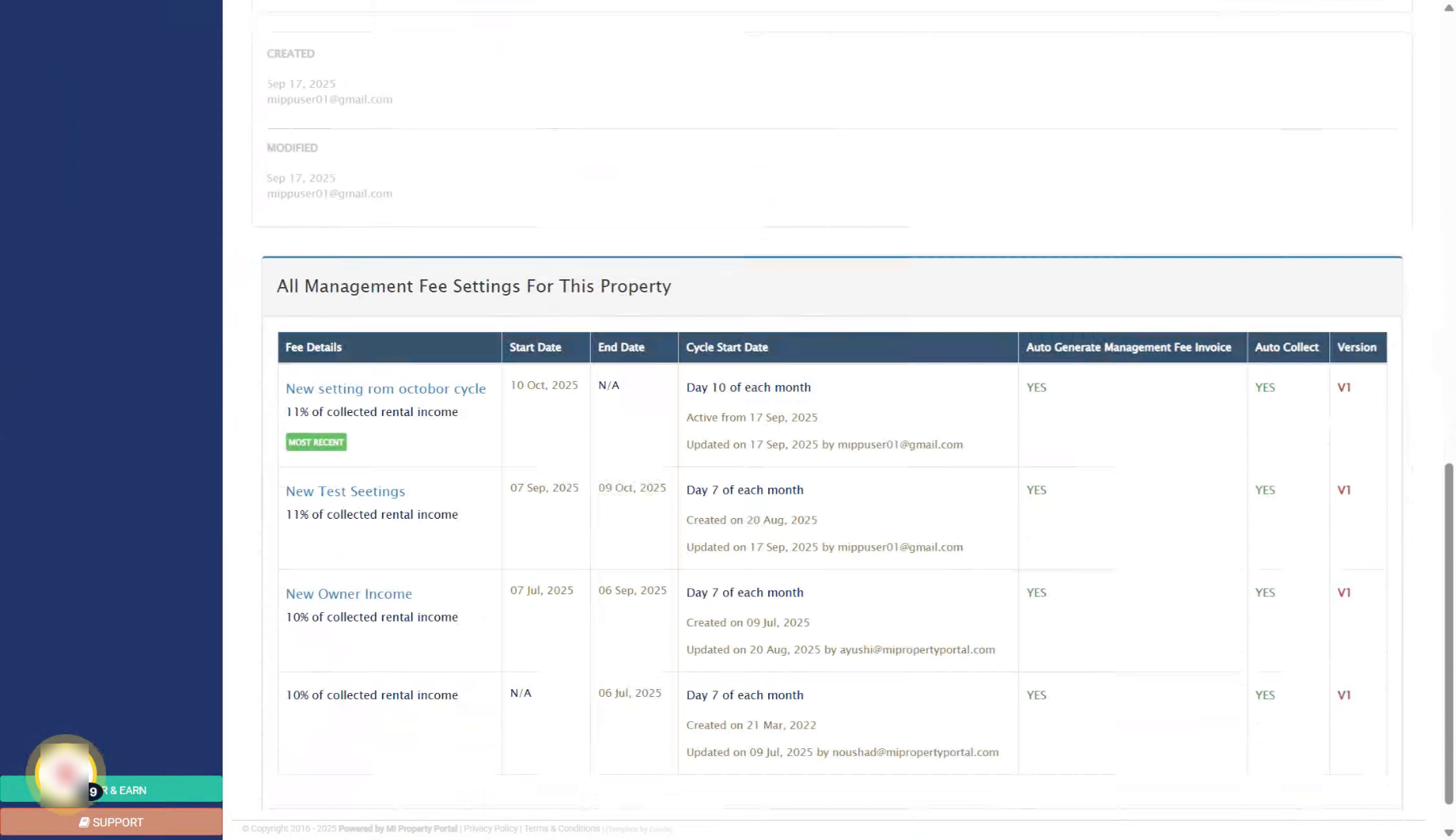
22. Effect of Changes on Settings
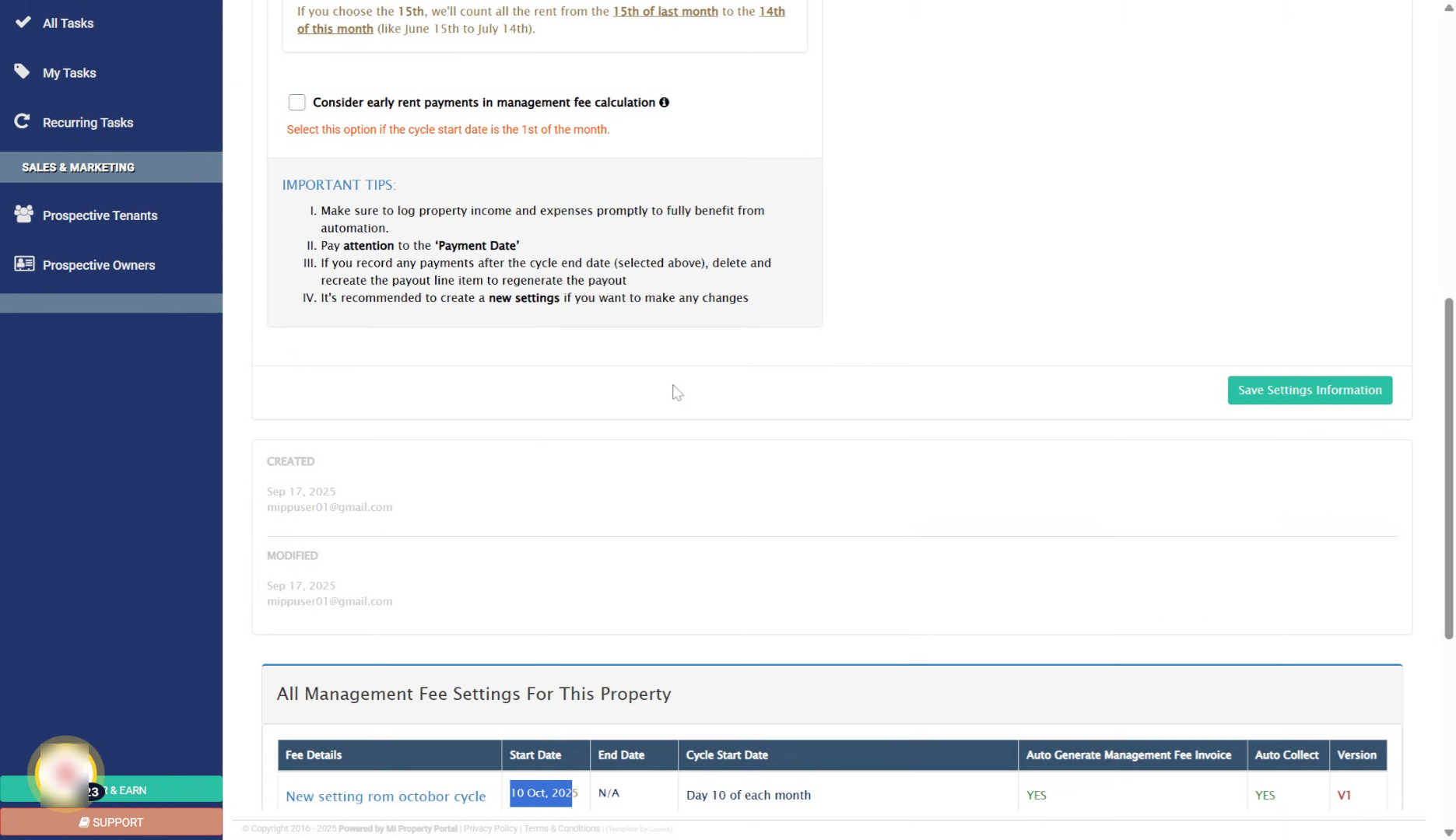
23. Past Cycle Modification Restriction
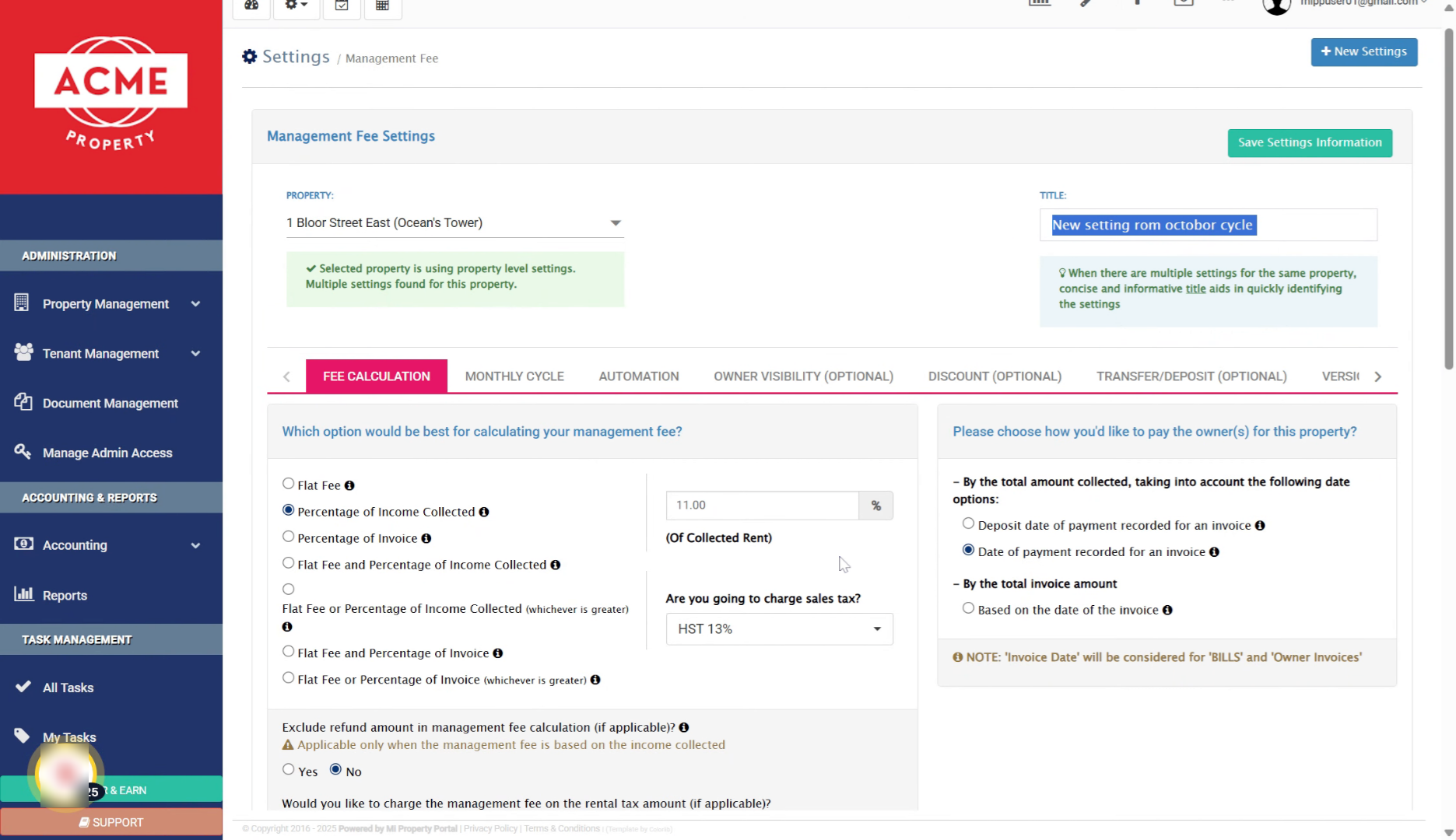
24. Navigate to Owner Reports
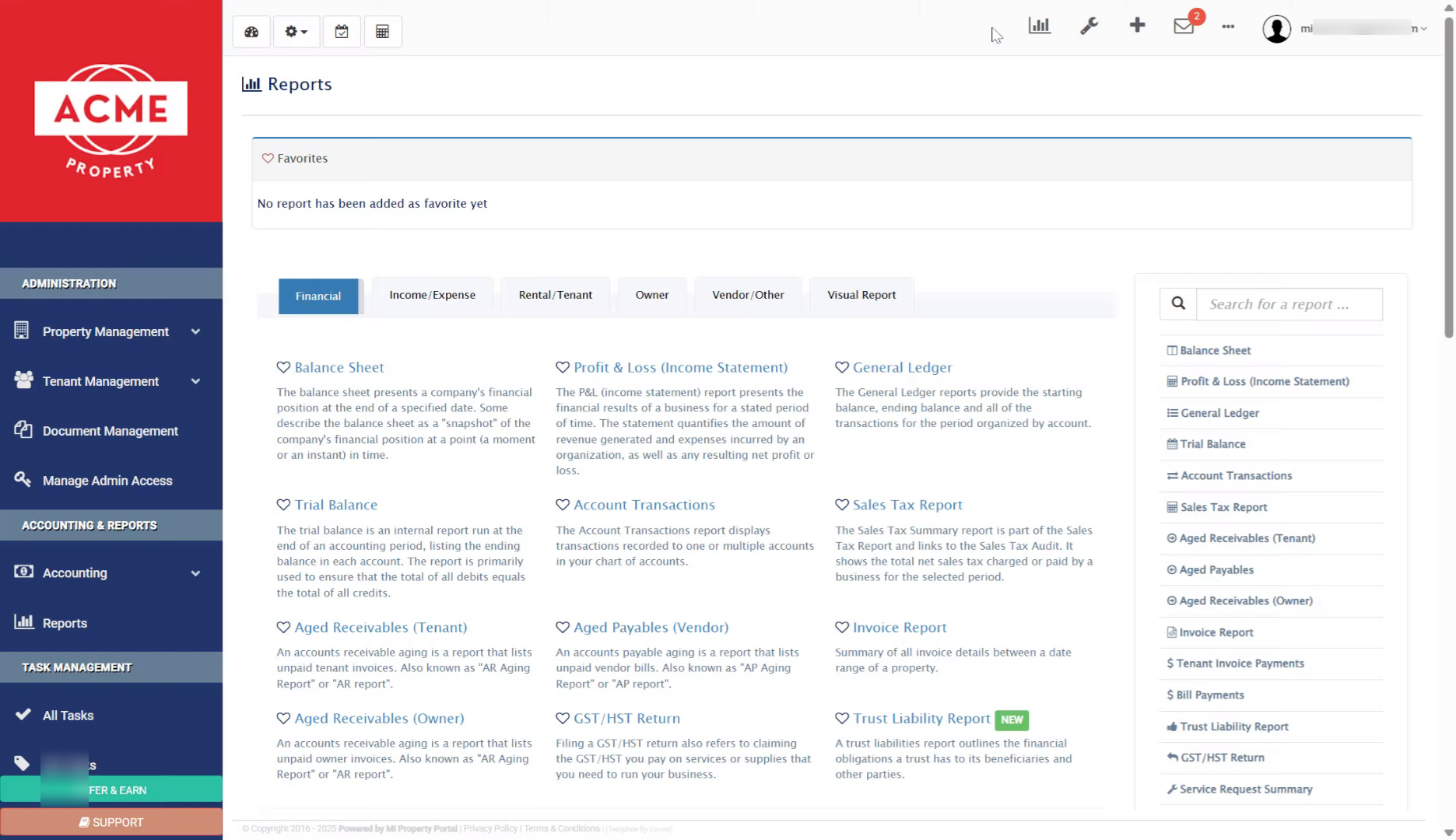
25. Select Property in Reports
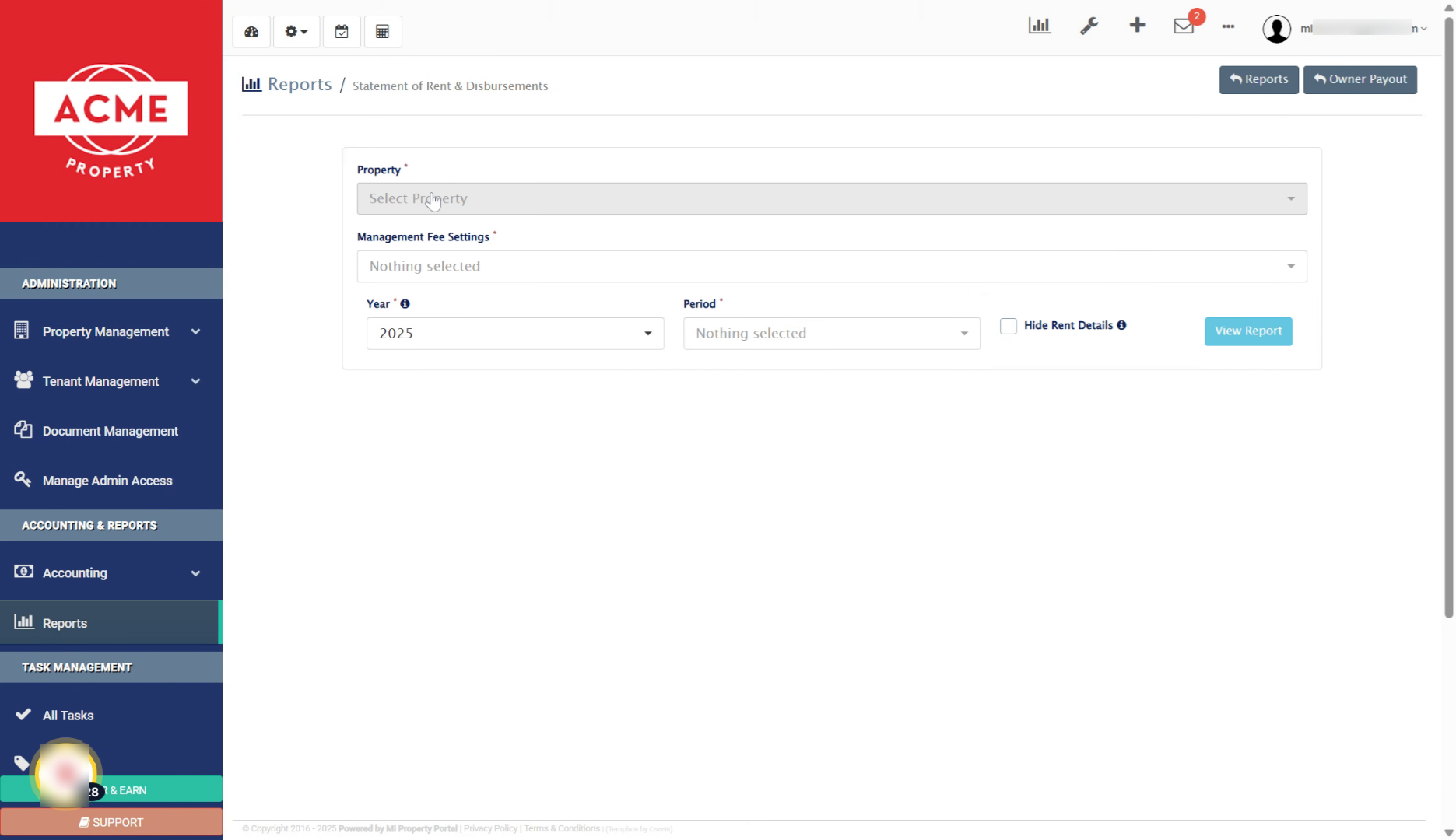
26. View Report for Property
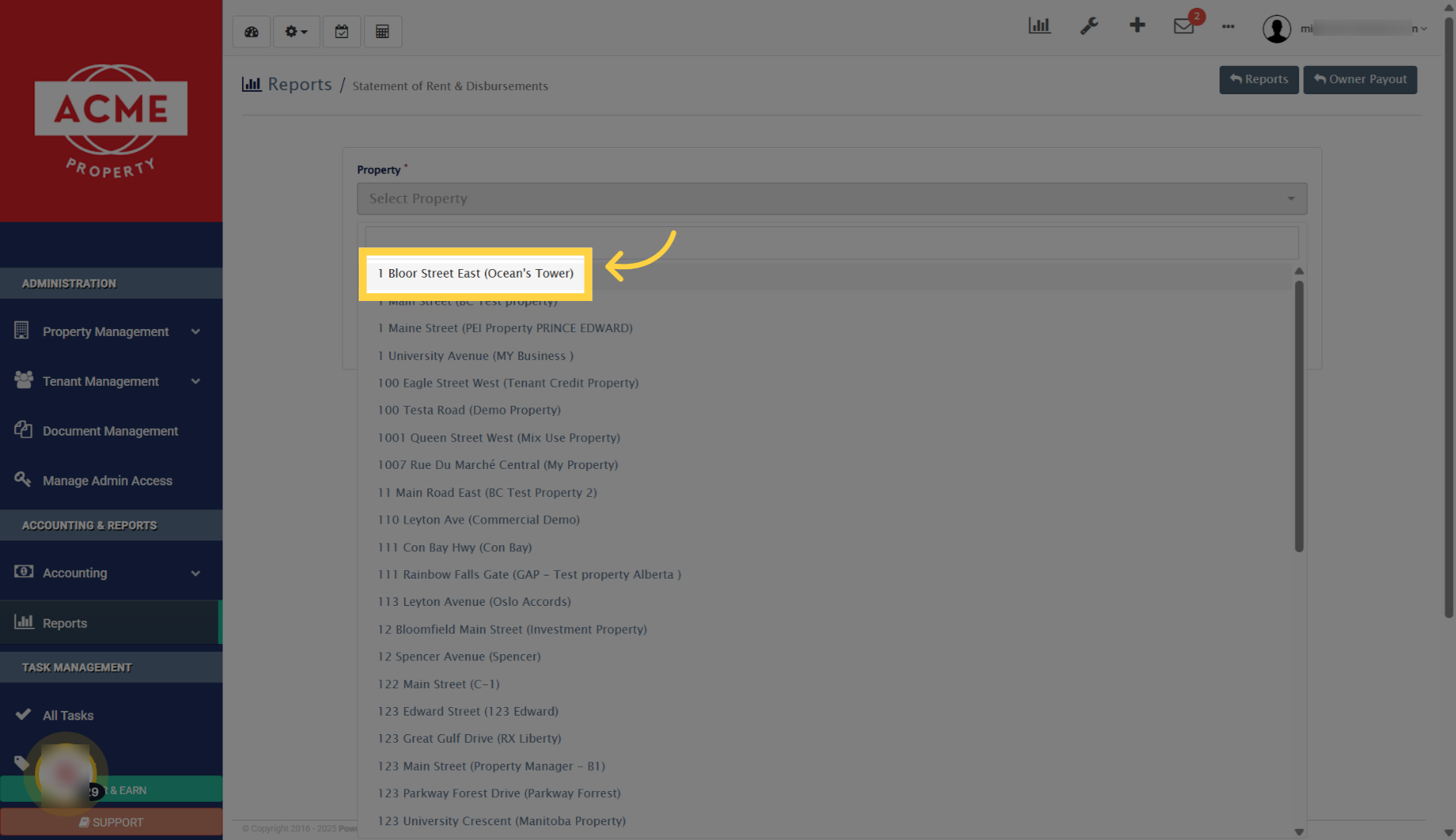
27. Review Previous Cycle Report
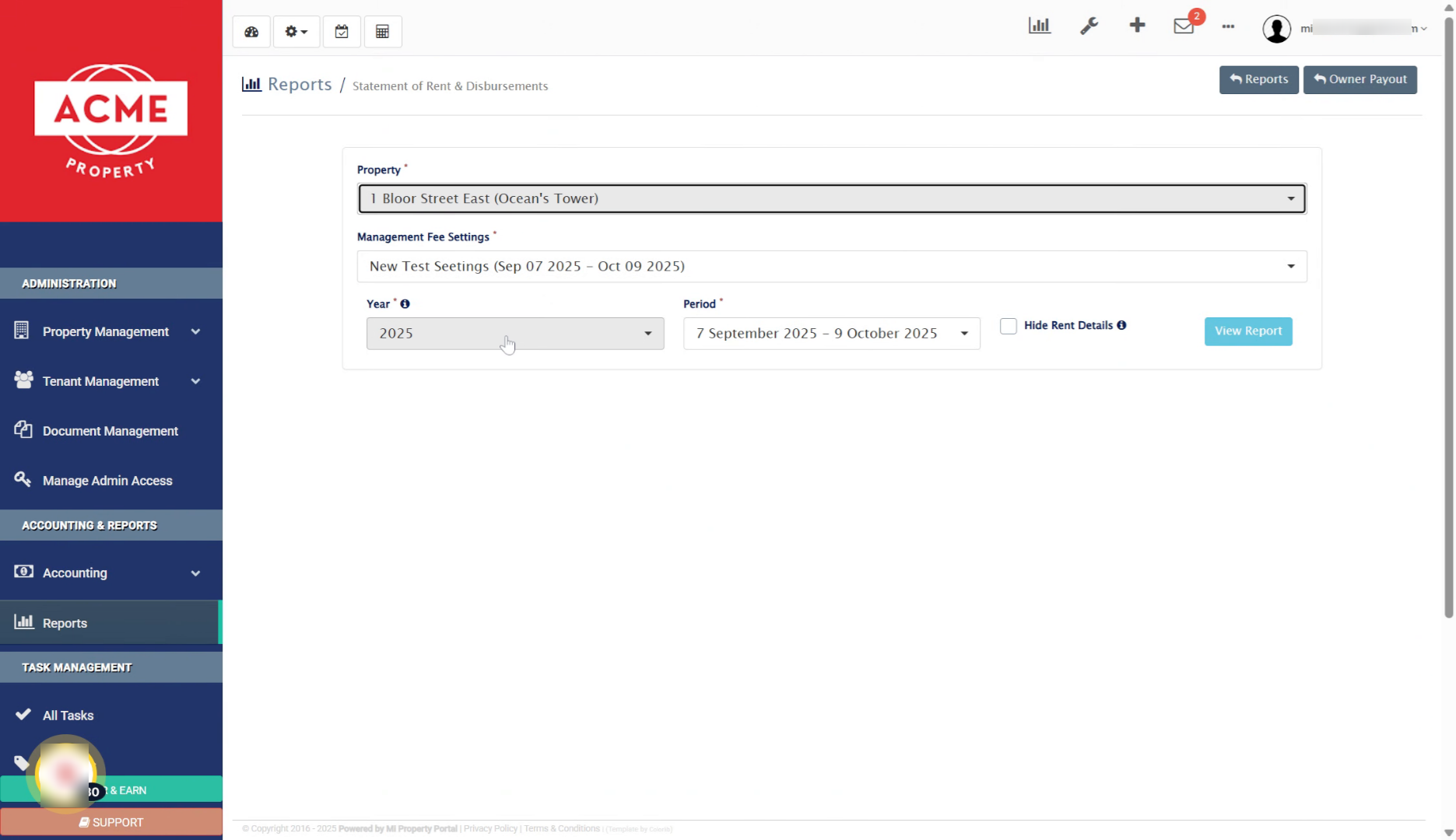
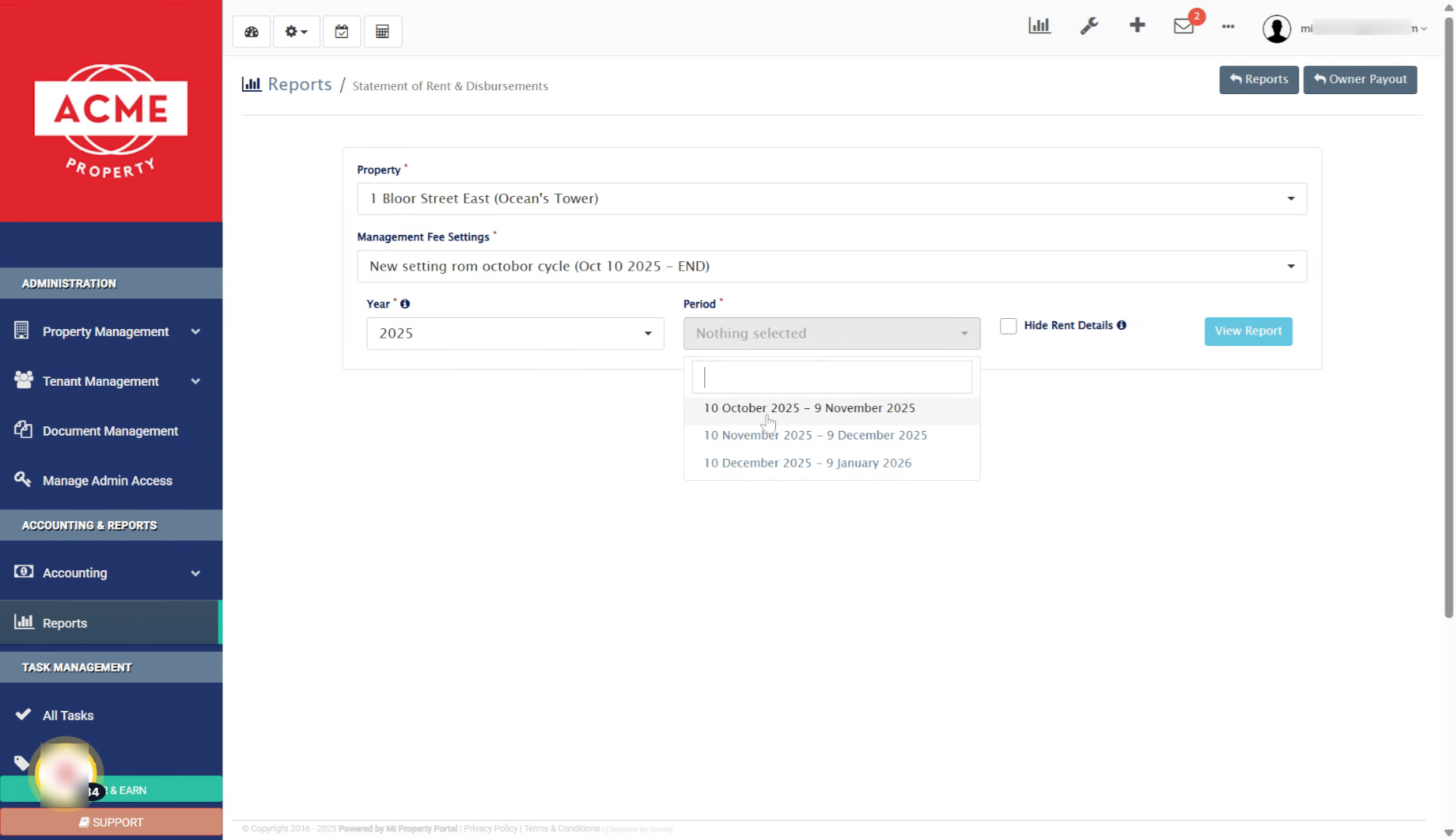
28. Select Previous Cycle Dates
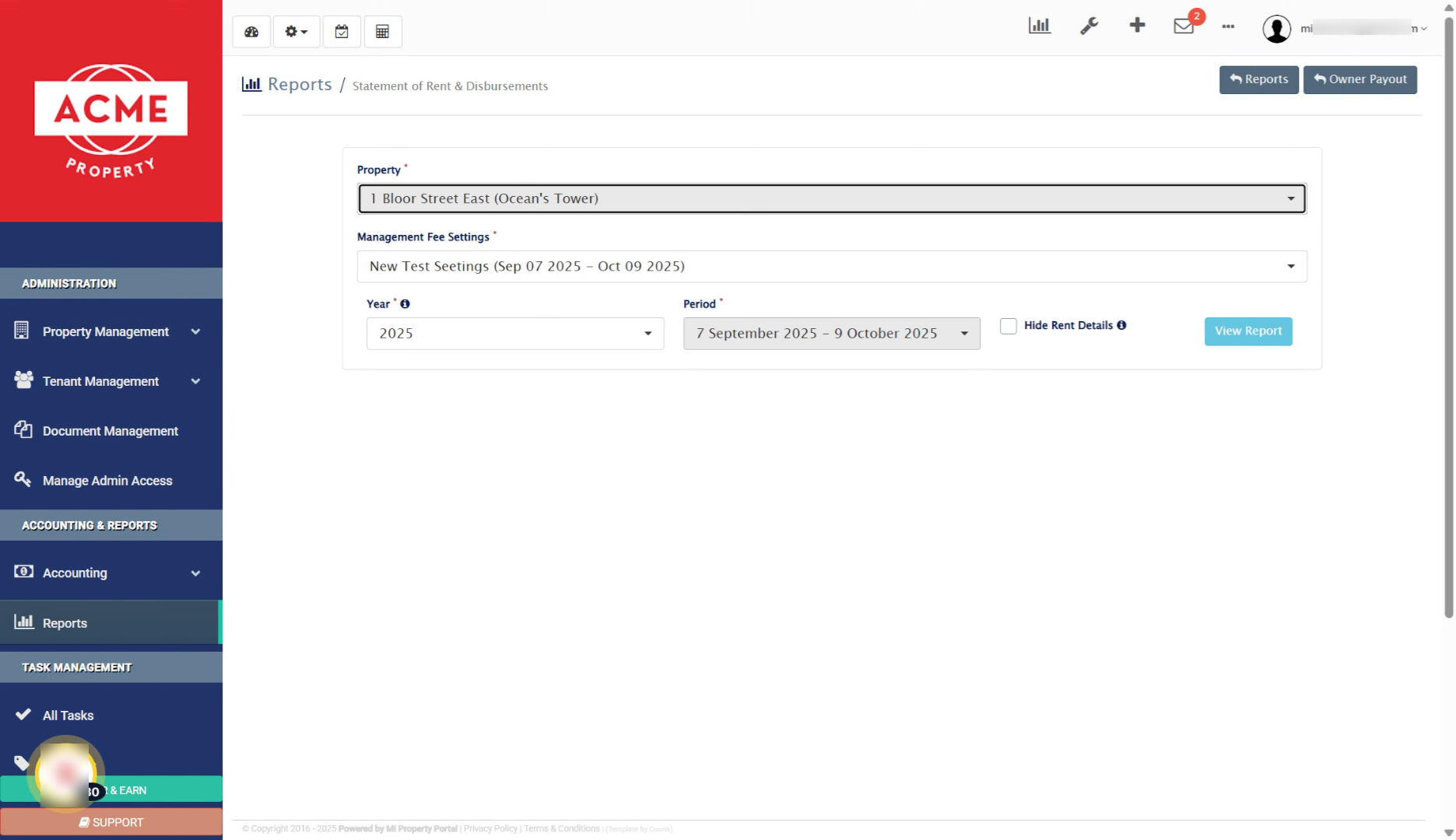
29. Confirm New Settings Activation
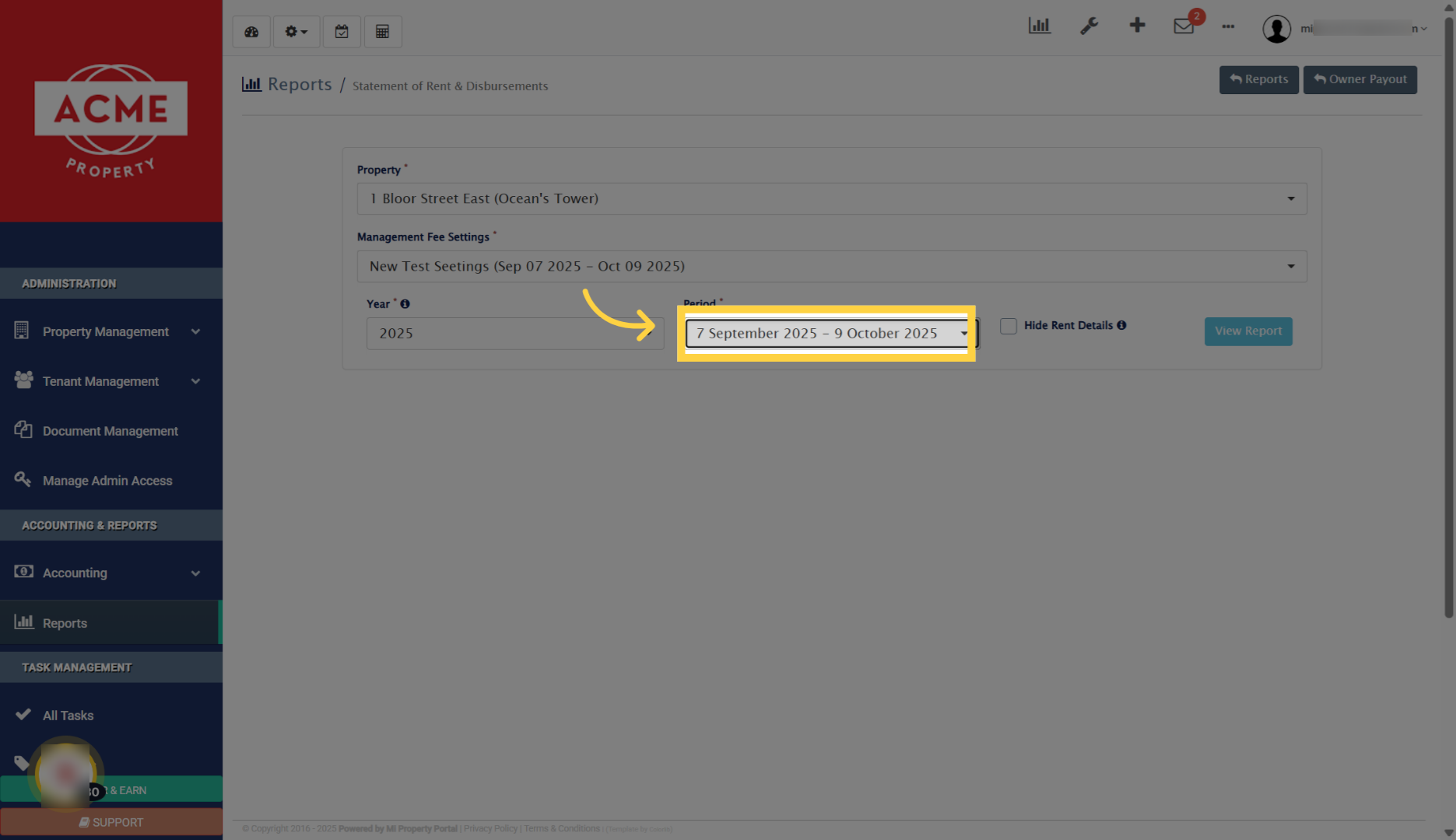
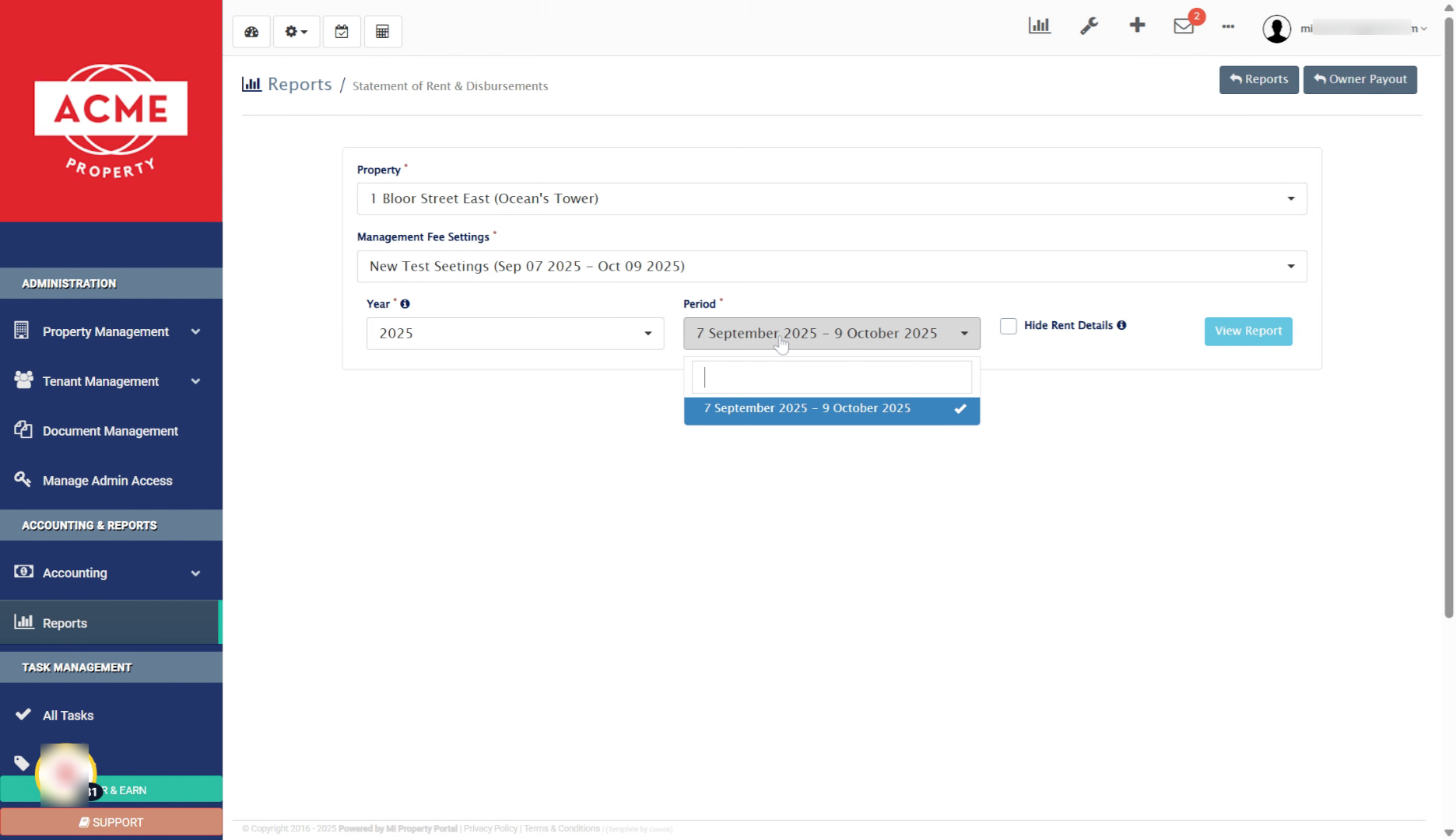
30. Select New Cycle Dates
31. I hope this video is helpful, and thank you for watching