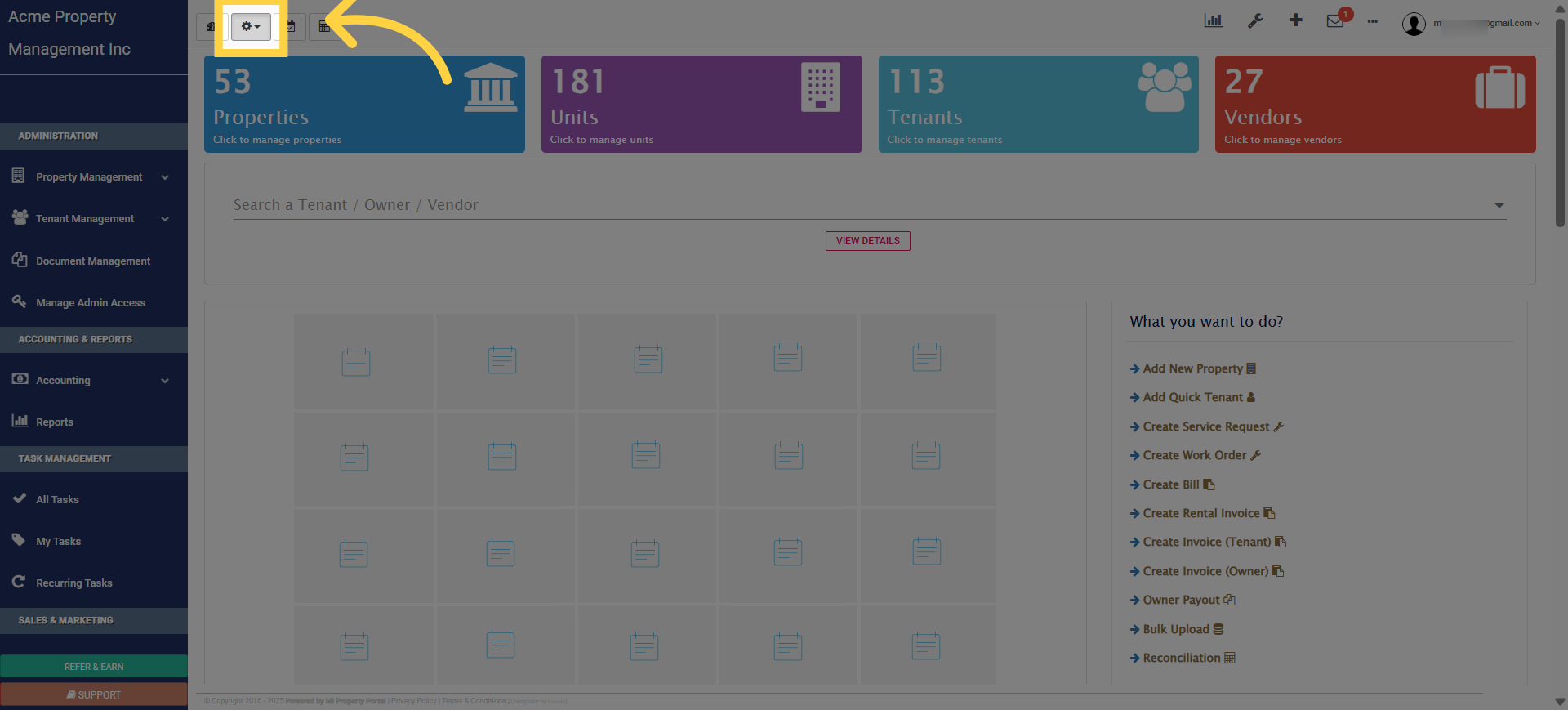
1. Click on the gear icon to open the settings drop-down menu
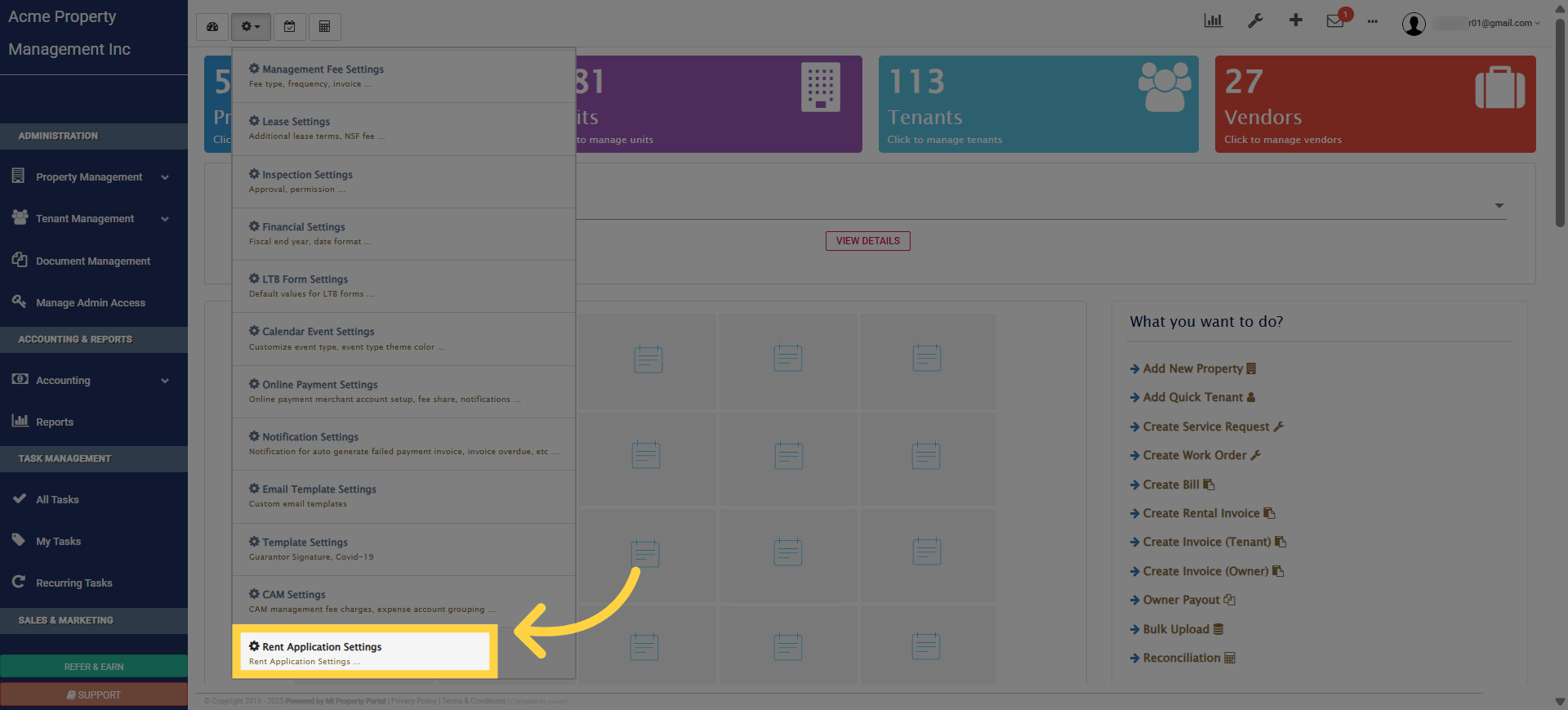
2. Click “Rent Application Settings”
3. Once redirected to this page, begin customizing the Rental Application
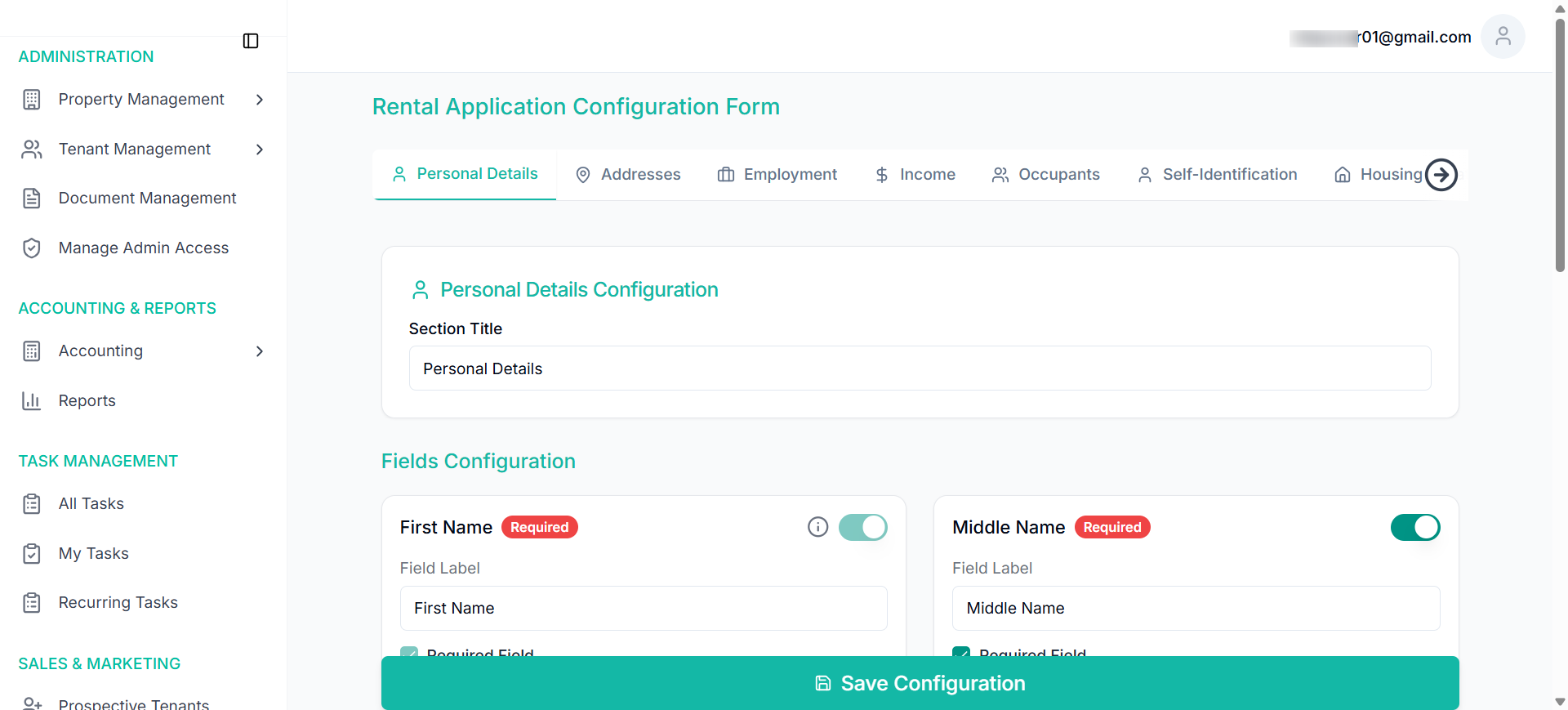
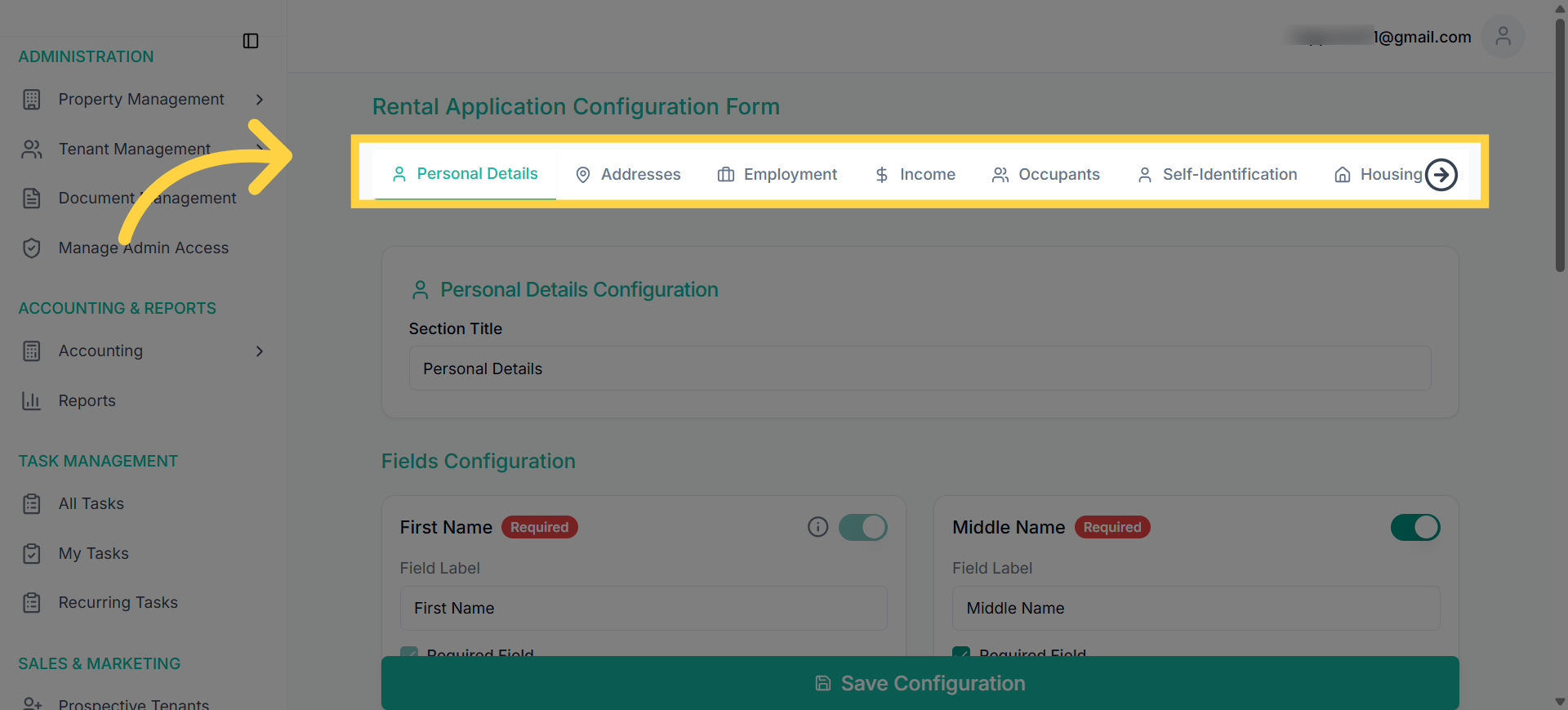
4. Form Section Tabs—the tabs for each section of the Form
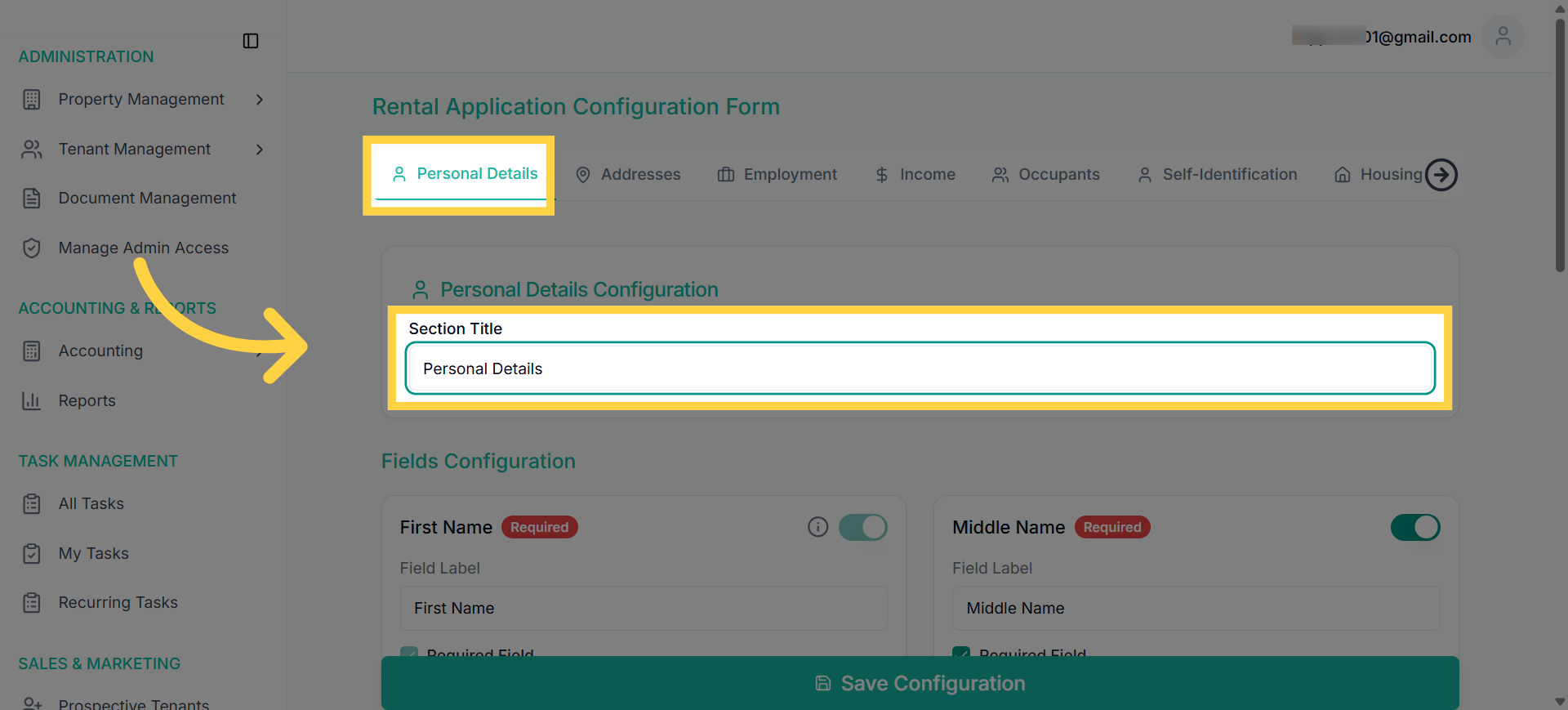
5. Click on section title to rename (e.g., Personal Information)
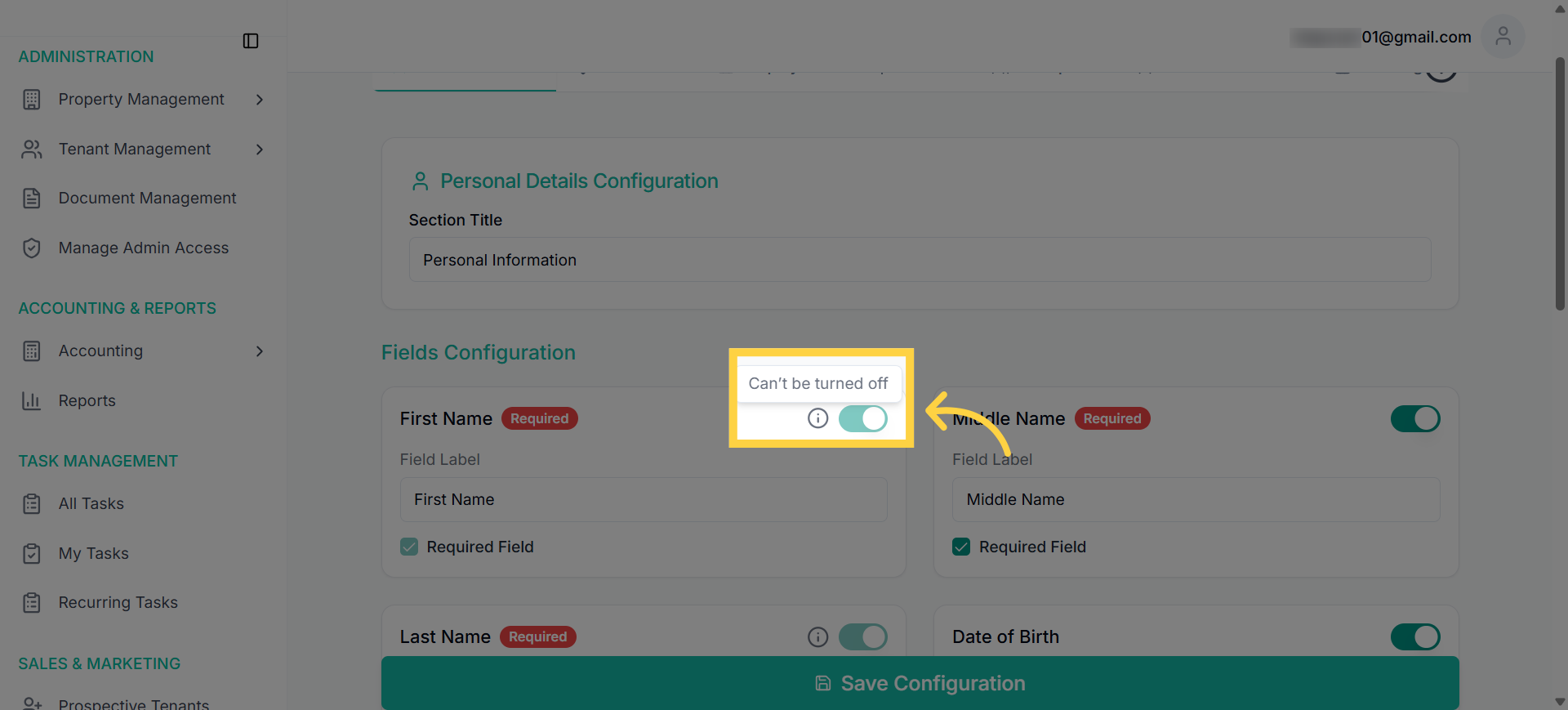
6. Non-toggleable and certain fields are required by default
7. Toggle field on (e.g., Middle Name) to include in application
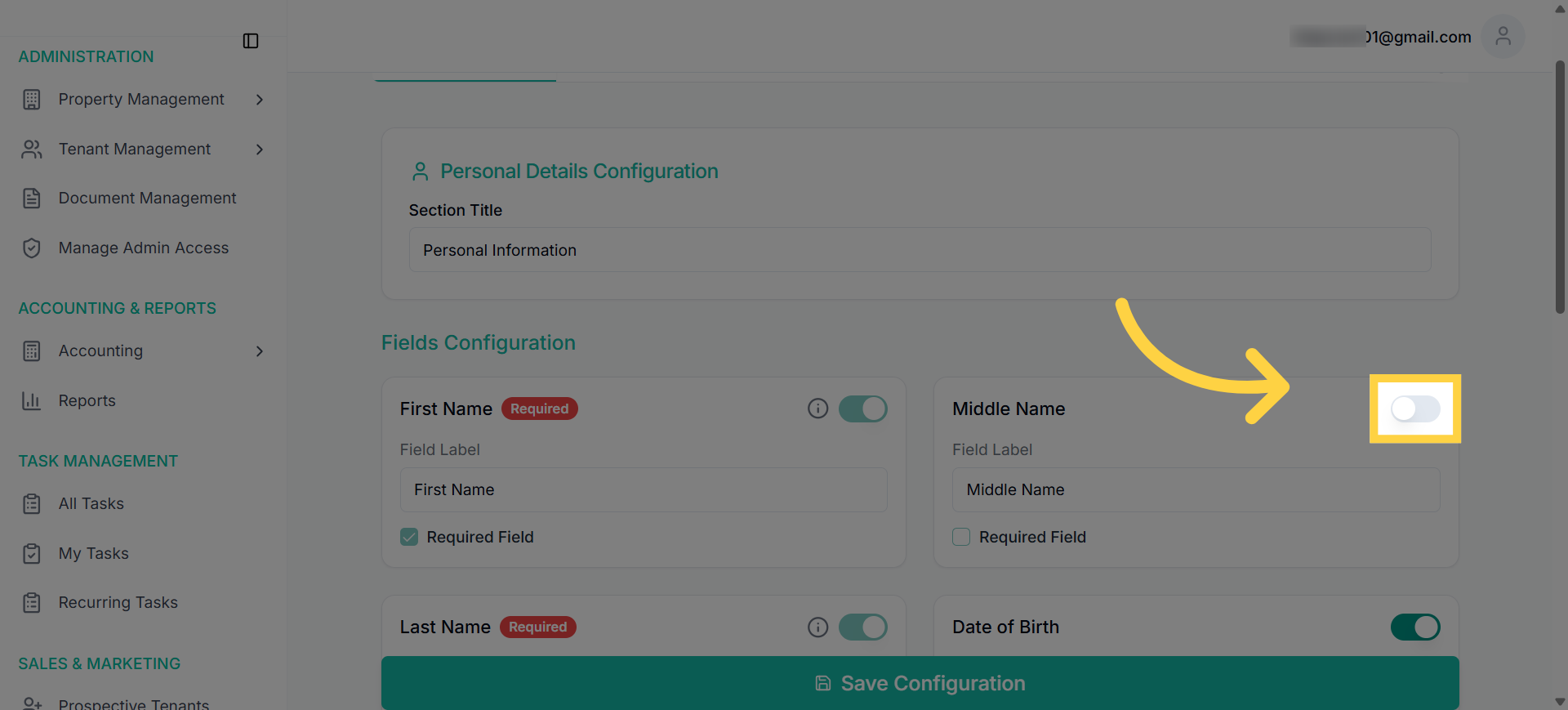
8. Mark field as “Required” to make a field mandatory
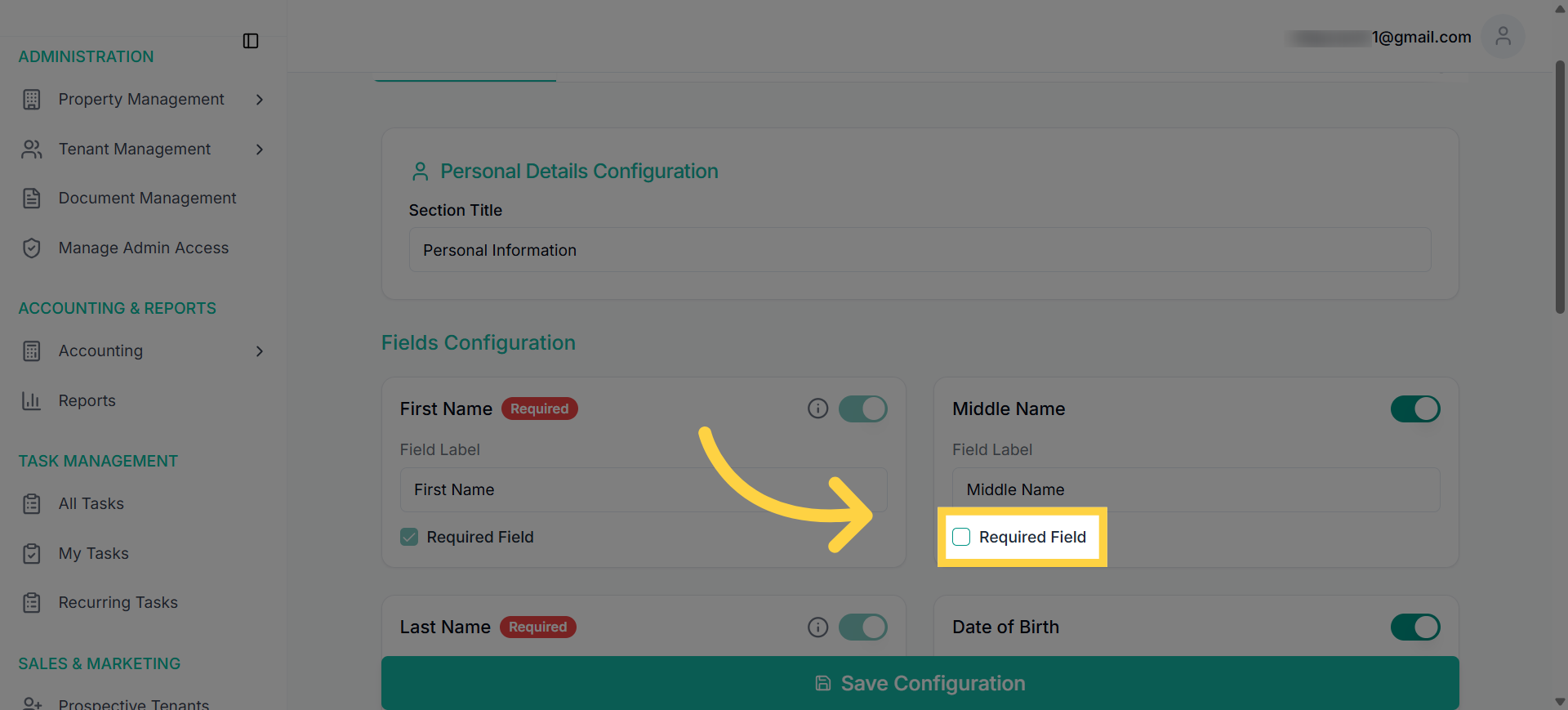
9. Repeat the process of enabling or disabling fields, mark it as required or optional
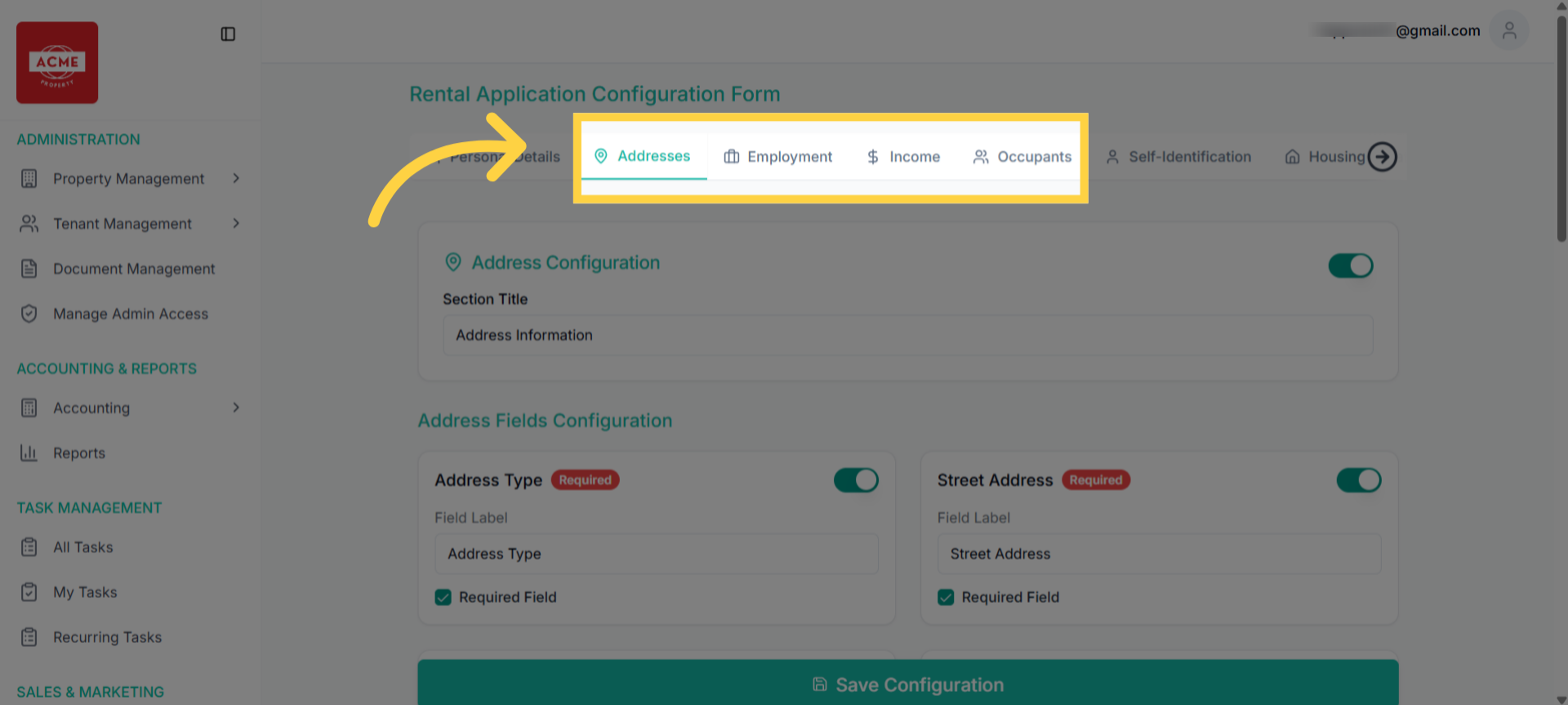
10. Optional sections — cannot be marked as required, even if included in the form
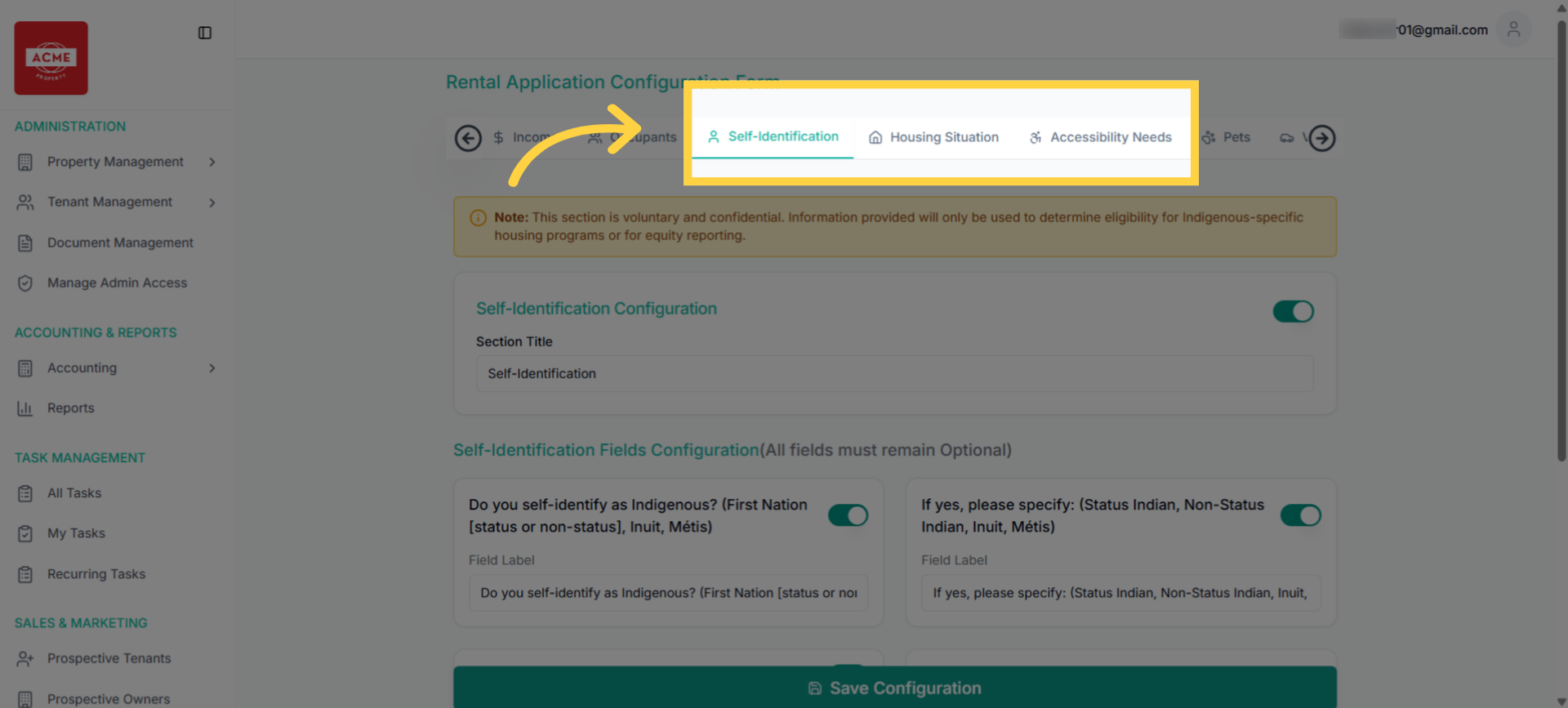
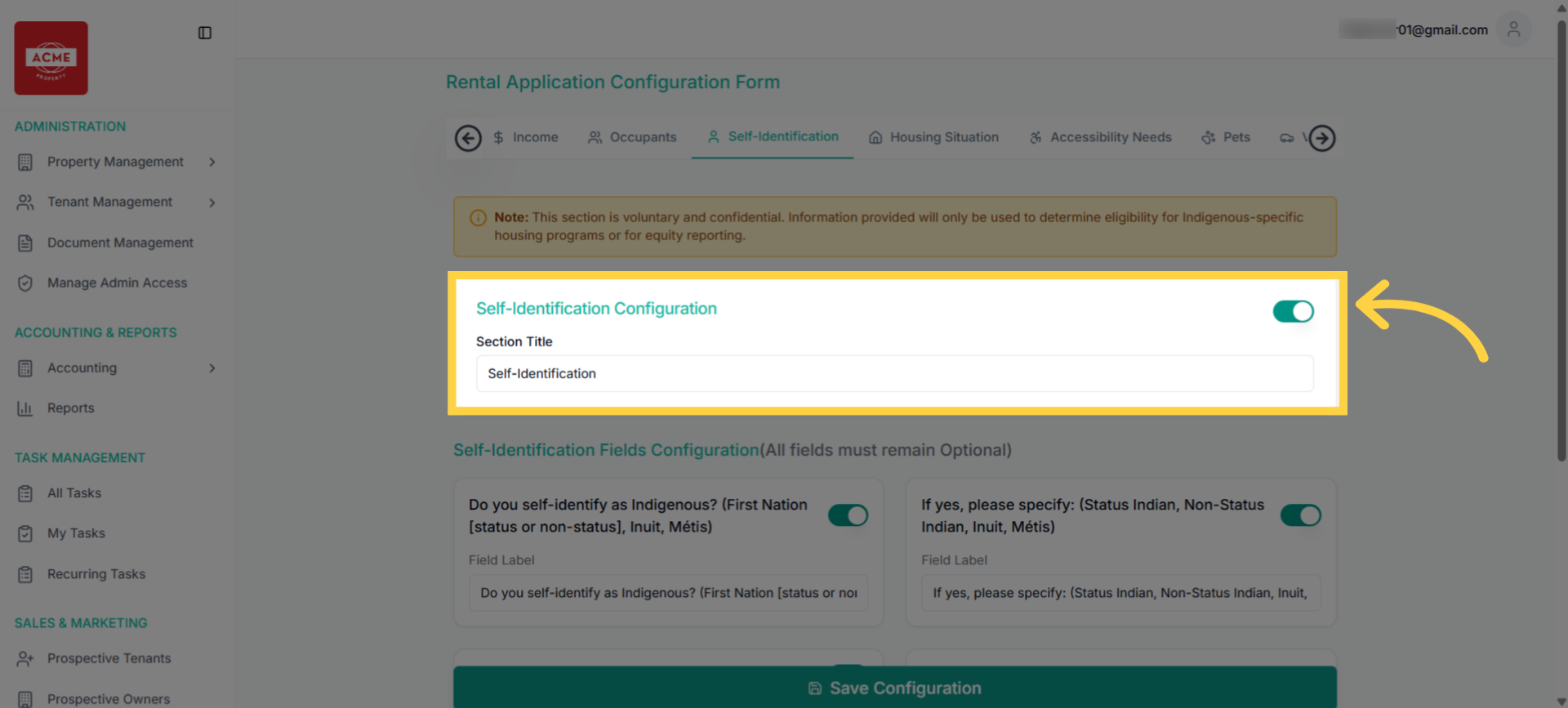
11. Read the Disclaimer Note
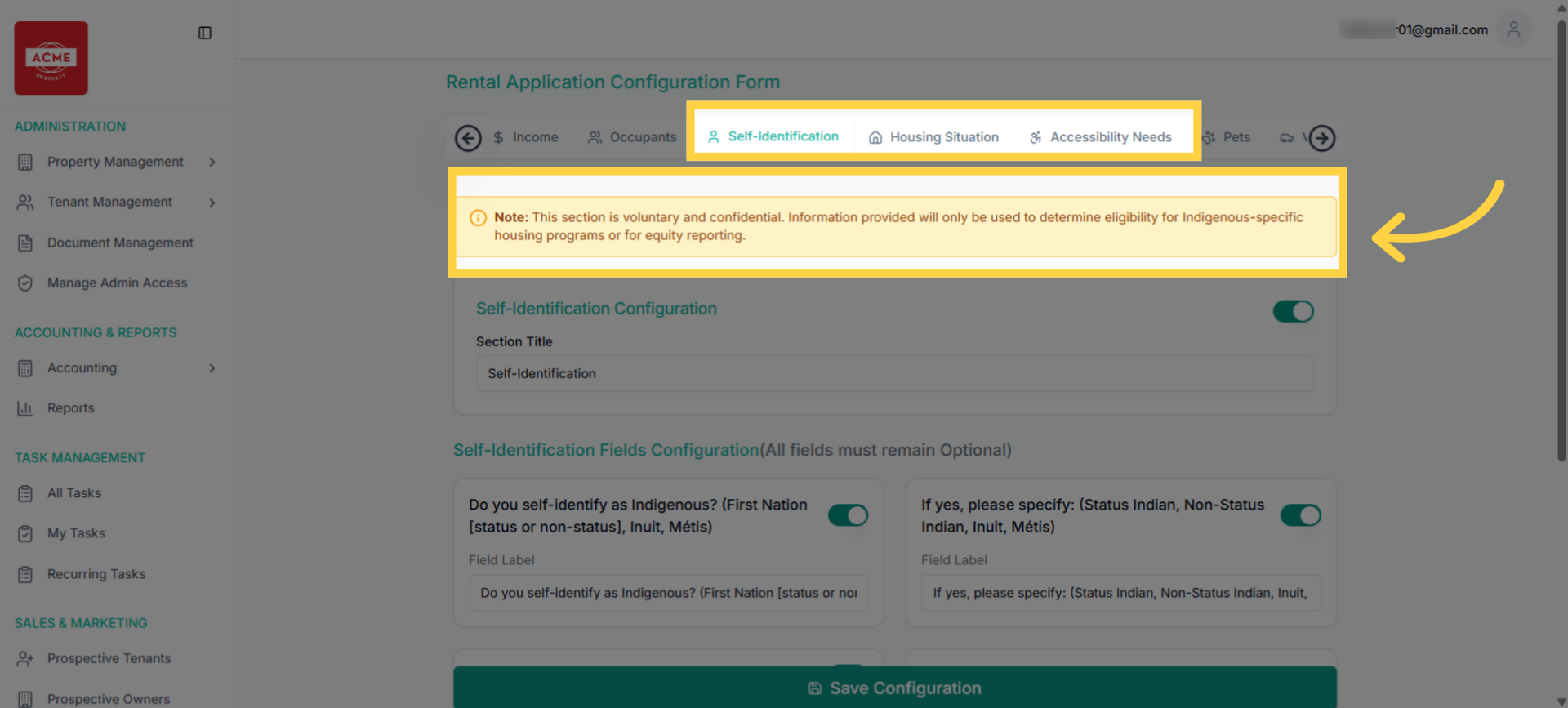
12. Disable the Configuration Button to avoid the Section appearing in the Form
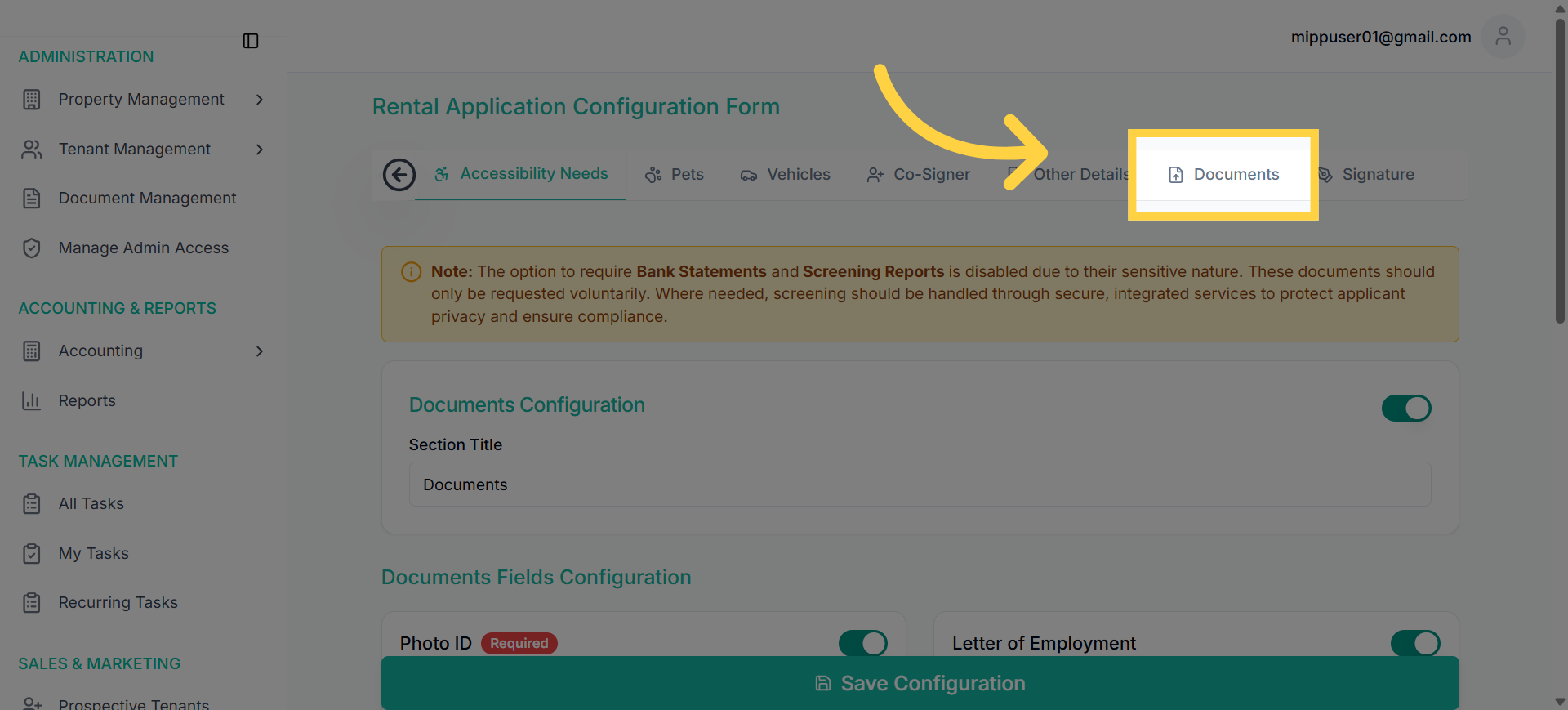
13. Switch to “Documents” tab
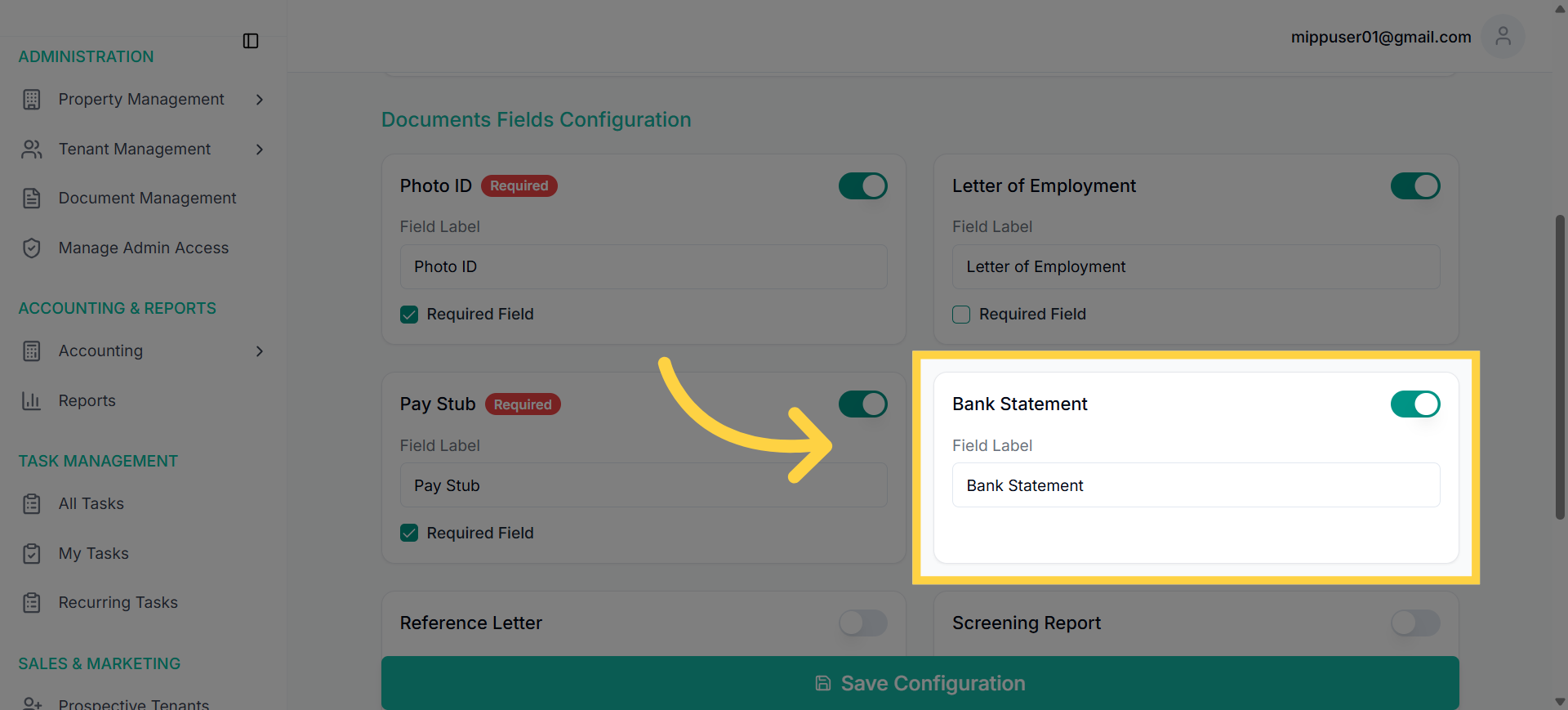
14. In the Documents tab, fields like Bank Statement can be toggled on, but cannot be made required due to standard Policy
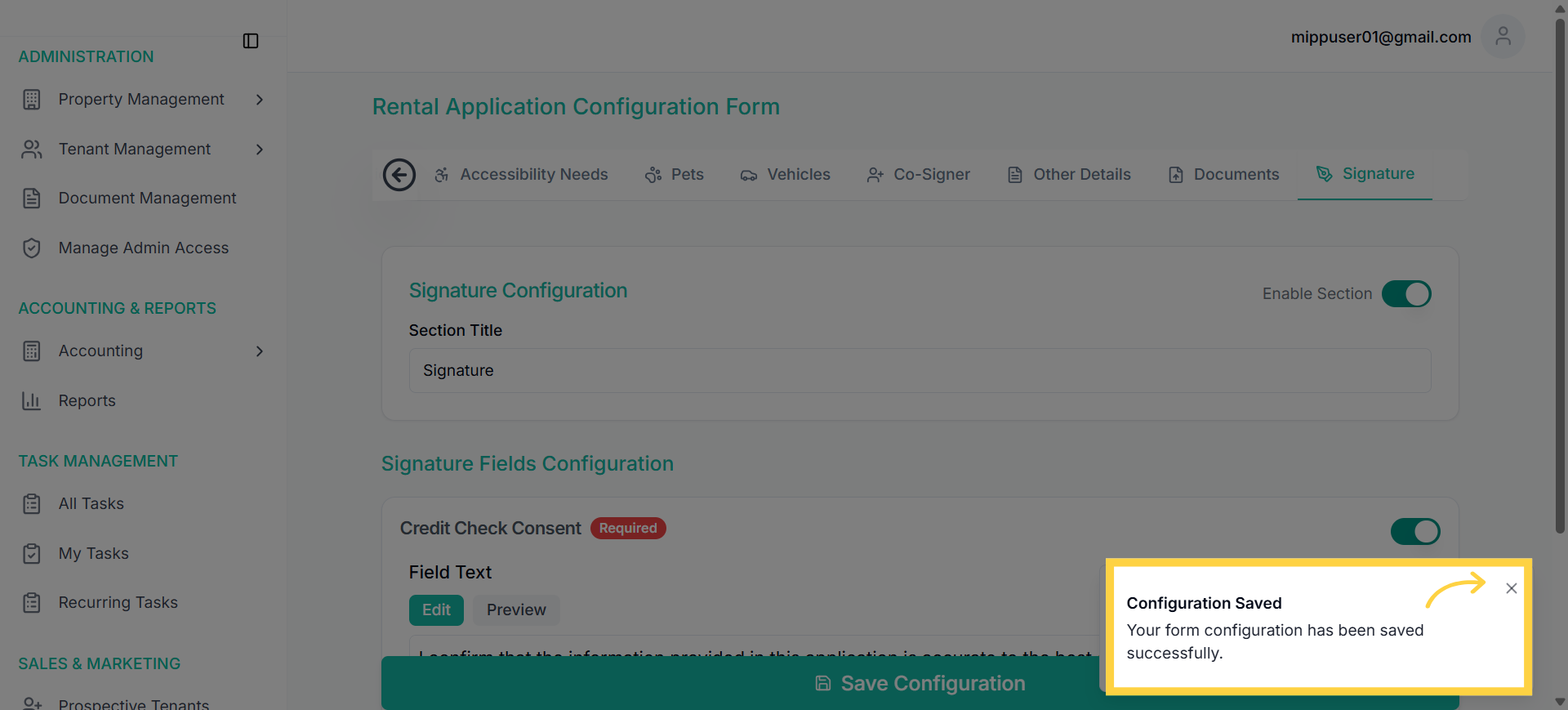
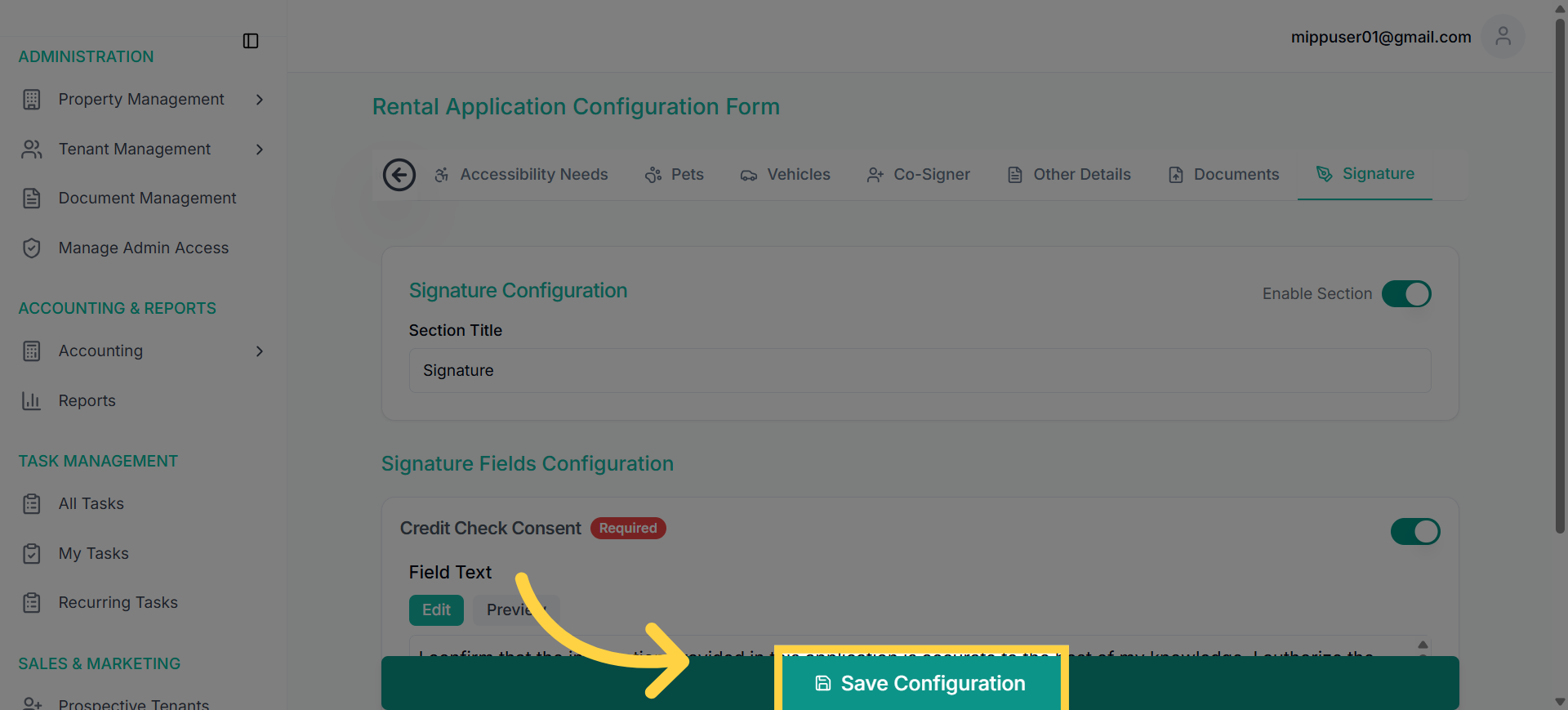
15. Click “Save Configuration” to save the Changes
16. Close the Confirmation Pop-up