• Home
  • Blogs
  • FAQs
  • Login
  • Home
  • Blogs
  • FAQs
  • Login
home/Knowledge Base/General/How to Add Properties to Timestamp Notes?

How to Add Properties to Timestamp Notes?

57 views 0 January 16, 2025 mippsupportadmin

1. After logging in, click on the plus sign of the upper top right side of the screen
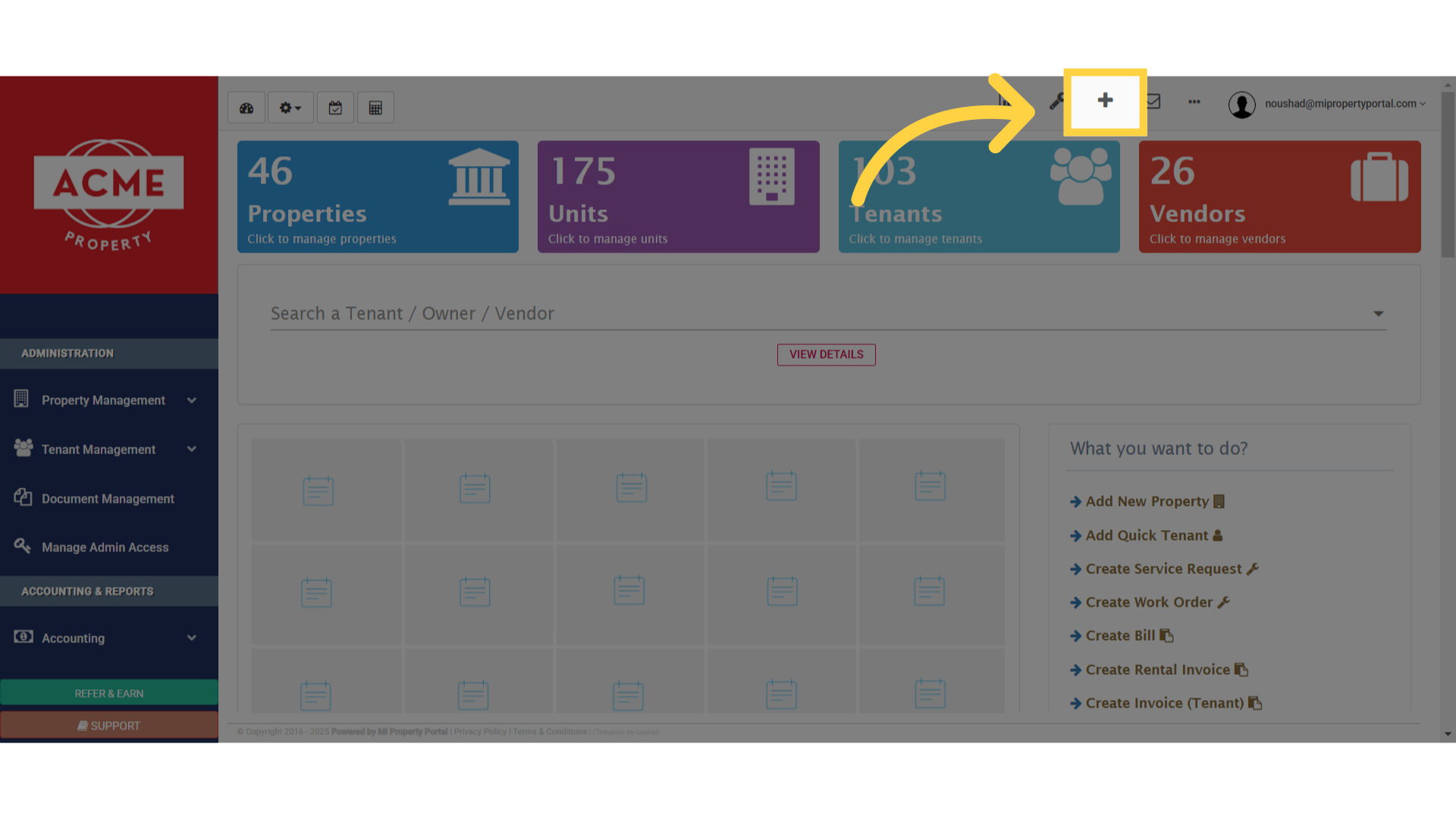
Click 'Toggle Dropdown ...'

2. Here is your timestamp box, ready and waiting
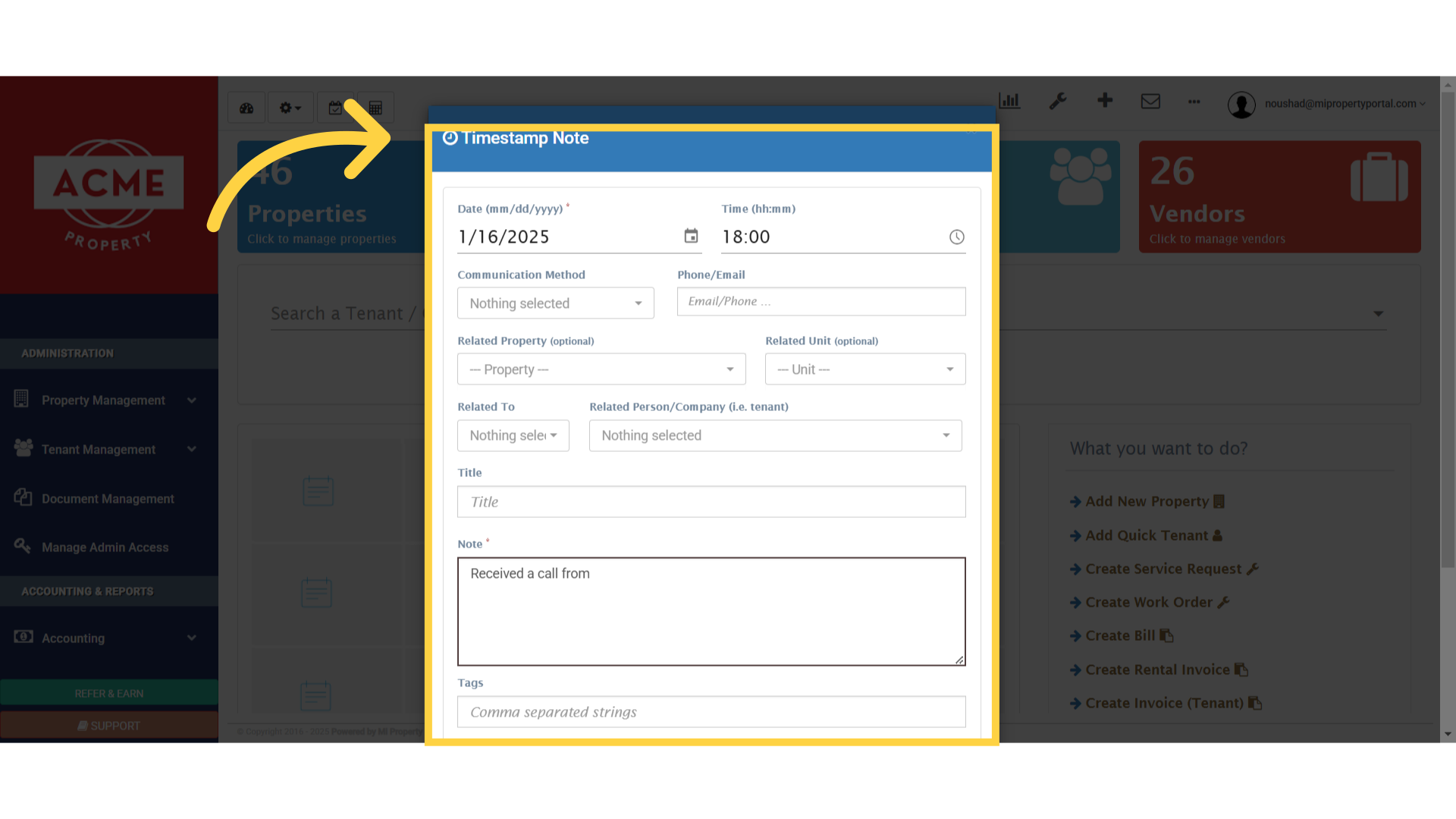
Click 'Timestamp Note'

3. Next, include the relevant property you’d like to add
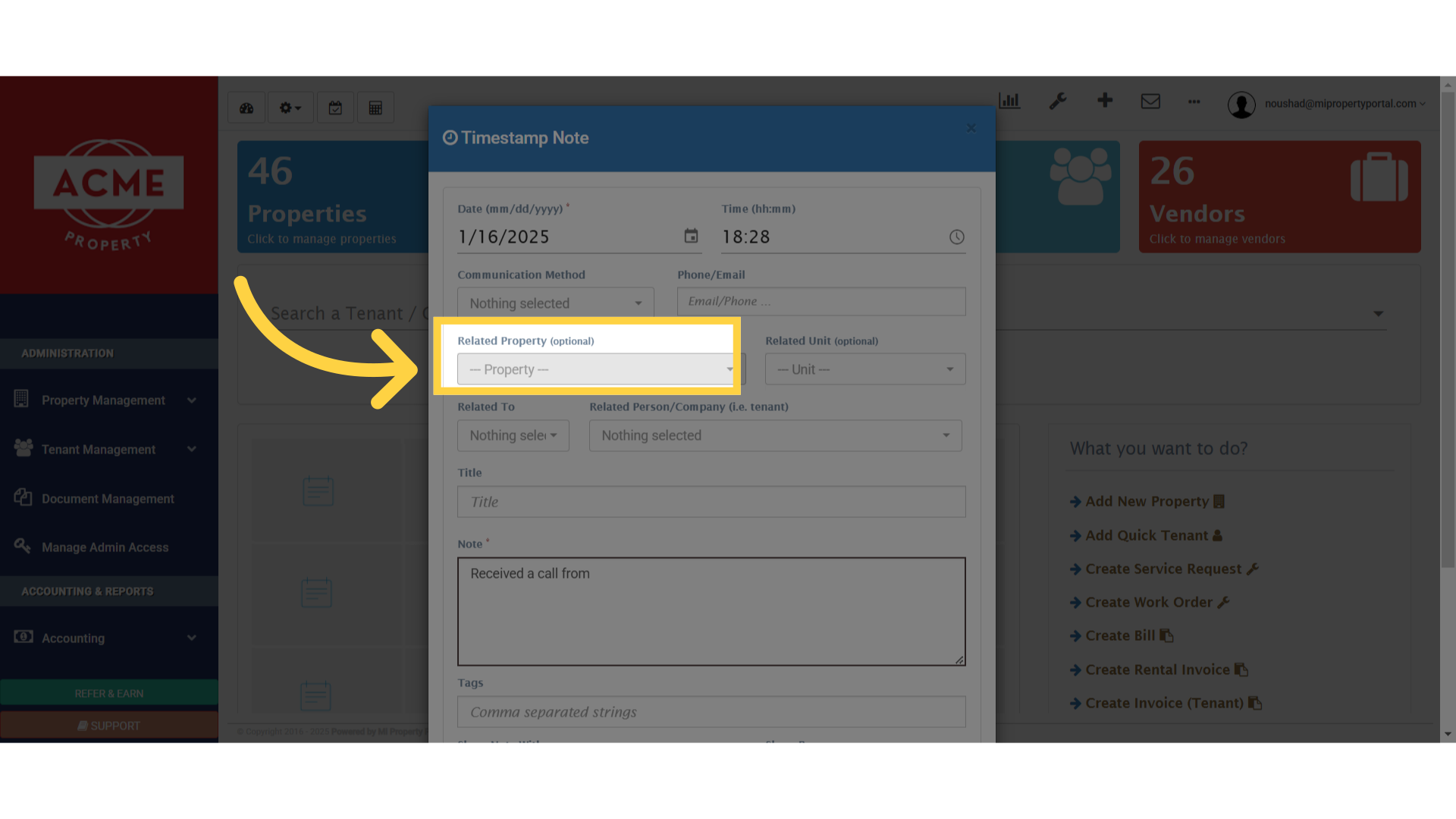
Click '--- Property ---'

4. Now, add the unit to the property you want to include
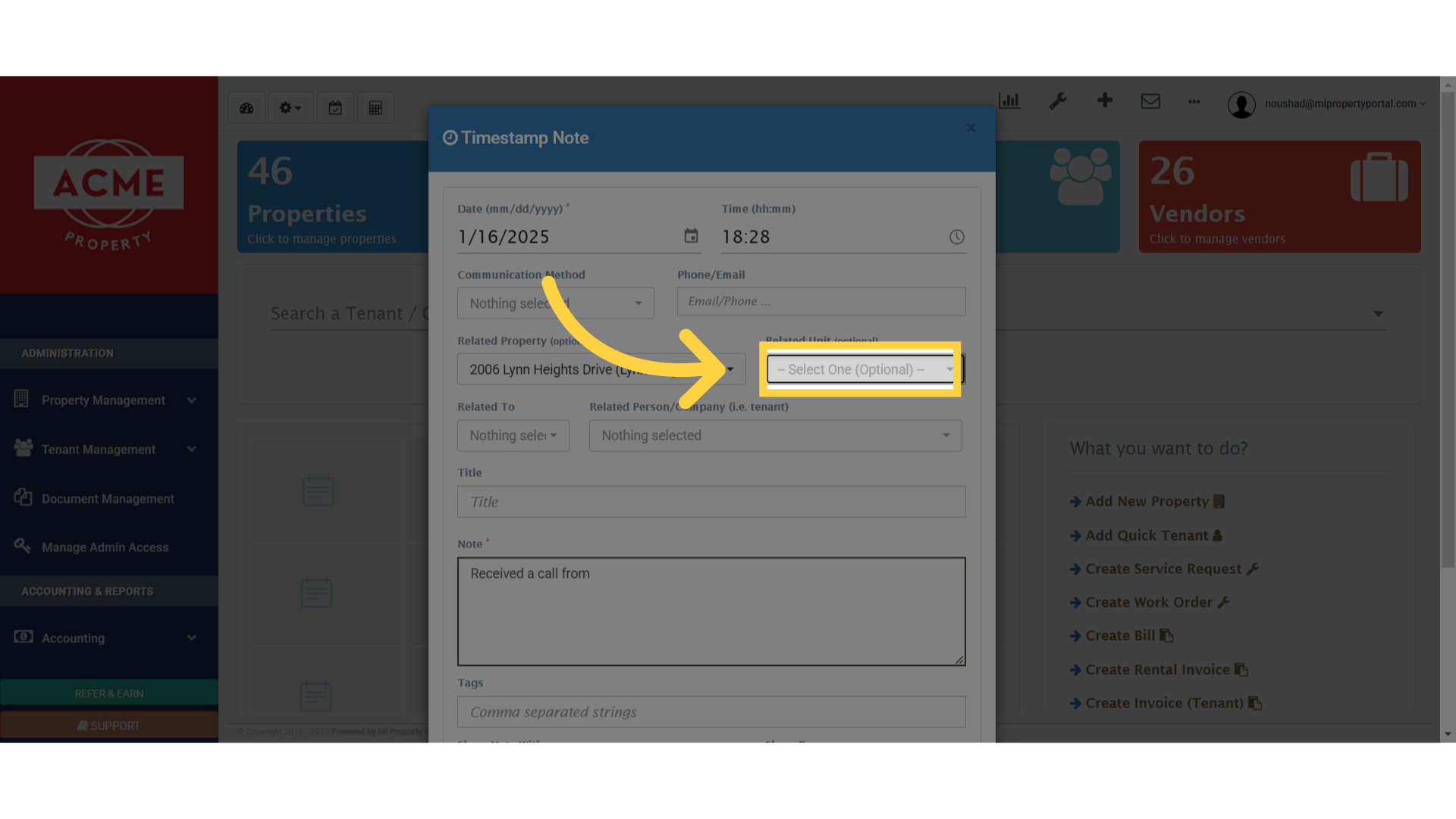
Click '-- Select One (Optional) --'

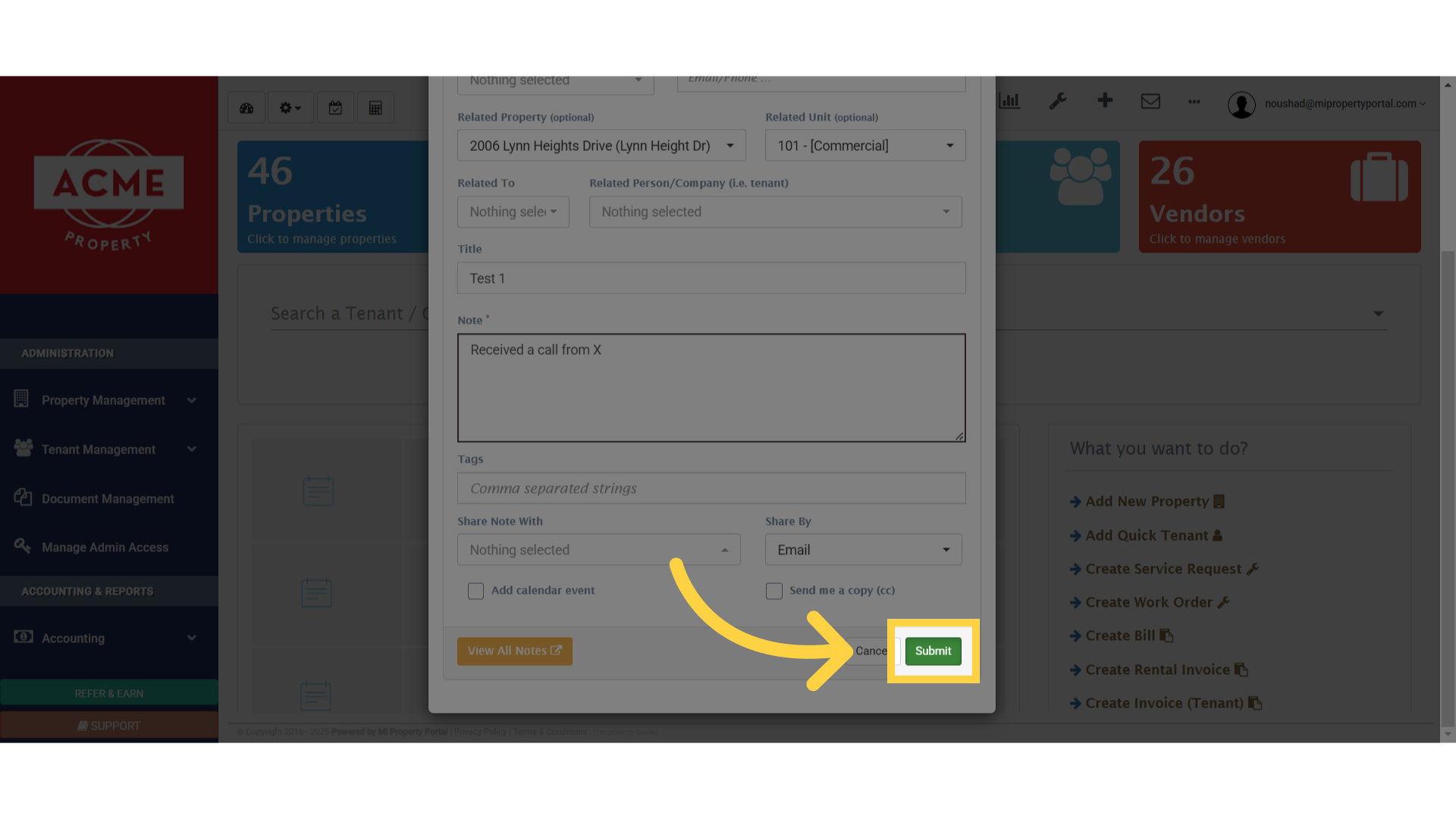
5. Click on submit

Click 'Submit'

6. Next, navigate to the Properties under the Property Management section
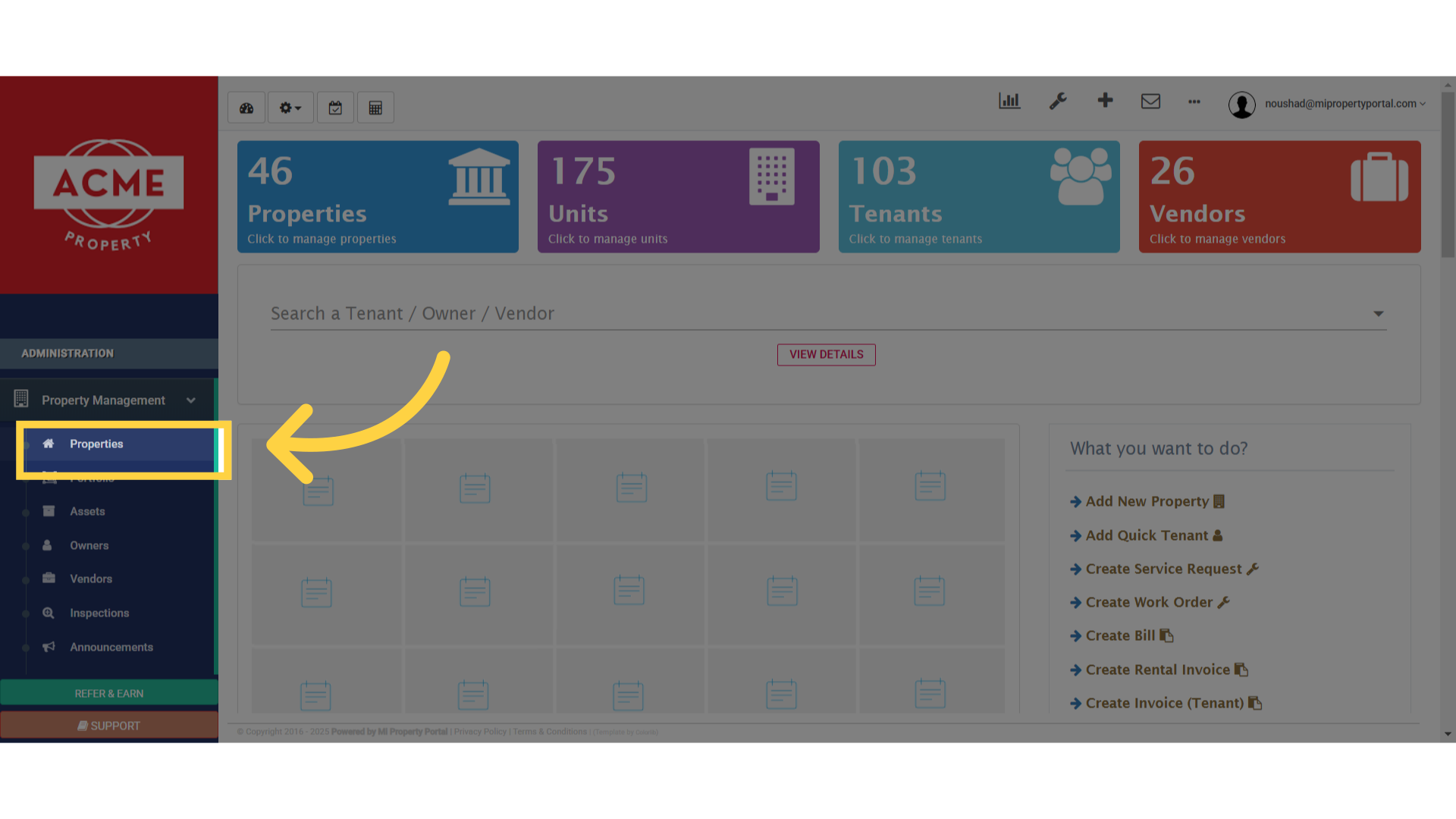
Click 'Properties'

7. Navigate to the specific property where you added the timestamped notes by searching for its name
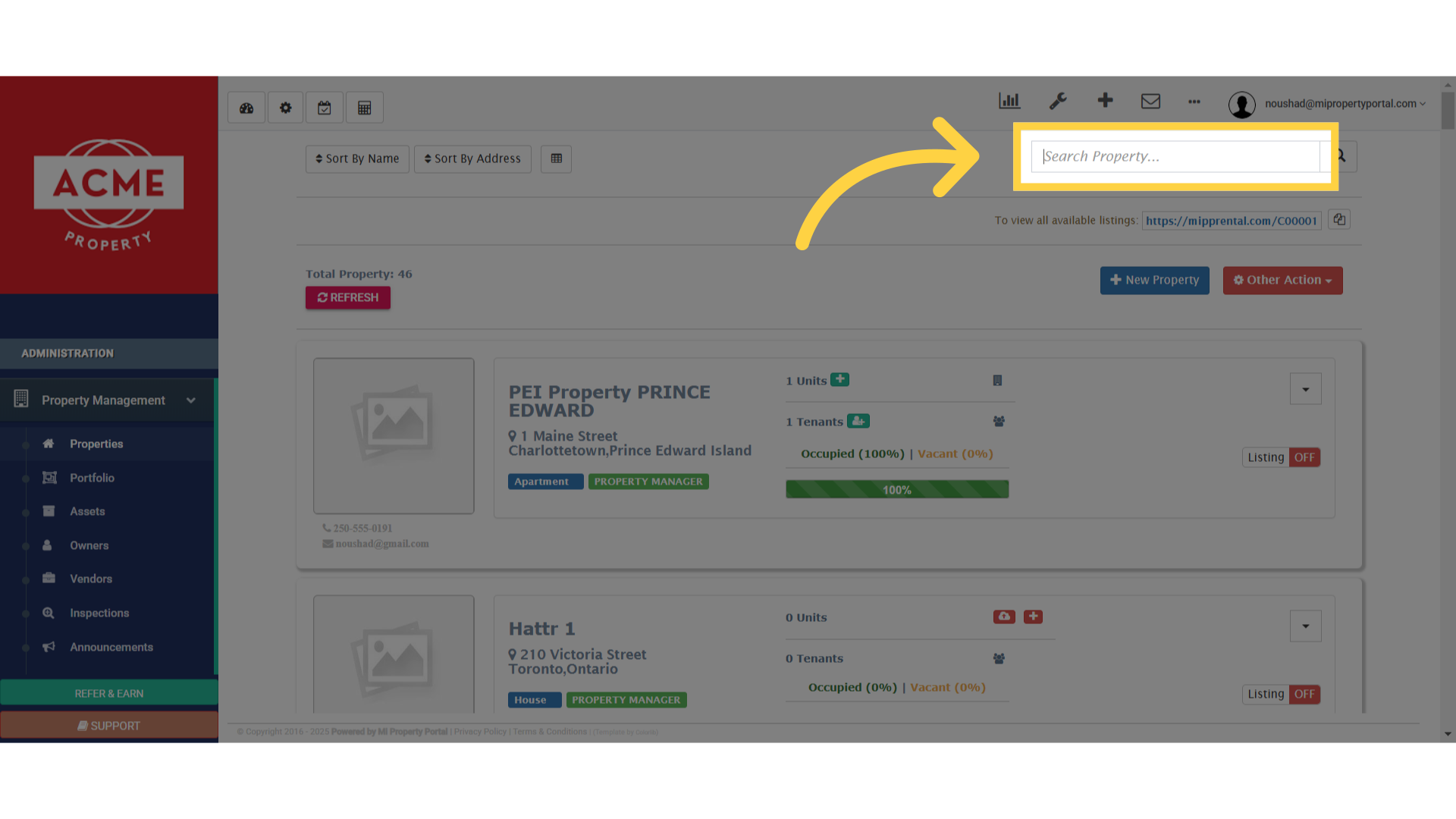
Click 'Search Property...'

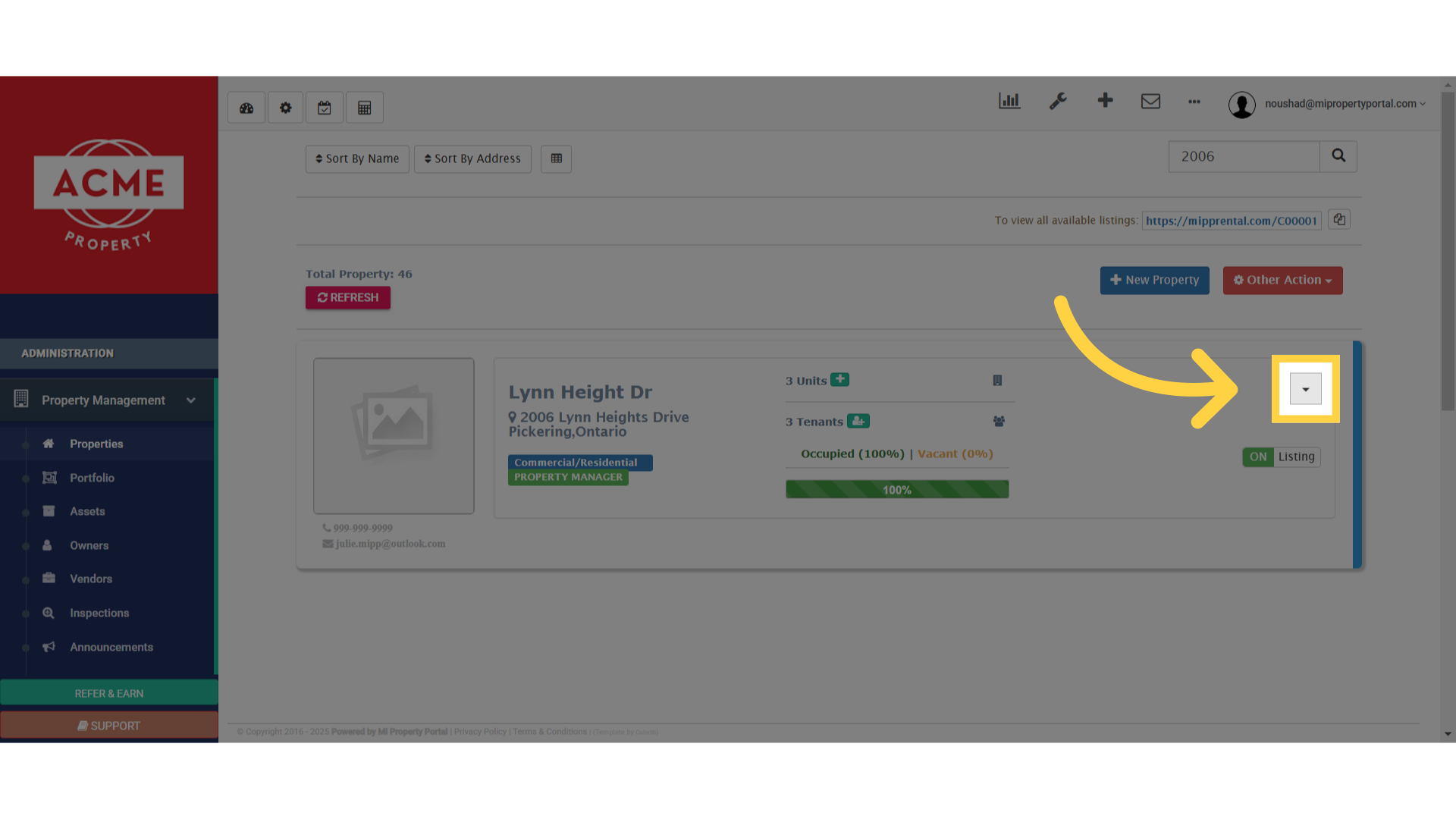
8. Click on the dropdown menu

Click here

9. Click on the details option of the dropdown menu
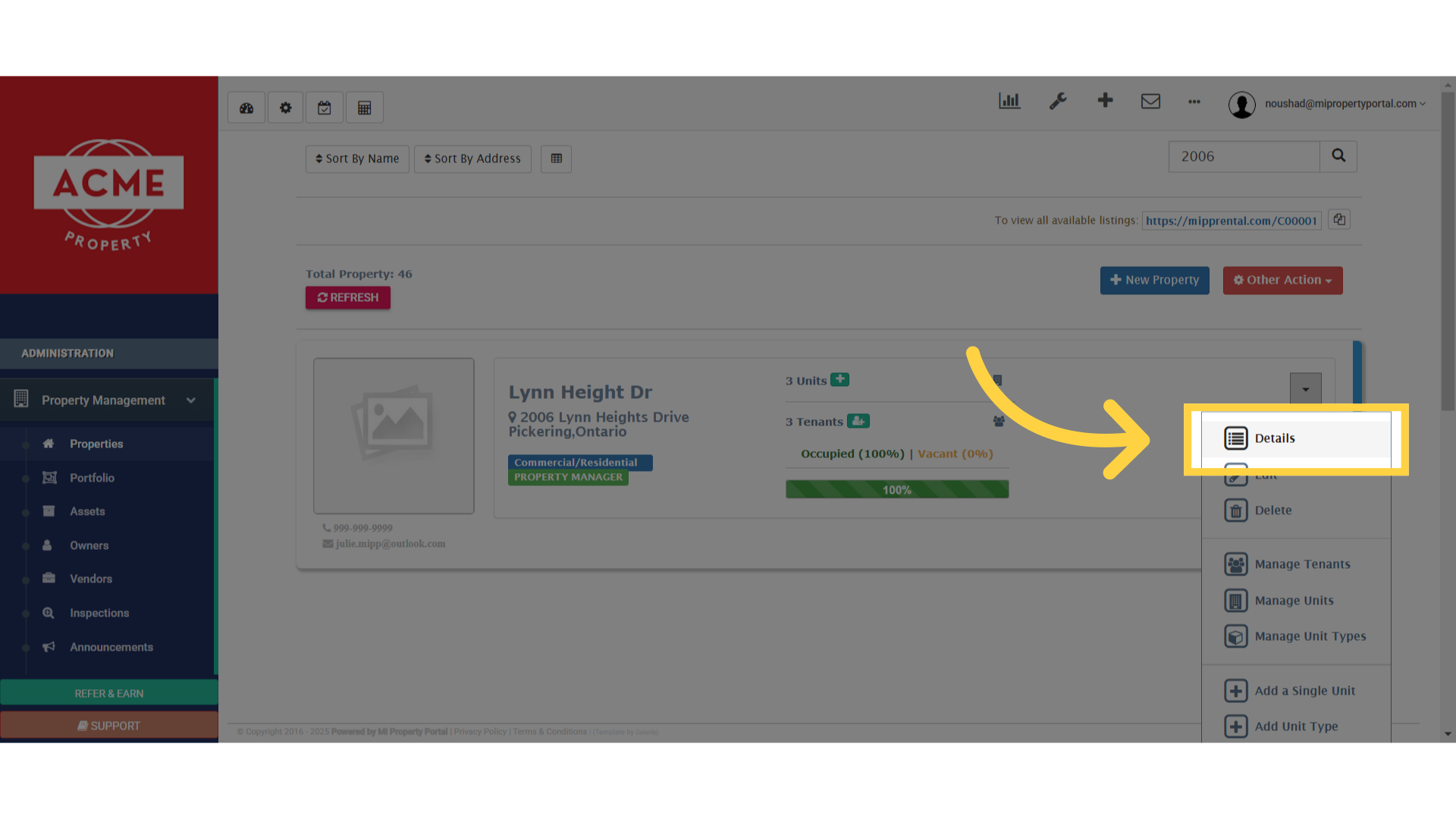
Click 'Details'

10. Now, scroll to the bottom of the page and select the ‘Timestamp Note’ tab
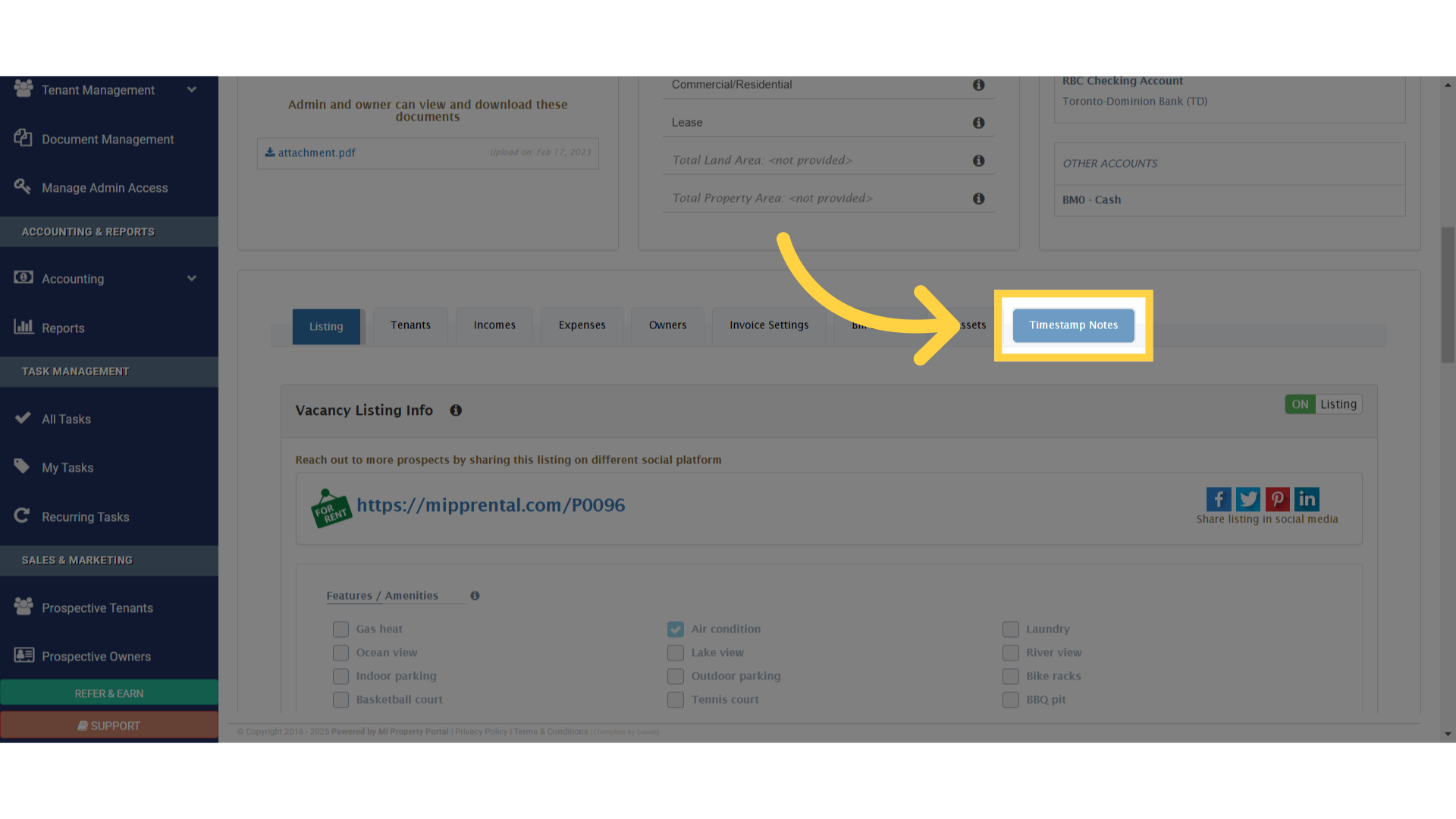
Click 'Timestamp Notes'

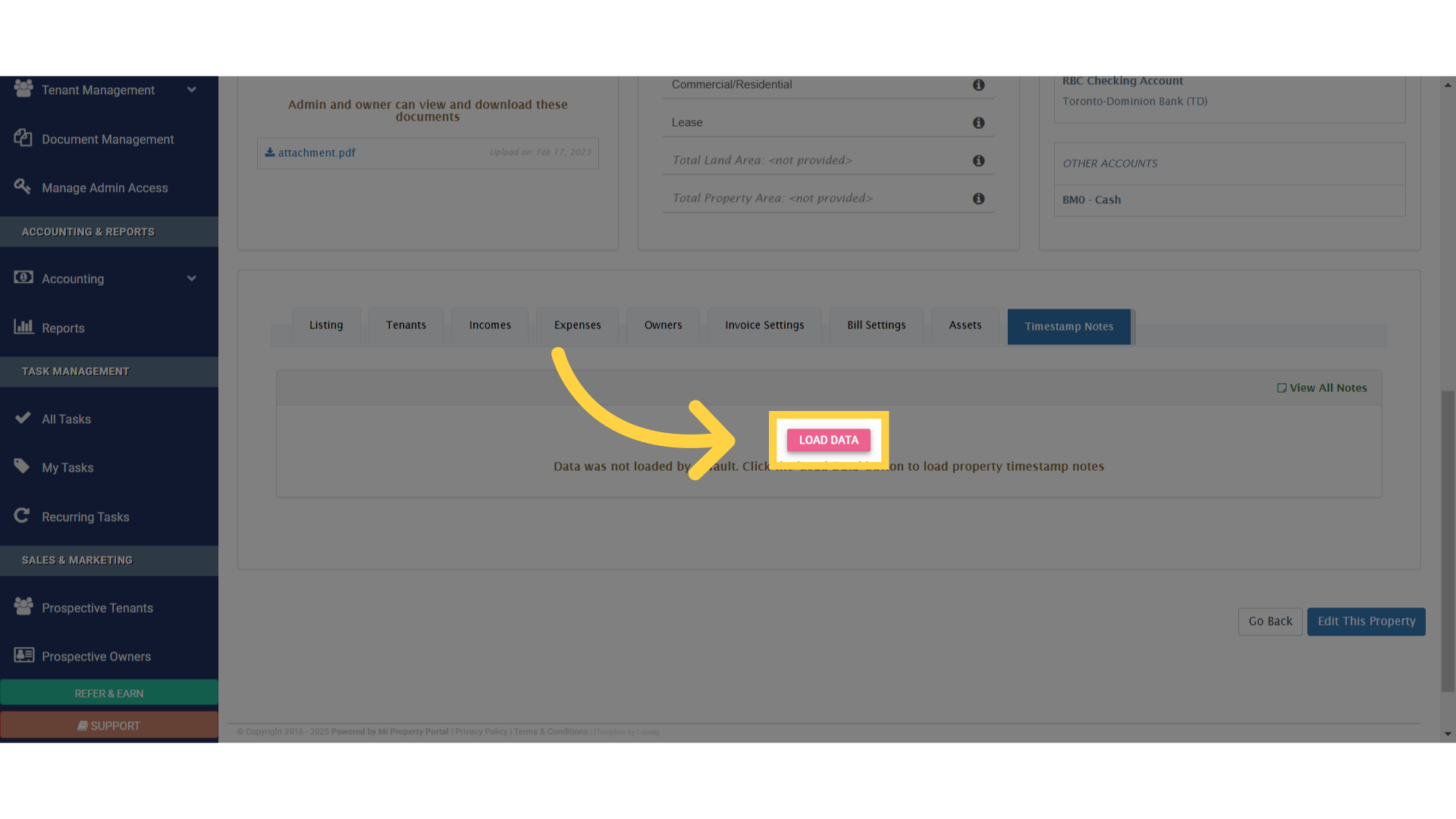
11. Click “Load Data”

Click 'Load Data'

12. Here, you will find your timestamp note displayed
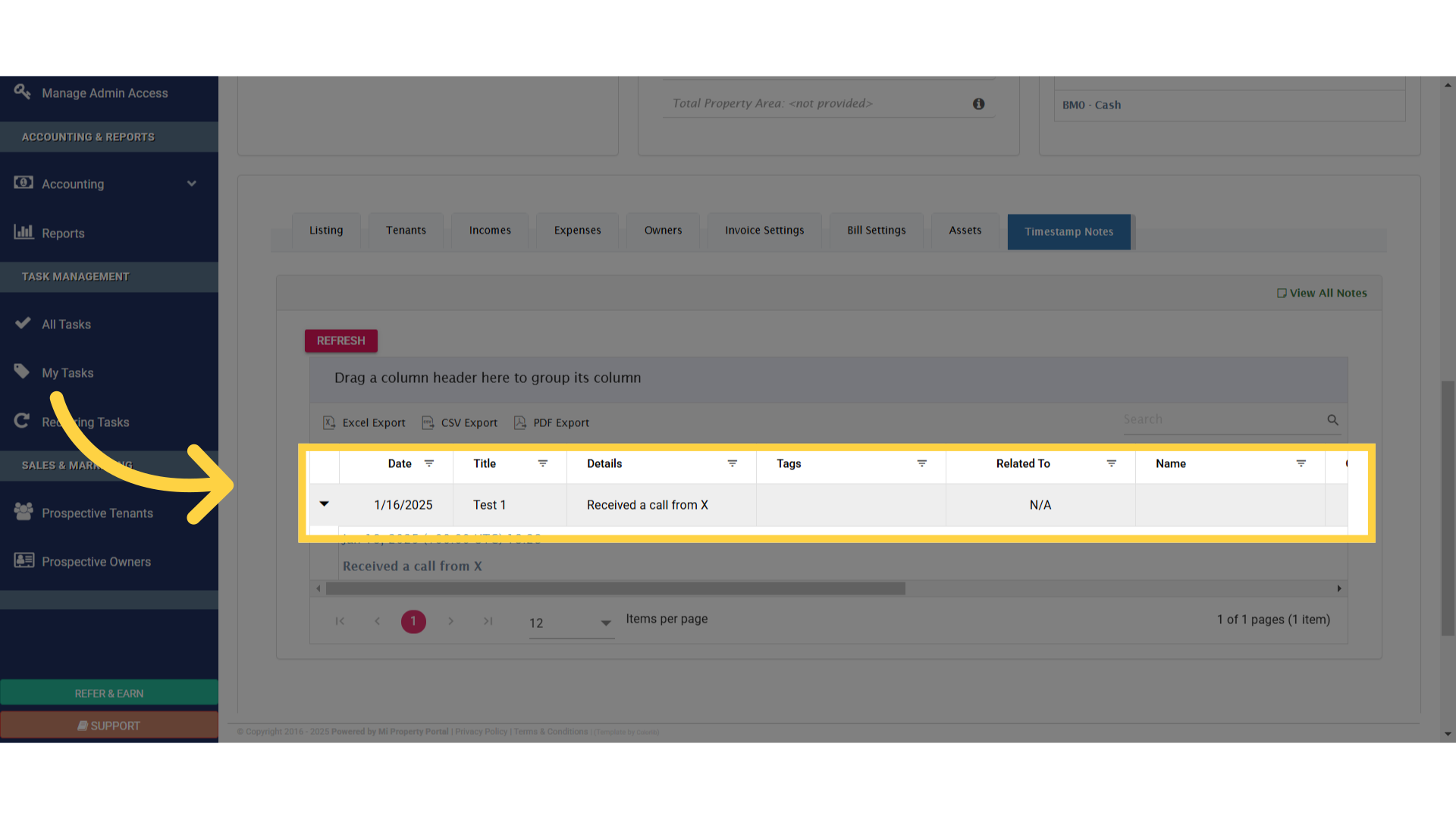
Click 'N/A'

Tags:How to Add Properties to Timestamped Notes?Adding properties to timestamped notesHow to customize timestamped notesTimestamp note property guideHow to edit properties in timestamp notesOrganizing timestamped notes with propertiesAdding metadata to timestamped notesProperty management for timestamp notesHow to modify timestamped notesCustomizing fields in timestamped notesStep-by-step guide to add properties to timestamp notes

Was this helpful?

Yes  No
Related Articles
  • Bulk Data Upload Overview
  • How to Fill Property Data Upload Template?
  • How to Fill Unit Data Upload File?
  • How to Edit a Unit
  • Property delete VS Deactivate
  • How to Edit or Delete a Property?

Didn't find your answer? Contact Us

Leave A Comment Cancel reply

You must be logged in to post a comment.

Popular Articles
  • Can I log rental income for ‘Unpaid’ invoices for ‘Moved-out’ tenants?
  • How to Rent a Parking Spot in Mi Property Portal
  • How to View Bulk Payment History Report
  • How to add a line item category for invoice and bill?
  • How to View Tenant Invoice Payment Report
KB Category
  • Service Request
  • Subscription
  • Bulk Data Upload
  • Owner Portal
  • MiPropertyPortal Admins Training Workshop
  • MiPropertyPortal New Features/Improvements Monthly Webinar
  • Task Management
  • Prospective Tenants
  • Setup
  • Vendor Management
  • Tenant Screening
  • Tenant Portal
  • Tenant Management
  • Accounting
  • Security Deposit
  • Reporting
  • Rental Tax
  • Rental Listing
  • Property Owner Related
  • Property
  • Other
  • Asset Management
  • Online Payment
  • Lease Management
  • General
  • Form Management

  How to submit/create a Support Ticket?

How to add Title and tags under the timestamp note?  

MiPP
MiProperty Portal is Canadian-made for
Canadian landlords and property managers.
COMPANY
  • About Us
  • Why MiPP?
  • Features
SUPPORT
  • Knowledge Base
  • Get Email Help
SOCIAL
  • Linkedin
  • Facebook
  • Twitter
  • Privacy Policy
  • Terms of Use
  • © 2025 mipropertyportal.com. All Rights Reserved.