• Home
  • Blogs
  • FAQs
  • Login
  • Home
  • Blogs
  • FAQs
  • Login
home/Knowledge Base/Reporting/How to Configure Account Mapping for NR4 Reports?

How to Configure Account Mapping for NR4 Reports?

111 views 0 June 4, 2024 Updated on February 20, 2026 mippsupportadmin

1. Click the Property Management dropdown under Administration in the left navigation panel
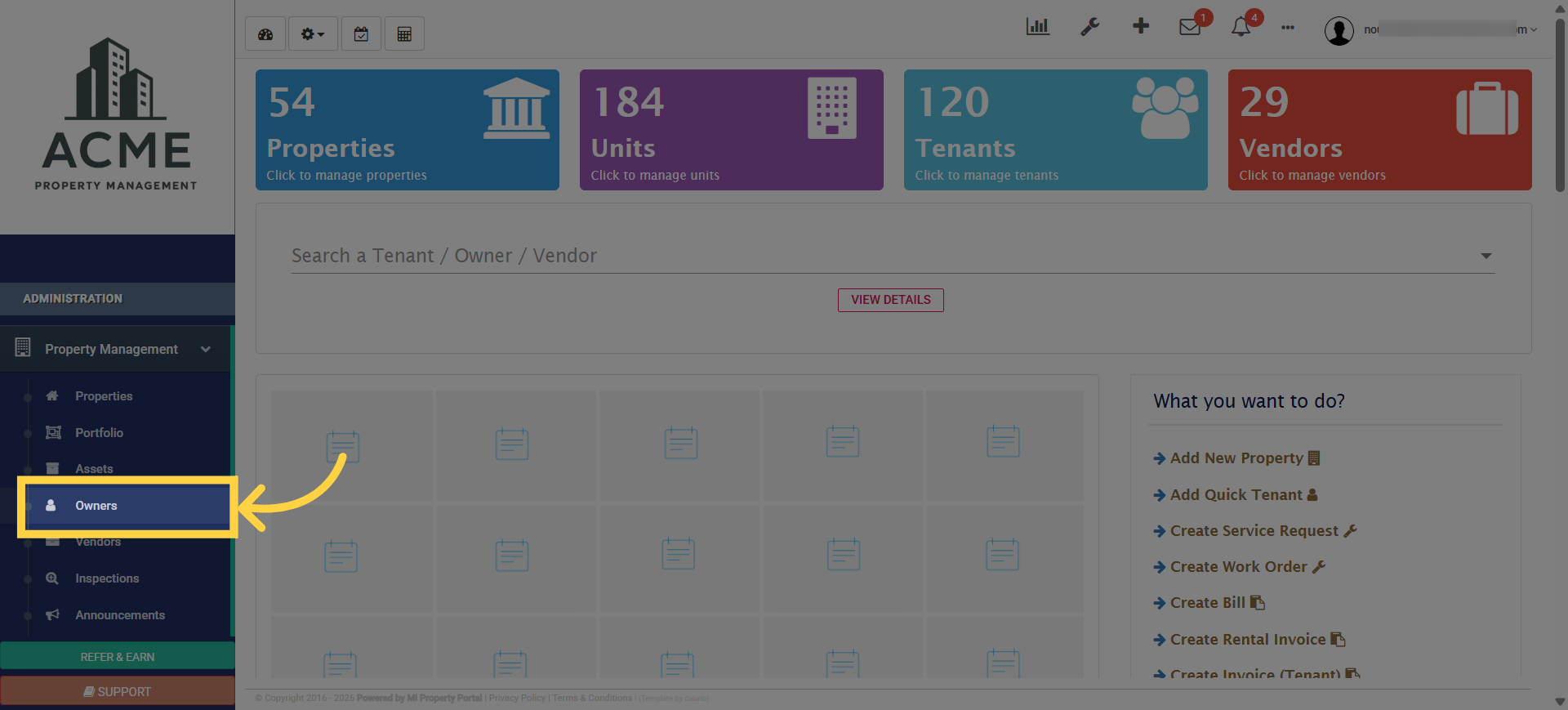
Access Owners Section

2. Click the Action dropdown menu, then select NR4 Settings
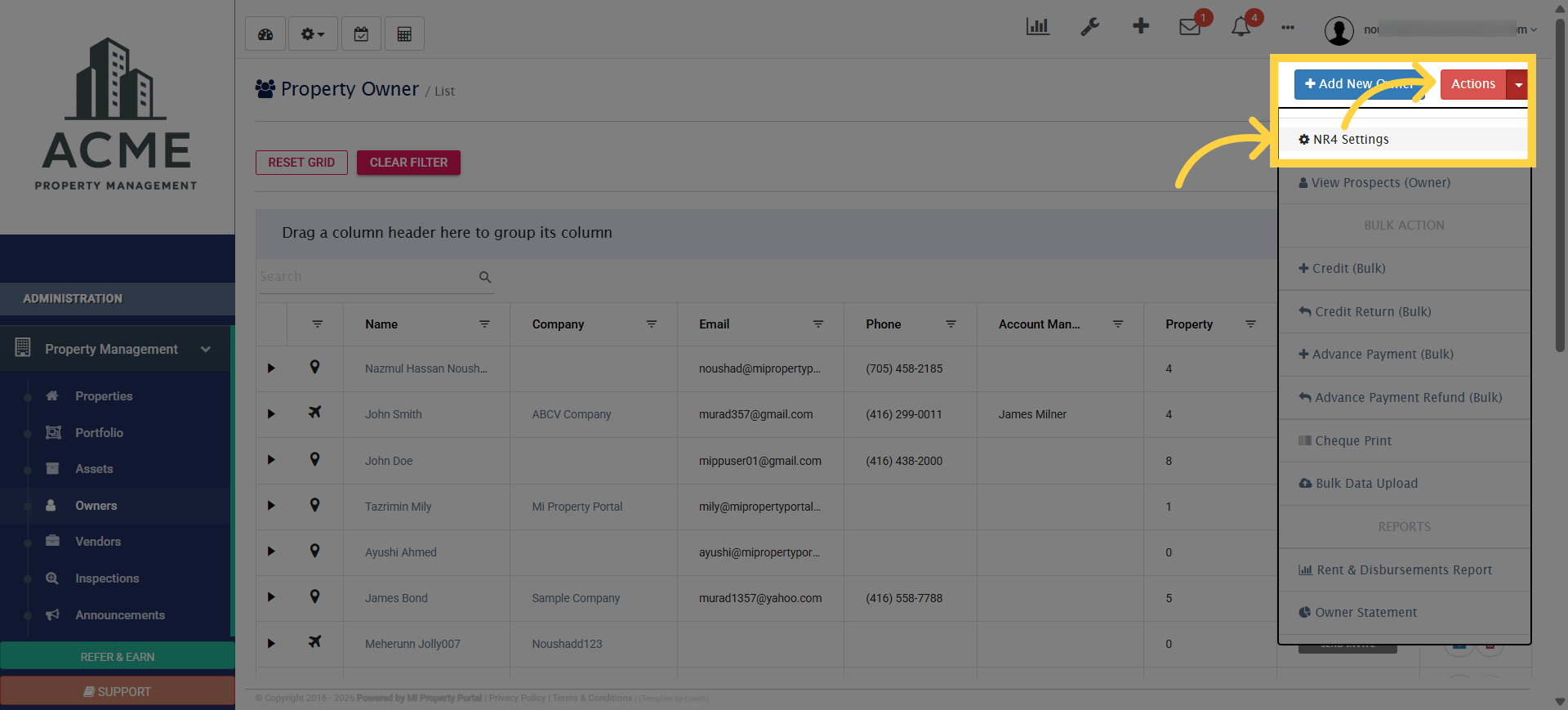
Navigate to NR4 Settings

3. Click the Non Residence Account number field to specify the account used for non-resident tax reporting
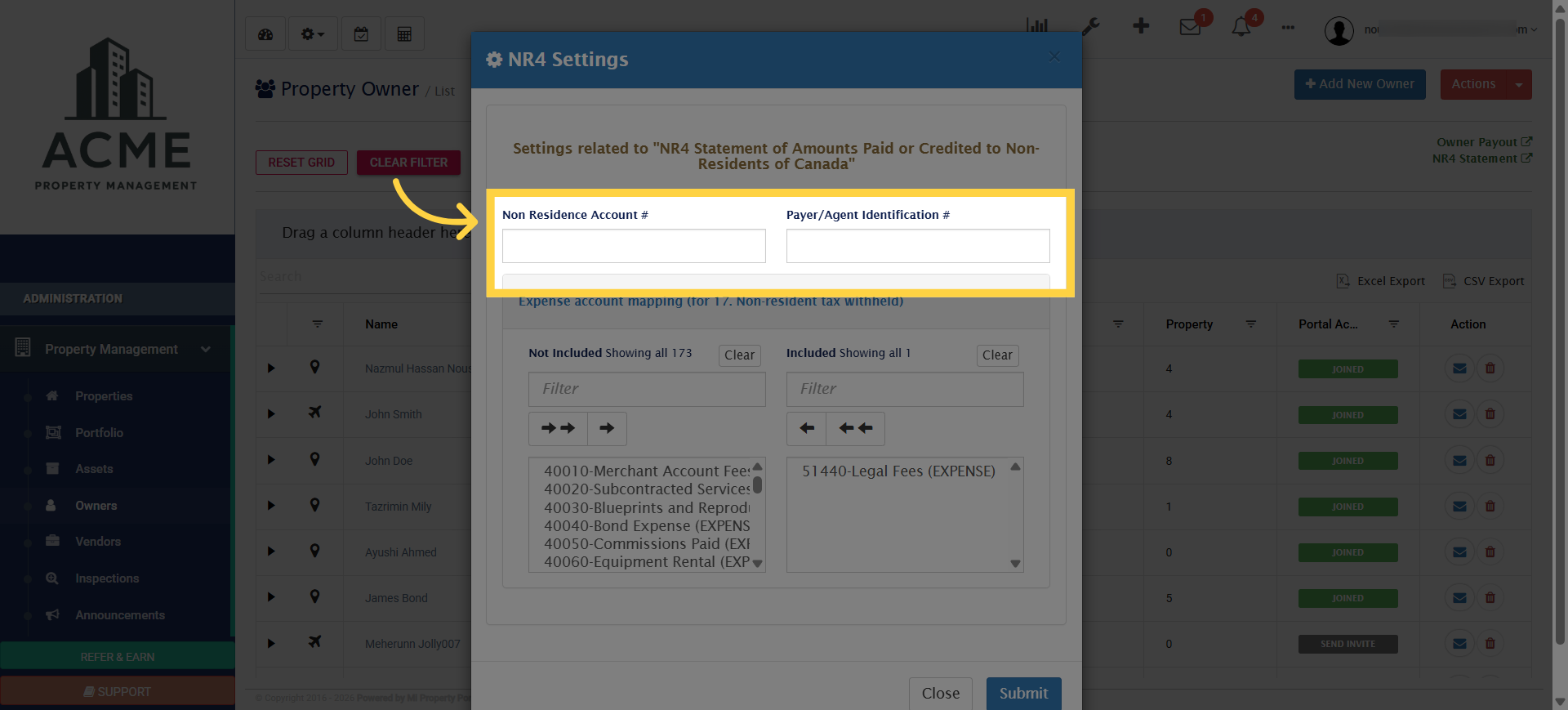
Select Non-Resident Account

4. A pop‑up will appear. Fill in the ‘Non‑Residence Account’ and ‘Payer/Agent Identification’ fields
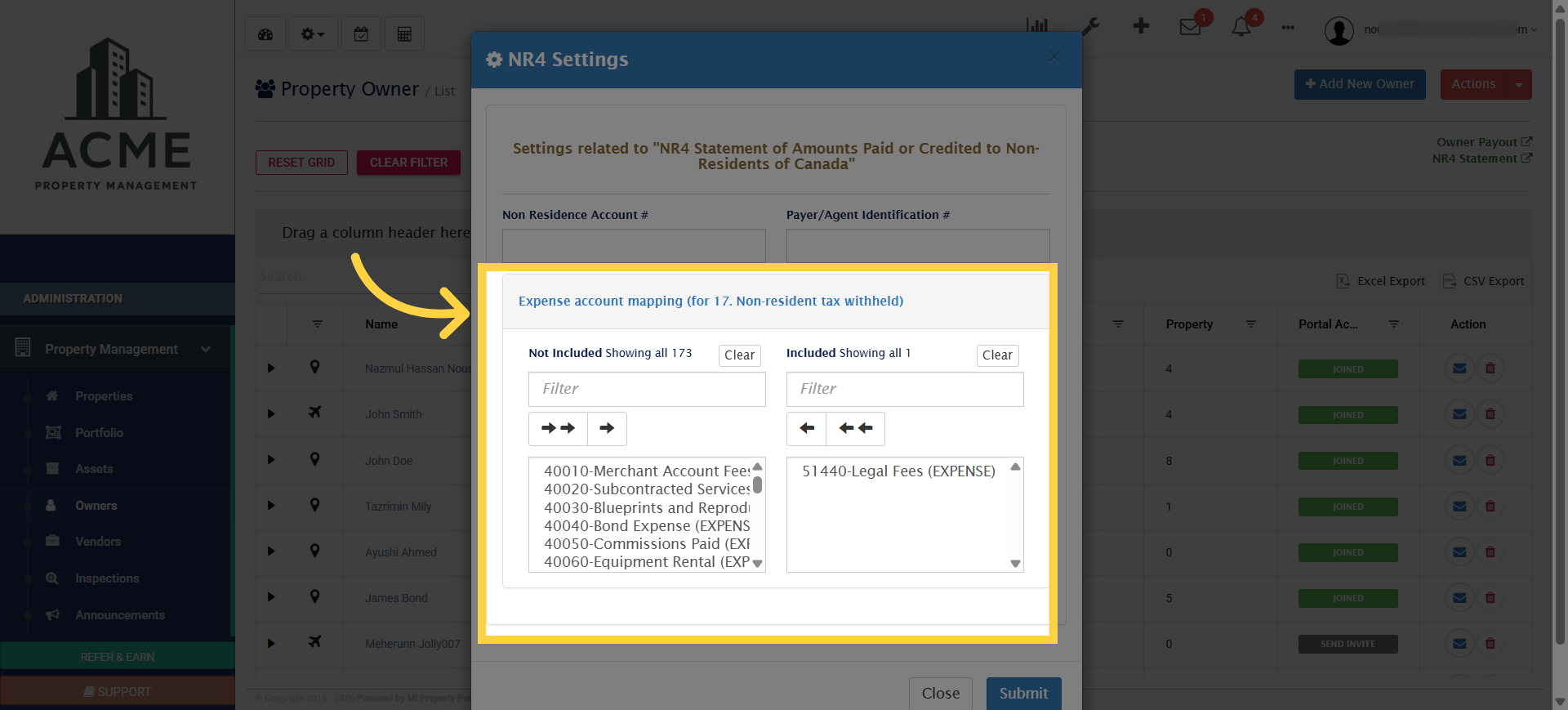
Open Expense Account Mapping

5. Click Submit to save your NR4 account mapping configurations and apply the changes
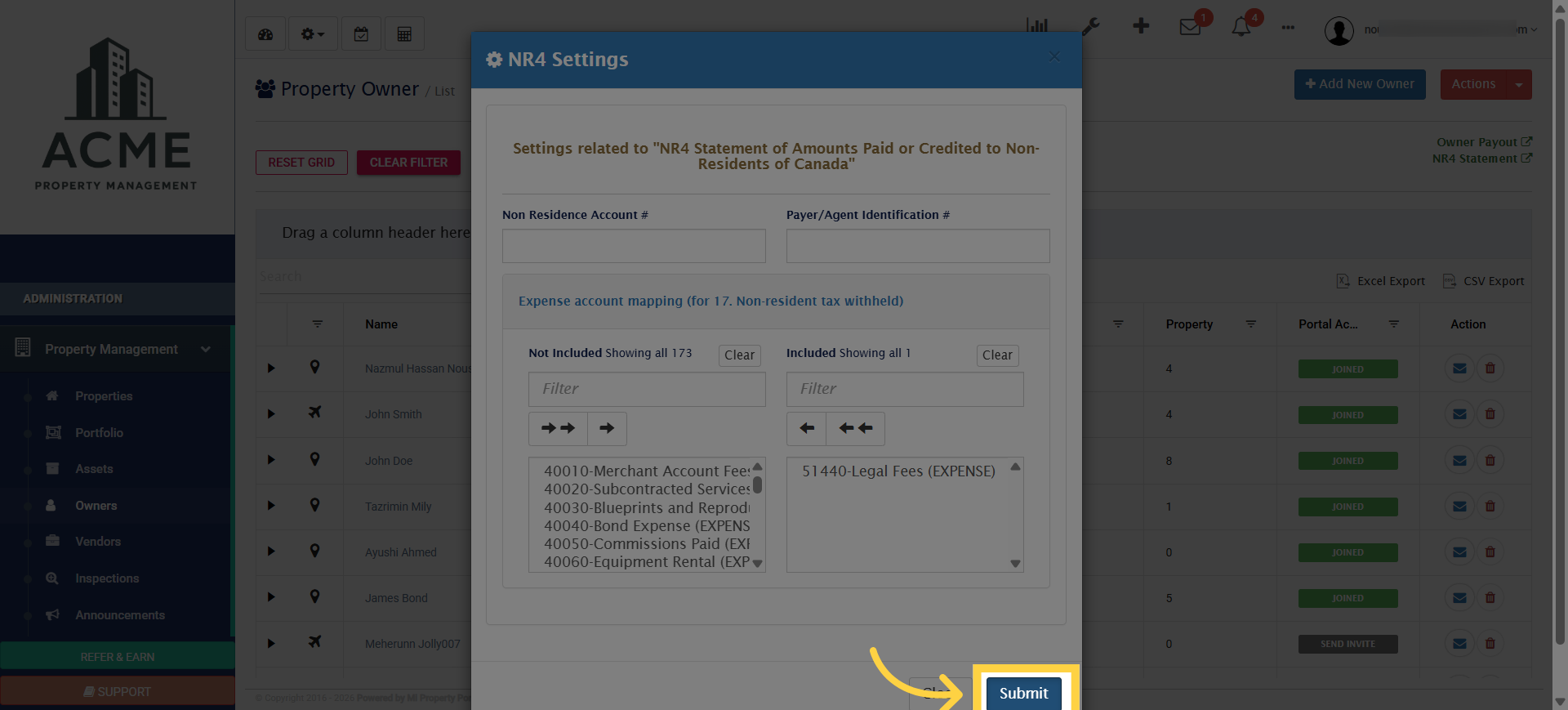
Submit NR4 Settings

6. Next, go to the dashboard and select Reports
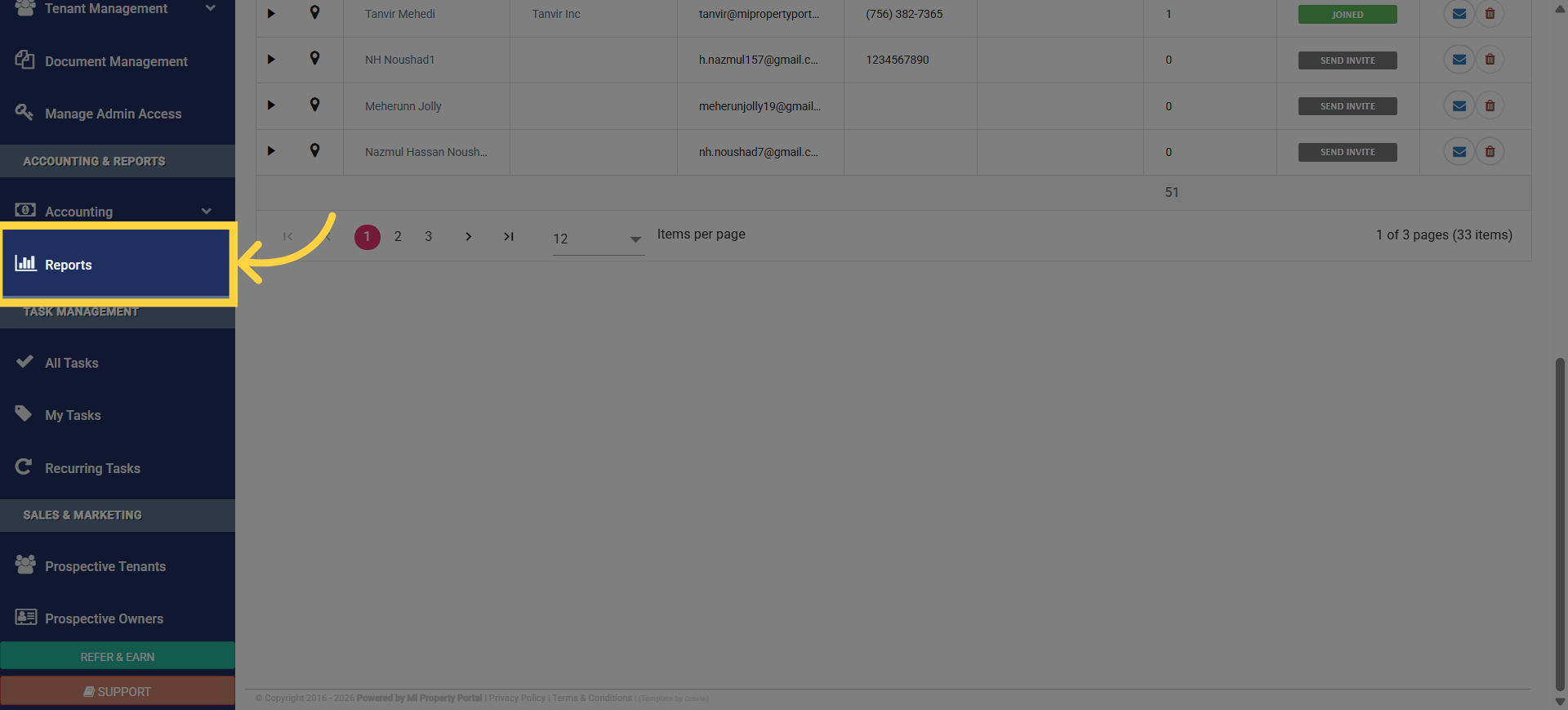
Open Reports Section

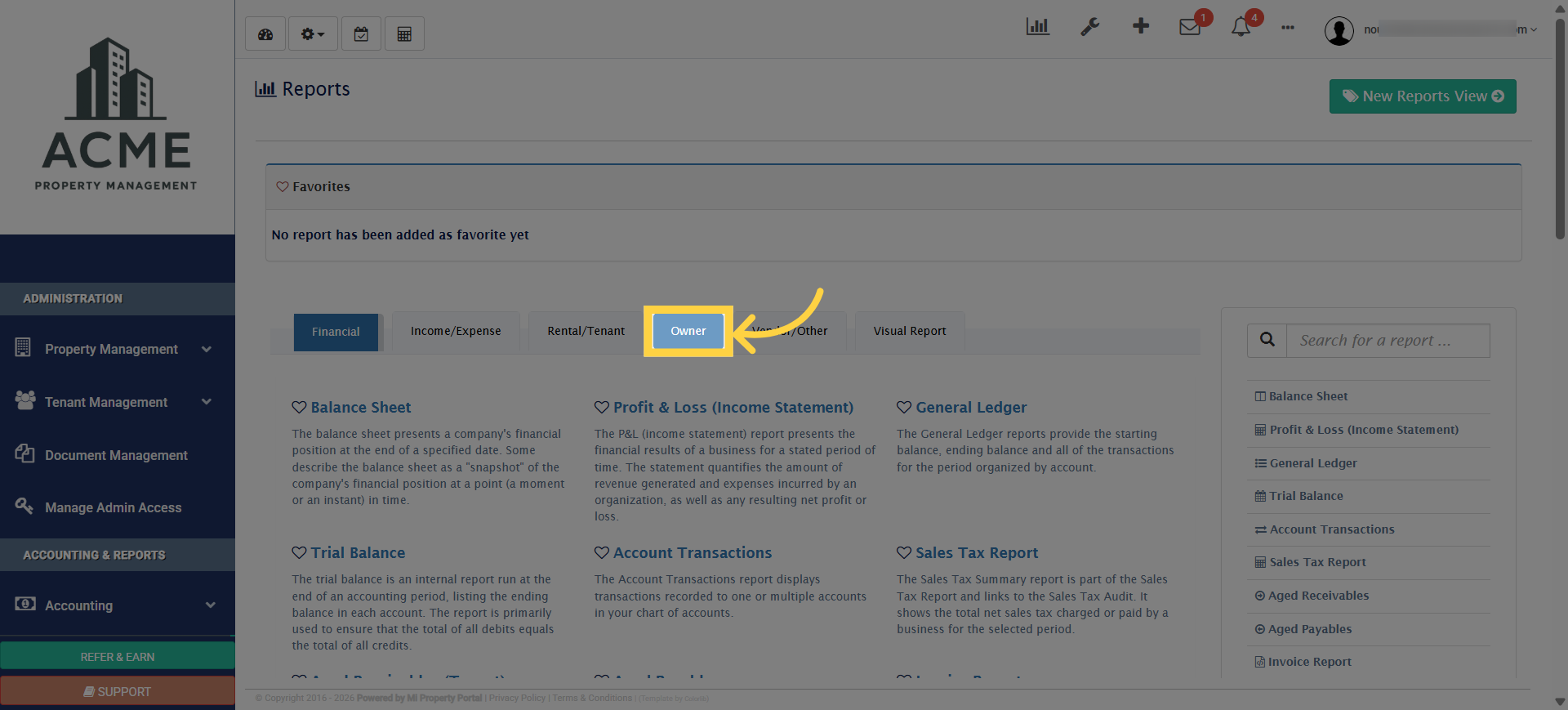
7. Click the Owner tab

Choose Owner Report

8. Click NR4 Statement to access the report specific to non‑resident tax reporting
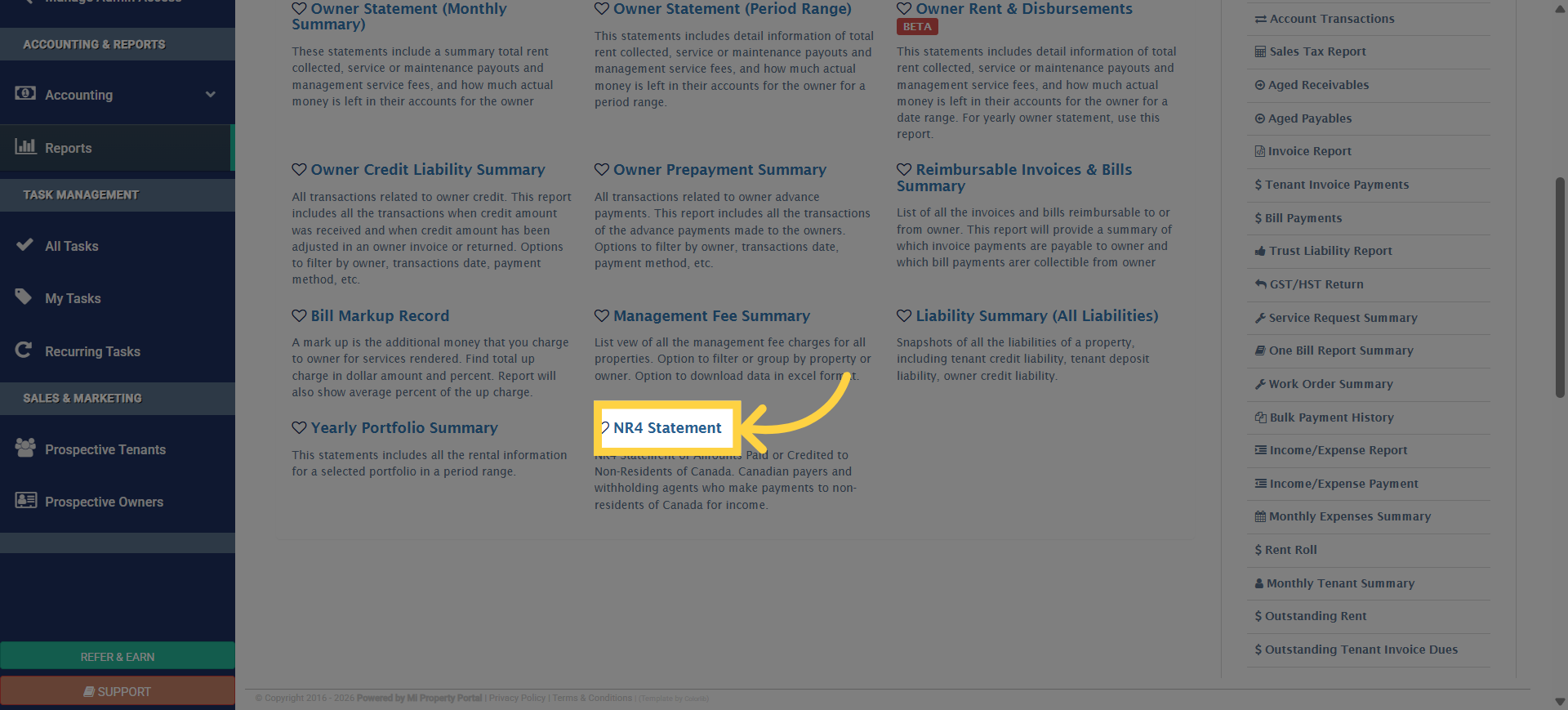
Open NR4 Statement Report

9. By selecting the Owner and Year, you can generate the report
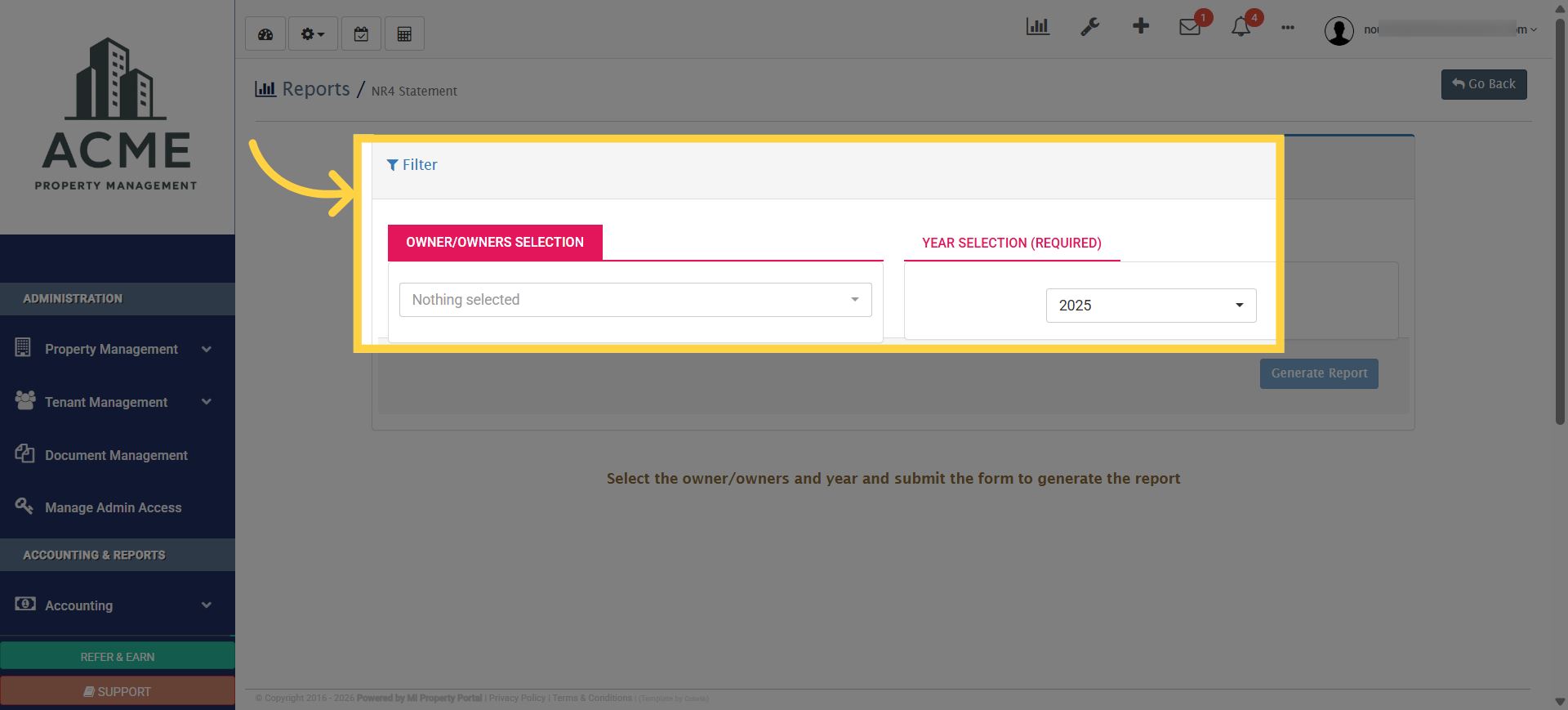
Open Filter Options

10. Click Generate Report to view the report
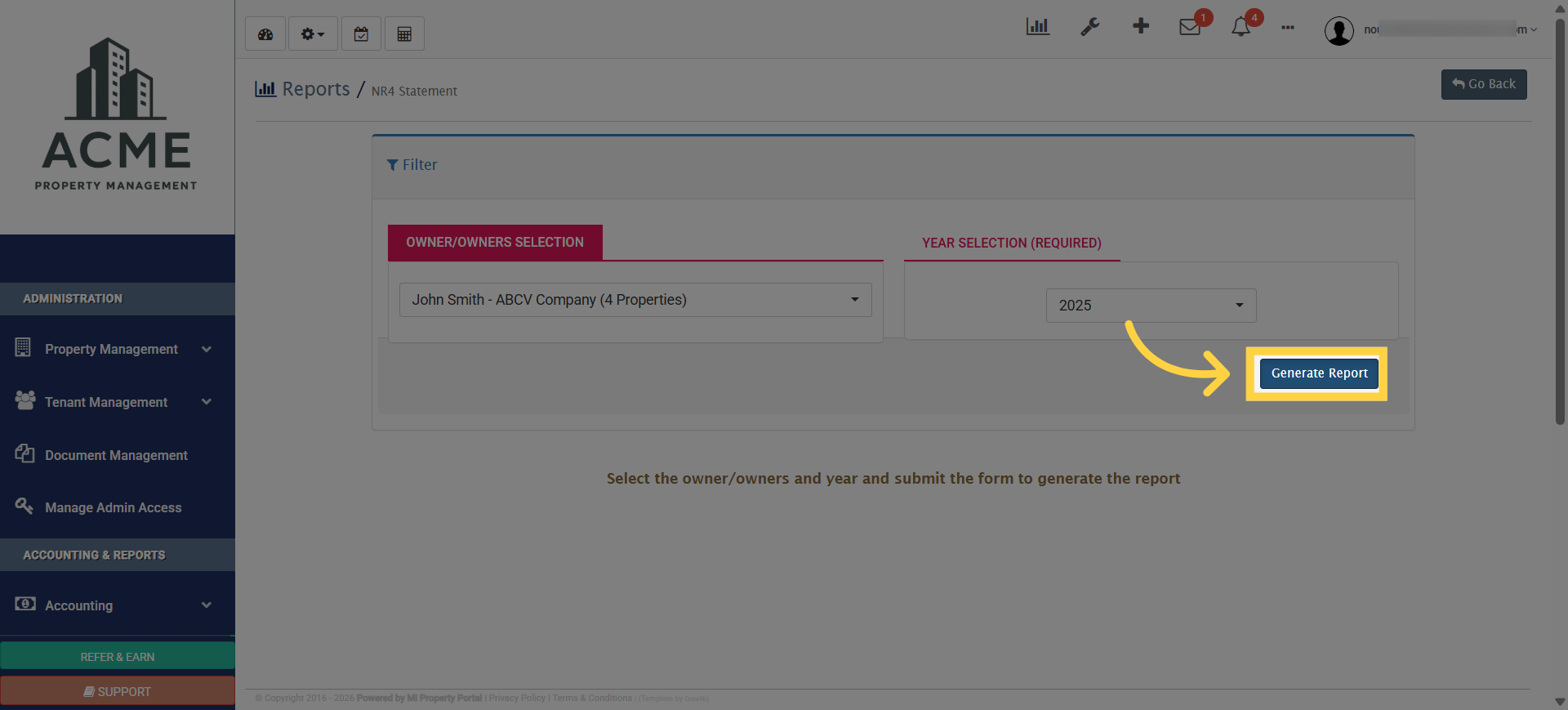
Generate NR4 Report

Tags:chart of accountsHow to Map Chart of Accounts or NR4 Report?map chart of accountsNR4 ReportMap NR4 reportNR4 MappingHow to Configure Account Mapping for NR4 Reports?

Was this helpful?

Yes  No
Related Articles
  • New Feature – Trust Liability Report
  • How to Delete Tenant Credit
  • How to add properties for NR4 report?
  • How to Create a Liability Summary Report?
  • How to Generate Owner Statement (Monthly Summary) Report?
  • How to Generate Owner Prepayment Summary Report?

Didn't find your answer? Contact Us

Leave A Comment Cancel reply

You must be logged in to post a comment.

Popular Articles
  • Can I log rental income for ‘Unpaid’ invoices for ‘Moved-out’ tenants?
  • New Feature – Trust Liability Report
  • New Feature – Bell Notification Sent to Admin on Tenant Document Upload via Tenant Portal
  • Email notification sent to tenant on Other document upload
  • How to Automatically Adjust Tenant Credits to Rental Invoices
KB Category
  • Service Request
  • Subscription
  • Bulk Data Upload
  • Owner Portal
  • MiPropertyPortal Admins Training Workshop
  • MiPropertyPortal New Features/Improvements Monthly Webinar
  • Task Management
  • Prospective Tenants
  • Setup
  • Vendor Management
  • Tenant Screening
  • Tenant Portal
  • Tenant Management
  • Accounting
  • Security Deposit
  • Reporting
  • Rental Tax
  • Rental Listing
  • Property Owner Related
  • Property
  • Other
  • Asset Management
  • Online Payment
  • Lease Management
  • General
  • Form Management

New Feature – Trust Liability Report  

MiPP
MiProperty Portal is Canadian-made for
Canadian landlords and property managers.
COMPANY
  • About Us
  • Why MiPP?
  • Features
SUPPORT
  • Knowledge Base
  • Get Email Help
SOCIAL
  • Linkedin
  • Facebook
  • Twitter
  • Privacy Policy
  • Terms of Use
  • © 2026 mipropertyportal.com. All Rights Reserved.