Hello there again! So, you are probably wondering how to record an Invoice payment in the portal.
1. Record Payment for Single Invoice
Record Bulk Payment/Multiple Invoices
Before we begin, it’s important to mention that you can record a payment for a single invoice or record payments for multiple invoices in bulk. In this tutorial, we’ll focus on how to record a payment for a single invoice, step by step. Let’s jump right into it!
2. From the left navigation menu, go to the Accounting & Reports section, click on the Accounting dropdown, and then select Invoice to access the list of all created invoices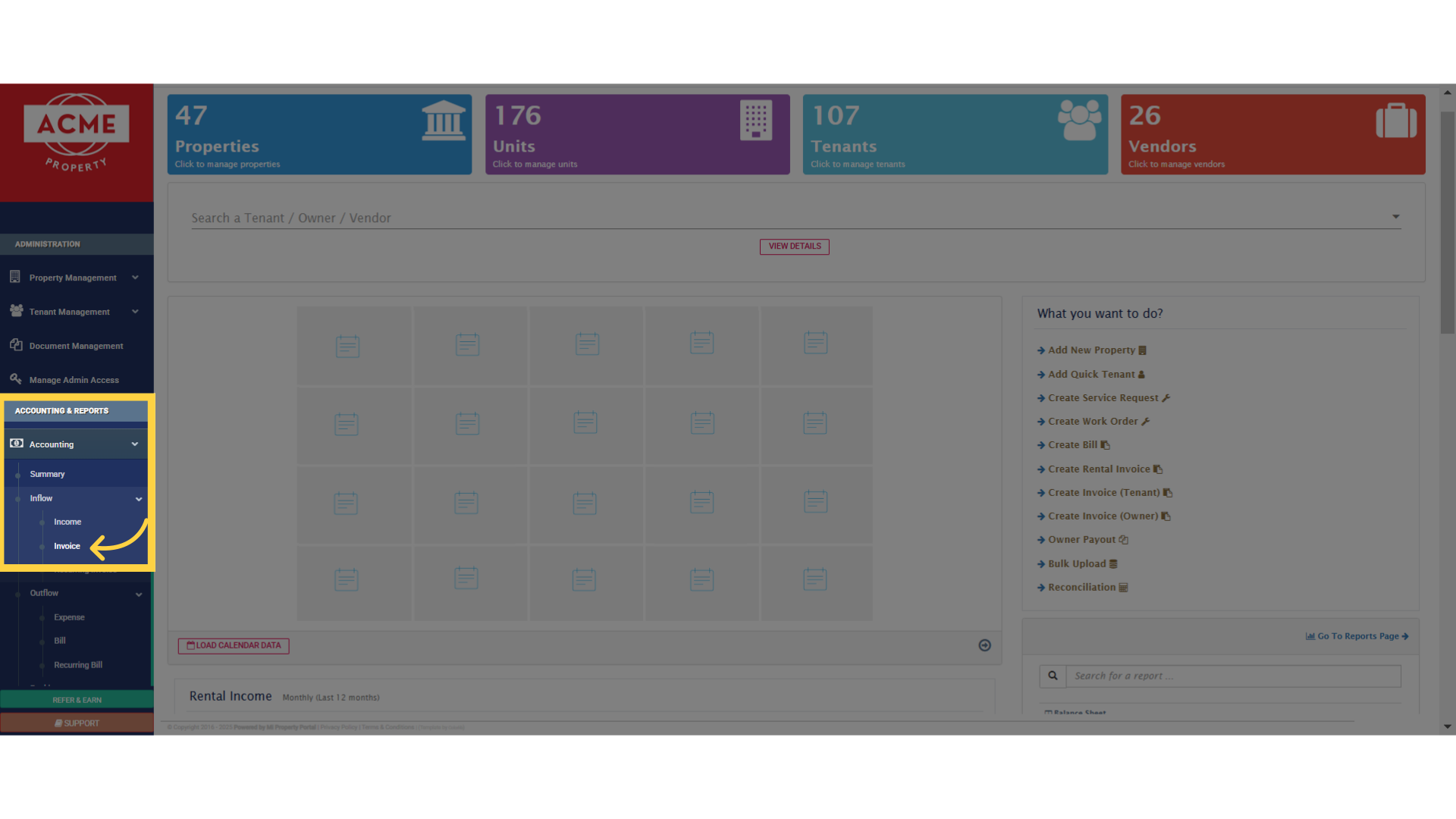
3. Now that we’re on the Invoices View page, let’s focus on the highlighted invoice below. To record a payment, simply click on the dollar icon next to the specific invoice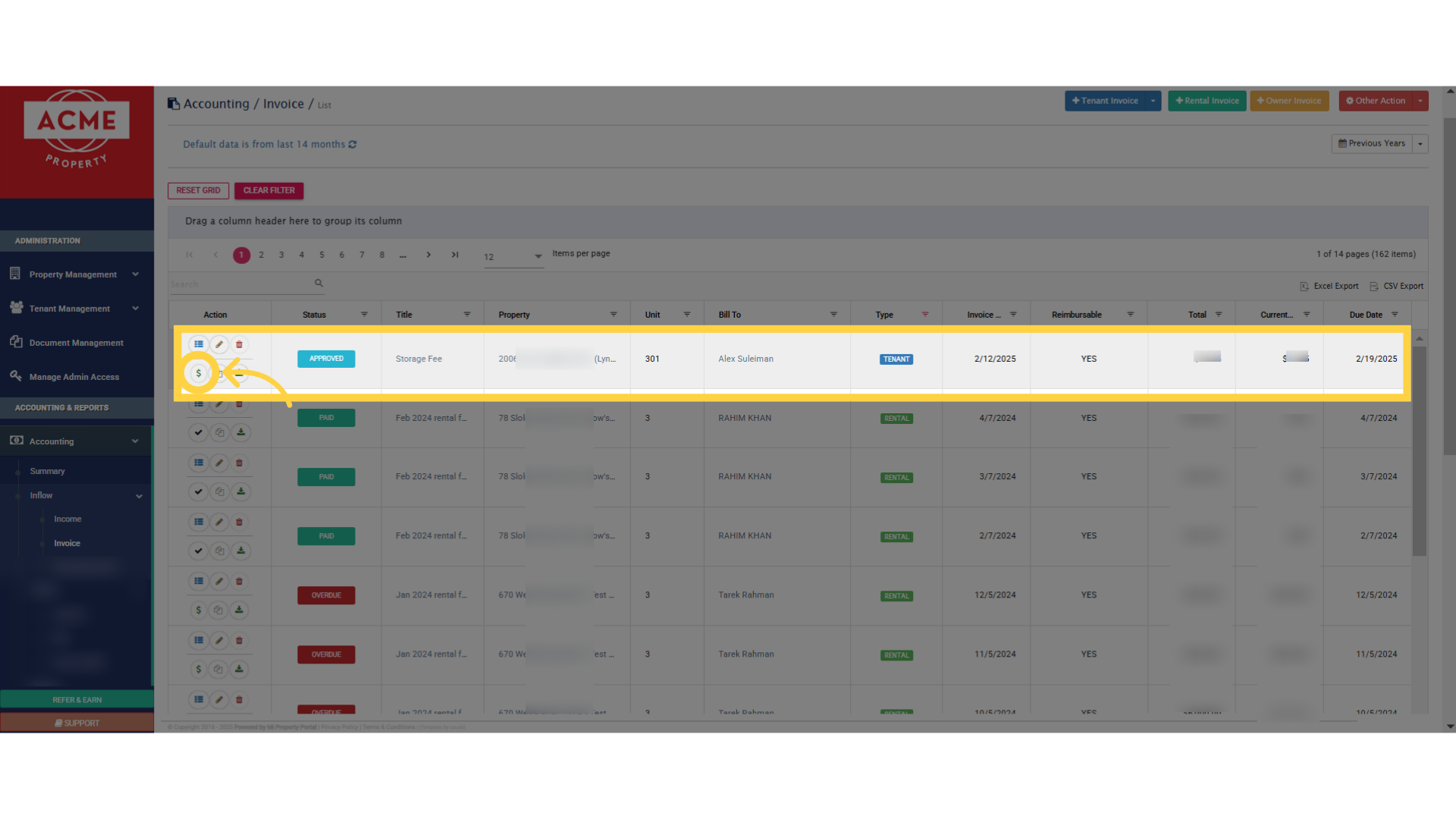
4. Right after clicking the dollar icon, a pop-up window will appear. If you take a closer look, you’ll see two tabs, giving you two options to proceed. You can either choose the Online Payment tab to process a payment digitally, or select the Record Manual Payment tab, to log a payment made outside the system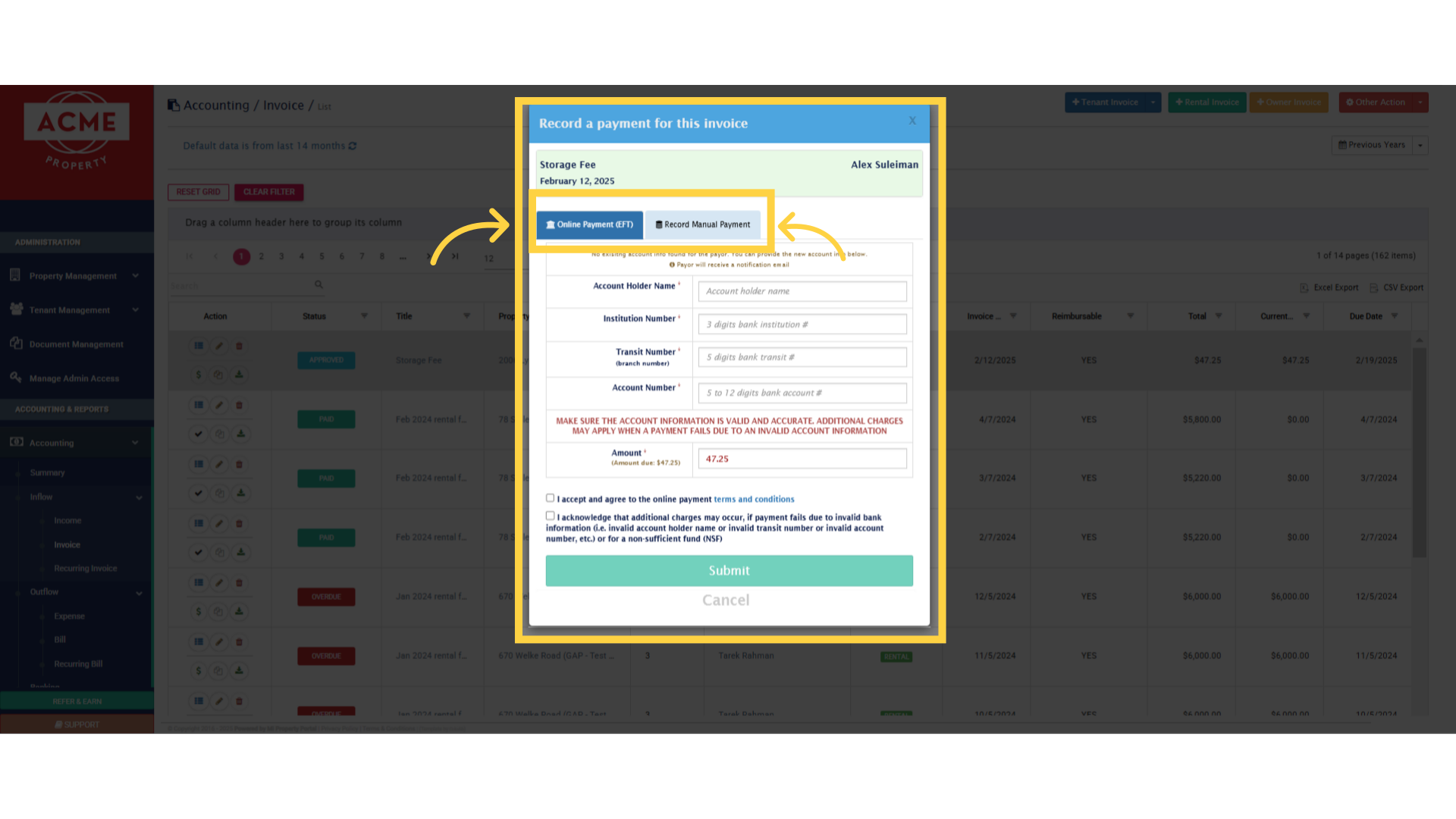
5. Select the Online Payment EFT tab, if the tenant has their bank account set up in the portal, and has given consent, for withdrawal directly from their bank. Once selected, simply fill out the required details and click the Submit button to process the payment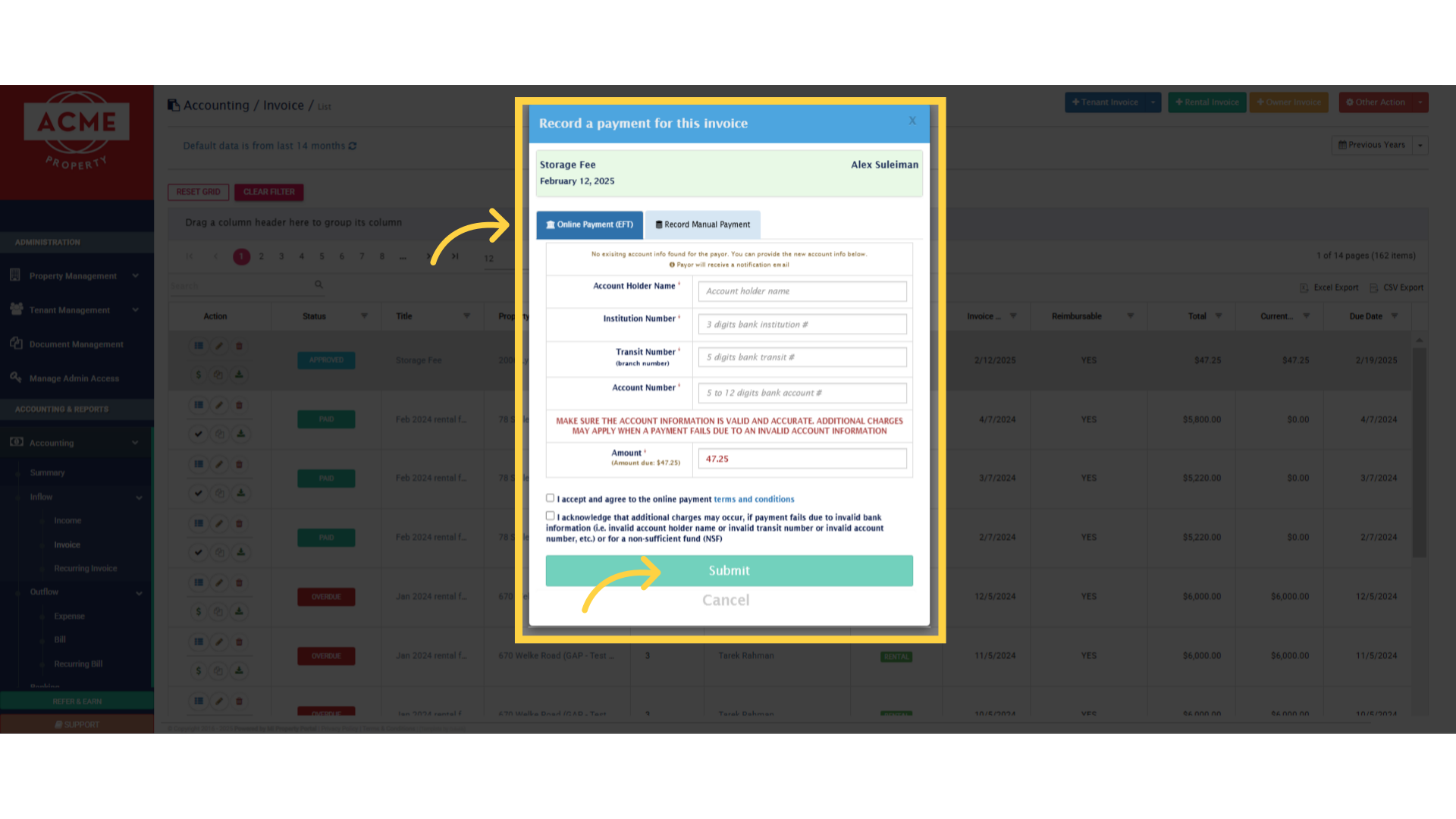
6. Alternatively, if the payment was made outside the portal, such as by cash or cheque, select the Record Manual Payment tab. Then, fill out the required fields, including payment details, and click Submit to record the transaction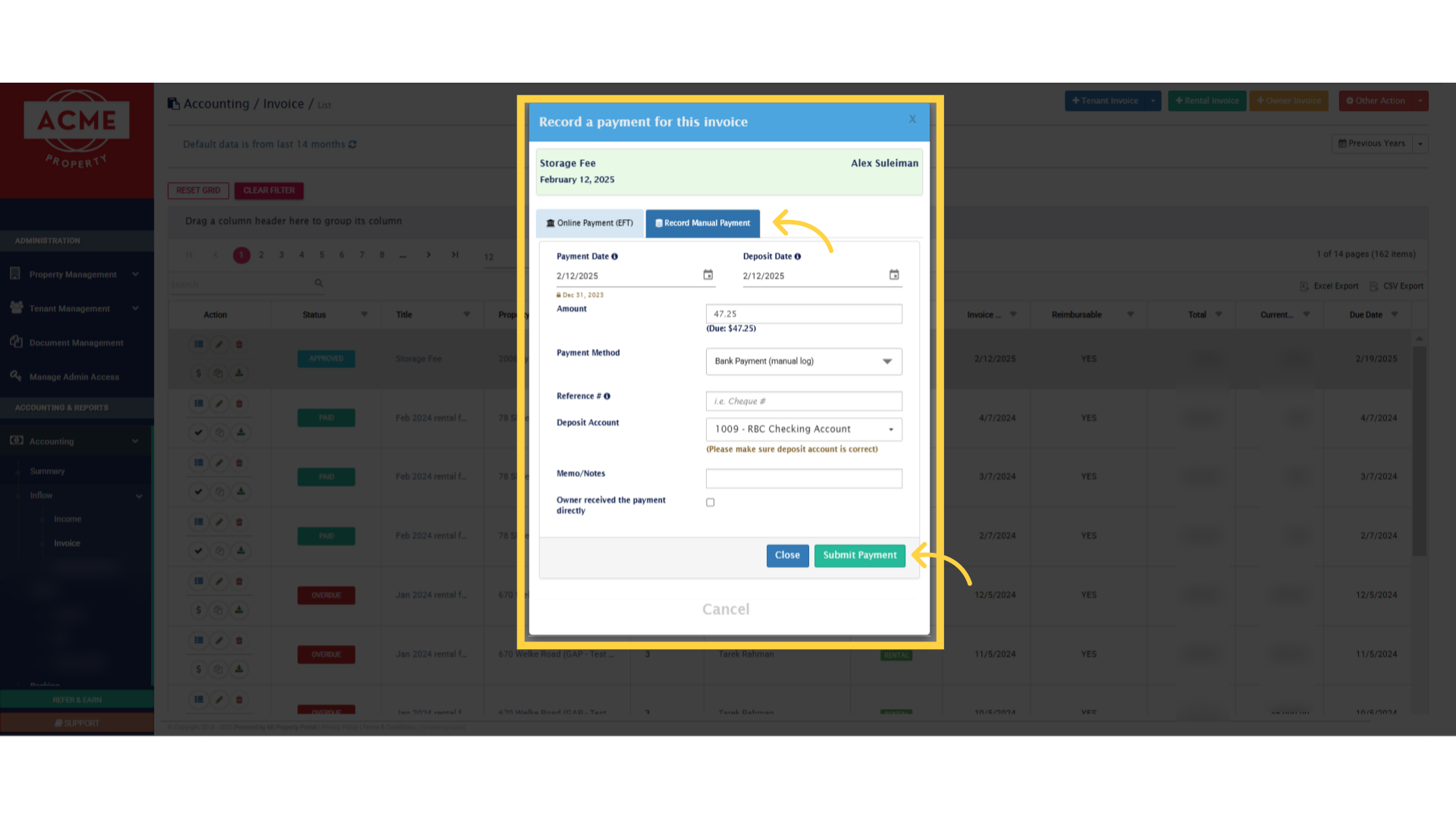
7. Another way to record a payment is from the Tenant Profile Page. To do this, go to the Tenant Management dropdown from the left navigation, click on Tenant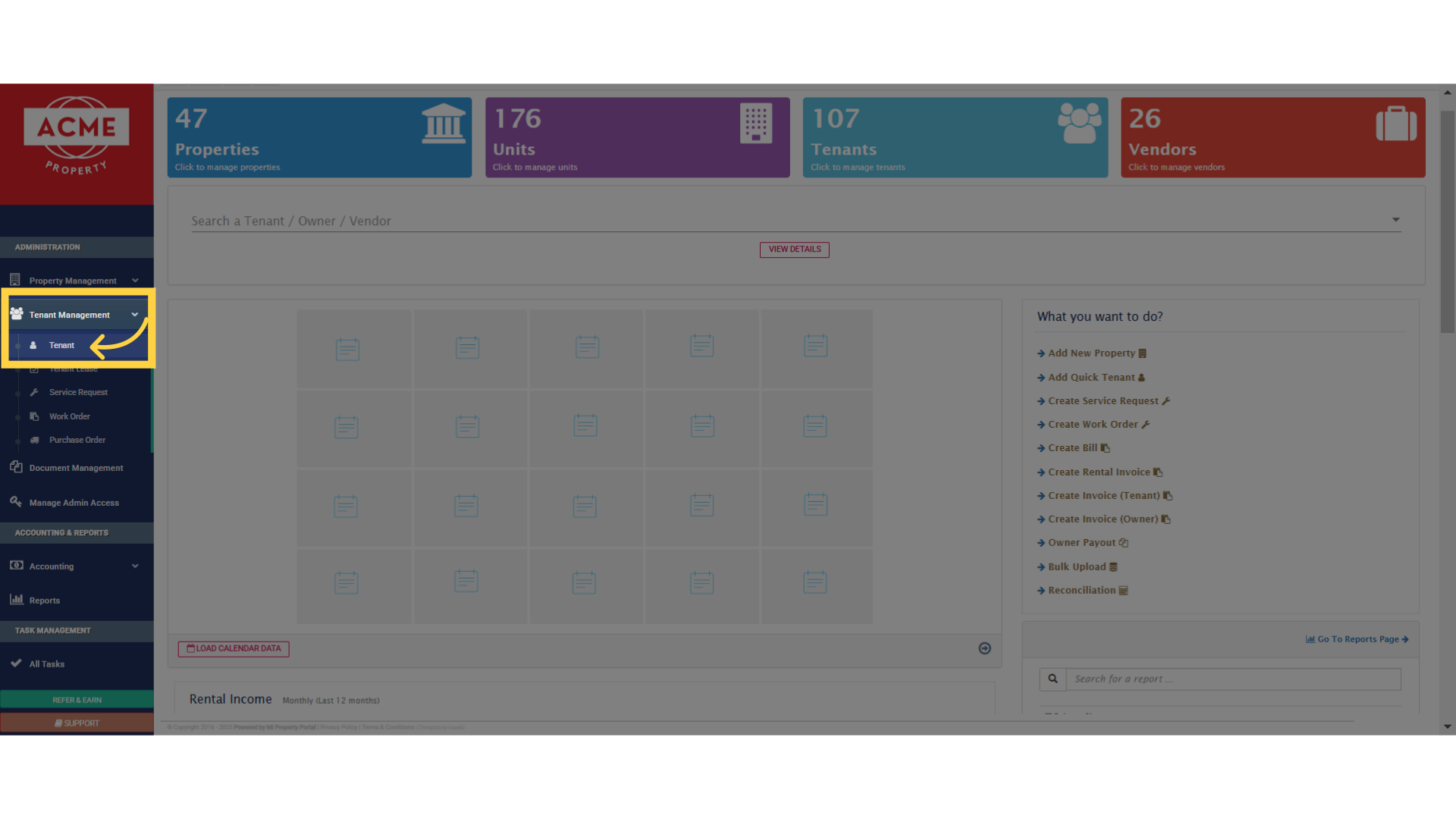
8. Now, click on the selected tenant’s name to open their profile page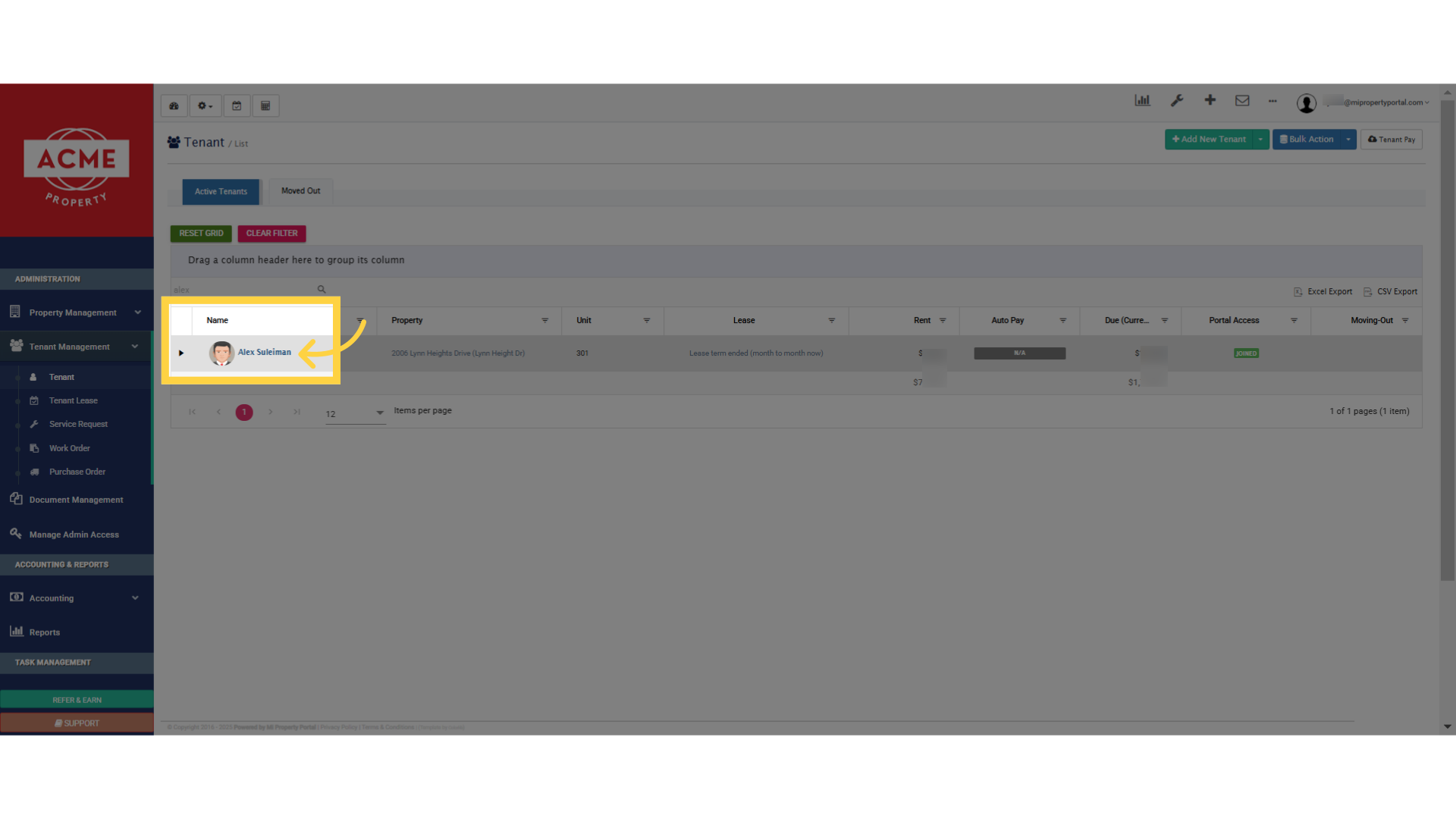
9. Once you’re inside the Tenant Details page, simply scroll down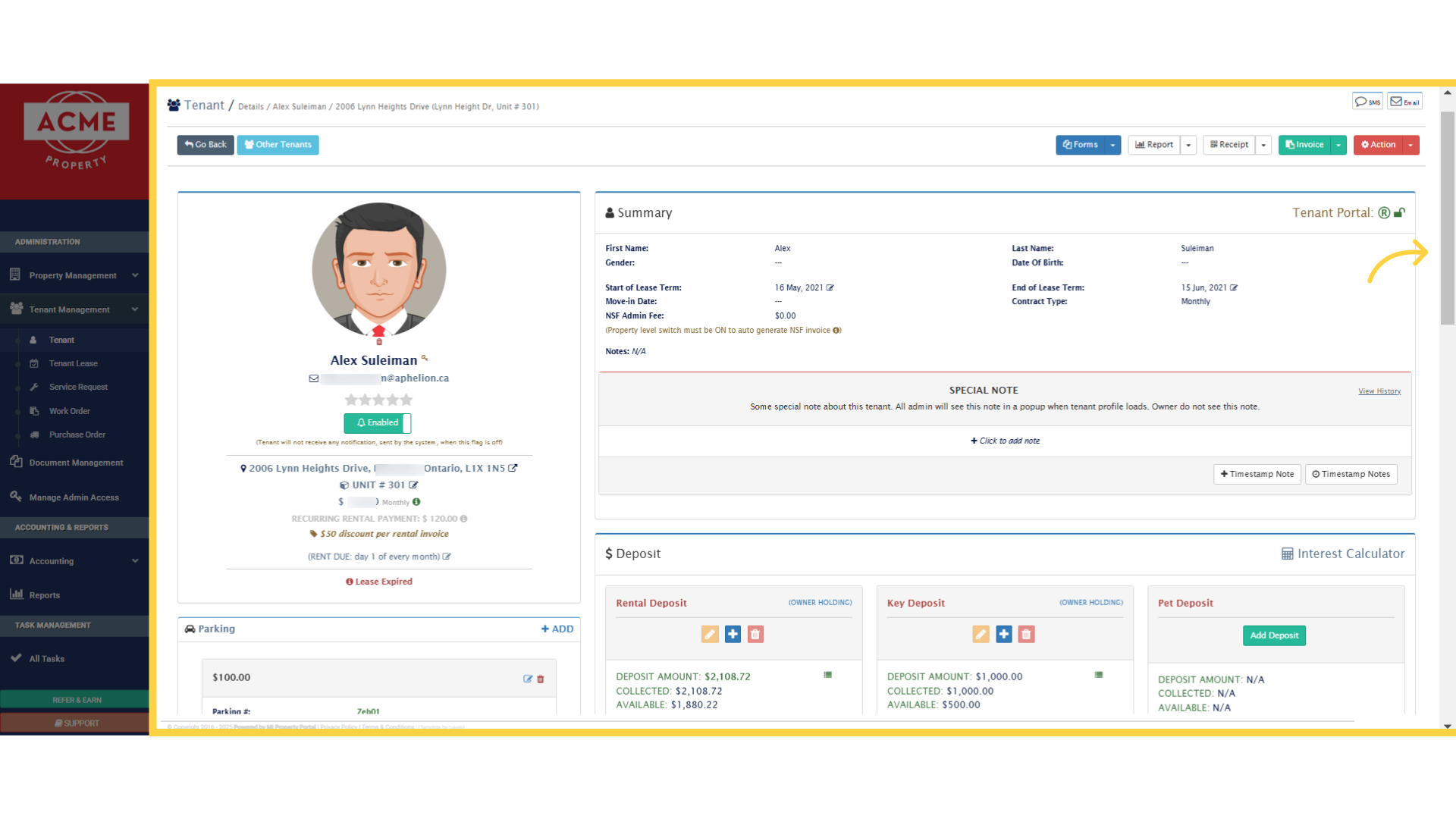
10. Get to the Finance section here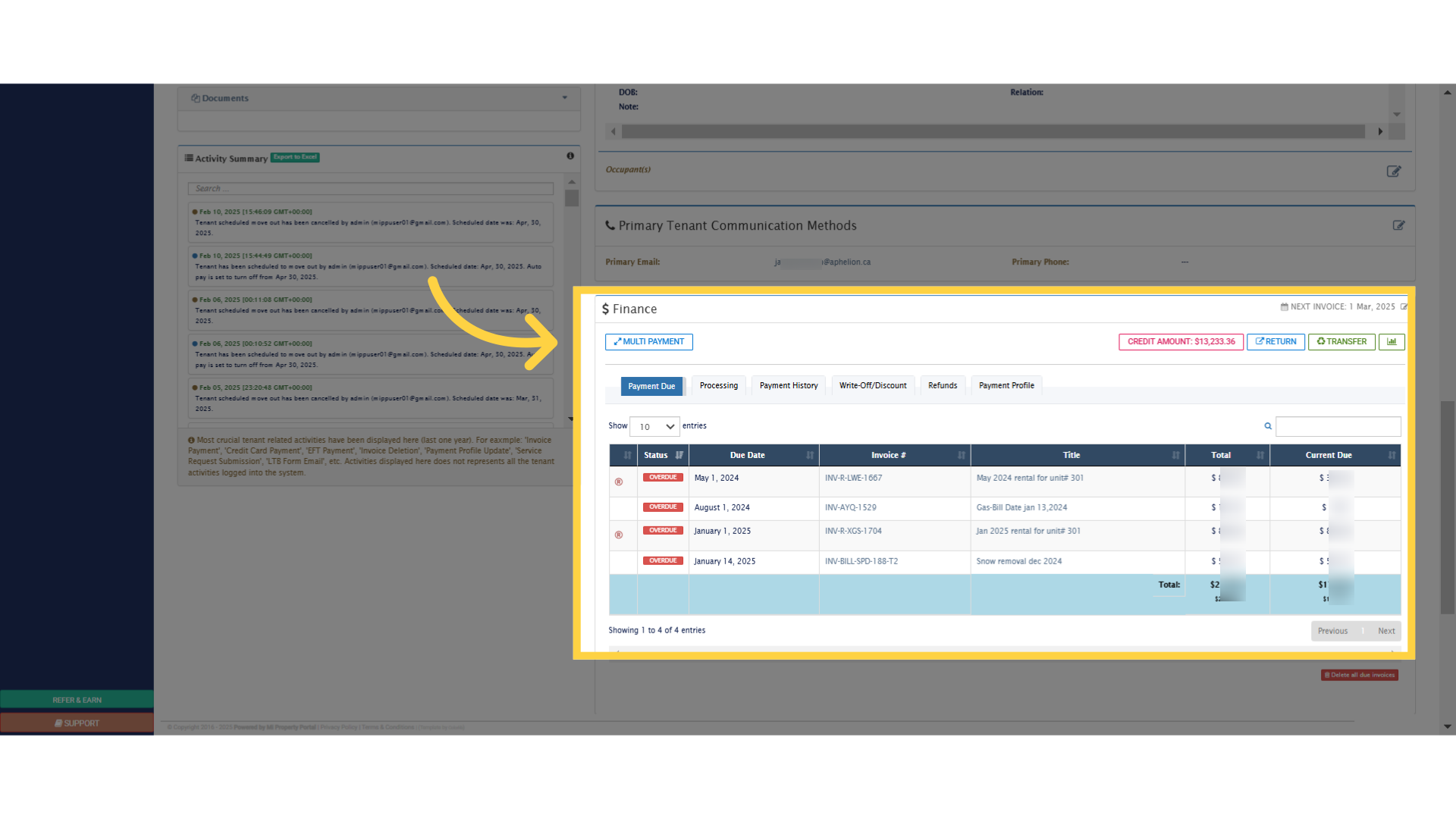
11. You can see the overdue invoices here in this section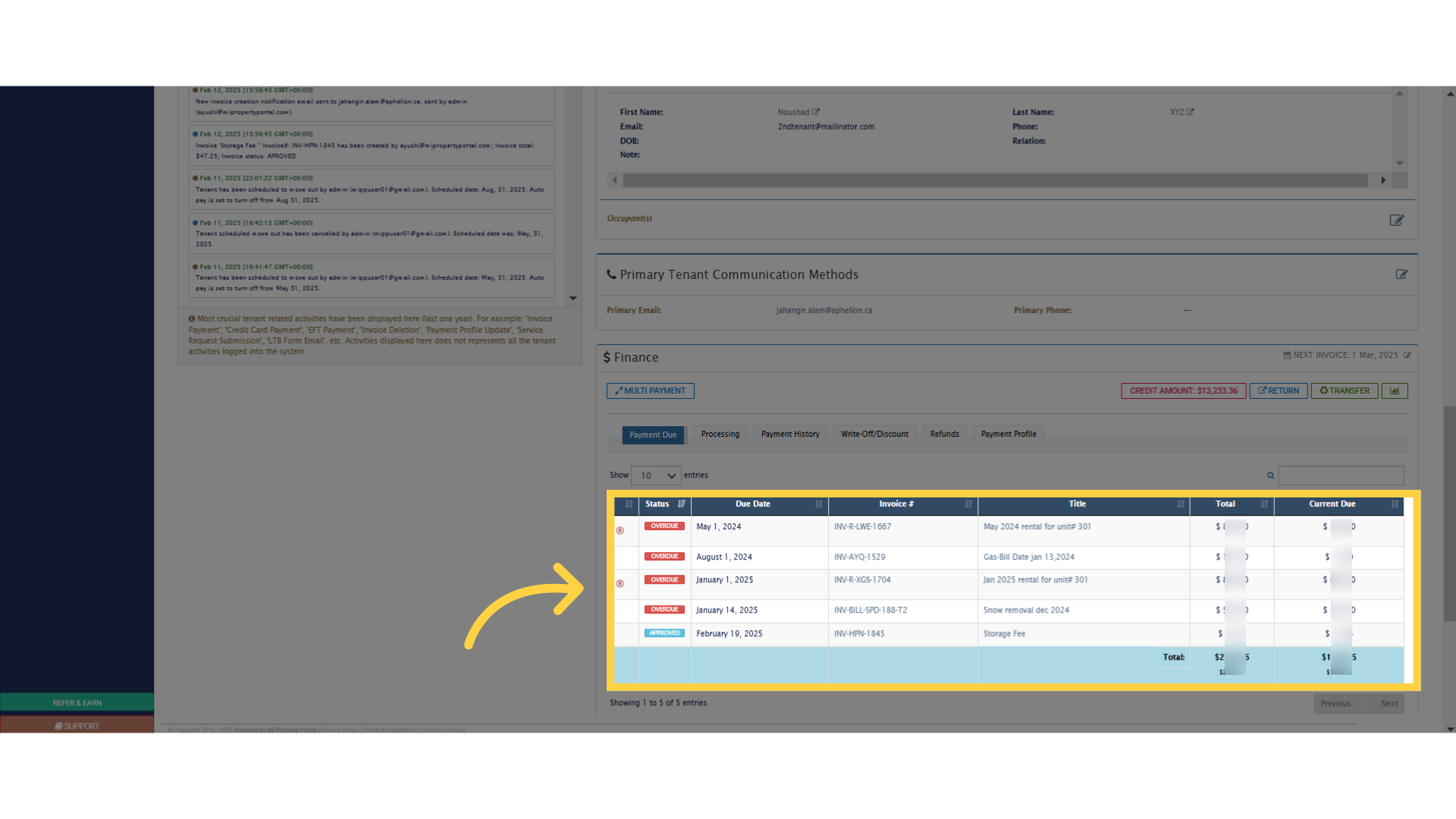
12. You can also see the total due, and current due amount, from here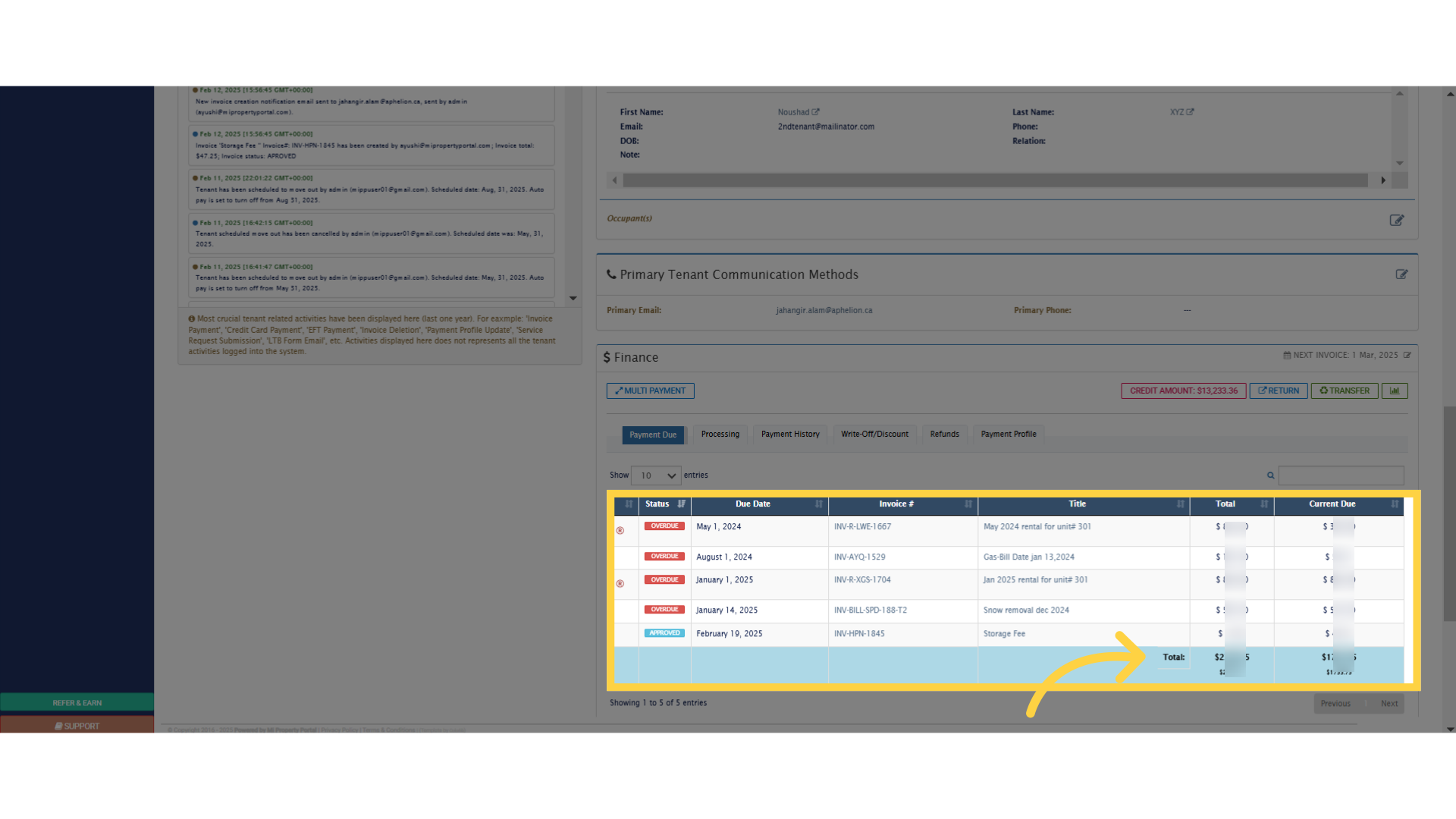
13. You can click on the Multipayment option here. This feature allows you to record a single payment, that covers multiple invoices for the same tenant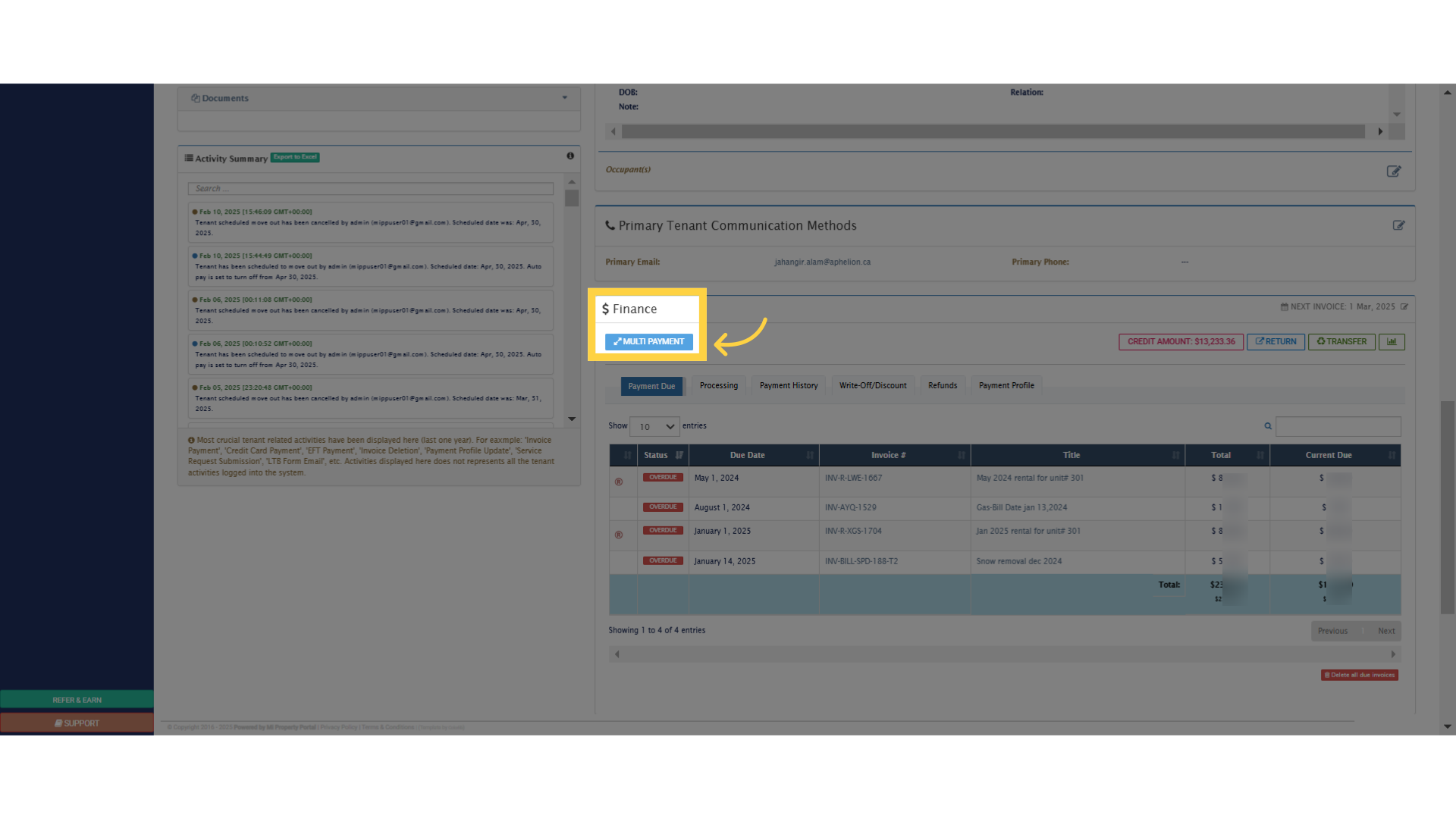
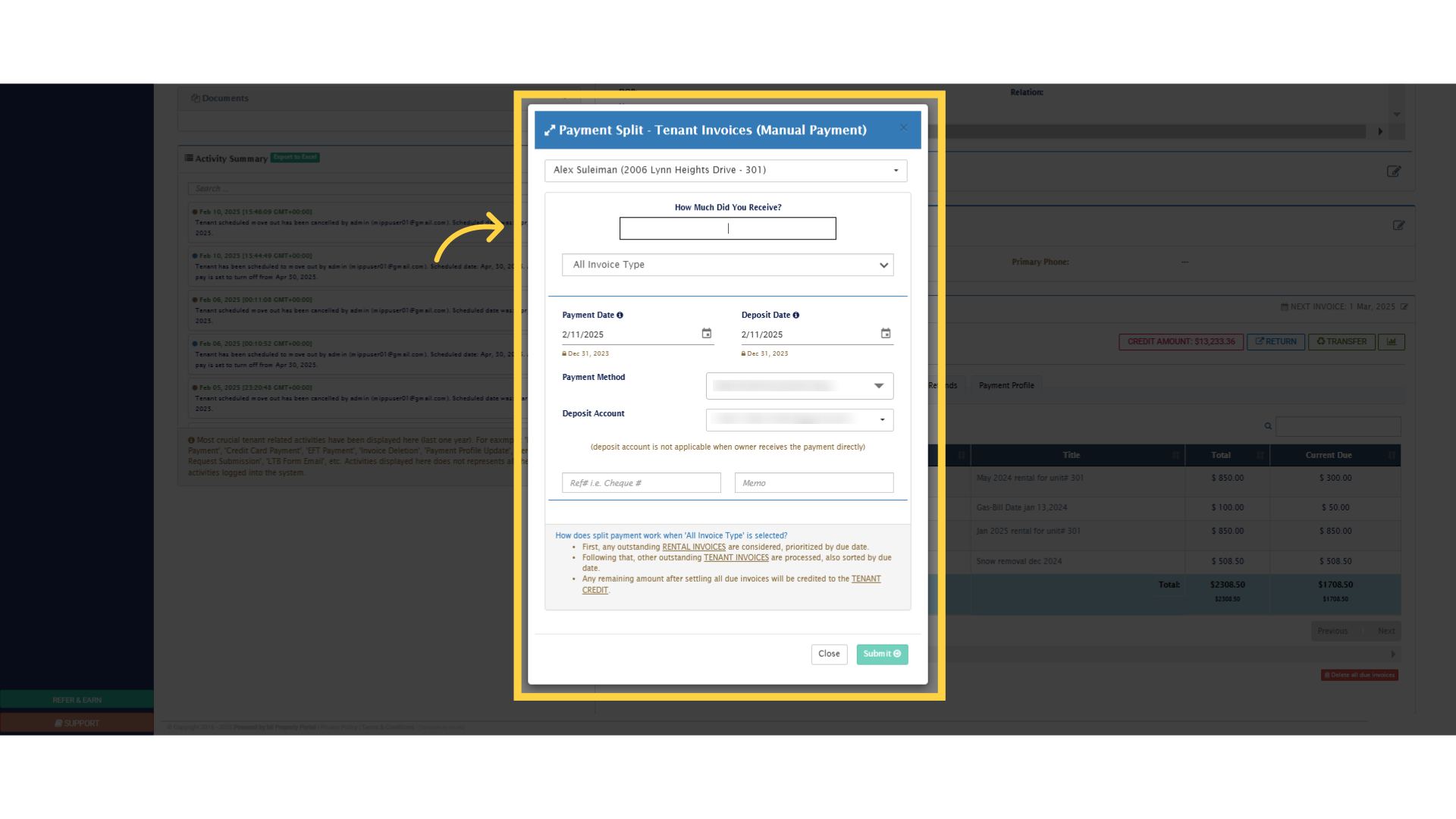
14. Fill out the details in this window, by entering the amount received. You can select an invoice type, such as rental or tenant invoice. However, if you choose All Invoice Type, the system will automatically start closing the oldest rental invoices first, followed by tenant invoices, in order from oldest to newest. Finally, complete the remaining fields before proceeding
15. Once you are done giving all the input, click on submit and the payment will be recorded in the system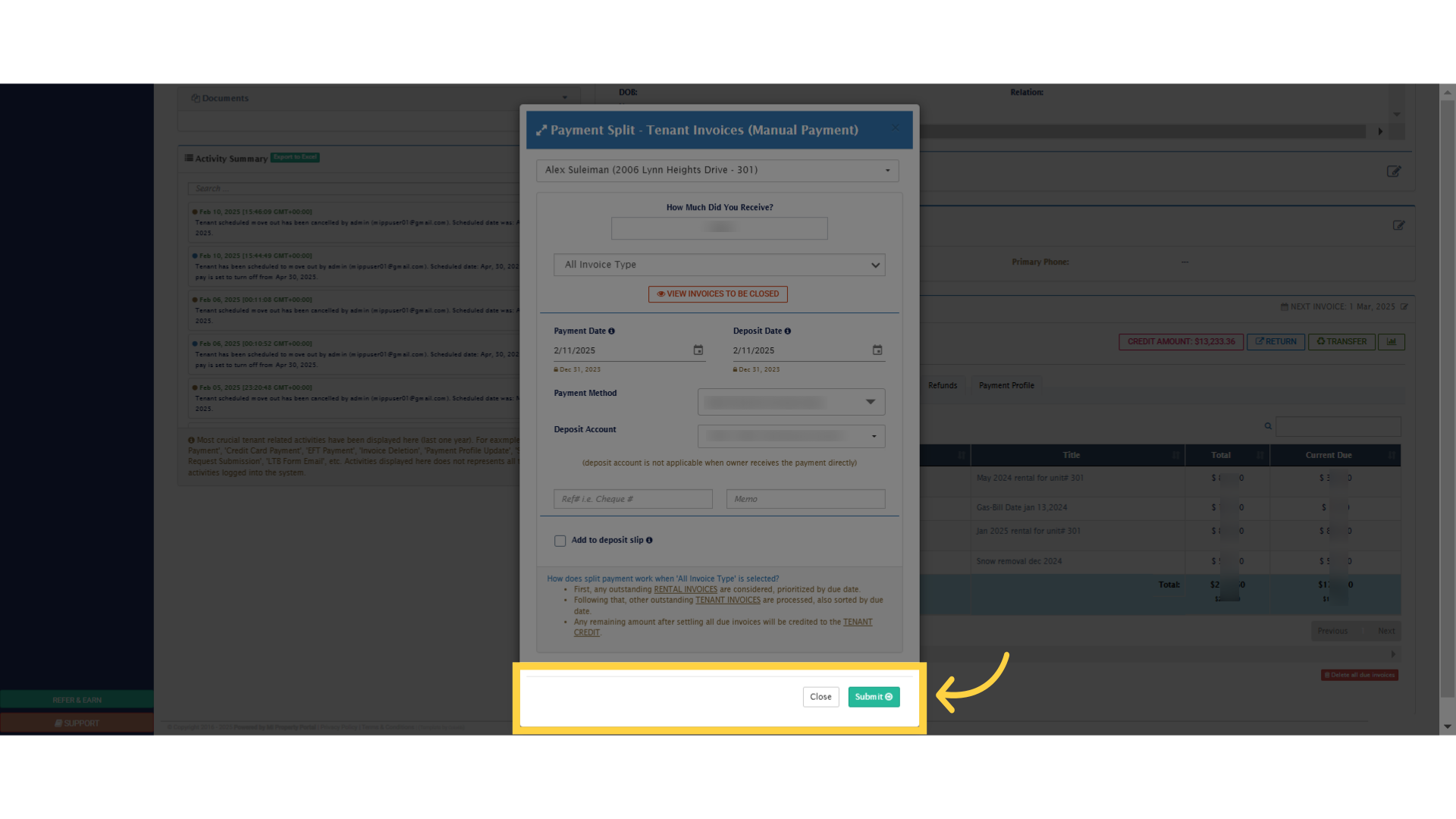
Easy right? Wait, before you leave, I recommend you to watch the Bulk Record Payment video, which covers recording multiple invoices for one tenant, or multiple invoices for multiple tenants. See you on the next one!