How to set notifications & features with MiPropertyPortal?
204 views 0 December 1, 2022 Updated on April 25, 2025 mippsupportadmin
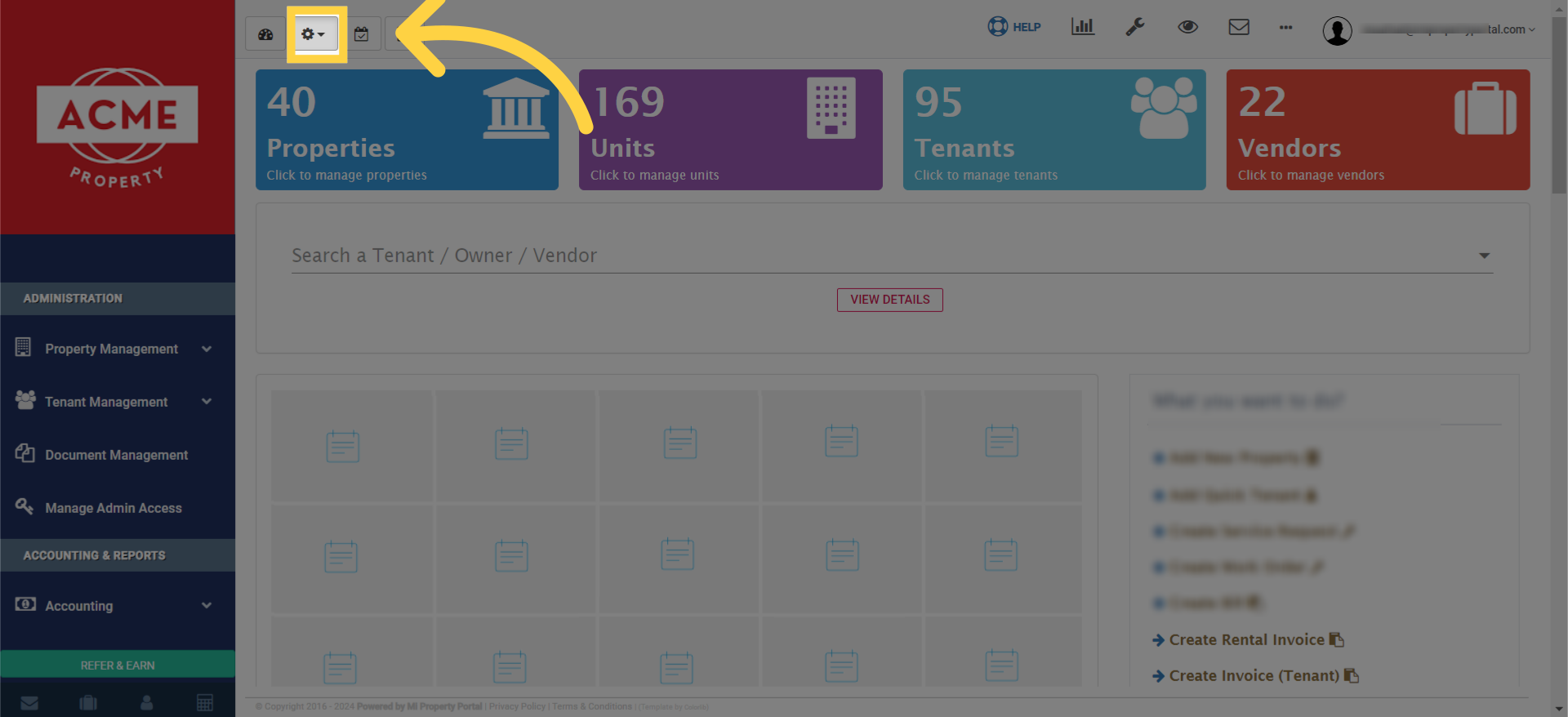
1. Once you’re on the Admin Portal Dashboard, click on the Settings icon located at the top, right here
2. So when you click on the Settings dropdown icon, a list of options will appear. 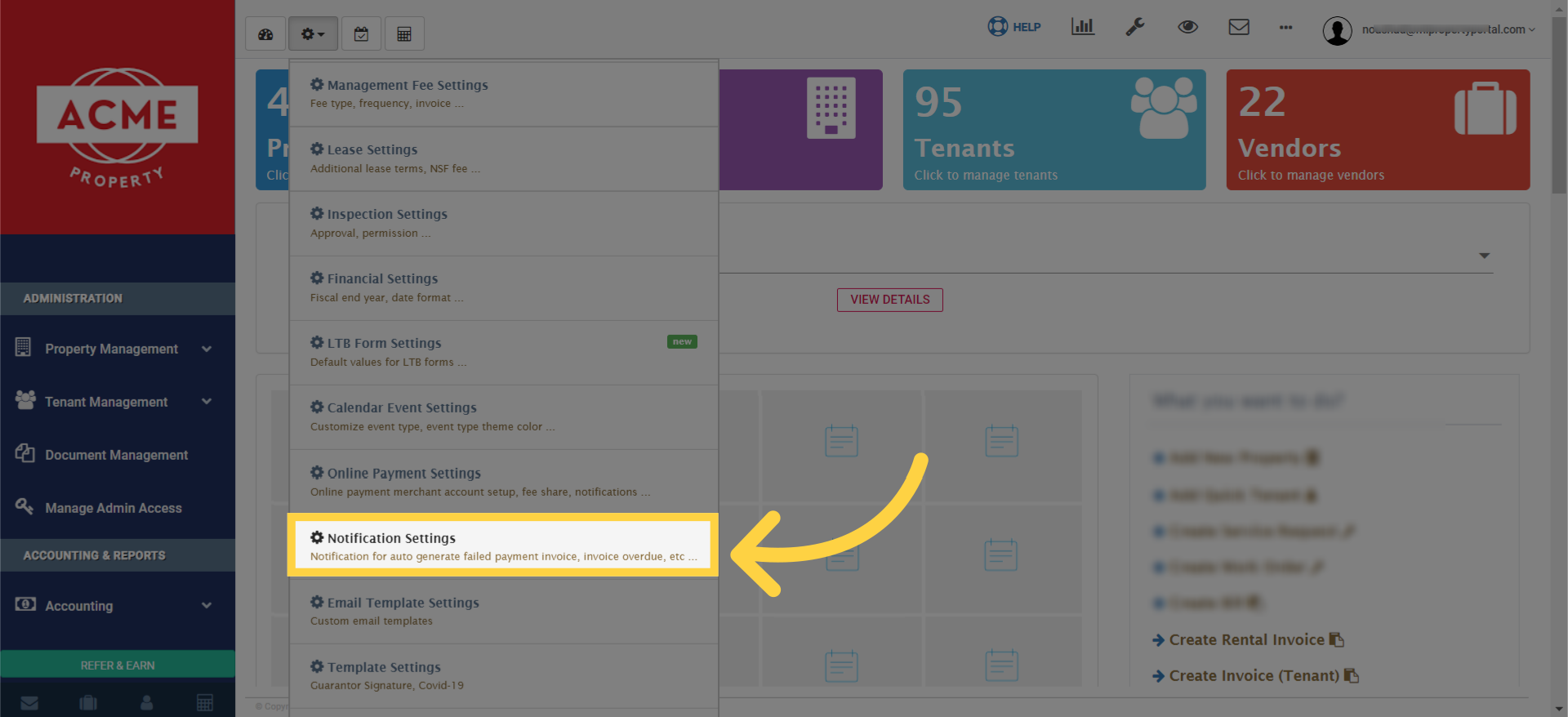
3. Welcome to the Notification Settings page!
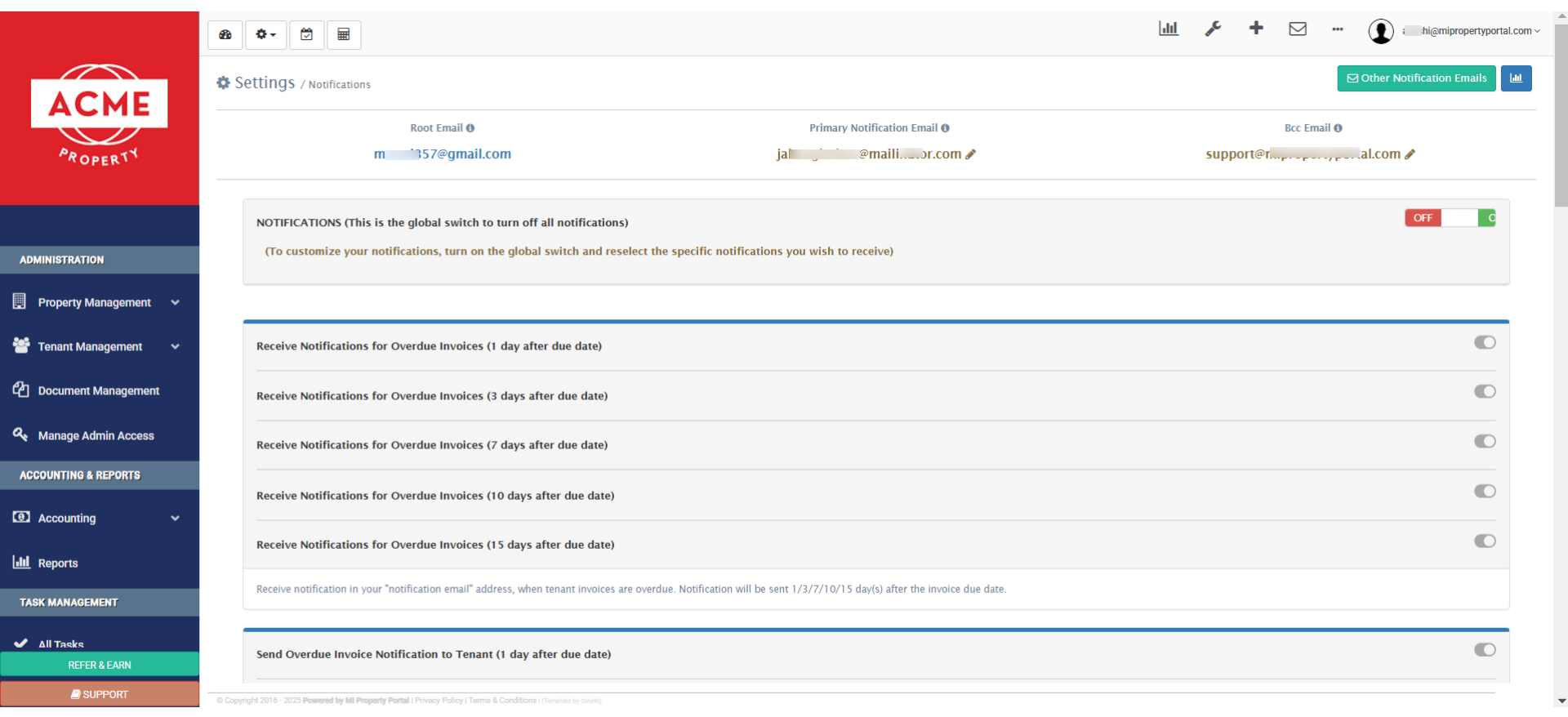
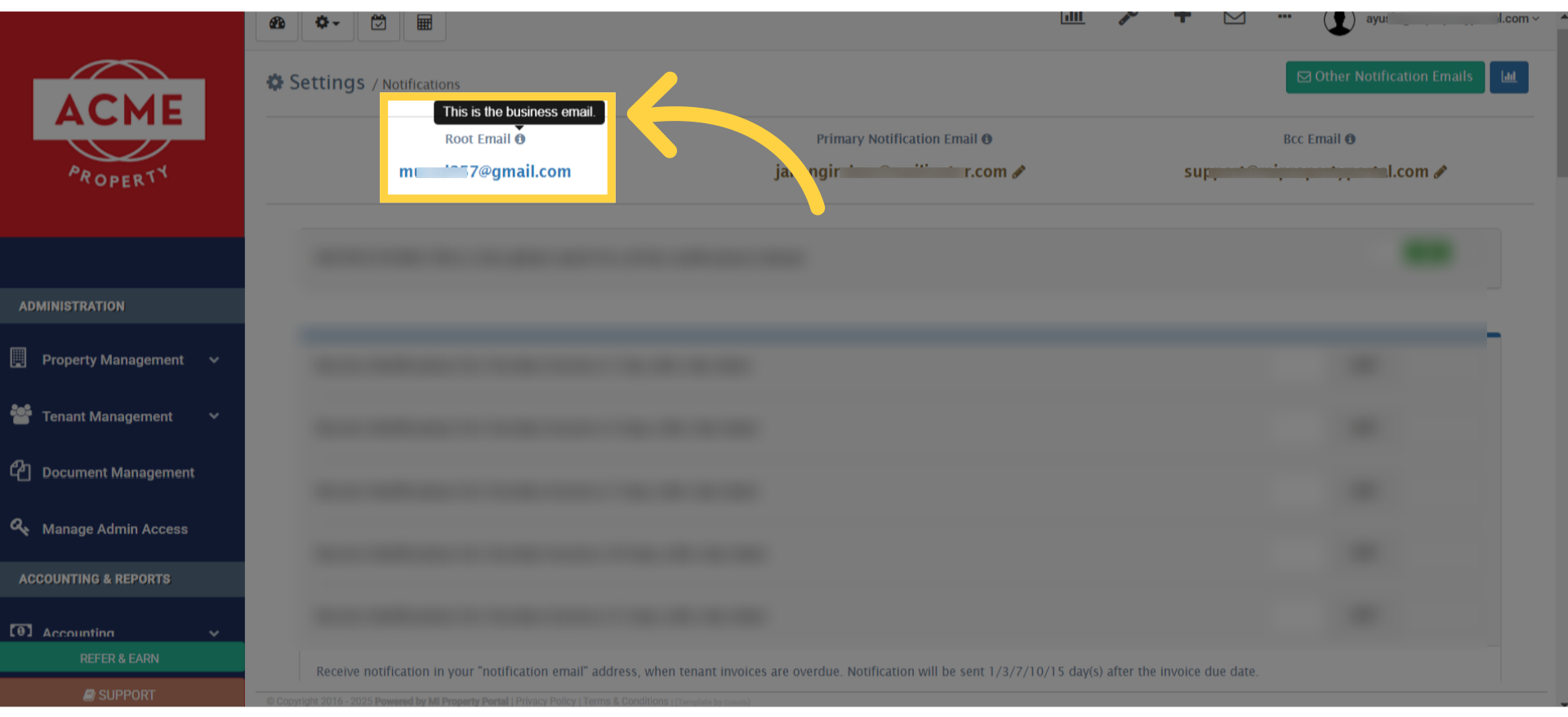
4. Take a look at the root email right here.
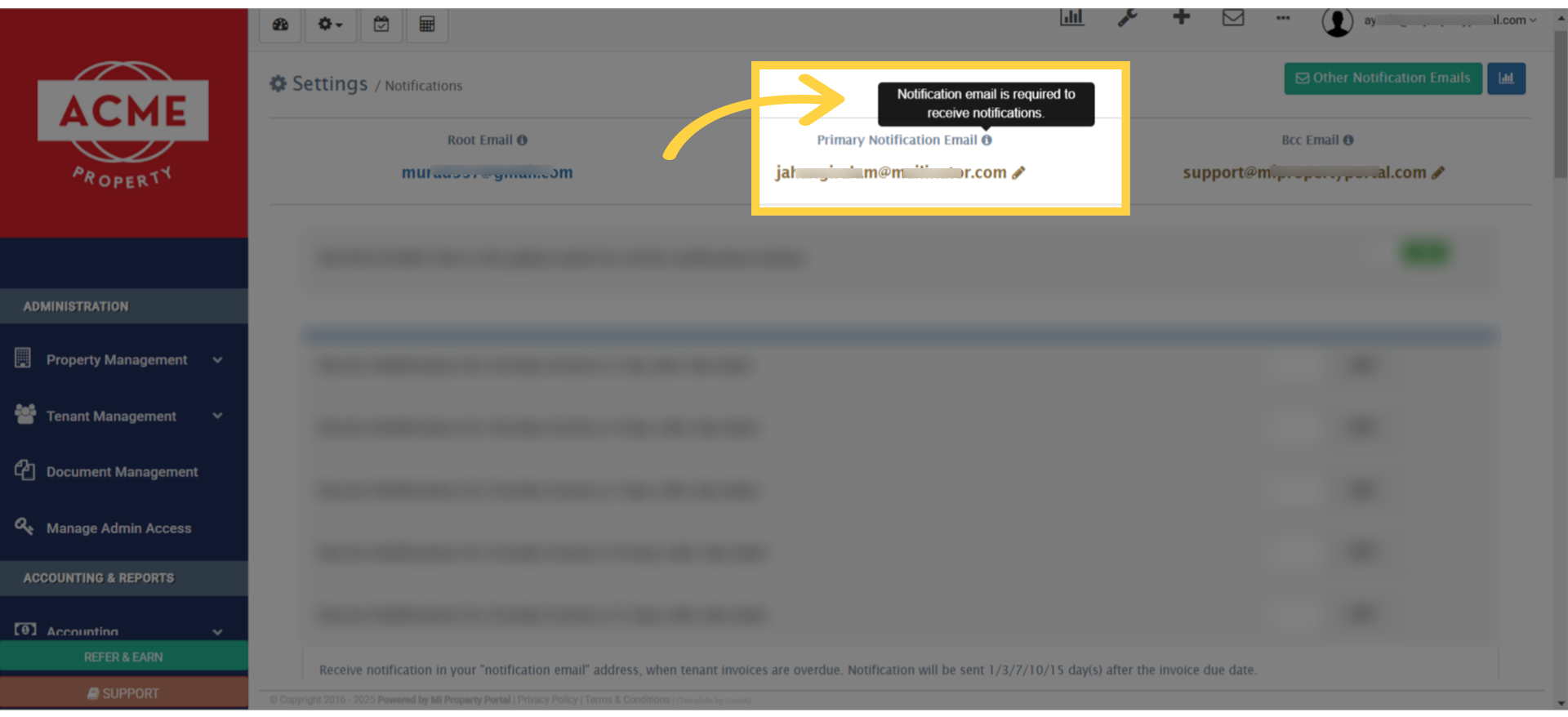
5. The primary email address receives all email notifications, if no other email address is set for the property.
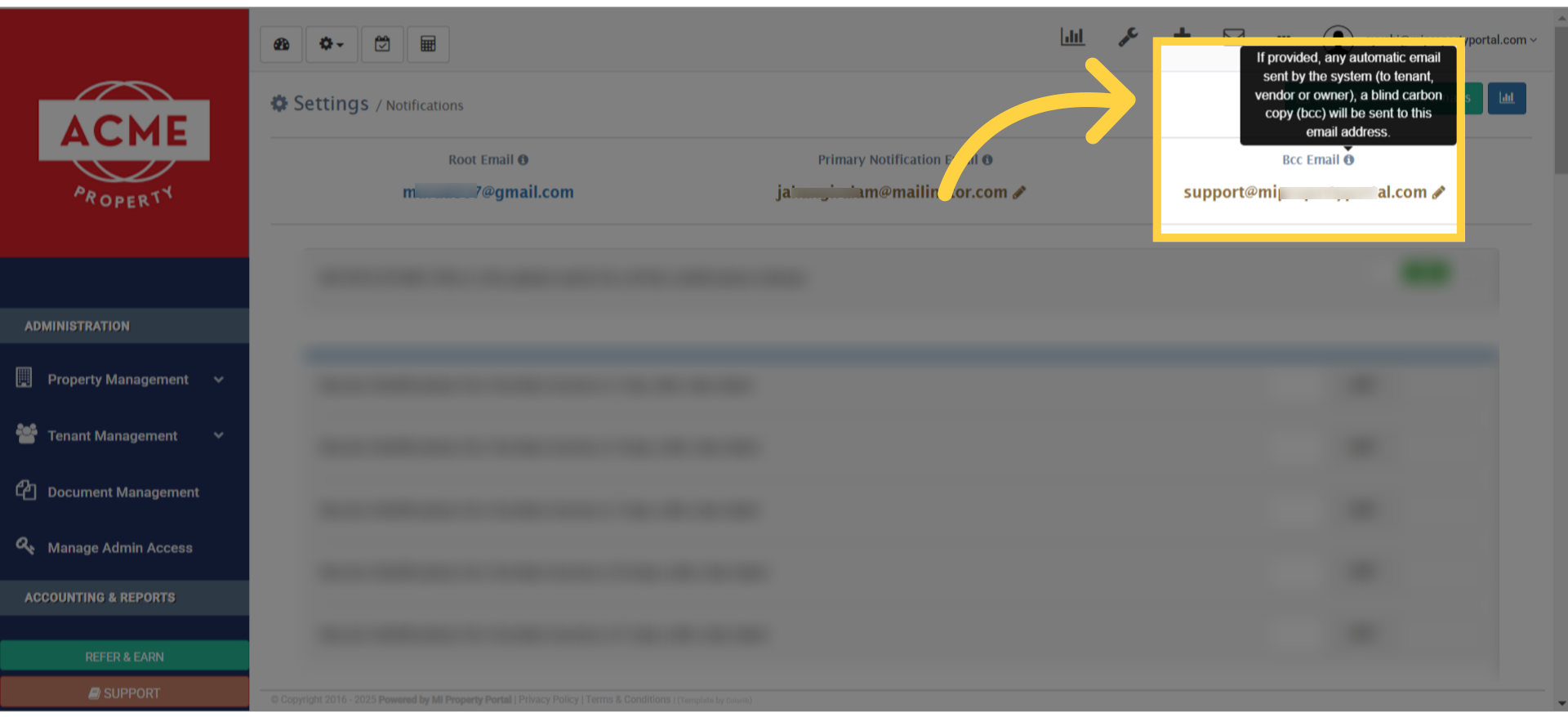
6. If you want a blind copy of each email your admins send, set an email address here.
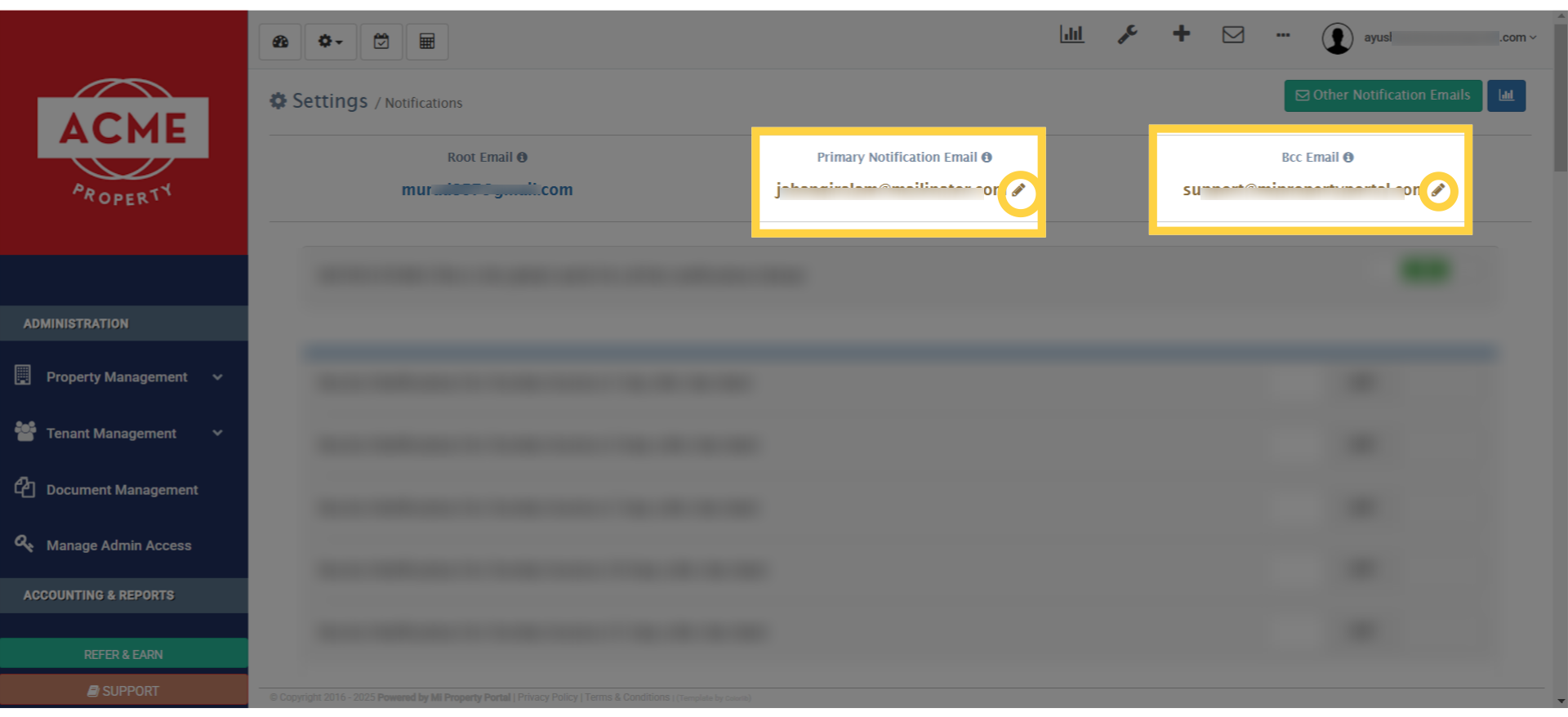
7. You can easily set up or edit both the primary email and the BCC email by clicking the edit icon right here.
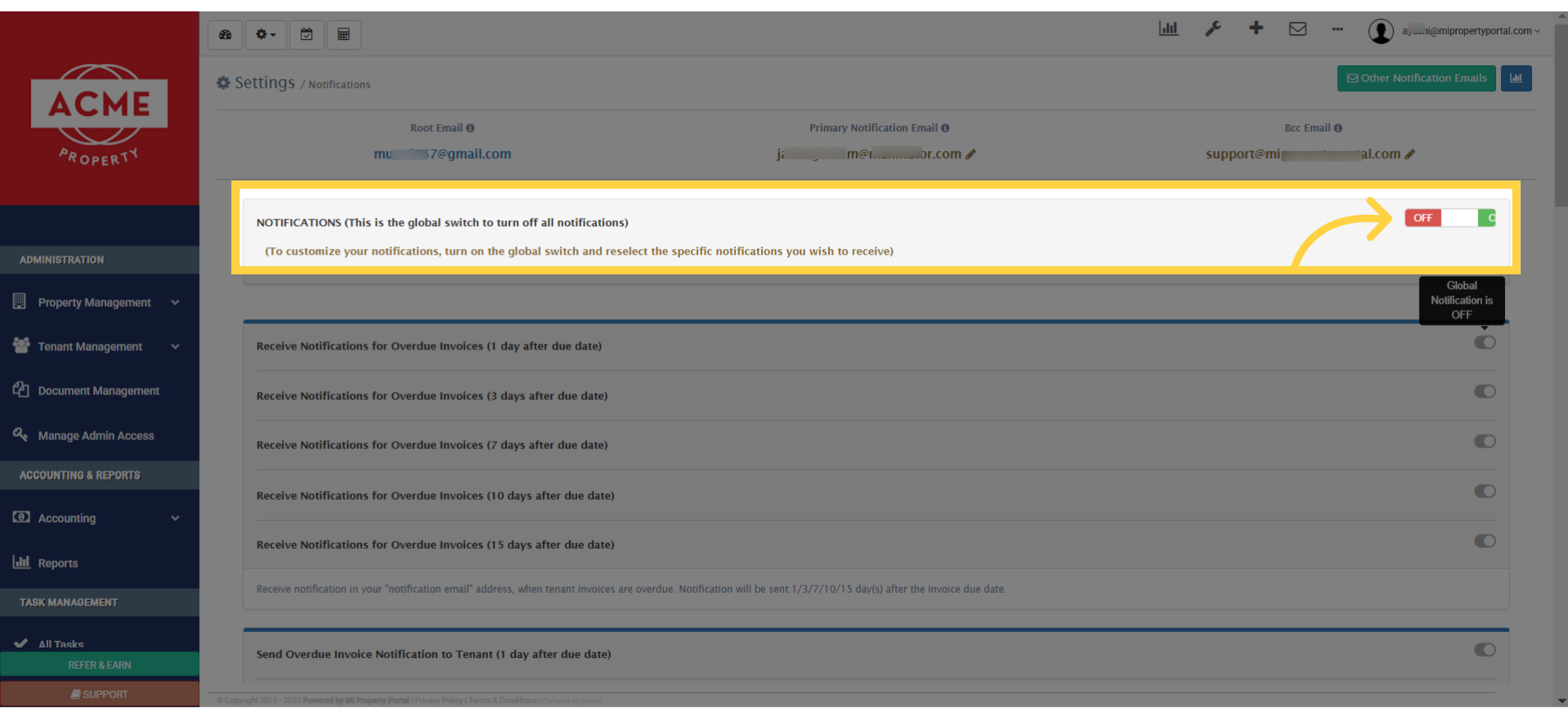
8. Now, check out this section labelled ‘NOTIFICATIONS.’ This global switch allows you to turn off all notifications at once.
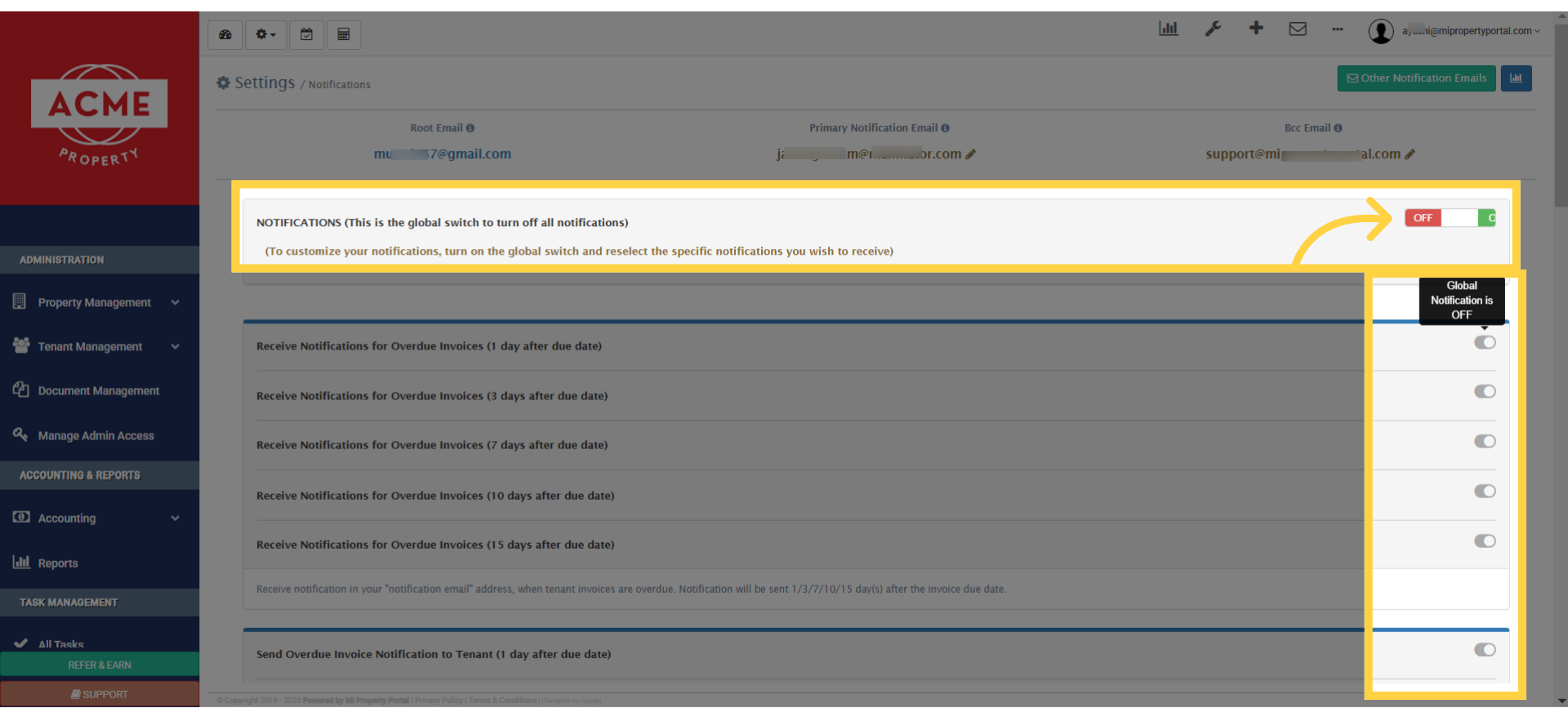
9. Now, toggle the global switch to customize the notification settings below.
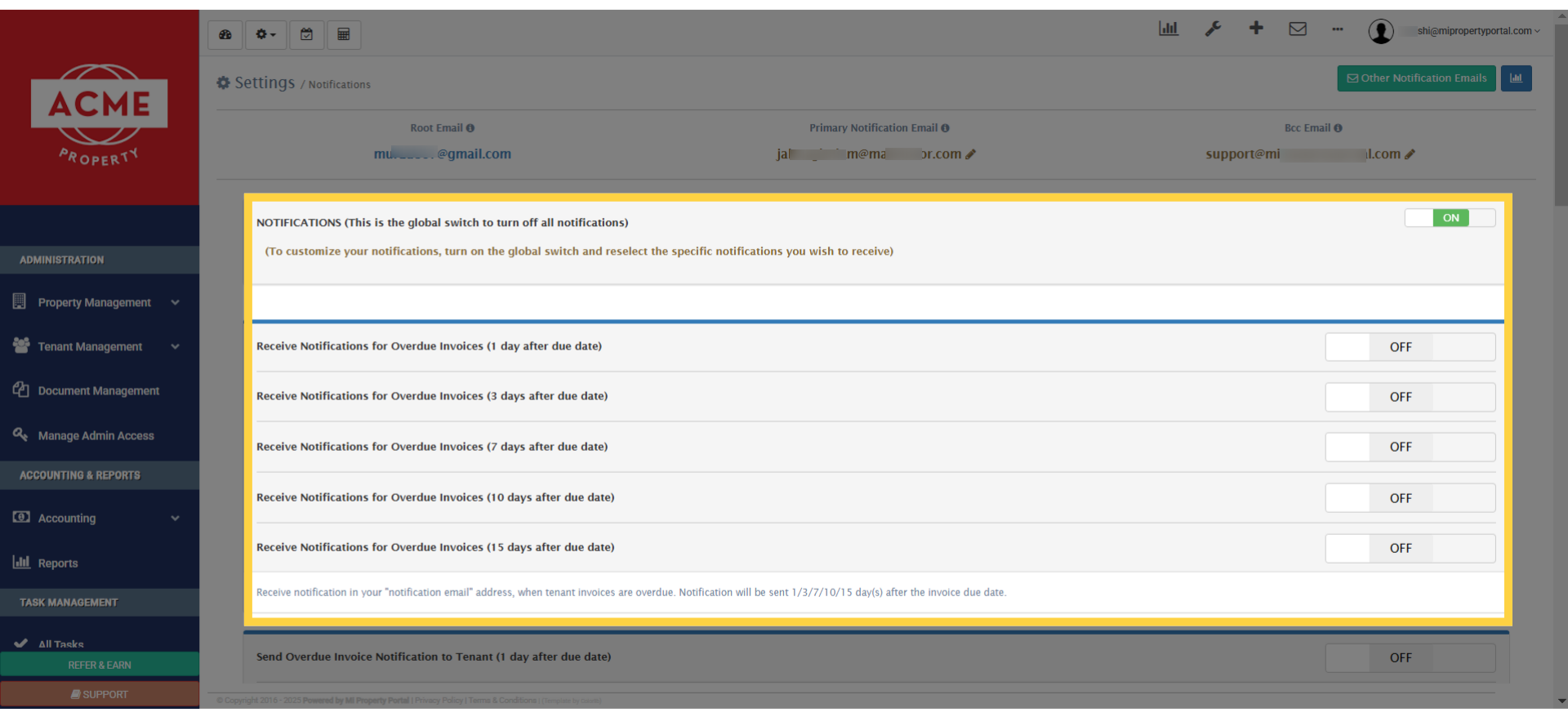
10. When you toggle the global switch, it’ll light up green and display ‘On’. However, as you can see, not all the notifications below are activated.
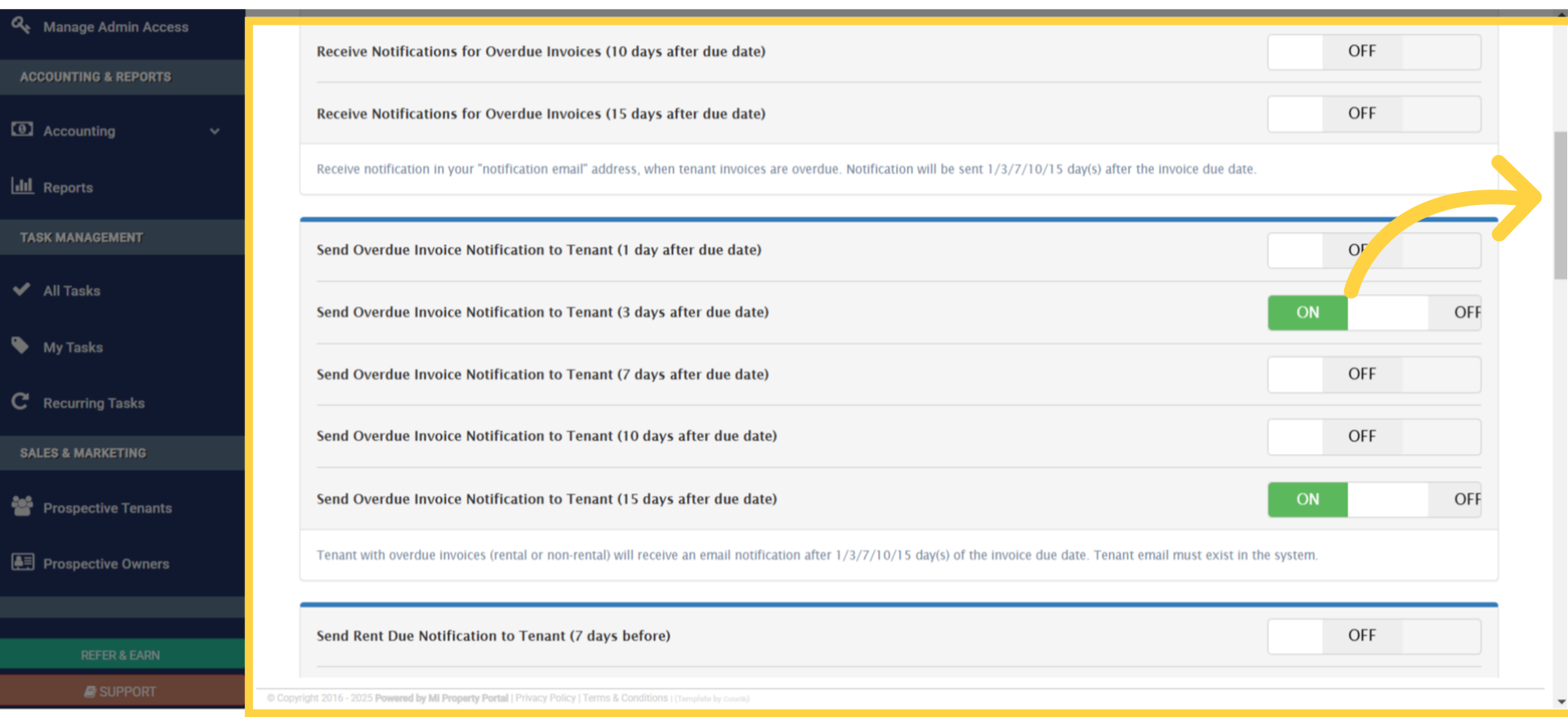
11. Want to get alerts about overdue invoices? You can choose to receive notifications at different stages after the due date: 1, 3, 7, 10, and 15 days.
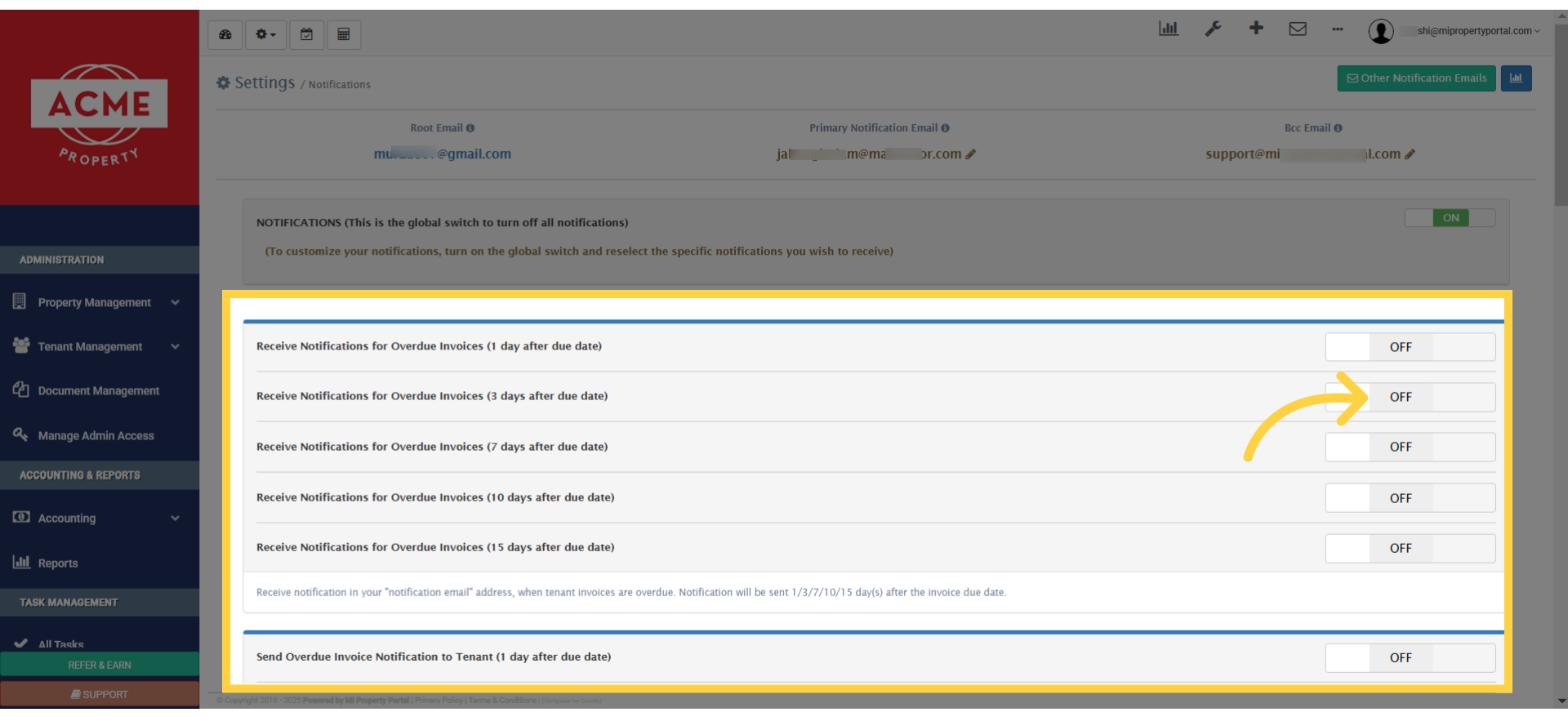
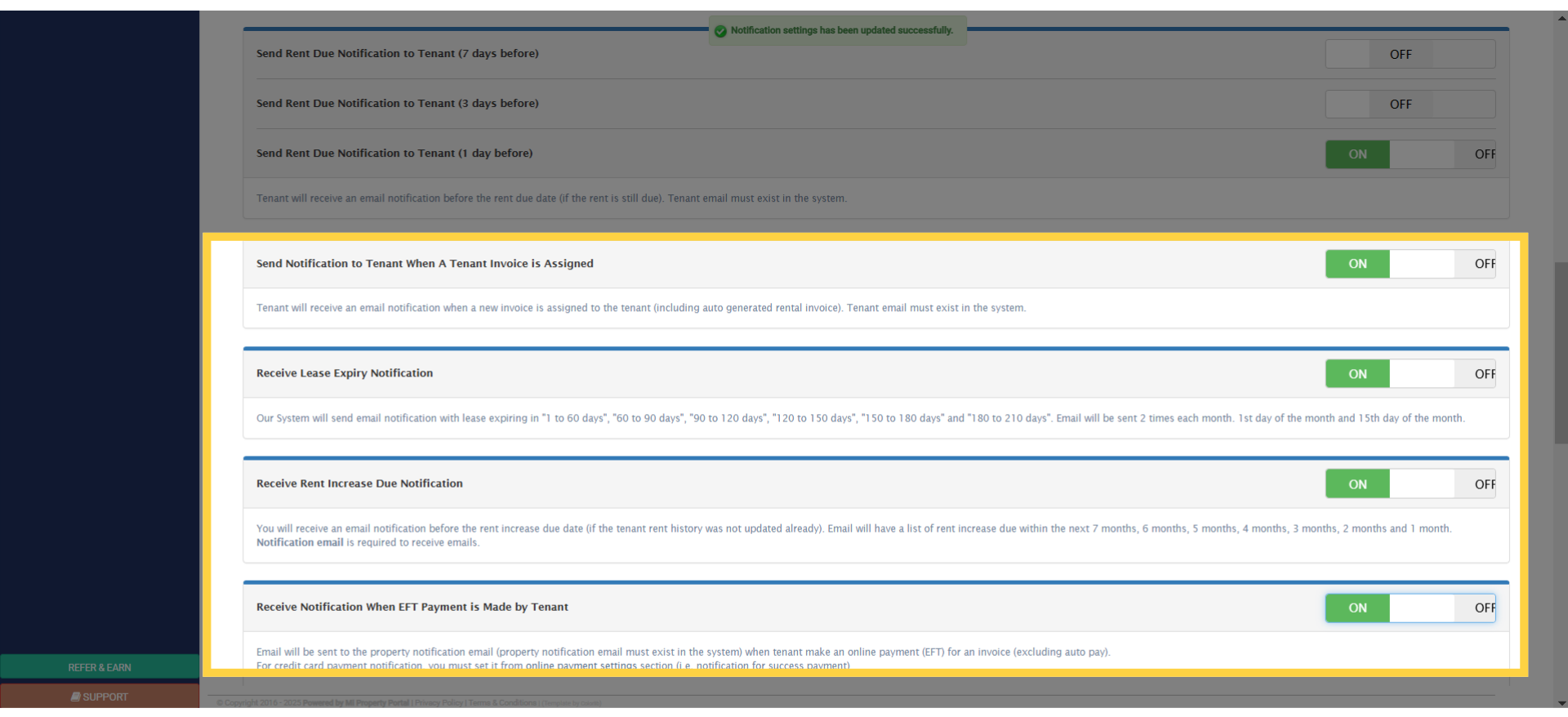
12. Scroll down on this page, and you’ll find more options for sending overdue invoices or rent-due notifications to tenants.
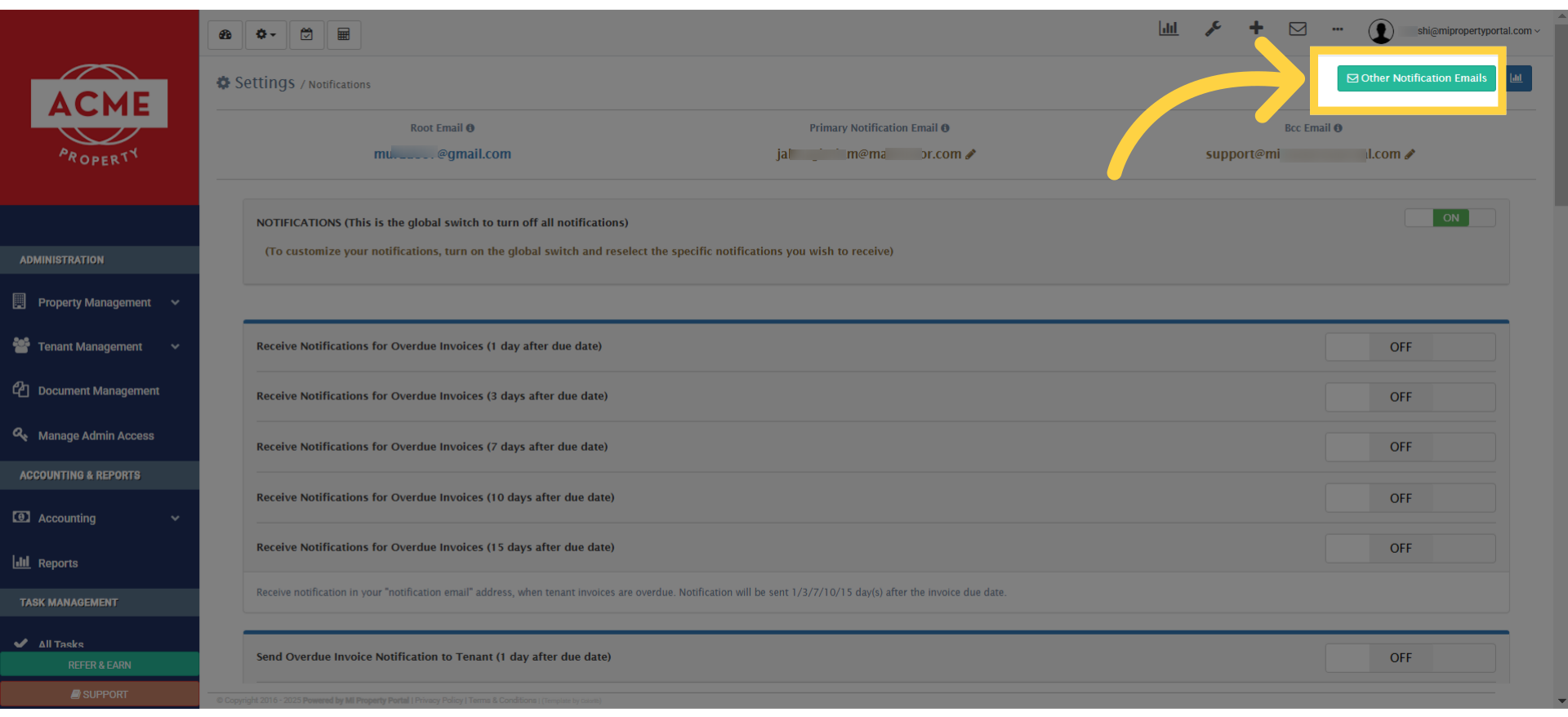
13. At the bottom of the page, you’ll discover a range of notification settings for lease expiries, bill reminders, service requests, and more.
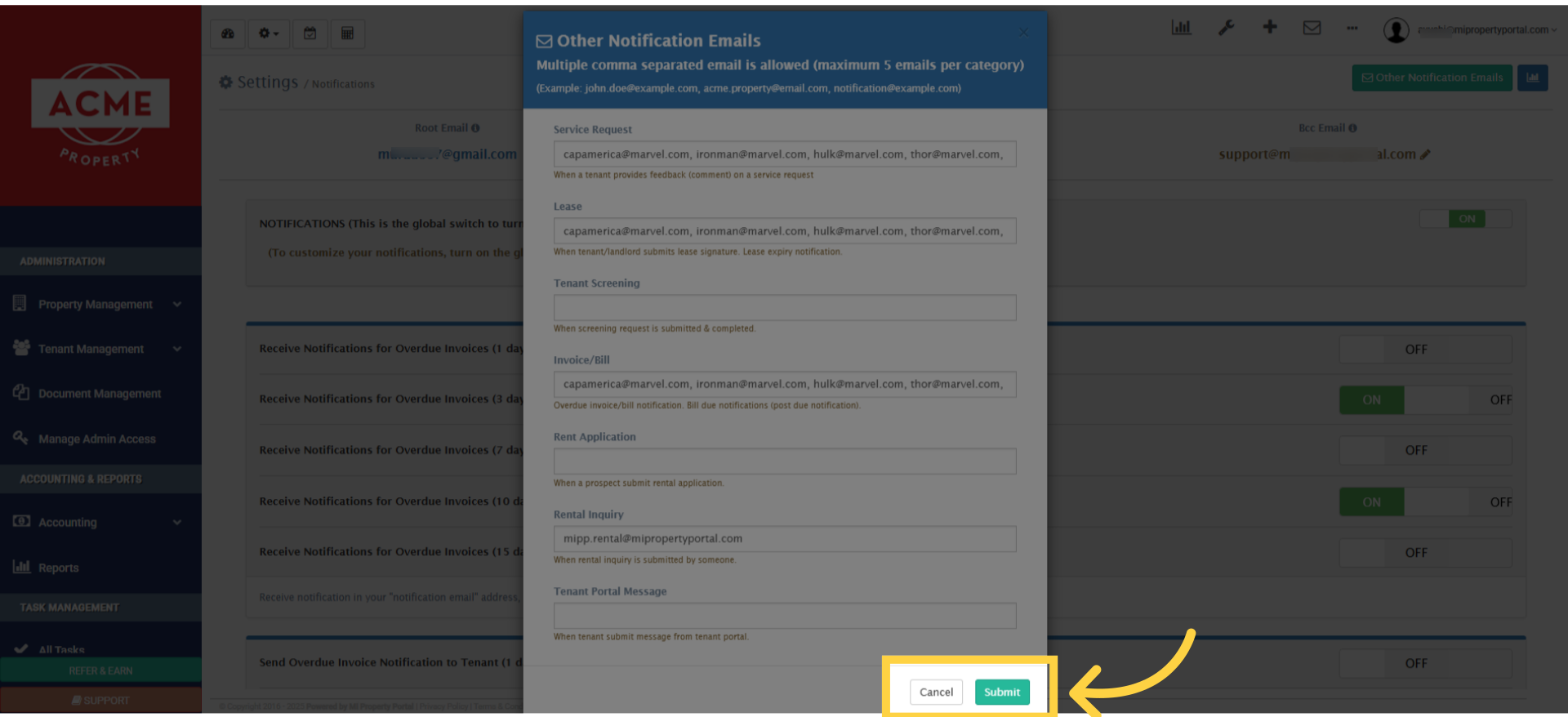
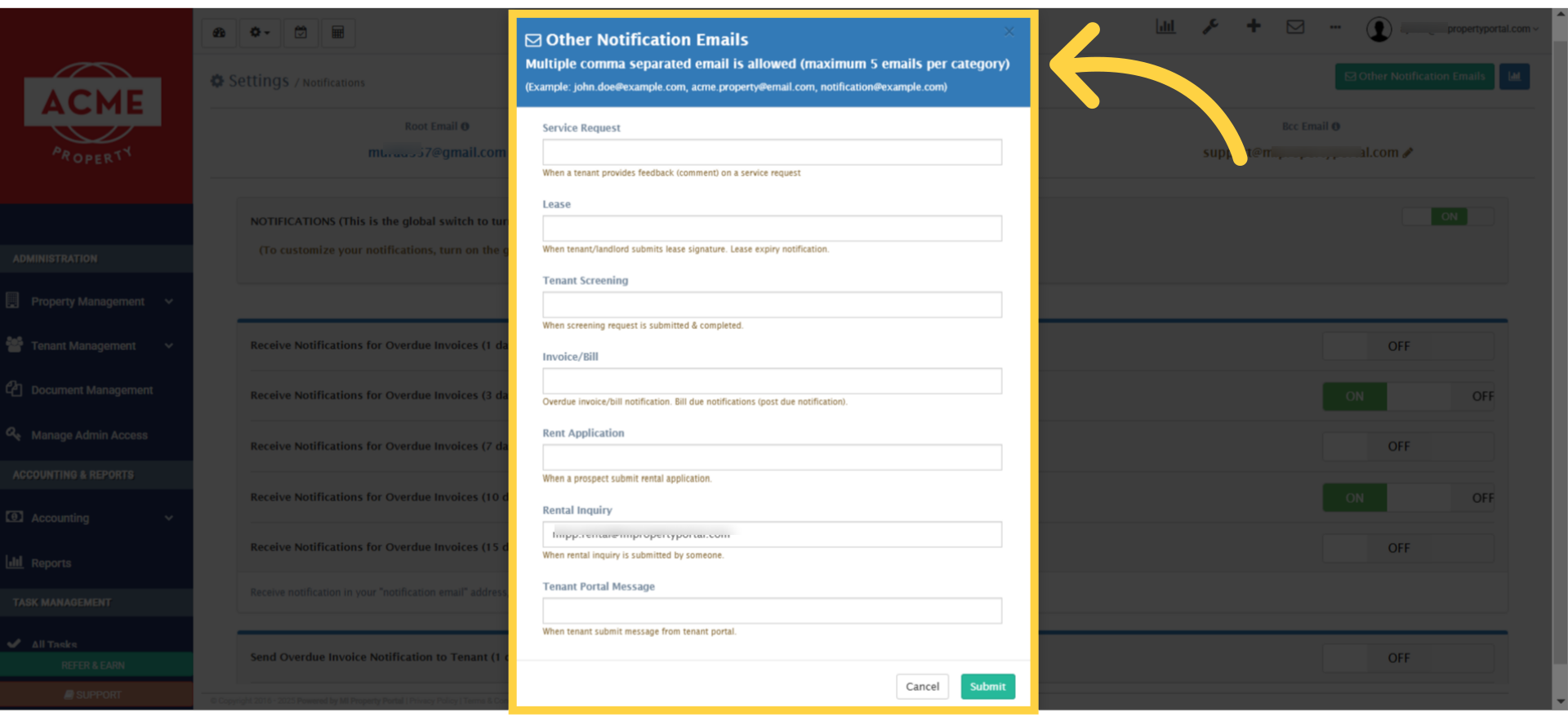
14. Don’t miss the Other Notification Emails button at the top right. Click on it.
15. This button lets you set up additional email addresses for specific notifications. You can send key updates to one or more designated mailboxes, ensuring the right team members always stay informed. It’s a simple way to keep everyone in the loop!
16. For example, if you want service request notifications to go to multiple people, you can enter their email addresses in the corresponding box.
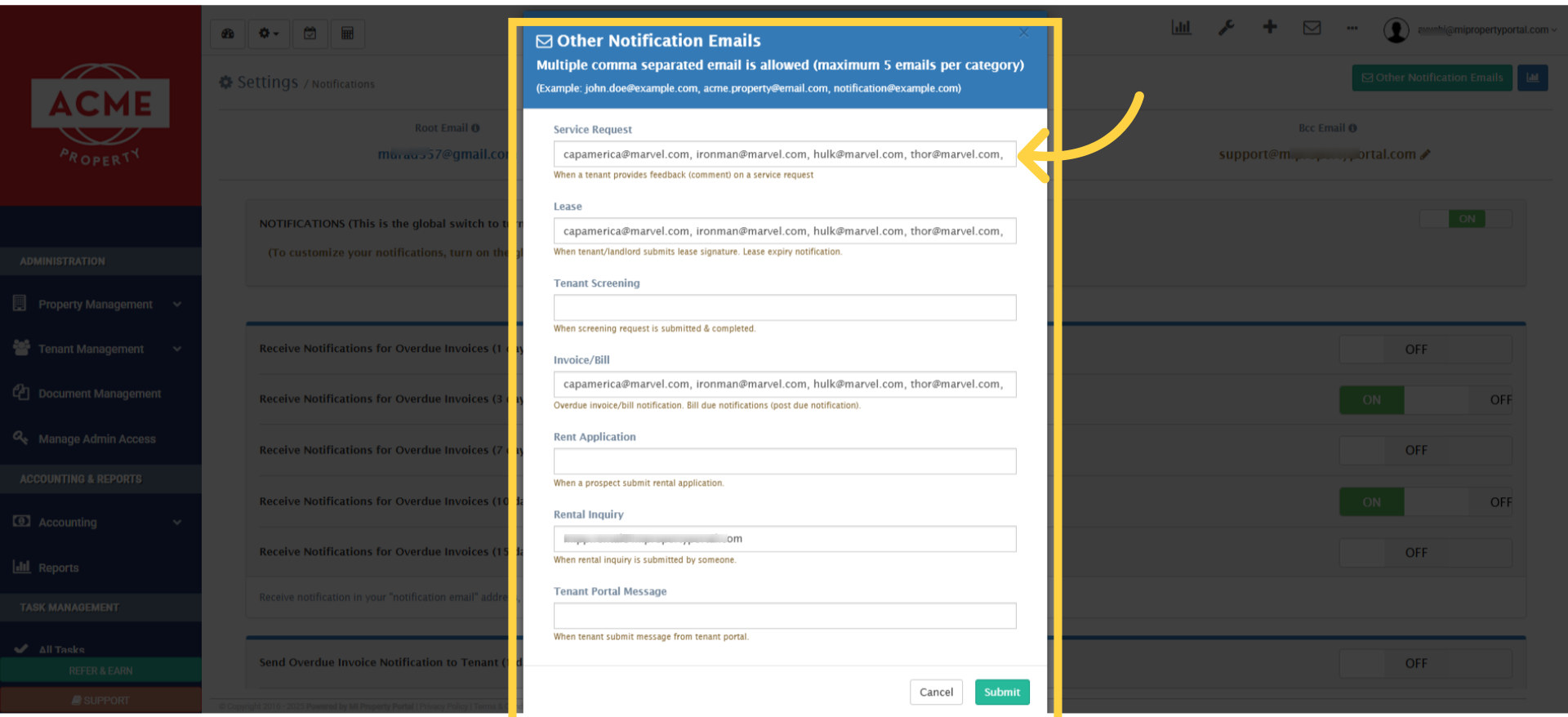
17. Don’t forget to click the submit button, to save the changes.