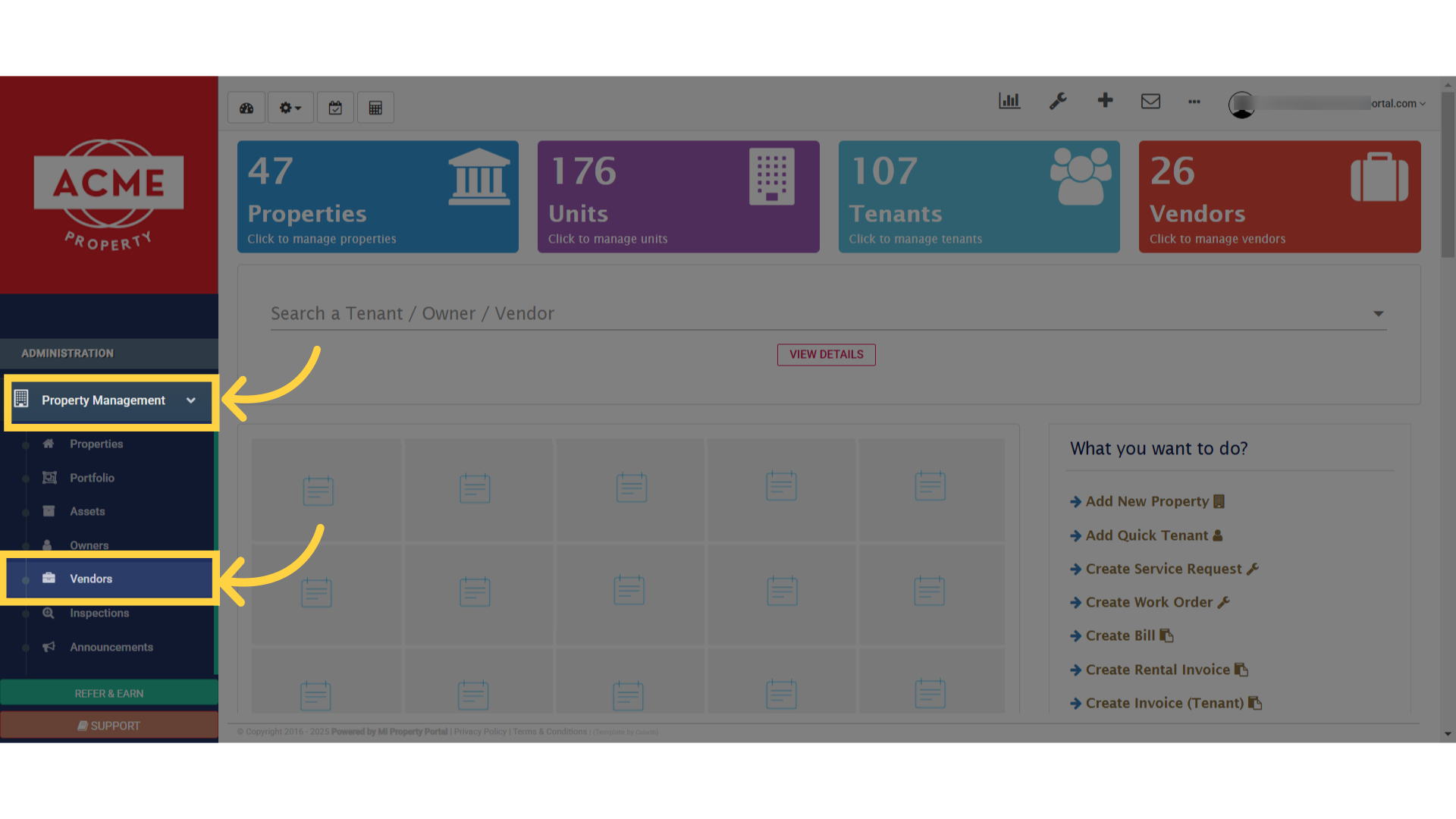
1. Go to the Vendor section under Property Management in the dropdown menu
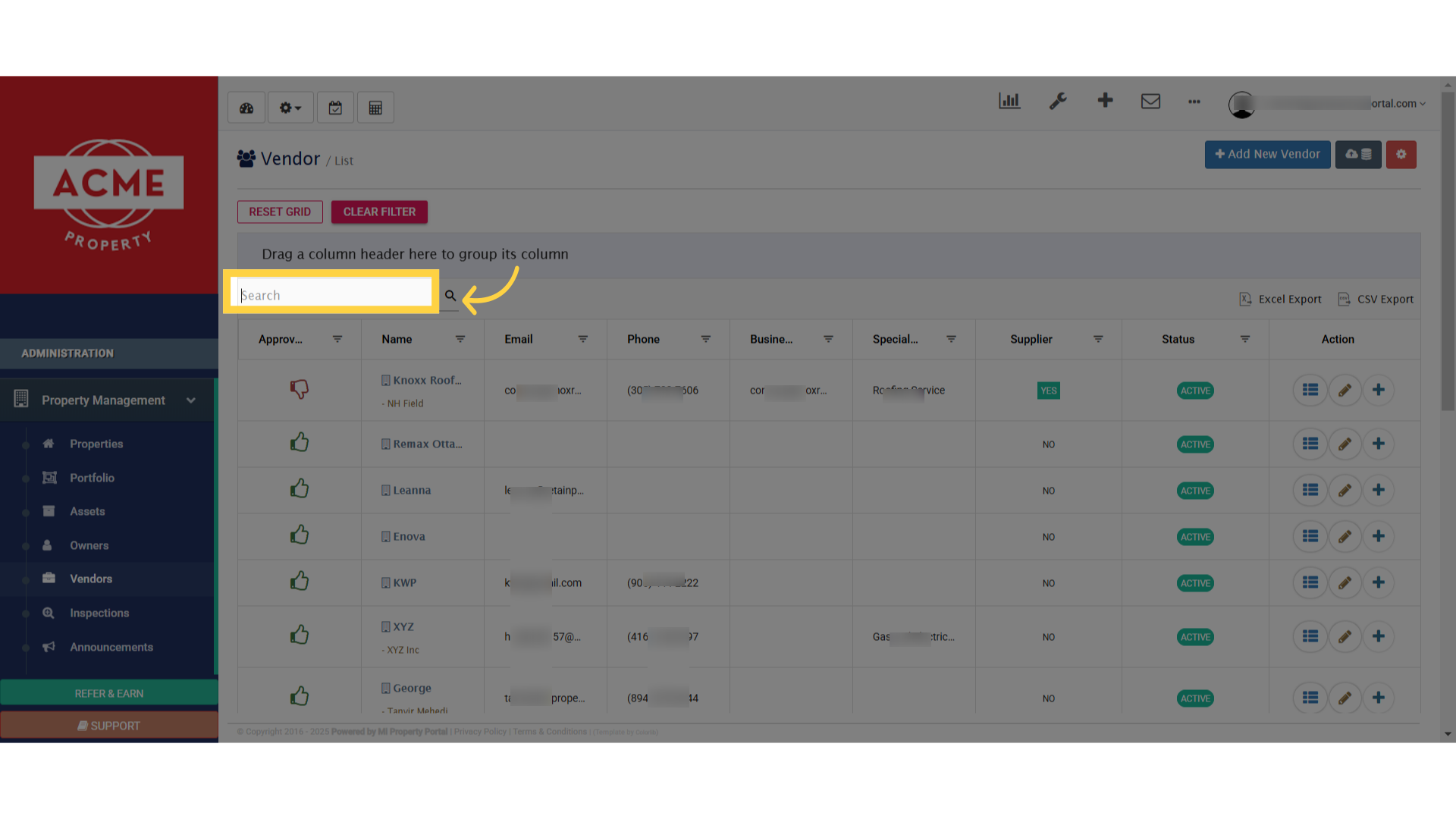
2. Use the search box to find a specific vendor or select one from the list view
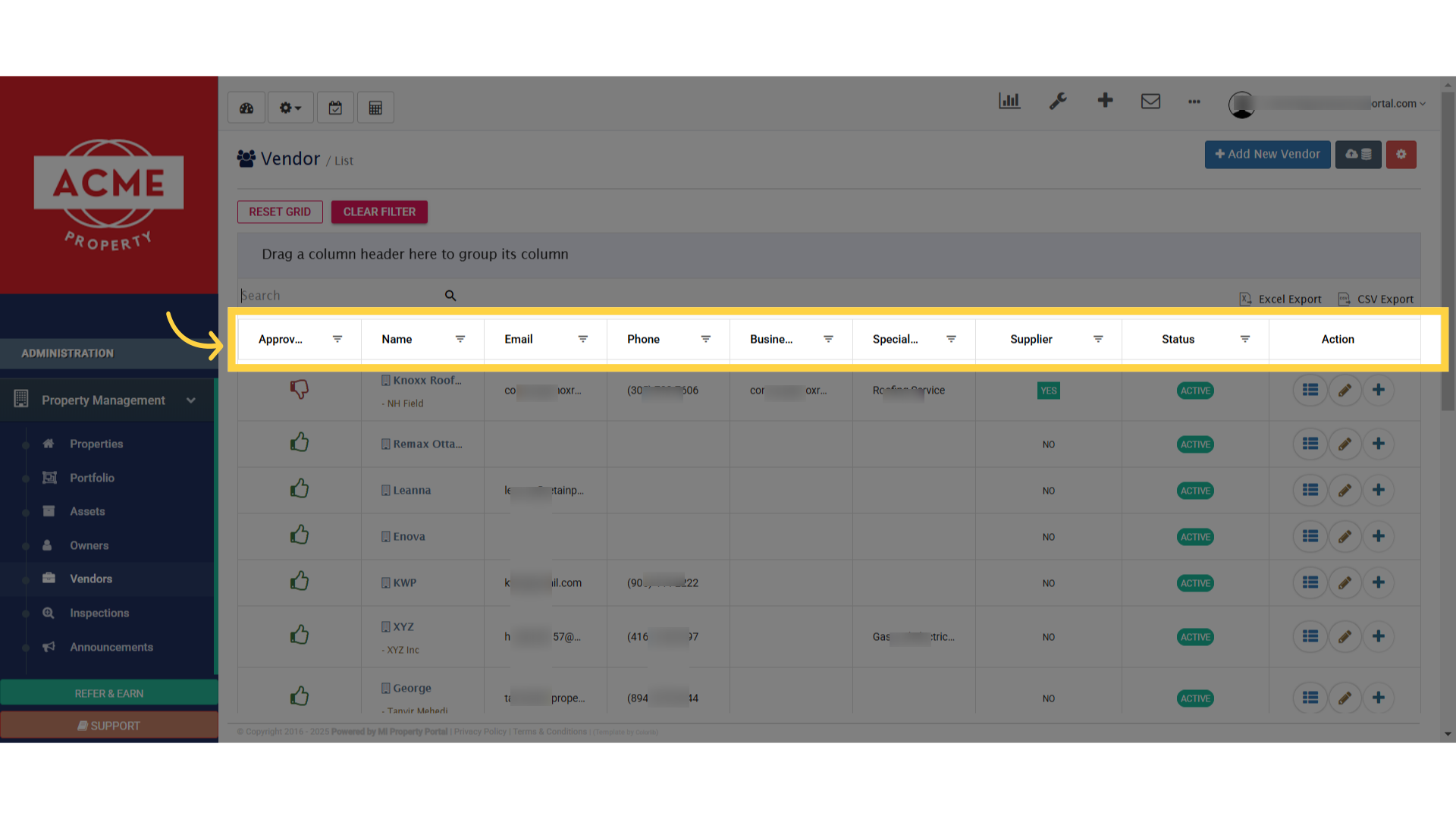
3. Customize or filter vendors using the table options
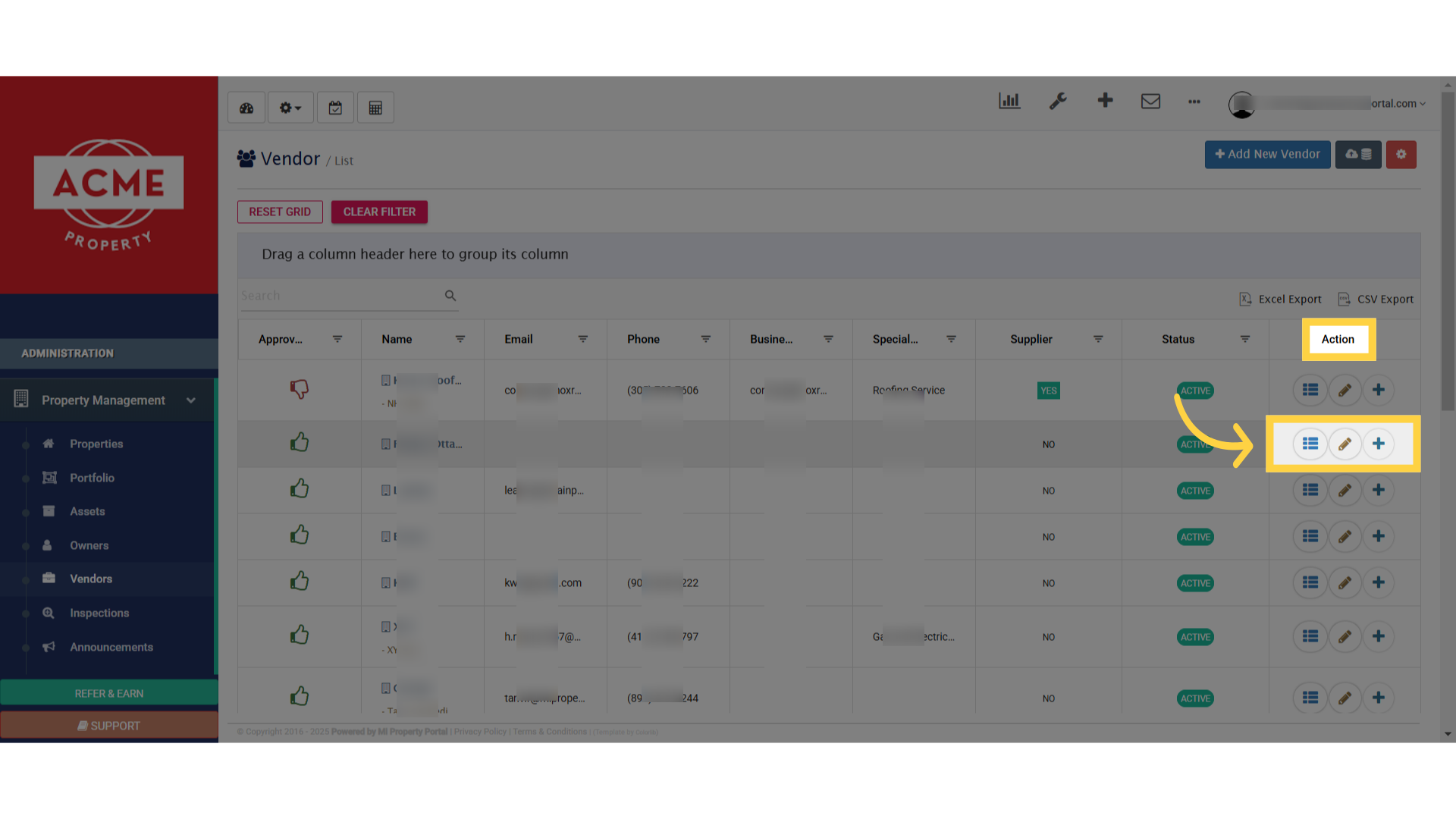
4. From the Action tab, you can edit, create a bill, or view details for each vendor
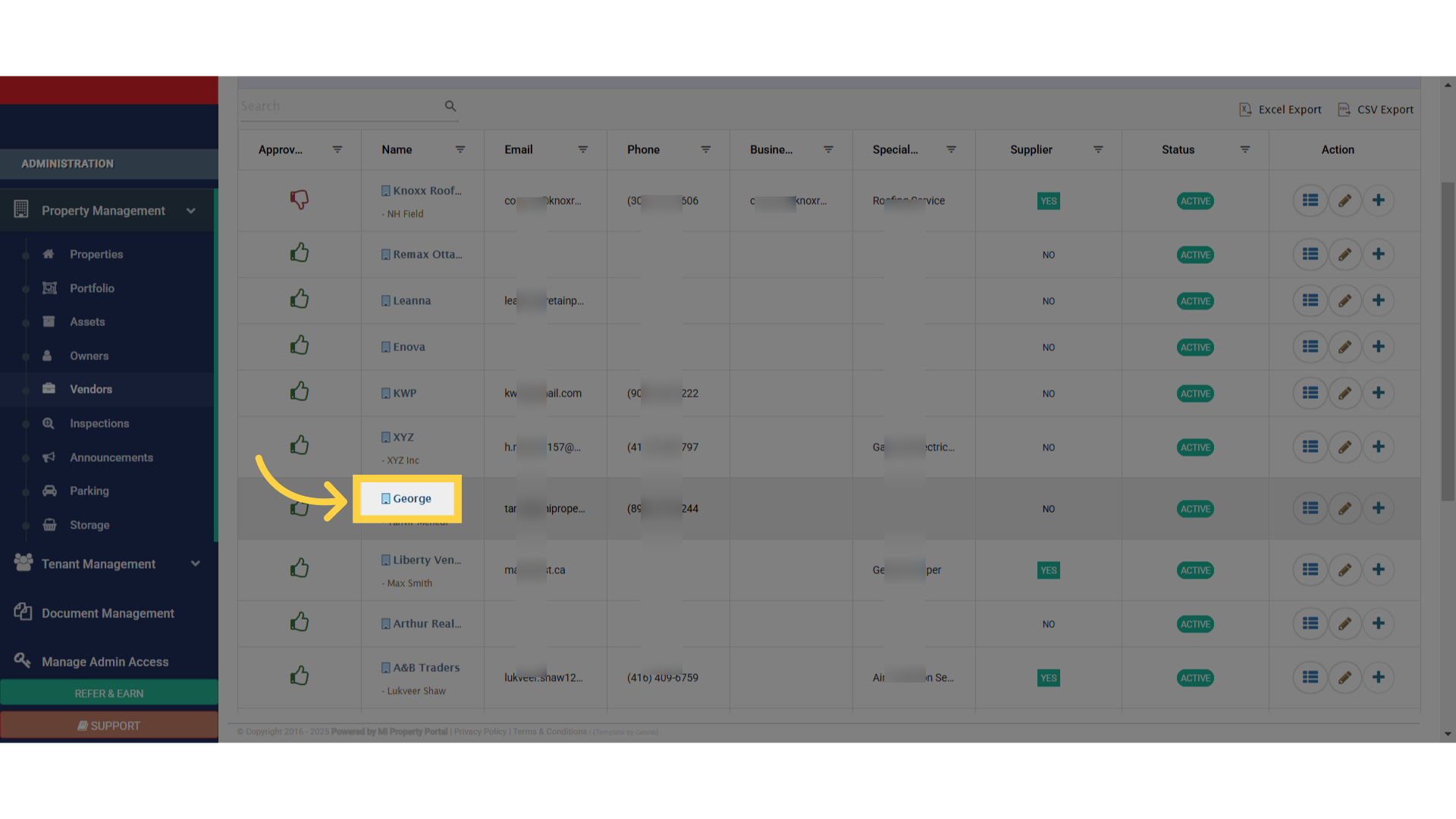
5. Alternatively, click on a vendor’s name to open their Details page
6. Here is one of the vendors details page
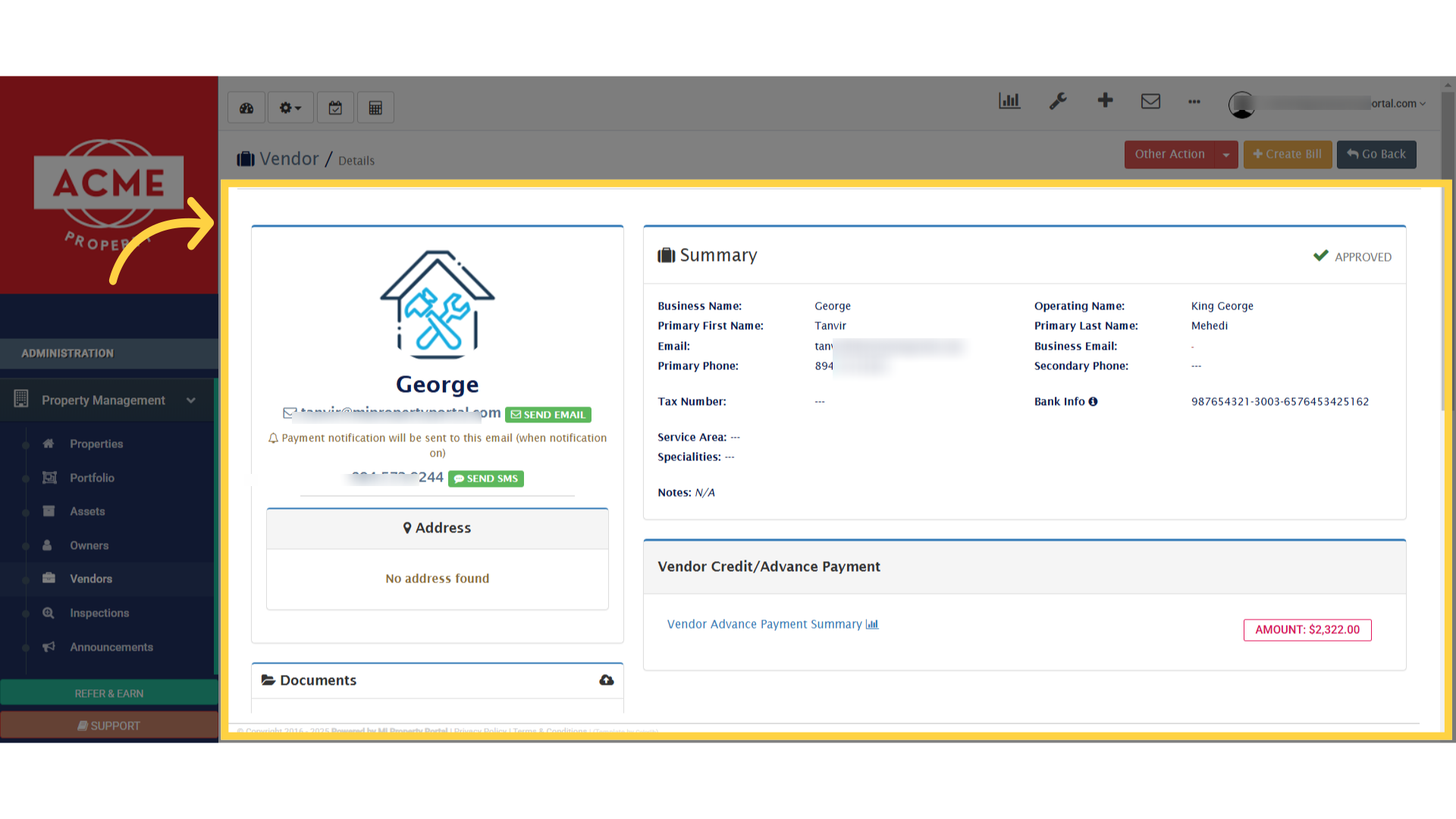
7. On the Vendor Details page, you can: Send an email by clicking the email icon
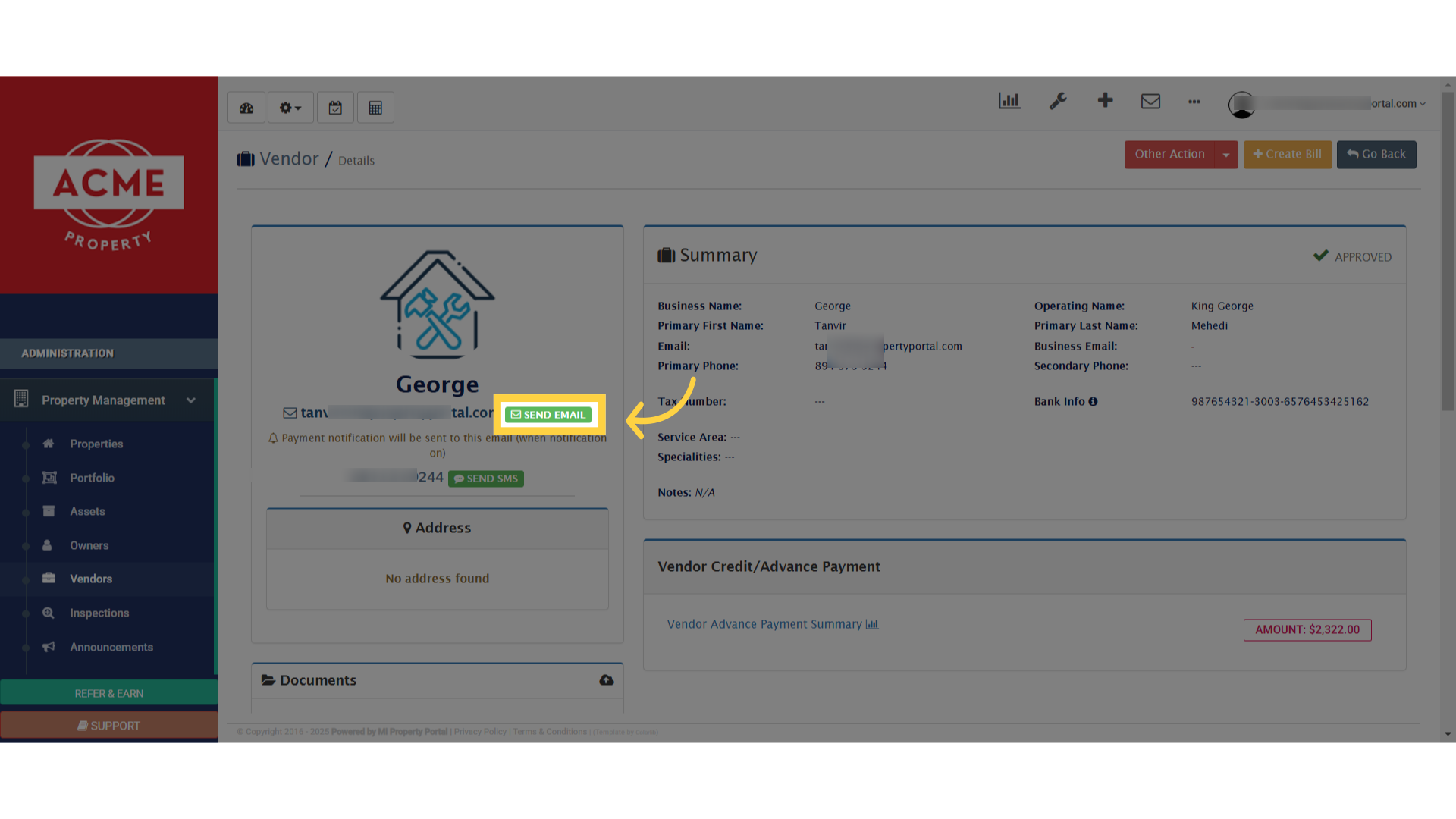
8. Send an SMS by clicking the SMS option
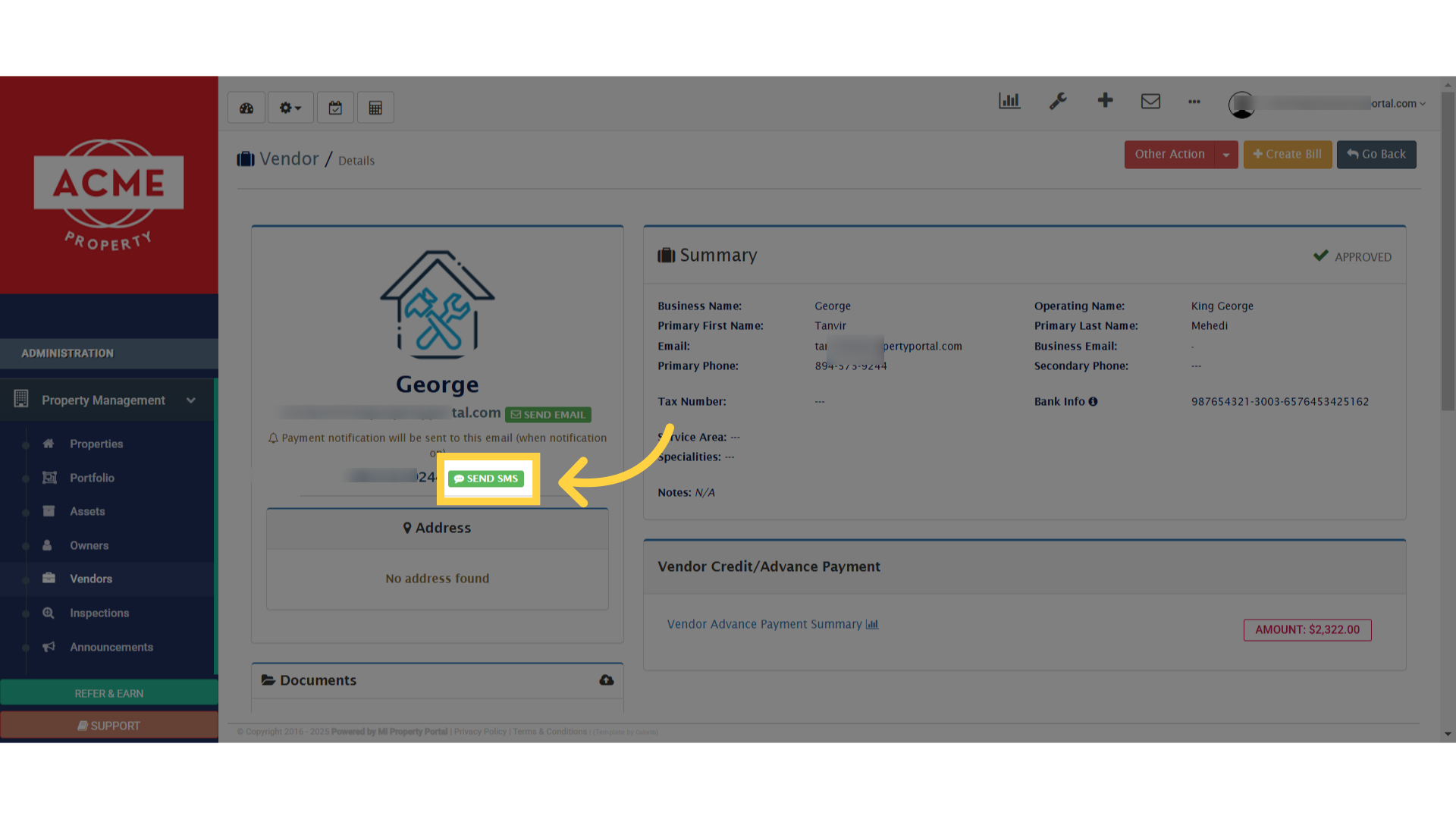
9. Upload documents using the upload icon
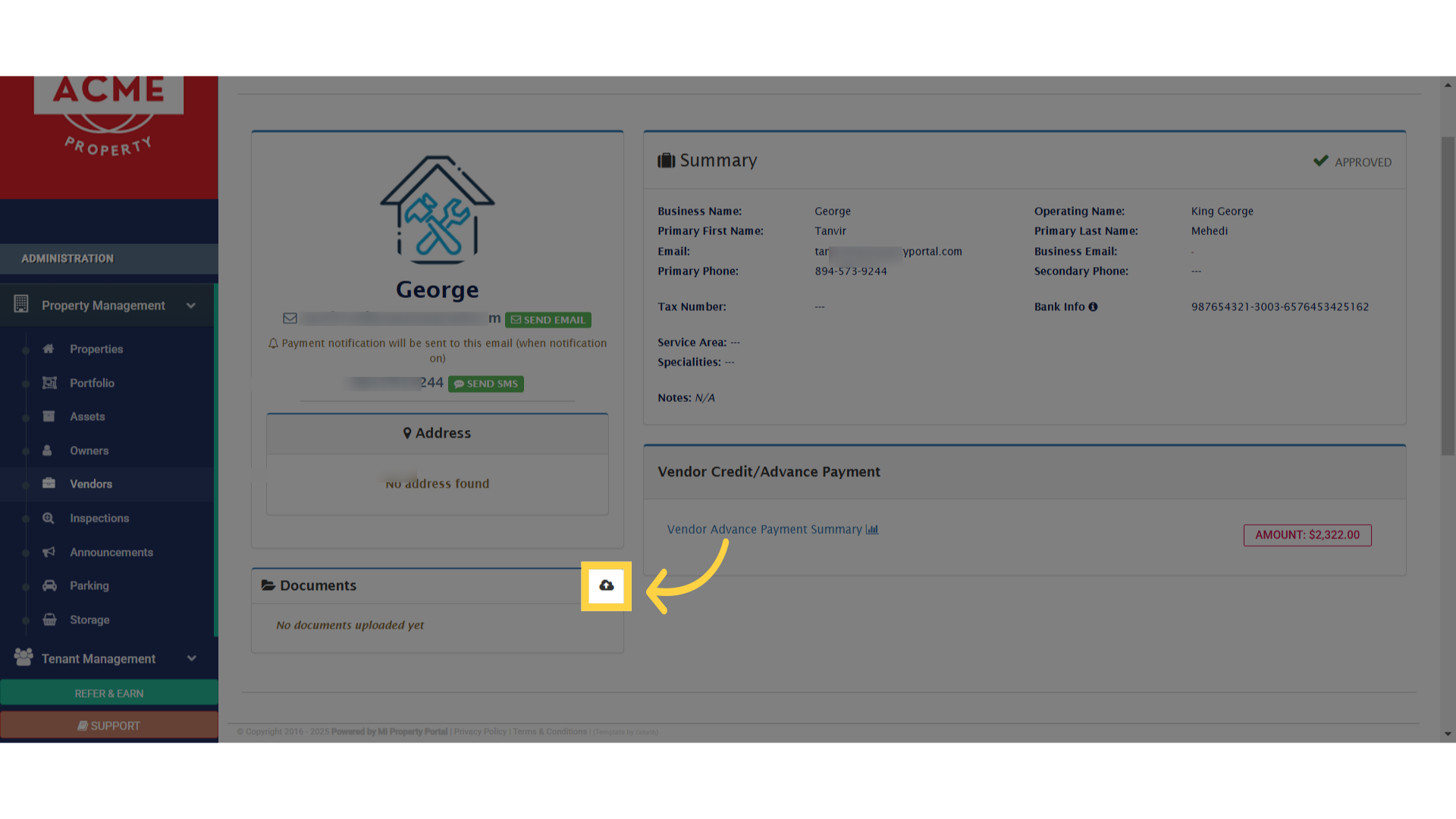
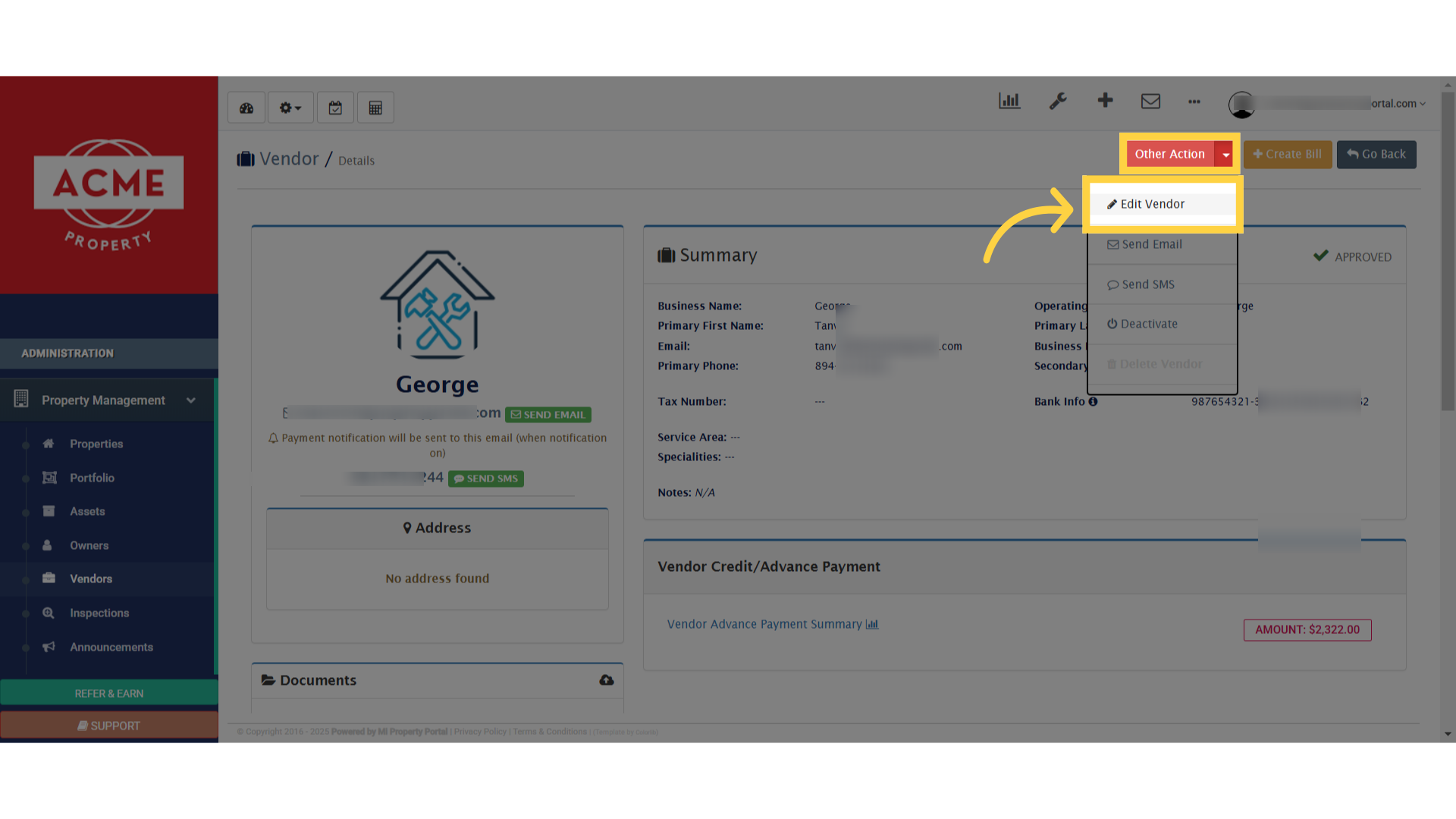
10. Click “Edit Vendor”
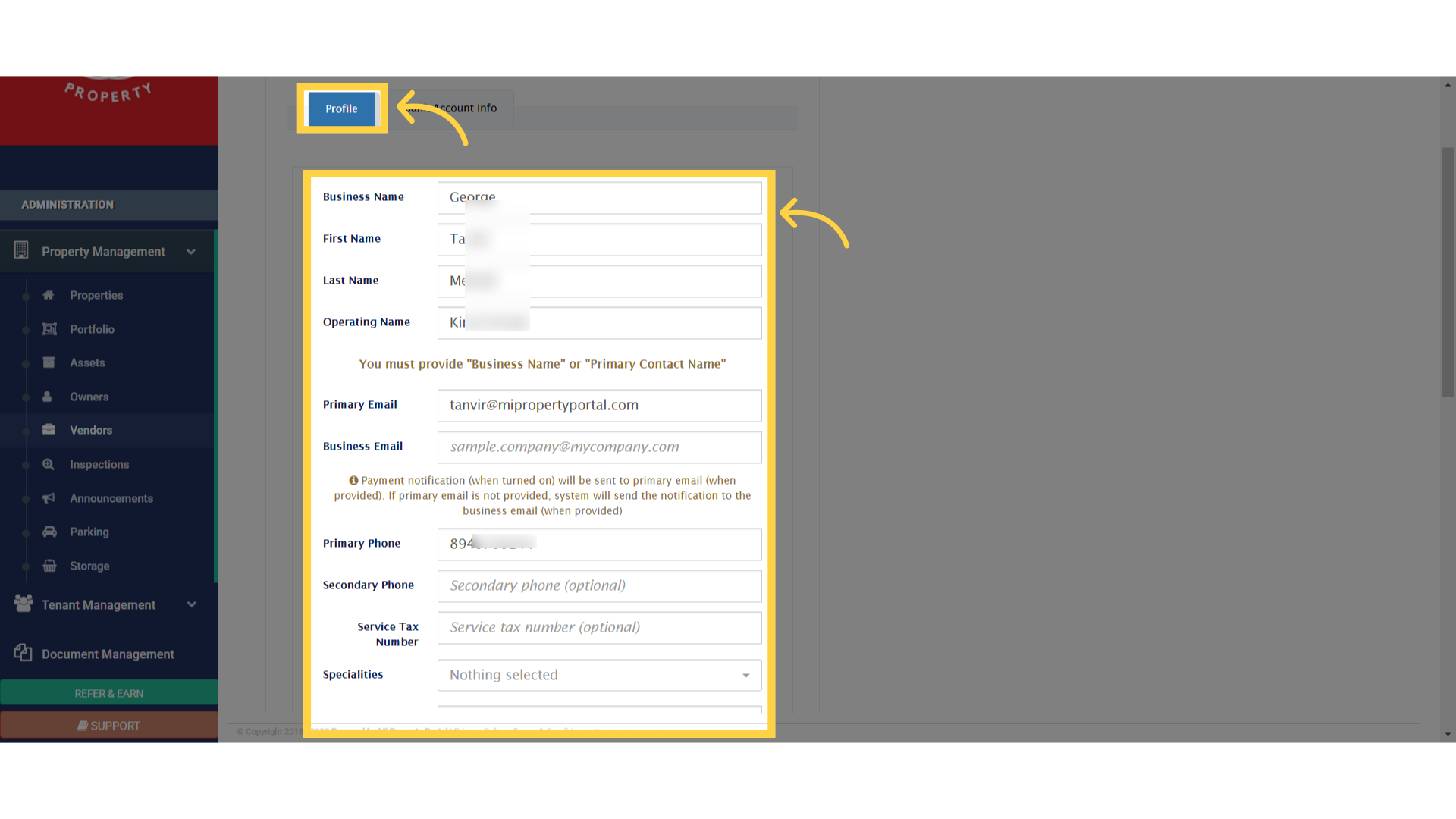
11. Under the Profile tab, you can edit the vendor’s business name, first name, last name, email, phone, and more
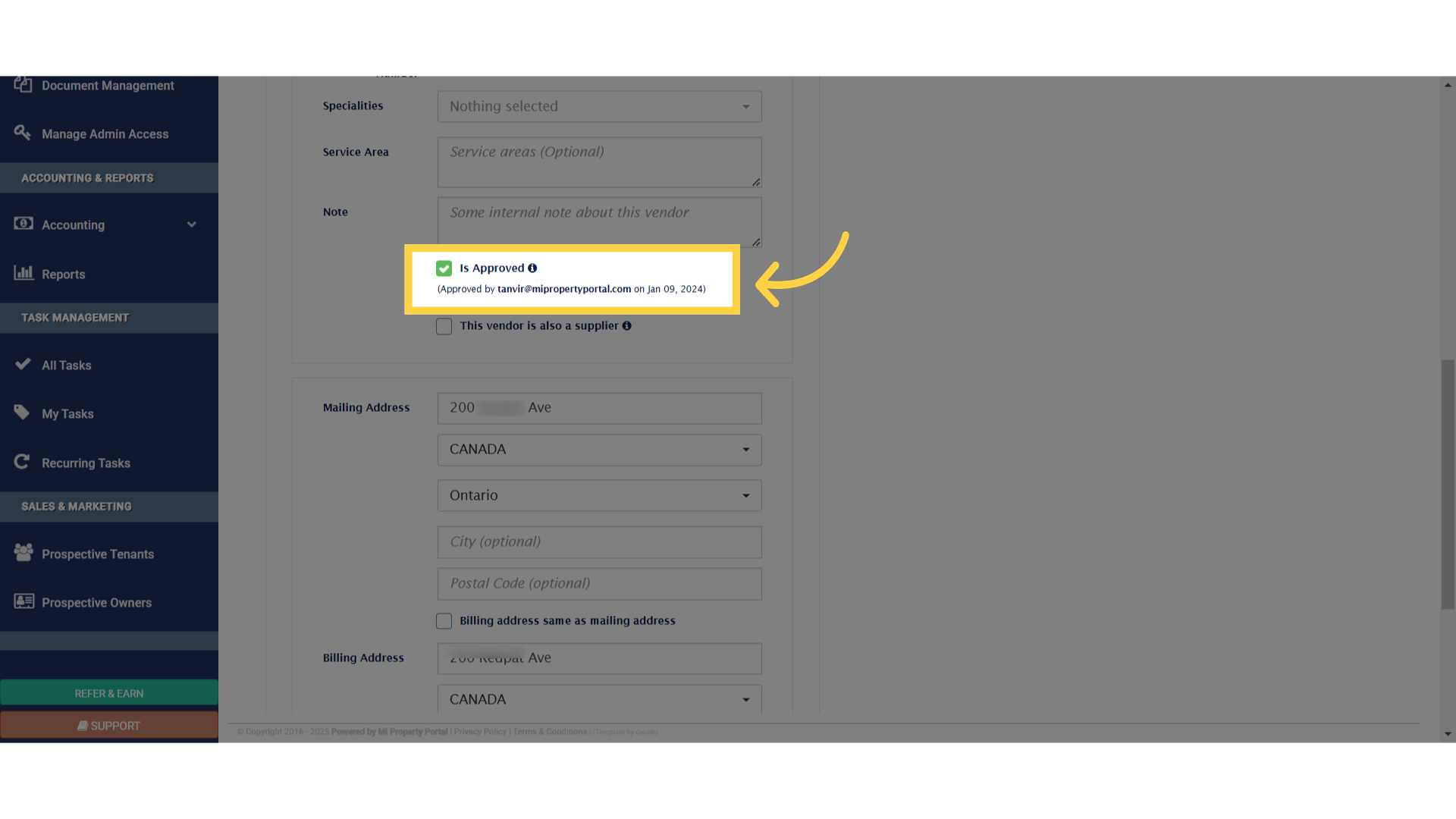
12. Click “Is Approved”
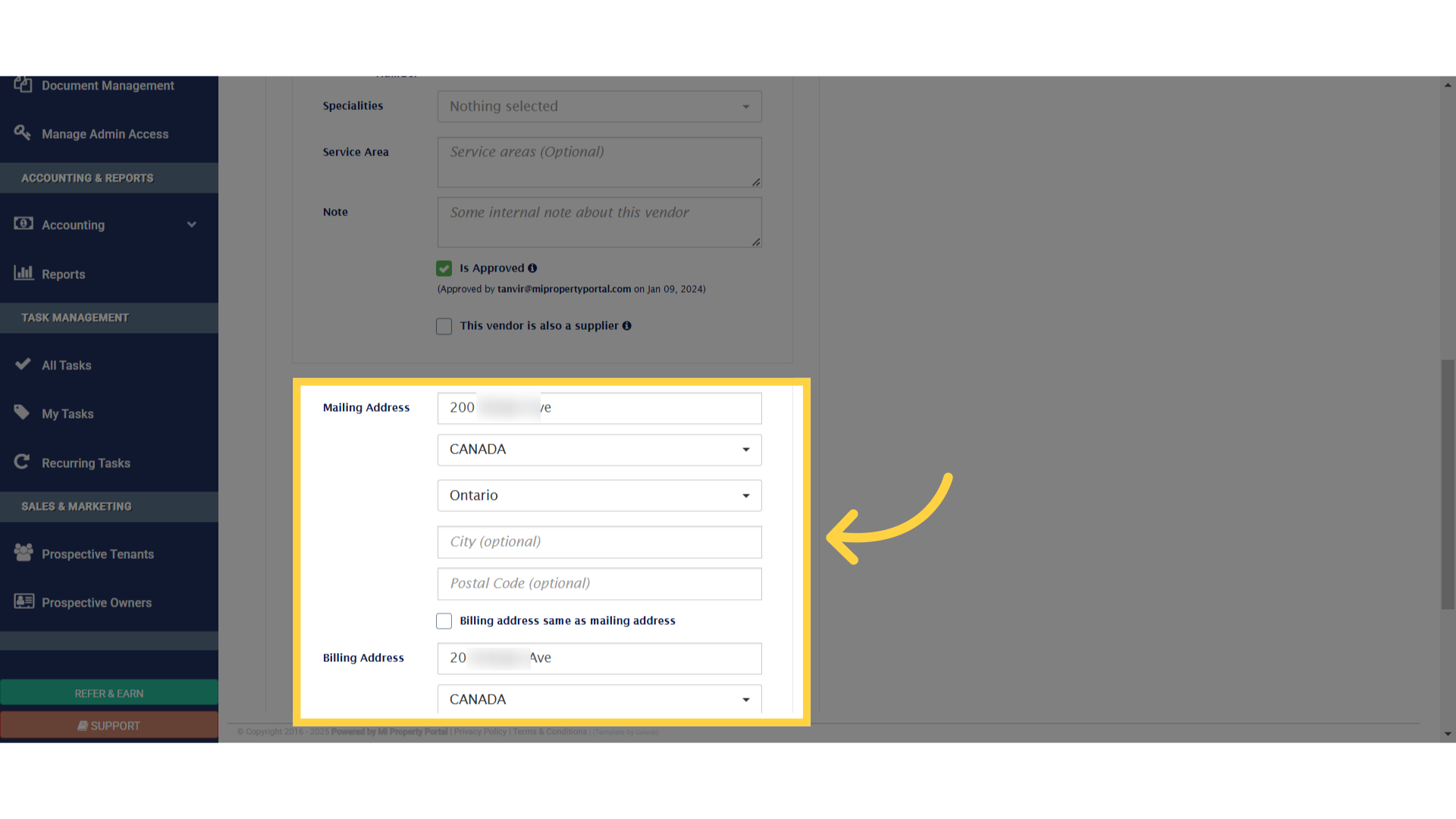
13. Update their email and billing addresses, then click Update
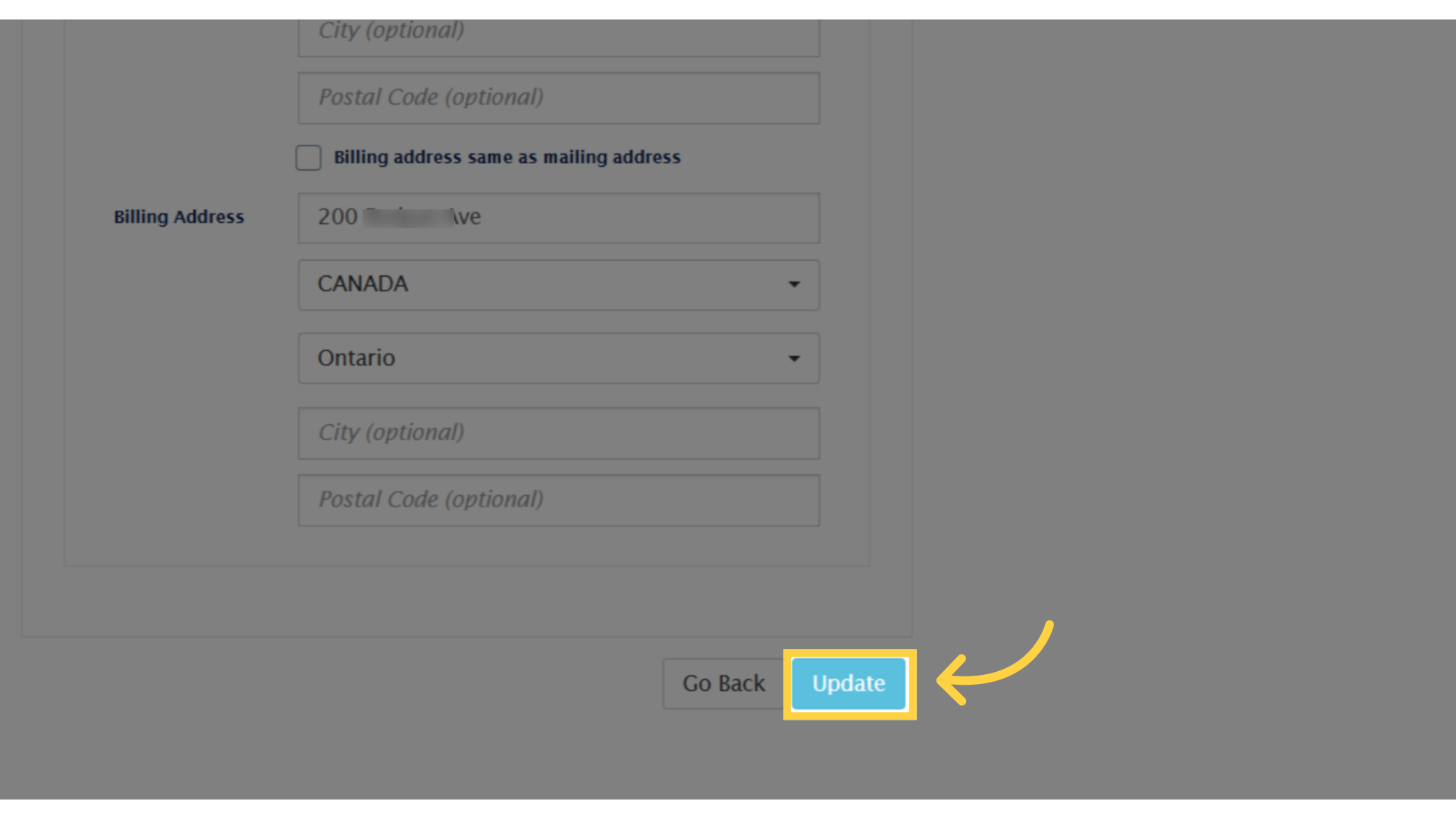
14. Then, click on update
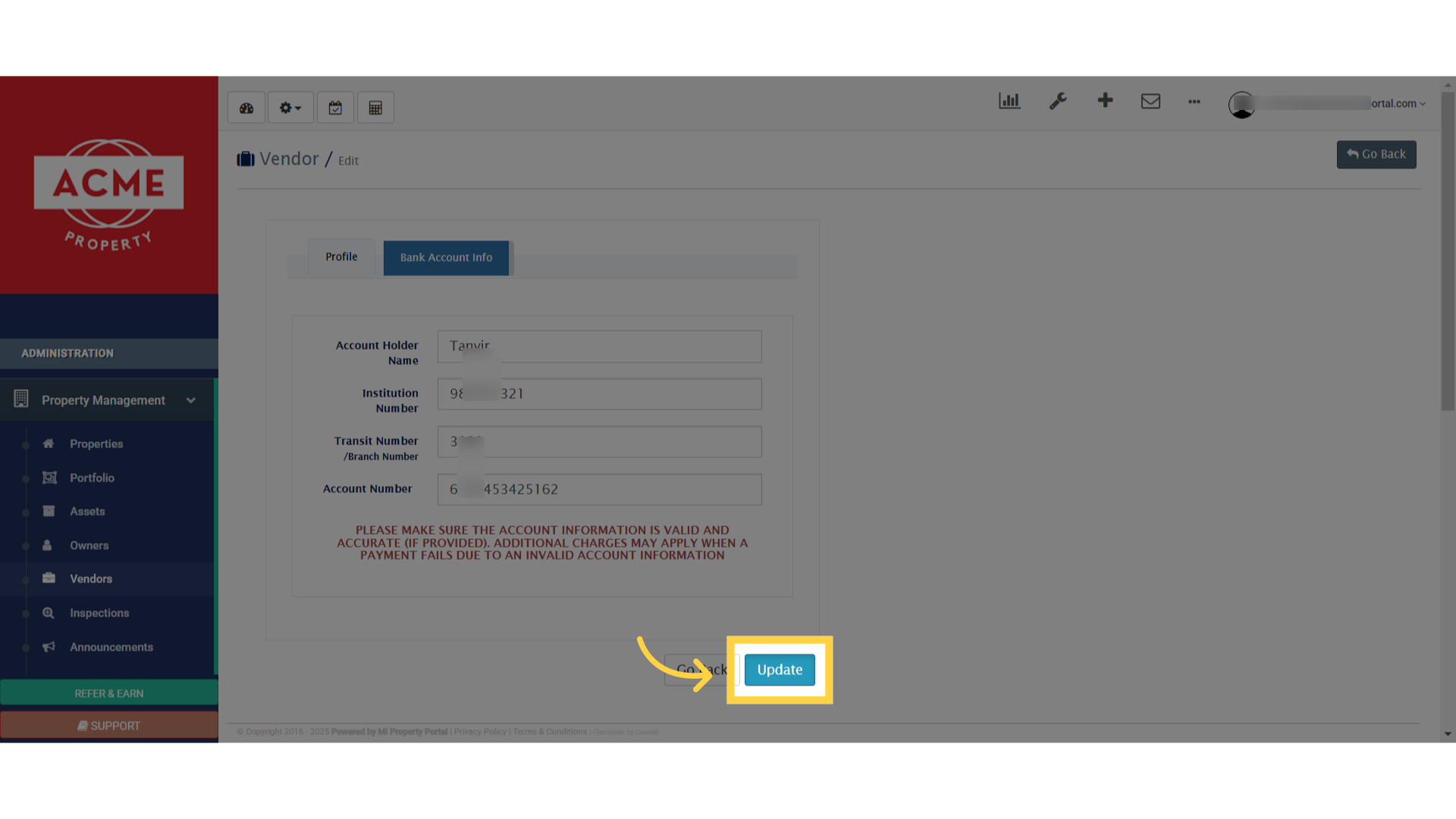
15. Click “Bank Account Info”
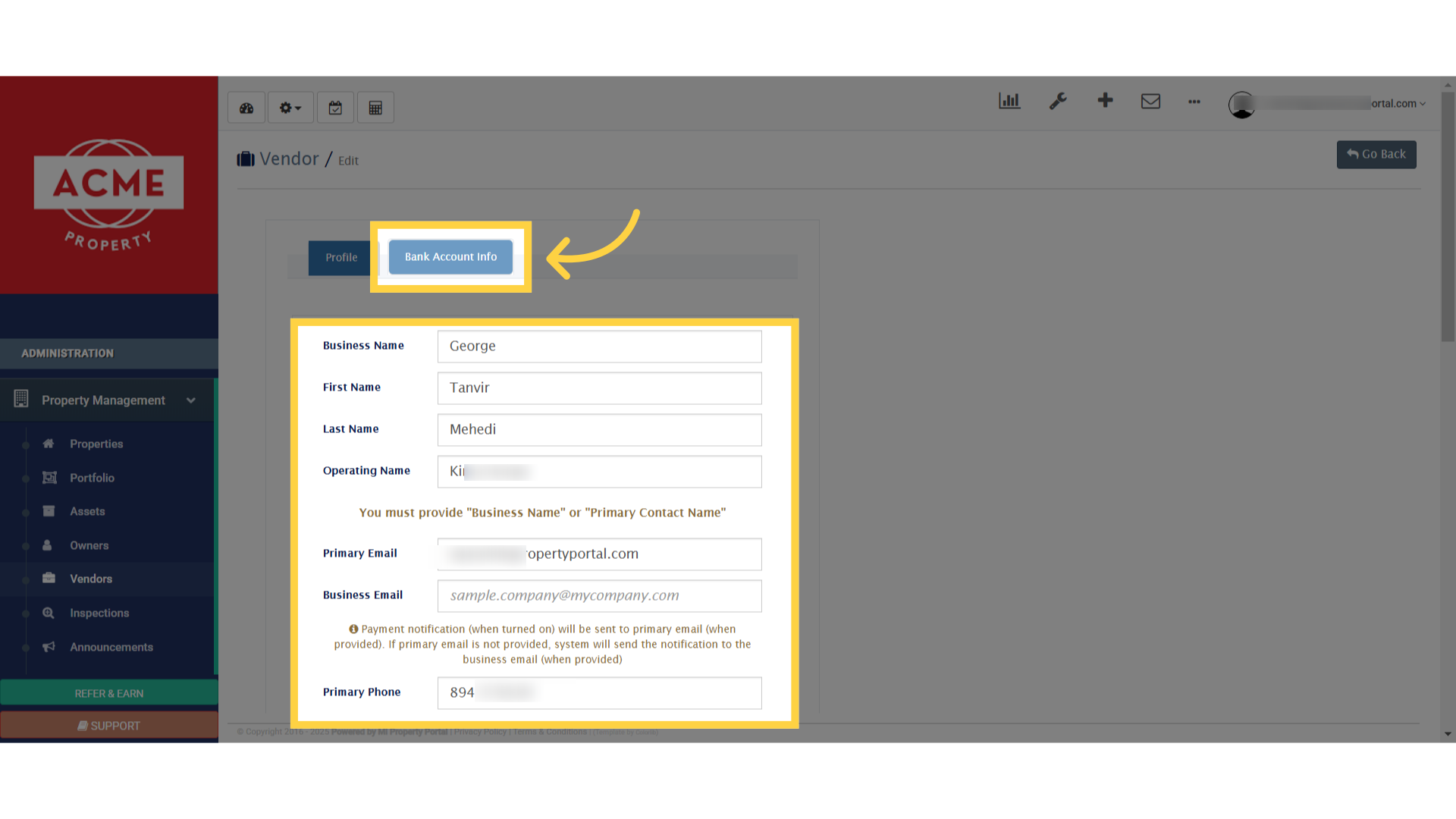
16. Once done, update all details
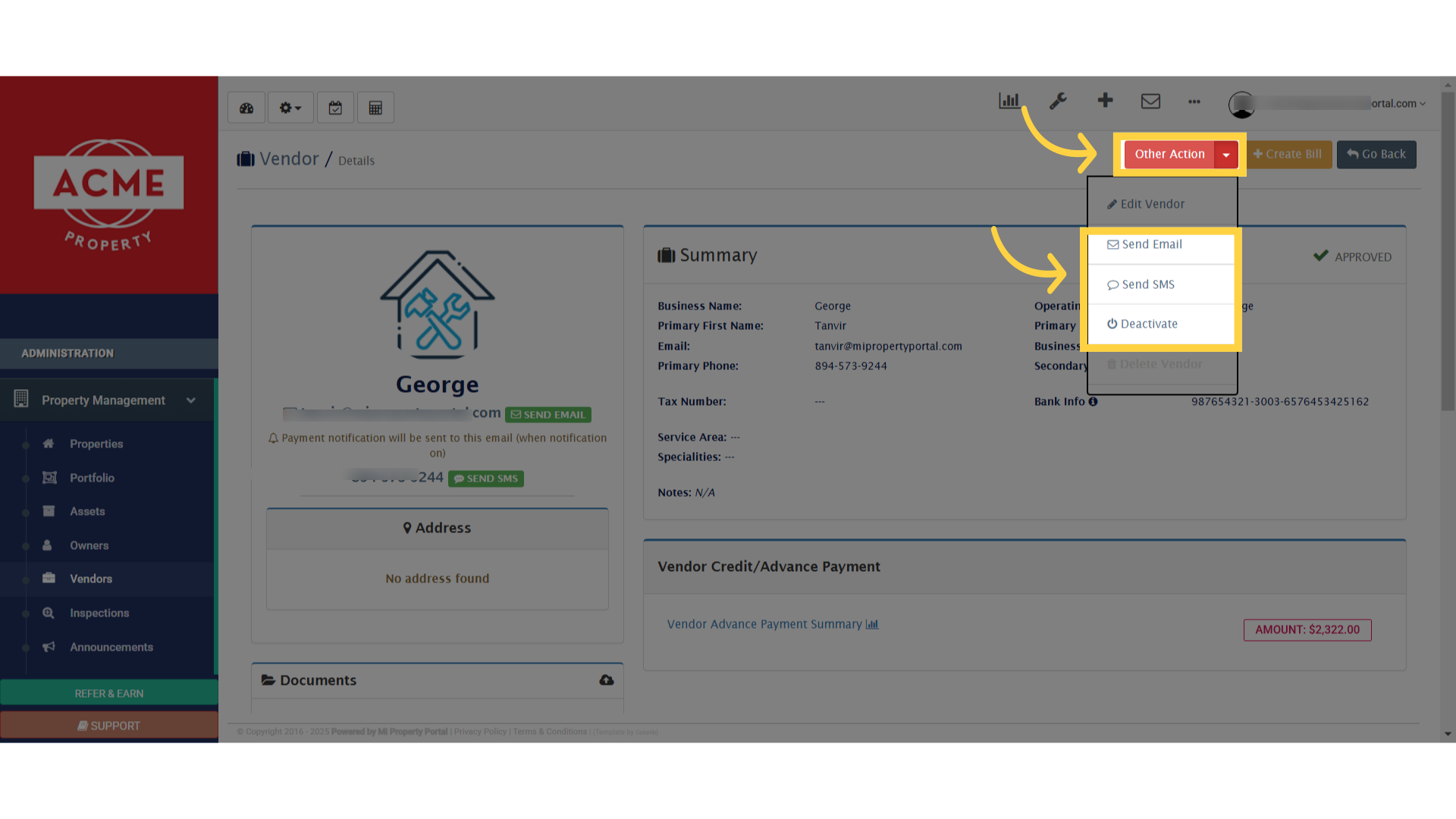
17. From the Other Actions dropdown, you can send emails, SMS, or deactivate the vendor
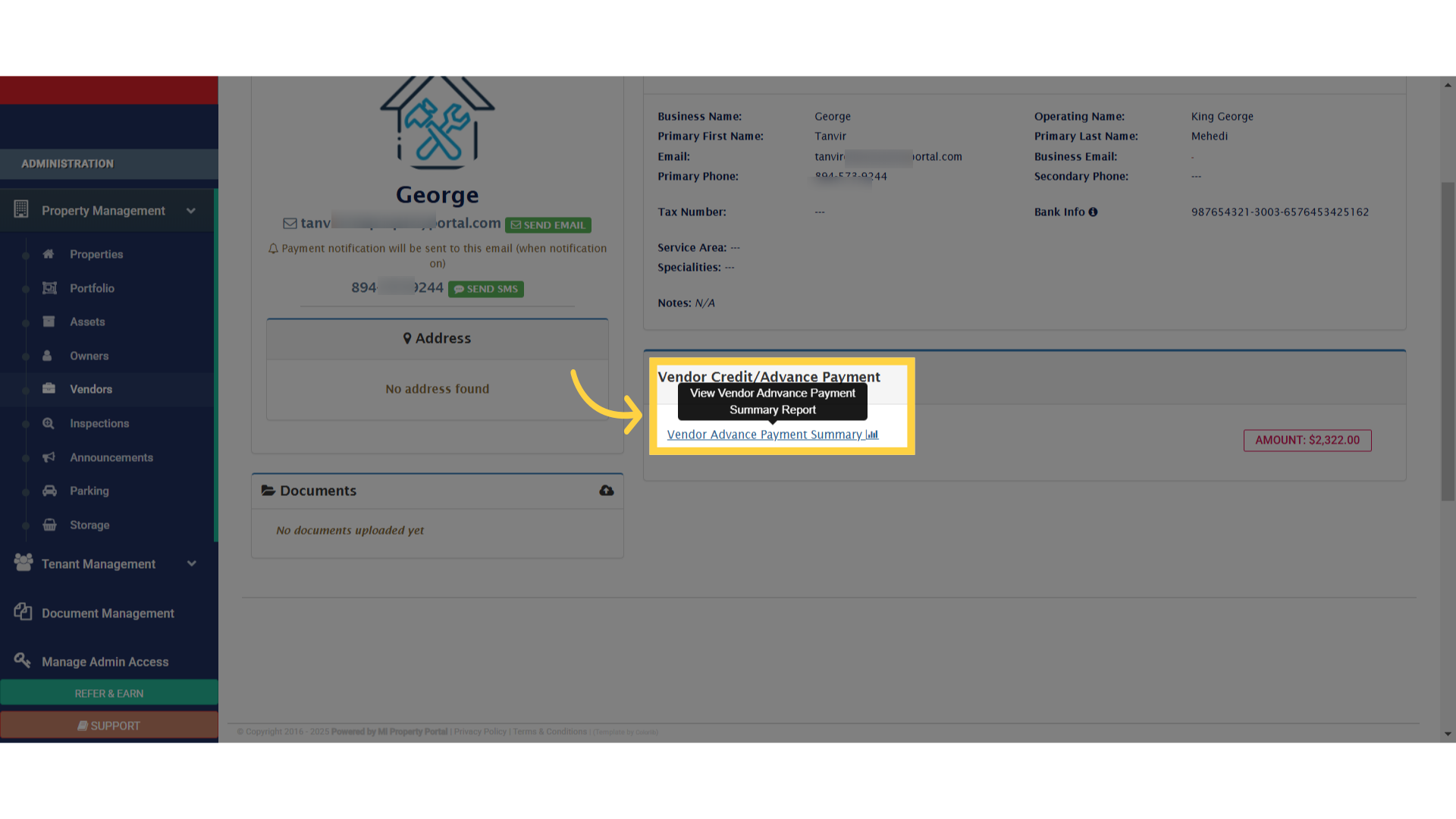
18. View vendor reports, including advanced payments and credit summaries, by clicking on the report option
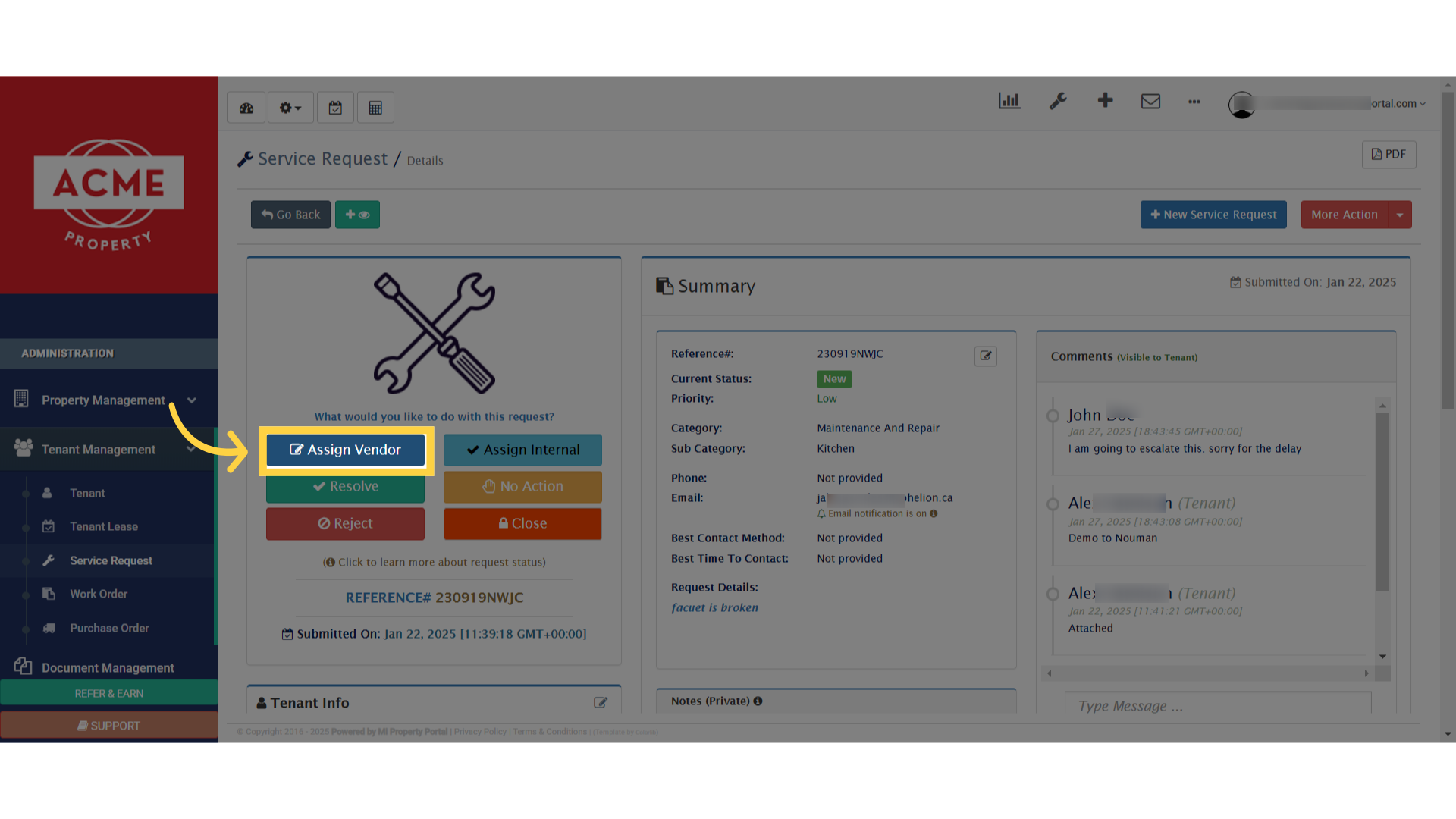
19. You can also assign a vendor for a work order
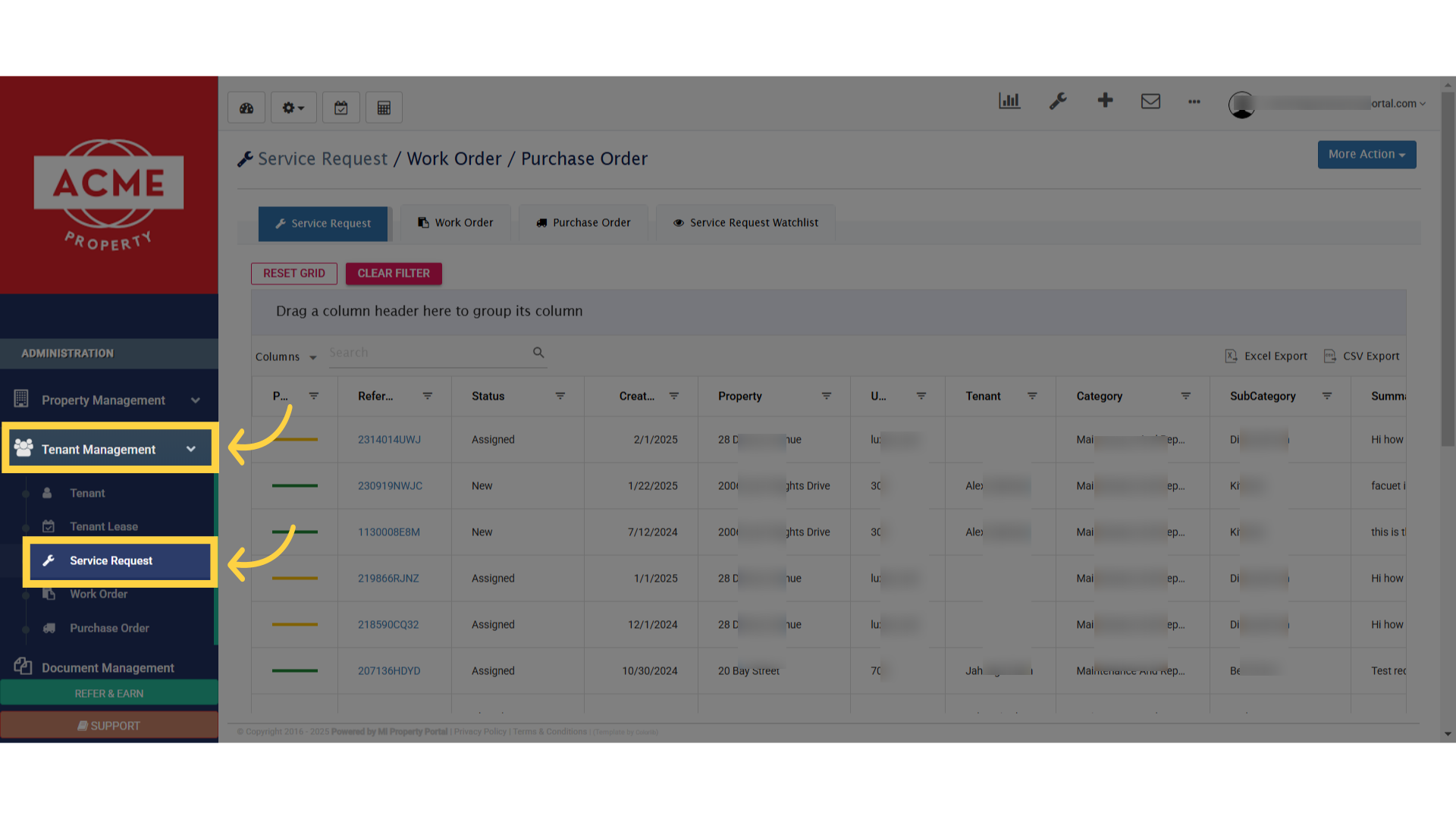
20. Select a service request from the list
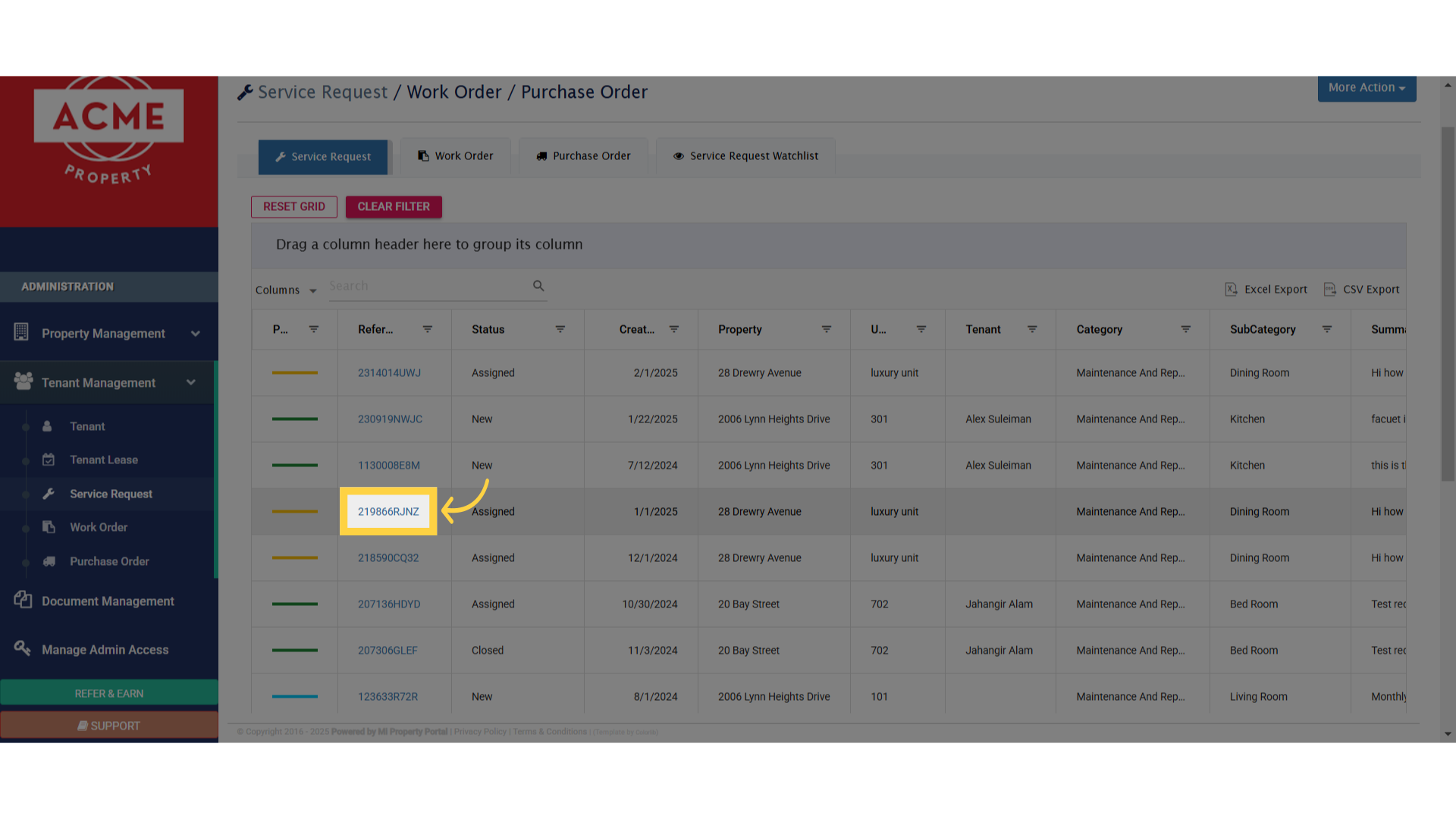
21. Click Assign Vendor and follow the steps