How to add a Commercial Property
88 views 0 August 22, 2025 Updated on August 29, 2025 mippsupportadmin
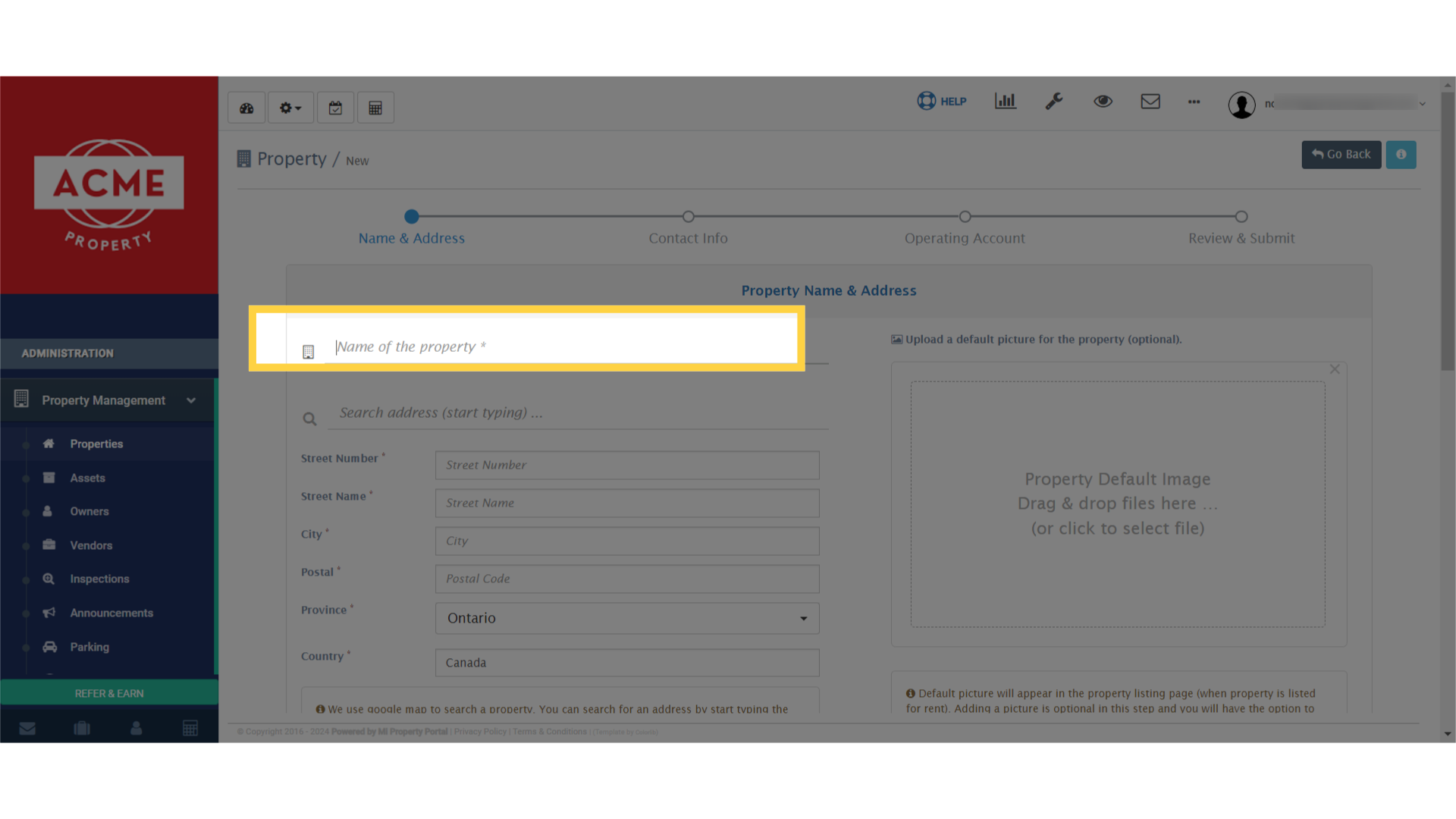
1. To start creating a property, go to the properties list. and click New Property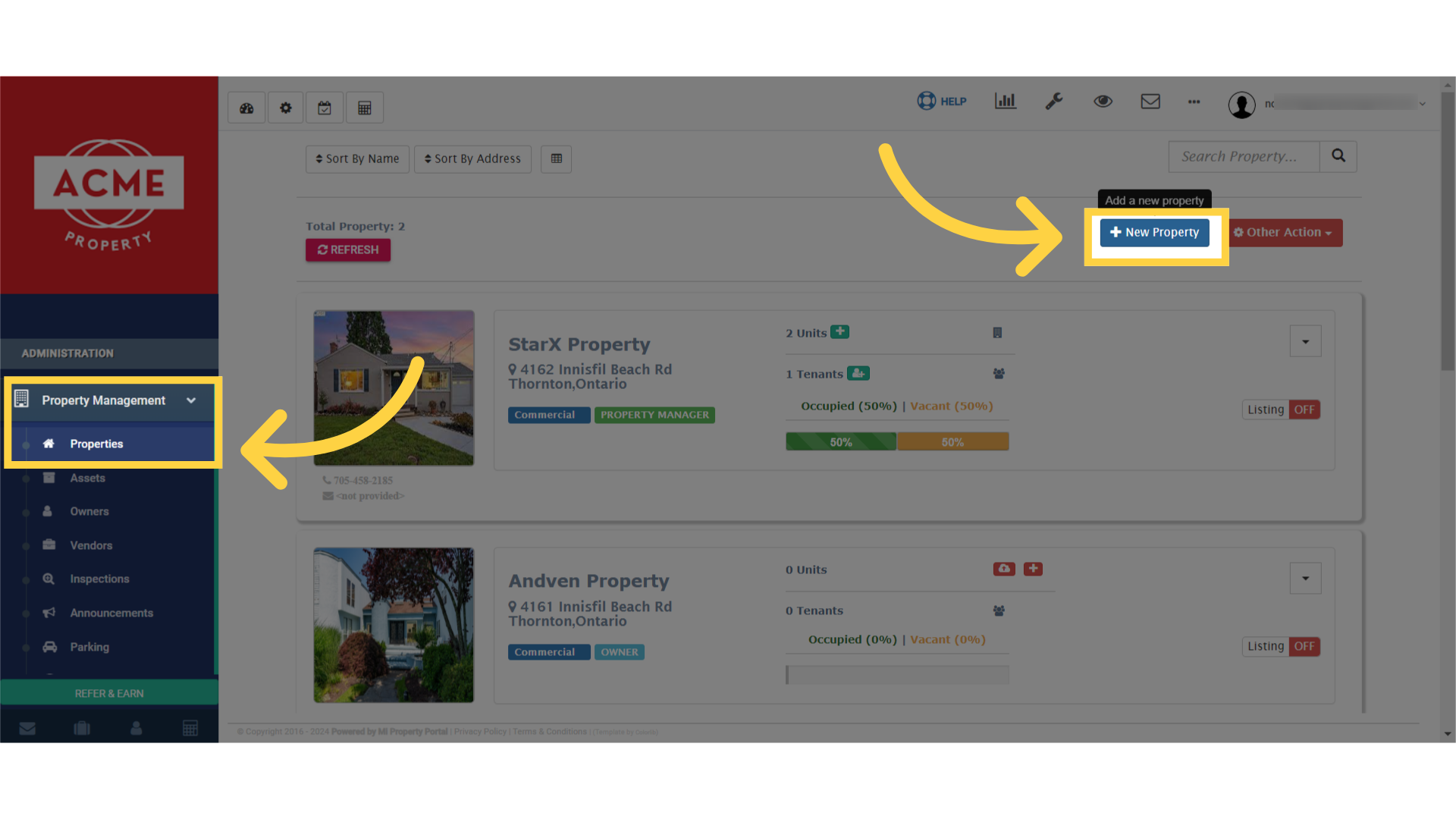 2. First, give a meaningful name for your property
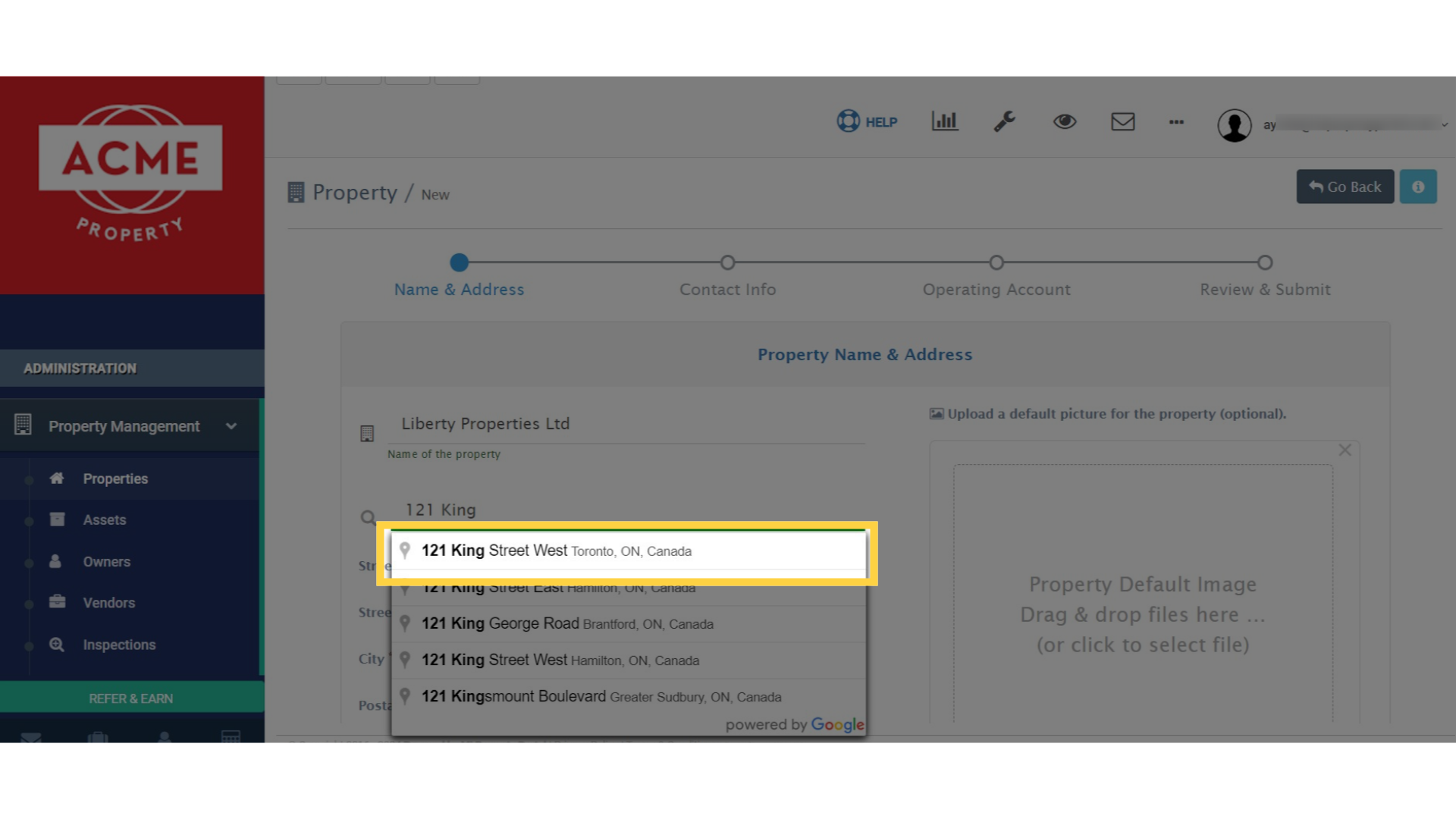
 3. Now, in the Search Address field, start typing the address
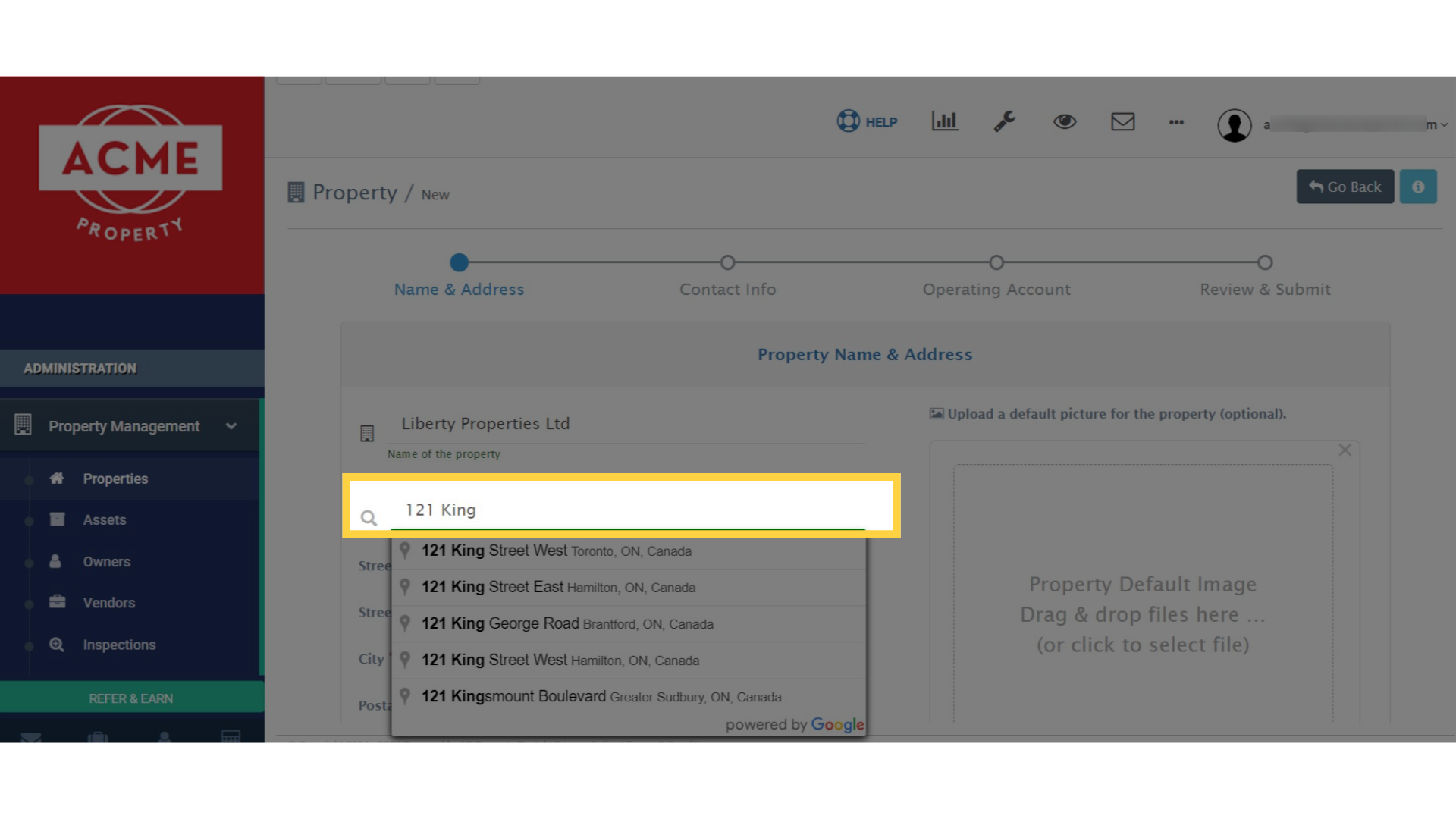 4. Simply, select the address you are looking for
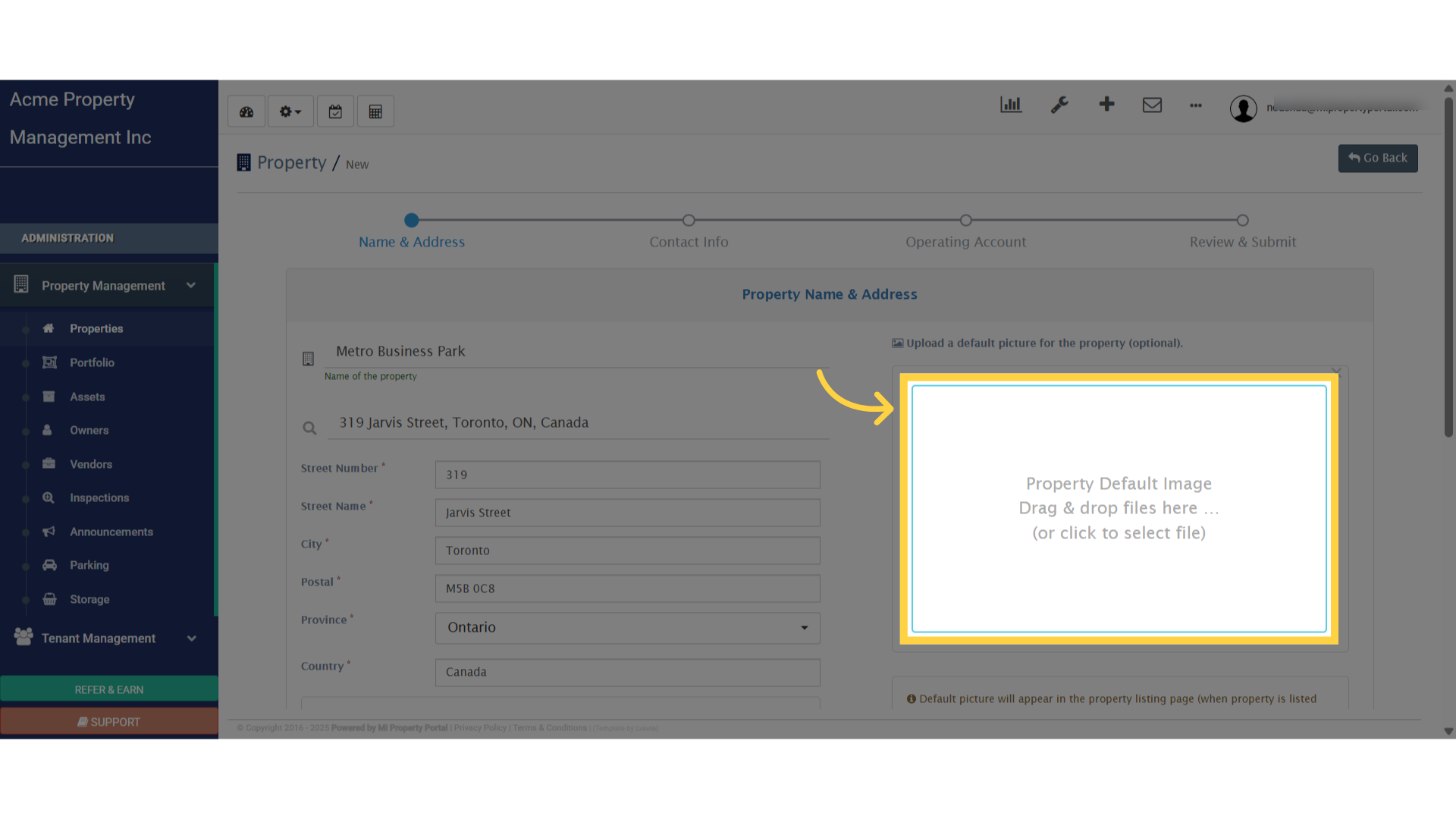
 5. Select a property photo from your computer and upload it to the system
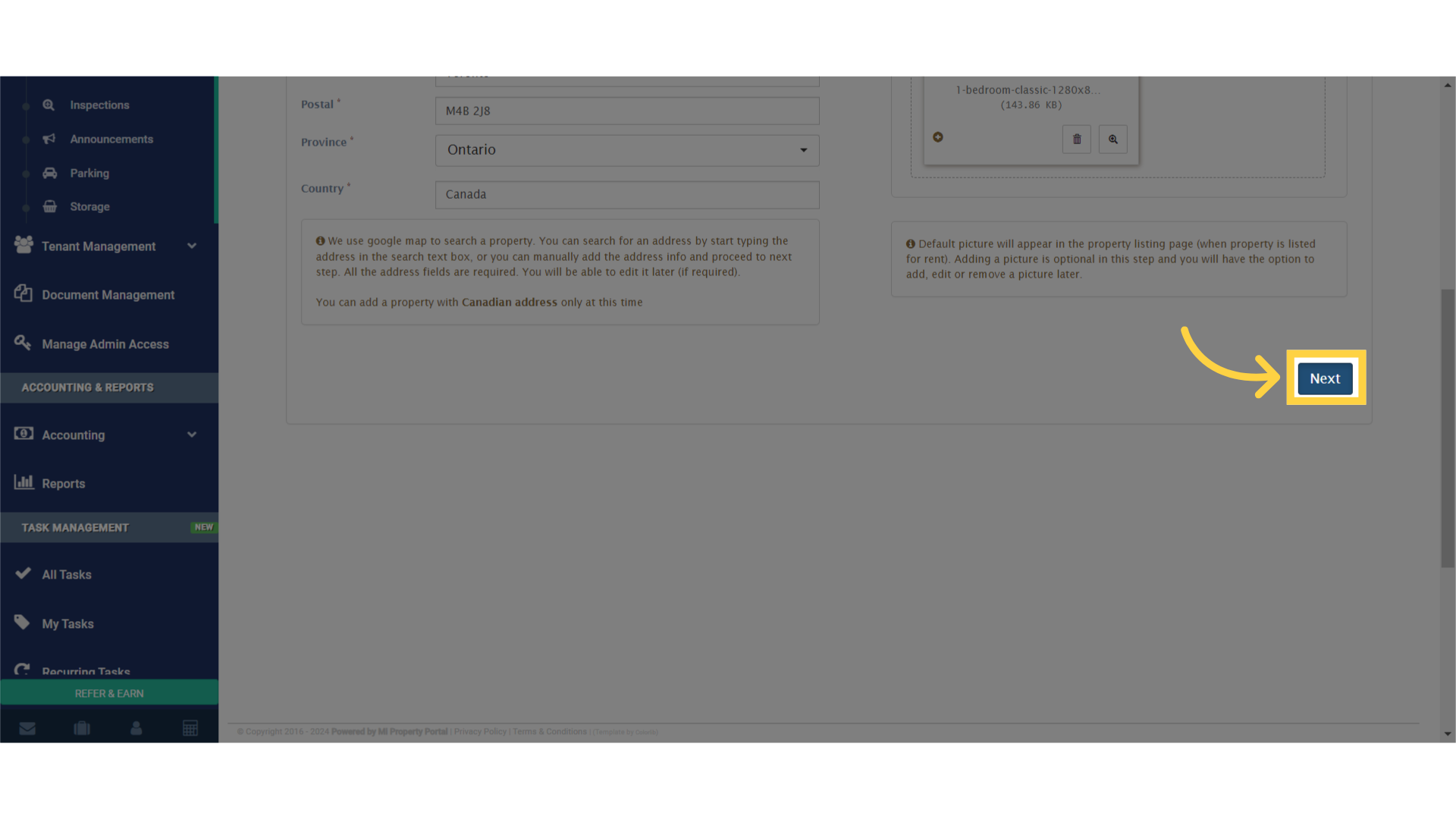
 6. Scroll down and click on the Next button to go to the second step
 7. On the next page, click the dropdown menu to select the property type
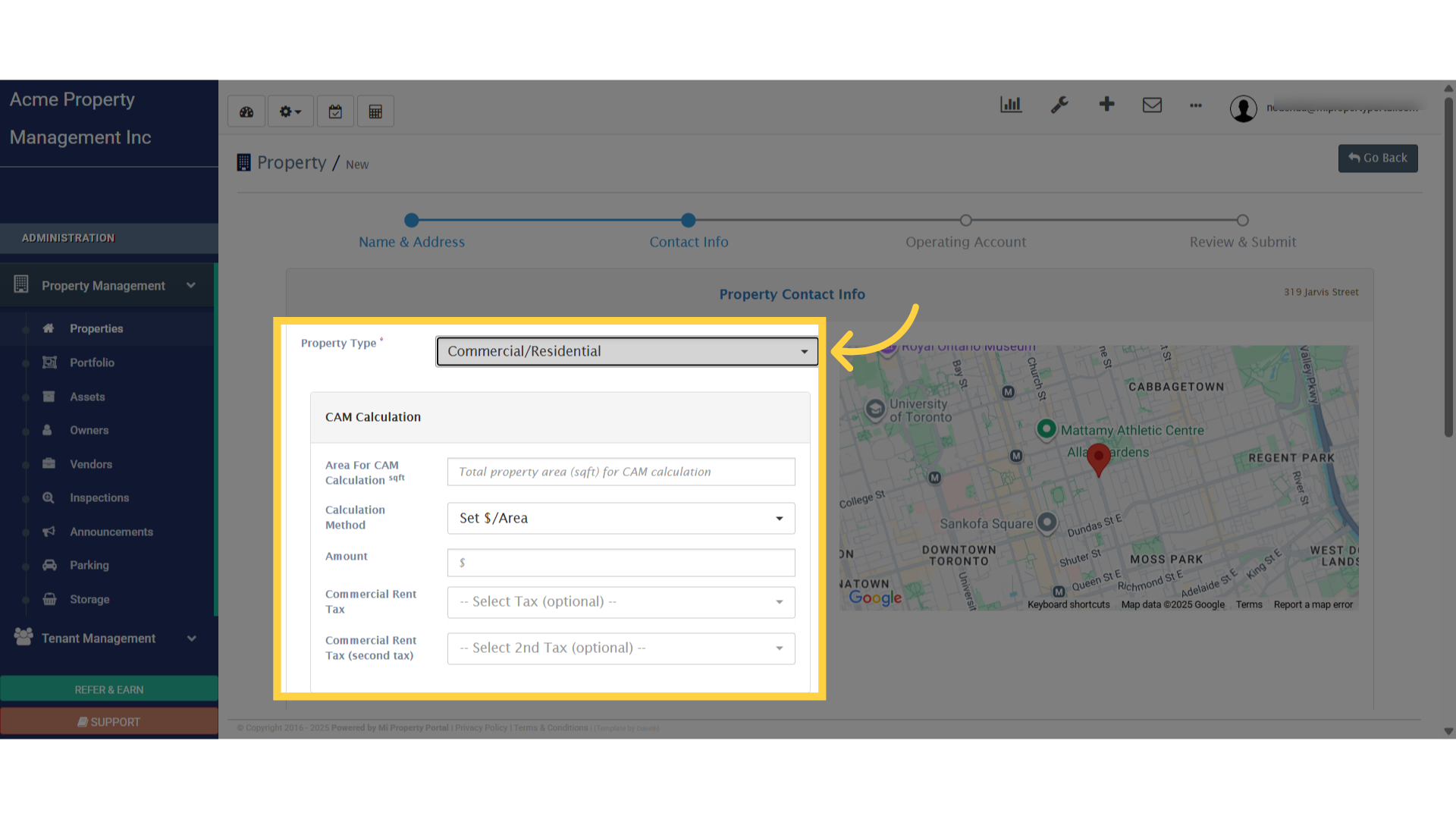 8. To create a commercial property, select one of the following options from the dropdown menu
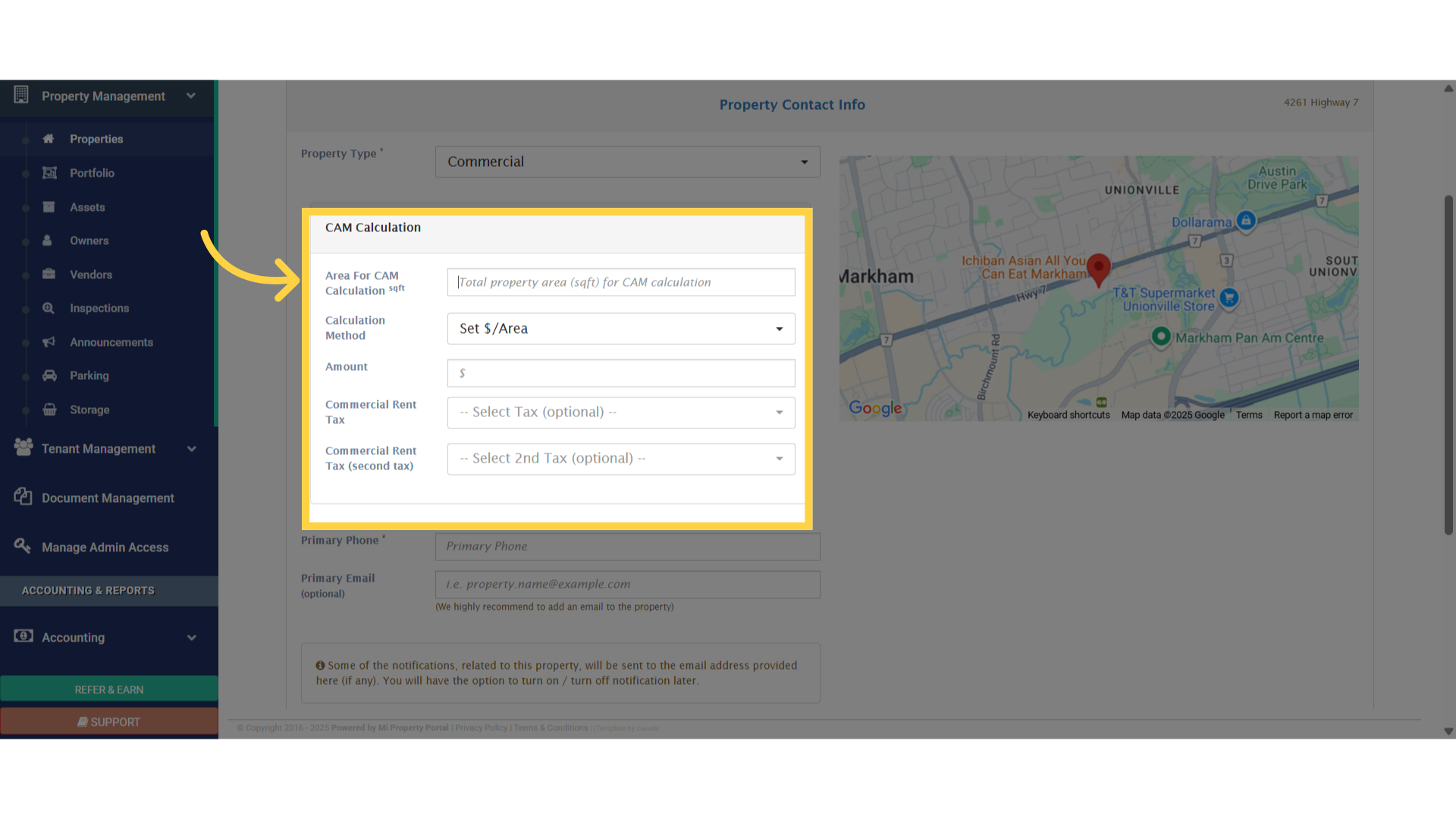
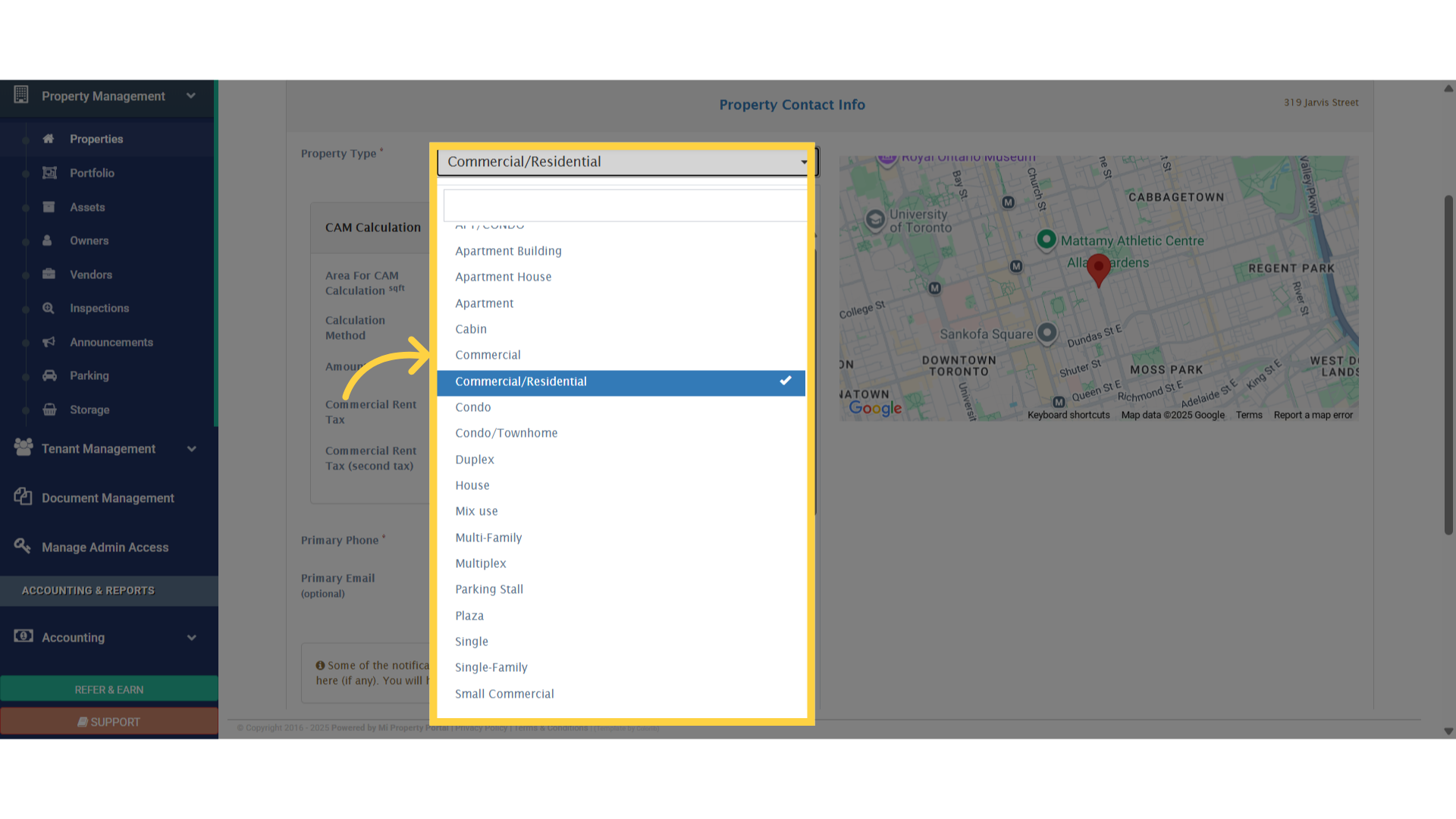 9. Now, enter the data into the CAM Calculation section
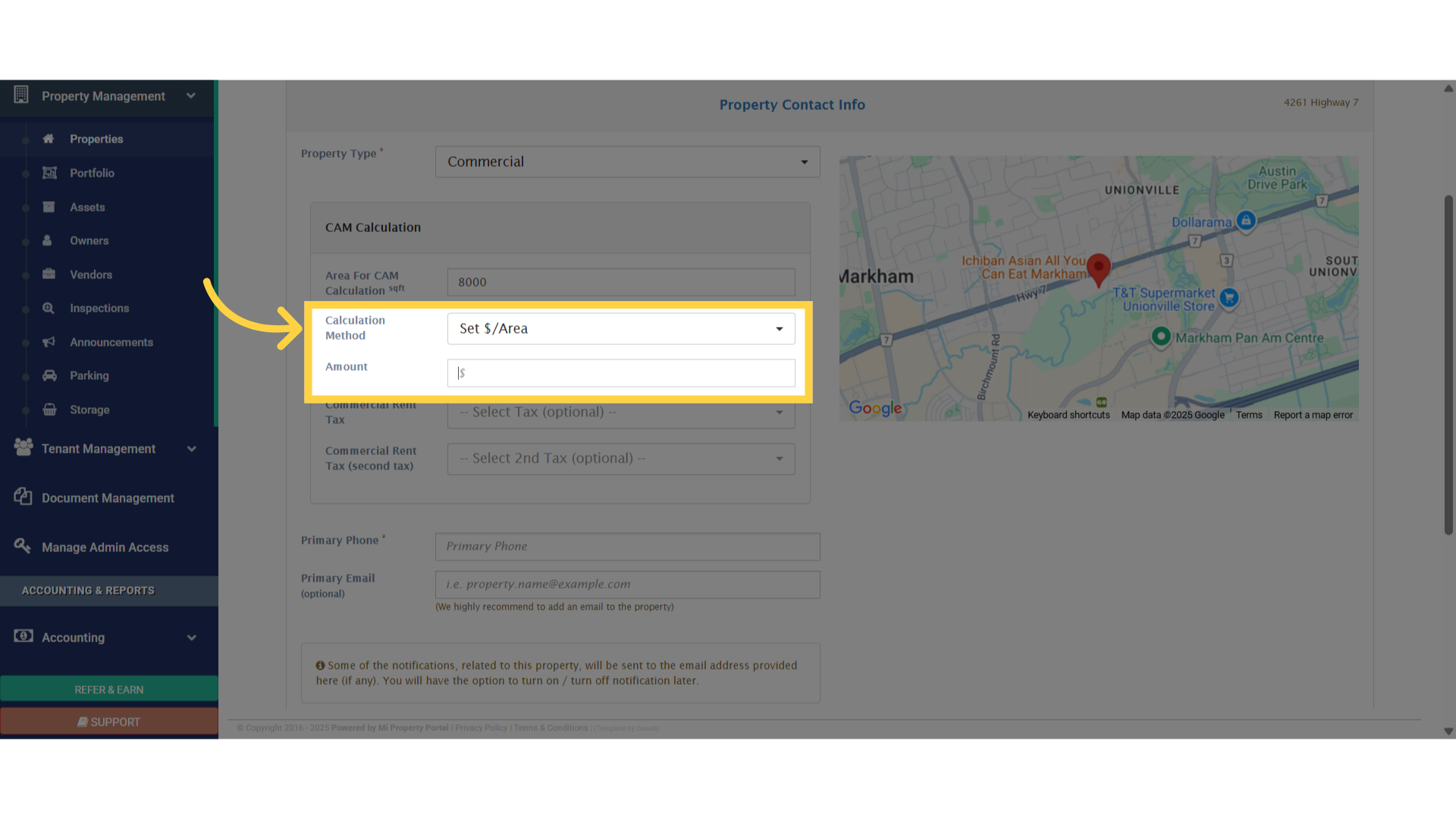
 10. Next, set the calculation method by selecting an option from the dropdown menu
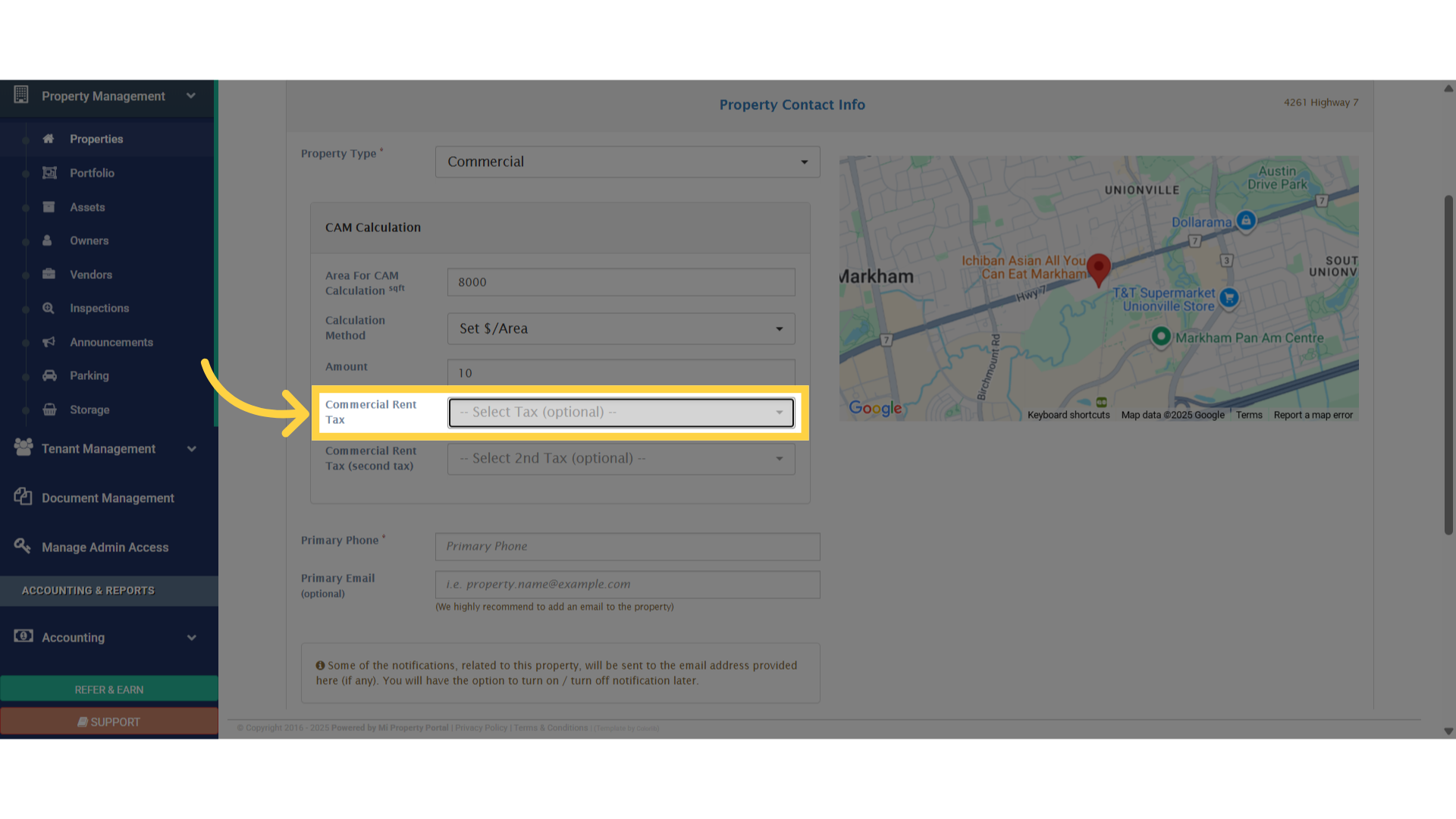
 11. Select the Commercial Rent Tax from the available options
 12. Add the primary phone number associated with this property. You may also enter an email address—this field is optional. Once done, click Next to continue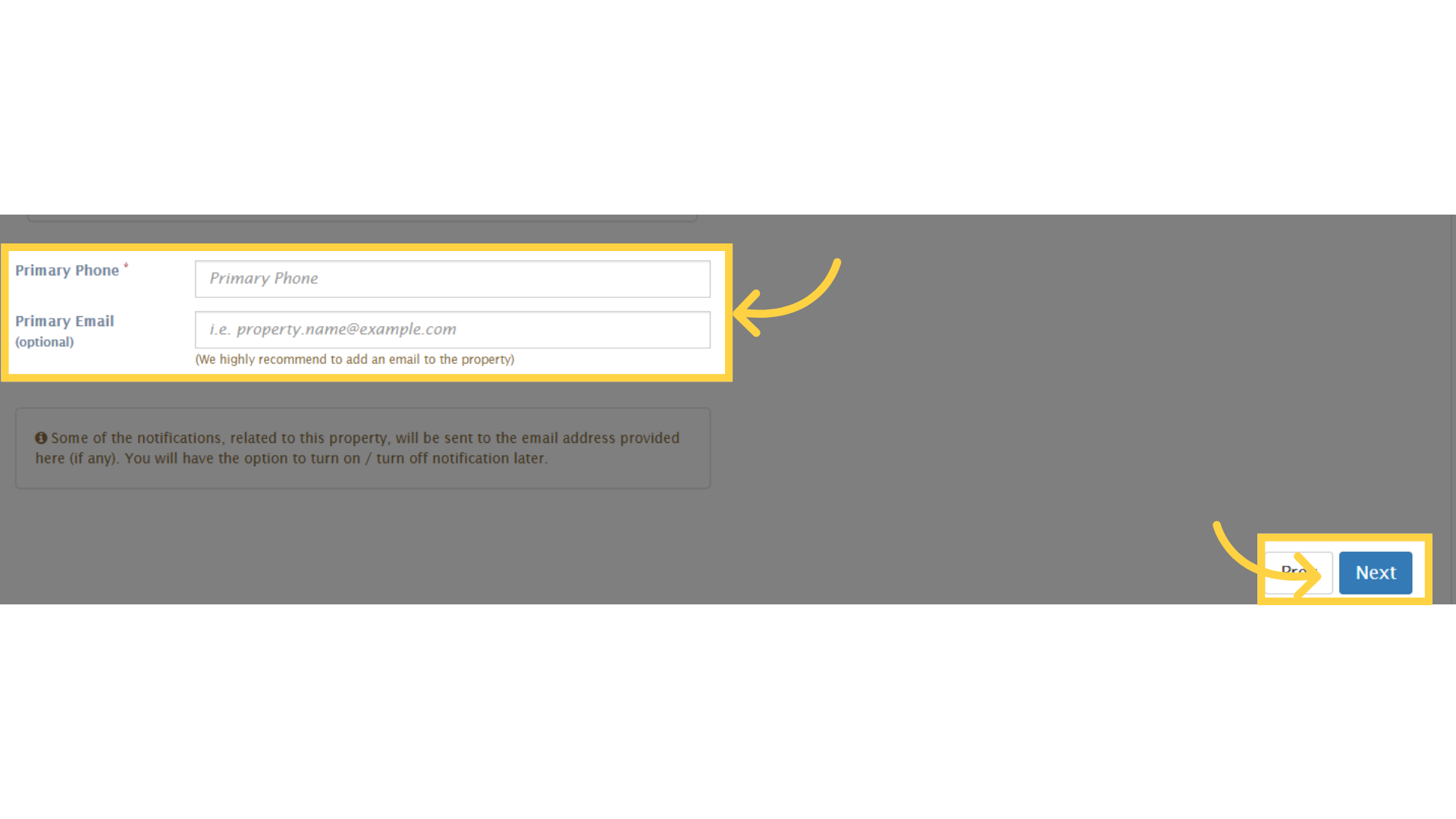
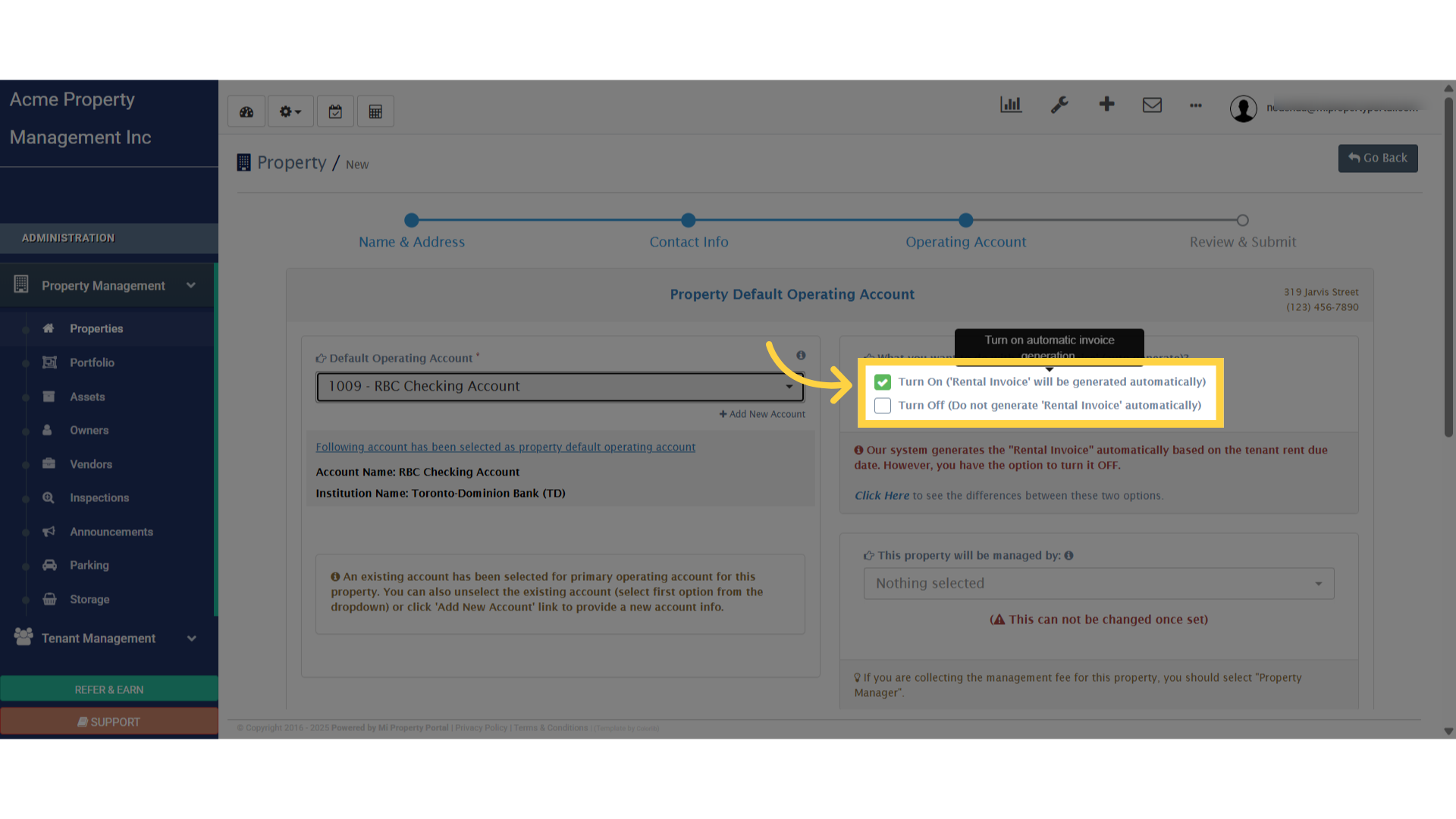
13. To select the property’s default operating account, click the dropdown menu and choose the appropriate account from the list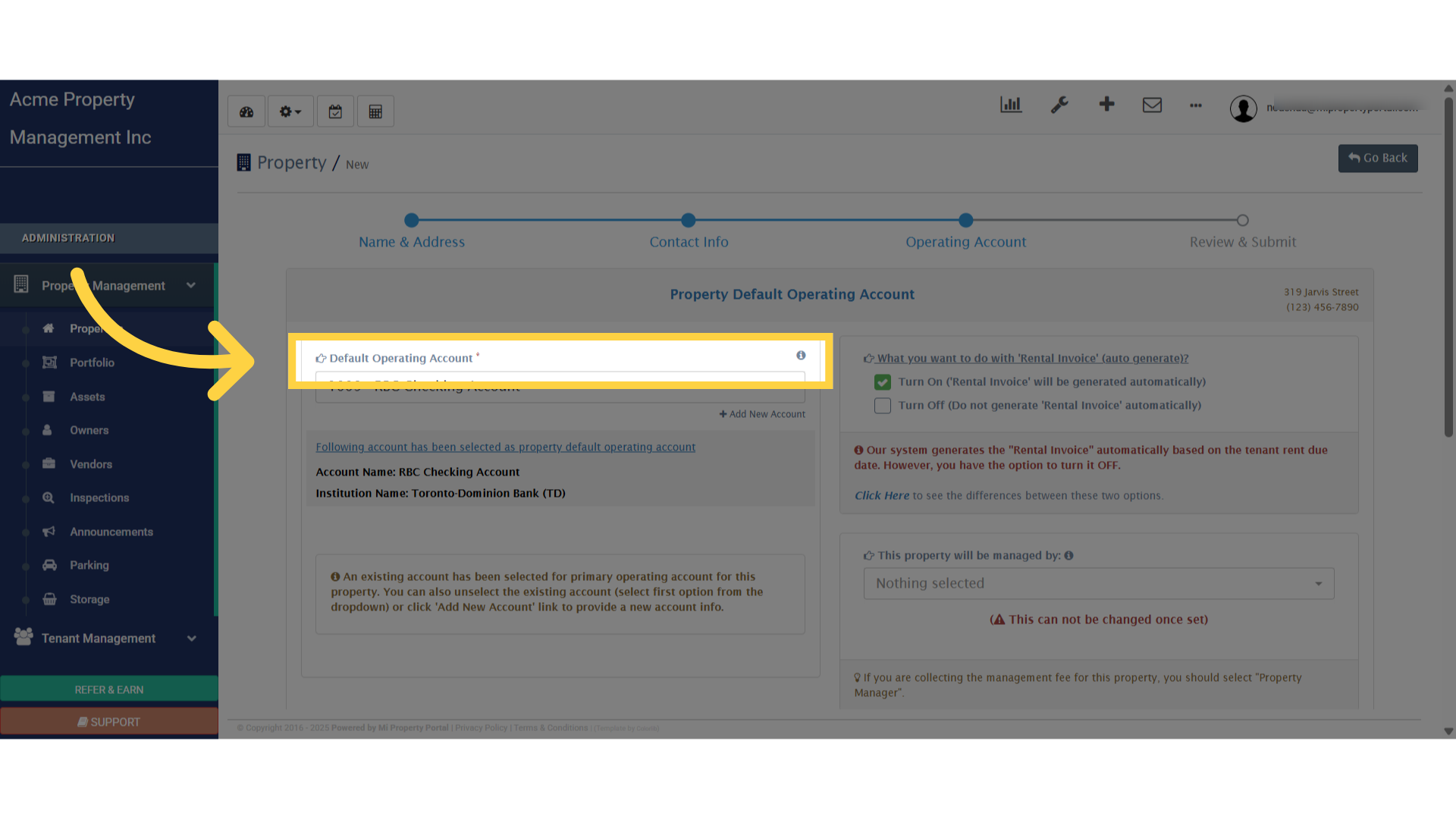 14. If you want to auto-generate Rental Invoices, turn on the checkbox. If not, simply leave it turned off
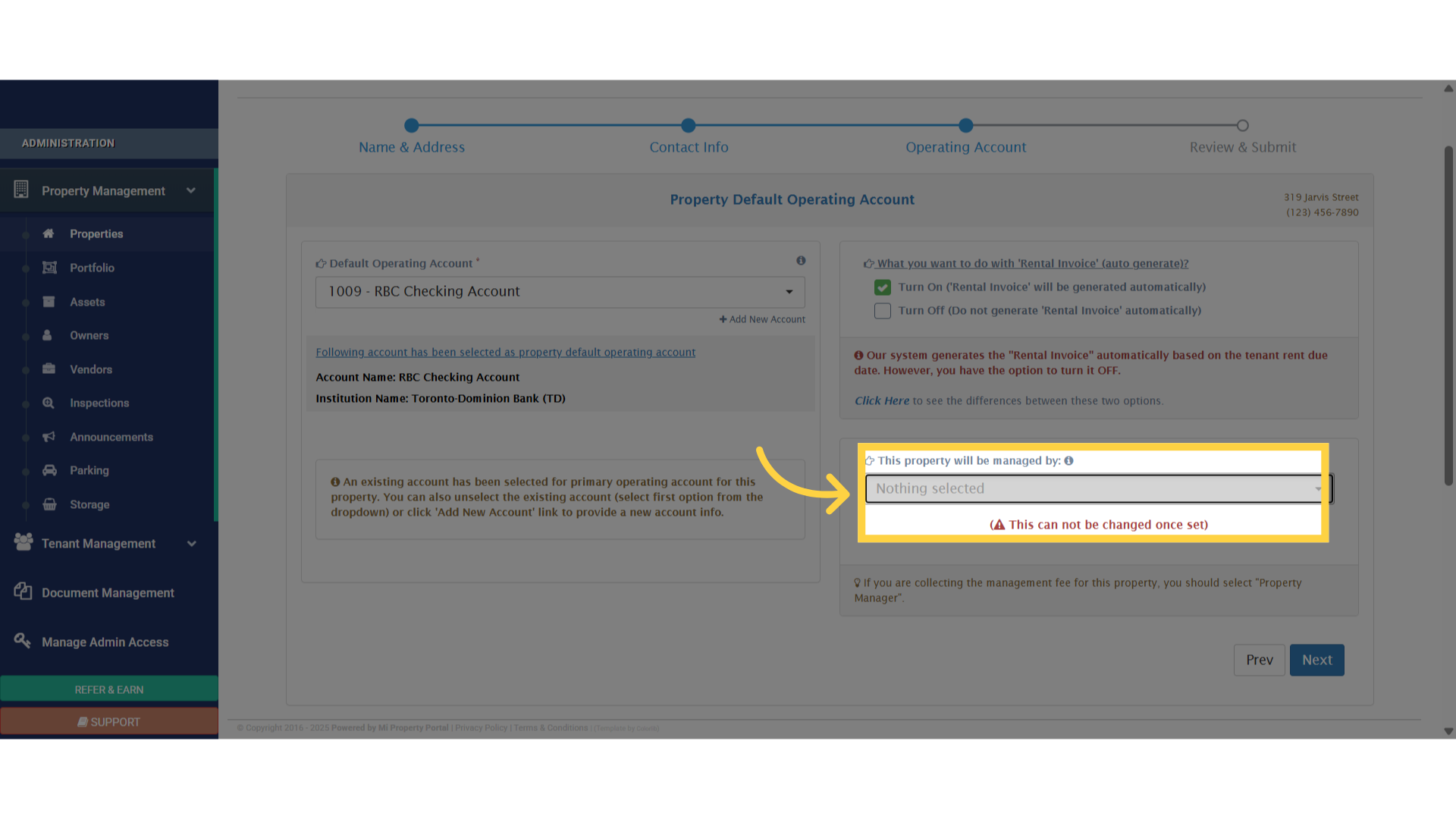
 15. Select who will manage this property—choose either the Property Manager or the Landlord/Owner from the dropdown menu
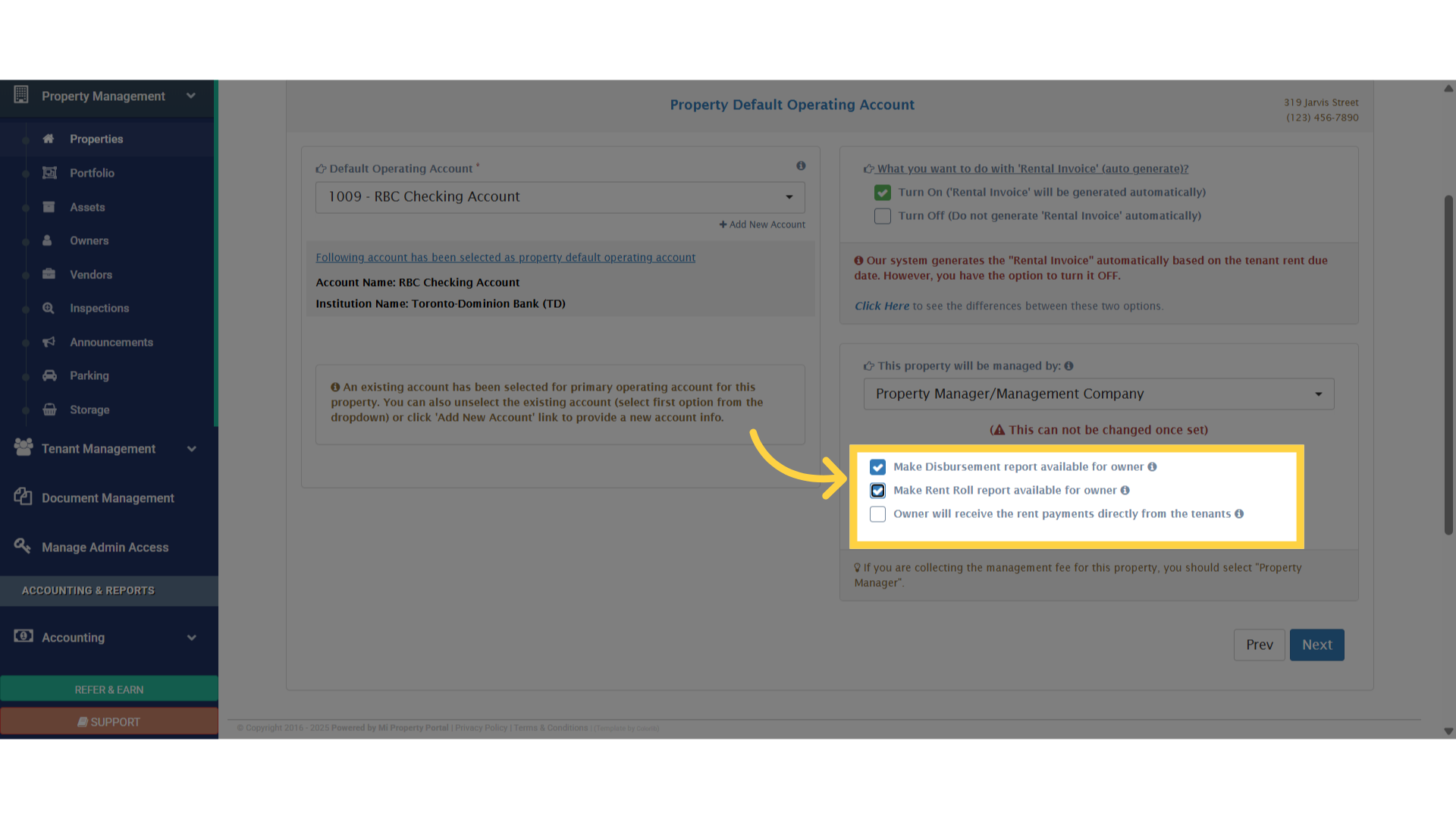
 16. If the Property Manager is selected to manage this property, you’ll see a set of checkboxes below
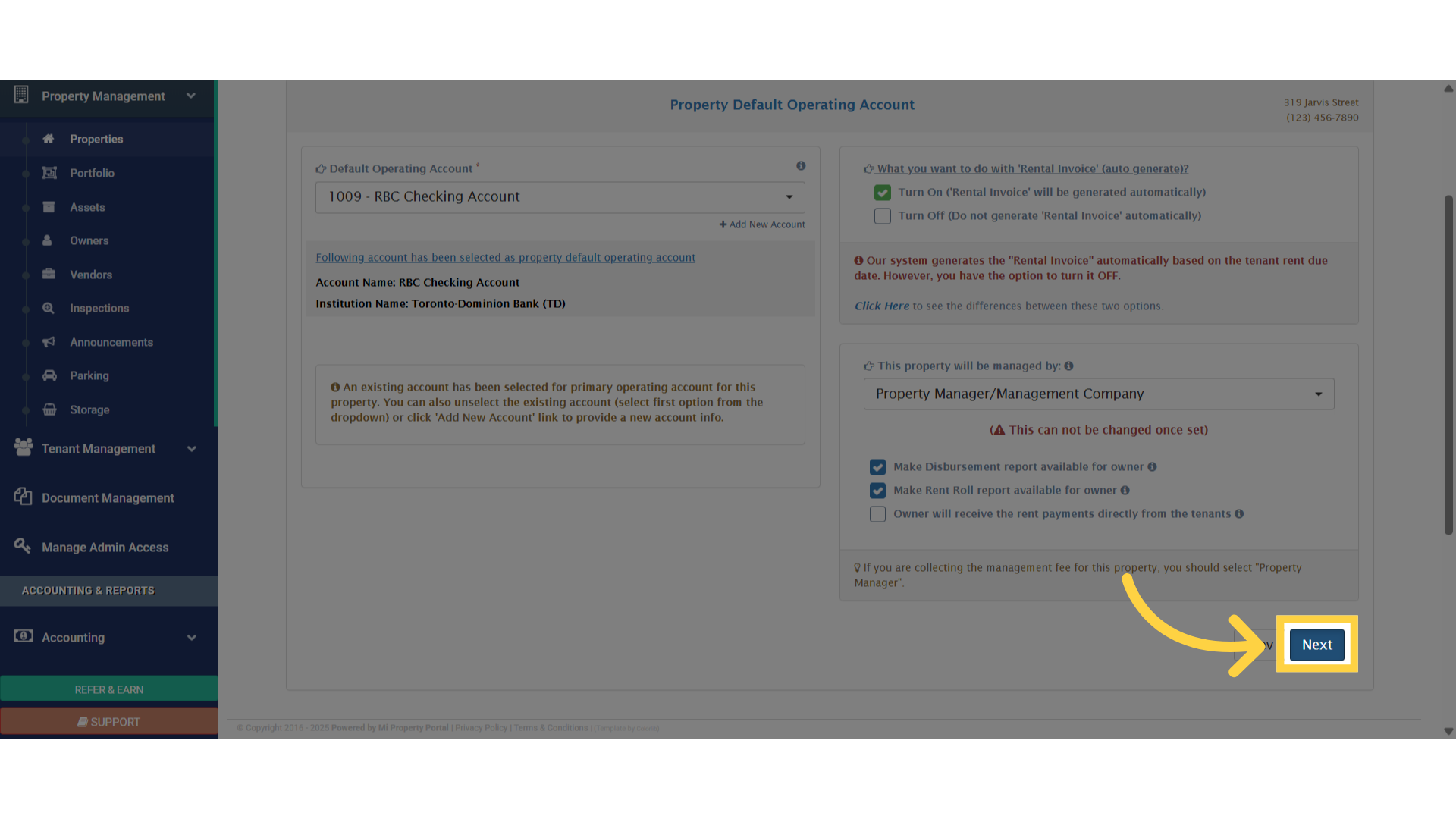
 17. Click on next
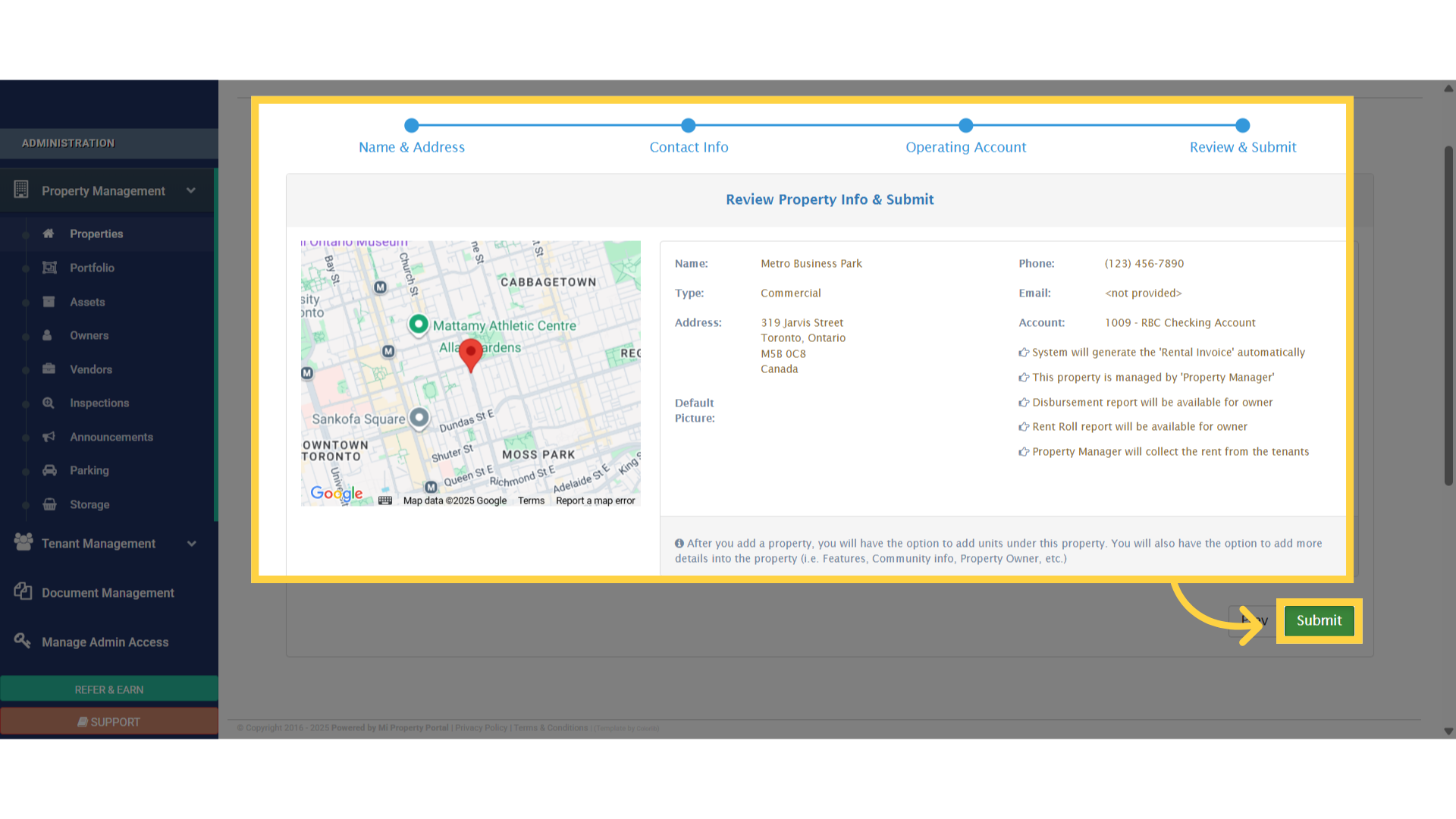
 18. Review all the property details carefully. Once everything looks good, click Submit to finalize the setup