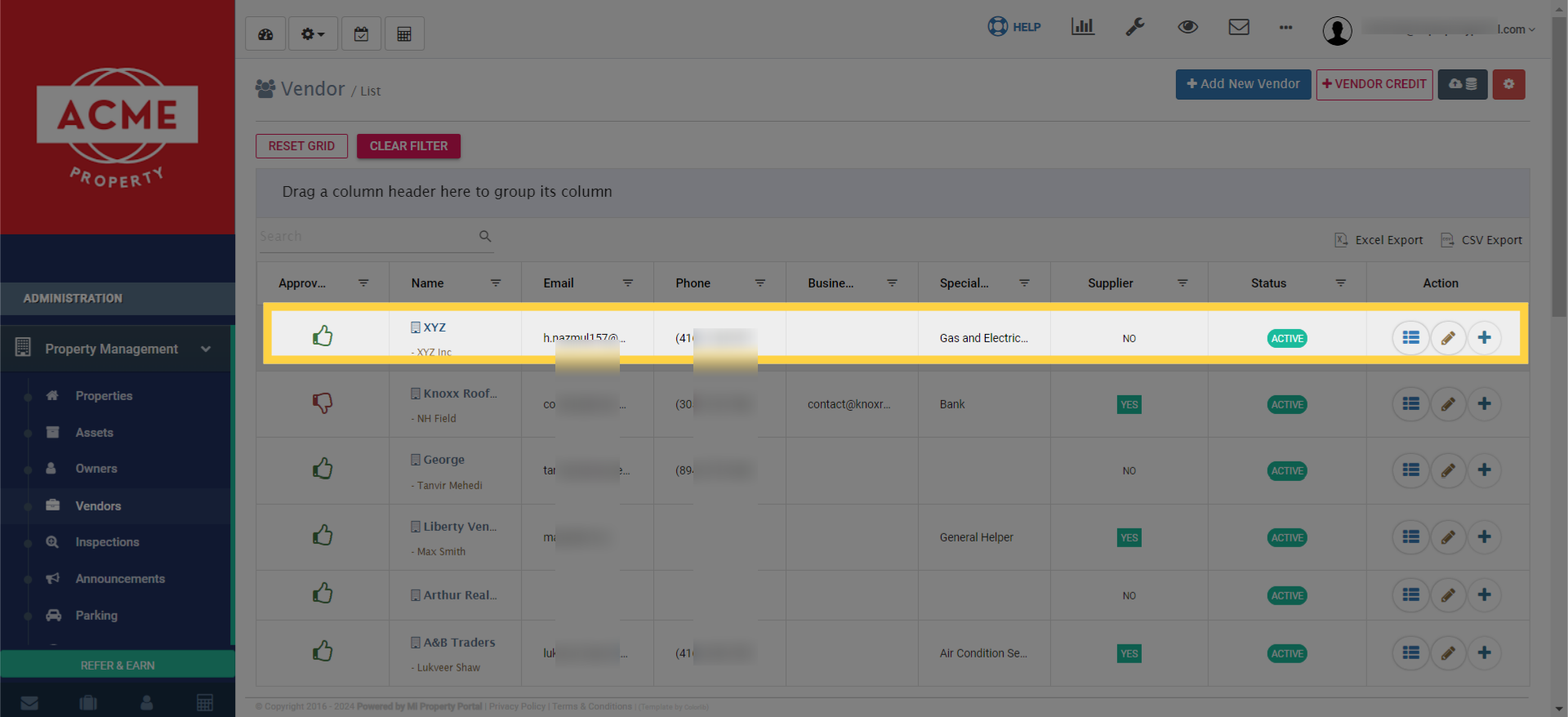
How to Add a Vendor? (step by step)
138 views 0 December 1, 2022 Updated on June 17, 2025 mippsupportadmin
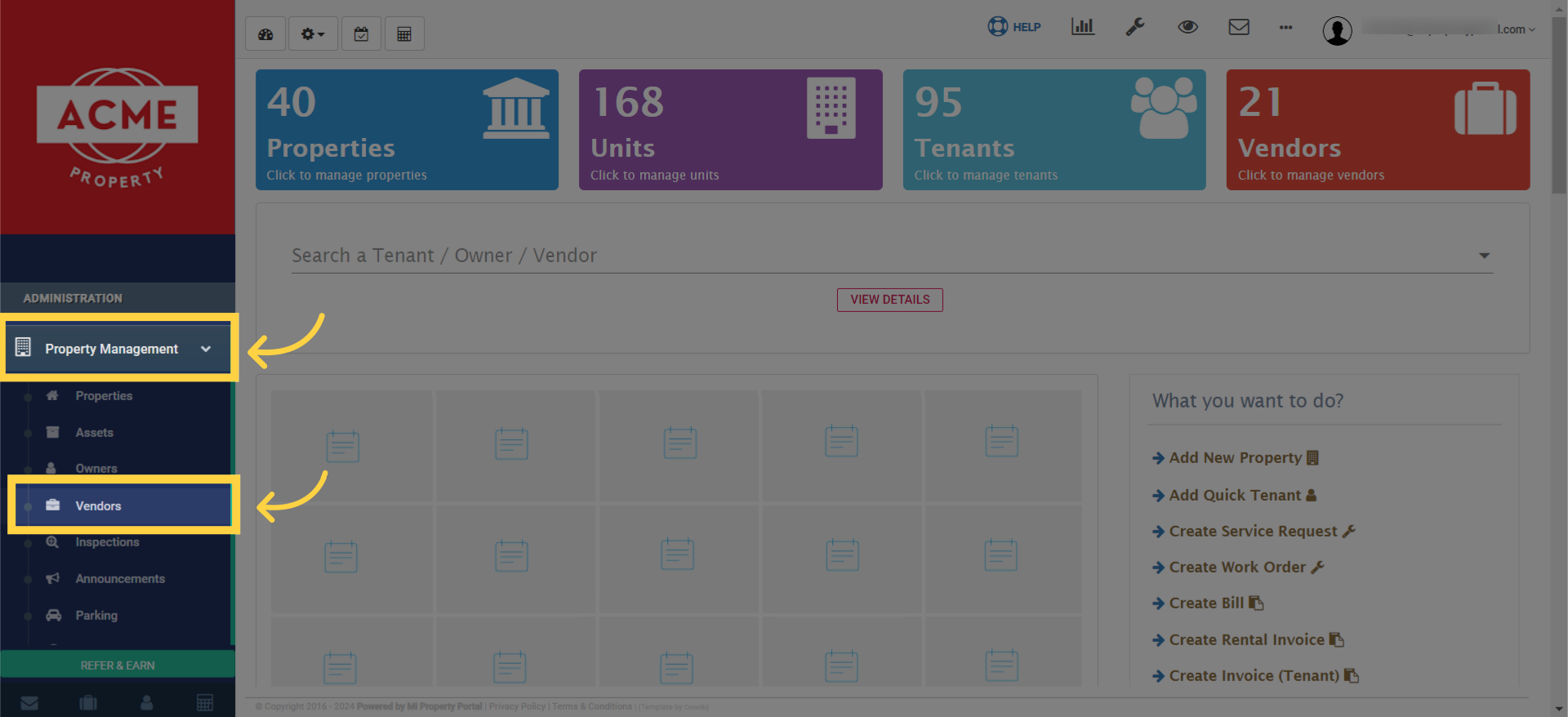
1. After logging in, From Property Management dropdown menu, click Vendors to go to the vendor management section
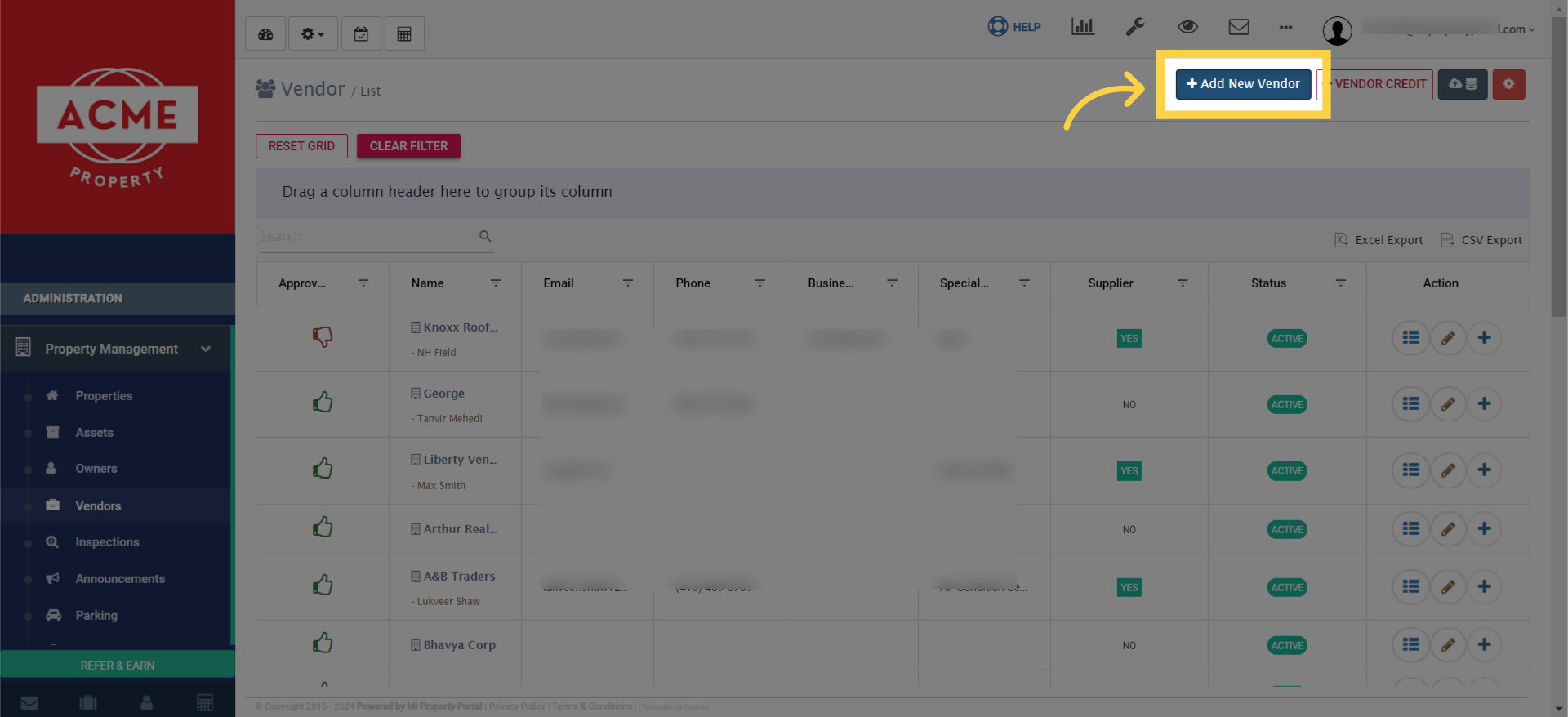
2. In the Vendor Management section, click the Add New Vendor button
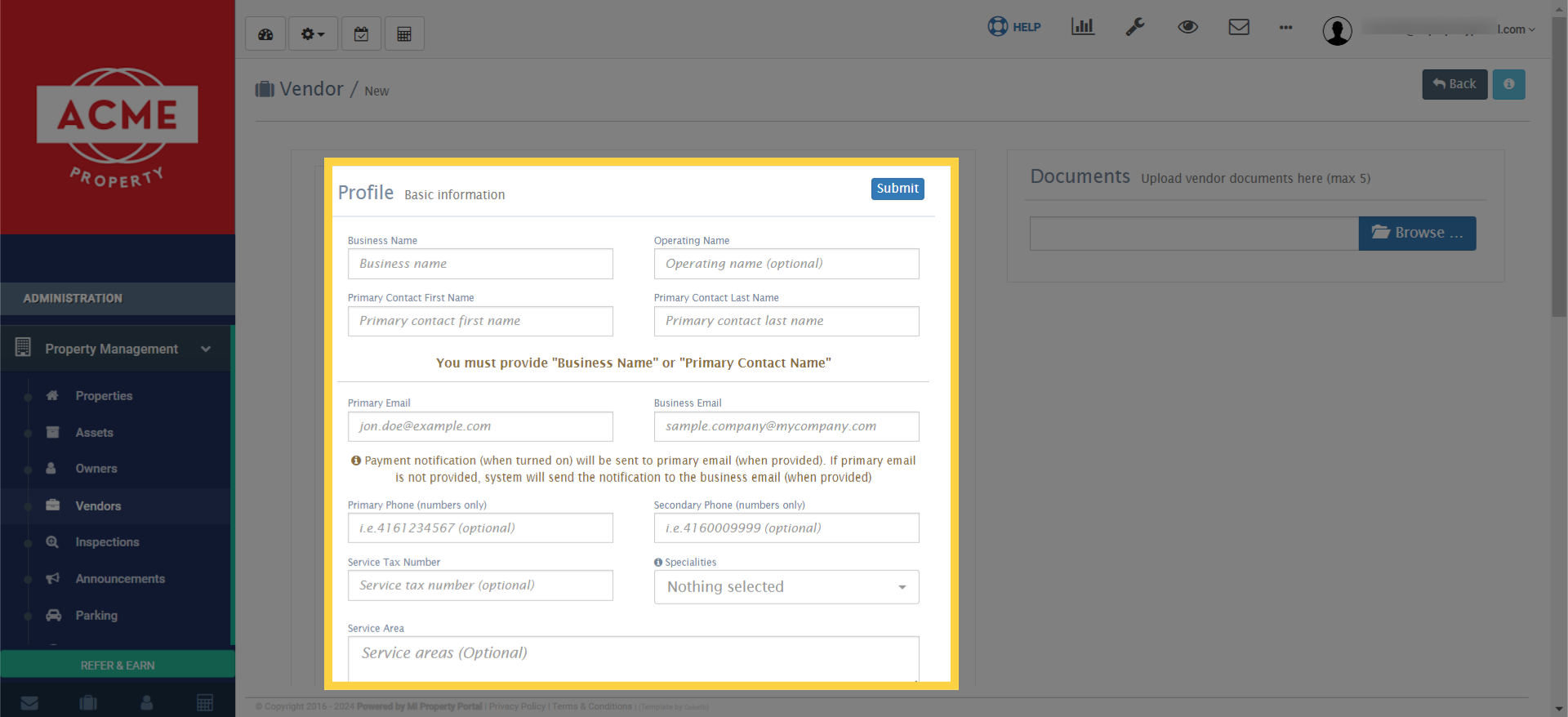
3. You’ll need to provide some basic information about the vendor, such as their name and contact details
4. Next, add the bank account holder name and other banking details to set up payments for your vendor
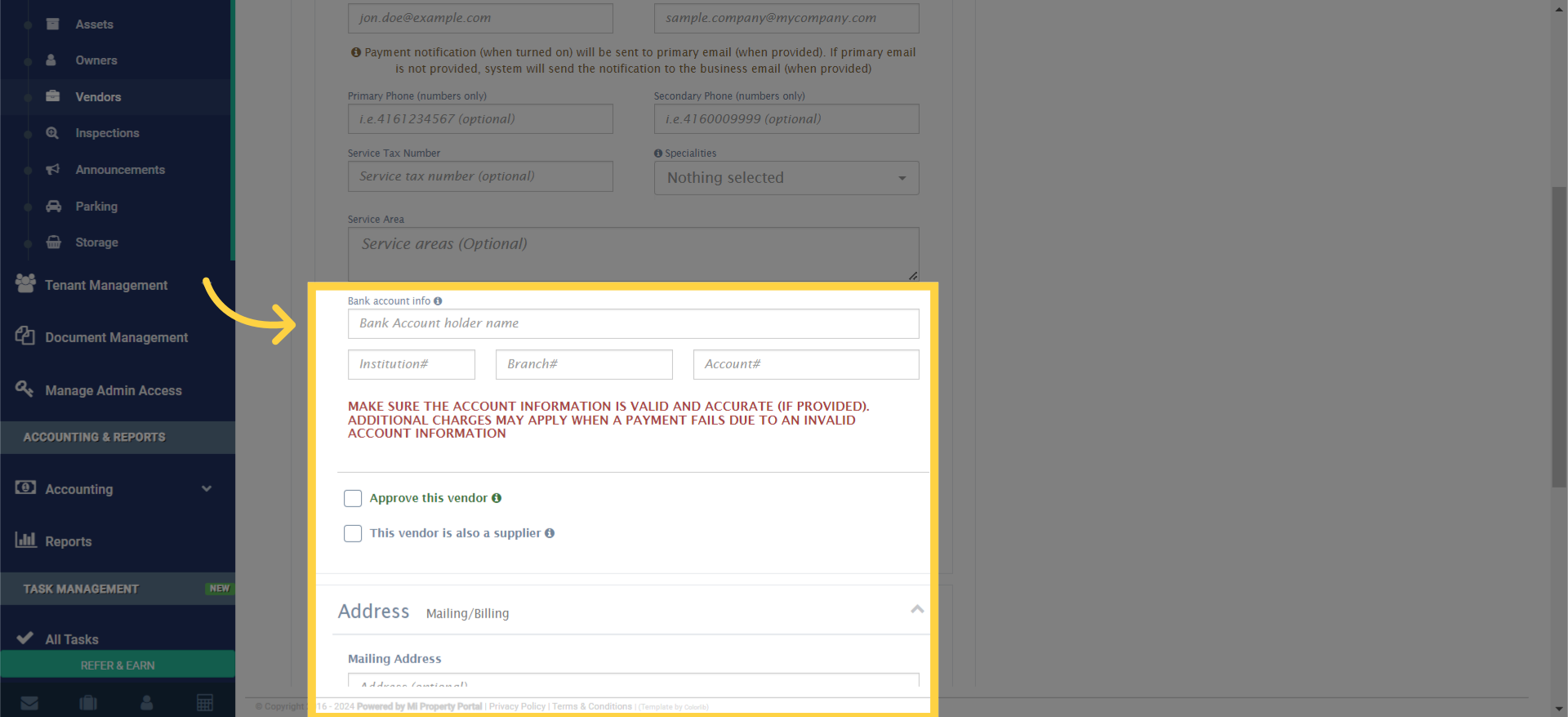
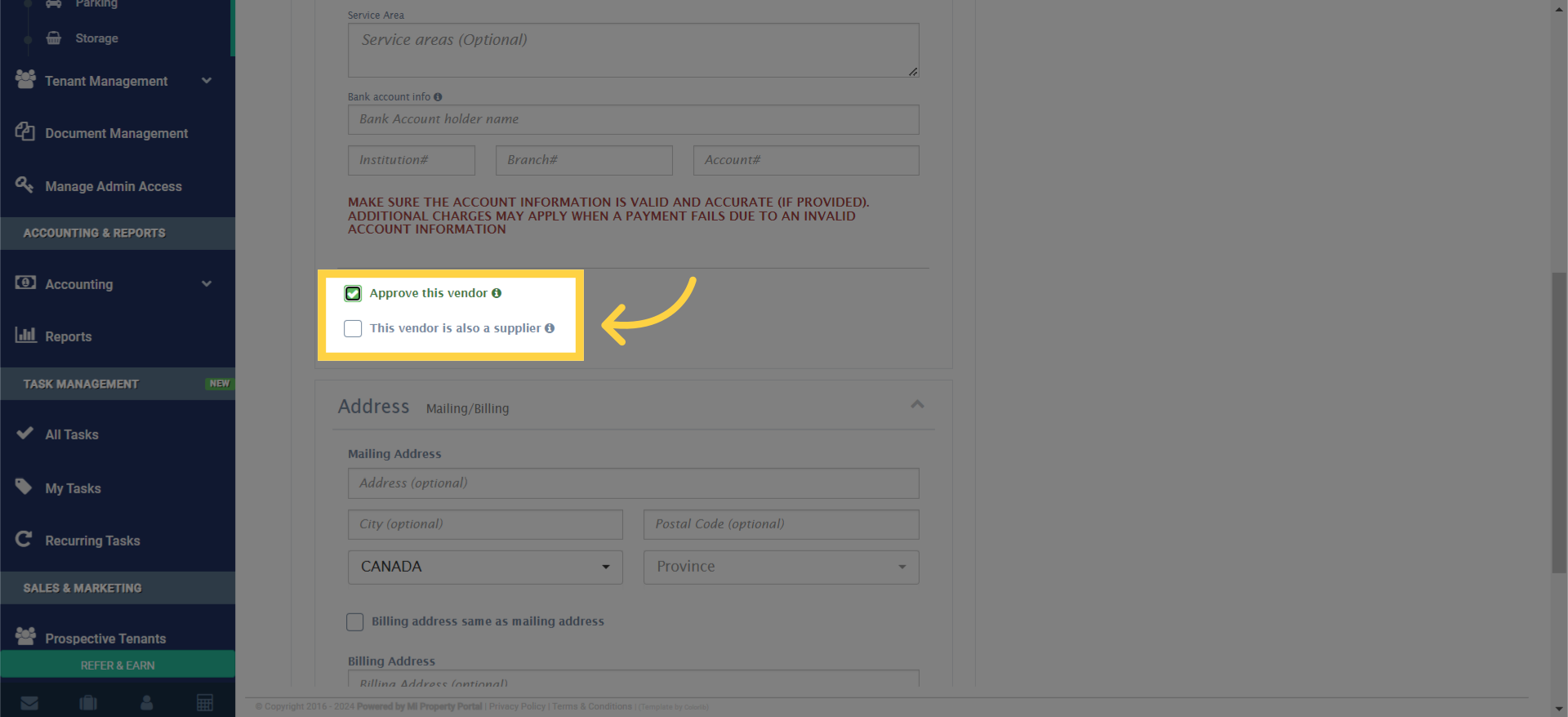
5. tick the appropriate boxes
6. Fill out the address mailing billing section correctly for sending payments and correspondence
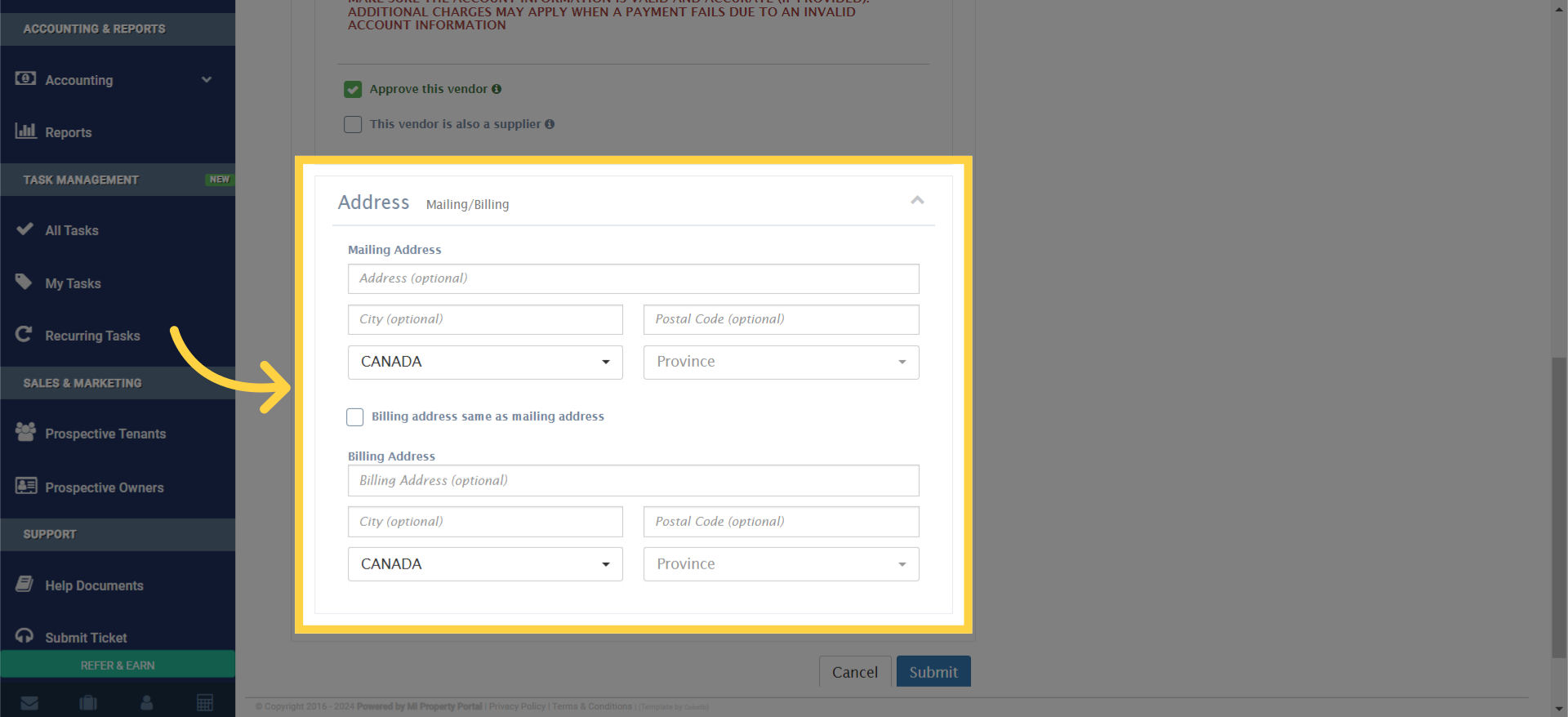
7. If the billing address is different from the mailing address, fill out the billing address section separately
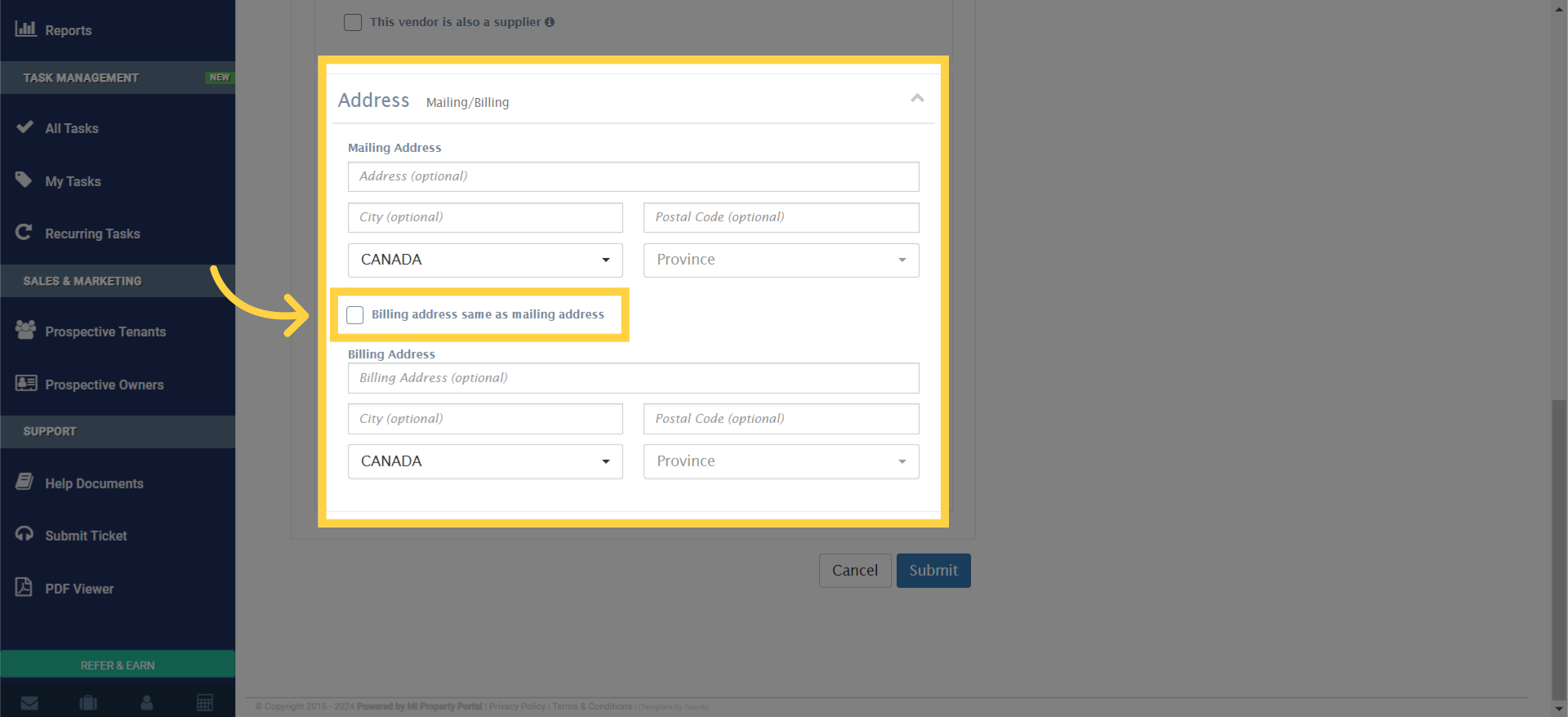
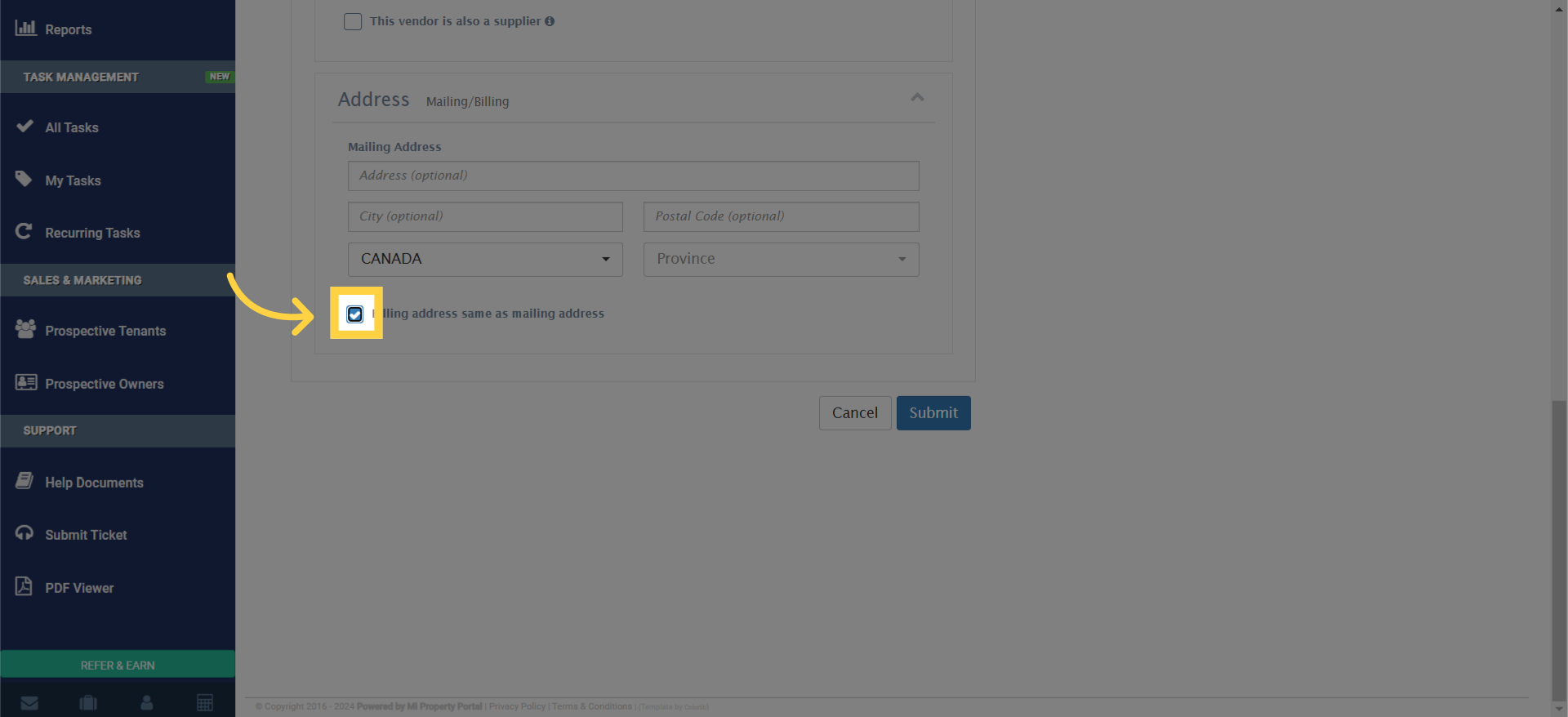
8. If the mailing address and billing address are the same, simply click the box
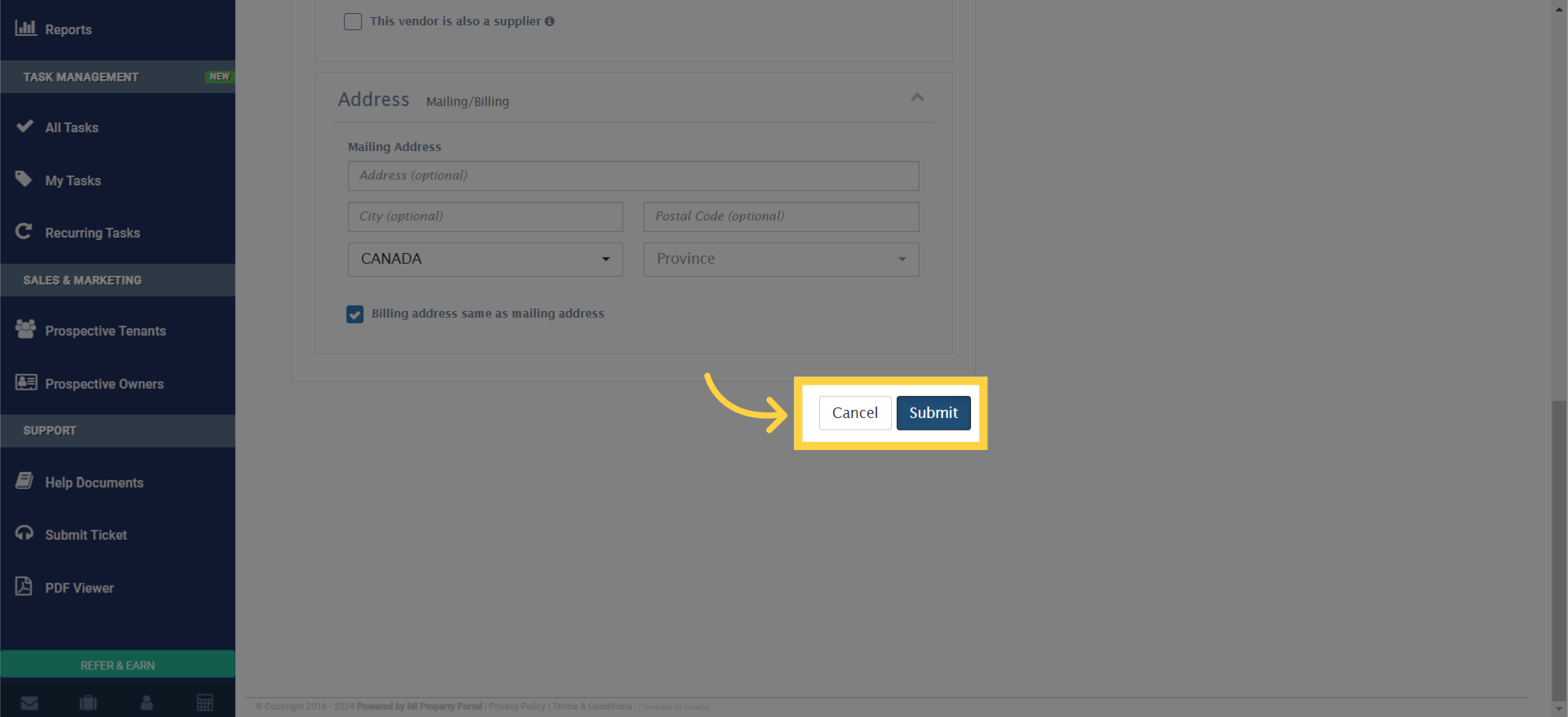
9. Click “Submit”
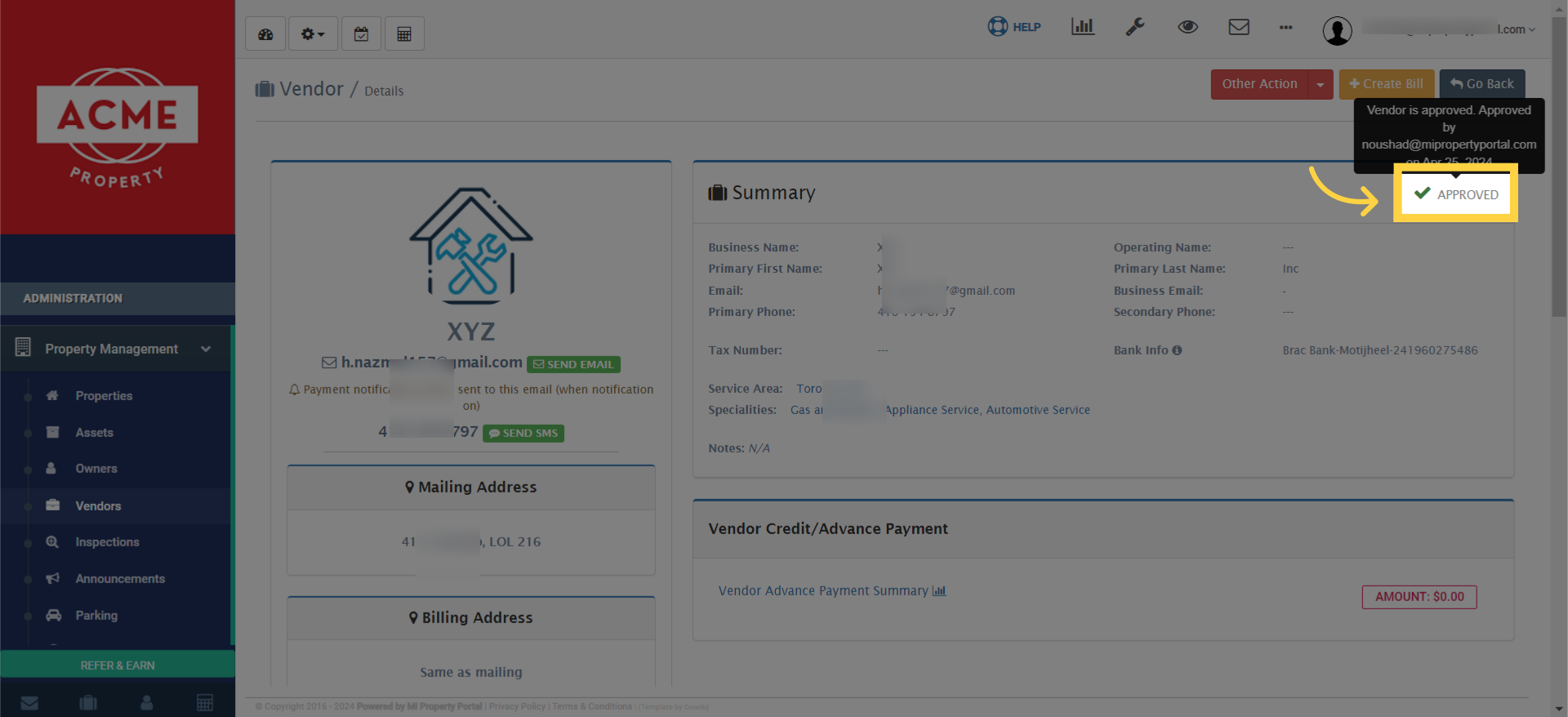
10. check the summary to see the status “APPROVED”
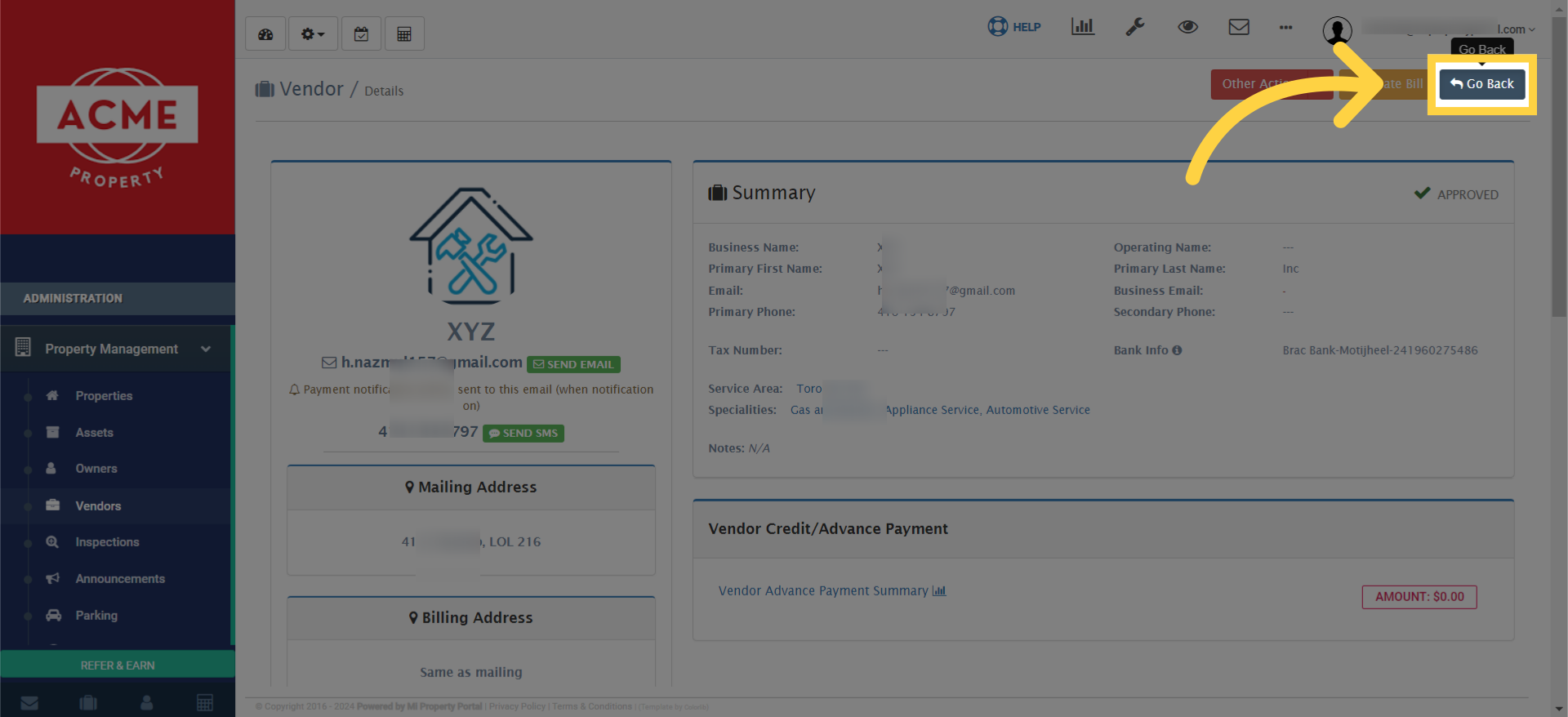
11. Finally, return to the Vendor List by clicking Go Back
12. Look for the newly added vendor