Learn how to add or update your credit card information for your subscription, quickly and securely.
Go to manage.mipropertyportal.com
1. Introduction
This guide provides clear steps to manage your payment details within your account settings.
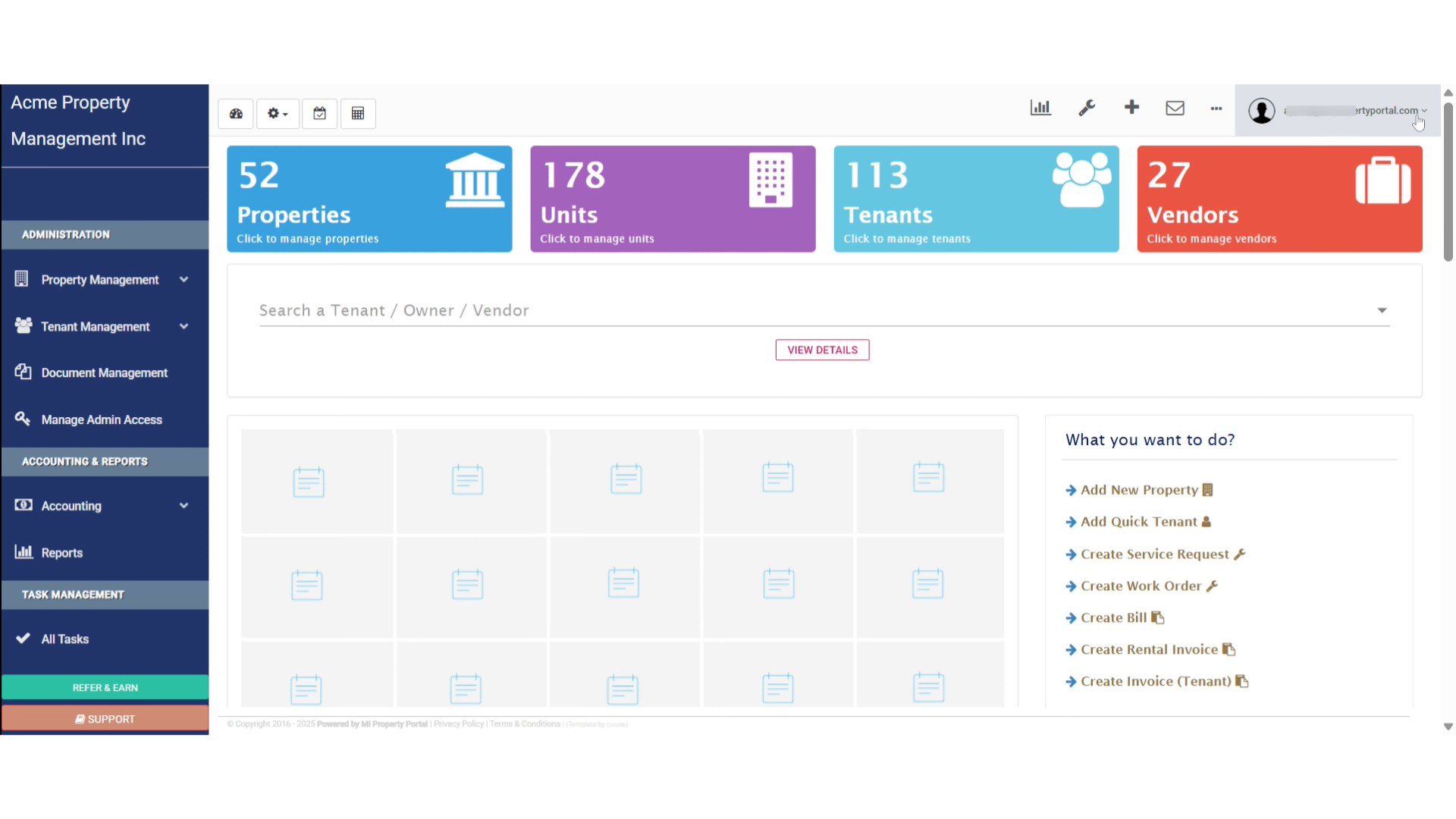
2. Click on the user email dropdown
Click on the user email dropdown to access your profile settings.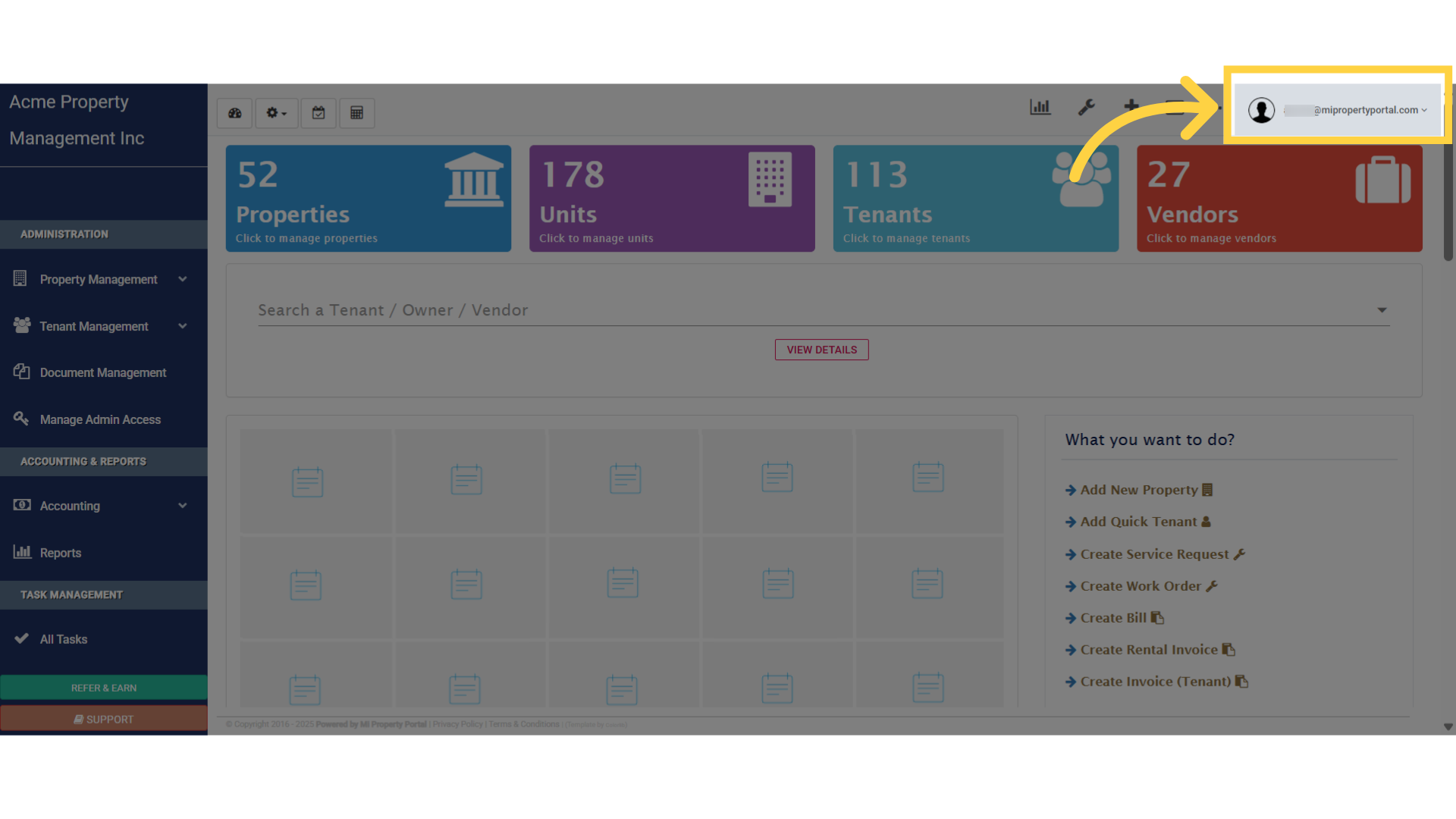
3. Click “Subscriptions”
Navigate to the ‘Subscriptions’ section to view your current subscription details and payment options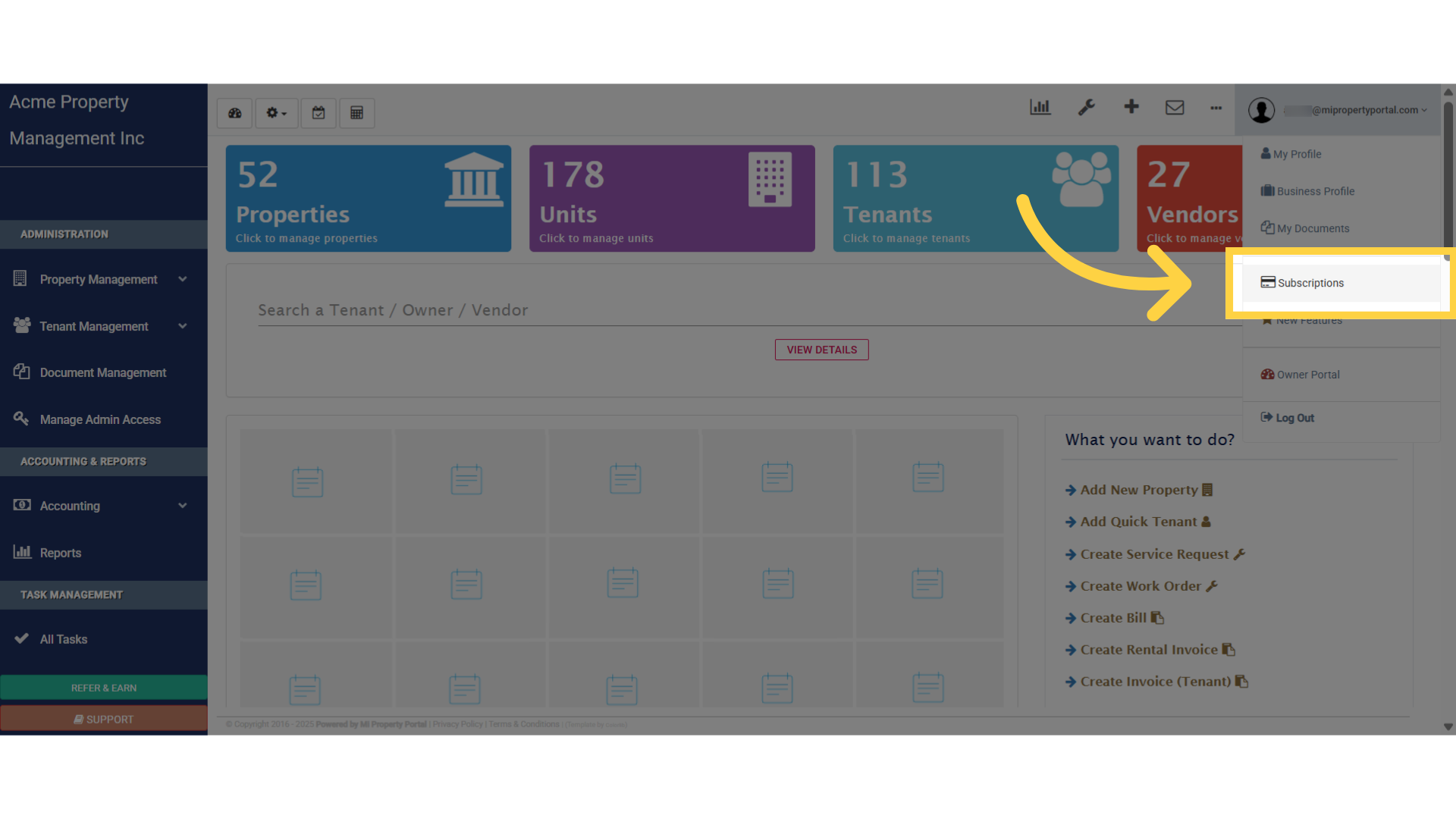
4. Click “Add/Update Card”
You will see an “Add Card” option here on this page. Since I’m using an old account it’s showing the “Update Card” option. Move on by selecting the ‘Add or Update Card’ option.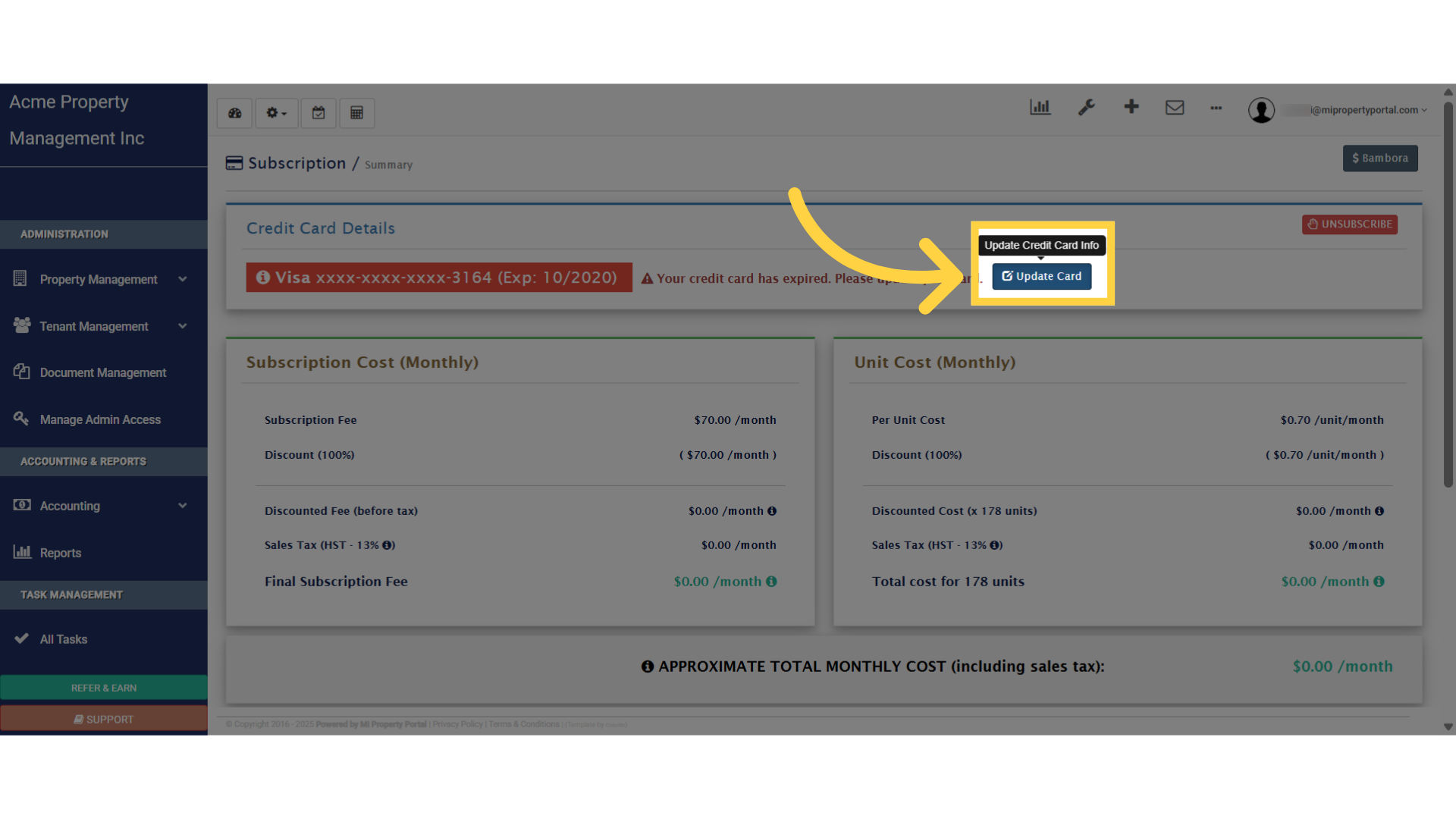
5. Enter the card information properly
Enter the card number, expiration date and Input the card’s CVC code. Check the email address and input the same email address on which the card operates.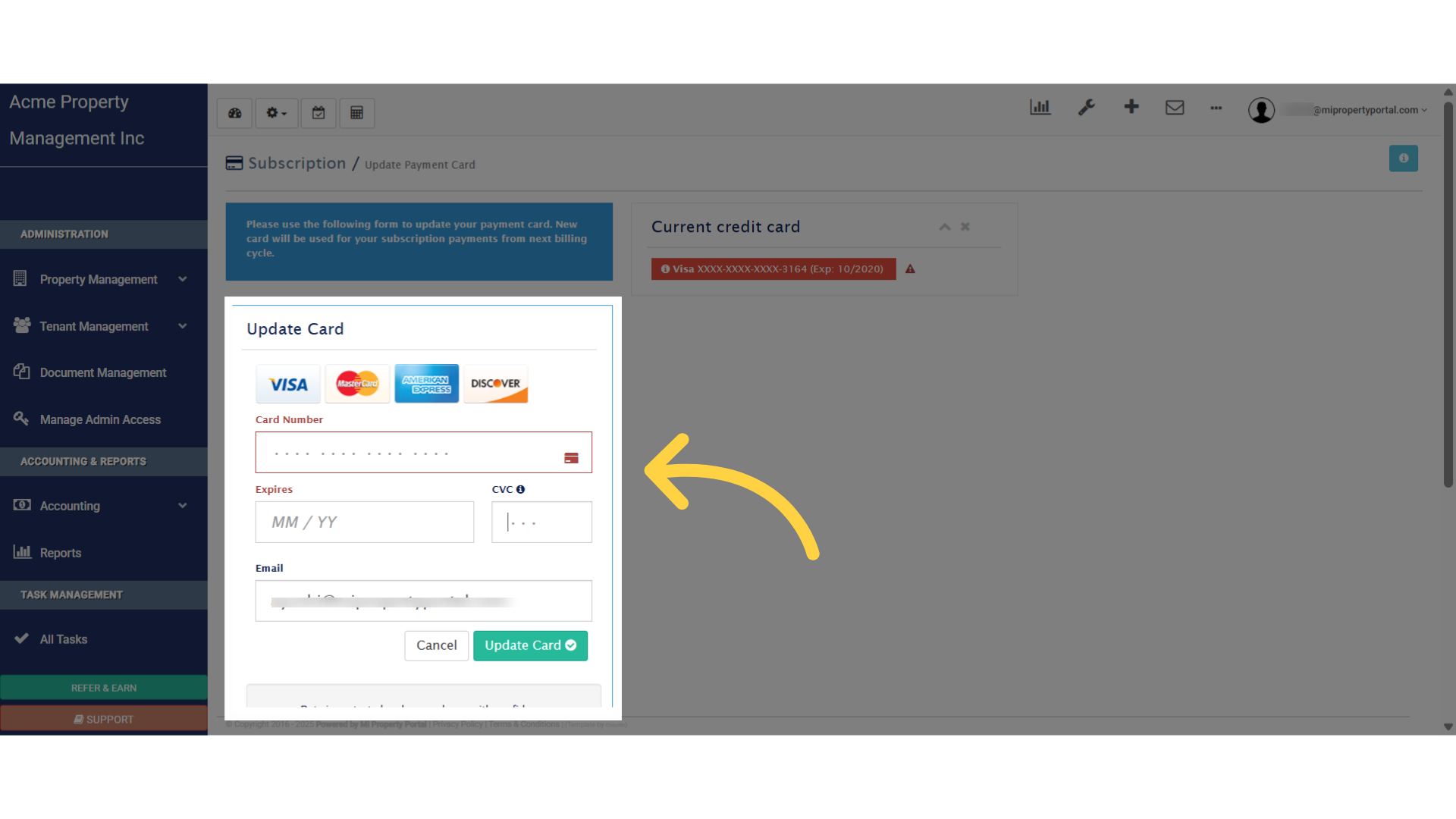
6. Click on “Update Card”
Confirm your changes by clicking the button to update your card information securely.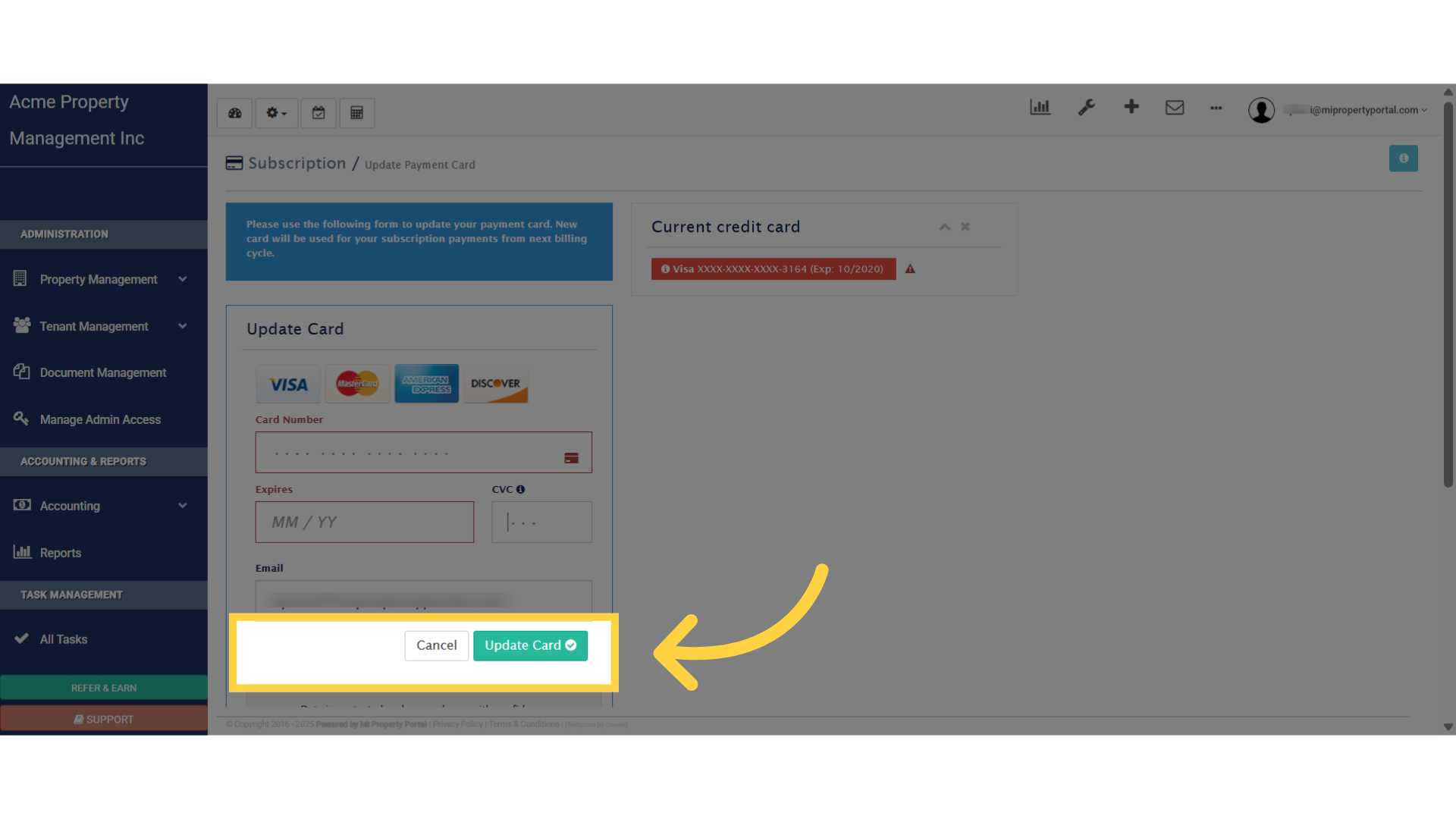
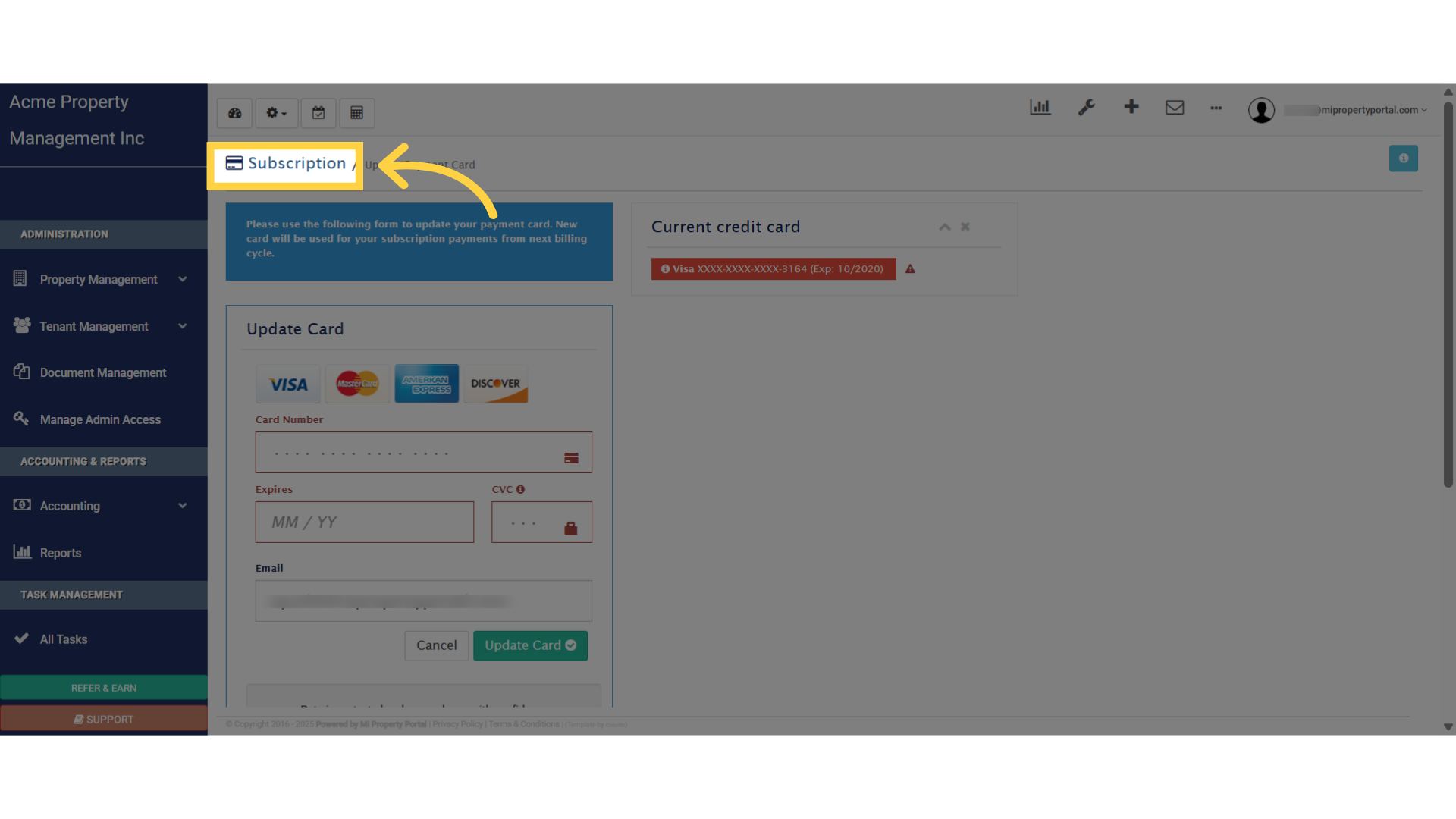
7. Click “Subscription” to view saved changes
Review your subscription information to verify that your payment method has been successfully updated.
This video walked you through updating your credit card information, for your subscription, ensuring your payment details are accurate and up to date, to avoid service interruptions. Thanks for watching