• Home
  • Blogs
  • FAQs
  • Login
  • Home
  • Blogs
  • FAQs
  • Login
home/Knowledge Base/Tenant Management/How to add parking in a tenant profile?

How to add parking in a tenant profile?

88 views 0 January 22, 2025 mippsupportadmin

1. I am going to walk you through the process. Let’s go to the tenant’s list
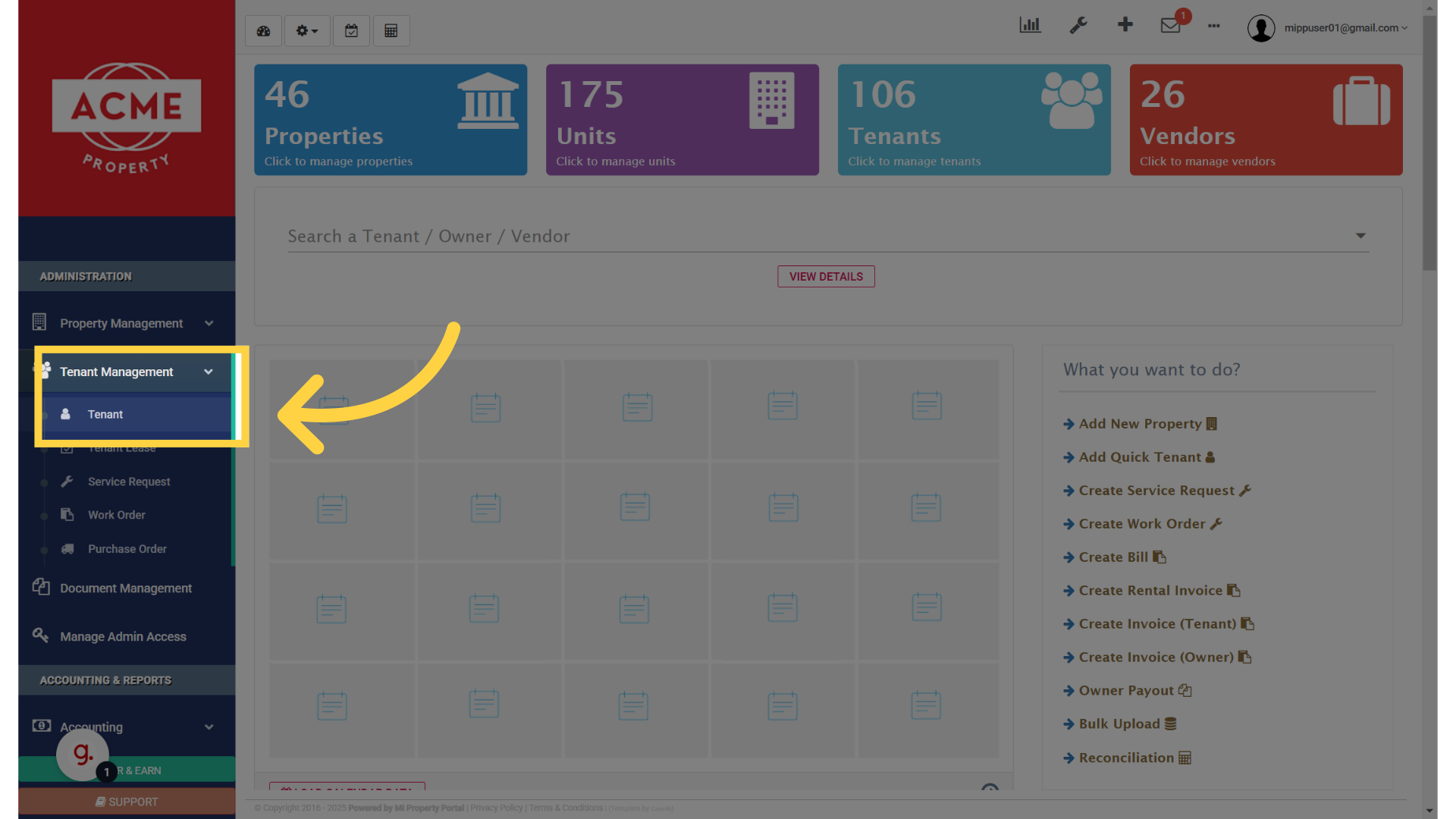
Go to tenants list

2. Select the tenant’s name to go to the tenant details page
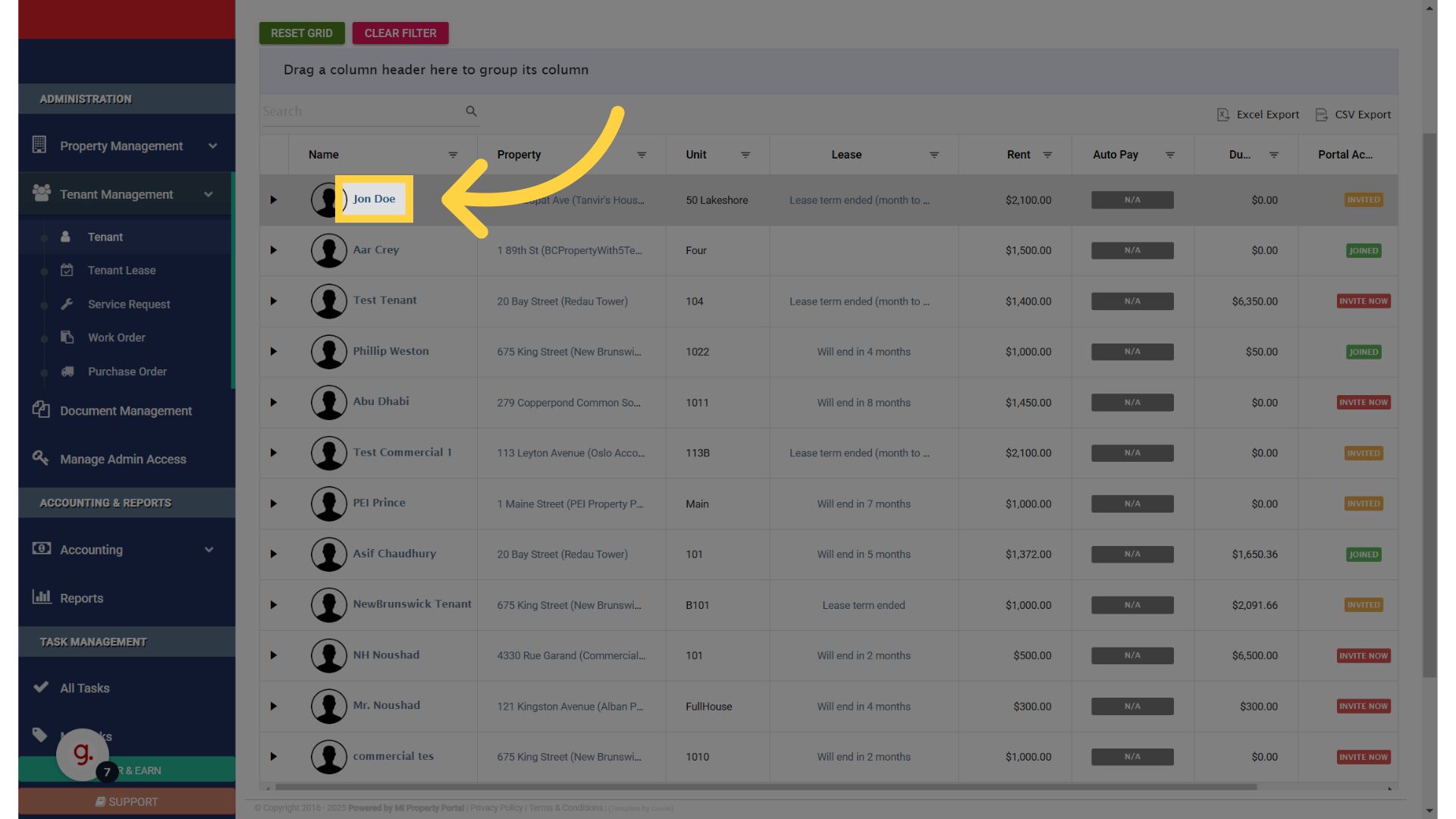
Find and click the tenant name

3. Click on the add button in the parking section, which will open the parking information dialog box
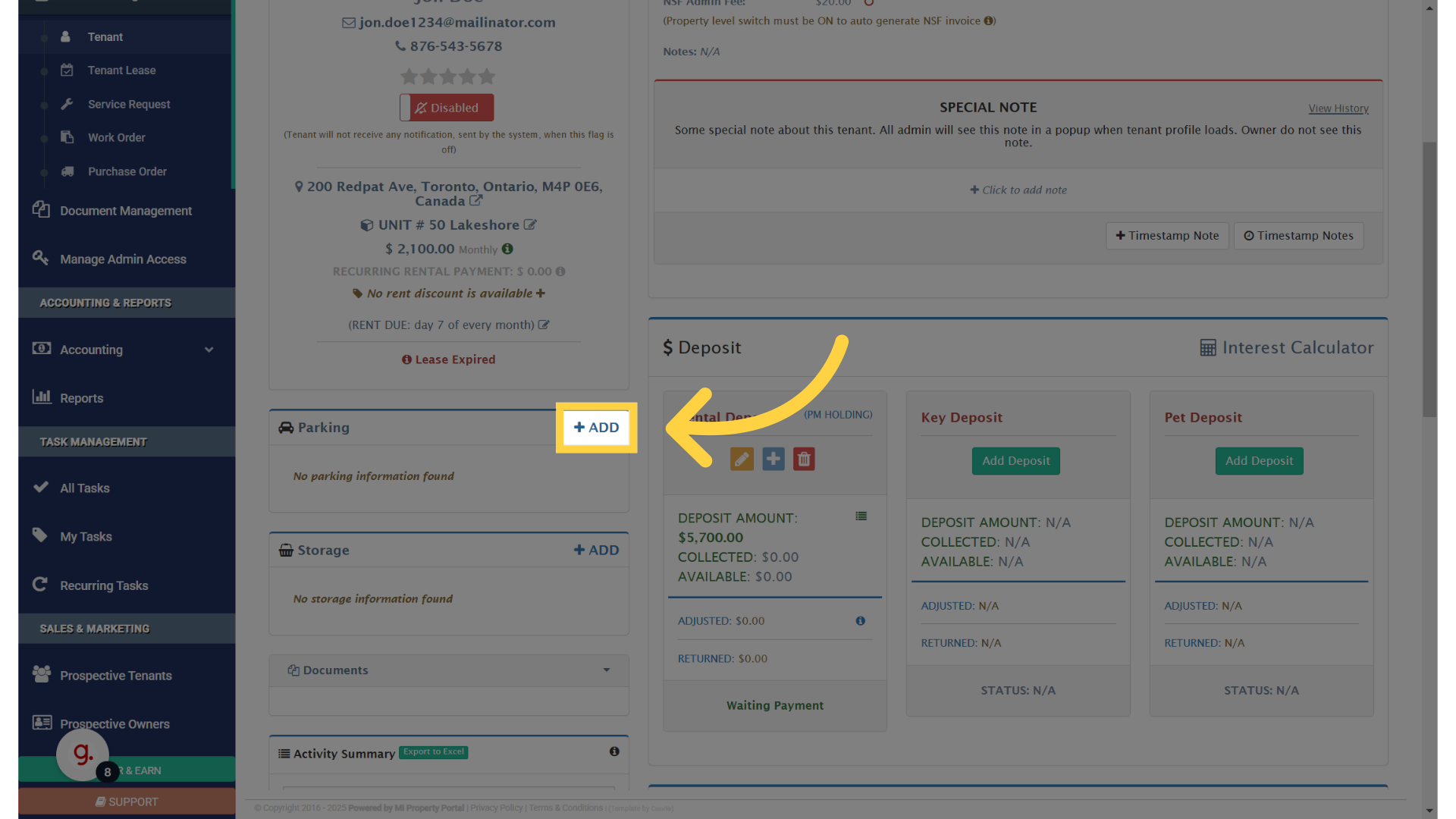
Click 'ADD'

4. Provide a name for the parking spot
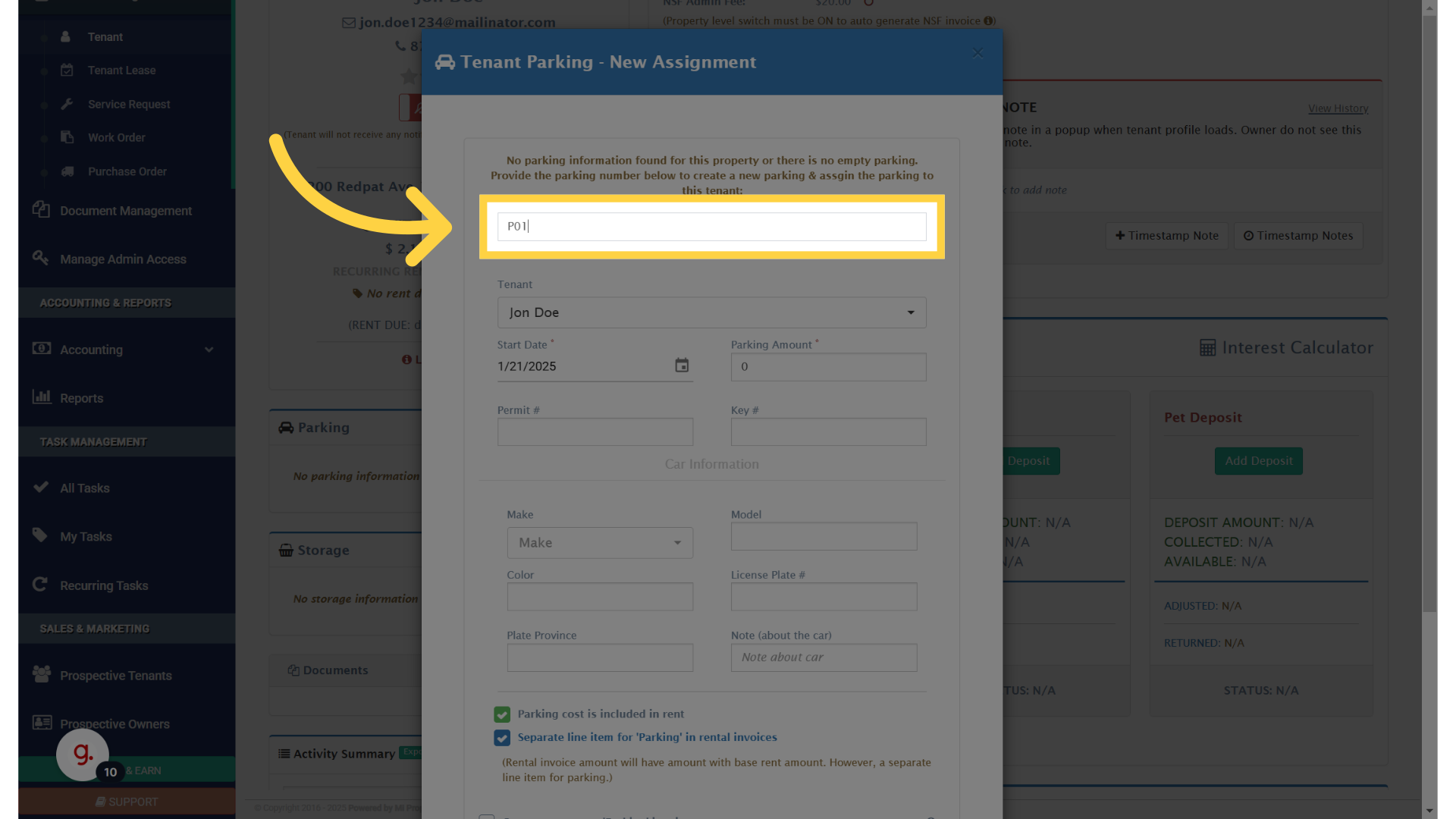
Give a name to the parkign spot

5. Select the date from when you want to assign the parking spot
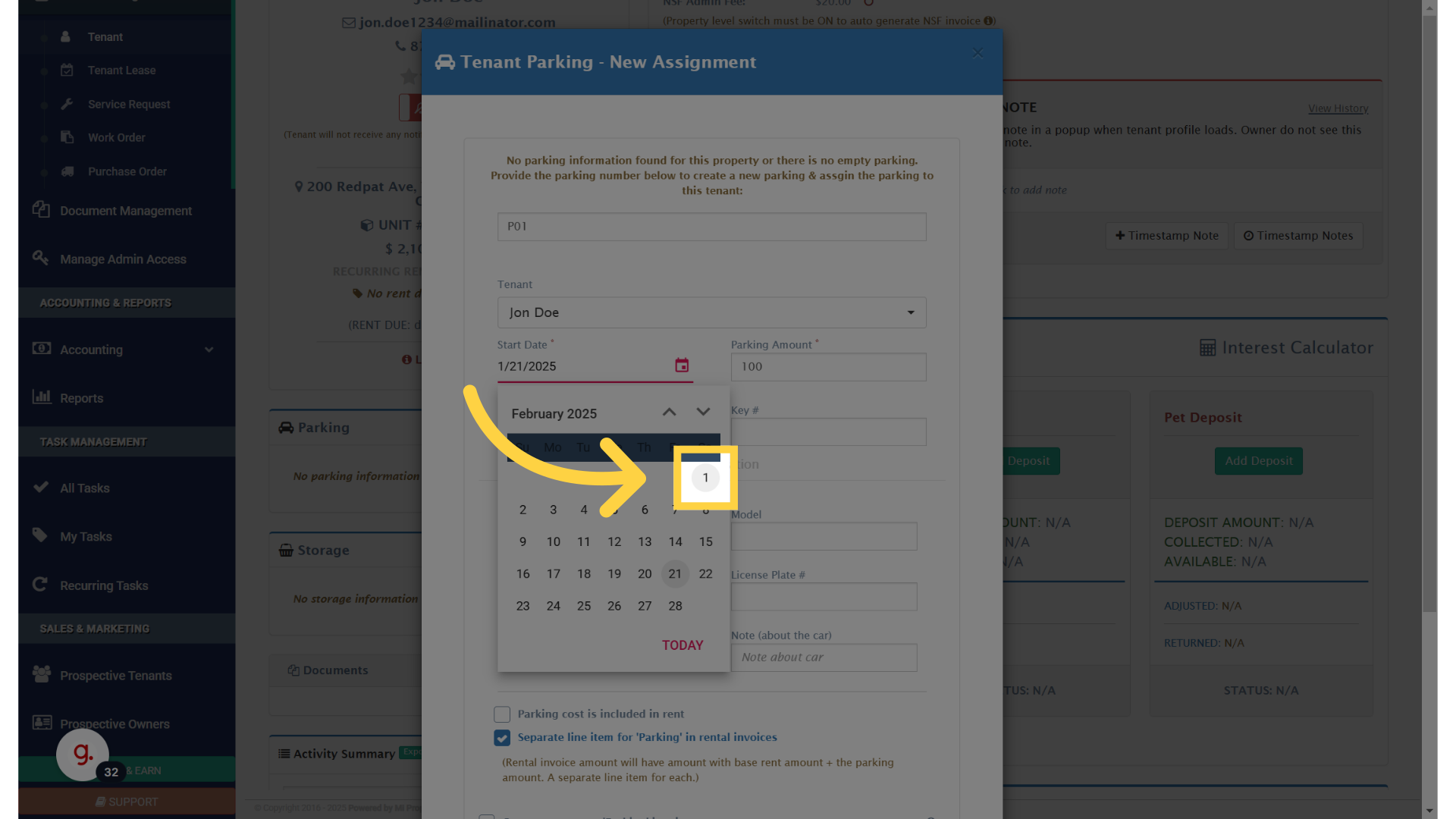
select a date

6. If you are going to charge a fee for parking, enter the amount here
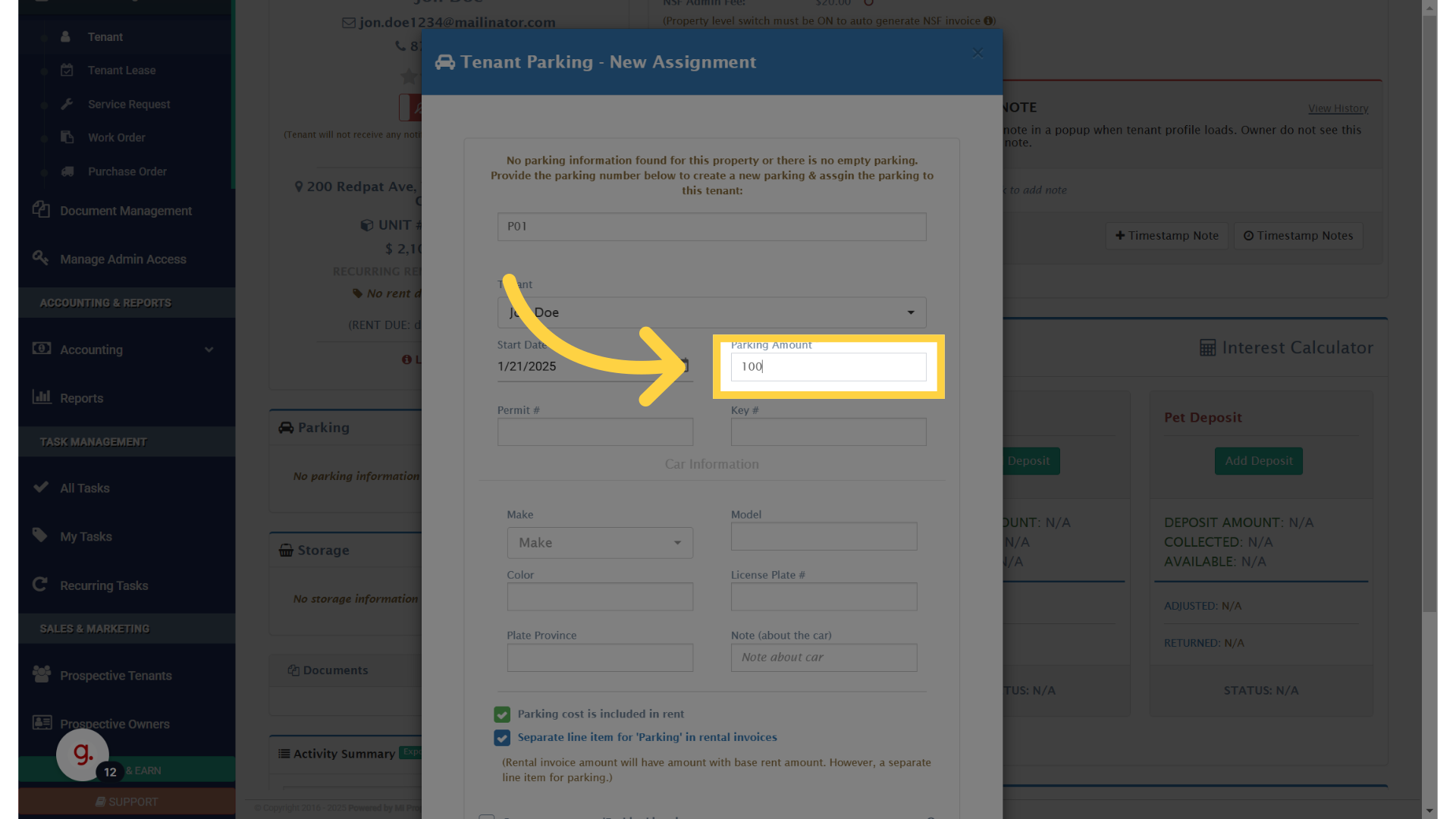
If you are going to charge a fee for parking, enter the amount here

7. Click “Parking cost is included in rent”
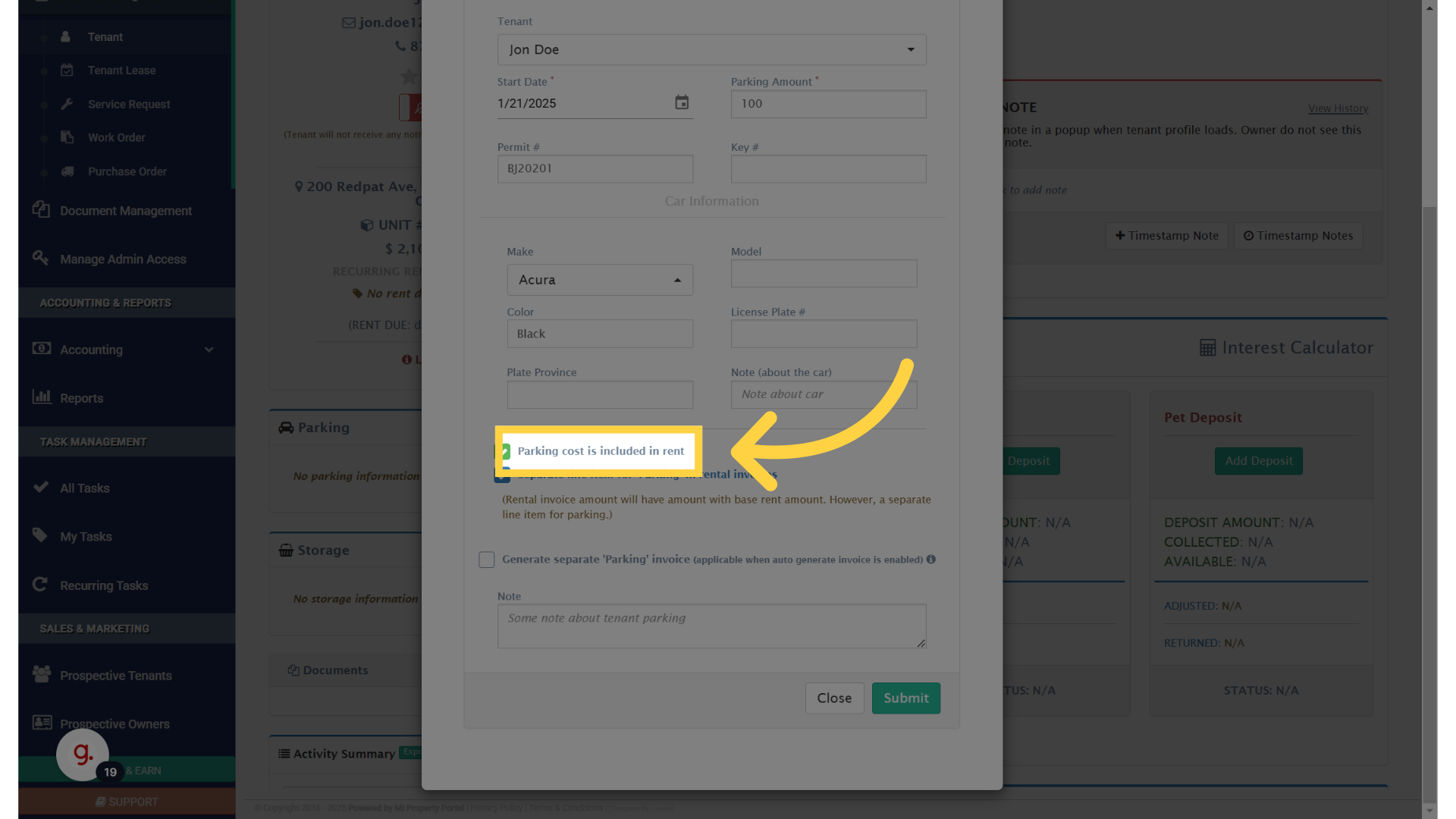
Click 'Parking cost is included in rent'

8. Click “Separate line item for ‘Parking’ in rental invoices”
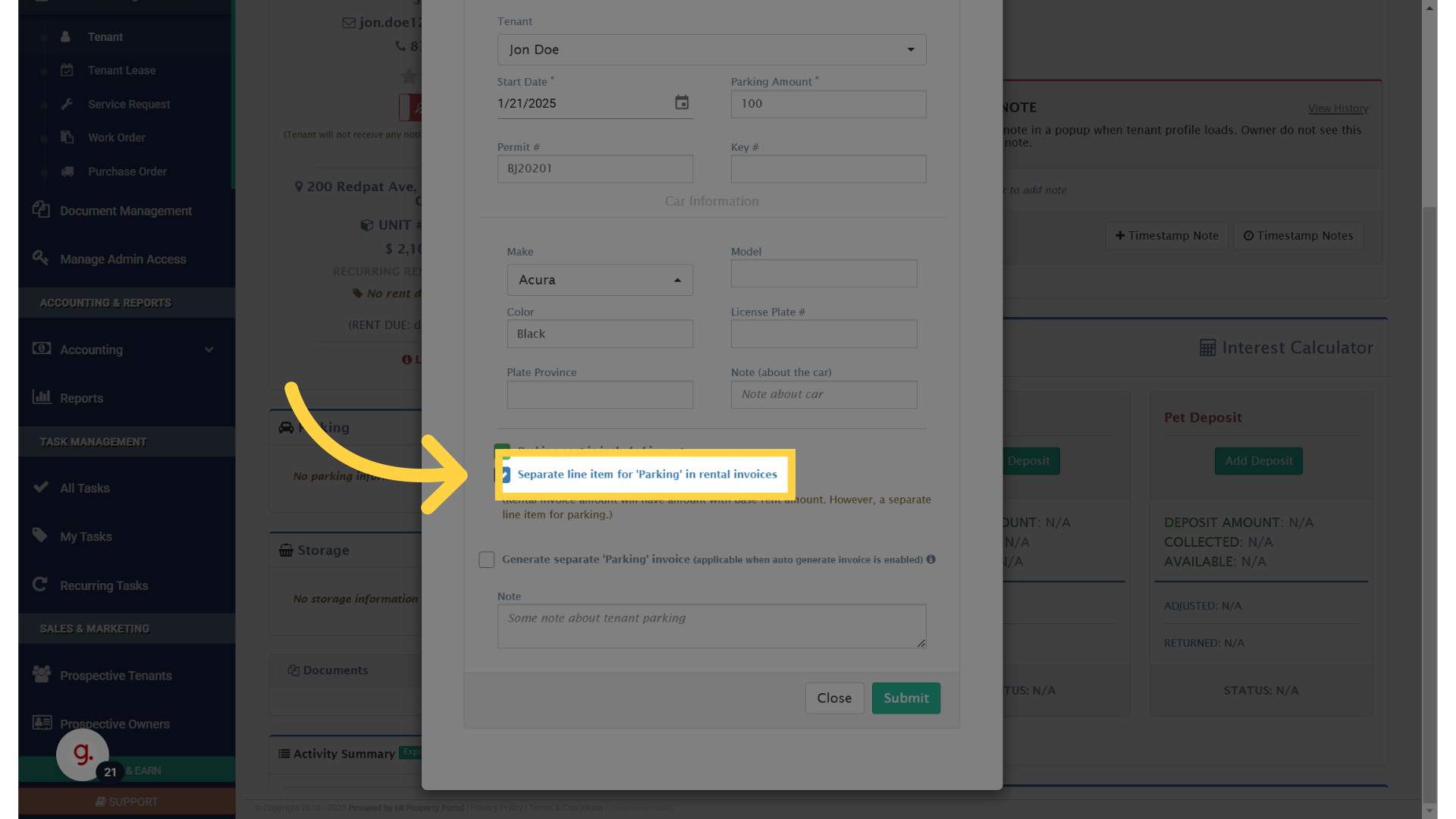
Click 'Separate line item for 'Parking' in rental invoices'

9. Carefully review the additional information that shows up after selecting this option
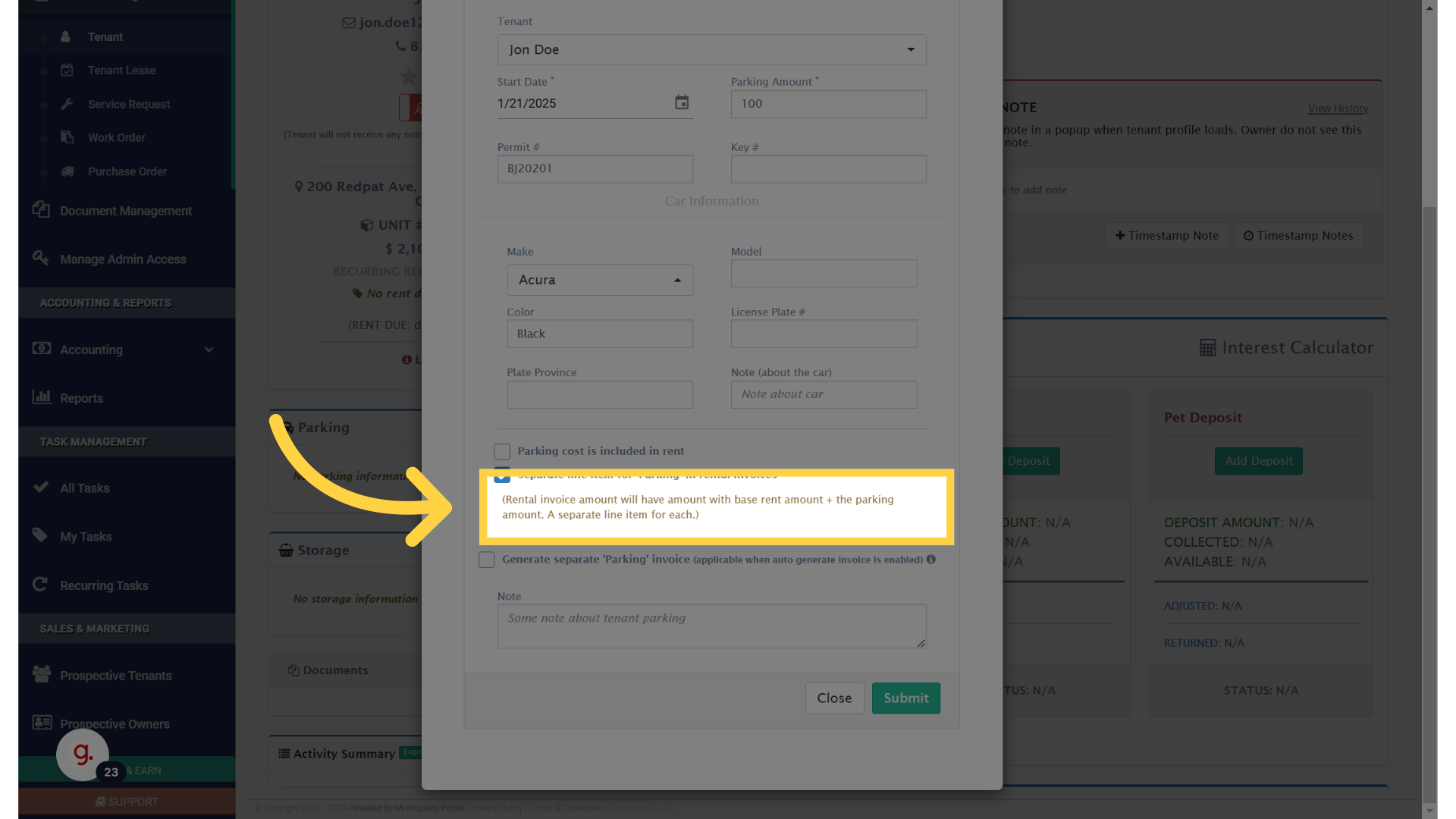
Click '(Rental invoice amount will have amount with base rent amount + the parking amount. A separate line item for each.)'

10. Click “Separate line item for ‘Parking’ in rental invoices”
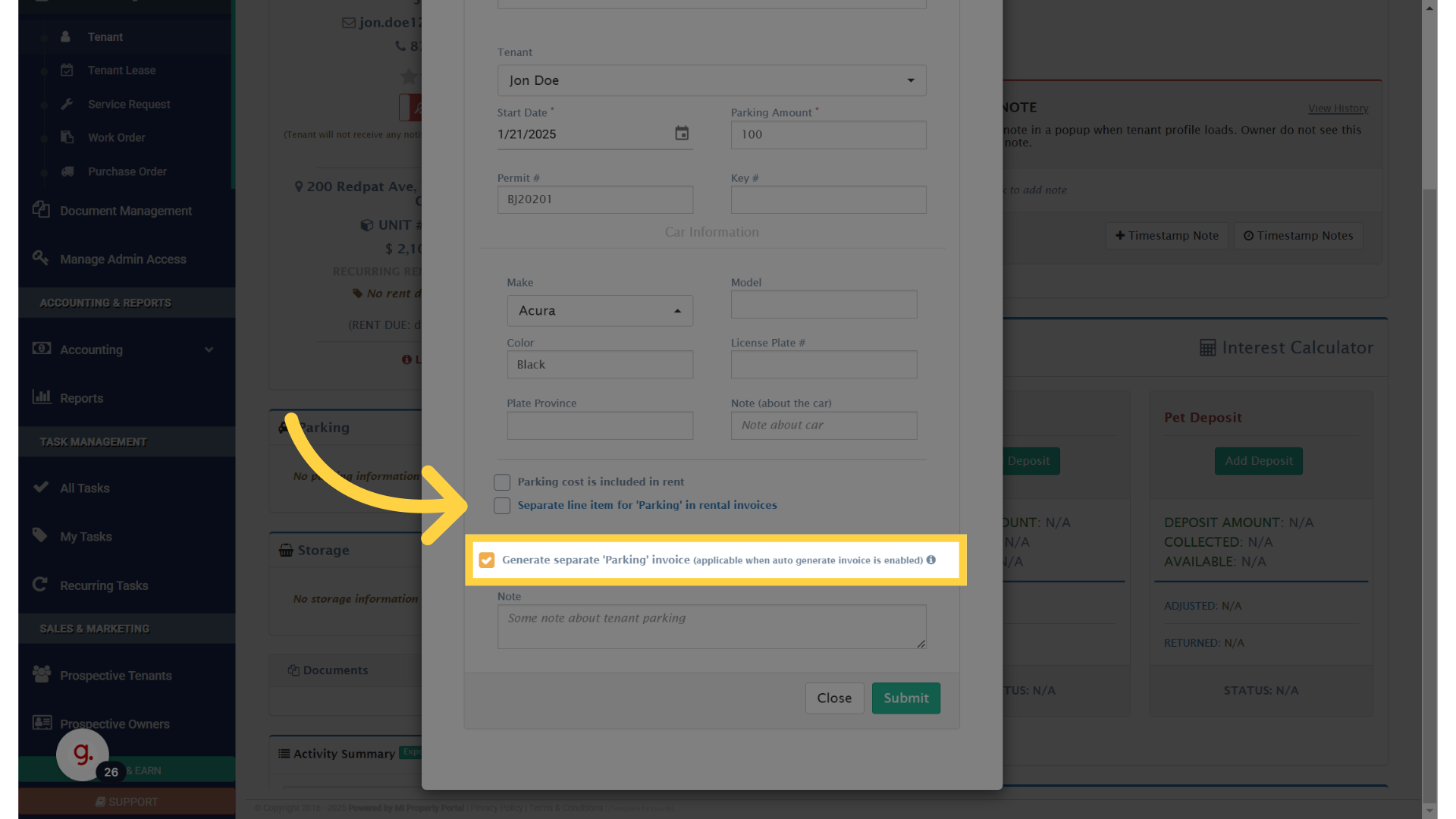
Click 'Separate line item for 'Parking' in rental invoices'

11. Click submit to save parking setup
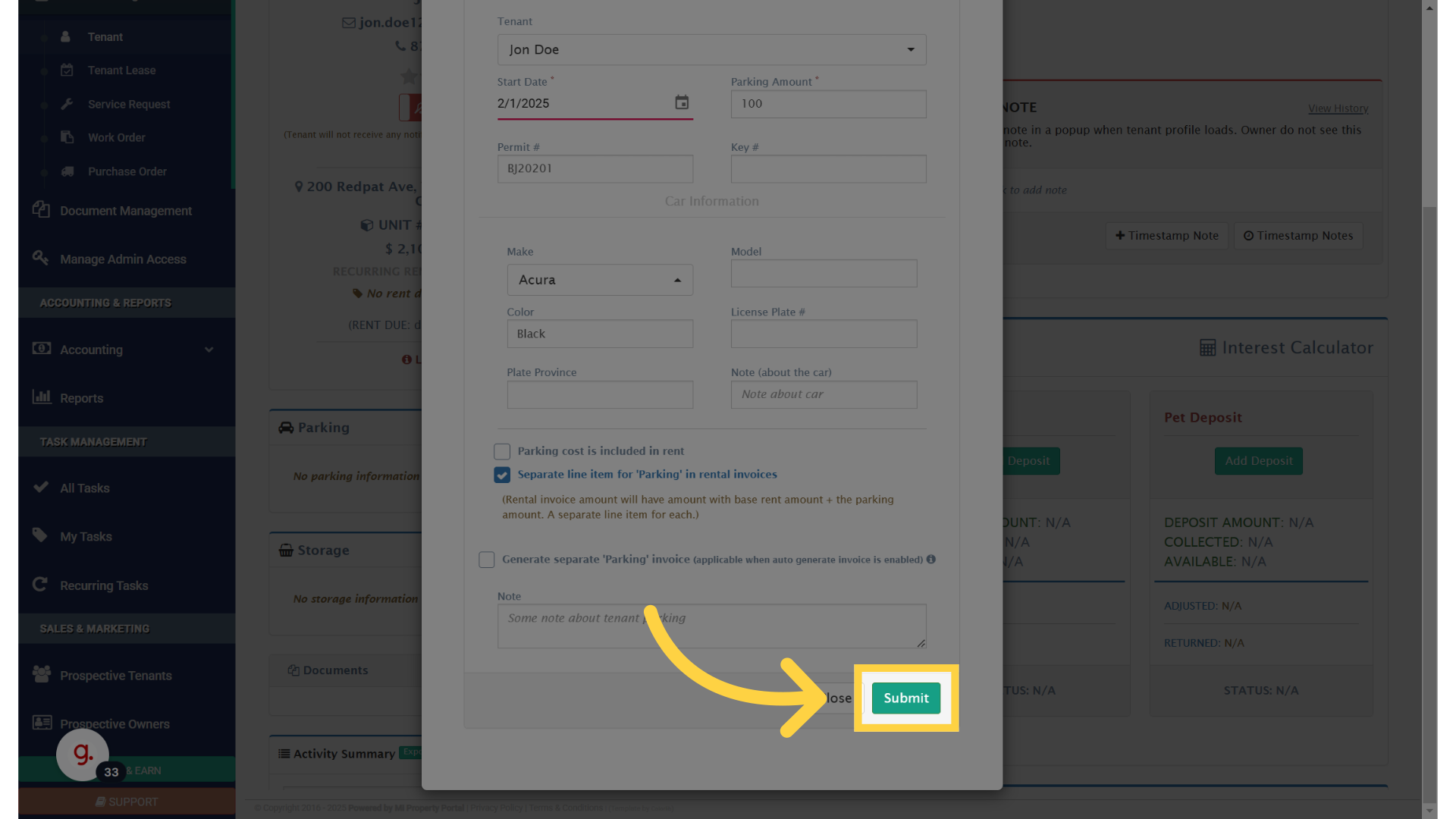
Click 'Submit'

12. Parking is added to the tenant profile, Verify the option you have chosen
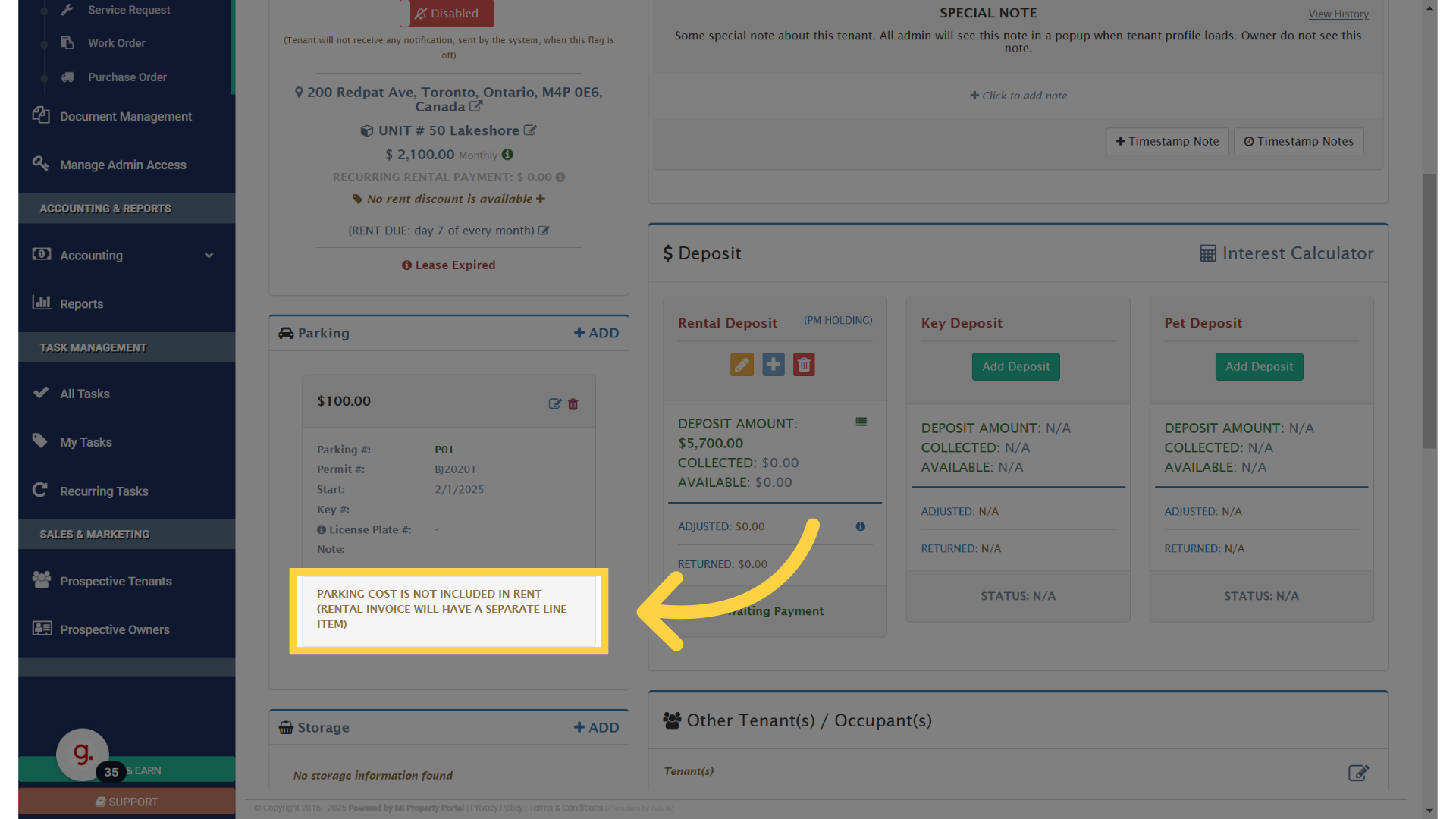
 

Parking is added to the tenant profile

Tags:How to add parking in a tenant profile?Add parking to tenant profileHow to assign parking to a tenantUpdate tenant profile with parking infoAdd parking spot in tenant accountAssign parking space to tenantInclude parking in tenant details

Was this helpful?

Yes  No
Related Articles
  • How to Create Profiles for Multiple Tenants on One Lease
  • Send Email Notification After Lease Document Upload
  • New Feature – Create Lease Quickly Using Prospect List
  • How to Rent a Parking Spot in Mi Property Portal
  • How to Communicate with Tenants?
  • How to start a Tenant Background Check?

Didn't find your answer? Contact Us

Leave A Comment Cancel reply

You must be logged in to post a comment.

Popular Articles
  • Can I log rental income for ‘Unpaid’ invoices for ‘Moved-out’ tenants?
  • New Feature – Bell Notification Sent to Admin on Tenant Document Upload via Tenant Portal
  • New Feature – Trust Liability Report
  • Email notification sent to tenant on Other document upload
  • New Feature – Enable All Property Permissions For Regular Admins
KB Category
  • Service Request
  • Subscription
  • Bulk Data Upload
  • Owner Portal
  • MiPropertyPortal Admins Training Workshop
  • MiPropertyPortal New Features/Improvements Monthly Webinar
  • Task Management
  • Prospective Tenants
  • Setup
  • Vendor Management
  • Tenant Screening
  • Tenant Portal
  • Tenant Management
  • Accounting
  • Security Deposit
  • Reporting
  • Rental Tax
  • Rental Listing
  • Property Owner Related
  • Property
  • Other
  • Asset Management
  • Online Payment
  • Lease Management
  • General
  • Form Management

  How to Fill out the Tenant Bulk Upload File

Accidentally approved a landlord signature without it being signed  

MiPP
MiProperty Portal is Canadian-made for
Canadian landlords and property managers.
COMPANY
  • About Us
  • Why MiPP?
  • Features
SUPPORT
  • Knowledge Base
  • Get Email Help
SOCIAL
  • Linkedin
  • Facebook
  • Twitter
  • Privacy Policy
  • Terms of Use
  • © 2026 mipropertyportal.com. All Rights Reserved.