• Home
  • Blogs
  • FAQs
  • Login
  • Home
  • Blogs
  • FAQs
  • Login
home/Knowledge Base/Setup/How to Apply For VoPay Merchant Account

How to Apply For VoPay Merchant Account

66 views 0 October 3, 2025 mippsupportadmin


1. Log into the Portal
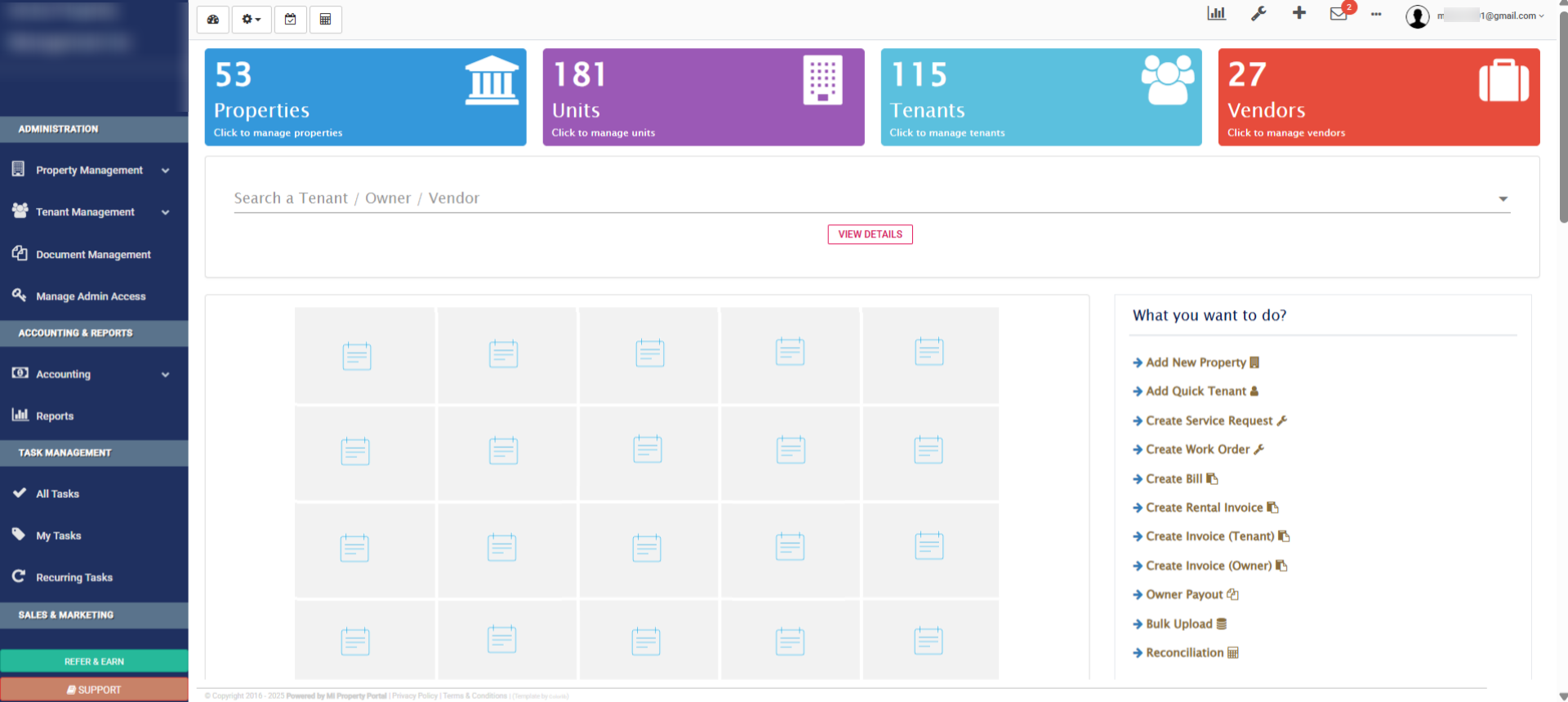
Log into the Portal

2. Navigate To Online Payment Settings
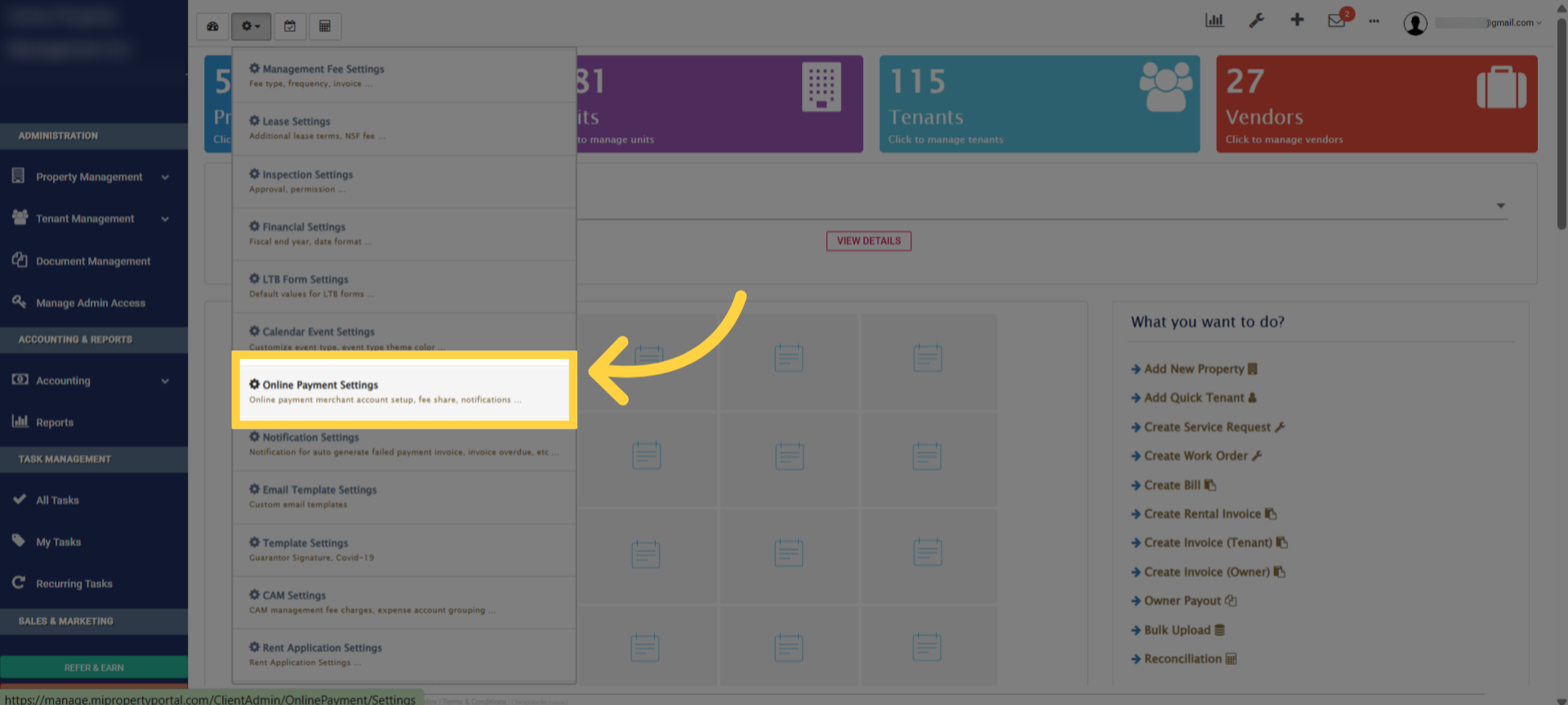
Navigate To Online Payment Settings

3. This is where to configure payment options and prepare to apply for a merchant account
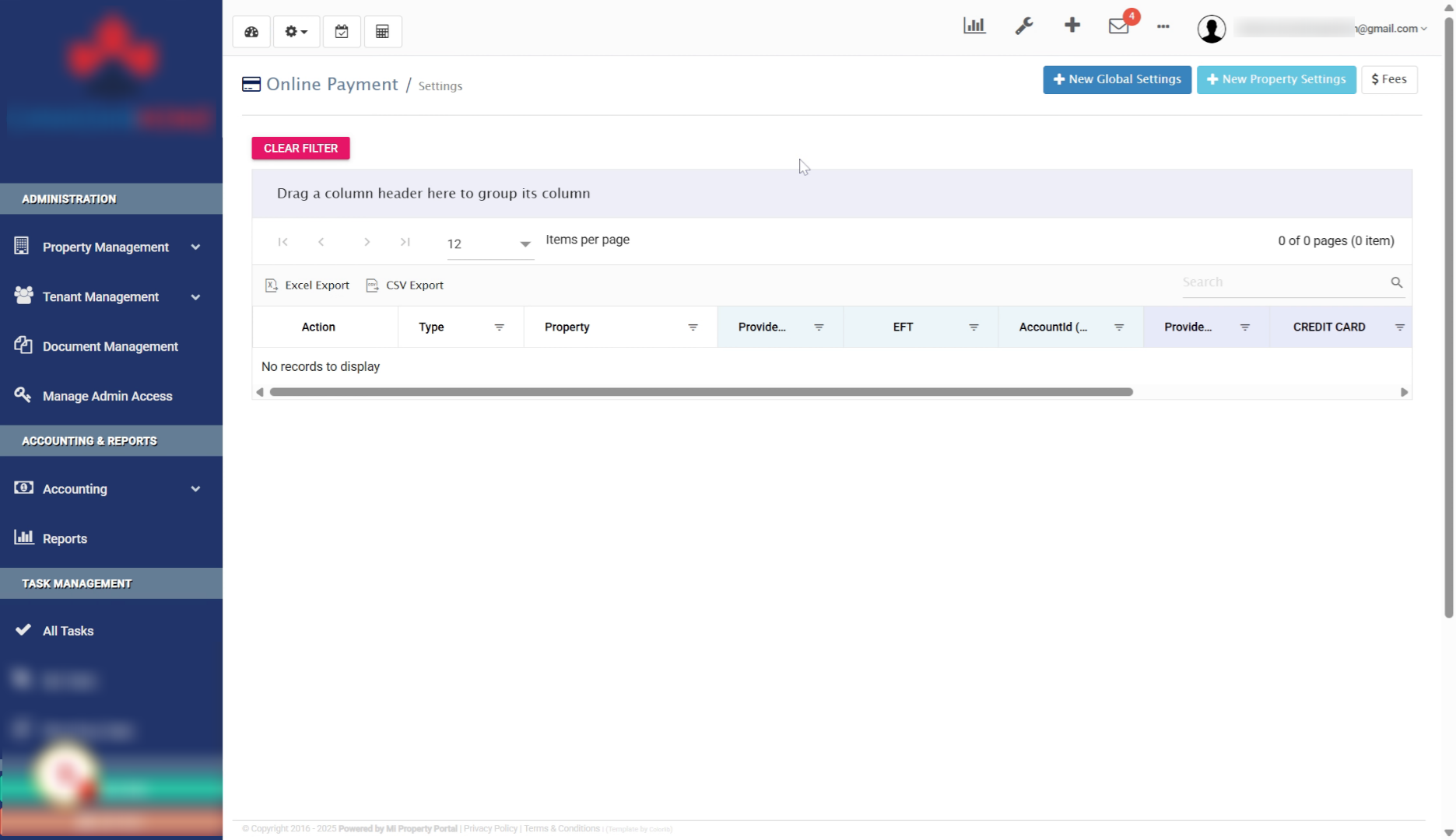
Review Payment Settings Overview

4. To collect payments for all your rentals, apply for a global merchant ID through the global settings option
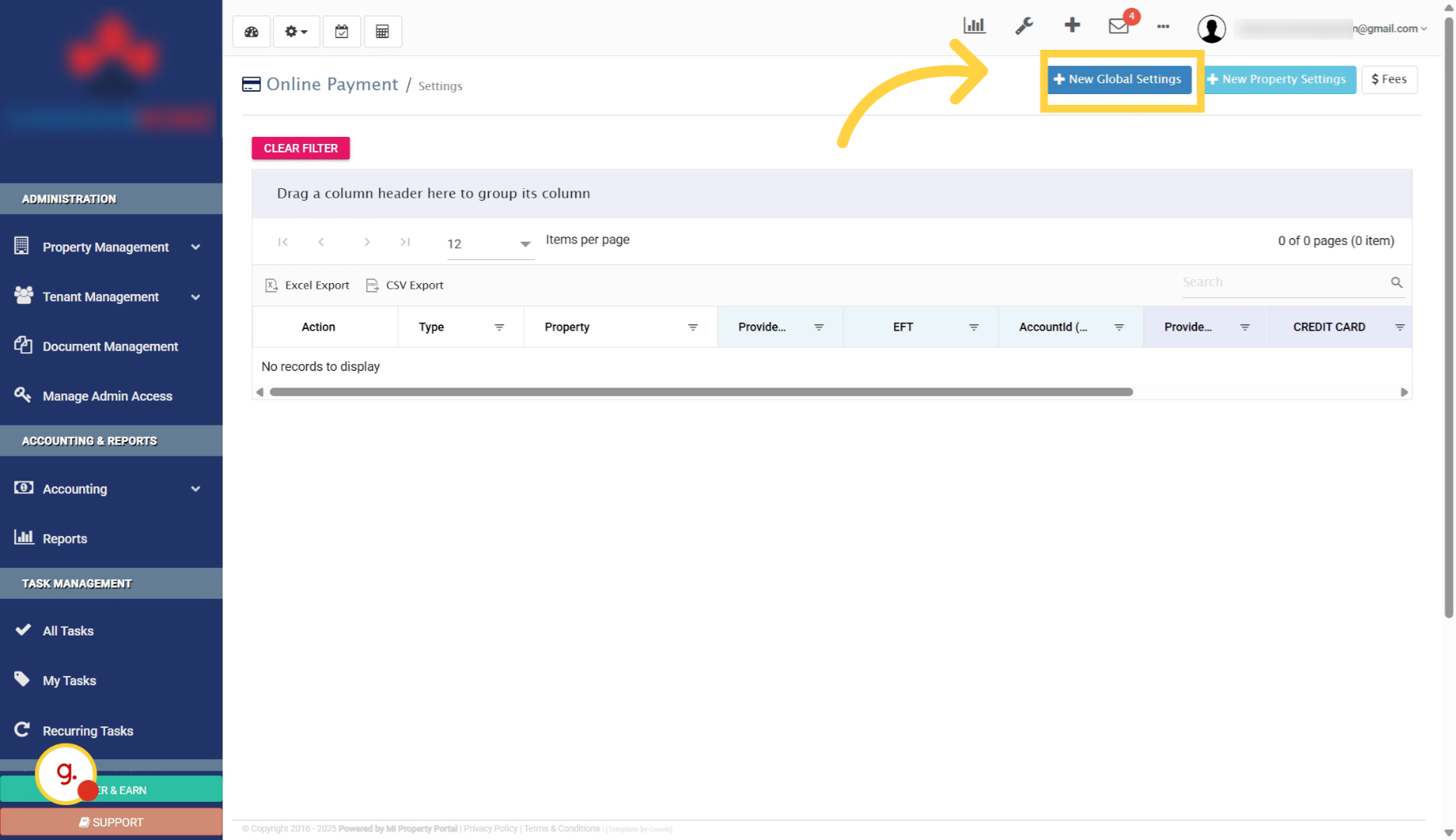
Apply For Global Merchant ID

5. You can choose how to collect payments. Either to a single account or, to individual bank accounts for specific properties
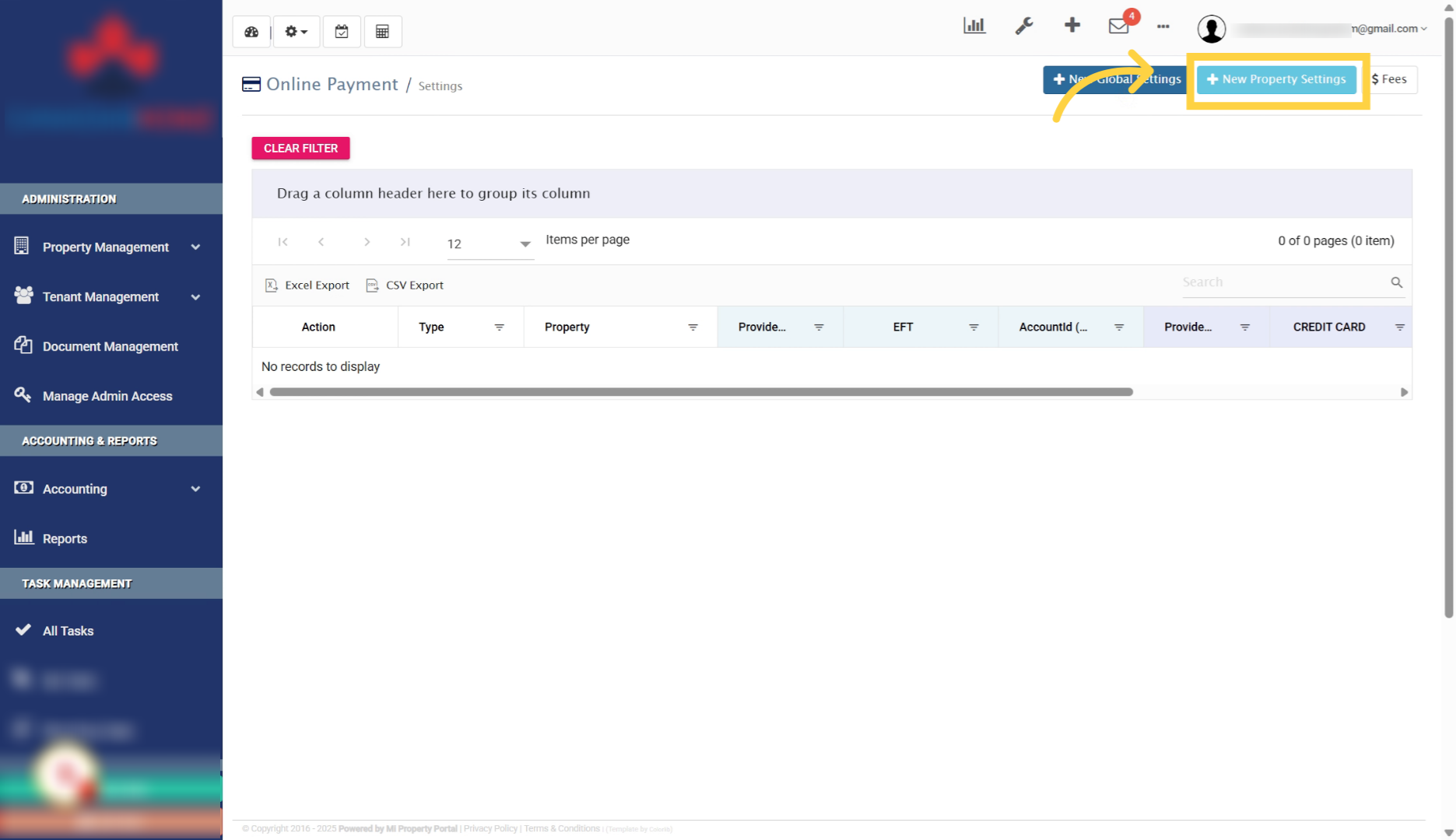
Explore Collection Options

6. To understand the fees involved, click on the fees window to review the pricing details for payment processing
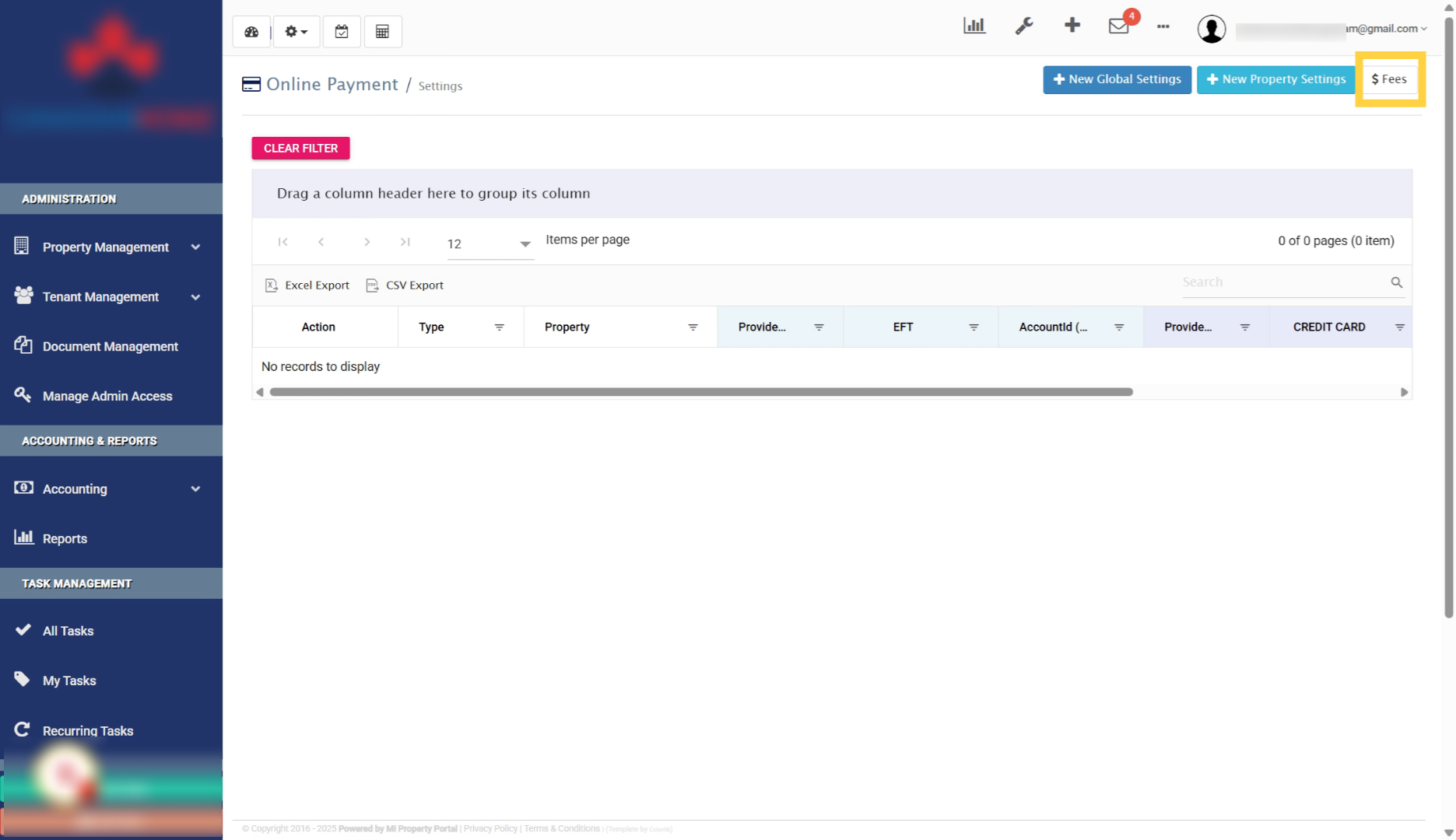
View Pricing Details

7. In the fees window, you will see the transaction fees applicable for different payment methods
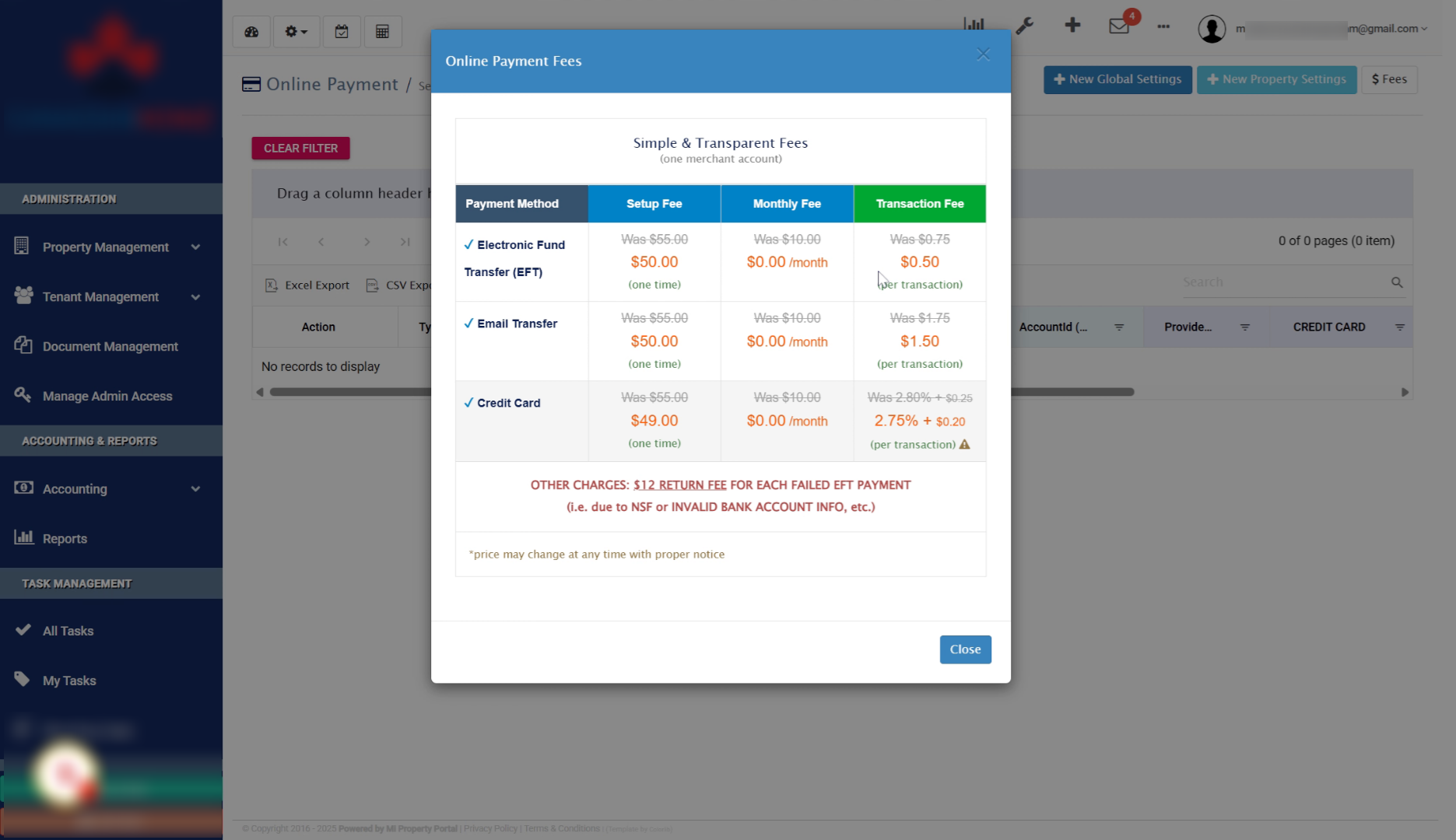
Check Transaction Fees

8. Click “Close” to exit the fees window and return to the payment settings
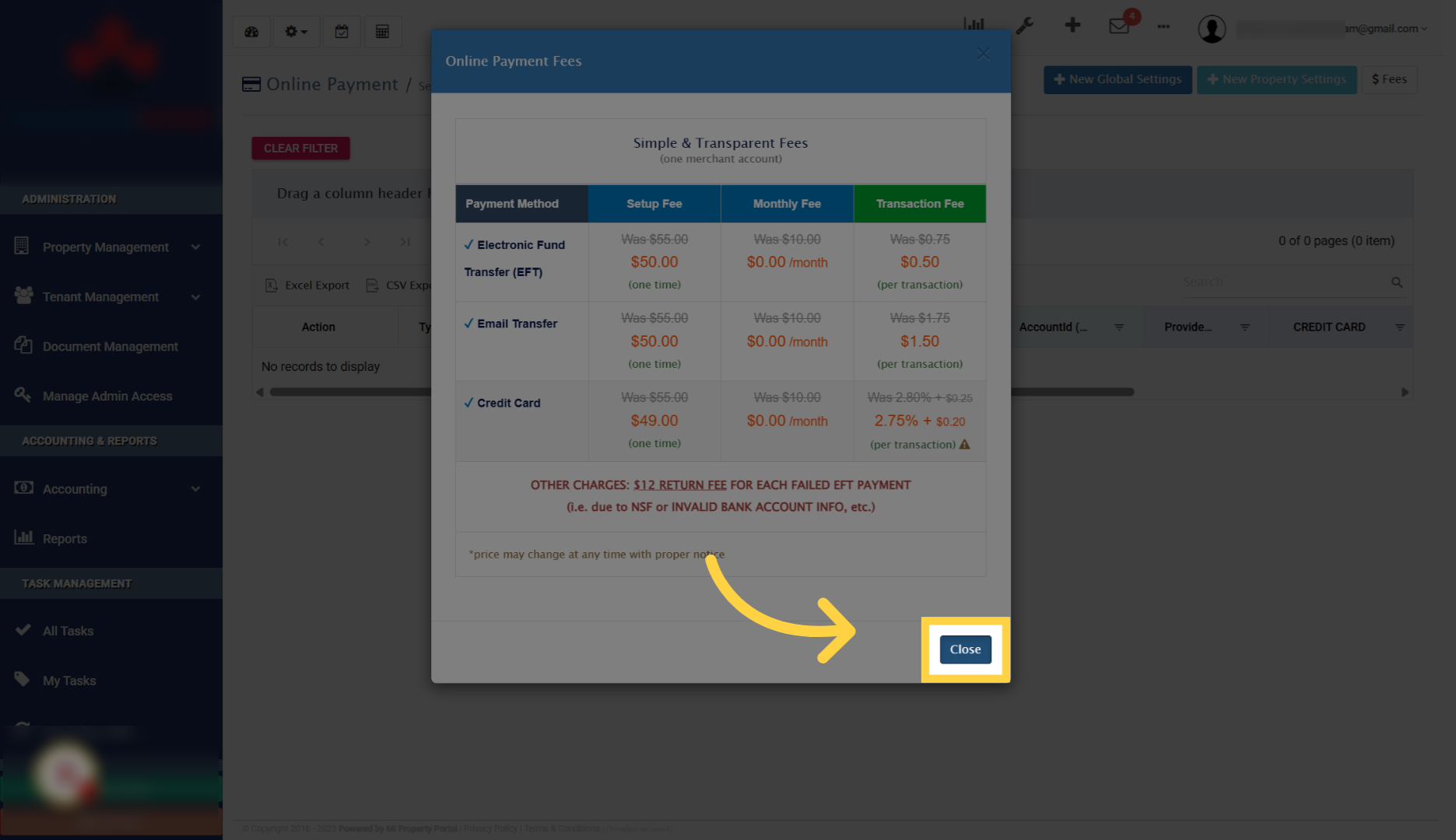
Close Fees Window

9. Click on “New Global Settings” to start configuring your payment processing preferences
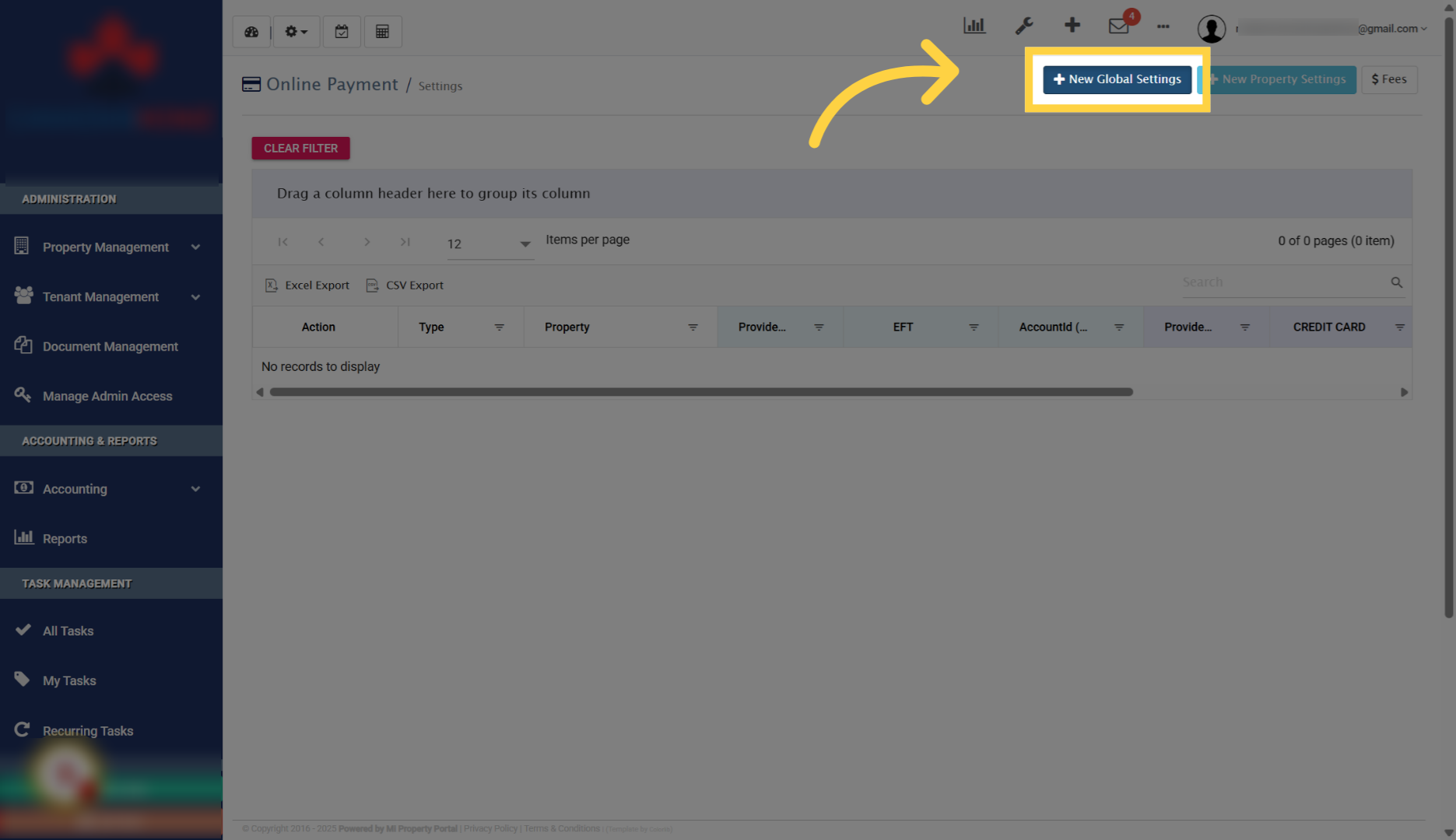
Initiate New Global Settings

10. Go through all the options by scrolling and configure as needed
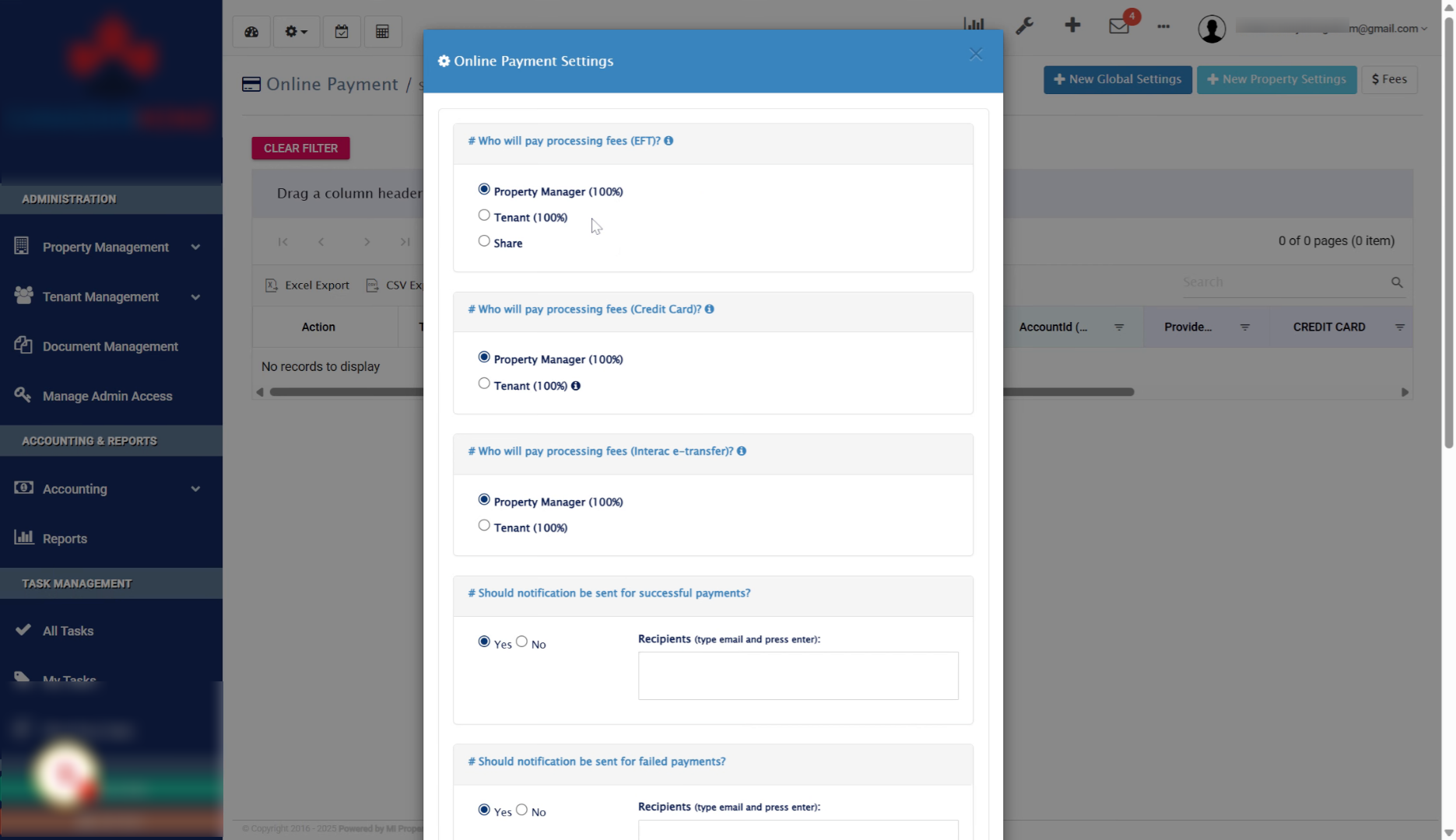
Define Processing Fee Responsibility

11. Enter your email address to receive payment notifications. In notification settings, you can add or update addresses and include multiple recipients if needed
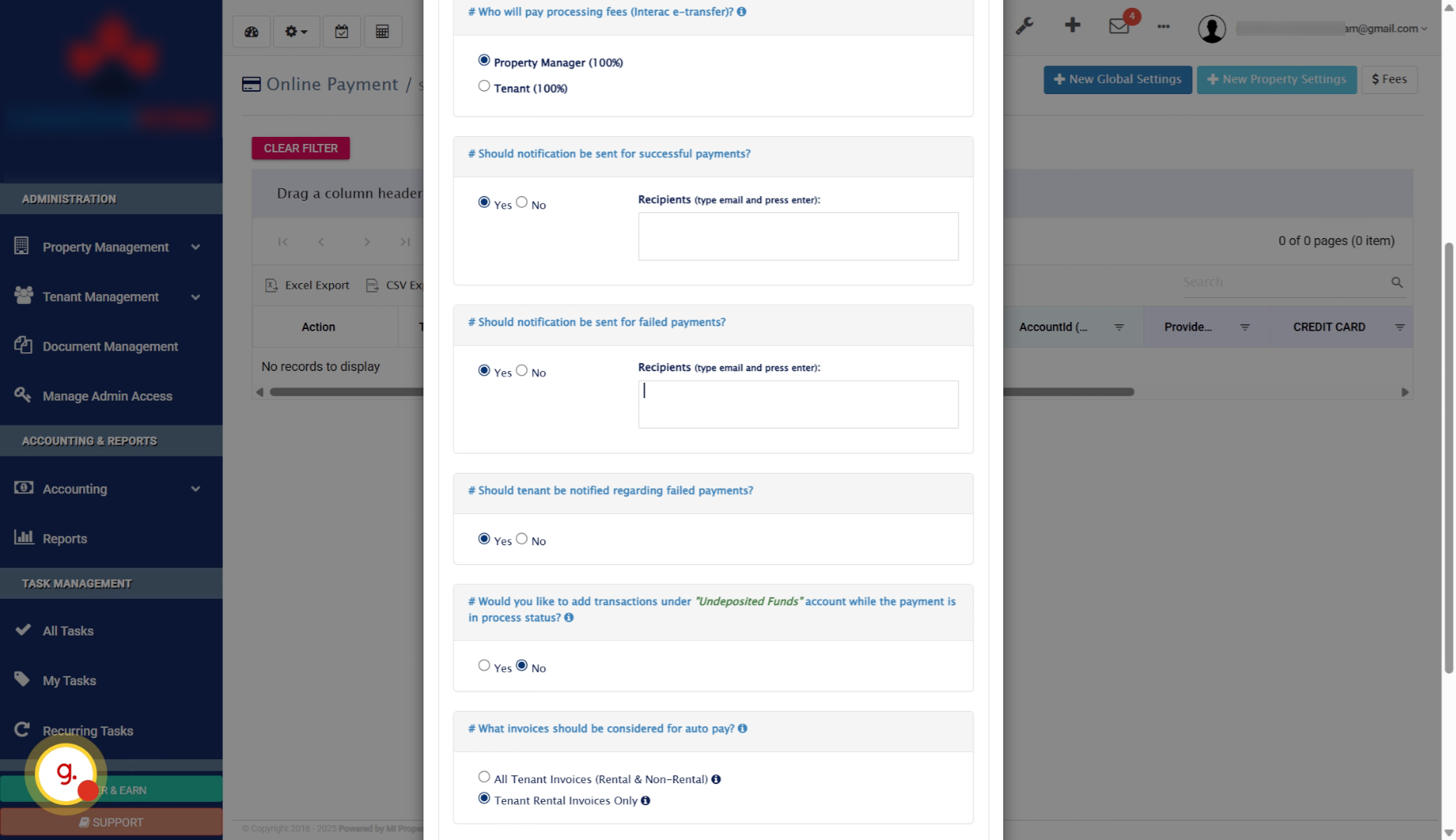
Provide Notification Email

12. Once your settings are configured, click the submit button to save your payment profile
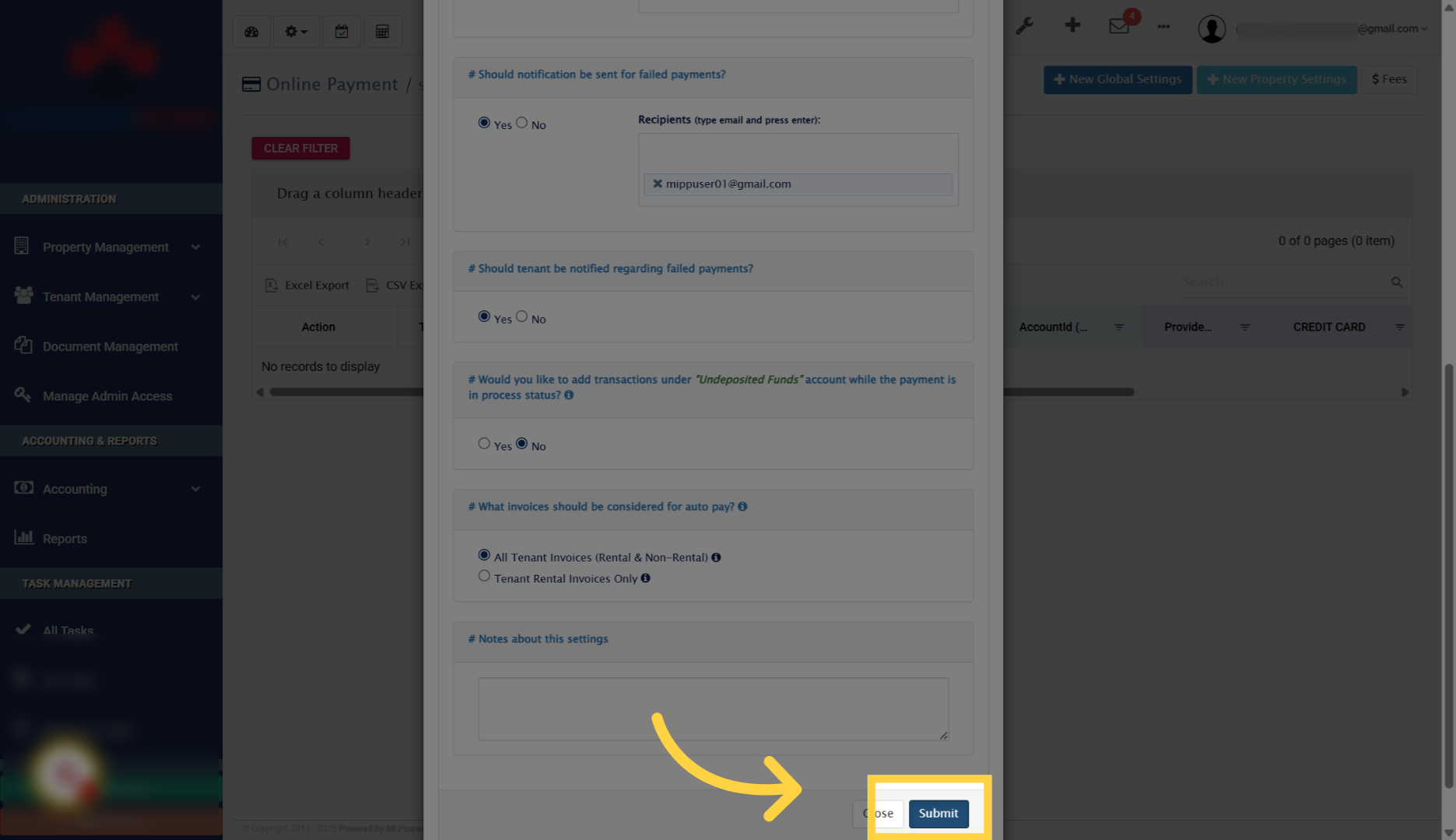
Submit Payment Profile

13. Payment Profile Saved Successfully. The next step is to apply for your merchant account to enable payment processing
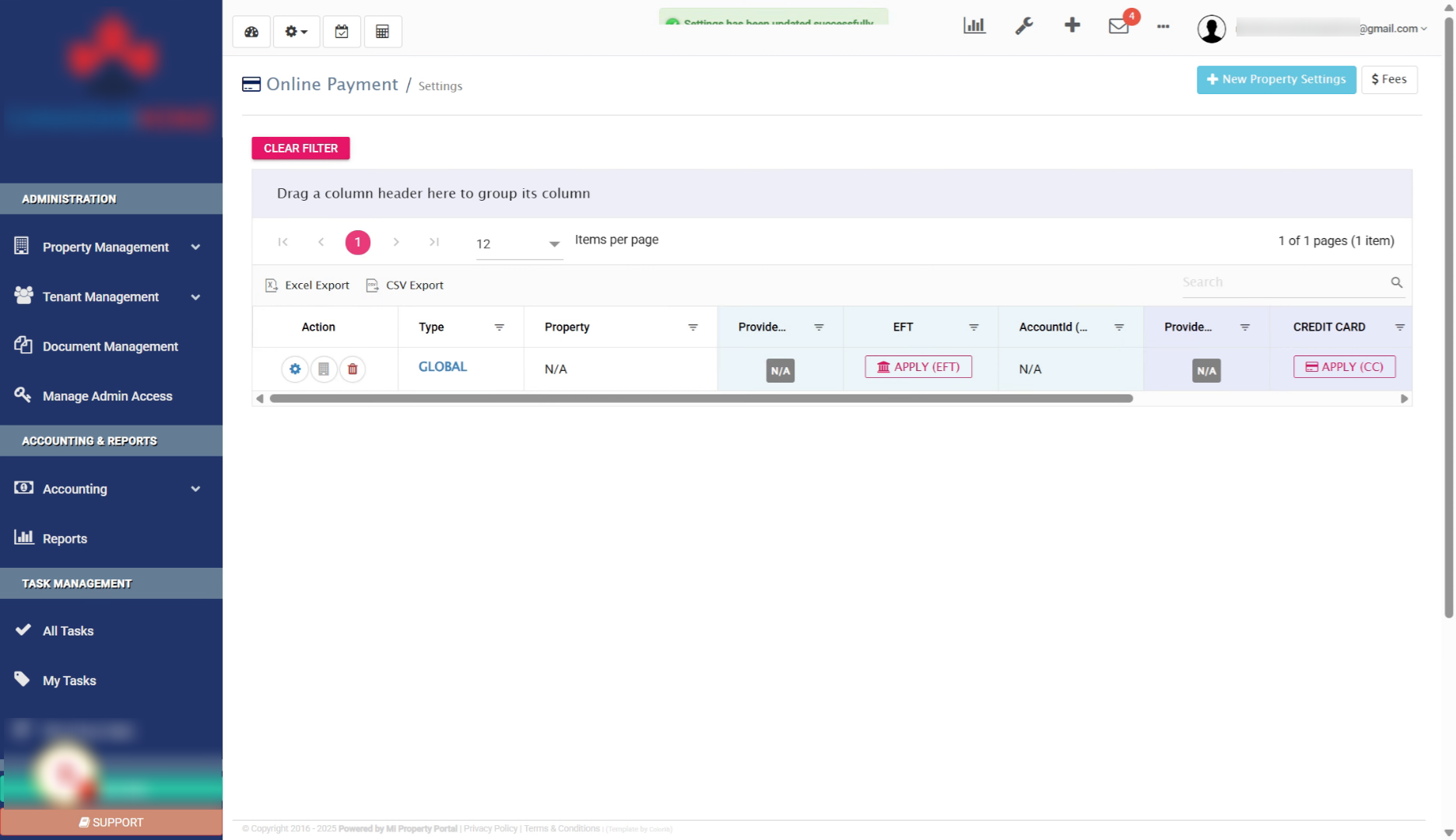
Payment Profile Saved Successfully

14. Click on “APPLY (EFT)” to proceed with your merchant account application
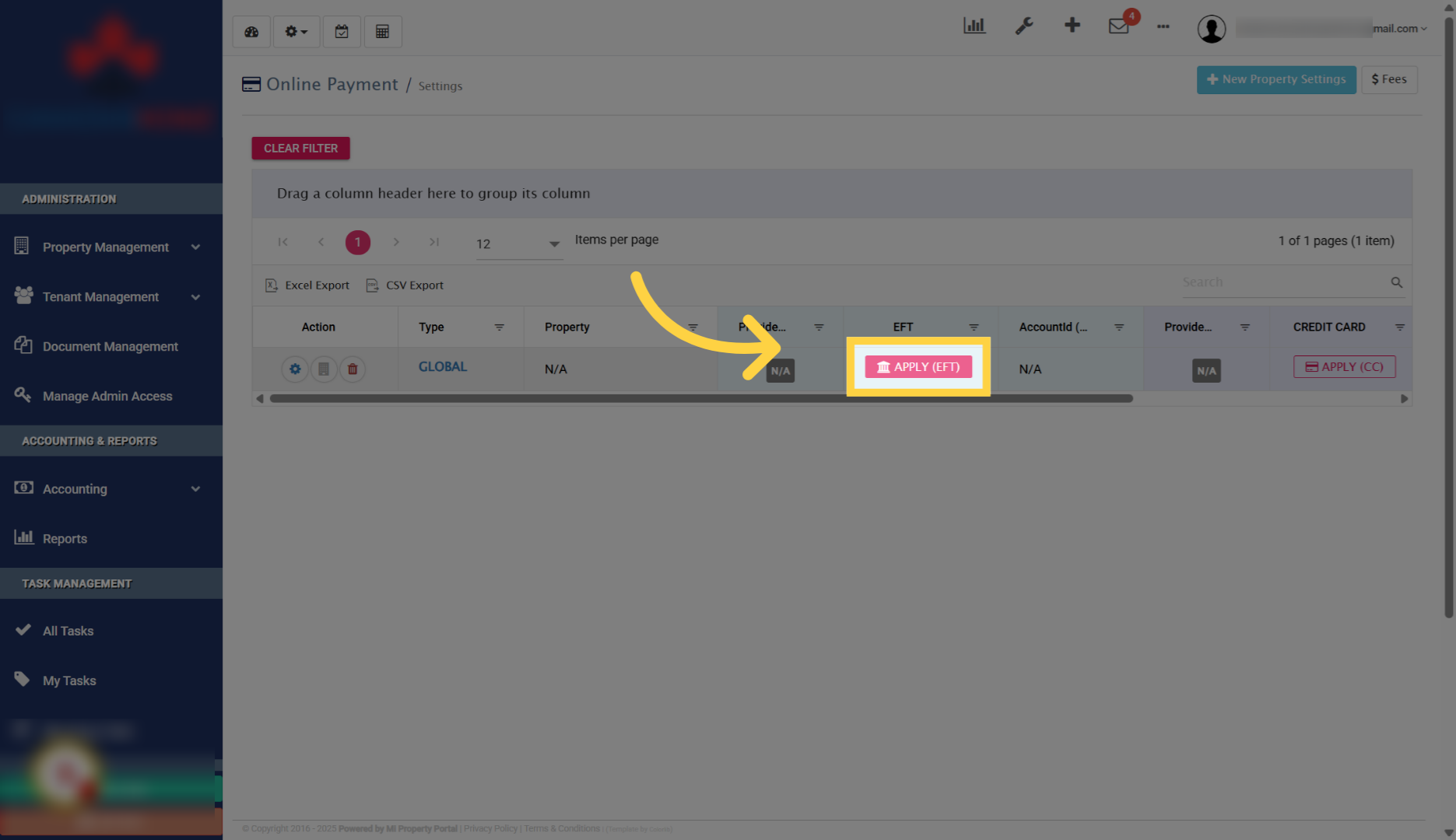
Start Merchant Account Application- Click Apply EFT Button

15. Business name, primary email, and business address will be pre-filled in the application form
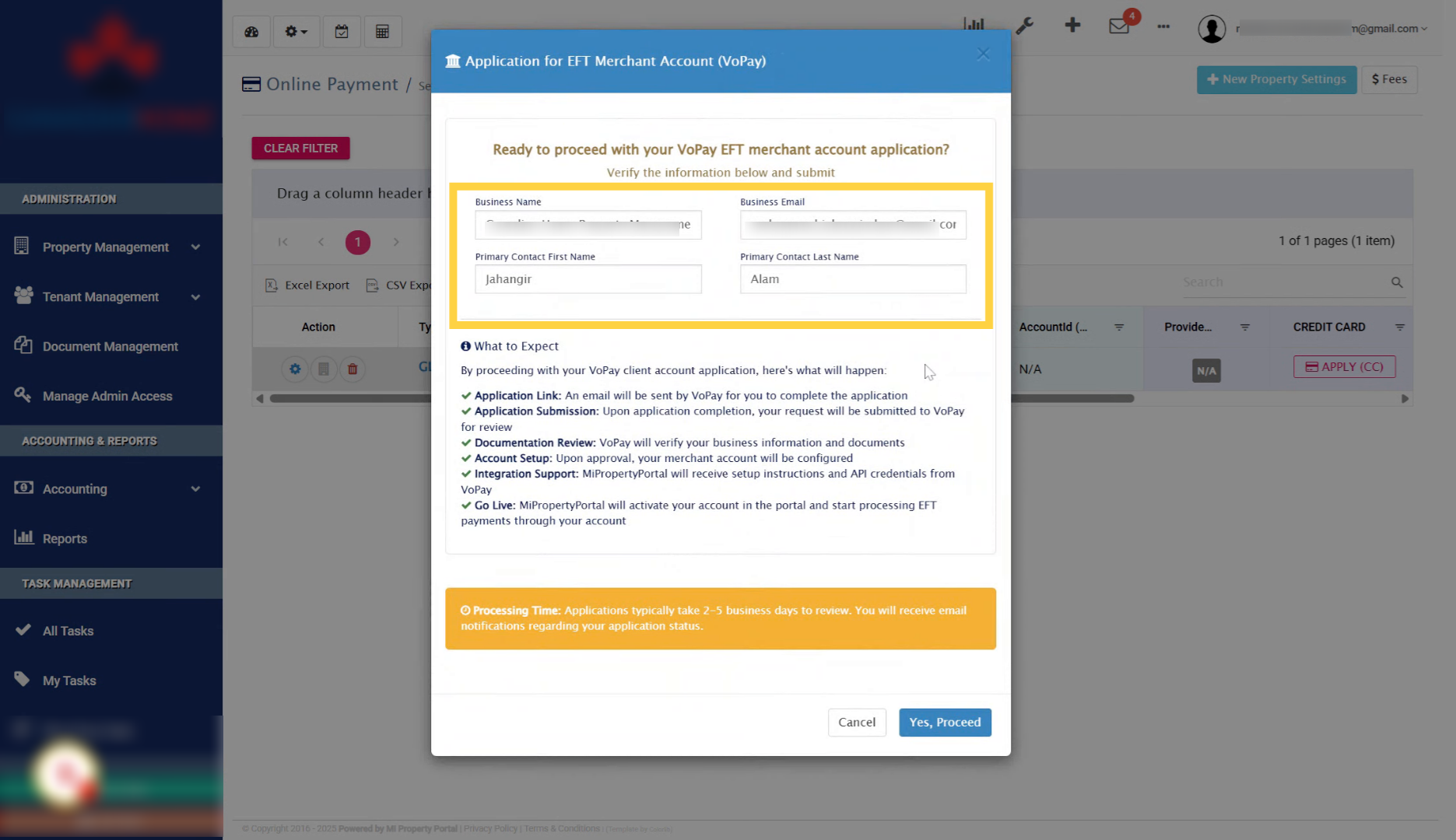
Enter Primary Email Address

16. Check or update Primary Email if needed in this field
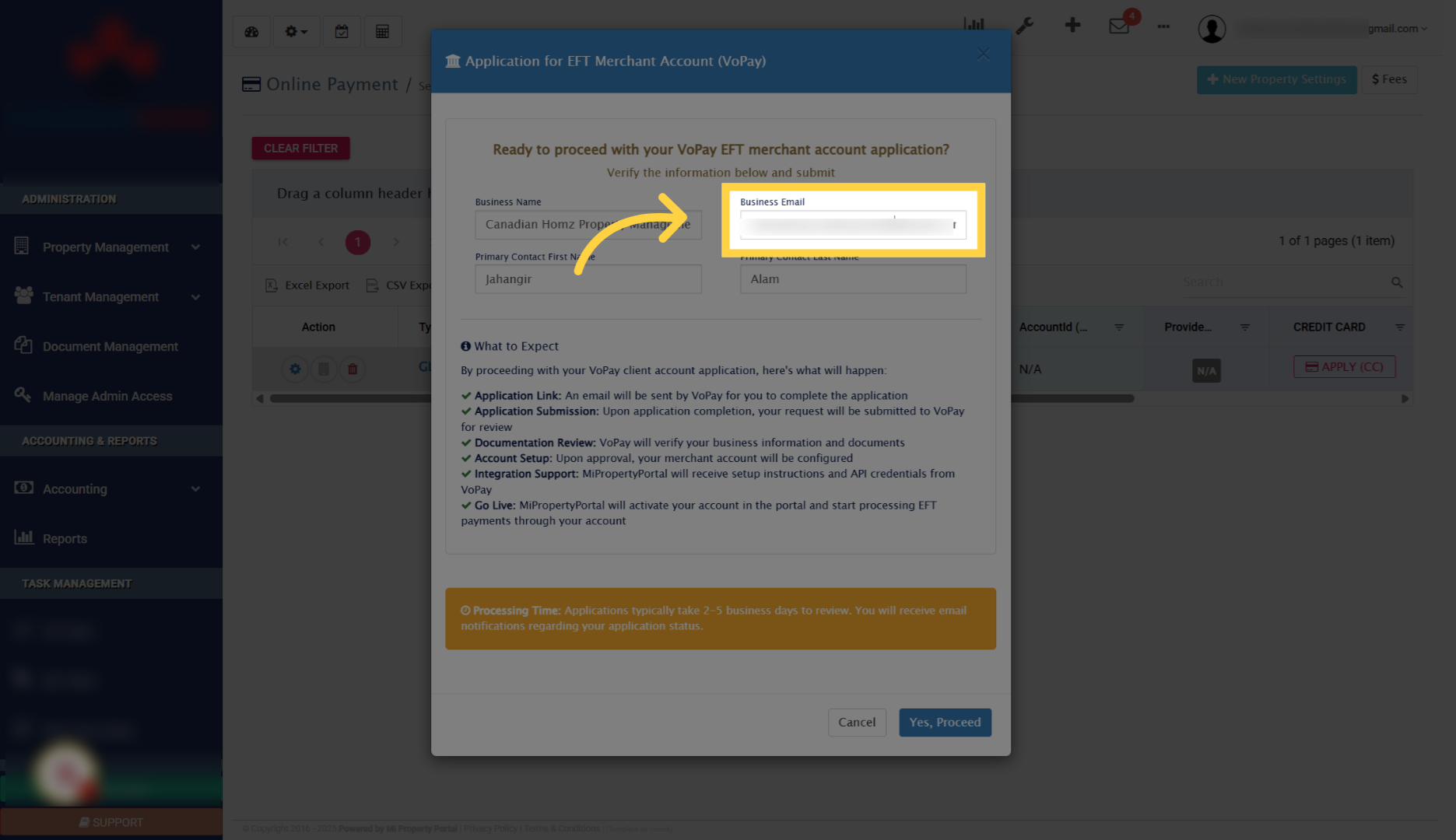
Check or update Primary Email if needed

17. Review Instructions on what to expect upon submitting application
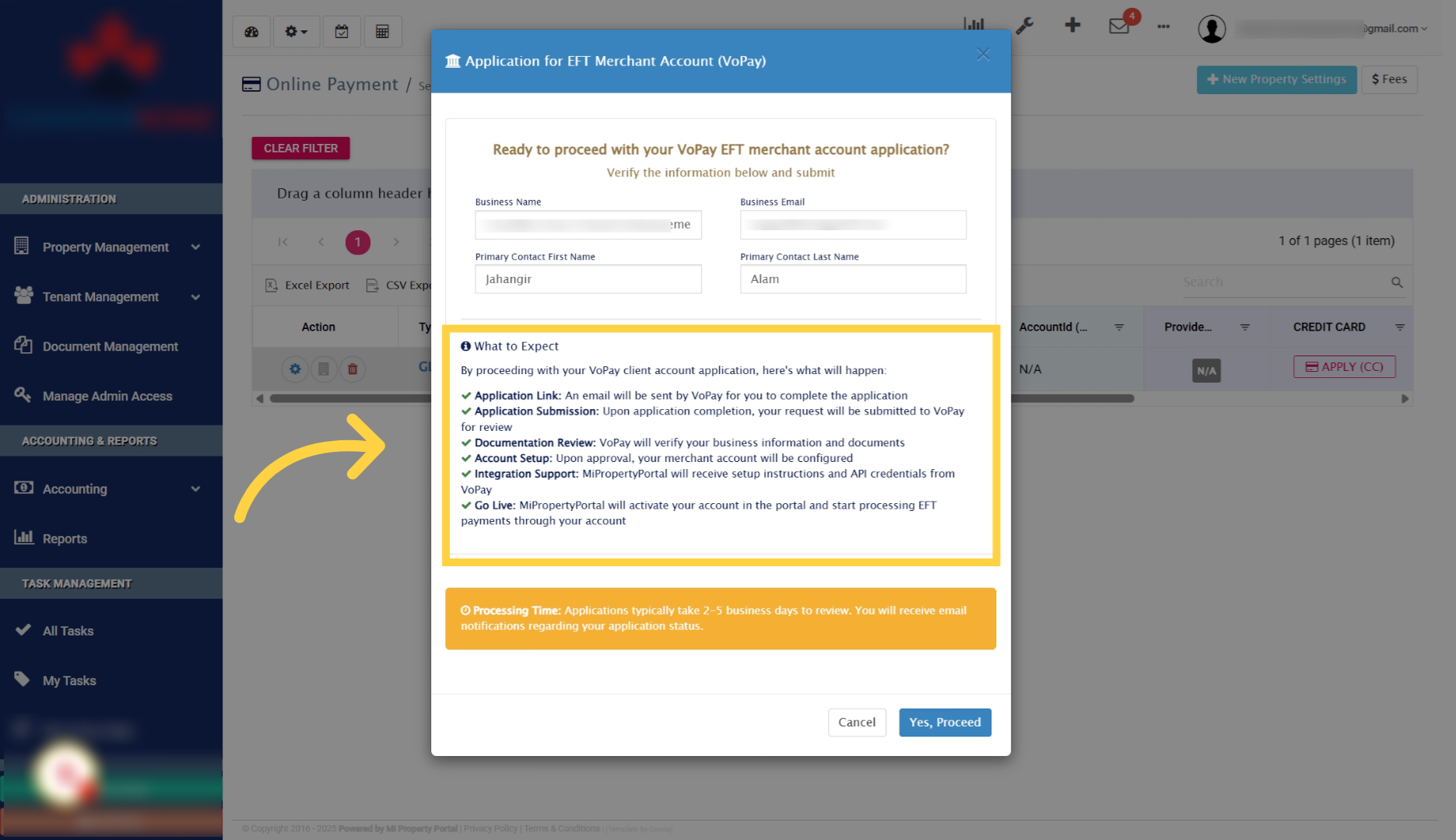
Review Instructions on what to expect upon submitting application

18. Click Yes Proceed Button
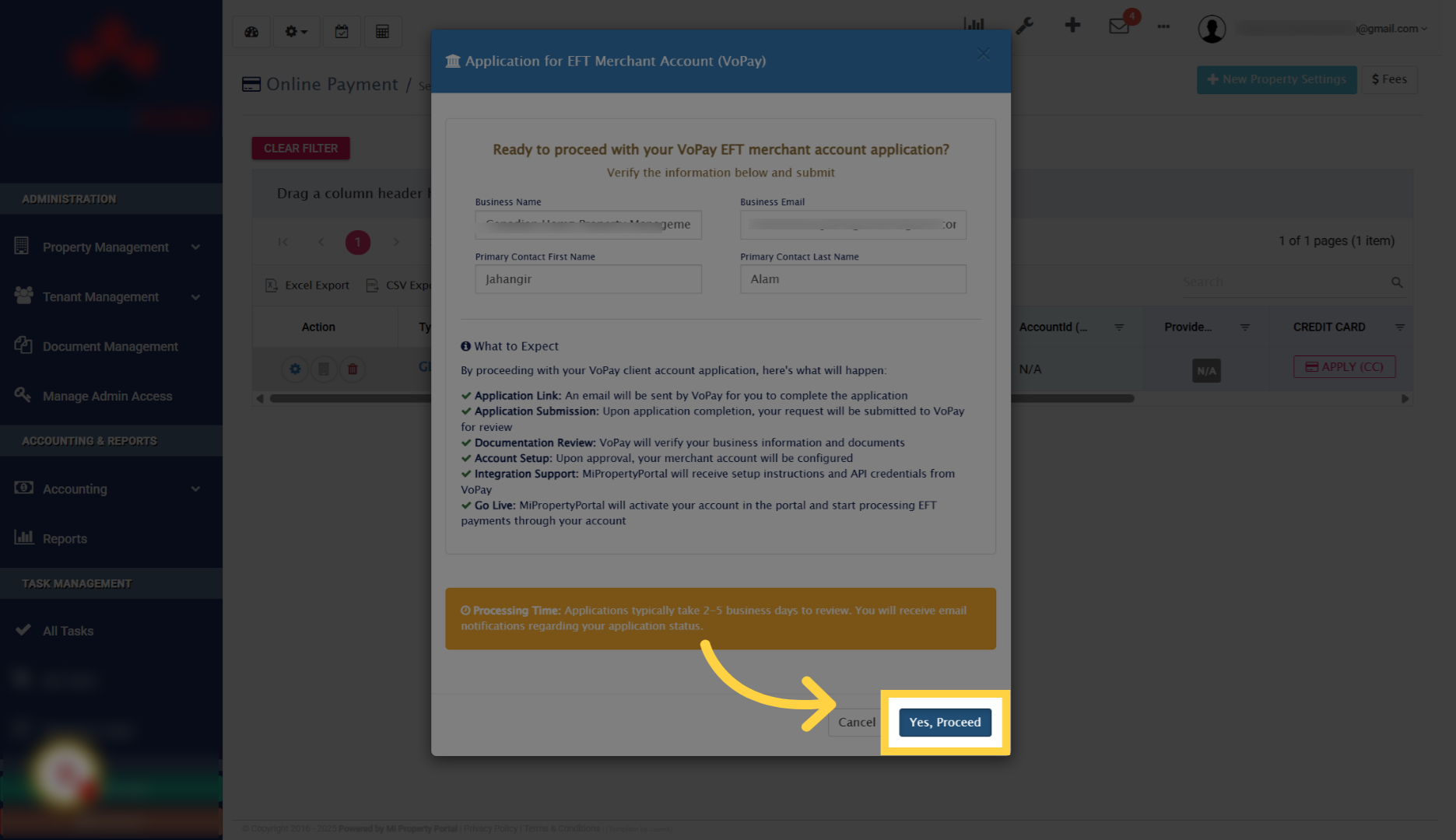
Click Yes Proceed Button

19. You will receive a notification from VoPay at the email address you provided with next steps
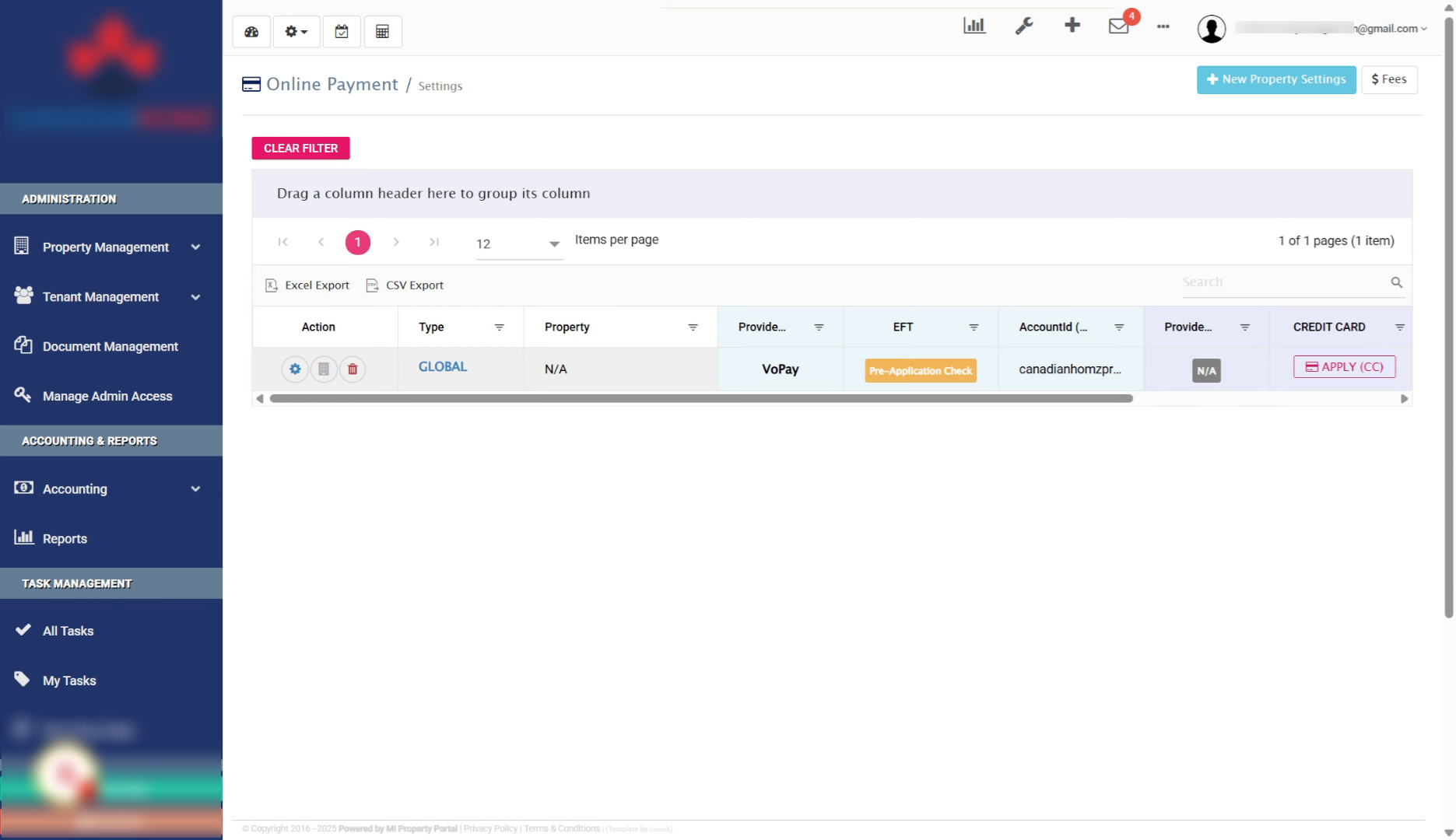
Await Notification From VoPay

20. Follow the instructions provided by VoPay in their notification to complete your merchant account setup
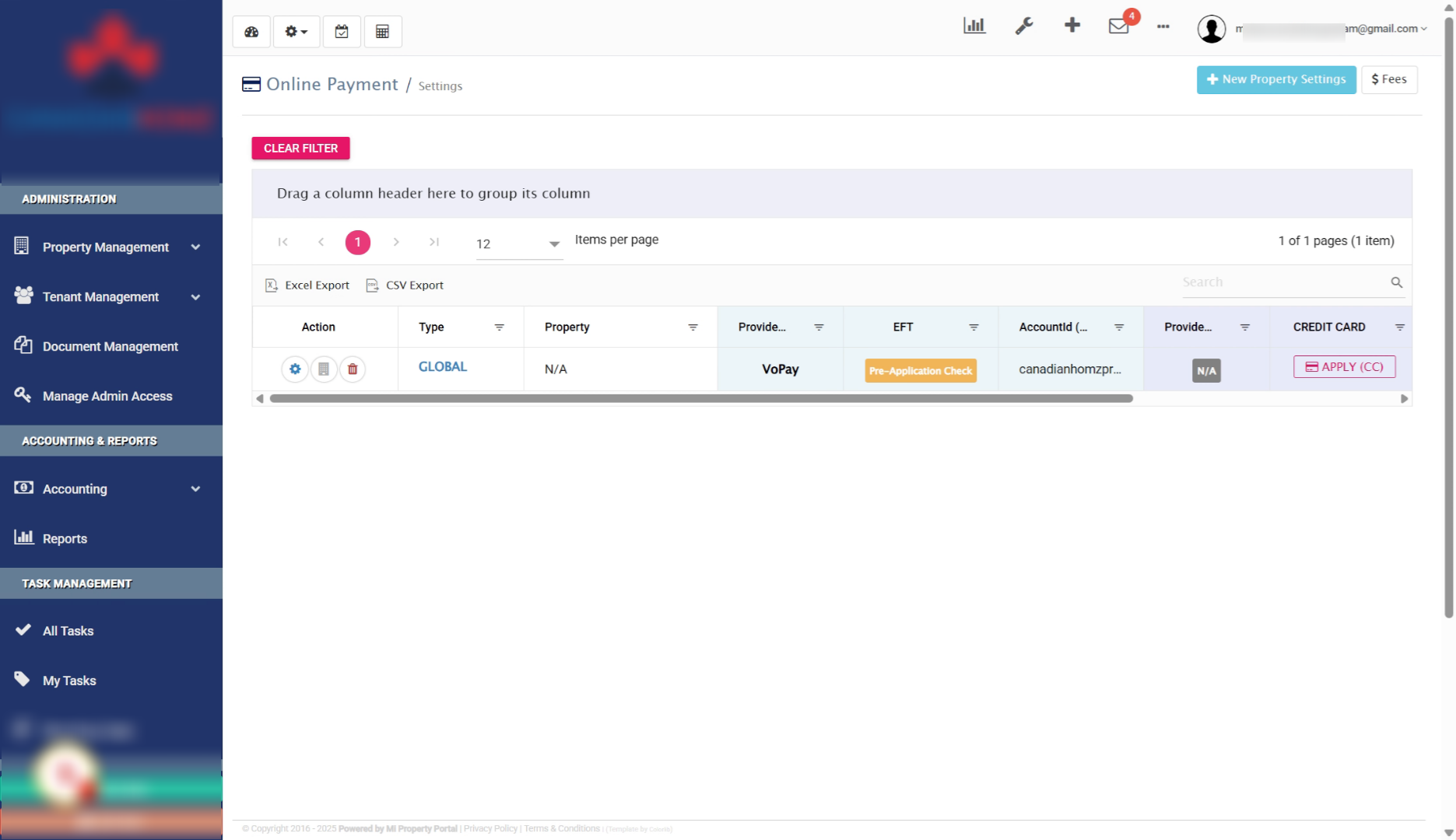
Follow VoPay Instructions

21. You have now completed all steps to apply for your VoPay merchant account successfully
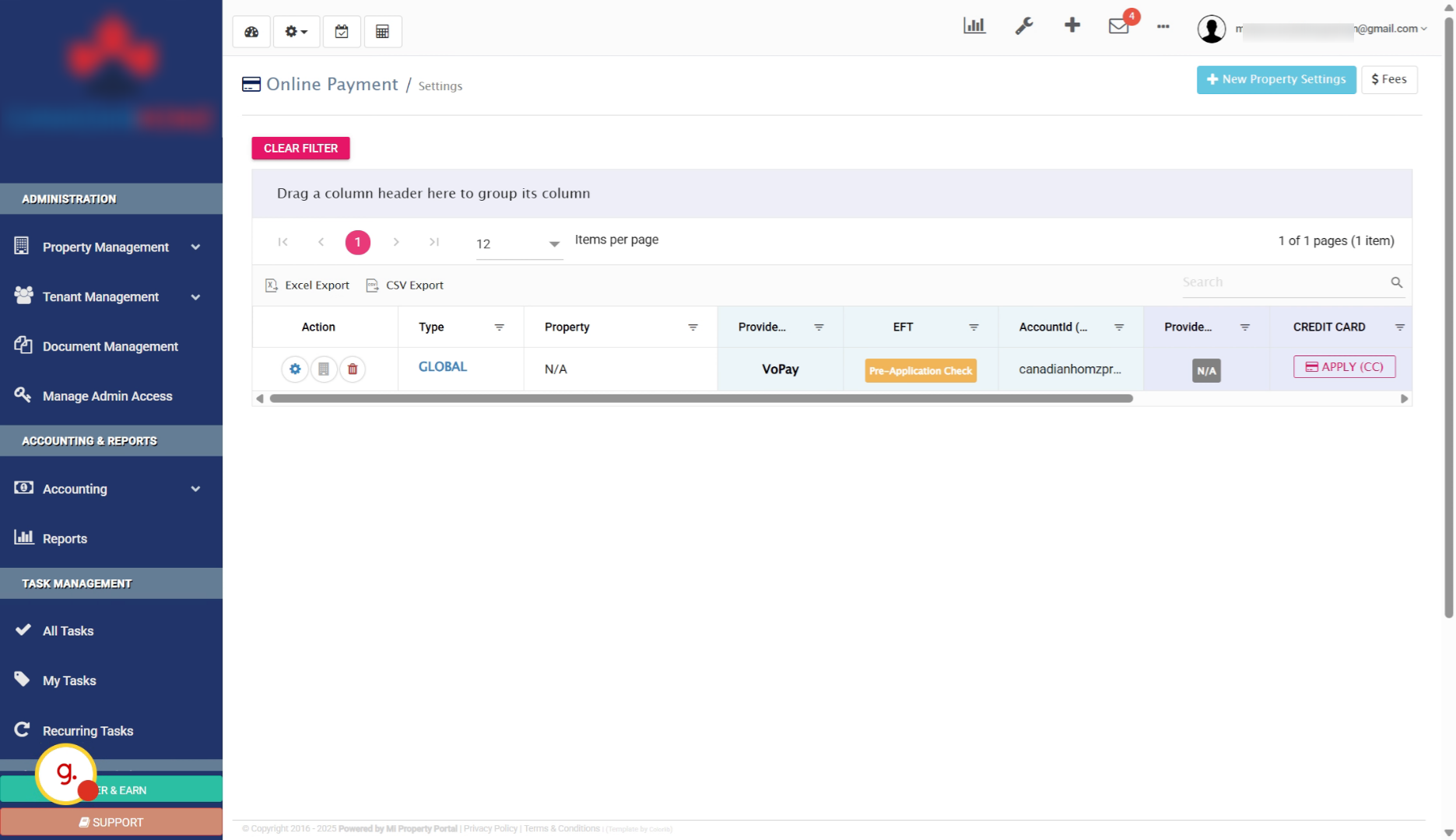
End Of Tutorial


Tags:How to Apply For VoPay Merchant AccountApply For VoPay Merchant AccountVoPay Merchant Accountvopay

Was this helpful?

Yes  No
Related Articles
  • How to Automatically Adjust Tenant Credits to Rental Invoices
  • Can I Use VoPay for Some Properties and Worldline for Others?
  • Online Payment Settings : Global Vs Property
  • Mi Property Portal: Payment Processors Features & Fee Comparison
  • How to Download Mi Property Portal Mobile App
  • Payment Processing Cutoff Times: Easy Guide

Didn't find your answer? Contact Us

Leave A Comment Cancel reply

You must be logged in to post a comment.

Popular Articles
  • Email notification sent to tenant on Other document upload
  • How to Enable Tenants to Submit LTB Forms from the Tenant Portal
  • Can I log rental income for ‘Unpaid’ invoices for ‘Moved-out’ tenants?
  • How to Automatically Adjust Tenant Credits to Rental Invoices
  • New Feature – Trust Liability Report
KB Category
  • Service Request
  • Subscription
  • Bulk Data Upload
  • Owner Portal
  • MiPropertyPortal Admins Training Workshop
  • MiPropertyPortal New Features/Improvements Monthly Webinar
  • Task Management
  • Prospective Tenants
  • Setup
  • Vendor Management
  • Tenant Screening
  • Tenant Portal
  • Tenant Management
  • Accounting
  • Security Deposit
  • Reporting
  • Rental Tax
  • Rental Listing
  • Property Owner Related
  • Property
  • Other
  • Asset Management
  • Online Payment
  • Lease Management
  • General
  • Form Management

  How to View Vendor Advanced Payment Report

How to View Bulk Payment History Report  

MiPP
MiProperty Portal is Canadian-made for
Canadian landlords and property managers.
COMPANY
  • About Us
  • Why MiPP?
  • Features
SUPPORT
  • Knowledge Base
  • Get Email Help
SOCIAL
  • Linkedin
  • Facebook
  • Twitter
  • Privacy Policy
  • Terms of Use
  • © 2025 mipropertyportal.com. All Rights Reserved.