In this video, we’ll discuss the steps to create a work order. Let’s get started.
1. Click on the Tenant Management dropdown from the left navigation, and select Work Order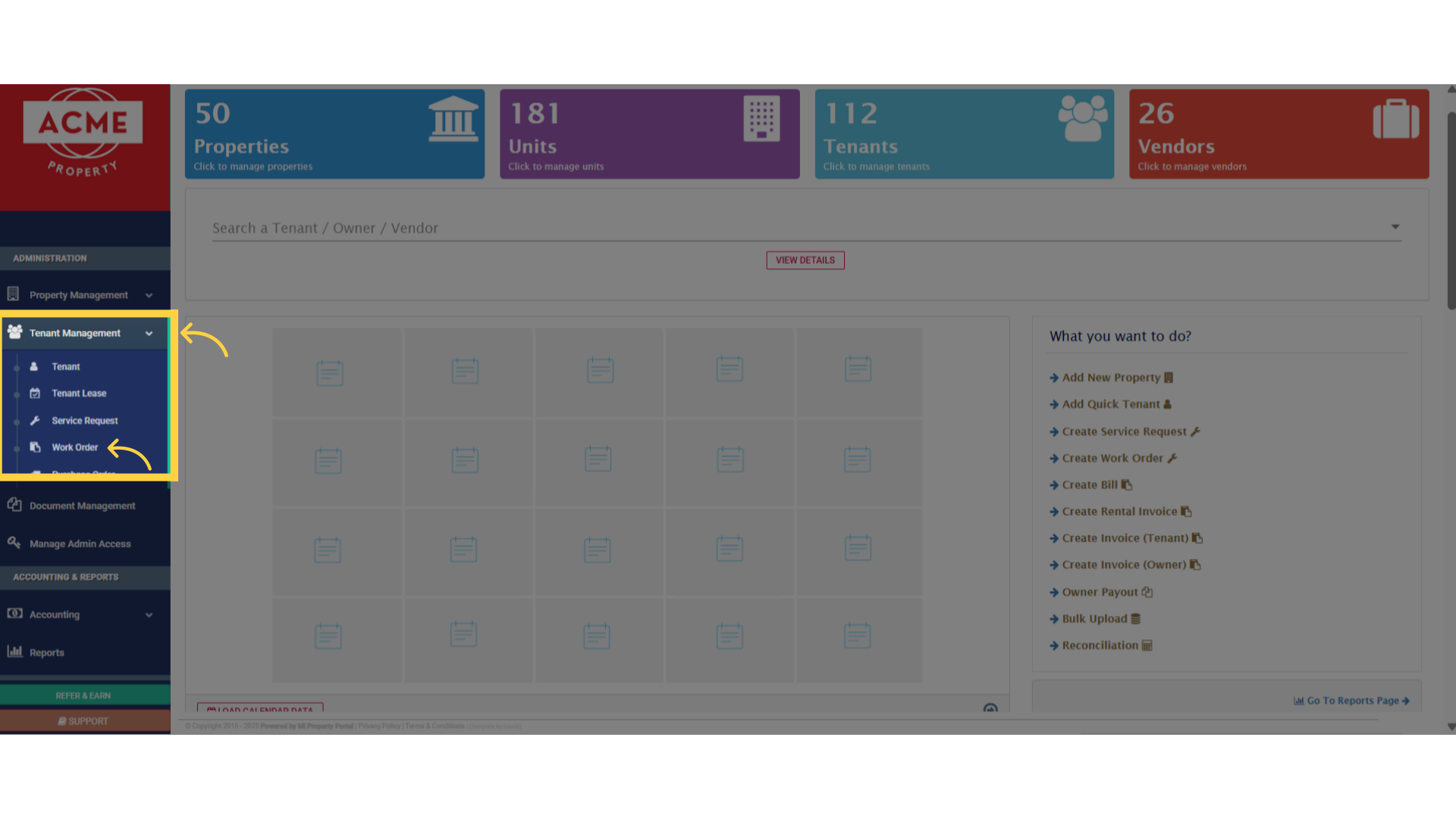
2. Click on the “More Action” dropdown button on the top right, then select “New Work Order” from the options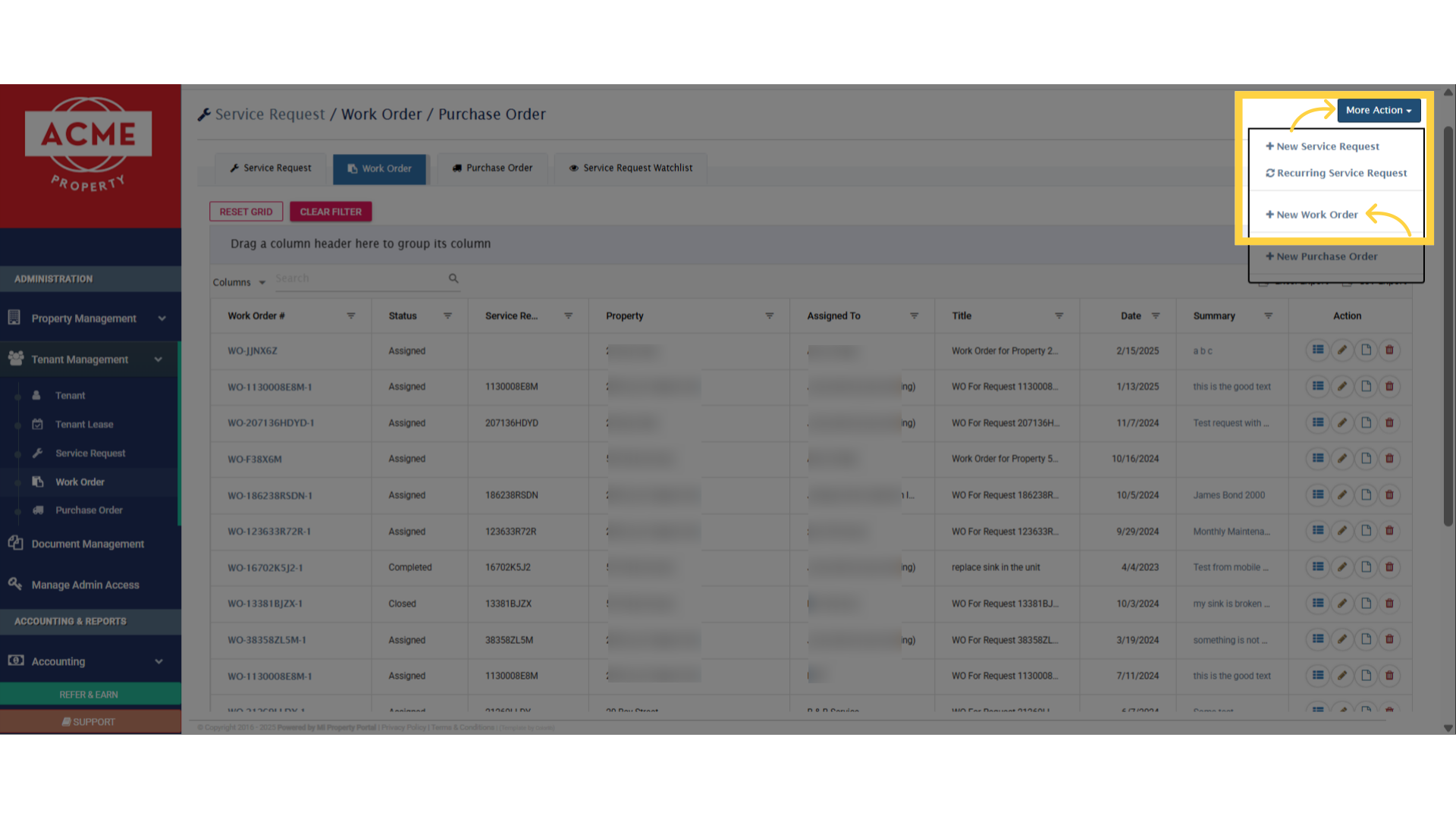
3. Select a property from the required dropdown. If a service request was created earlier without a work order, choose it from the Service Request dropdown. Then, click Submit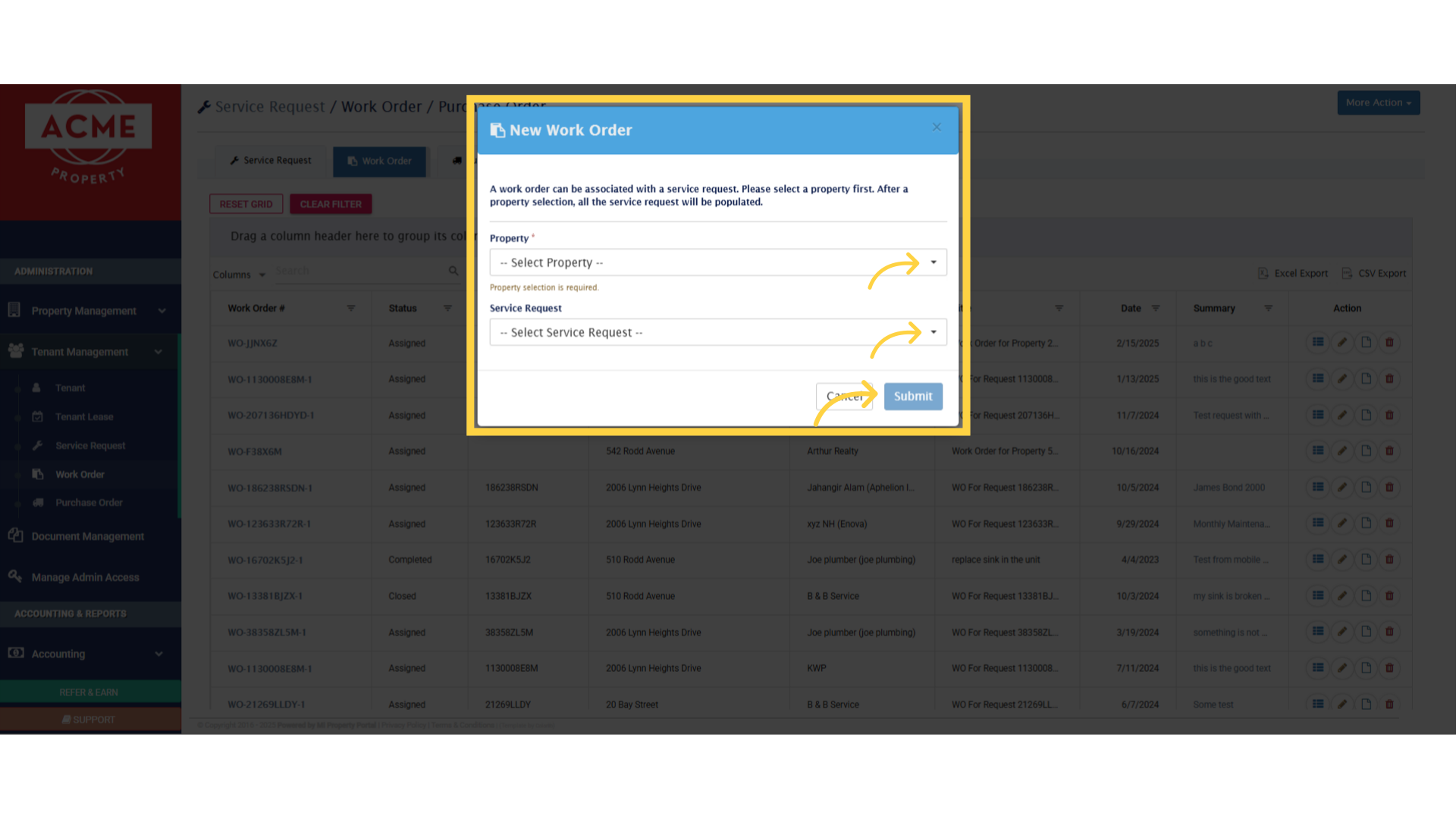
4. This page begins the work order creation process. In the Title section, enter the Company Name, Phone, and Email—these will appear as headers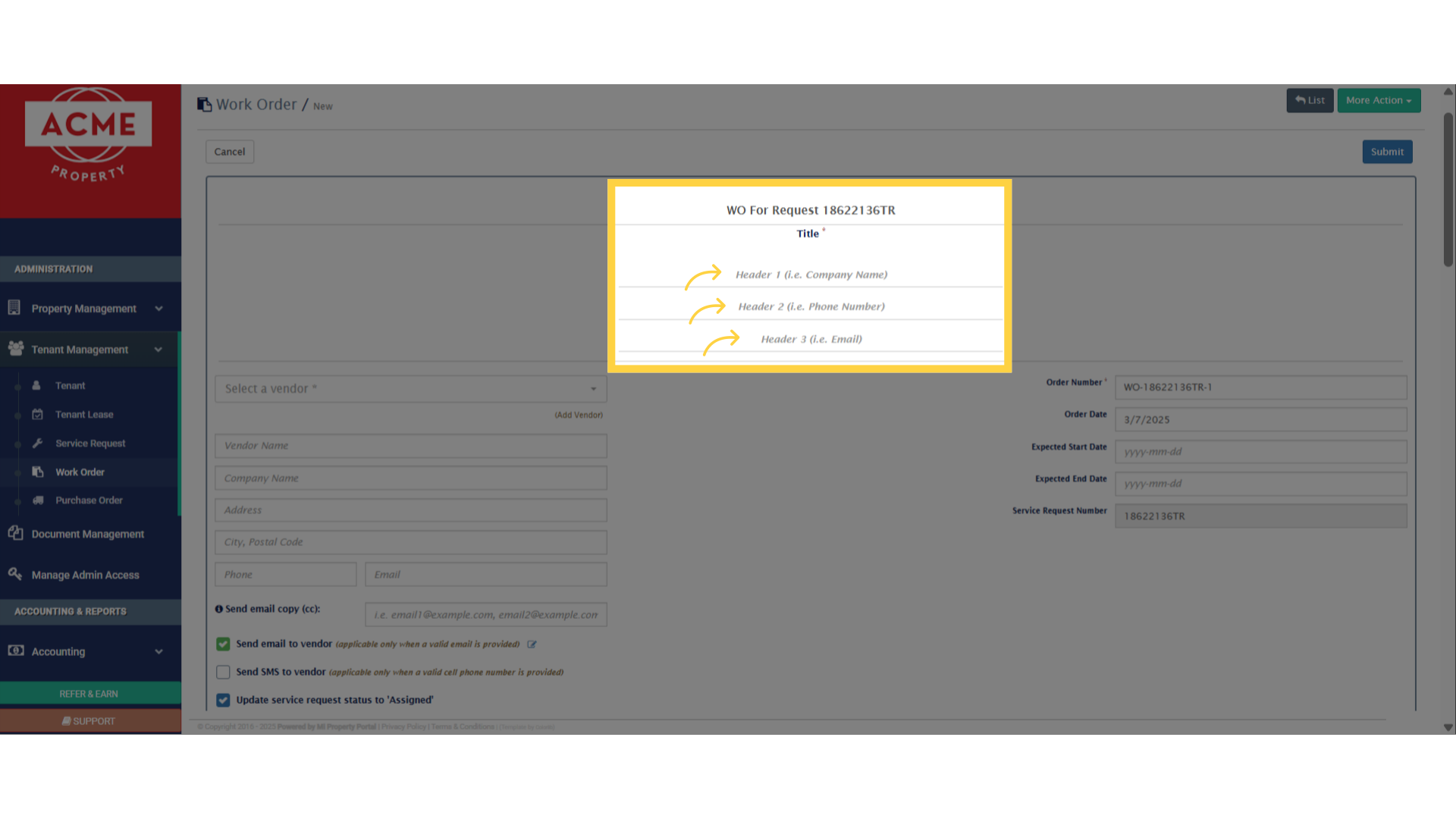
5. In this section on the left, select a vendor from the dropdown, and the rest of the vendor details will be auto-populated. The details can be filled in manually as well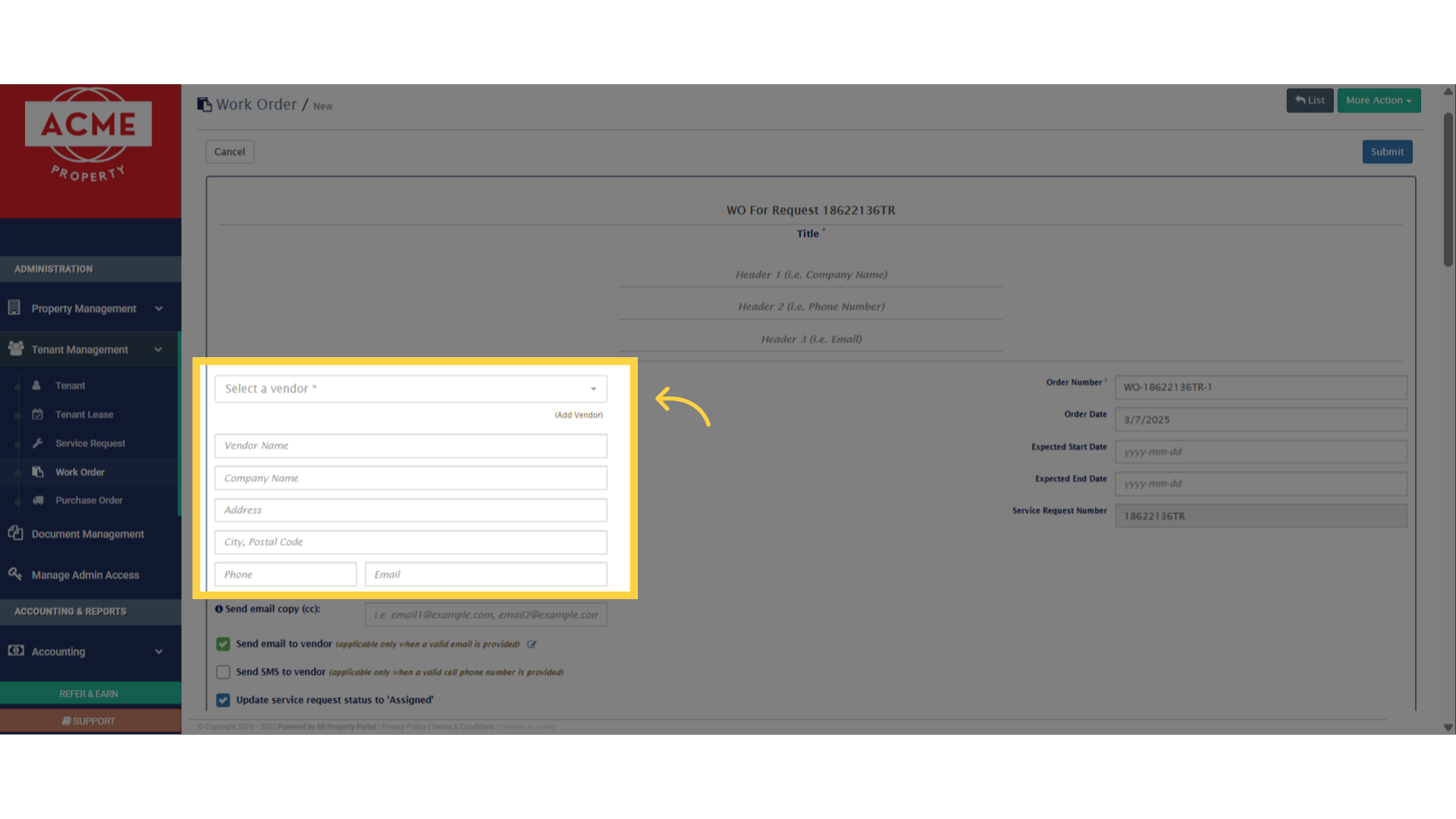
6. Enter a CC email in this field (Optional). Tick mark the boxes as needed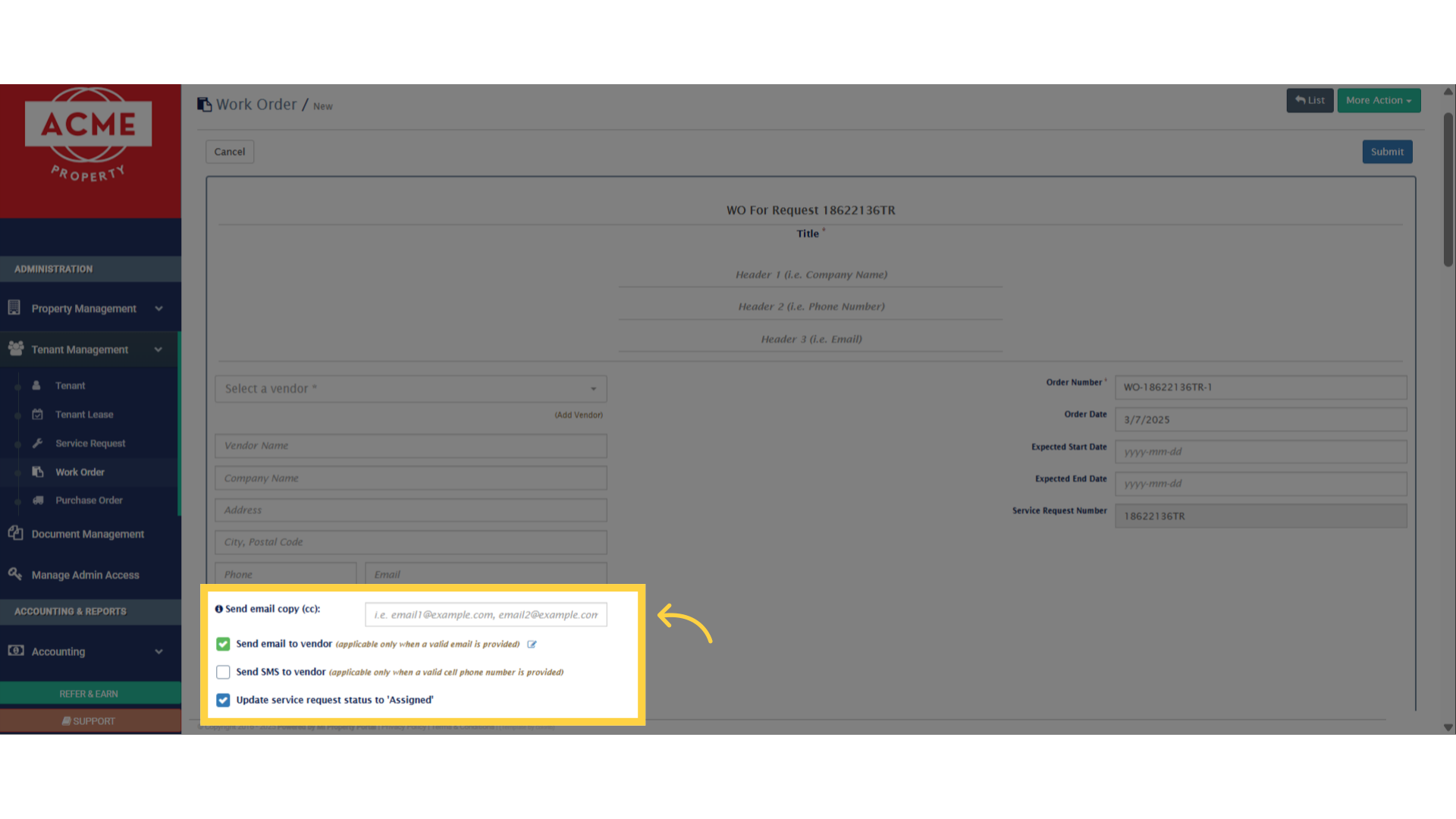
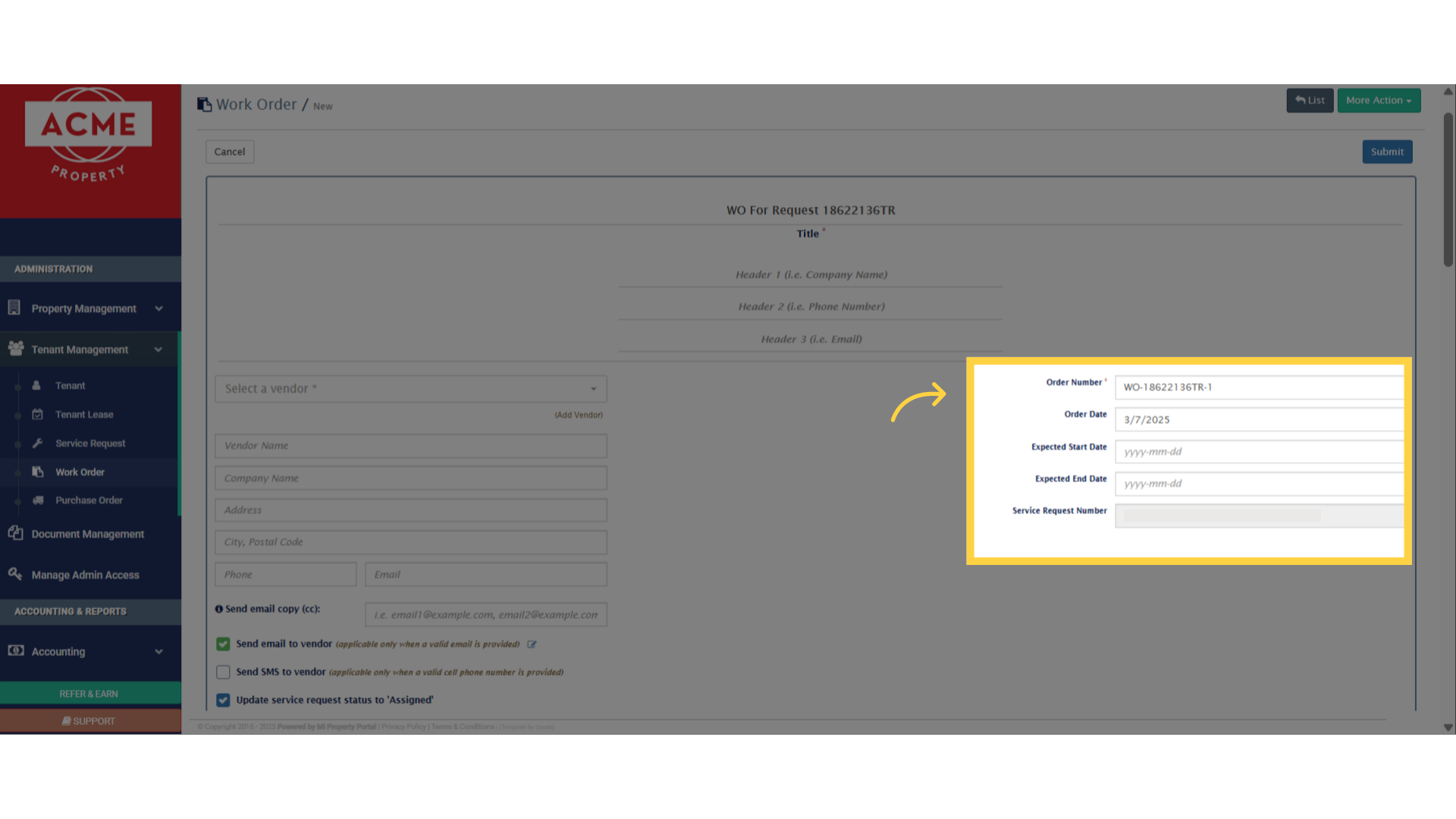
7. In this section, the Work Order Number will be auto-populated. Choose an Expected Start Date and End Date accordingly. And then, scroll down
8. Fill out all the Tenant Information fields, such as Name, Email, Phone, and Unit. Tick the box to display tenant information to the vendor if needed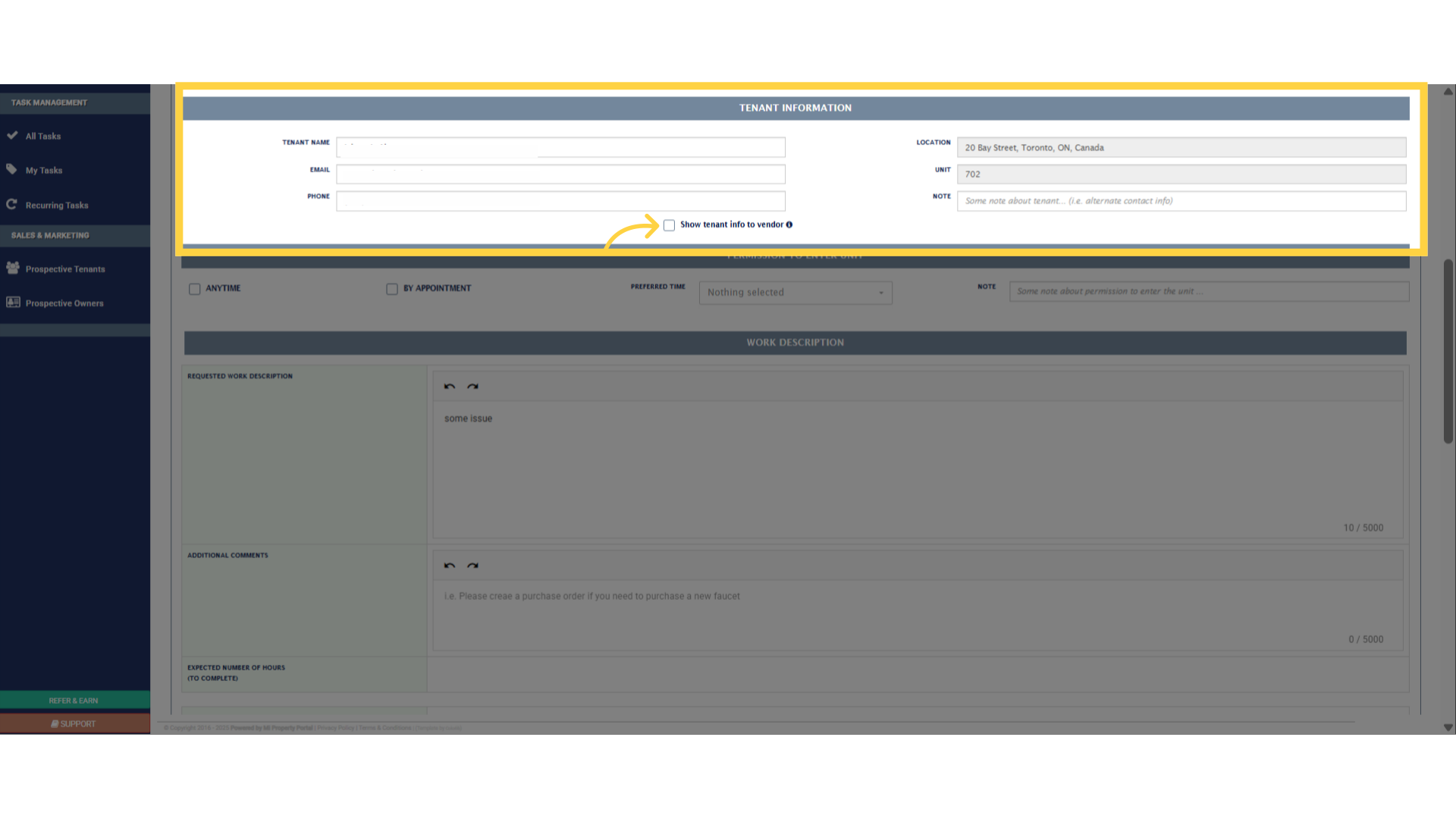
9. In the Permission to Enter Unit section, either tick the box for “Anytime” or choose “By Appointment”. Select the preferred time from the dropdown. Add notes (Optional) 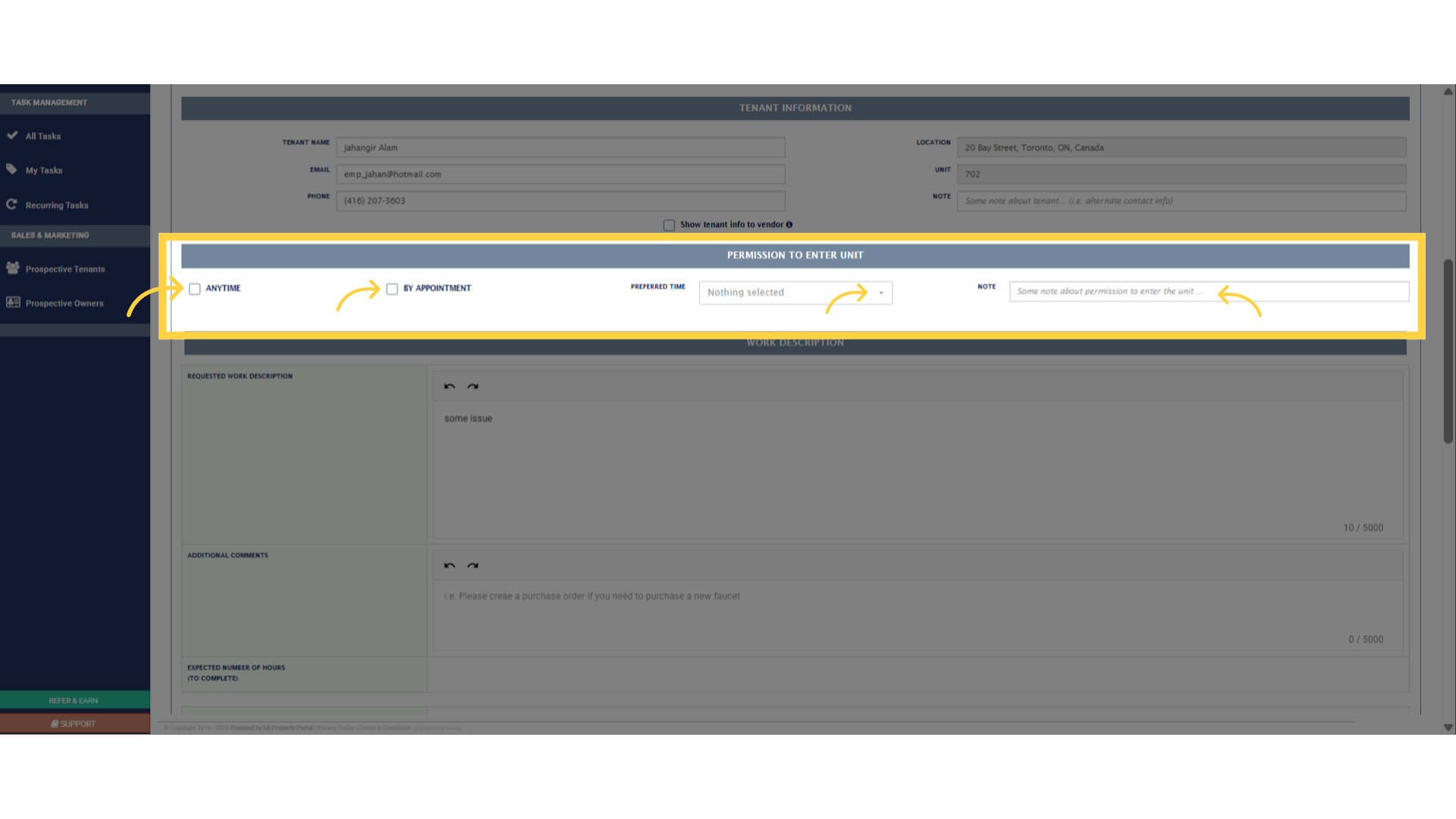
10. Fill out all the required fields under the Work Description section, like description of the work, expected number of hours it should take to complete the work, who’s the work going to be performed by and so on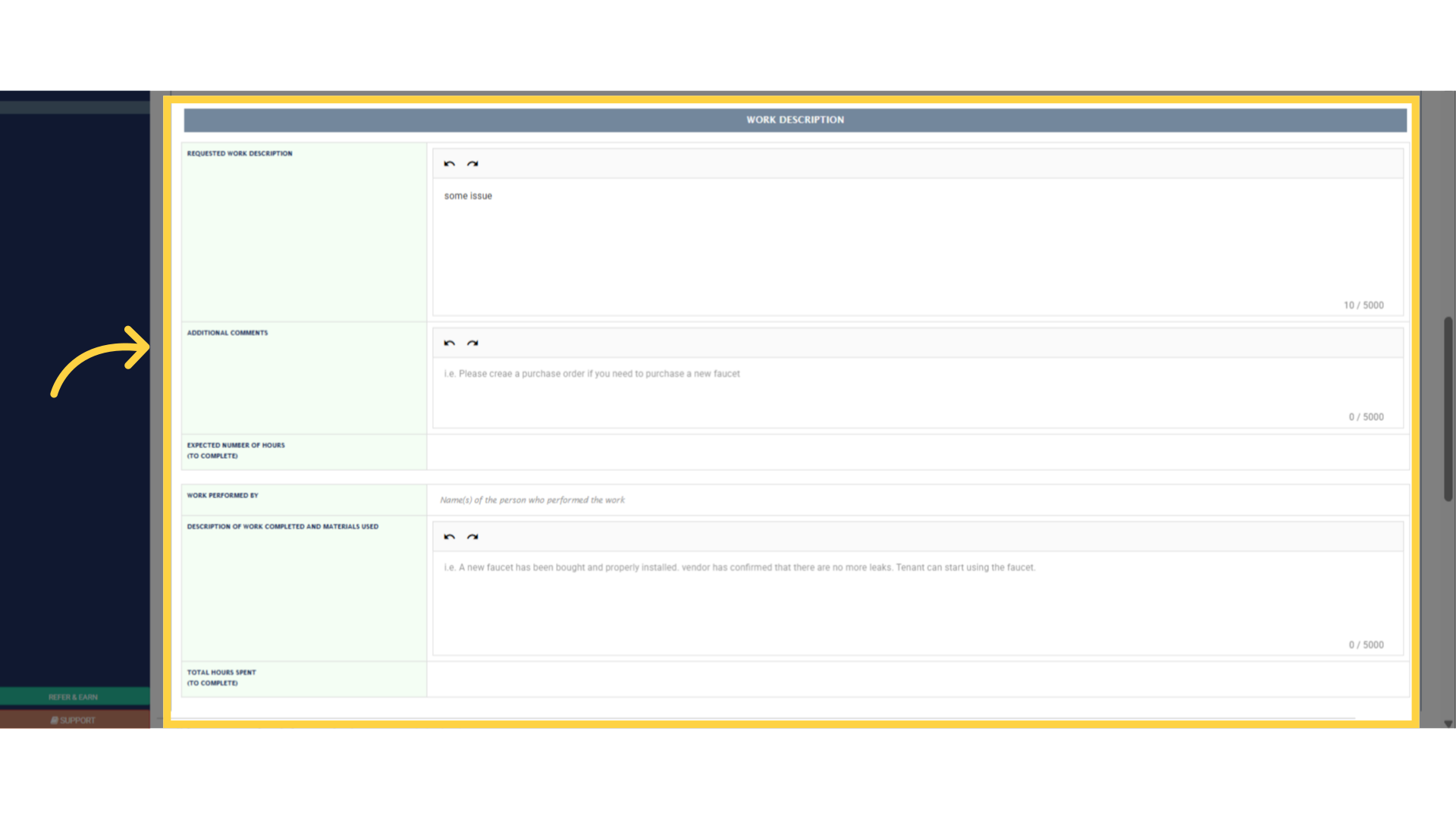
11. In the Unit Entry Log section, enter the entry date, time of entry, and time of departure. Complete the fields for Work Order Approved By, Date of Approval, Cost of Labor, Cost of Materials, Taxes Paid, and Total Cost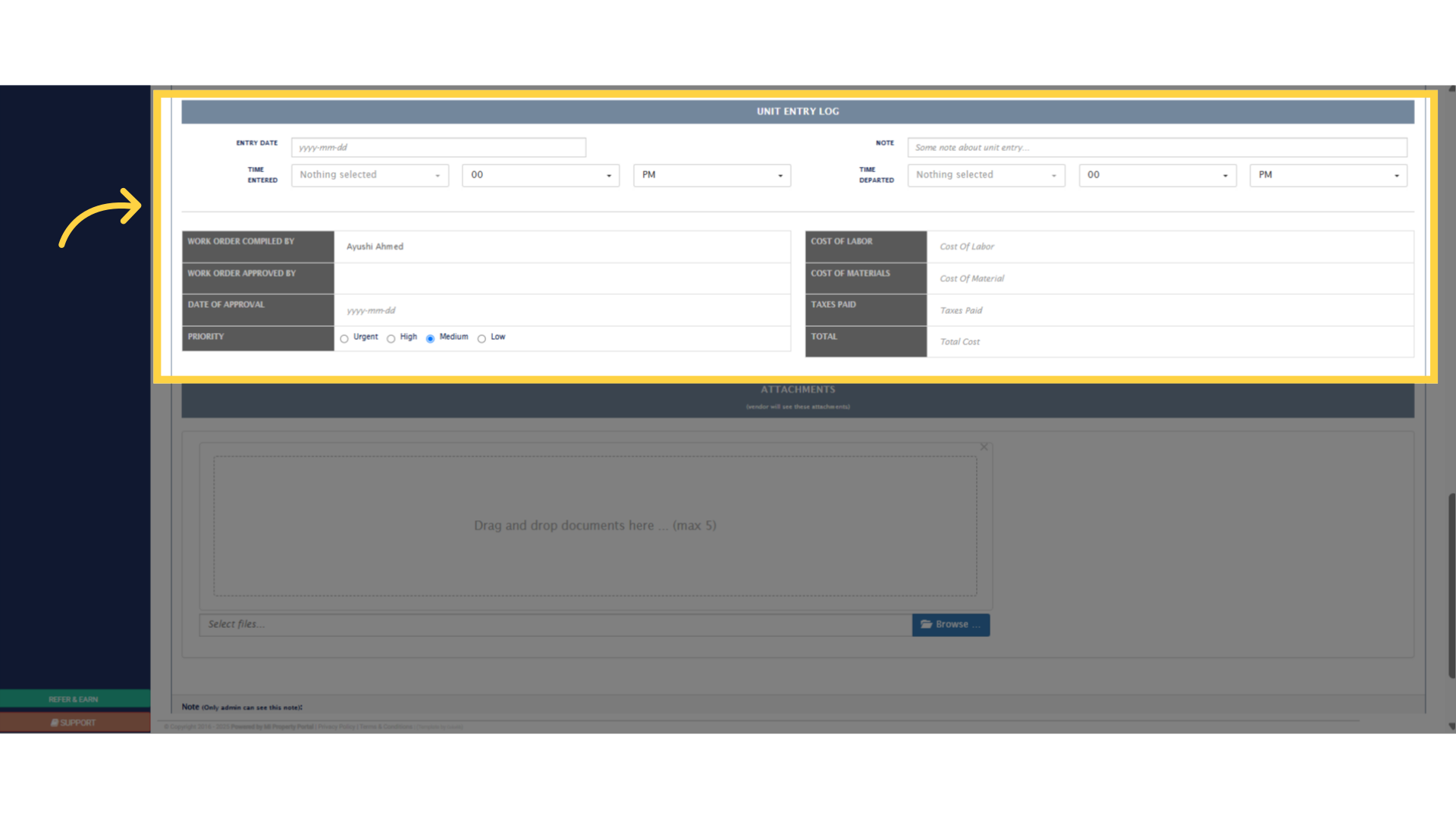
12. Upload up to 5 documents for the work order by dragging and dropping them, or by clicking the Browse button to select files from the local system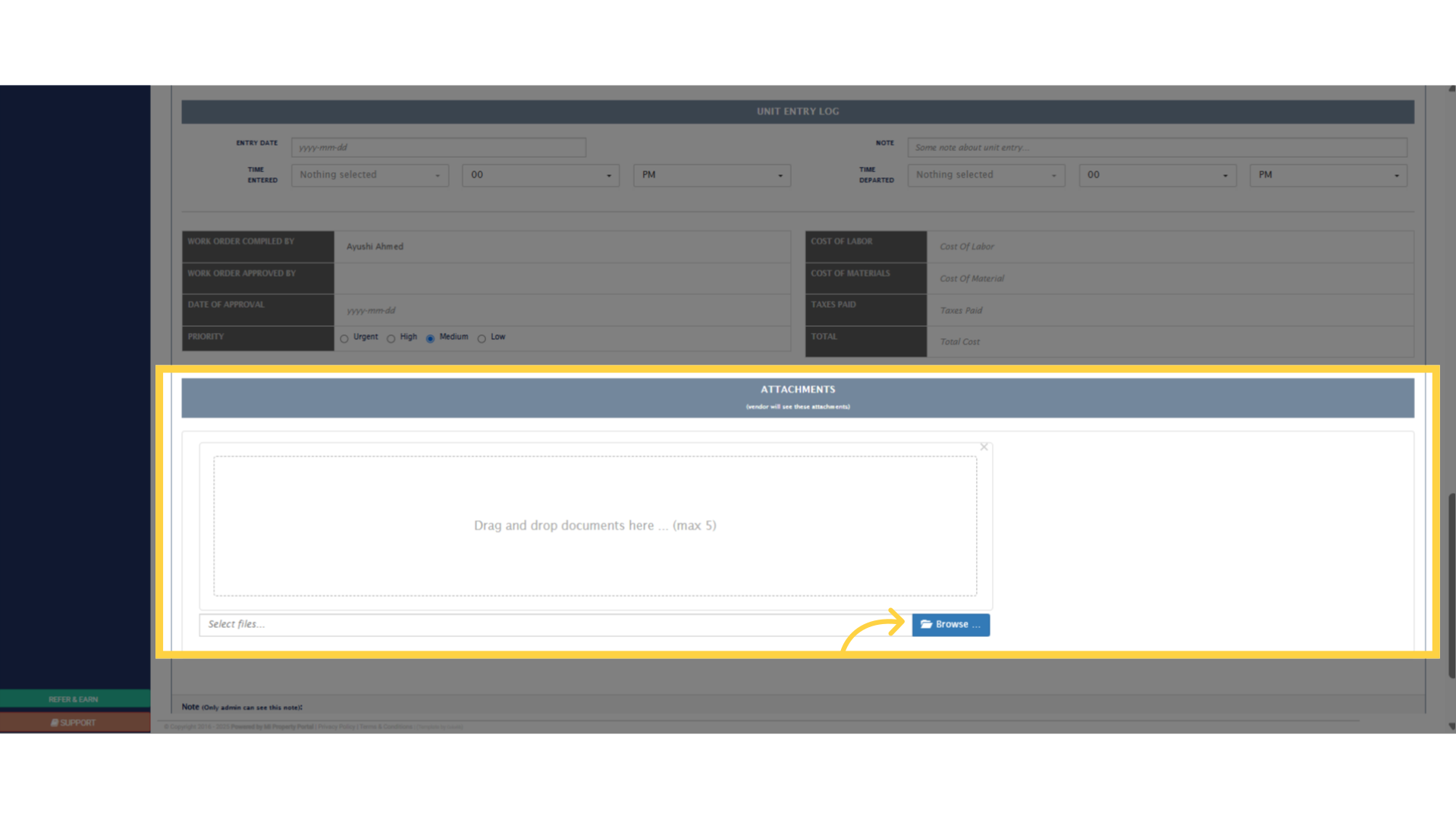
13. Add notes in the Notes field (Optional). Finally, click on the “Submit” button to create the work order in the system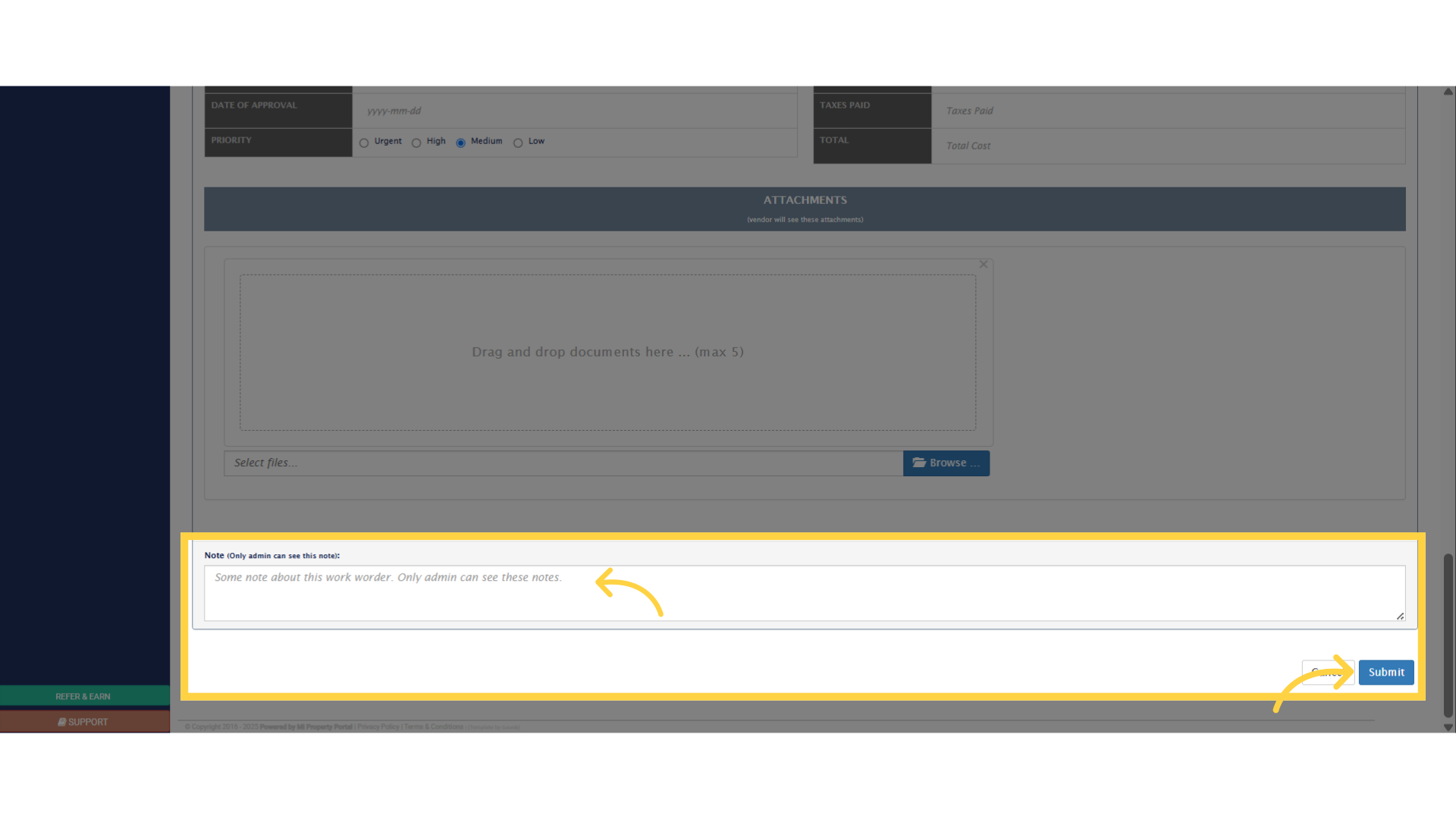
14. The work order is created, can be viewed or edited from the Work Order list view page under the Tenant Management dropdown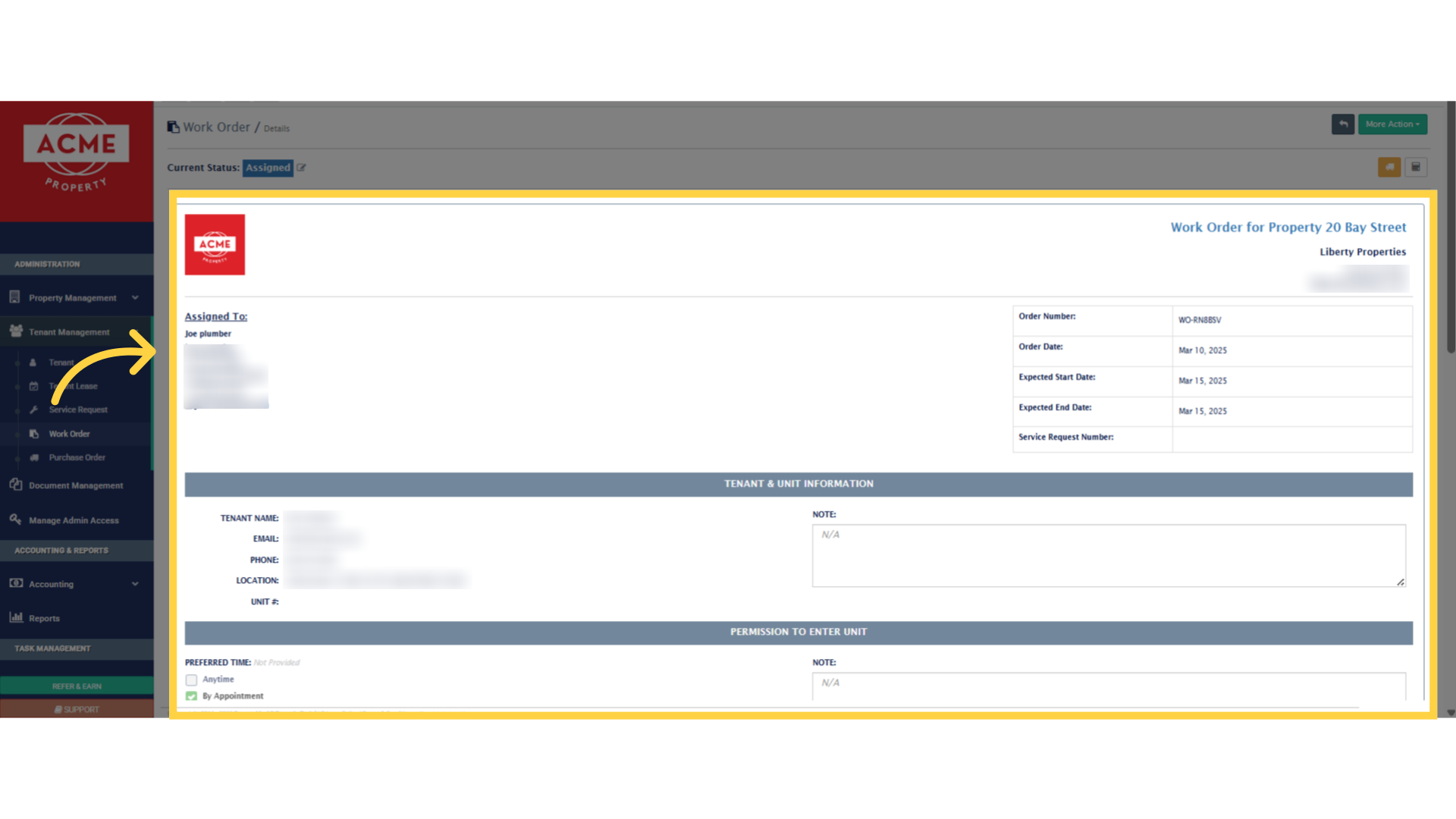 In this video, I showed you how to create a Work Order. The steps of Creating a purchase order is very similar, and we also have a video for it. You can check it out! See you on the next one