• Home
  • Blogs
  • FAQs
  • Login
  • Home
  • Blogs
  • FAQs
  • Login
home/Knowledge Base/Property/How to Create a Work Order from the Property List Page?

How to Create a Work Order from the Property List Page?

54 views 0 November 14, 2023 Updated on October 22, 2024 mippsupportadmin

1. Click “Property Management”
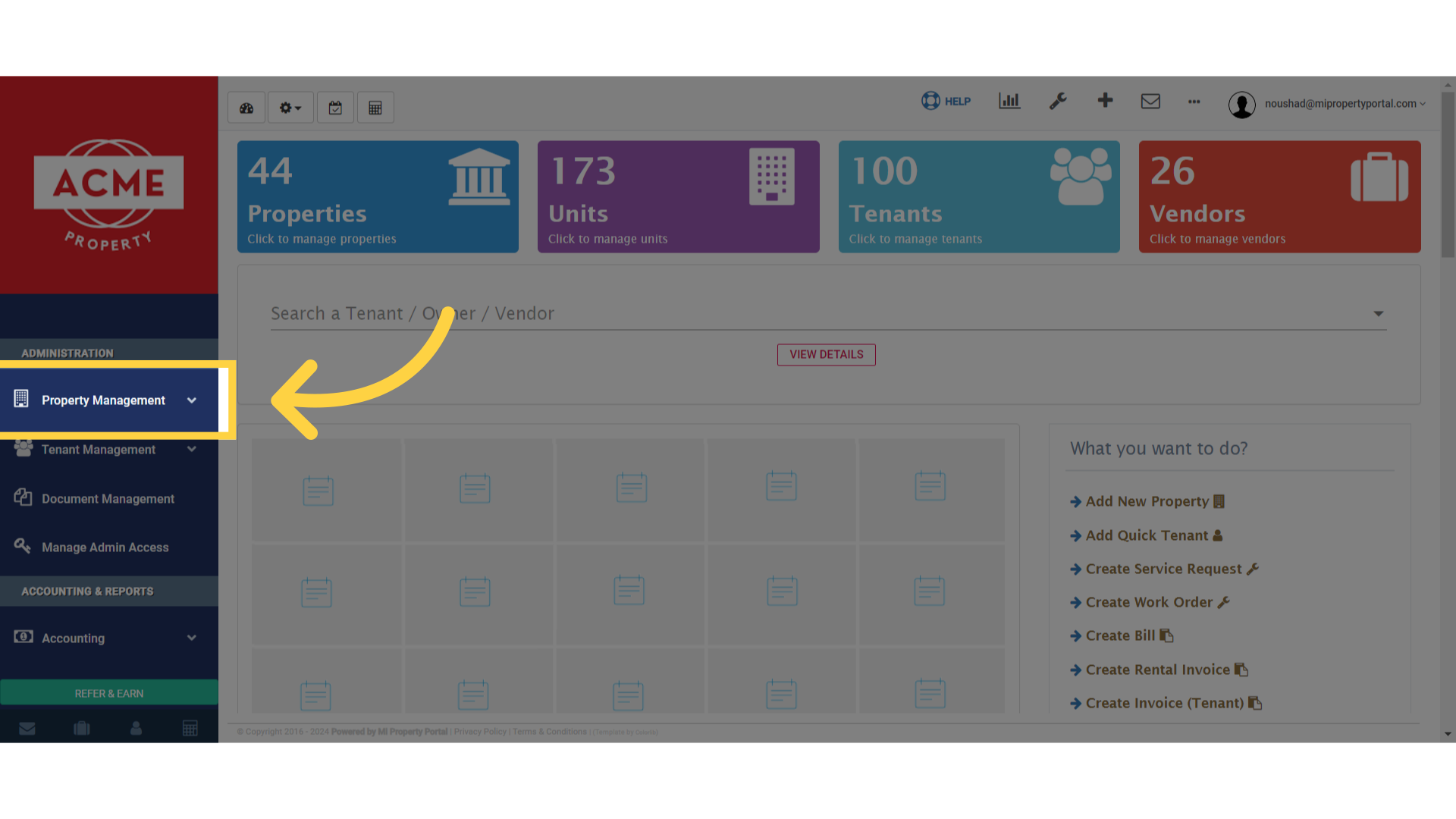
Click 'Property Management'

2. Click on Properties under Property Management dropdown
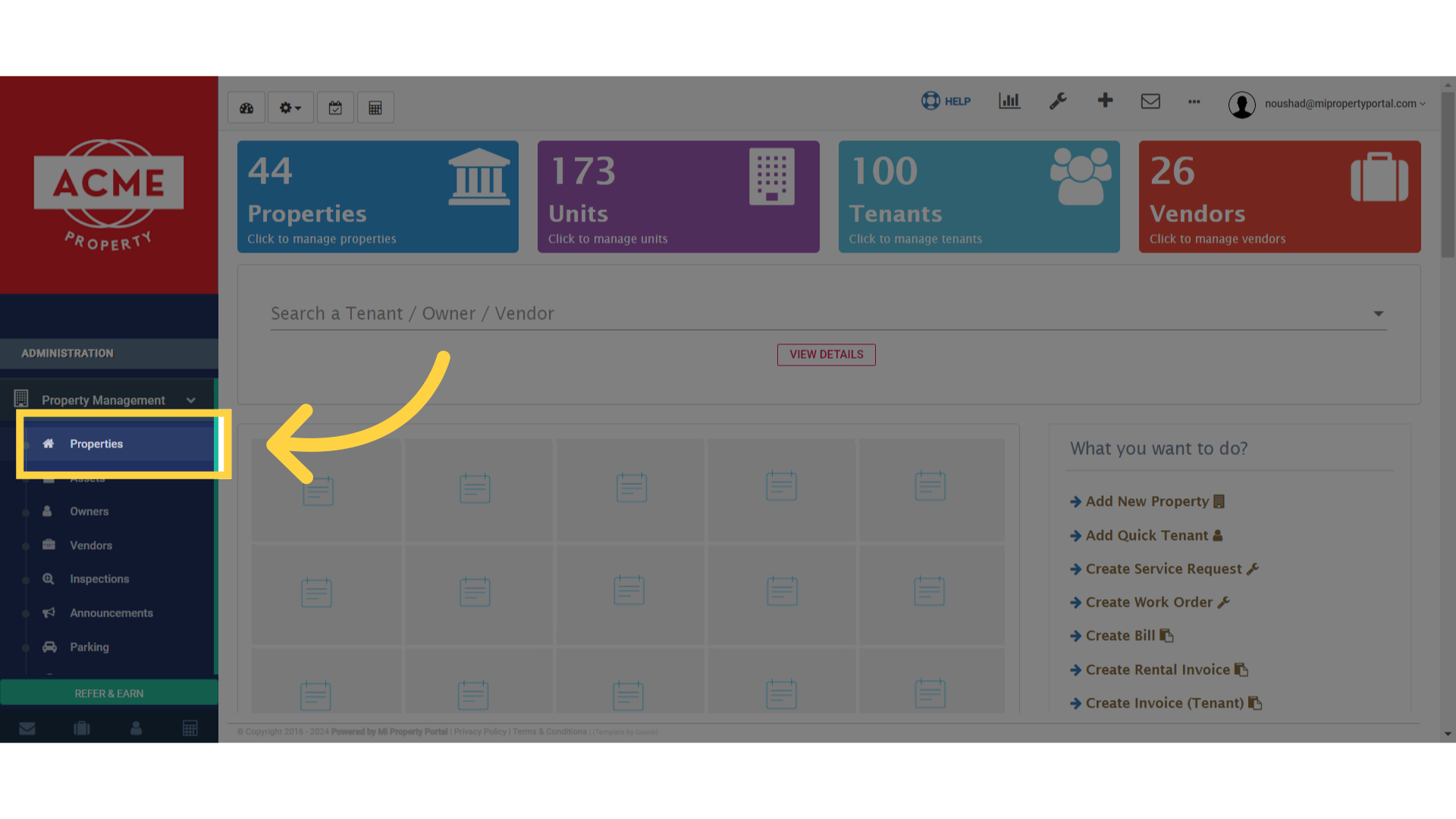
Click 'Properties'

3. Click on the Search Property field to search for a property
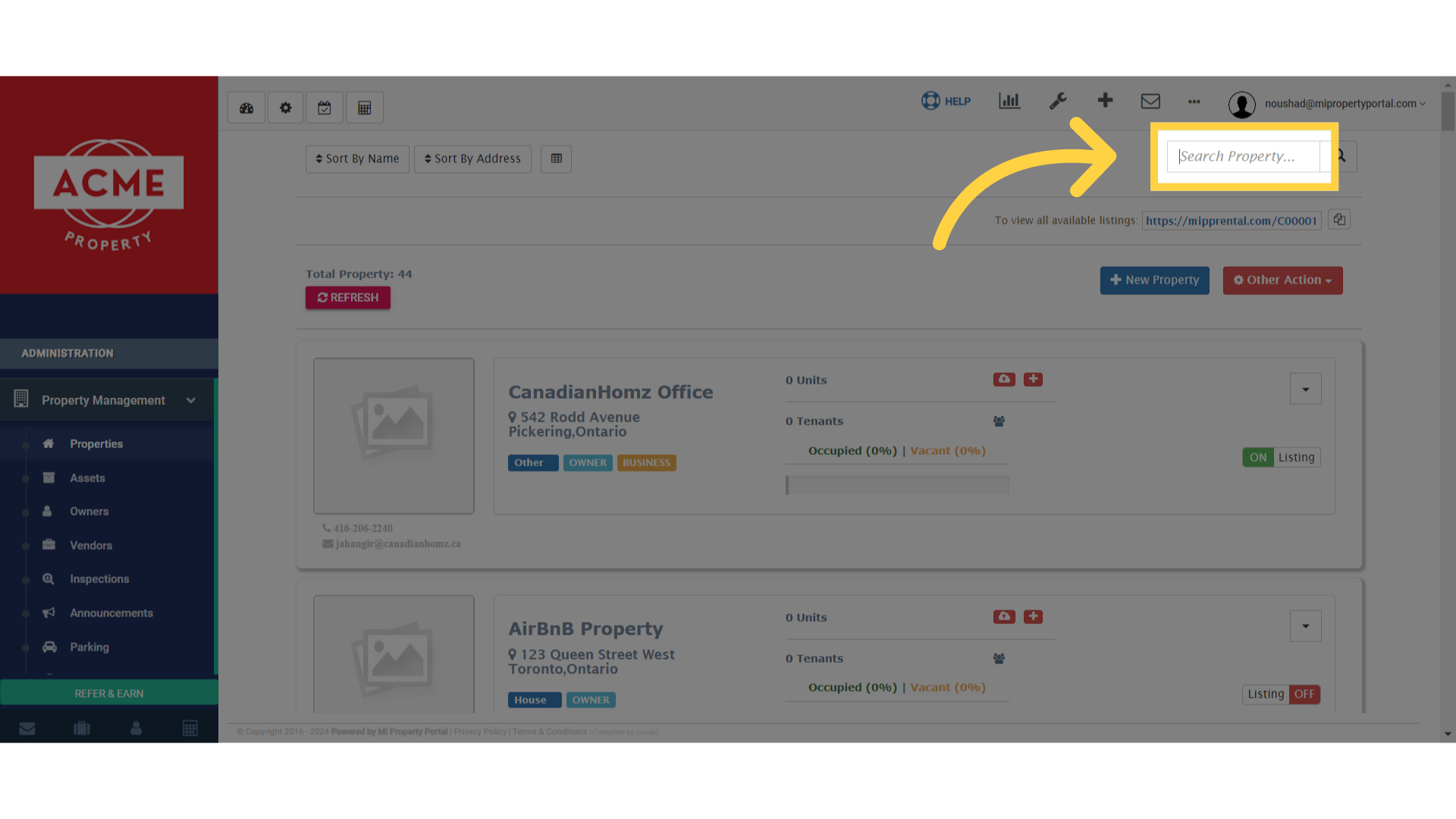
Click 'Search Property...'

4. Click on the dropdown in the Property List Page
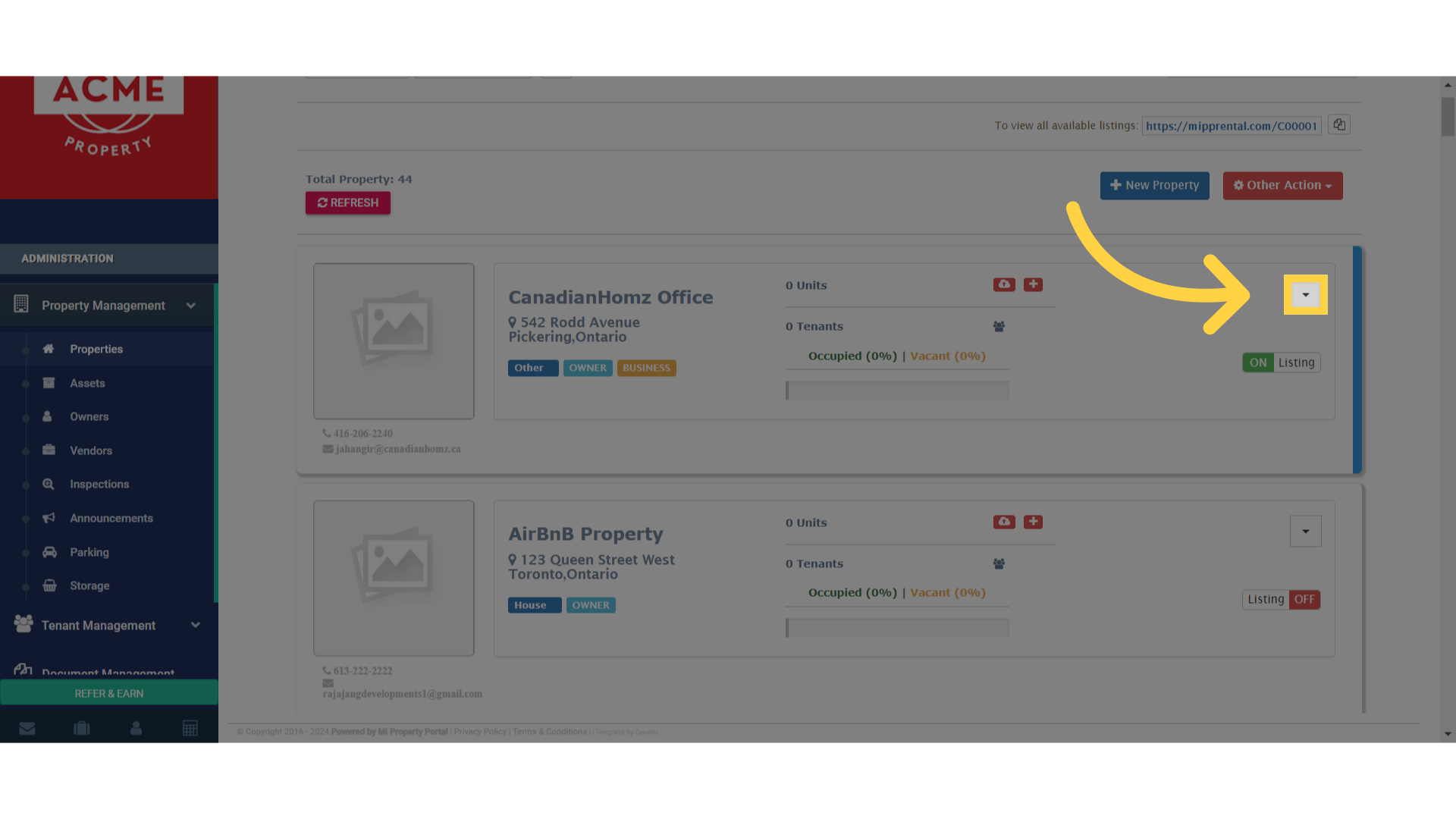
Click here

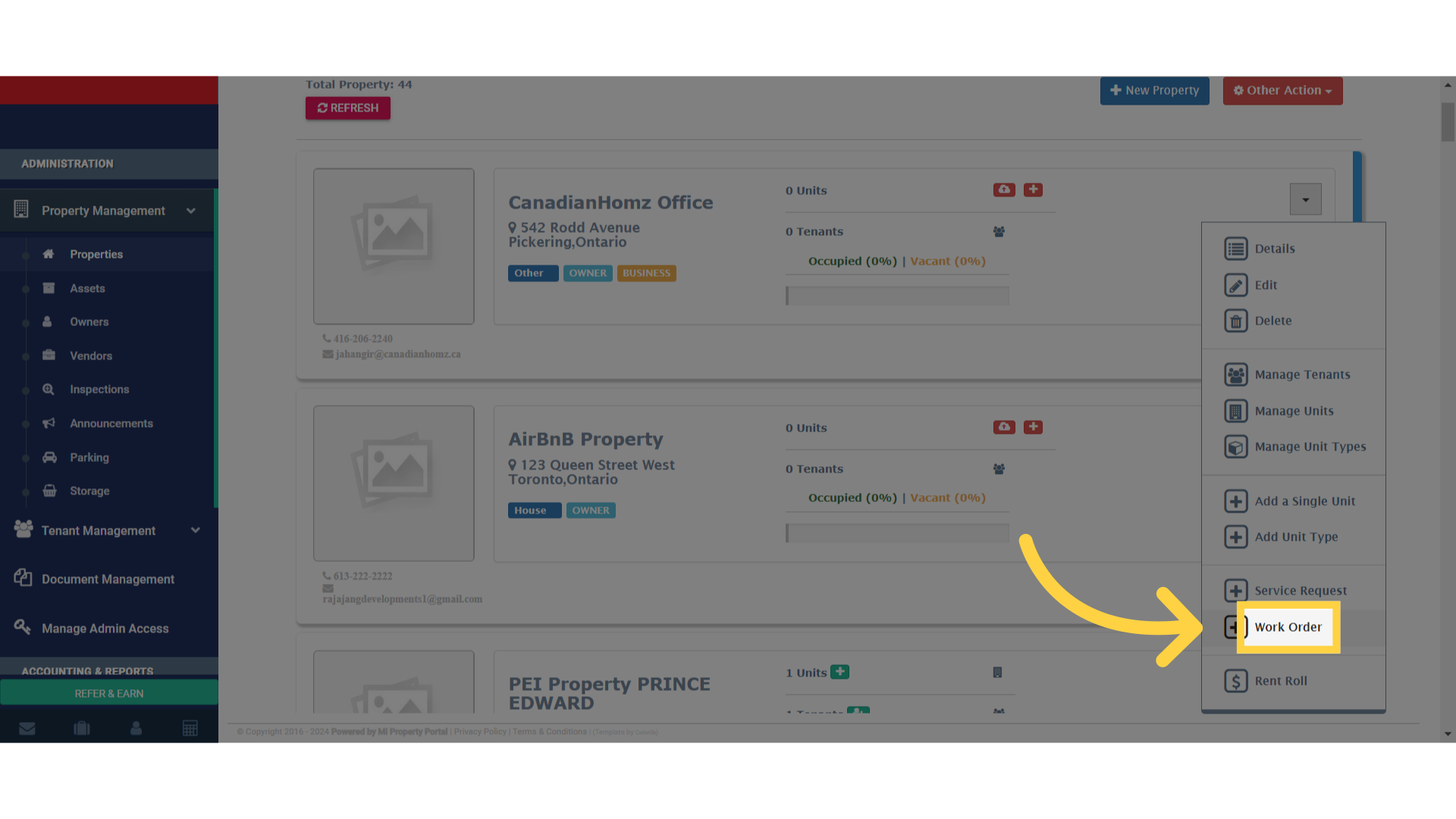
5. Select the Work Order tab

Click 'Work Order'

6. Put a Header for the Worker Order with Company Name, Phone Number, Email Address
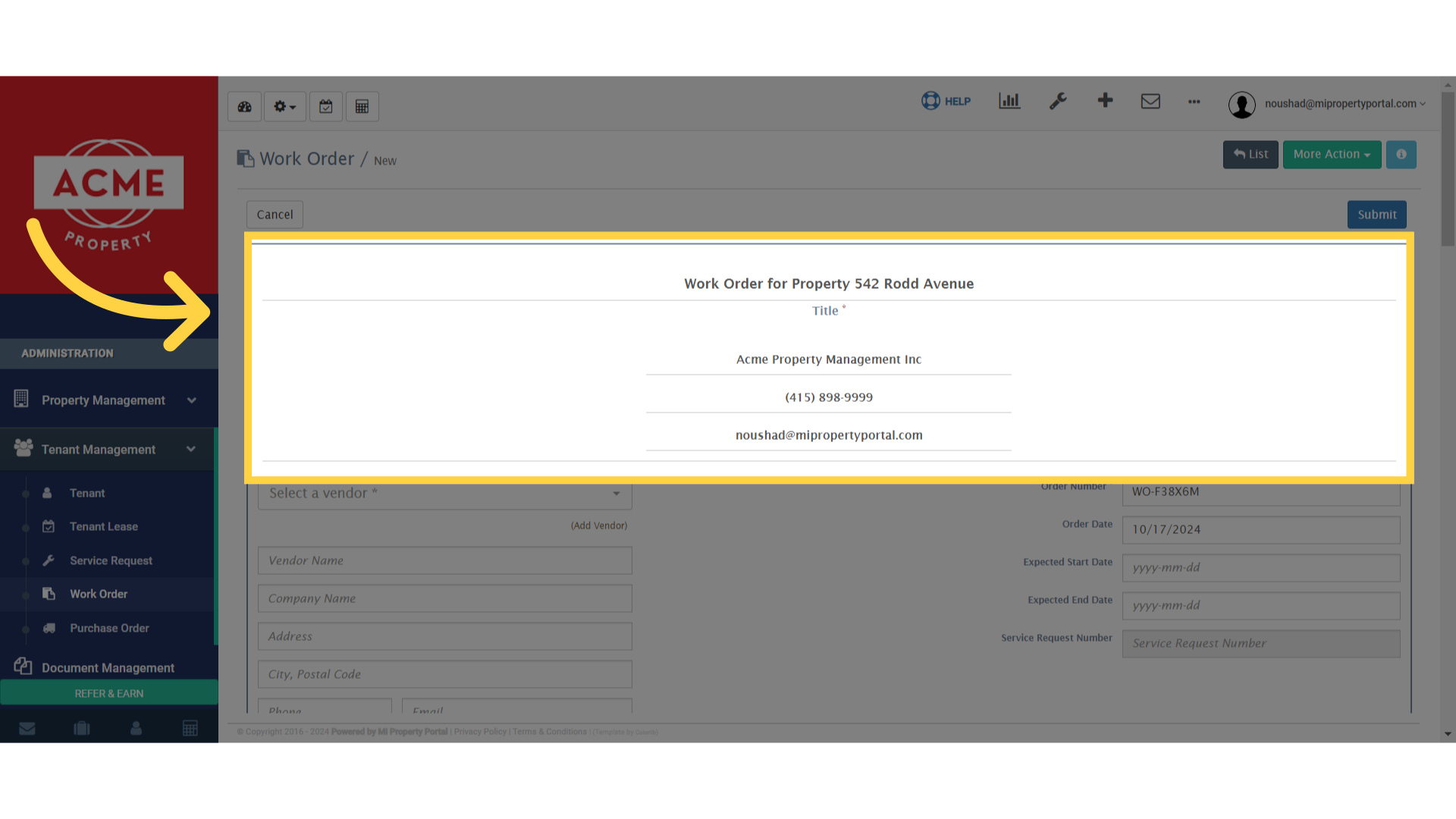
Click 'Title *'

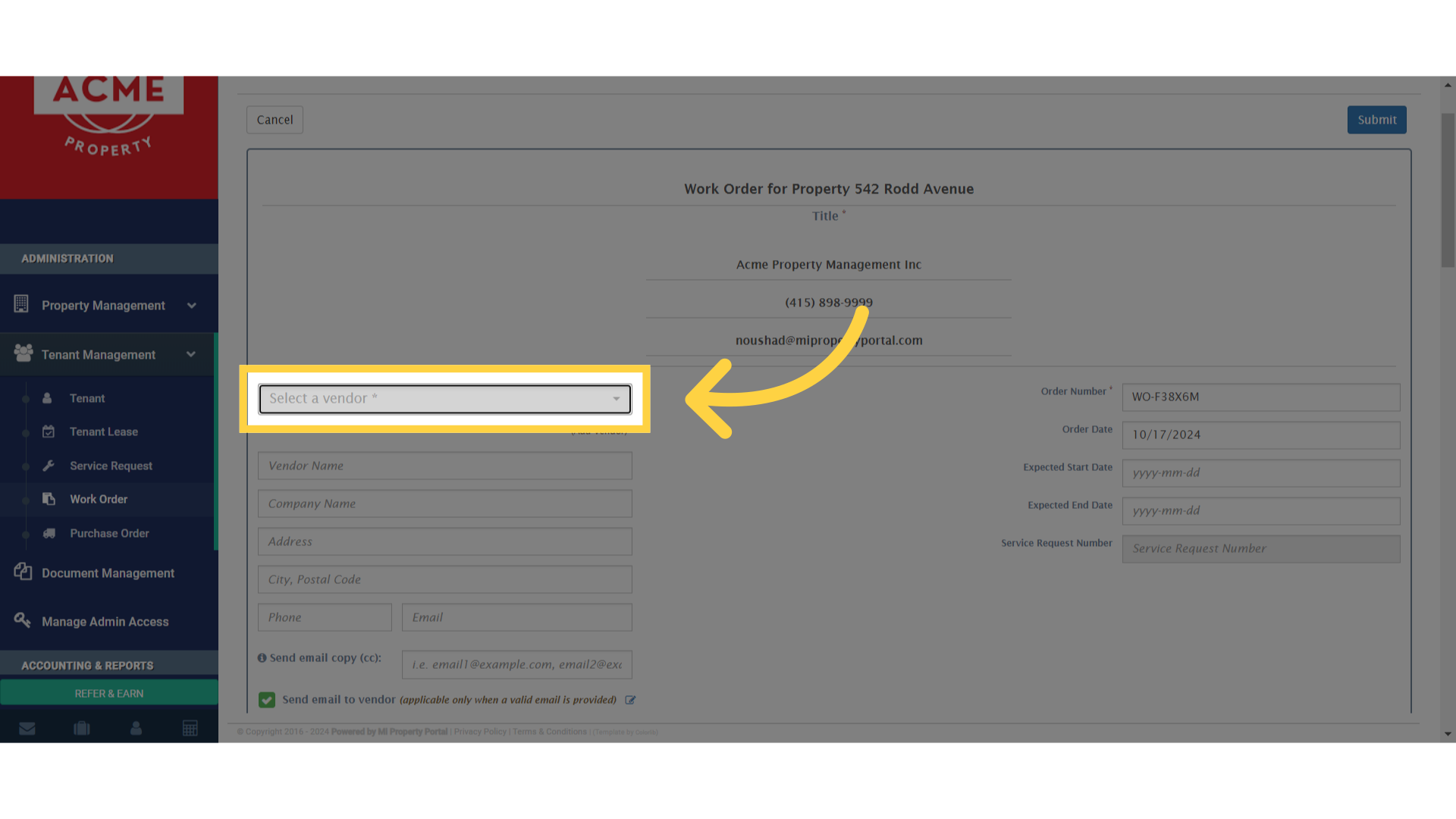
7. Click on Select a vendor

Click 'Select a vendor *'

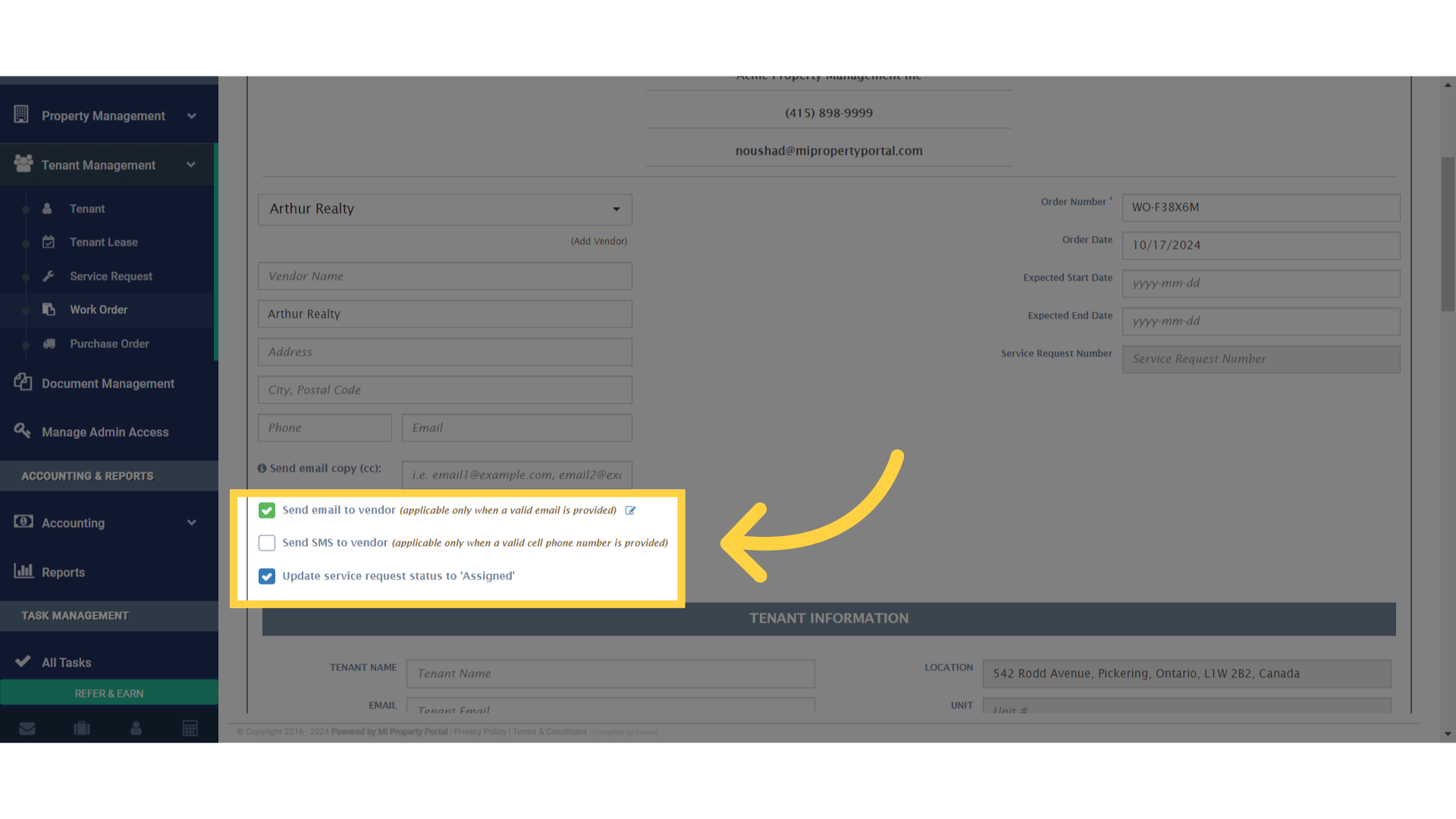
8. Tick the appropriate boxes.

Click 'Send SMS to vendor'

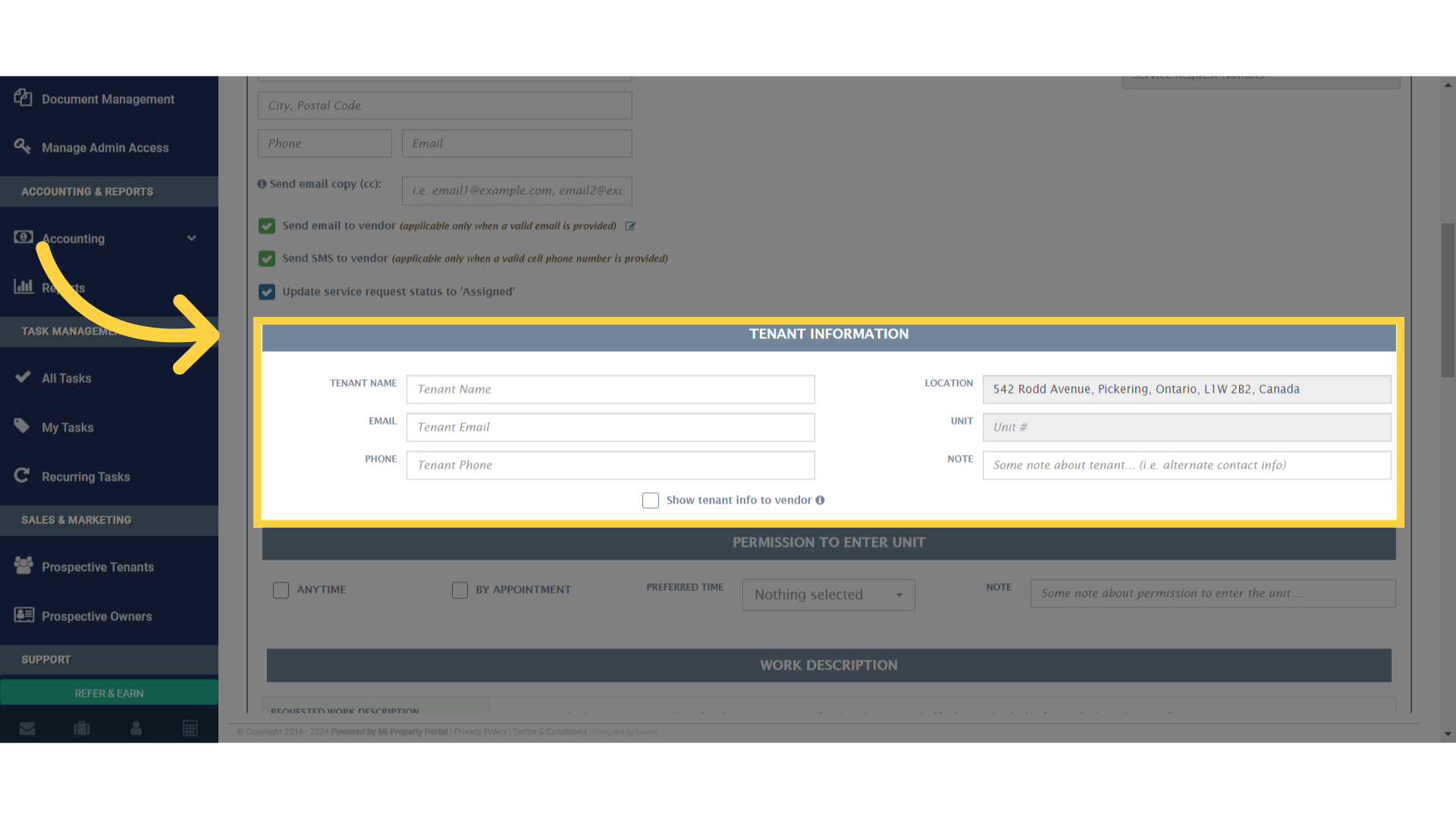
9. Click “TENANT INFORMATION”

Click 'TENANT INFORMATION'

10. Select or Fill in the required fields under PERMISSION TO ENTER UNIT
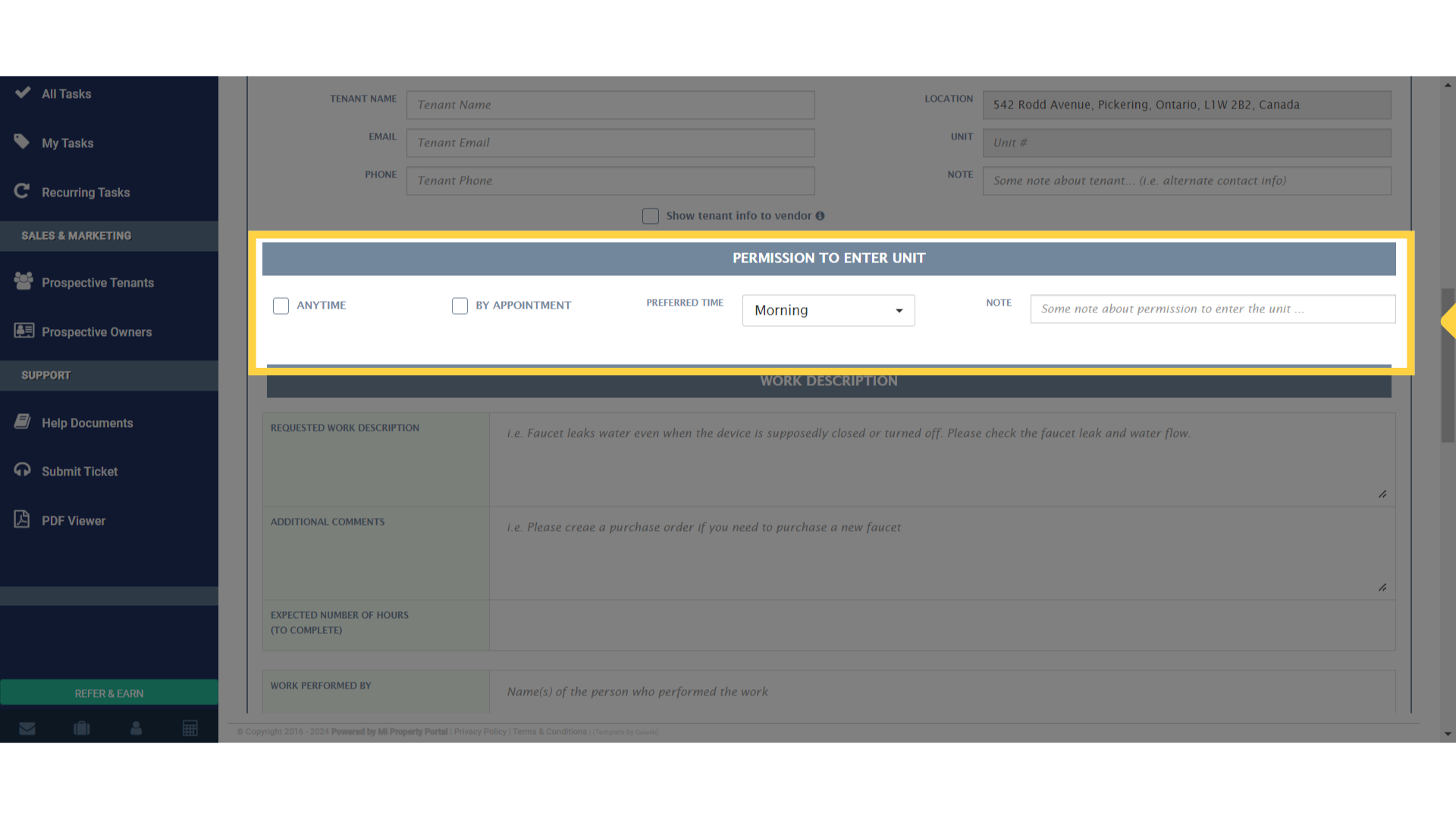
Click 'ANYTIME'

11. Fill the required information under WORK DESCRIPTION
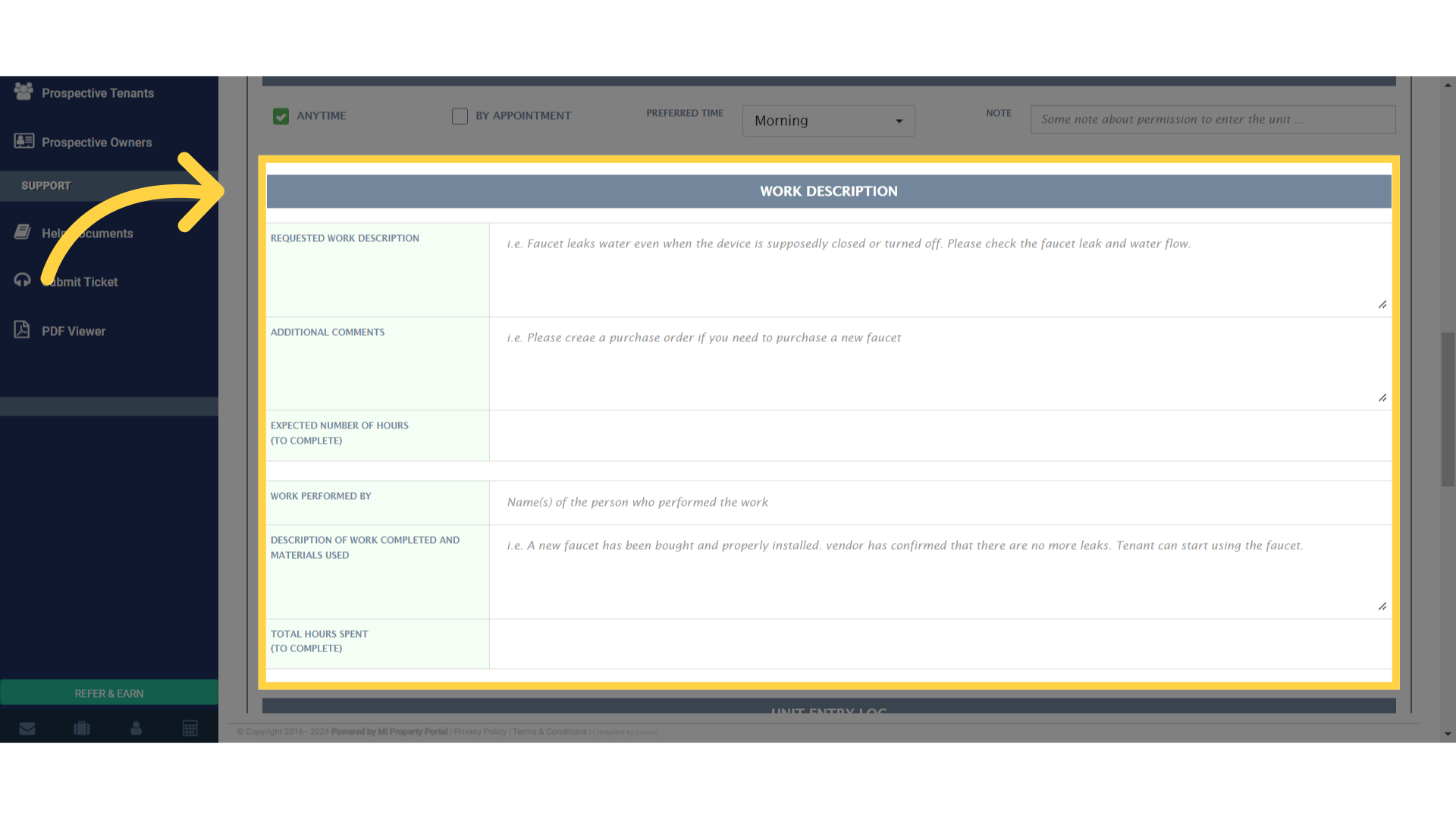
Click 'WORK DESCRIPTION'

12. Click on Browse under Attachments to upload documents
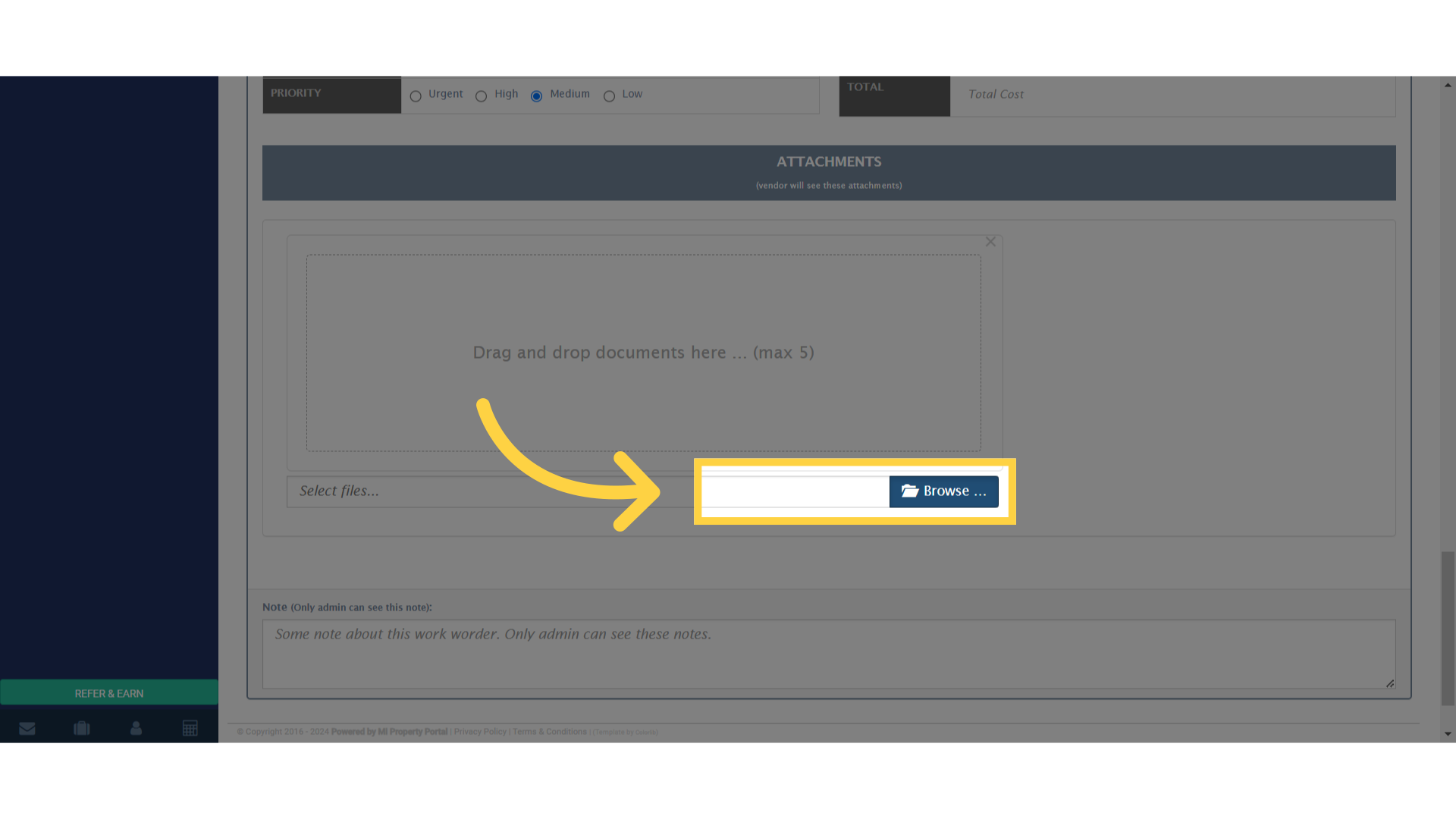
Click here

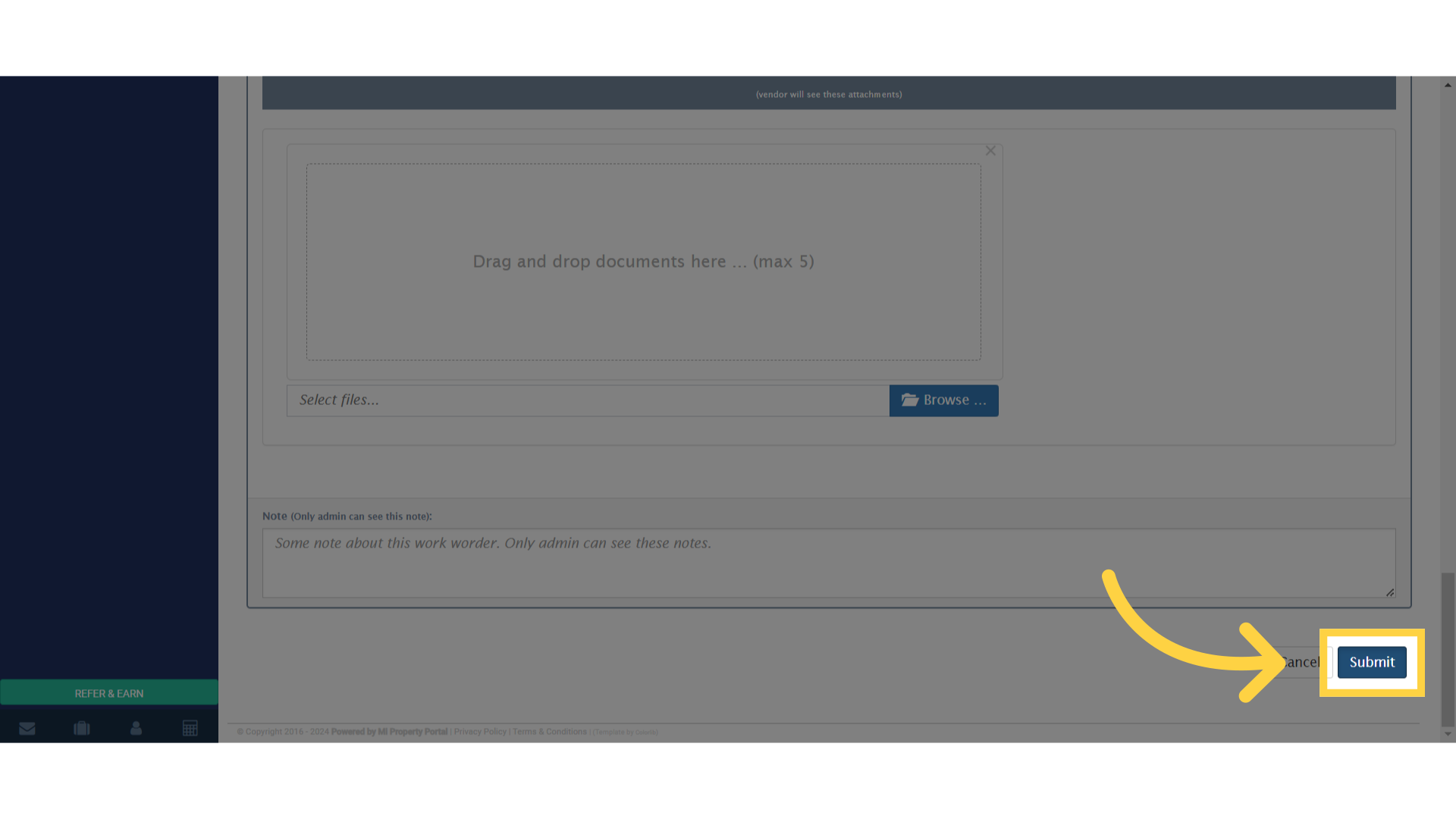
13. Click “Submit”

Click 'Submit'

14. The Work Order will be created and the status of the work order will appear here
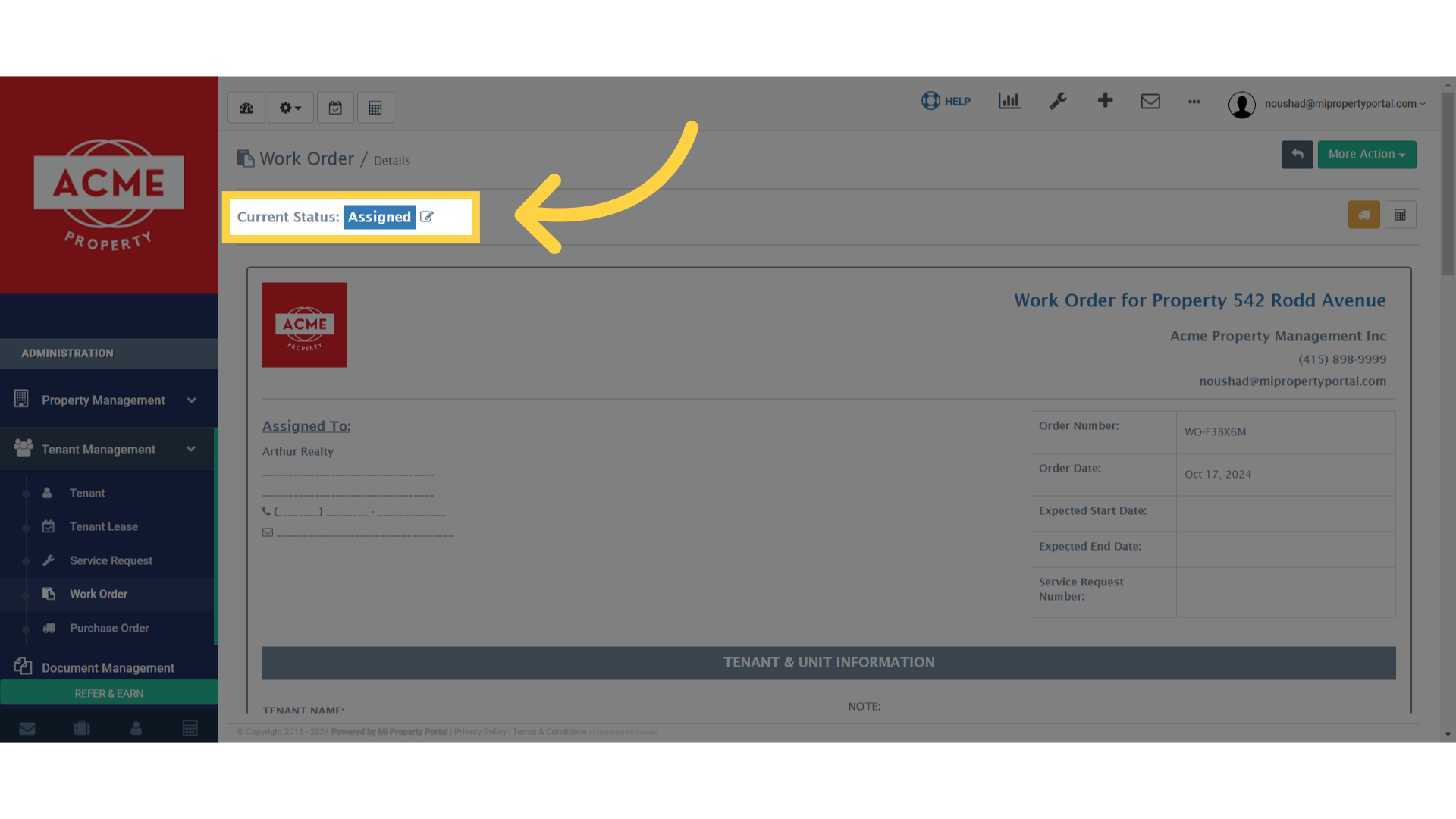
Click 'Current Status:'

Tags:work orderProperty List Pagehow to create a work order from the property list pageCreate a Work Order from the Property List PageHow to create a work order from the property list in MiPropertyPortalSteps to generate a work order from the property list pageHow to add a work order from the property list viewGuide to creating a work order directly from the property listHow to initiate a work order from the property list pageHow to create maintenance work orders from property listHow to manage work orders from the property list viewHow to create a work order quickly from the property listHow to issue a work order from the property list in MiPropertyPortalBest practices for creating work orders from the property list page

Was this helpful?

Yes  No
Related Articles
  • Notify to Owner if service request flag is enabled from notification settings
  • How Commercial Property Management Works
  • How to add a Commercial Property
  • How to Configure Bill Settings for a Property
  • How to Configure Invoice Settings for a Property
  • How to Add an Operating Account

Didn't find your answer? Contact Us

Leave A Comment Cancel reply

You must be logged in to post a comment.

Popular Articles
  • New Feature – Trust Liability Report
  • New Feature – Bell Notification Sent to Admin on Tenant Document Upload via Tenant Portal
  • Notify to Owner if service request flag is enabled from notification settings
  • Email notification sent to tenant on Other document upload
  • New Feature – Create Lease Quickly Using Prospect List
KB Category
  • Service Request
  • Subscription
  • Bulk Data Upload
  • Owner Portal
  • MiPropertyPortal Admins Training Workshop
  • MiPropertyPortal New Features/Improvements Monthly Webinar
  • Task Management
  • Prospective Tenants
  • Setup
  • Vendor Management
  • Tenant Screening
  • Tenant Portal
  • Tenant Management
  • Accounting
  • Security Deposit
  • Reporting
  • Rental Tax
  • Rental Listing
  • Property Owner Related
  • Property
  • Other
  • Asset Management
  • Online Payment
  • Lease Management
  • General
  • Form Management

  How to link Property to Property Details Page from Tenant Account History Report?

How to Create a Service Request from the Property List Page?  

MiPP
MiProperty Portal is Canadian-made for
Canadian landlords and property managers.
COMPANY
  • About Us
  • Why MiPP?
  • Features
SUPPORT
  • Knowledge Base
  • Get Email Help
SOCIAL
  • Linkedin
  • Facebook
  • Twitter
  • Privacy Policy
  • Terms of Use
  • © 2025 mipropertyportal.com. All Rights Reserved.