• Home
  • Blogs
  • FAQs
  • Login
  • Home
  • Blogs
  • FAQs
  • Login
home/Knowledge Base/Tenant Management/How to Change/Assign Property and Unit for an Existing Tenant?

How to Change/Assign Property and Unit for an Existing Tenant?

81 views 0 December 1, 2022 Updated on September 27, 2024 mippsupportadmin

1. Click “Tenant Management”
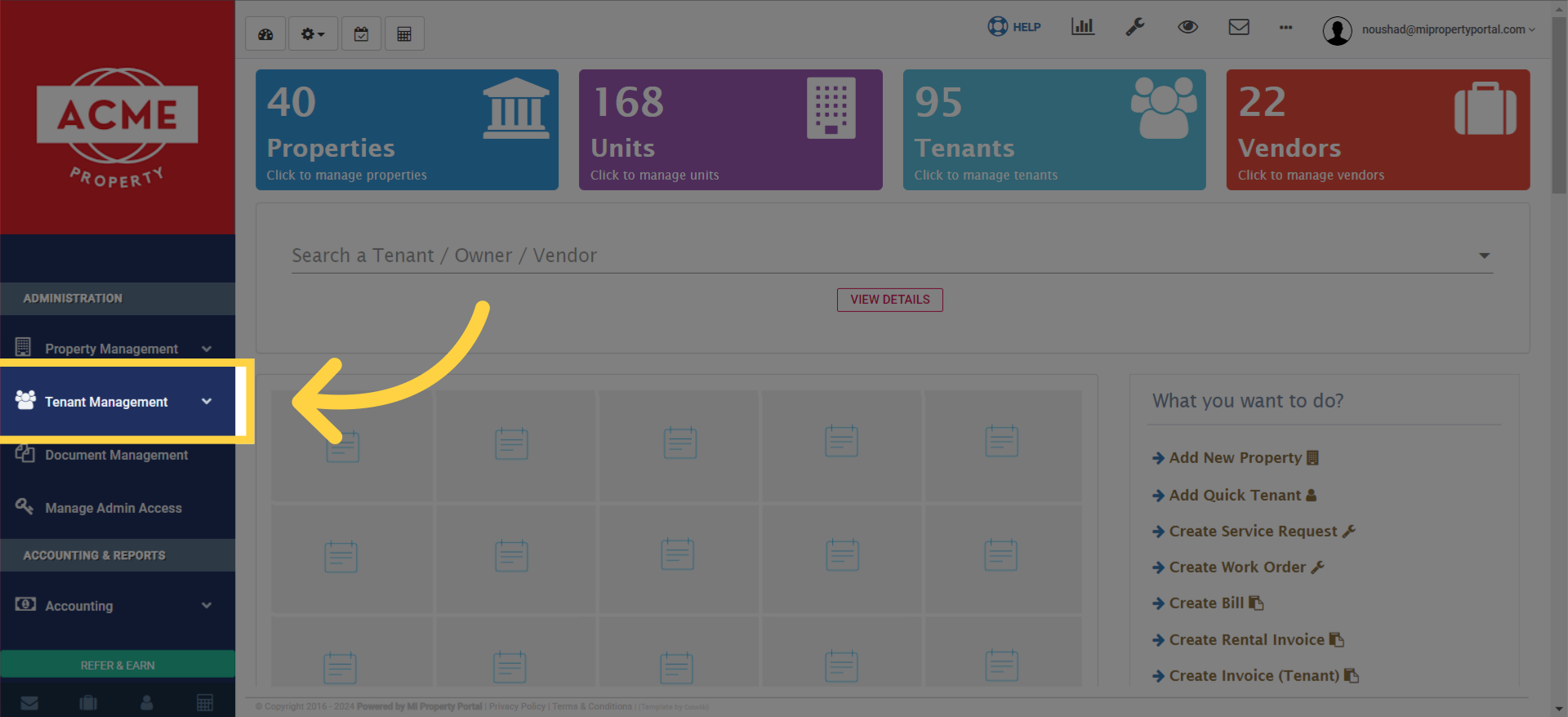
Click 'Tenant Management'

2. Now, click on “Tenant” to proceed to tenant management
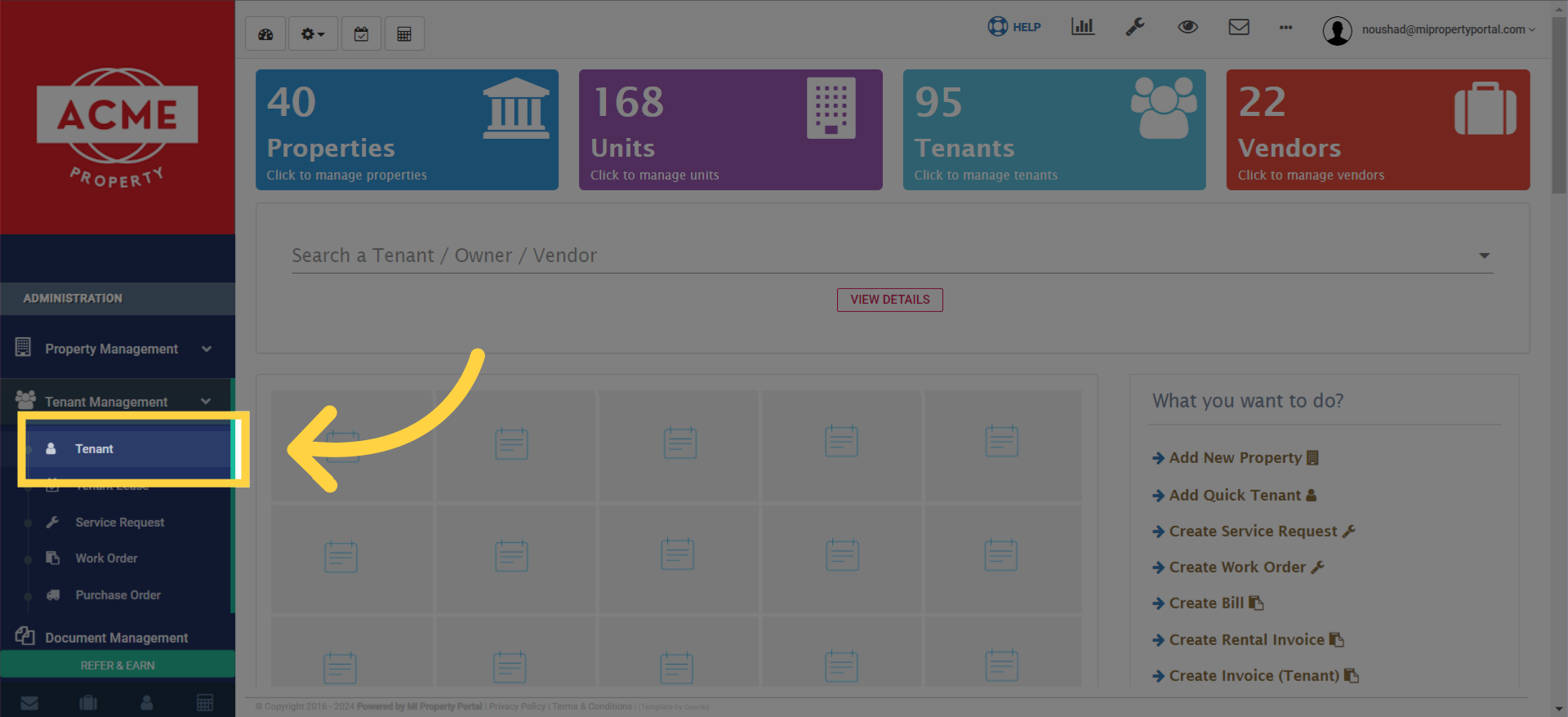
Click 'Tenant'

3. Next, search for the tenant you wish to update the rent for and click on the selected tenant name to access their profile
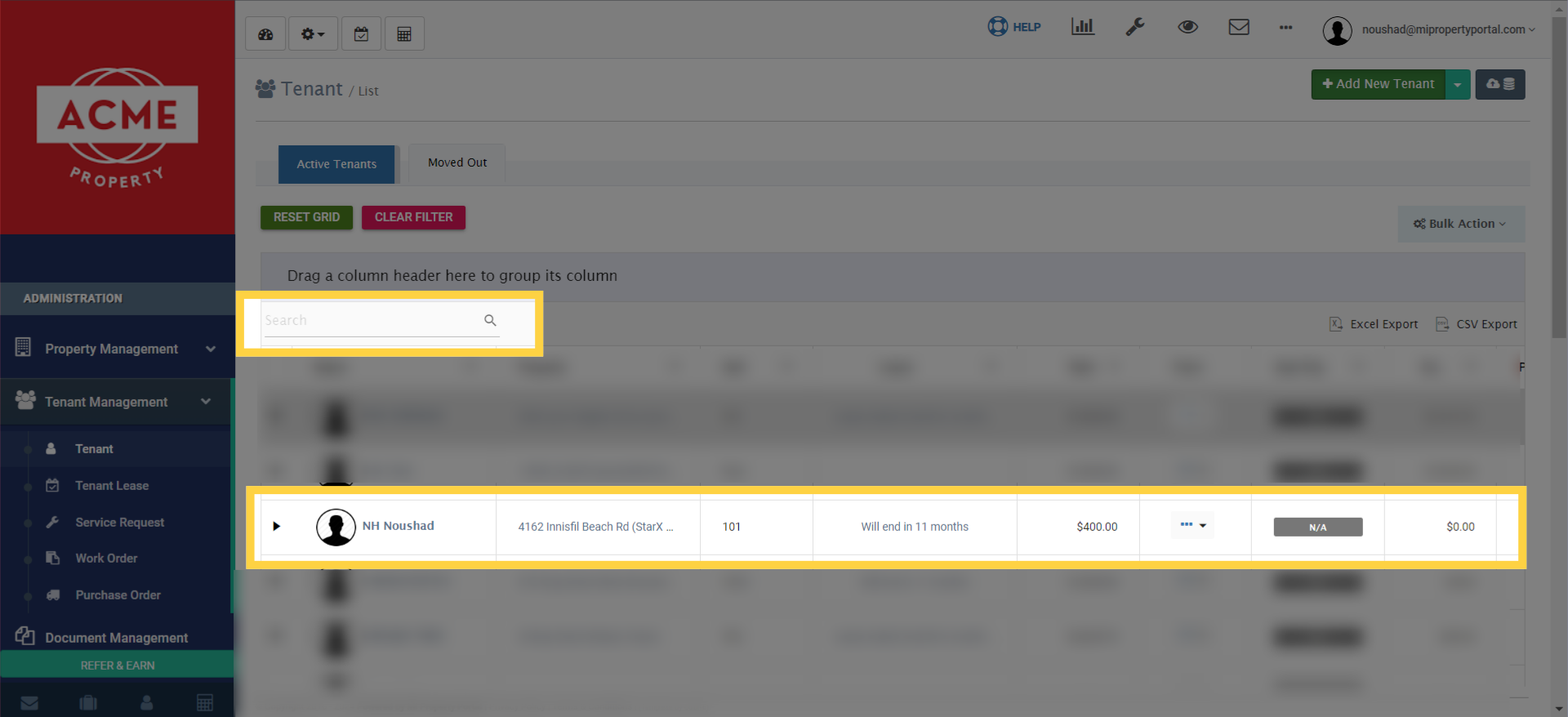
Next, search for the tenant you wish to update the rent for and click on the selected tenant name to access their profile.

4. click on the “Pencil/Edit” icon situated below their basic details
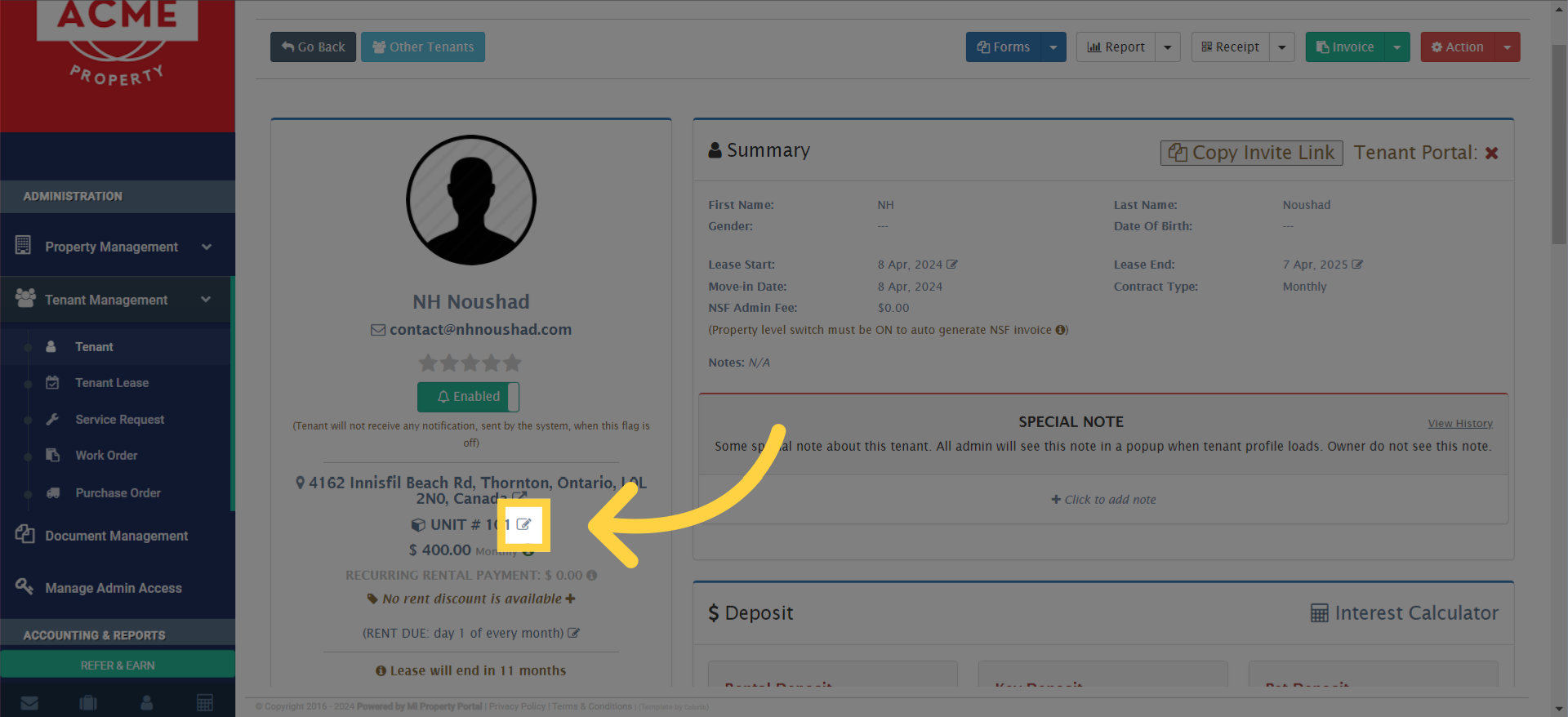
click on the 'Pencil/Edit' icon situated below their basic details.

5. Click on the “Property” dropdown menu and search for the new property you wish to assign to the tenant
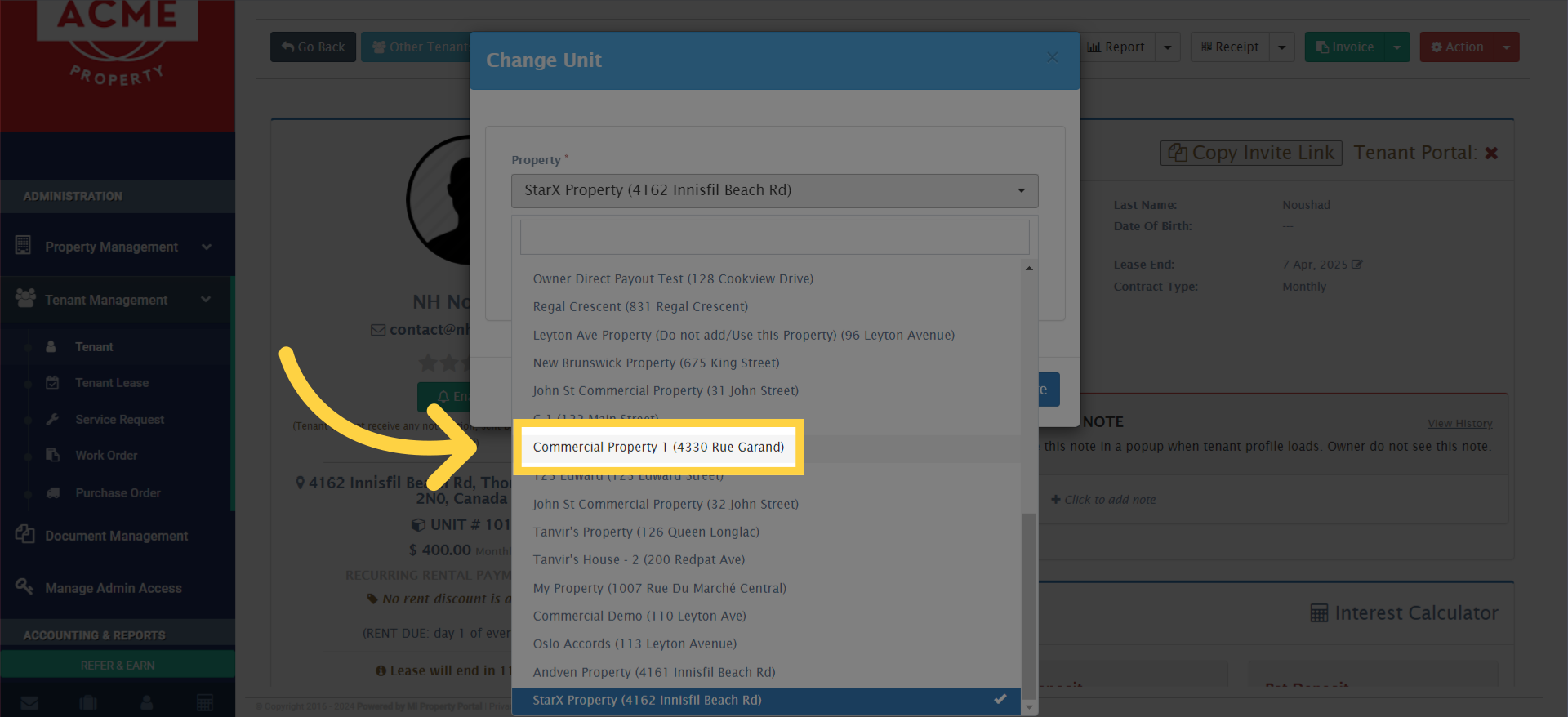
Click on the 'Property' dropdown menu and search for the new property you wish to assign to the tenant.

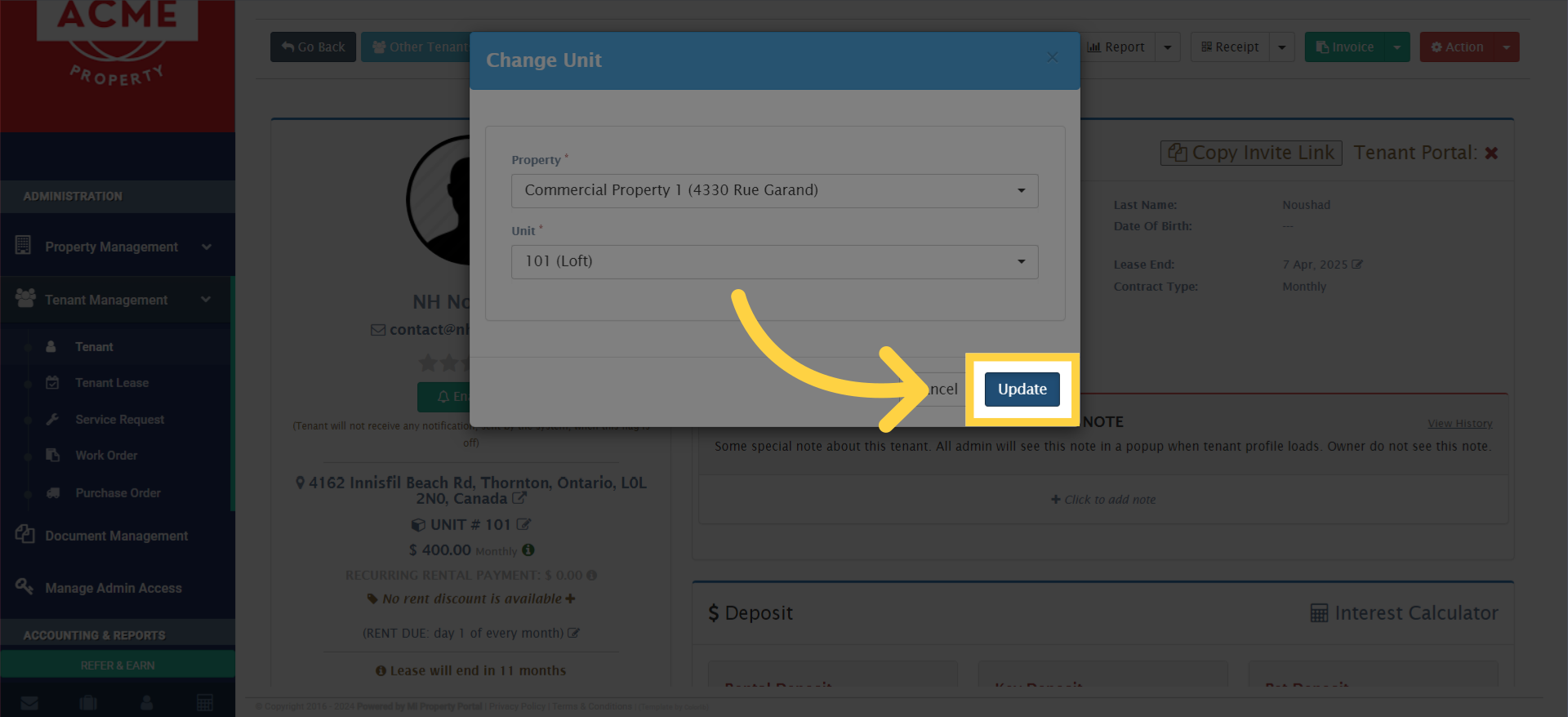
6. go to the ‘Unit’ dropdown menu, find the specific unit, and select it to assign to the tenant
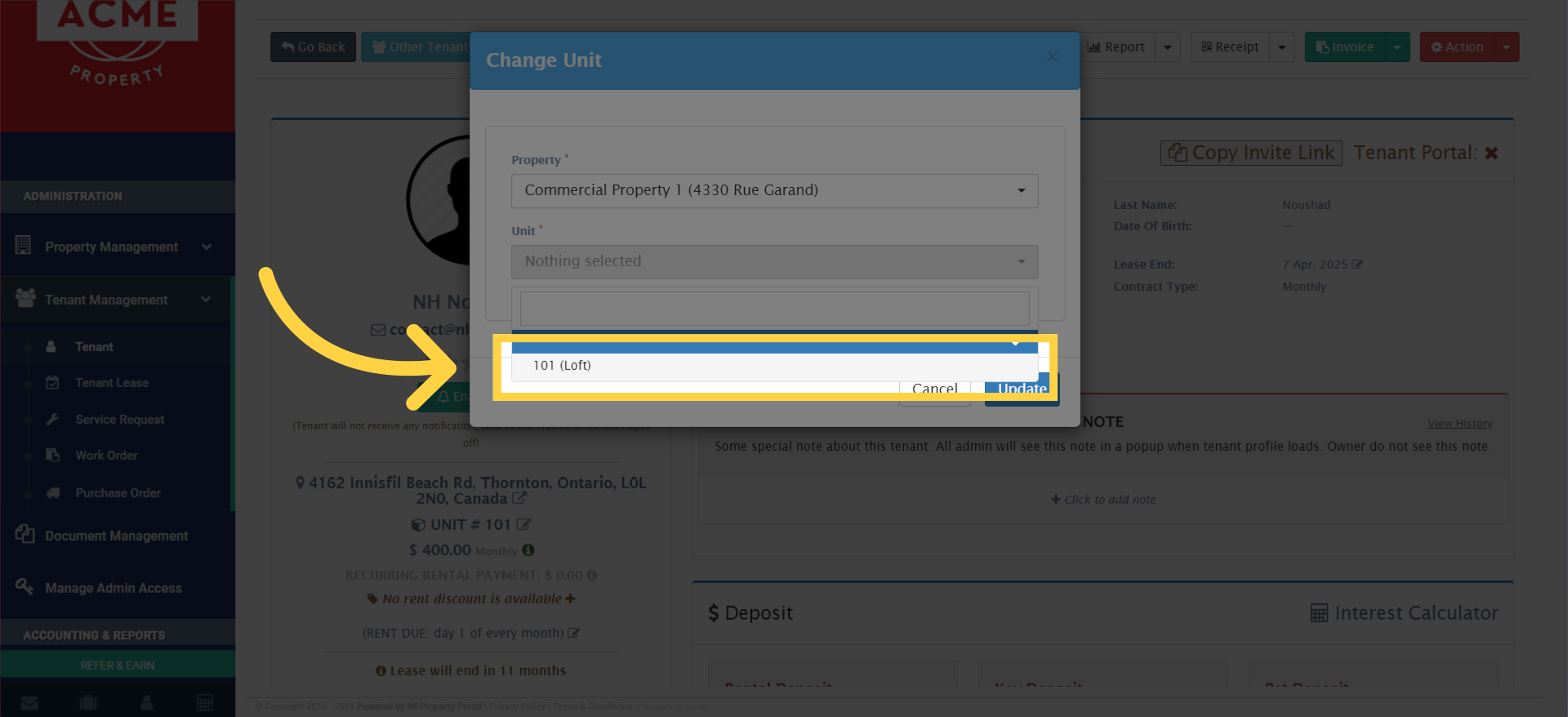
Click '101 (Loft)'

7. Click “Update”

Click 'Update'

Tags:Steps to assign a new property or unit to a tenantHow to update tenant records when changing properties/units in MIPPTroubleshooting tenant property/unit reassignment issuesHow to relocate a tenant within MiPropertyPortalBest practices for changing tenant property or unitHow to manage tenant property and unit changes in MiPropertyPortalSupport for updating tenant property/unit assignmentHow to transfer a tenant to a new unit or propertyGuide to reassigning tenant to a different property/unit in MIPPHow to change property and unit for an existing tenant in MiPropertyPortalchange building of a tenantchange unit to an existing tenantassign new unit to a tenantassign new property to a tenantchange property and unithow to change/assign property and unit for existing tenant

Was this helpful?

Yes  No
Related Articles
  • How to Rent a Parking Spot in Mi Property Portal
  • How to Communicate with Tenants?
  • How to start a Tenant Background Check?
  • How to Split Rent Among Multiple Tenants?
  • How to add parking in a tenant profile?
  • How to Transfer Management Fee to Another Business Property or Account?

Didn't find your answer? Contact Us

Leave A Comment Cancel reply

You must be logged in to post a comment.

Popular Articles
  • Can I log rental income for ‘Unpaid’ invoices for ‘Moved-out’ tenants?
  • How to Rent a Parking Spot in Mi Property Portal
  • How to add a line item category for invoice and bill?
  • How to View Bulk Payment History Report
  • How to Create a Commercial Property?
KB Category
  • Service Request
  • Subscription
  • Bulk Data Upload
  • Owner Portal
  • MiPropertyPortal Admins Training Workshop
  • MiPropertyPortal New Features/Improvements Monthly Webinar
  • Task Management
  • Prospective Tenants
  • Setup
  • Vendor Management
  • Tenant Screening
  • Tenant Portal
  • Tenant Management
  • Accounting
  • Security Deposit
  • Reporting
  • Rental Tax
  • Rental Listing
  • Property Owner Related
  • Property
  • Other
  • Asset Management
  • Online Payment
  • Lease Management
  • General
  • Form Management

  How to Return Tenant Credit?

How to Update a Tenant Move Out Reason?  

MiPP
MiProperty Portal is Canadian-made for
Canadian landlords and property managers.
COMPANY
  • About Us
  • Why MiPP?
  • Features
SUPPORT
  • Knowledge Base
  • Get Email Help
SOCIAL
  • Linkedin
  • Facebook
  • Twitter
  • Privacy Policy
  • Terms of Use
  • © 2025 mipropertyportal.com. All Rights Reserved.