In this video, I will guide you through the process of showing or hiding tenant information from a vendor. Let’s get started.
1. Select ‘Work Order’ from the “Tenant Management” dropdown menu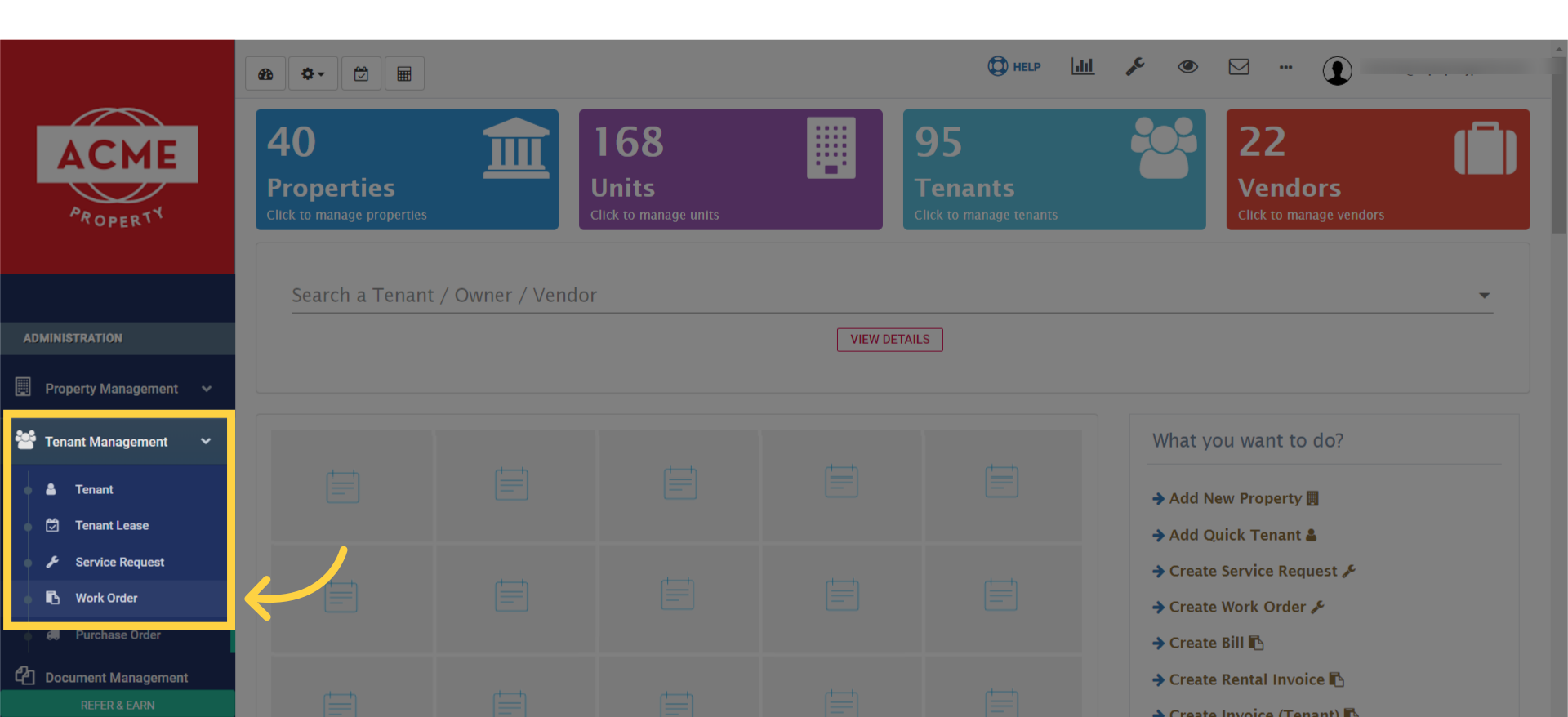
2. Locate a work order to update. Click on the work order unique code to open it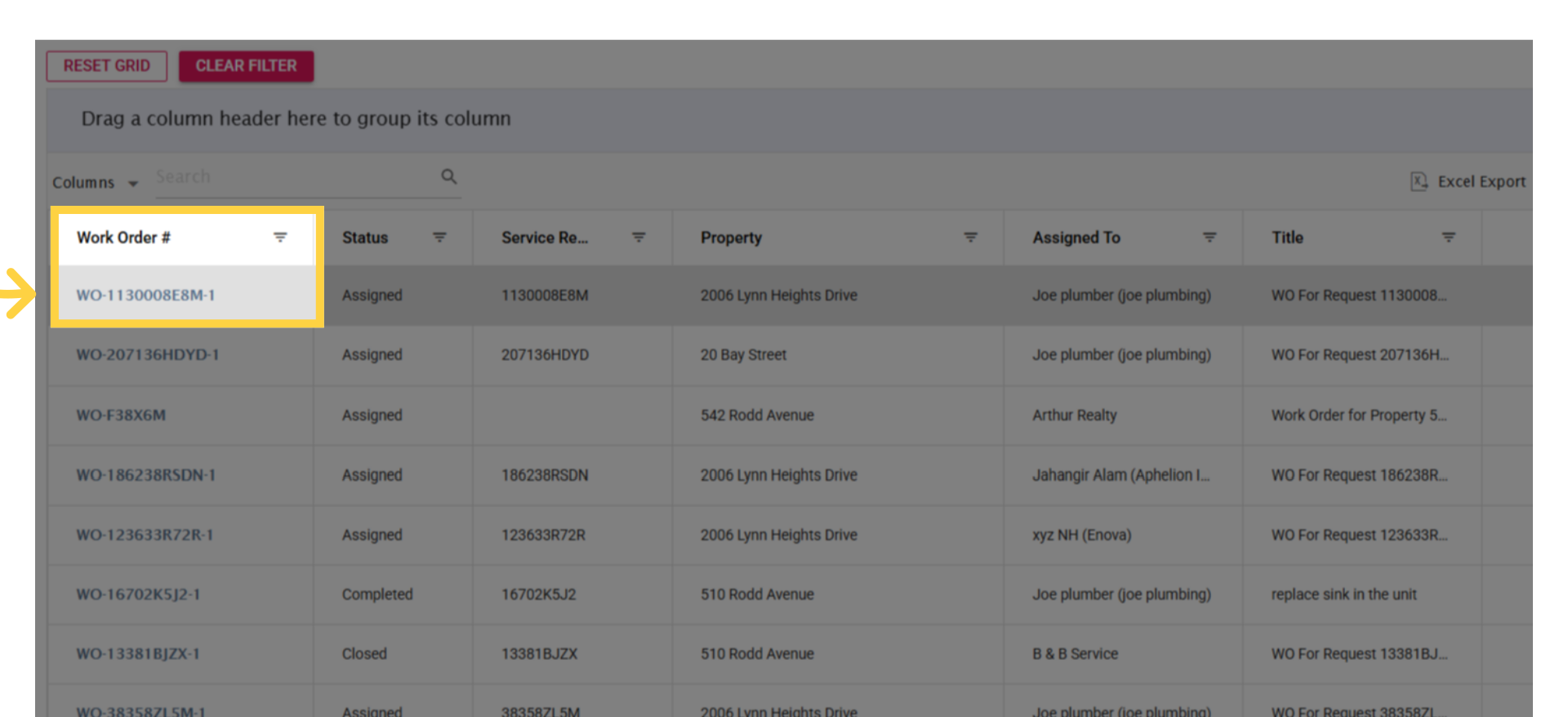
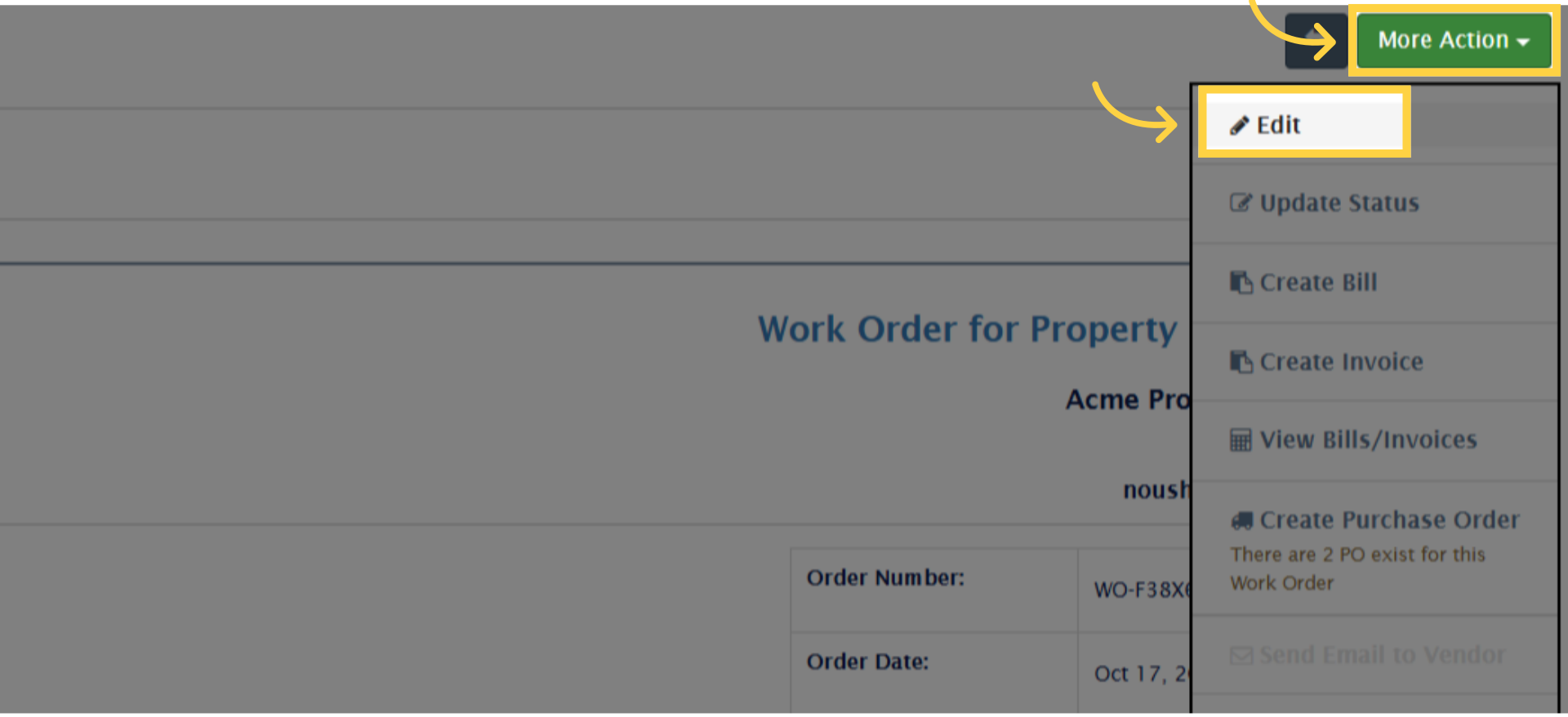
3. Click on “More Action” dropdown menu, & click on the “Edit” option
4. On the Work Order Edit page, scroll down to locate the Tenant Information section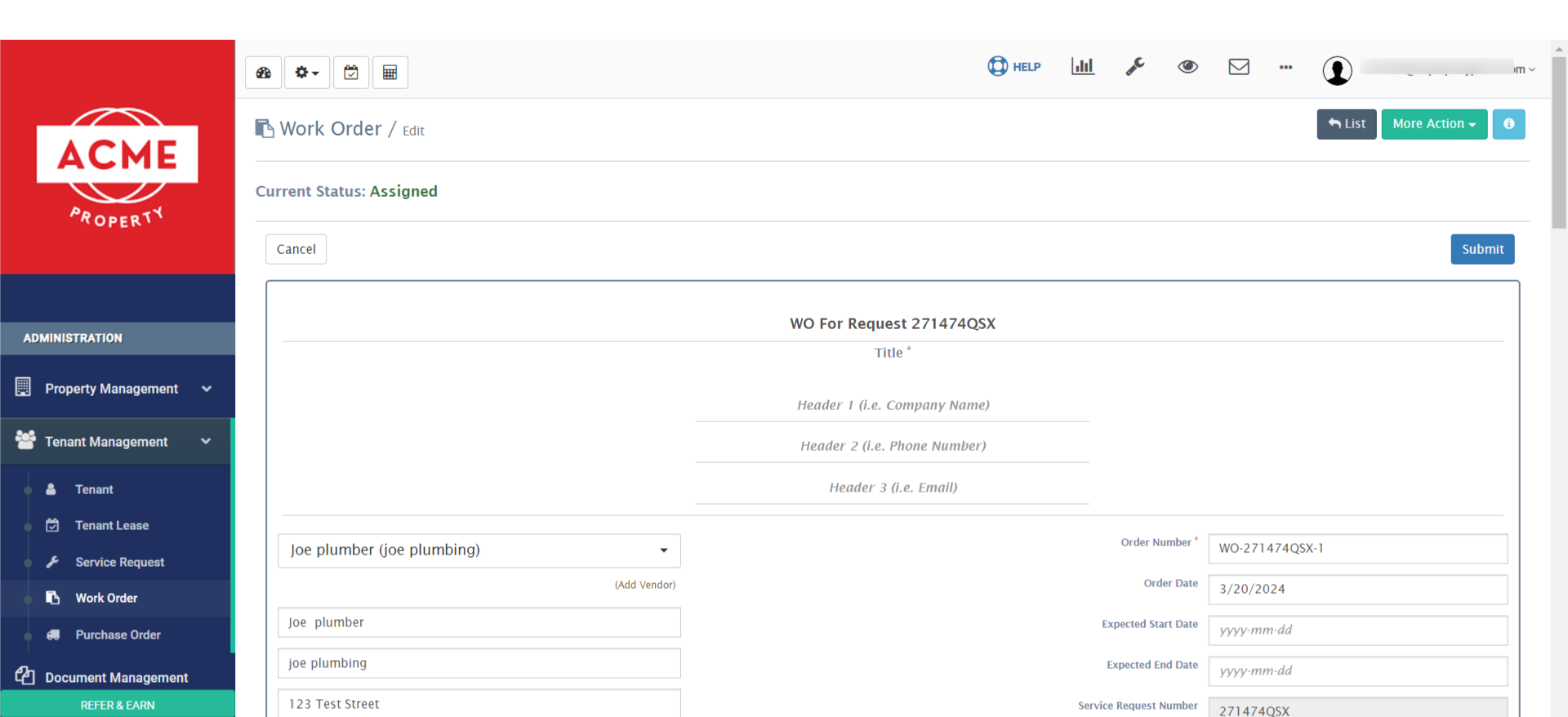
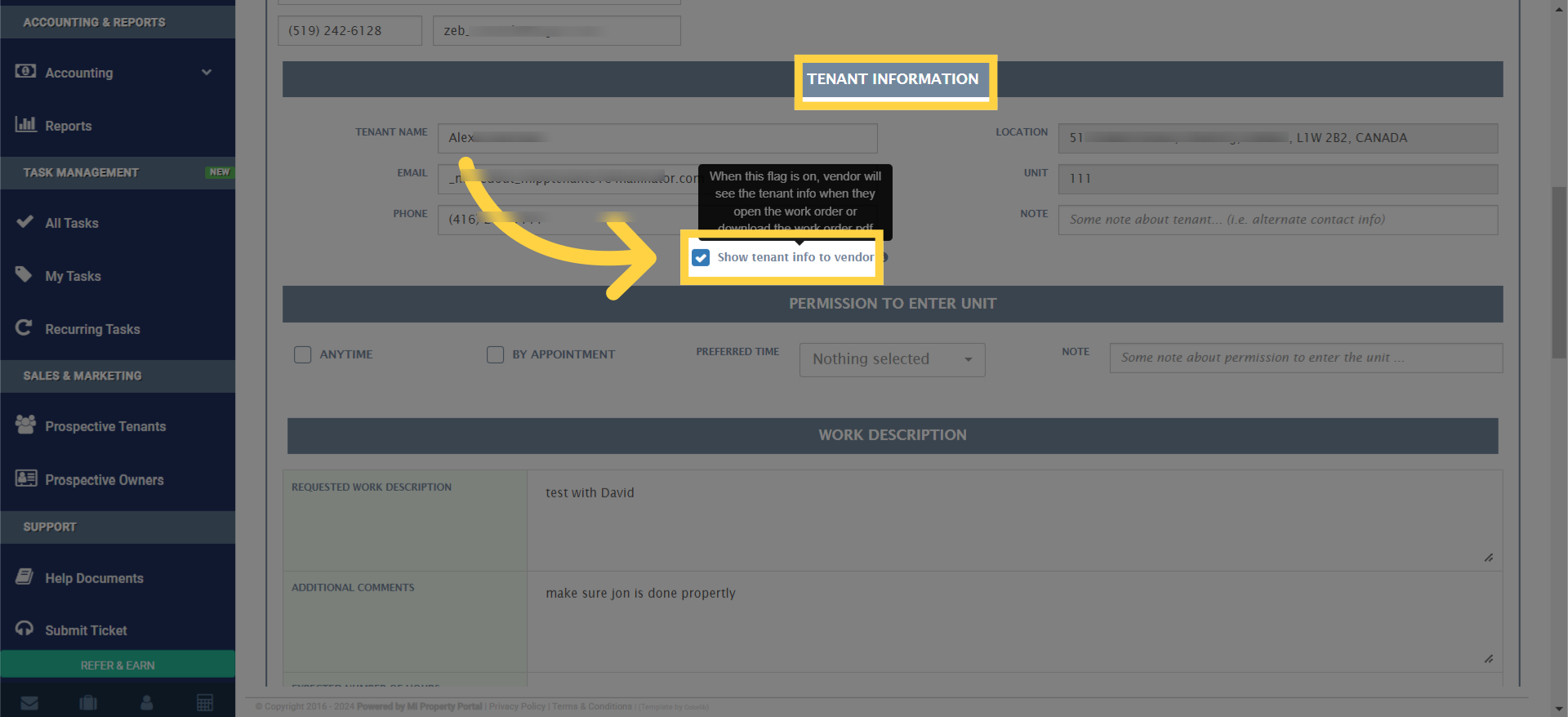
5. Find the “Show tenant info to vendor” option under tenant management section. To hide tenant details from the vendor, simply uncheck this box
6. Take a moment to notice the information about this setting to understand the info which will be displayed to the vendor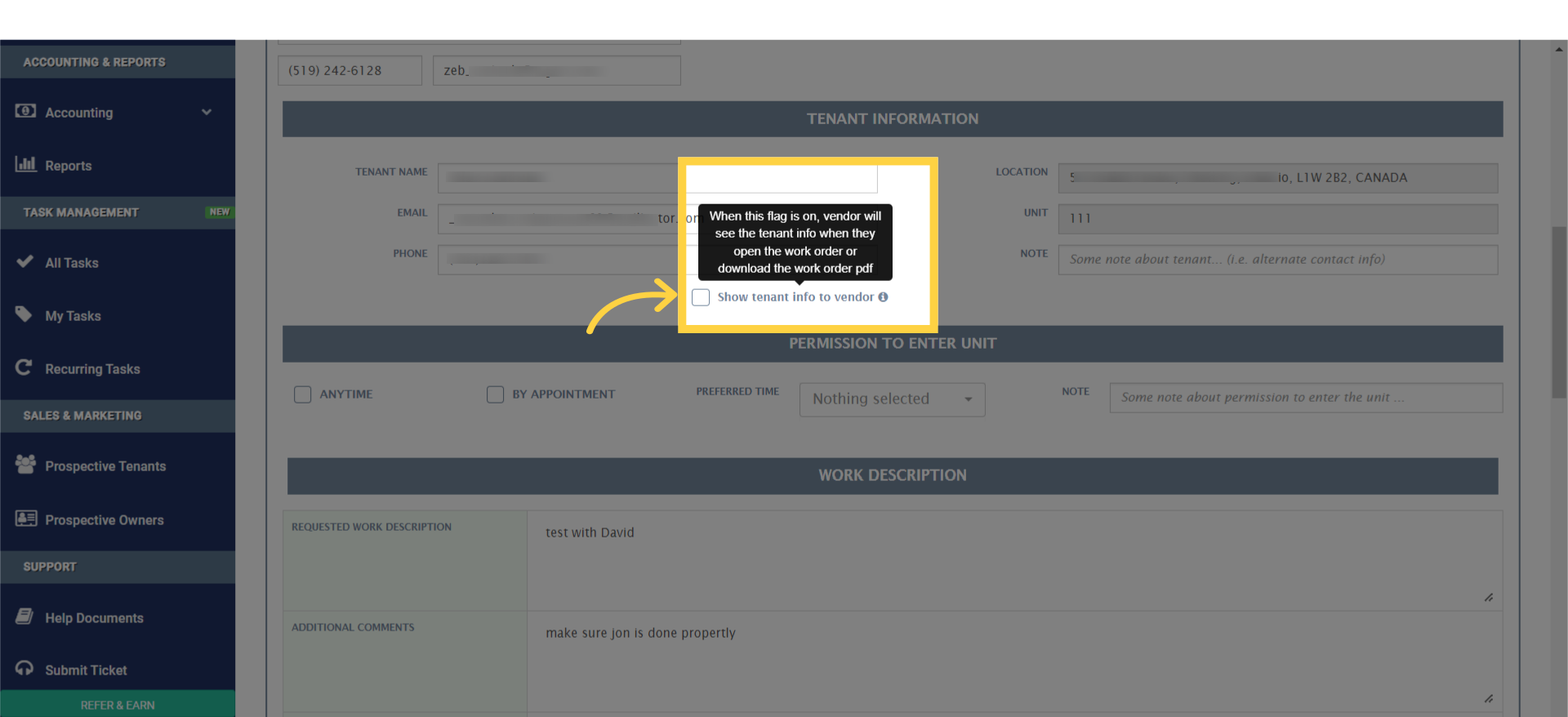
7. Click on “Submit” to save the changes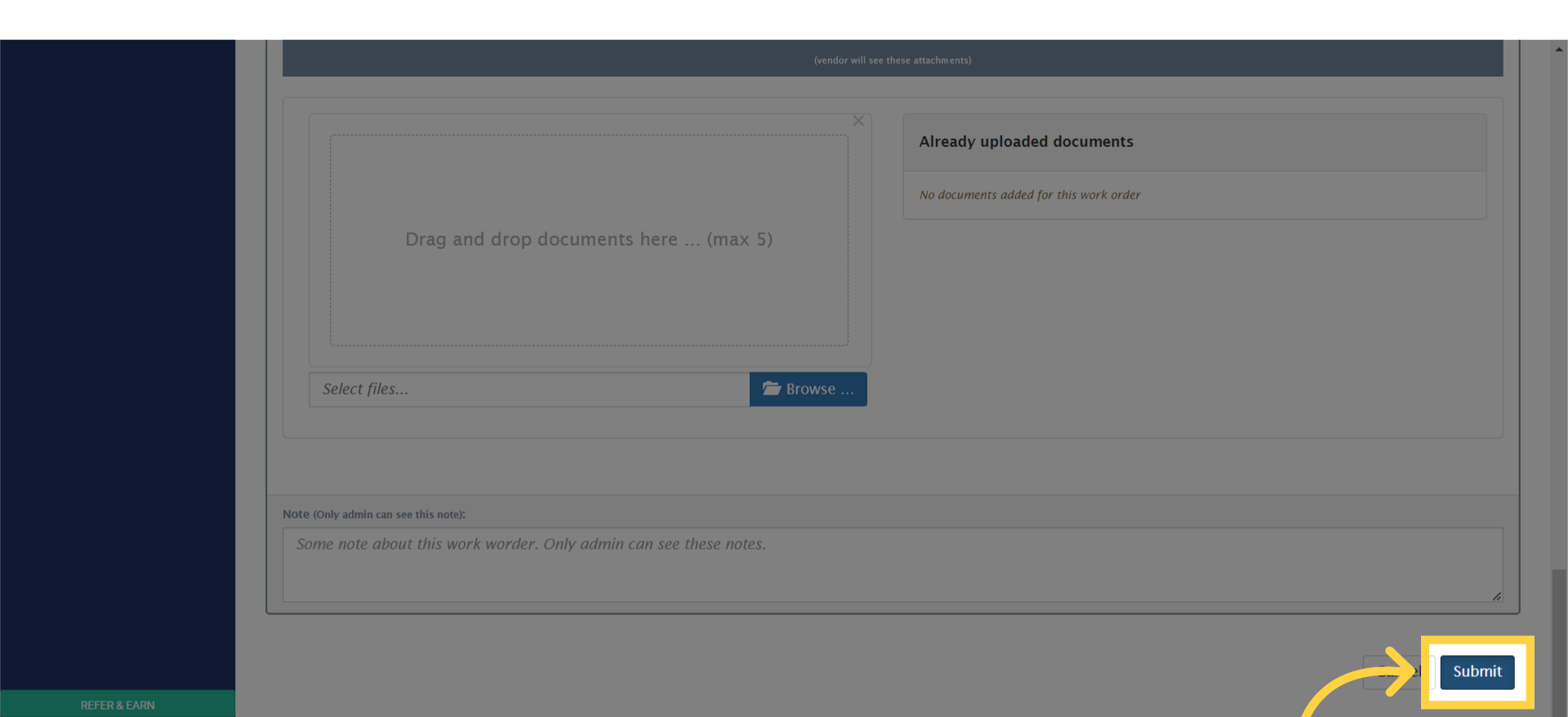
8. Close the confirmation pop-up by clicking the ‘cross’ button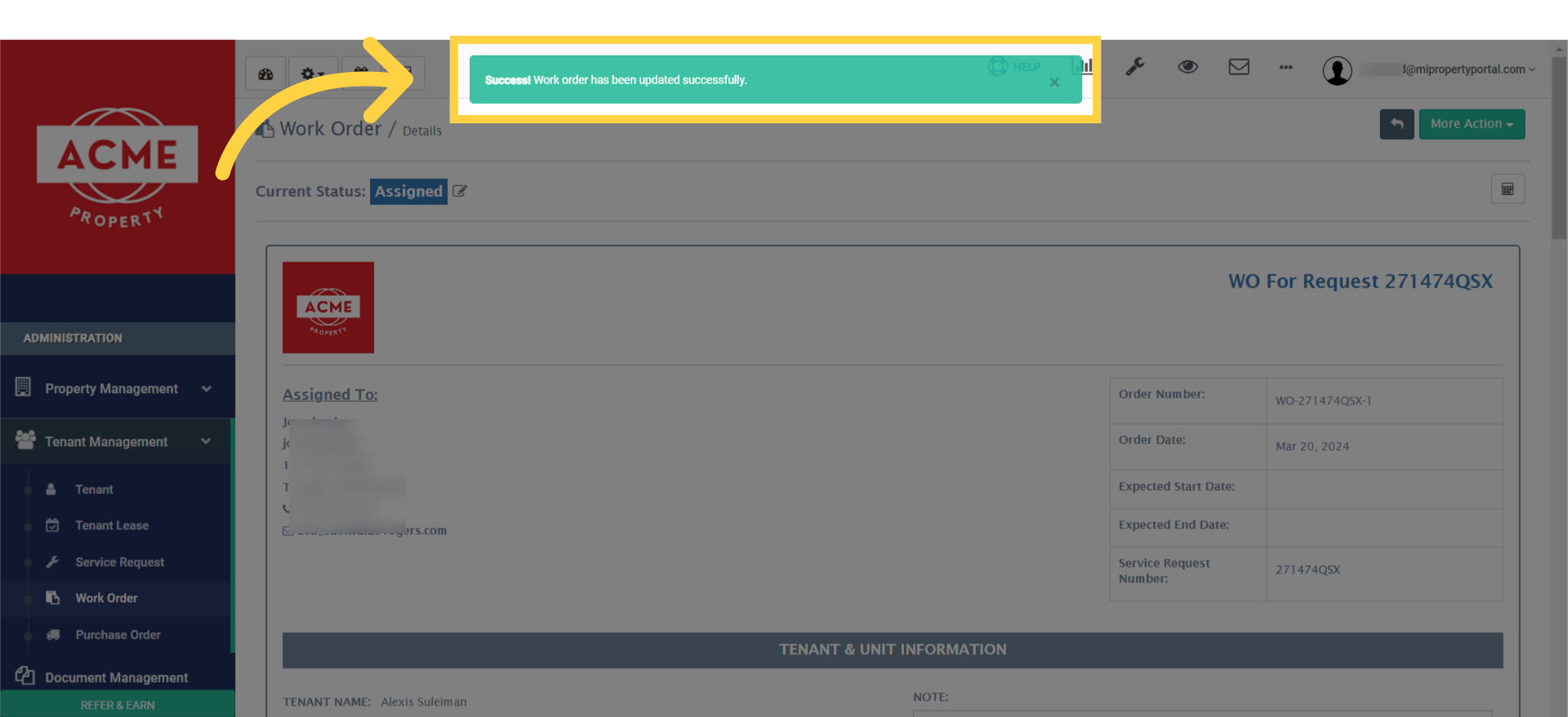
Here you go! That’s the end of our guide on managing tenant information visibility for vendors. Thanks for watching!