• Home
  • Blogs
  • FAQs
  • Login
  • Home
  • Blogs
  • FAQs
  • Login
home/Knowledge Base/Property/How to Create “Other” type of Inspection?

How to Create “Other” type of Inspection?

105 views 0 July 28, 2023 Updated on August 5, 2025 mippsupportadmin


Go to manage.mipropertyportal.com

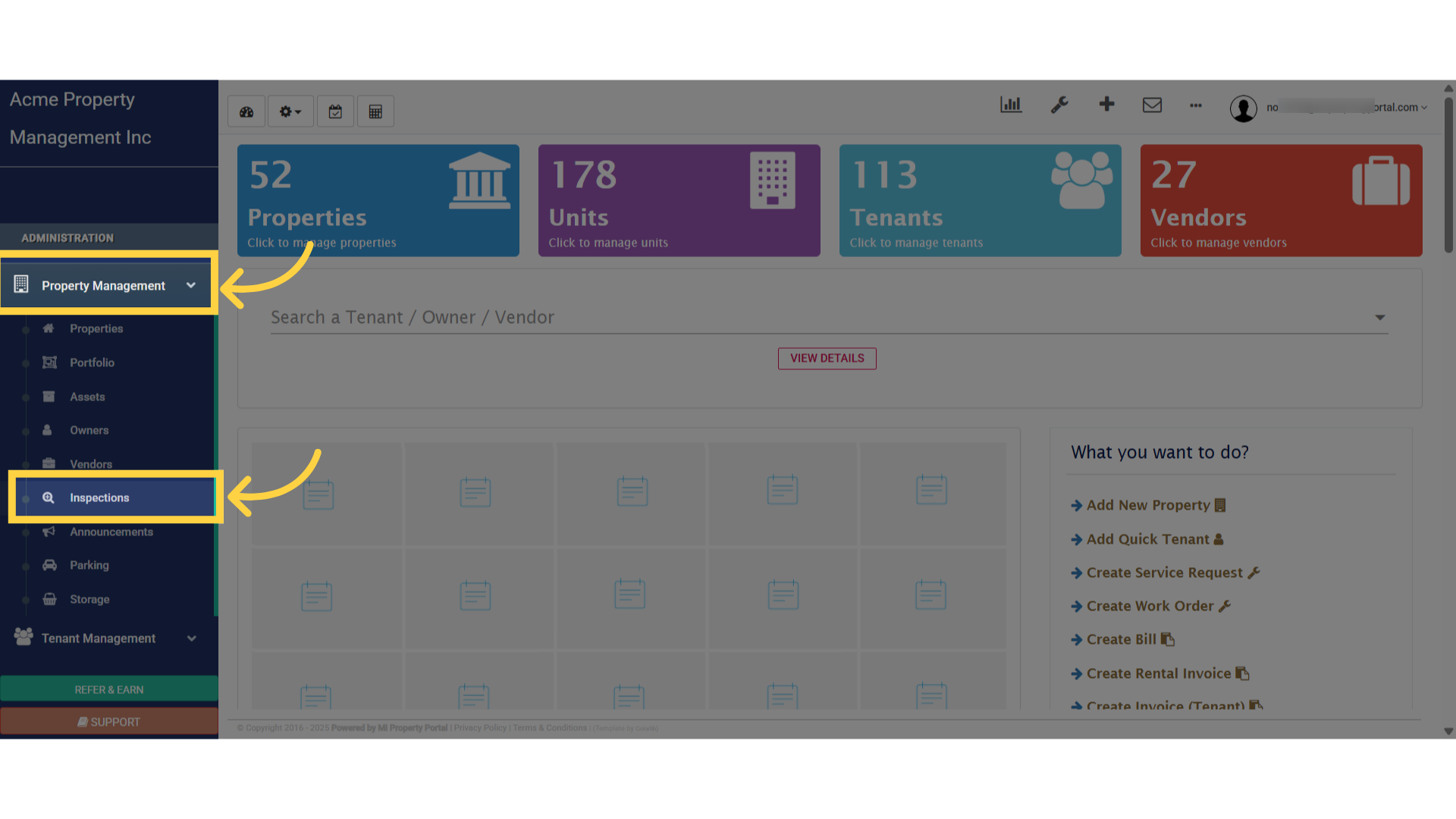
1. Under the Property Management dropdown, select InspectionsClick 'Inspections'
2. Click on plus New Inspection button on the left under Inspection/List header
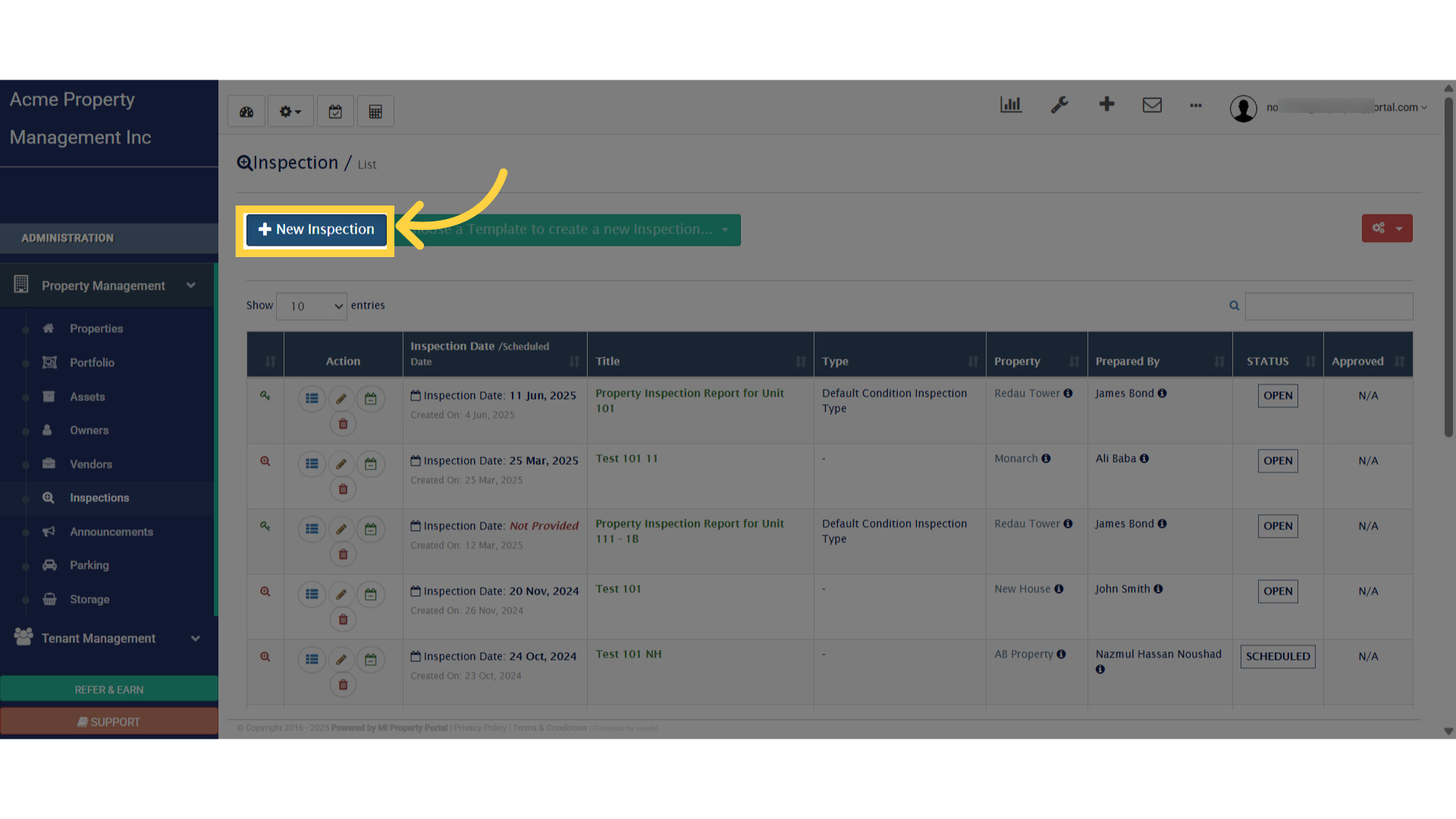
Click 'New Inspection'

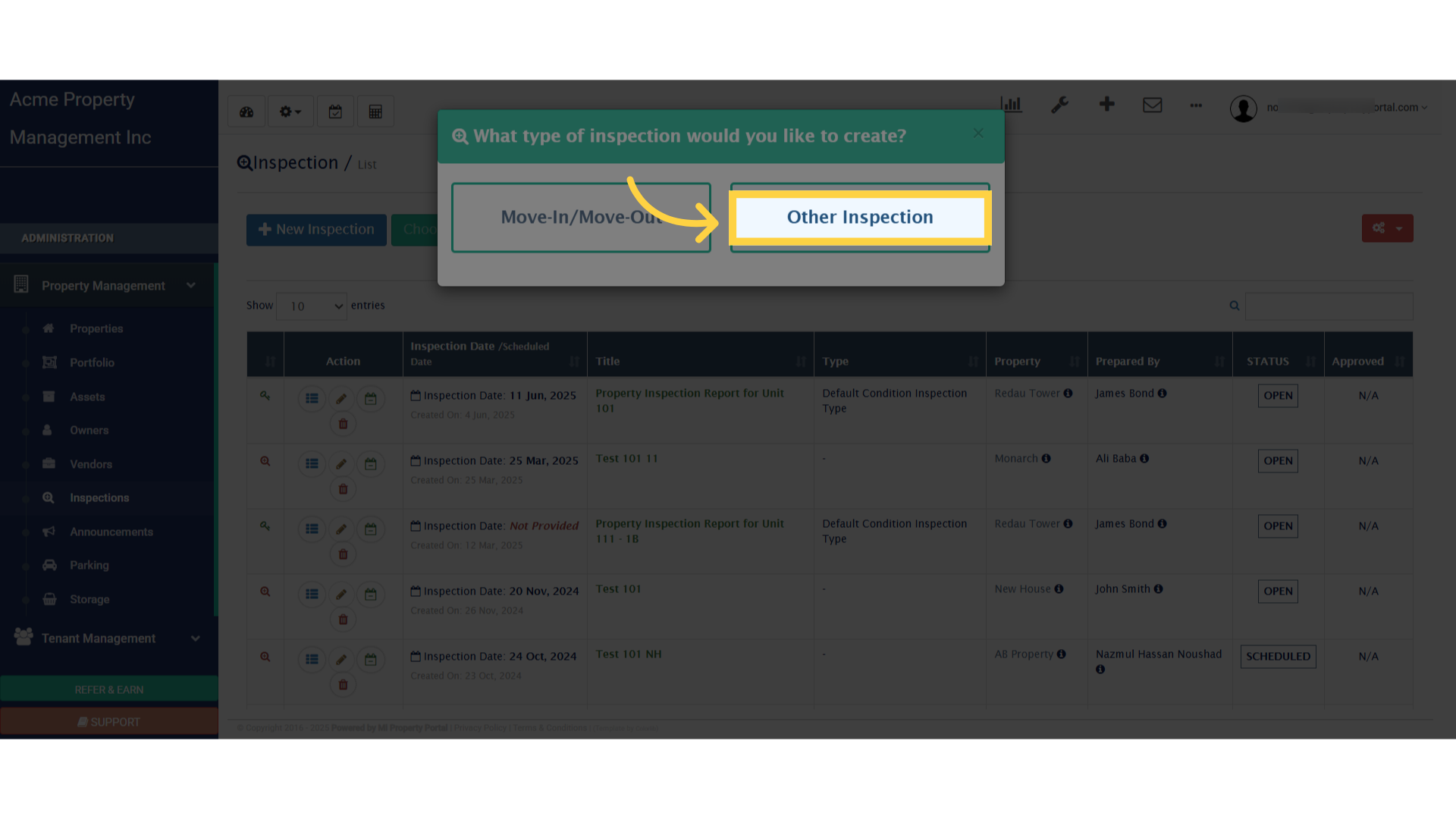
3. Choose “Other Inspection”Click 'Other Inspection'

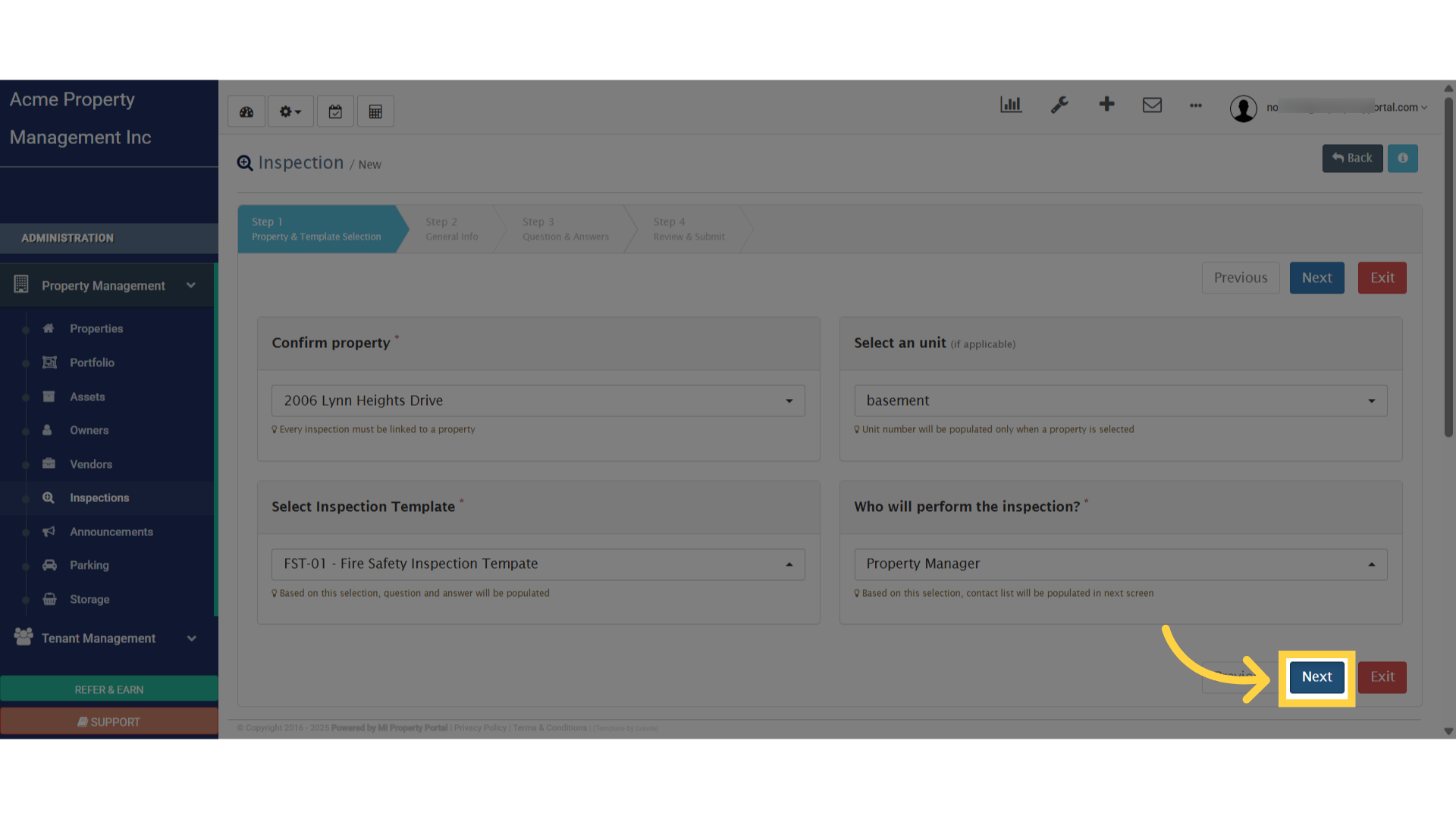
4. In Step 1: Property & Template Selection, complete all fields under the following sections: Confirm Property, Select a Unit (if applicable), Select Inspection Template, and Who Will Perform the Inspection
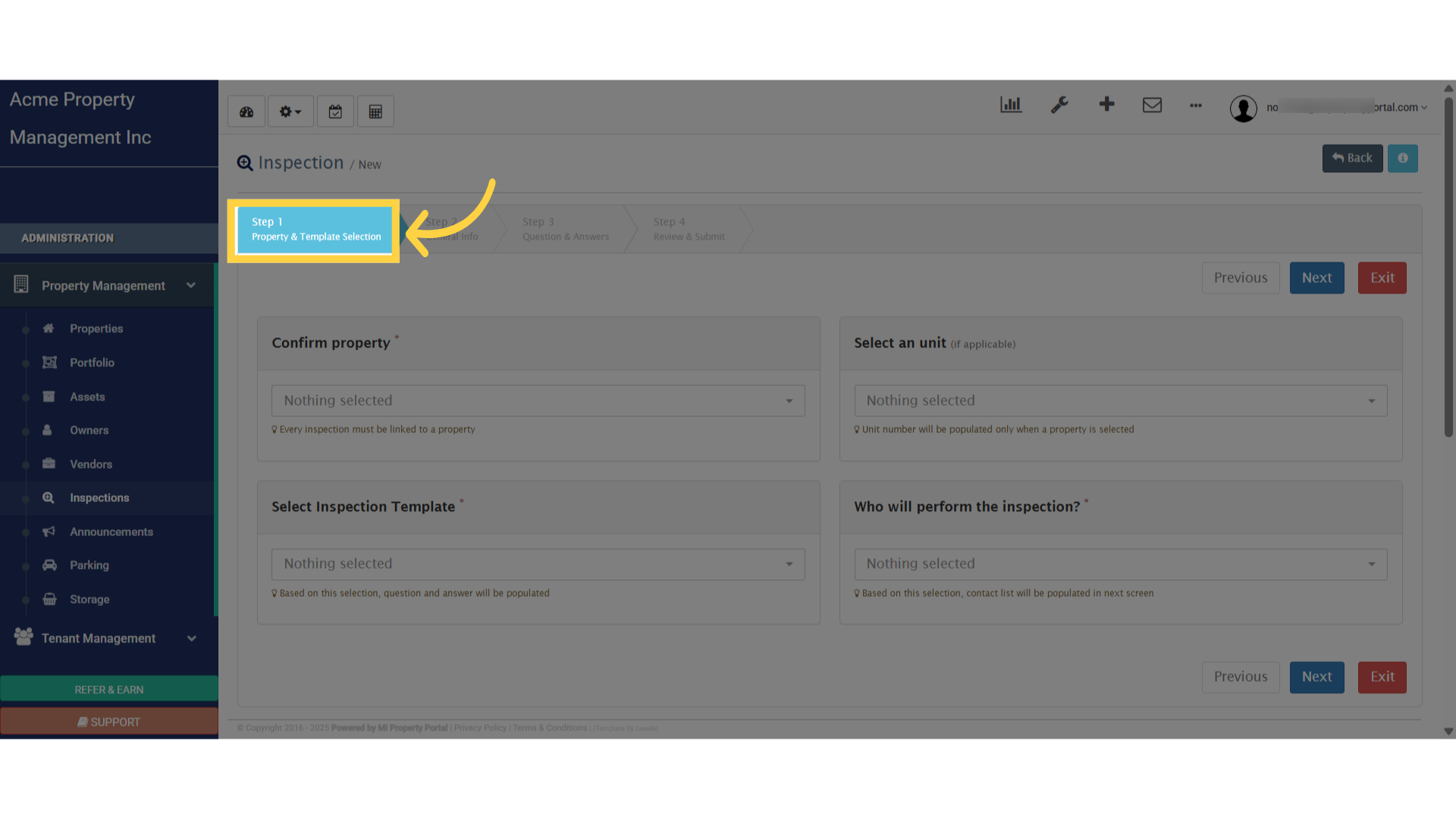
Click 'Step 1Property & Template Selection'

5. Click “Next”Click 'Next'

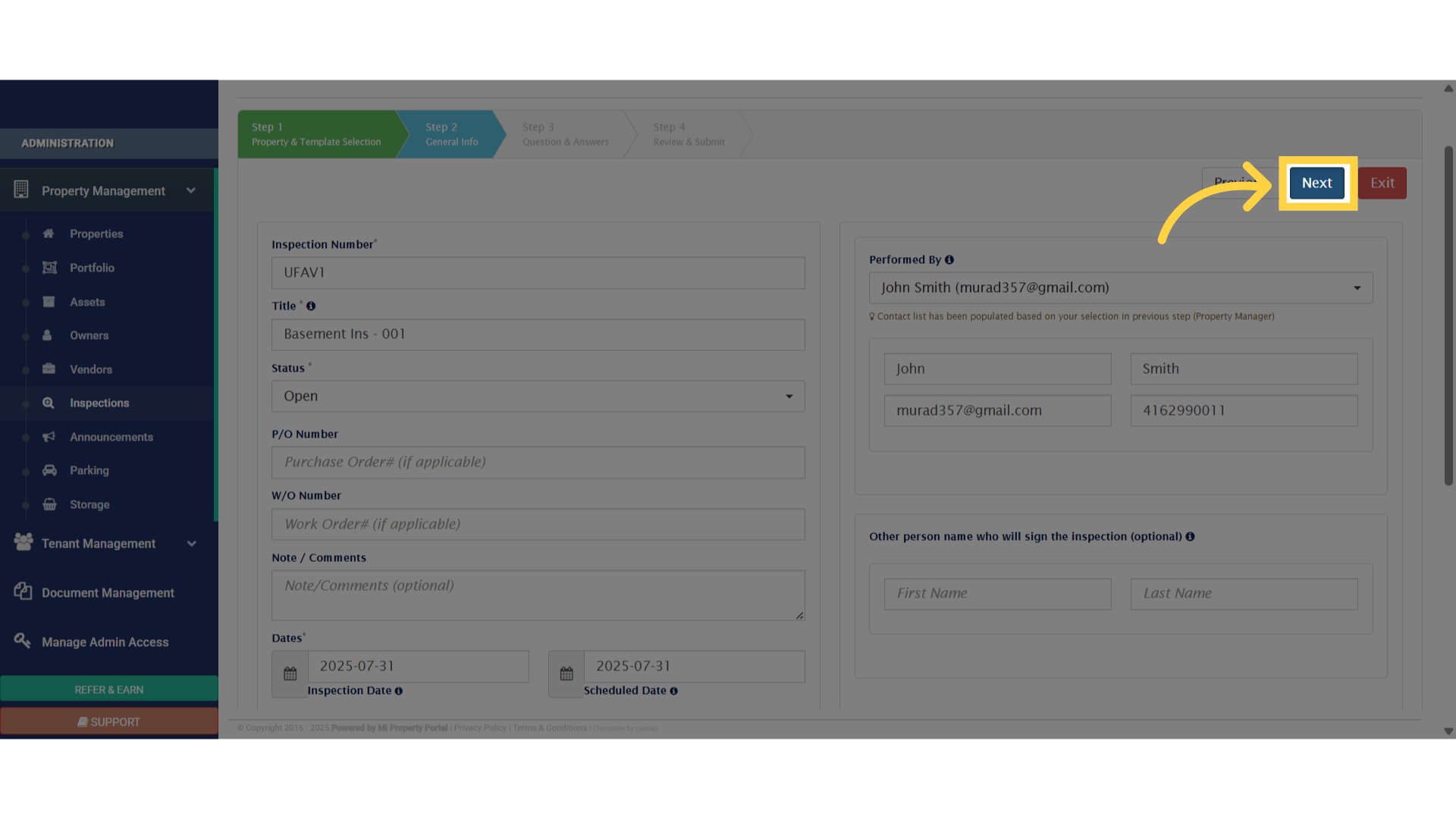
6. Once redirected to Step 2, complete all empty fields or select the appropriate options as requiredClick 'General Info'
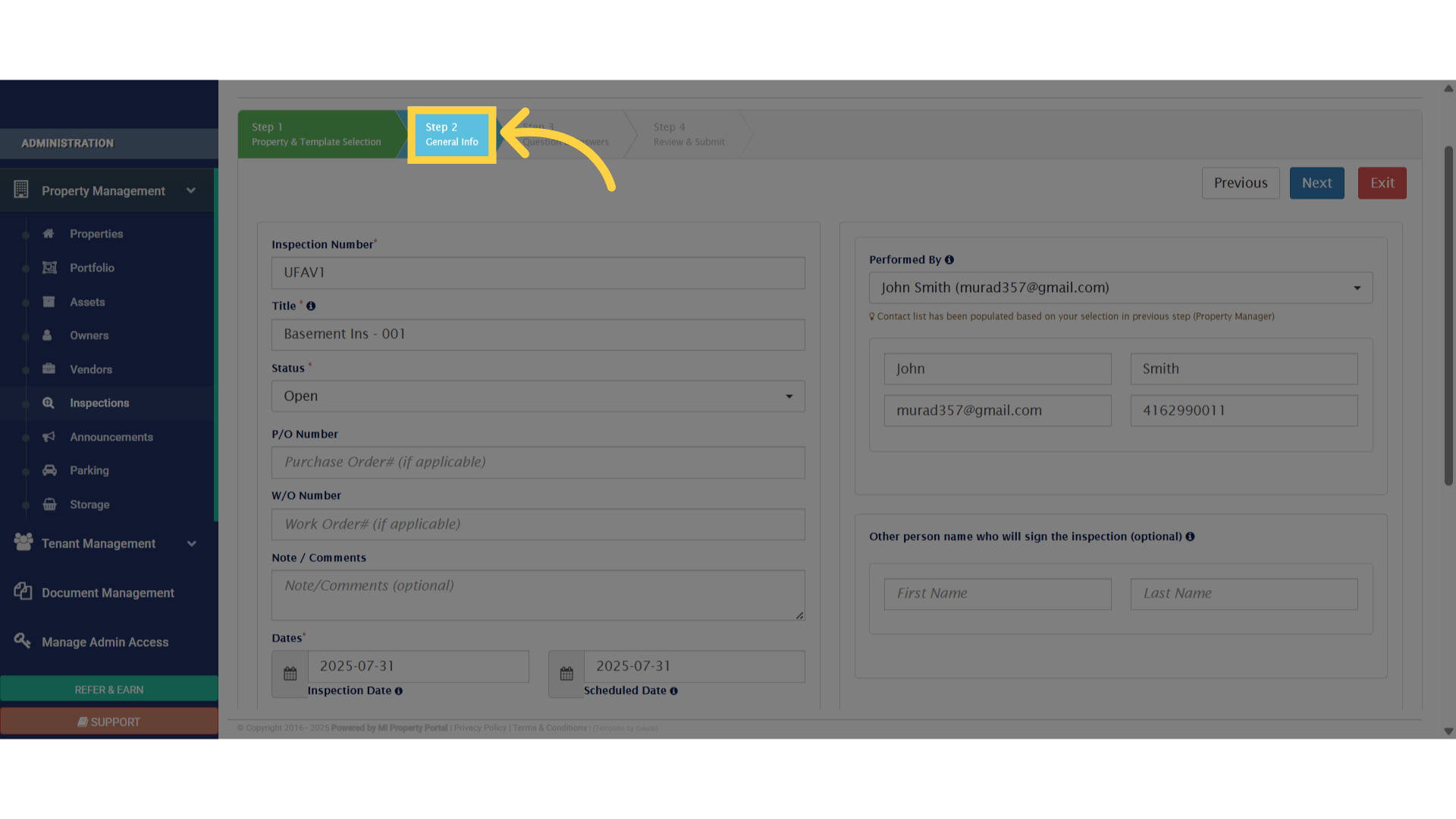
7. Click “Next”Click 'Next'

8. In Step 3, select all applicable categories based on the inspection detailsClick here
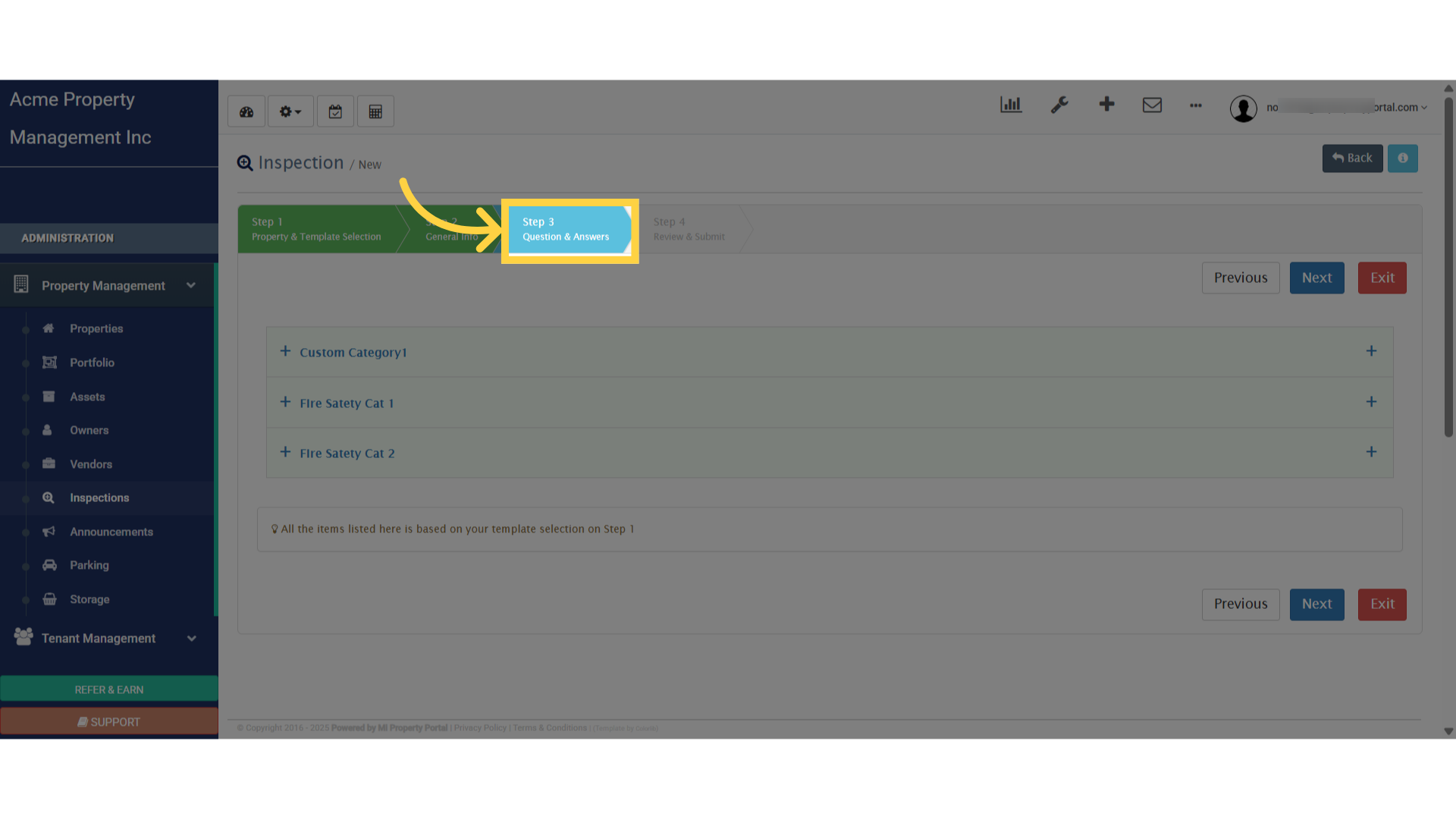
9. Click the plus sign next to each option to expand and view additional details or input fields
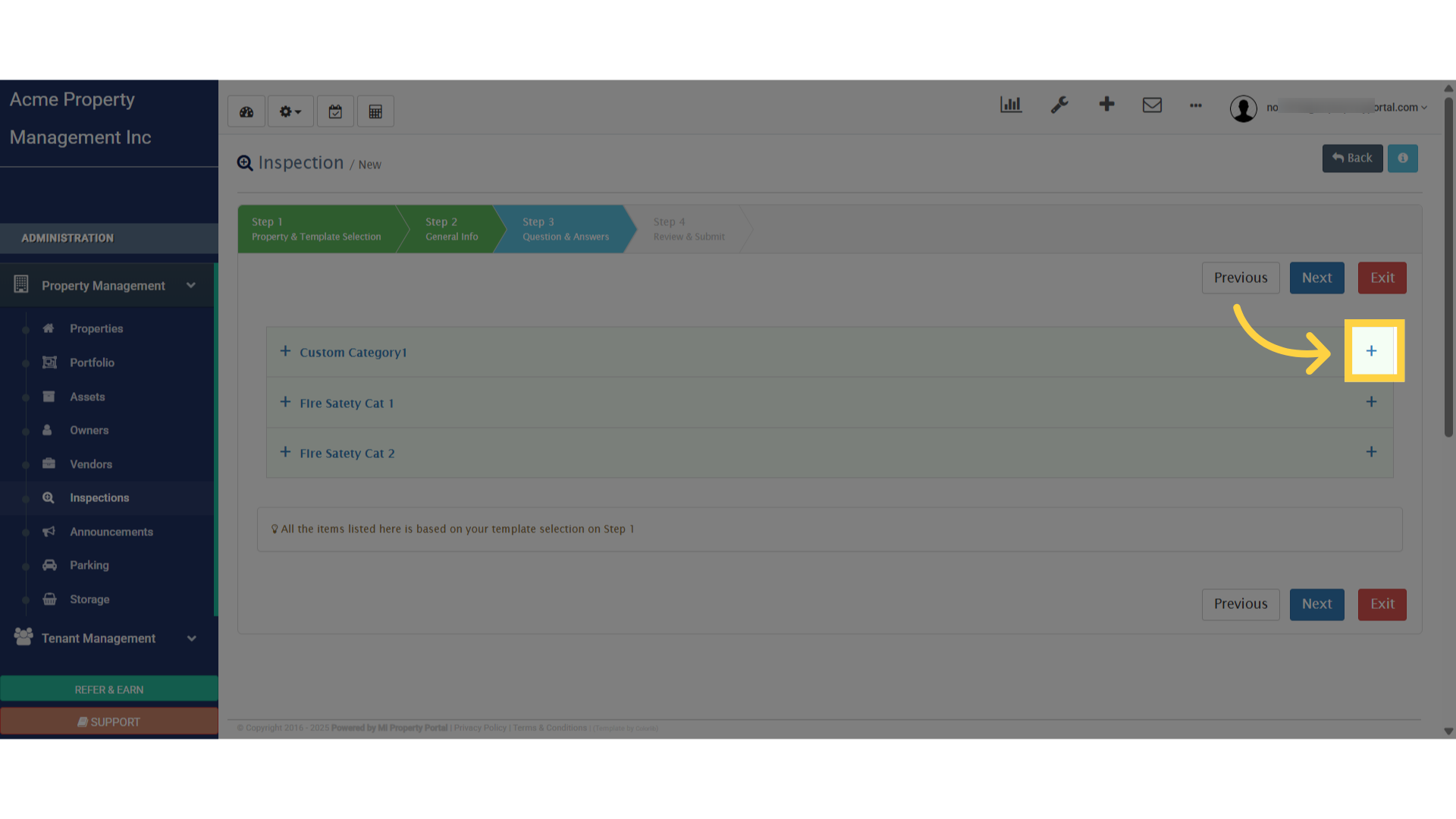
Click here

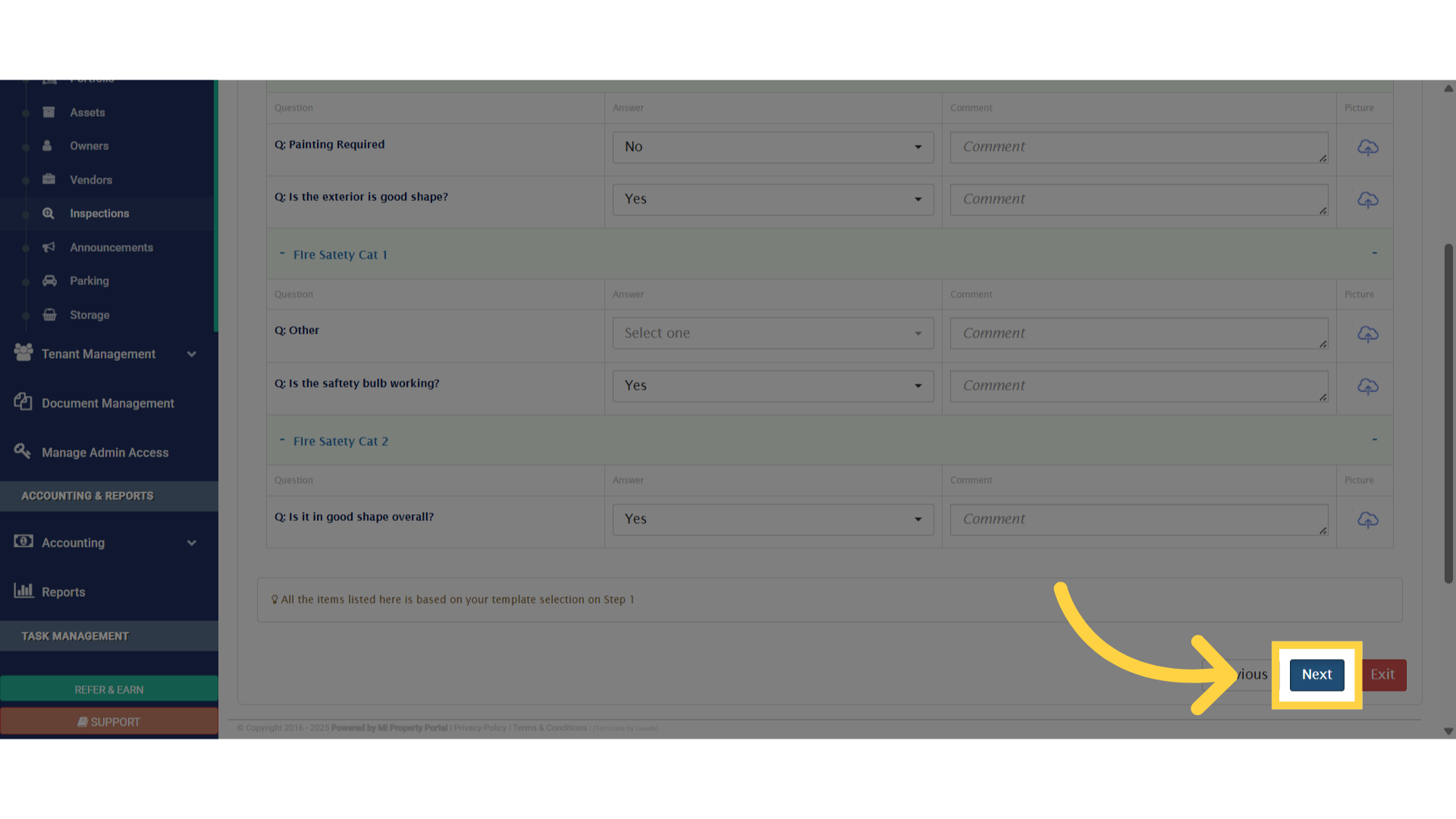
10. Fill in or select all required fields. To upload or attach images from your device, click the ‘cloud-arrow’ iconClick here
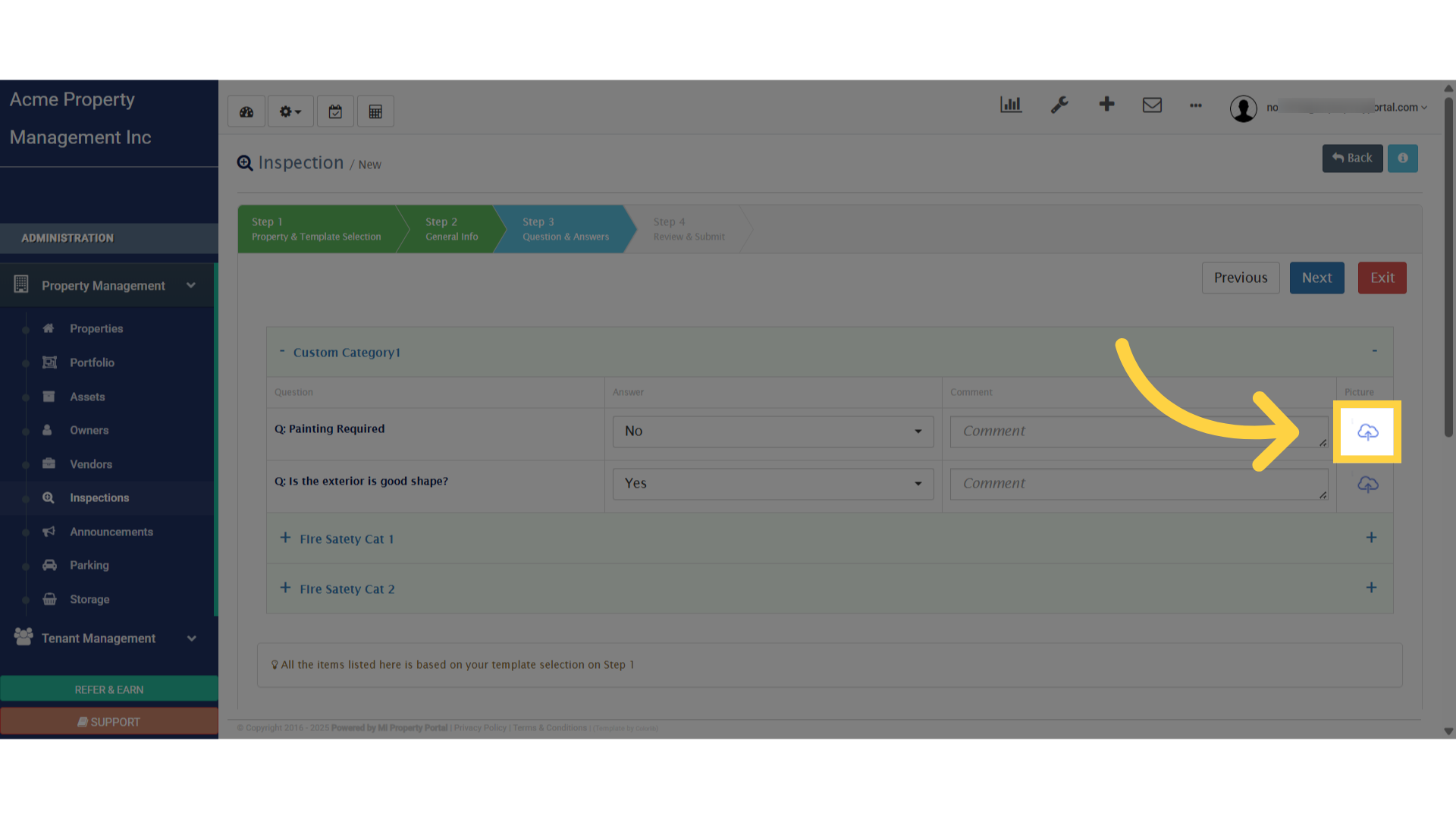
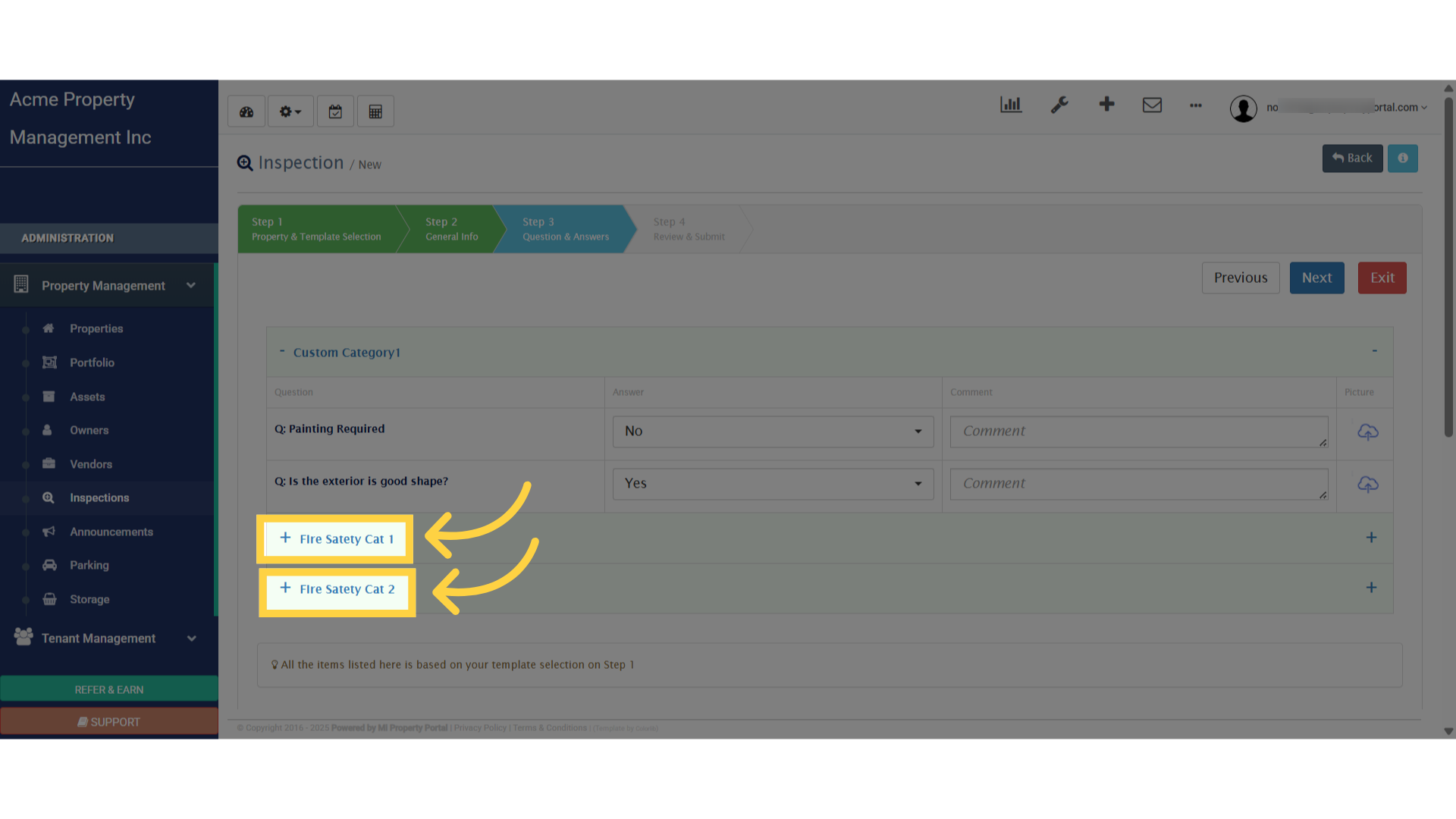
11. Click the plus symbol among the available optionsClick 'FIre Satety Cat 1'
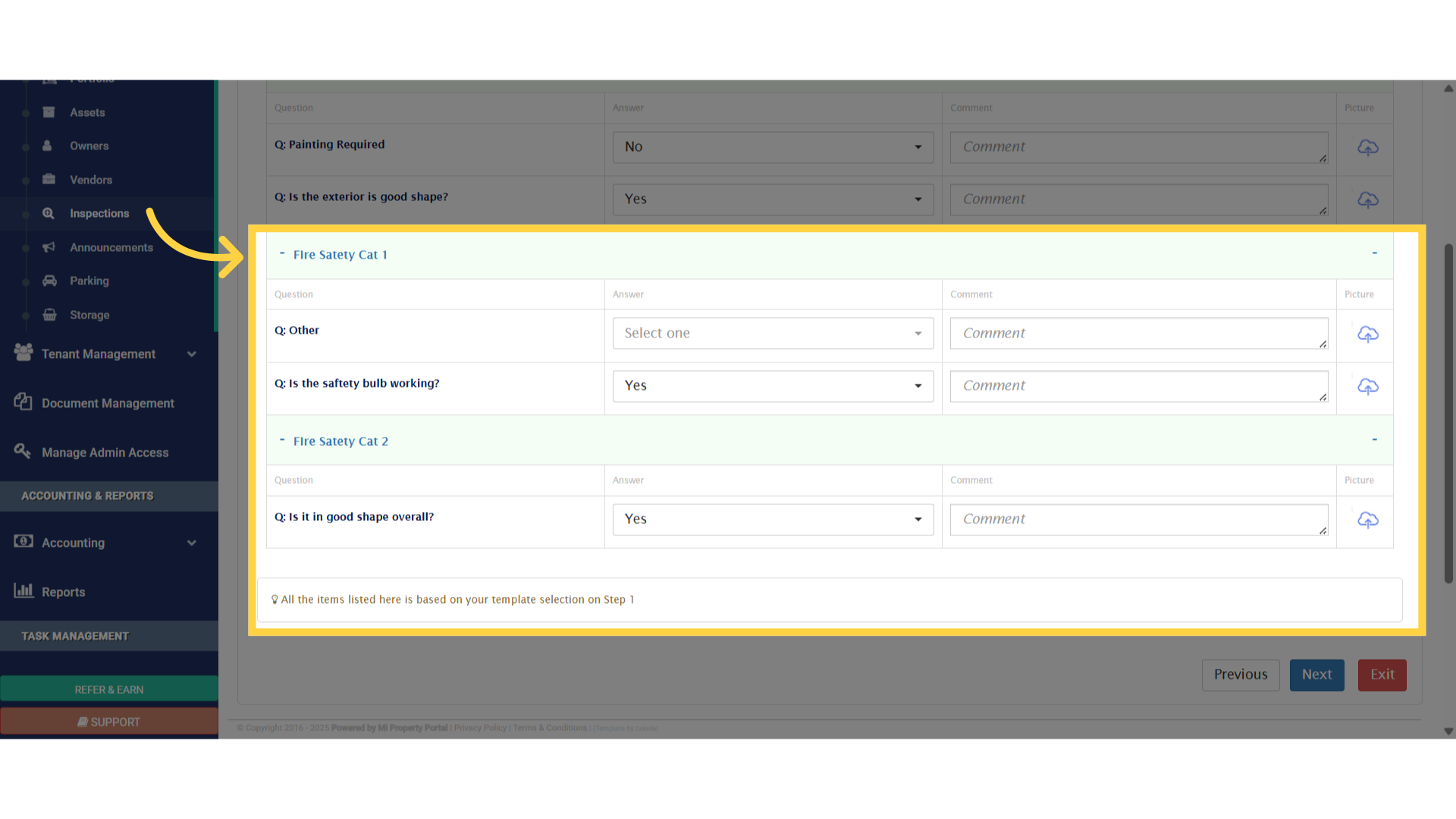
12. Enter all the necessary informationClick 'Answer'
13. Click “Next”Click 'Next'

14. Step 4 will show a preview of the inspection reportPlease
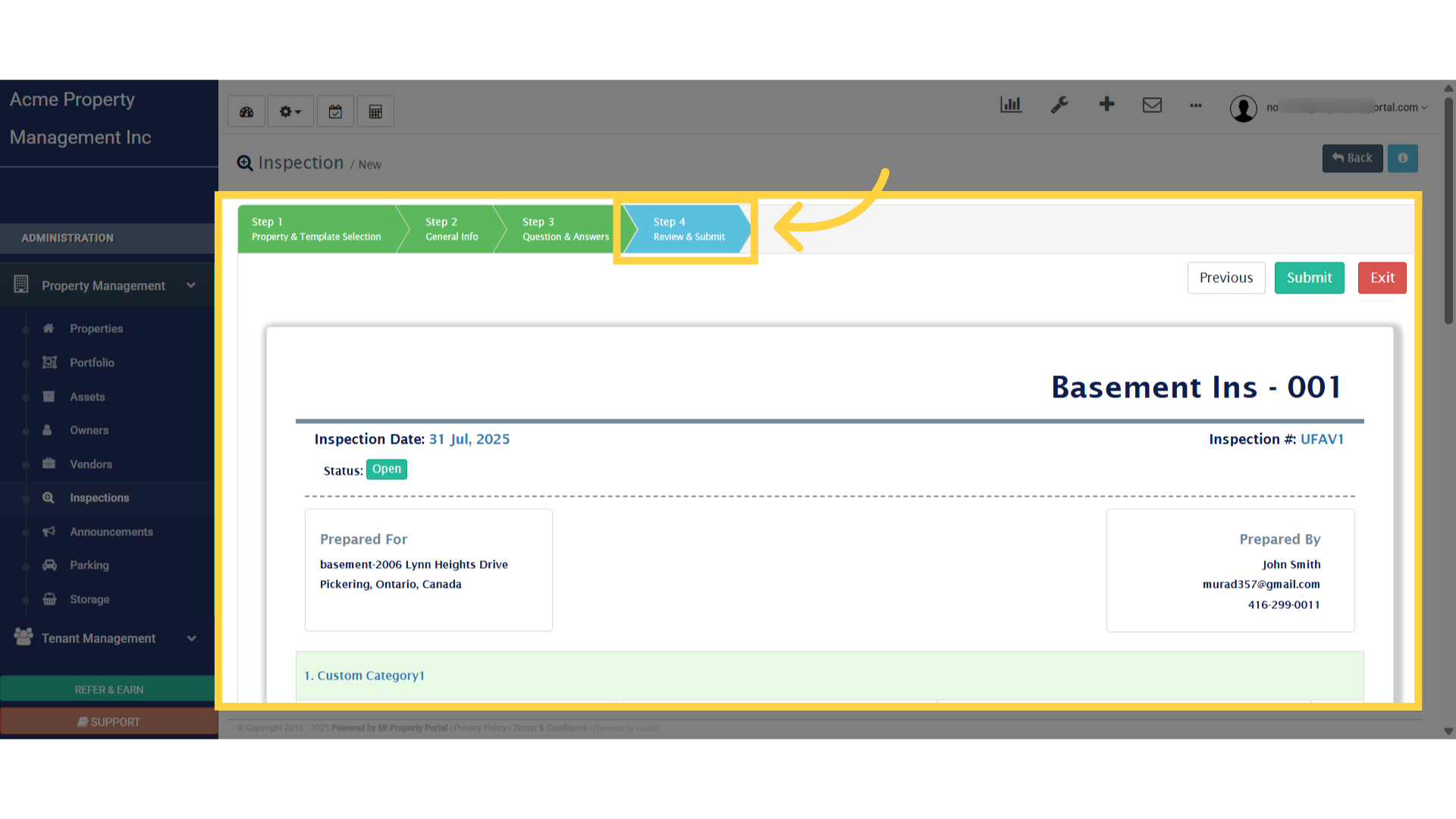
15. After reviewing the full report from top to bottom, click on Submit
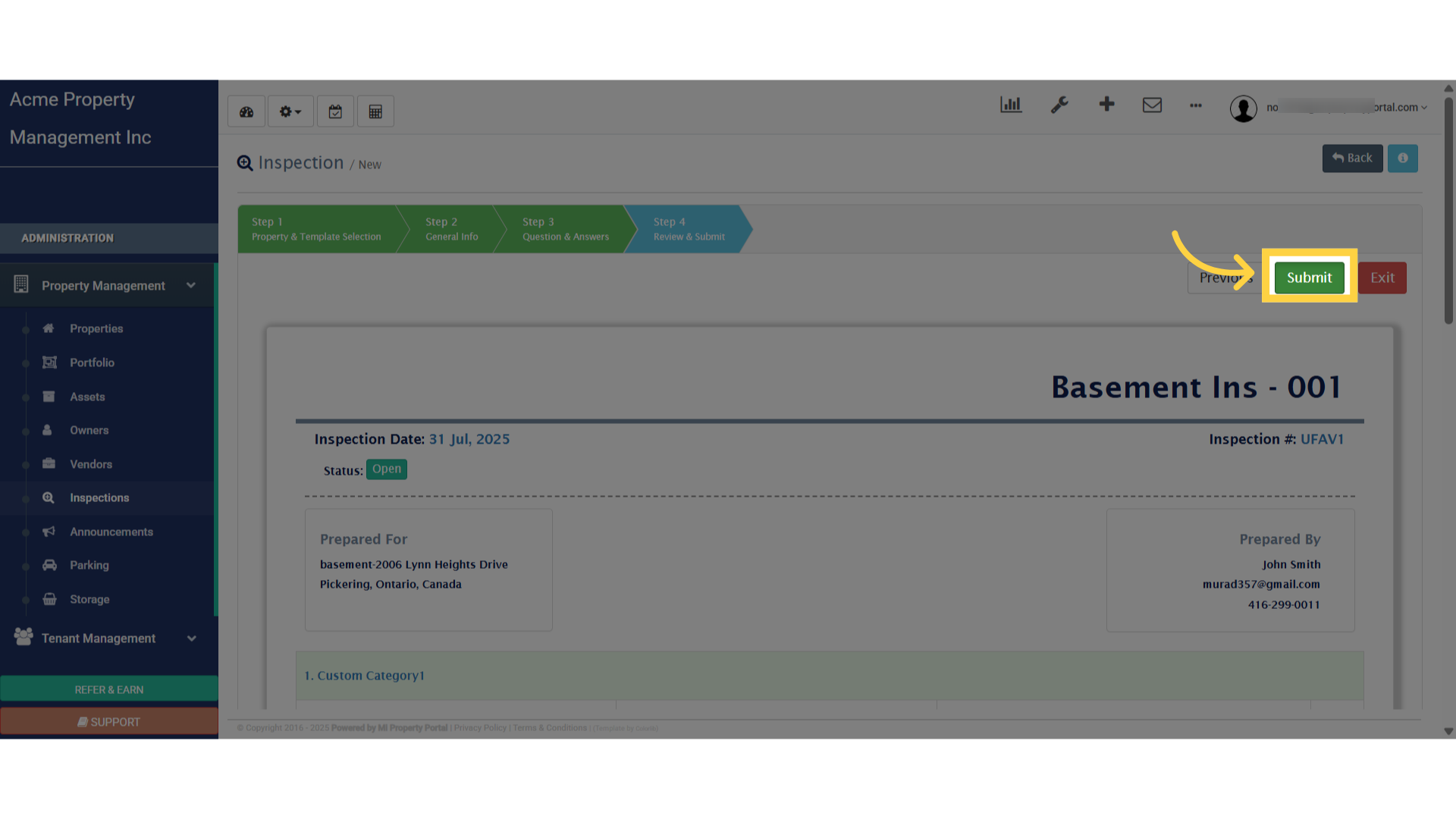
Click 'Submit'

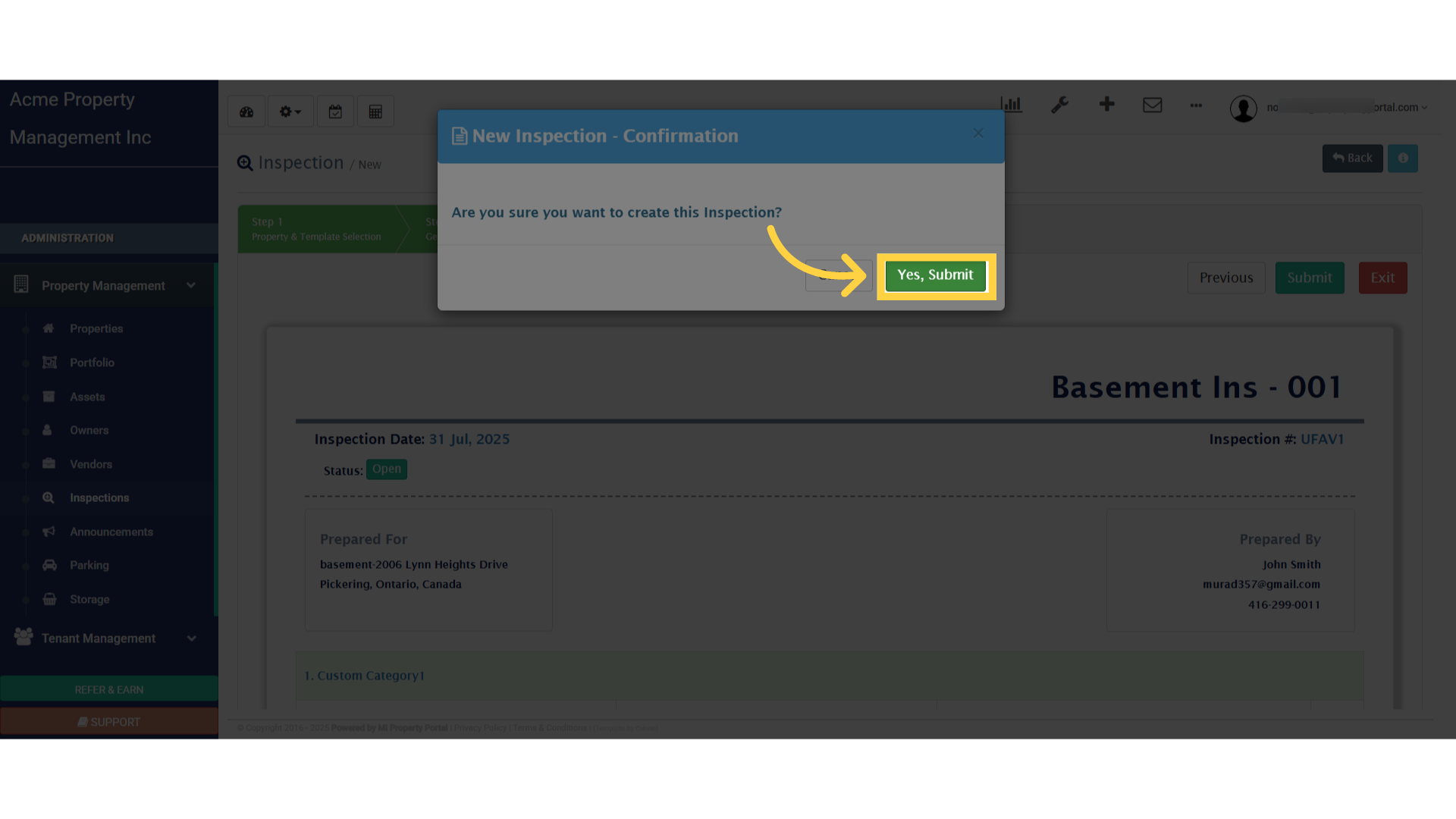
16. Click on Yes, Submit

Click 'Yes, Submit'

Thanks for watching.
Tags:how to create other type of inspectioncreate other type of inspectionother inspection

Was this helpful?

Yes  No
Related Articles
  • Notify to Owner if service request flag is enabled from notification settings
  • How Commercial Property Management Works
  • How to add a Commercial Property
  • How to Configure Bill Settings for a Property
  • How to Configure Invoice Settings for a Property
  • How to Add an Operating Account

Didn't find your answer? Contact Us

Leave A Comment Cancel reply

You must be logged in to post a comment.

Popular Articles
  • Can I log rental income for ‘Unpaid’ invoices for ‘Moved-out’ tenants?
  • Email notification sent to tenant on Other document upload
  • How to Receive Lease Expiry Notification in British Columbia(BC) & New Brunswick(NB)?
  • New Feature – Trust Liability Report
  • Send Email Notification After Lease Document Upload
KB Category
  • Service Request
  • Subscription
  • Bulk Data Upload
  • Owner Portal
  • MiPropertyPortal Admins Training Workshop
  • MiPropertyPortal New Features/Improvements Monthly Webinar
  • Task Management
  • Prospective Tenants
  • Setup
  • Vendor Management
  • Tenant Screening
  • Tenant Portal
  • Tenant Management
  • Accounting
  • Security Deposit
  • Reporting
  • Rental Tax
  • Rental Listing
  • Property Owner Related
  • Property
  • Other
  • Asset Management
  • Online Payment
  • Lease Management
  • General
  • Form Management

  How to Create Move-in or Move-out Inspection?

How to Add a New Property?  

MiPP
MiProperty Portal is Canadian-made for
Canadian landlords and property managers.
COMPANY
  • About Us
  • Why MiPP?
  • Features
SUPPORT
  • Knowledge Base
  • Get Email Help
SOCIAL
  • Linkedin
  • Facebook
  • Twitter
  • Privacy Policy
  • Terms of Use
  • © 2026 mipropertyportal.com. All Rights Reserved.